
Licenses
Open in NocthinkModule: Asset Management · URL: /asset-management/licenses · Responsible role: IT / Asset Officer · Also used by: Owner/Director (full), General Affairs and Procurement (write), Finance Staff / Finance Manager / F.A.T. Manager (read)
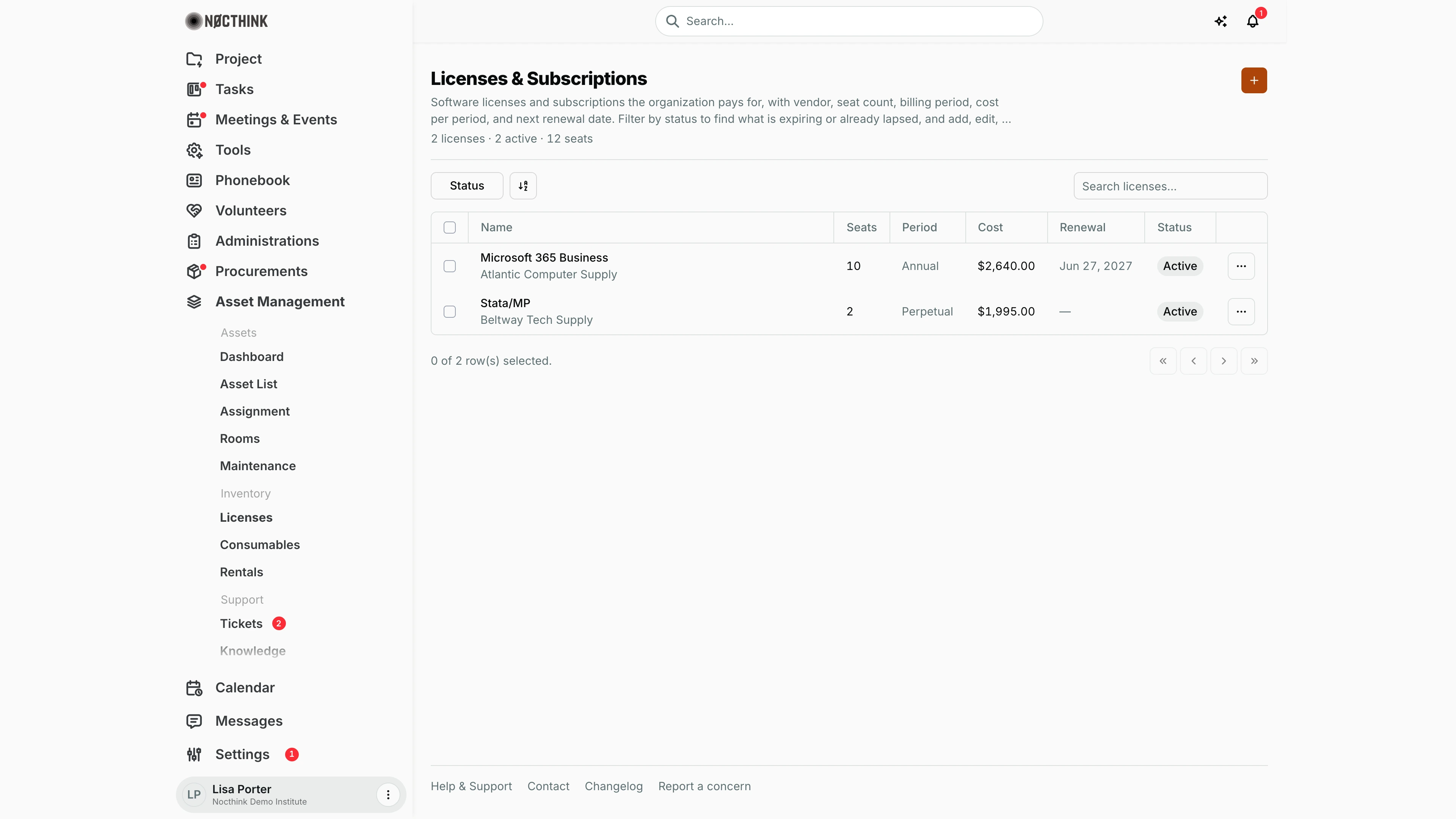
Screenshot: Lisa Porter (Operations Officer), Nocthink Demo Institute demo data.
Why I use this page
I track every software license and subscription we pay for here: who sells it to us, how many seats we have, how often it bills, what each period costs, and when it renews. I check it monthly, and before each renewal date, so we can decide in time whether to renew, add seats, or cancel, and so finance is not surprised by an annual charge.
What's on the screen
- Header: title Licenses & Subscriptions, a description, and a summary line ("2 licenses · 2 active · 12 seats" — total licenses, how many have status Active, and the sum of seats). The + button ("New license") is at the top right.
- Toolbar: filter button Status (Active, Expiring, Expired, Cancelled) and Search licenses... (by name).
- Table columns:
- Name — license name with the vendor underneath.
- Seats — seats purchased.
- Period — Monthly, Quarterly, Annual, or Perpetual.
- Cost — cost per period.
- Renewal — next renewal date, or "—".
- Status — Active and Cancelled are neutral; Expiring and Expired are red.
- ⋯ row menu — Edit, Delete.
- Rows are ordered by renewal date (soonest first), with licenses that have no renewal date last.
How I …
How I add a license or subscription
- Click + (New license; see New license below).
- Enter Name (required) and pick the Vendor (from the vendor list; optional).
- Enter Seats (a number, not negative) and Cost / period (optional, not negative).
- Choose the Period (Monthly, Quarterly, Annual, Perpetual).
- Enter Start date and Renewal date (the renewal date must be on or after the start date). Leave the renewal date blank for perpetual licenses.
- Leave Status as Active (the only other choice is Cancelled) and, if useful, enter the License key.
- Click Create.
How I handle an upcoming renewal
- Sort by eye on the Renewal column — the soonest renewals are at the top.
- Licenses renewing within 30 days show Expiring in red on their own, and Expired once the renewal date has passed (unless Auto-renew is on); both can be found with the Status filter.
- Once renewed, open ⋯ → Edit (see Edit license below), move the Renewal date forward, update Cost / period or Seats if they changed, and click Save changes. The status goes back to Active by itself.
- If we decide not to renew, set Status to Cancelled rather than deleting, so the history stays.
How I find lapsed or at-risk licenses
- Click Status and tick Expiring and Expired.
- Review each row and follow up with the vendor or the budget owner.
How I remove a license
- ⋯ → Delete and confirm "Delete "<name>"?". This is permanent; prefer Cancelled for anything we actually paid for.
Detail page, forms & dialogs
New license
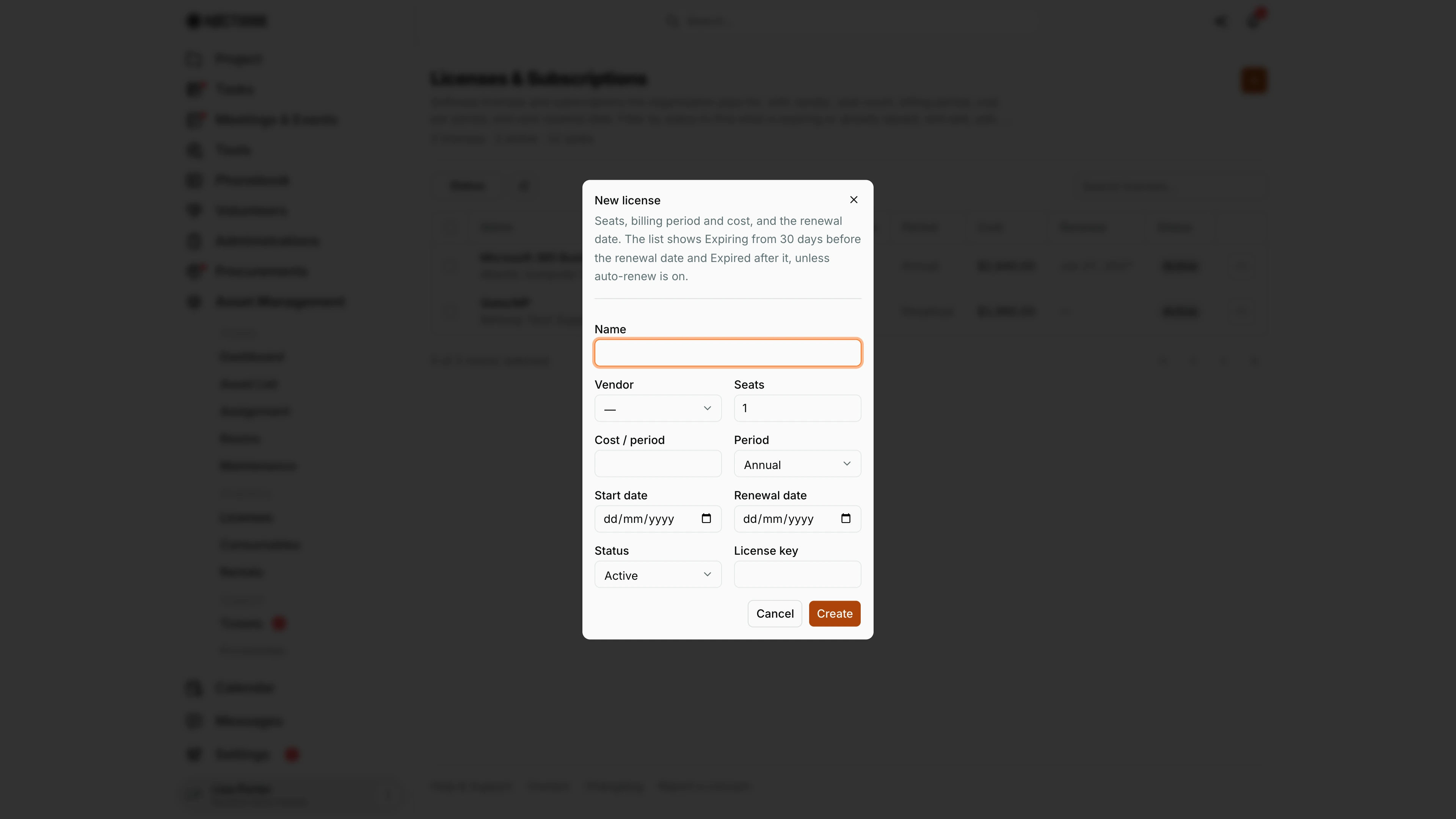
Screenshot: Lisa Porter (Operations Officer), Nocthink Demo Institute demo data.
+ opens New license. Its description explains the status rule: "The list shows Expiring from 30 days before the renewal date and Expired after it, unless auto-renew is on."
Fields: Name, Vendor (from the vendor list, optional), Seats (1 by default), Cost / period, Period (Annual by default), Start date, Renewal date, Status (Active or Cancelled) and License key. Create saves; Cancel closes.
Leave Renewal date empty for a perpetual license; otherwise it must be on or after the start date. Read-only roles (Finance Staff, Finance Manager) see the button but get a permission error when saving.
Edit license
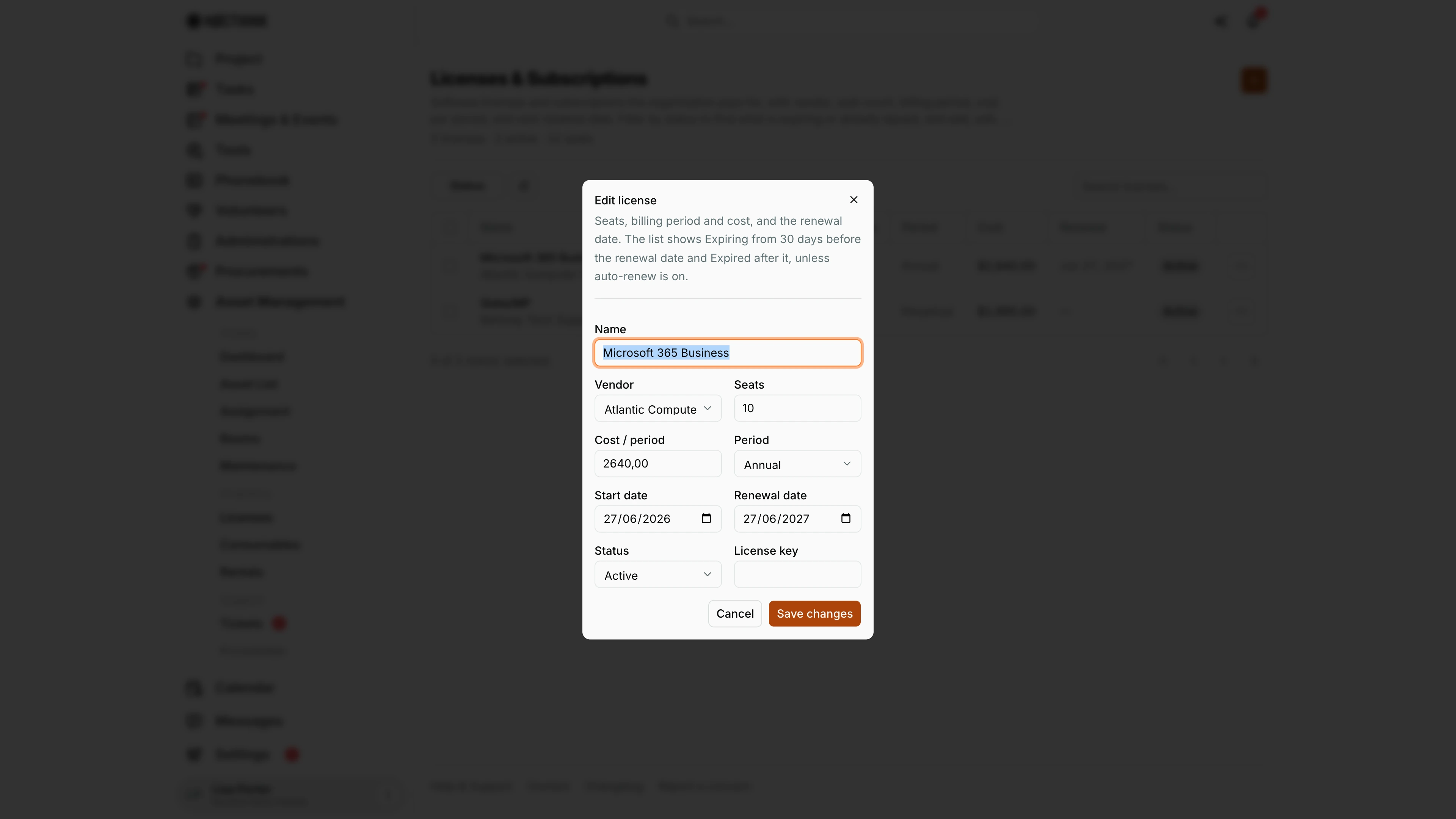
Screenshot: Lisa Porter (Operations Officer), Nocthink Demo Institute demo data.
⋯ → Edit opens Edit license with the saved values. Here Microsoft 365 Business has 10 seats from Atlantic Computer Supply at 2,640.00 a year, renewing on 27/06/2027.
After a renewal I move Renewal date forward and update Cost / period or Seats; the Expiring or Expired label clears by itself. Save changes stores the edit.
If we decide not to renew, I set Status to Cancelled here instead of deleting the license, so the cost history stays. Editing needs asset_management.update; General Affairs, Procurement and the Asset Officer have it.
Access & permissions
- Visible to anyone with
asset_management.view. Per docs/role.md: Asset Officer and Owner/Director full; General Affairs and Procurement write; Finance Staff, Finance Manager, and F.A.T. Manager read. - Creating, editing, and deleting need the matching
asset_managementpermissions on the server; read-only users see the buttons but get an error on save. - Finance authority is treated as having asset write access by the server.
Caveats
- Expiring / Expired come from the renewal date: Expiring from 30 days before it, Expired after it. A license with Auto-renew on stays Active, and one with no renewal date keeps the status it was saved with. Only Cancelled is set by hand.
- The header's "active" count only counts status Active; Expiring licenses are not included.
- Cost is per period, not annualised; a monthly and an annual license are not comparable in the Cost column.
- The License key is stored in plain text and visible to anyone who can edit the license.
- Amounts are shown in the organization's base currency.
- Delete is permanent and has no undo.
Limitations
- No seat assignment screen: the API supports assigning seats to employees, but there is no UI on this page or elsewhere to do it, so assigned/available seats are not shown.
- No renewal reminders or notifications.
- The form does not show or edit the purchase order / goods receipt link; licenses get that link only when generated from a goods receipt.
- No export.
Related menus
- Consumables and Rentals — the other Inventory pages.
- Vendors — the vendor list used in the Vendor picker.
- Purchase Orders — where a renewal is formally ordered.
- Goods Receipts — Generate → Generate licenses creates Active license rows from received lines, linked to the PO and vendor.
- Supplier Bills — where the renewal invoice is paid.