
Audit
Open in NocthinkModule: Asset Management · URL: /asset-management/audit · Responsible role: IT / Asset Officer (shared with F.A.T. Manager) · Also used by: Owner/Director (full), F.A.T. Manager (full), Finance Staff / Finance Manager / Accounting Staff (read)
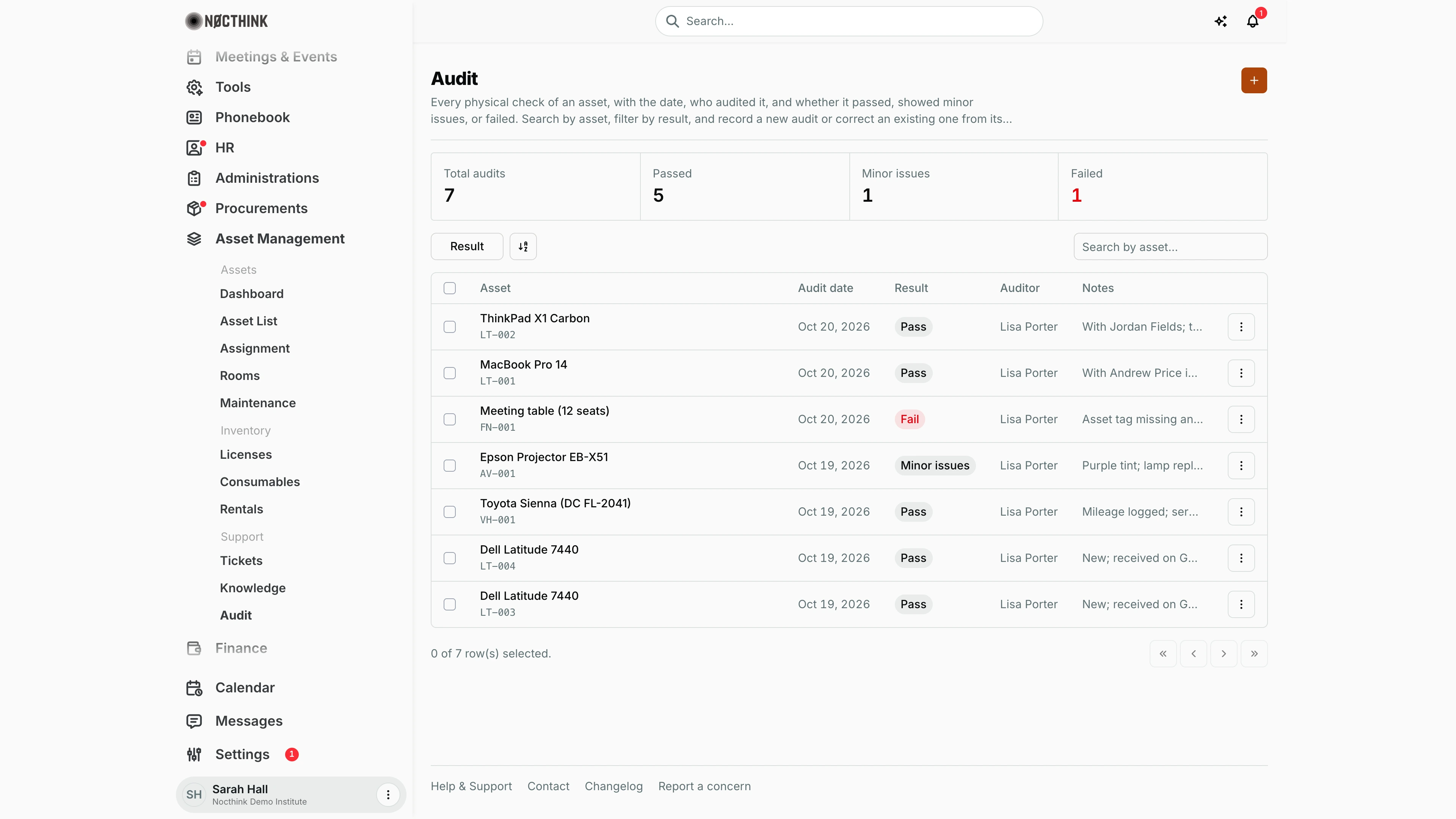
Screenshot: Sarah Hall (Finance Manager), Nocthink Demo Institute demo data. The Asset Officer is responsible for this page; the screenshot was taken with the finance login because the page is restricted.
Why I use this page
I record every physical check of an asset here: on what date I saw it, whether it was where the register says and in the state it should be, and what I found. I run spot checks through the year and a full count before the annual financial audit, together with the F.A.T. Manager, who relies on these records to confirm the fixed-asset balances. The Failed count tells me at a glance what needs follow-up.
What's on the screen
- Header: title Audit, a description, and the + button ("New audit record").
- Stat cards: Total audits, Passed, Minor issues, and Failed (the Failed card is highlighted when above zero).
- Toolbar: filter button Result (Pass, Minor issues, Fail) and Search by asset….
- Table columns:
- Asset — the asset name with its tag underneath.
- Audit date.
- Result — Pass, Minor issues, or Fail (Fail in red).
- Auditor — the person who recorded the audit.
- Notes — cut off with "…" when long; open Edit to read the full text.
- ⋮ row menu — Edit, Delete.
- Newest audits are listed first. With no records the table shows No results.
How I …
How I record an audit check
- Have the Asset List (or printed QR labels) to hand and go and look at the asset.
- Click +. The New audit record dialog opens (see New audit record below).
- Pick the Asset * from the list.
- Enter the Audit date * (the day I actually saw it).
- Choose the Result: Pass (found, correct location and holder, good condition), Minor issues (e.g. wrong room, missing label, cosmetic damage), or Fail (missing, broken, or with someone not on record).
- Describe what I found in Notes — especially for Minor issues and Fail.
- Click Add record. I am recorded as the Auditor.
How I follow up on problems
- Click Result and tick Fail (then Minor issues).
- For each one, fix the record where it belongs:
- wrong room or details → Edit the asset on the Asset List;
- wrong holder → Reassign or Return on Assignment;
- damaged → log a job on Maintenance;
- missing → set the asset's status to Lost on the Asset List.
- After the fix, record a new audit for the asset with the new date and result, rather than overwriting the old one, so the trail shows both.
How I correct an audit record
- ⋮ → Edit (see Edit audit record below), change the Asset, Audit date, Result, or Notes, and click Save changes.
- Only correct genuine data-entry mistakes; a re-check should be a new record.
How I prepare figures for the annual audit
- Filter by Result and read the stat cards for totals by outcome.
- Use Search by asset… (matches the asset tag or name) to pull up the checks for a specific asset.
Detail page, forms & dialogs
New audit record
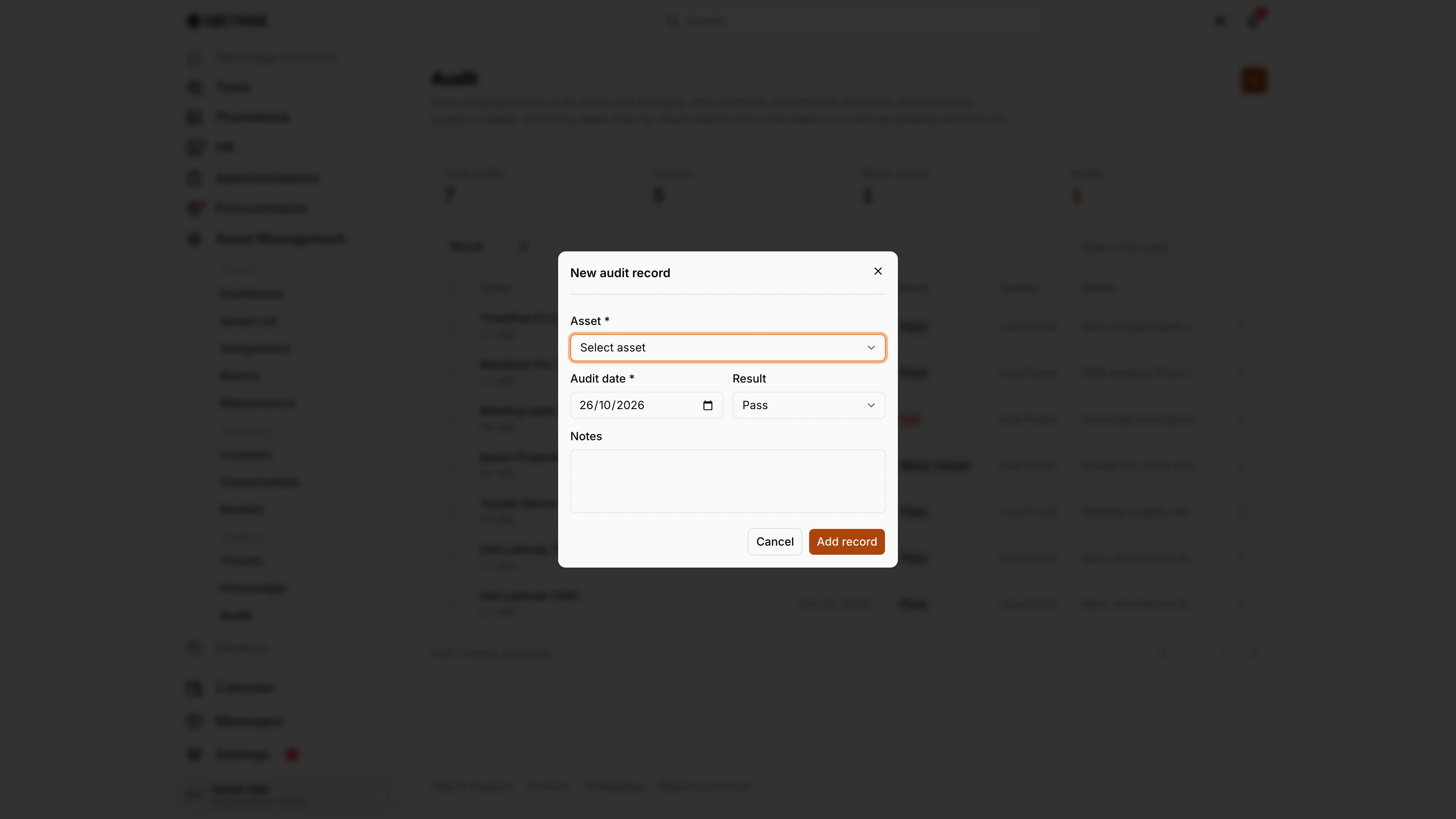
Screenshot: Sarah Hall (Finance Manager), Nocthink Demo Institute demo data.
+ opens New audit record: Asset * (each asset with its tag), Audit date * (today by default), Result (Pass, Minor issues, Fail; Pass by default) and Notes. Add record saves it with me as the auditor.
Pass means the asset was found in the right place with the right holder in good condition; Minor issues covers a wrong room, missing label or cosmetic damage; Fail covers missing, broken, or with someone not on record. For Minor issues and Fail I write what I found in Notes, because that is what the follow-up works from.
Edit audit record
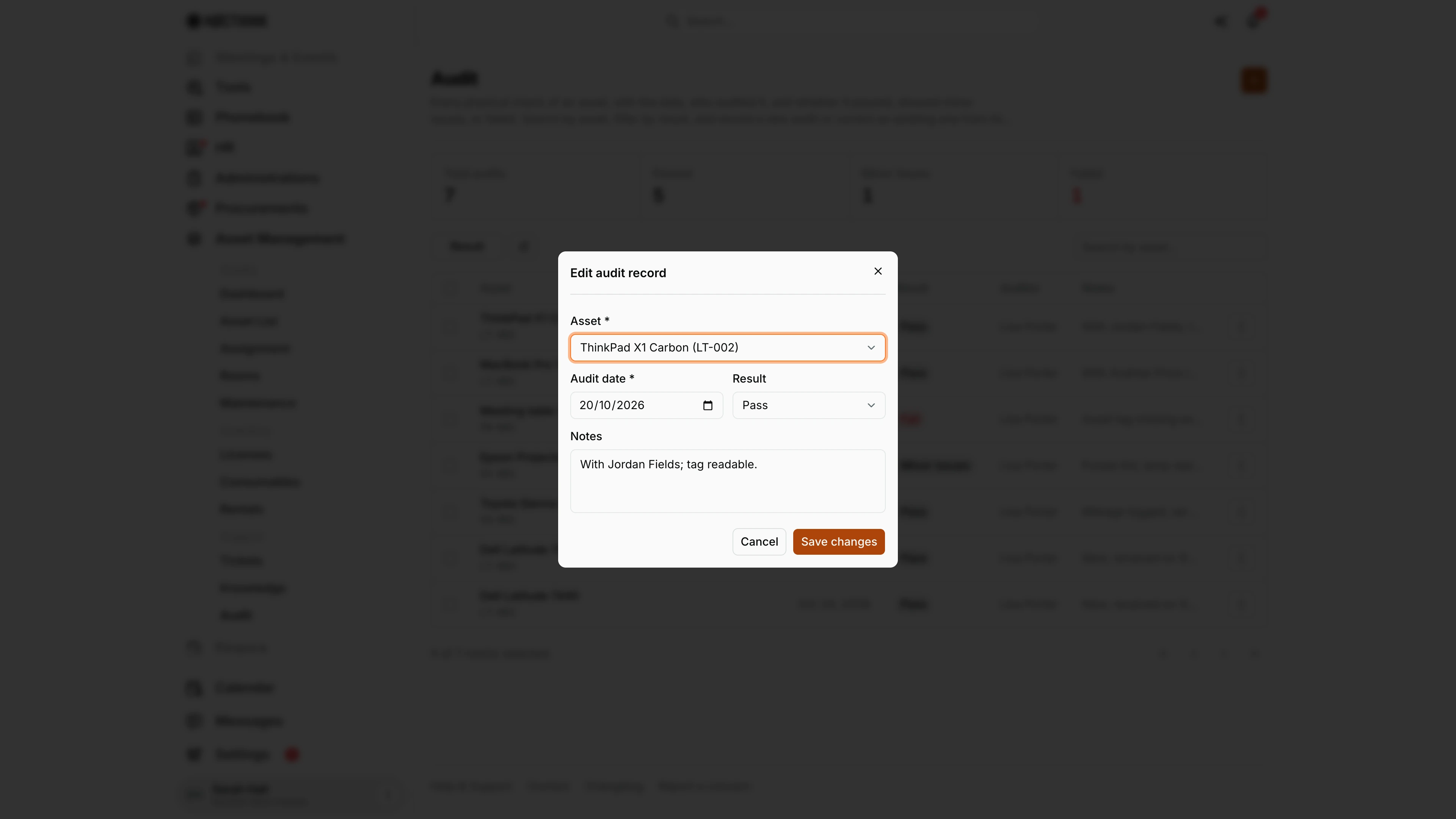
Screenshot: Sarah Hall (Finance Manager), Nocthink Demo Institute demo data.
⋮ → Edit opens Edit audit record with the same four fields filled in. I use it only to correct a data-entry mistake; a re-check is recorded as a new audit so the trail keeps both. Save changes stores it.
The server treats finance authority as asset write access, so finance users can save here even where role.md lists them as read-only. That makes it more important to keep corrections to genuine typos and record every re-check as a new row.
Access & permissions
- The page requires
asset_management.deleteorfinance.view(lib/domain-routes.ts). That covers the Asset Officer, Owner/Director, and the finance roles; General Affairs, Procurement, and ordinary staff do not see it. - Per docs/role.md: Owner/Director, Asset Officer, and F.A.T. Manager full; Finance Staff, Finance Manager, and Accounting Staff read.
- The server treats finance authority as having asset write access, so finance users with read in the matrix can in practice also add and edit audit records.
Caveats
- Recording a result does not change the asset — a Fail does not mark it Lost or in Maintenance. Update the asset yourself.
- Auditor is set to whoever created the record and does not change when someone else edits it.
- Deleting an asset deletes all its audit records (cascade). Retire or mark Lost instead of deleting assets that have audit history.
- Delete asks "Delete this audit record?" and is permanent; there is no history of edits.
- Asset and Audit date are required; Result defaults to Pass, so check it before saving.
Limitations
- No audit campaigns or count sheets: each asset is recorded one by one, and there is no list of assets not yet audited this period.
- No scanning of QR labels into this form.
- No photos or attachments on an audit record.
- No export or printable audit report.
- No link to accounting entries for write-offs; adjustments are made in Accounting.
Related menus
- Asset List — the register being audited; print QR labels with Generate QR.
- Assignment — confirm and correct custodians.
- Maintenance — repairs for damaged assets found in an audit.
- Dashboard — register totals to reconcile counts against.
- Journal Entries — where the F.A.T. Manager books write-offs for lost assets.