
Rentals
Open in NocthinkModule: Asset Management · URL: /asset-management/rentals · Responsible role: IT / Asset Officer · Also used by: Owner/Director (full), General Affairs and Procurement (write), Finance Staff / Finance Manager / F.A.T. Manager (read)
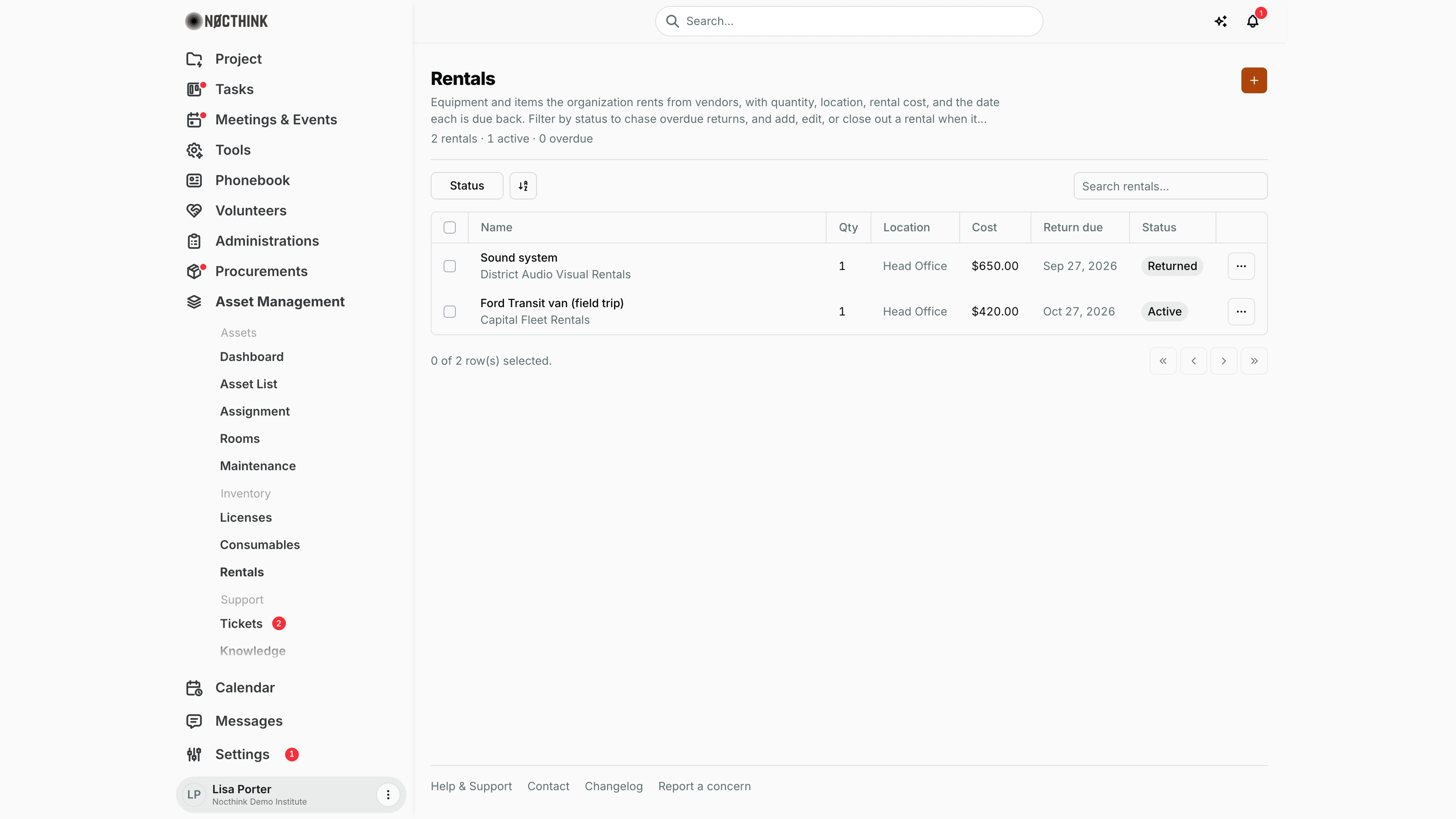
Screenshot: Lisa Porter (Operations Officer), Nocthink Demo Institute demo data.
Why I use this page
Some equipment we rent rather than own — a sound system for a conference, a van for a field trip. I record each rental here with the vendor, quantity, where it is, what it costs, the deposit we paid, and when it has to go back. I check the page every week to chase anything due back soon, and I close each rental out when it is returned, noting its condition so we can recover the deposit or settle damage.
What's on the screen
- Header: title Rentals, a description, and a summary line ("2 rentals · 1 active · 0 overdue"). The + button ("New rental") is at the top right.
- Toolbar: filter button Status (Active, Overdue, Returned) and Search rentals... (by name).
- Table columns:
- Name — what is rented, with the vendor underneath when one is set.
- Qty.
- Location — the site it is kept at, or "—".
- Cost — rental cost.
- Return due — the date it must go back.
- Status — Active and Returned are neutral; Overdue is red.
- ⋯ row menu — Edit, Delete.
- Rows are ordered by return-due date (soonest first); rentals without a due date are last.
How I …
How I record a new rental
- Click + (New rental; see New rental below). The New rental dialog asks for what is rented, from whom, its cost and deposit, and when it is due back.
- Enter Name (required), pick the Vendor (optional), and set Quantity (not negative).
- Pick the Location where it will be kept (optional).
- Enter Rental cost and Deposit (optional, not negative).
- Enter Start date and Return due (return due must be on or after the start date).
- Leave Status as Active and click Create.
How I chase returns
- Look at Return due for the top rows — they are the next to go back.
- A rental still out after its Return due date shows Overdue in red on its own and is counted in the header's "overdue" figure.
- Use Status → Overdue to list all of them and contact the holder or vendor.
How I close out a returned rental
- Open ⋯ → Edit (see Edit rental below).
- Set Status to Returned.
- Set Returned condition (Good, Damaged, Lost) and Returned at (the actual return date).
- Click Save changes. Note any deposit deductions in the vendor follow-up; there is no deposit field for the refund.
How I extend a rental
- ⋯ → Edit, move Return due to the new date, update Rental cost if the extension costs more, and Save changes. An Overdue rental goes back to Active once the new date is in the future.
How I delete a rental
- ⋯ → Delete and confirm "Delete "<name>"?". This is permanent; for real rentals prefer closing them out as Returned so the history stays.
Detail page, forms & dialogs
New rental
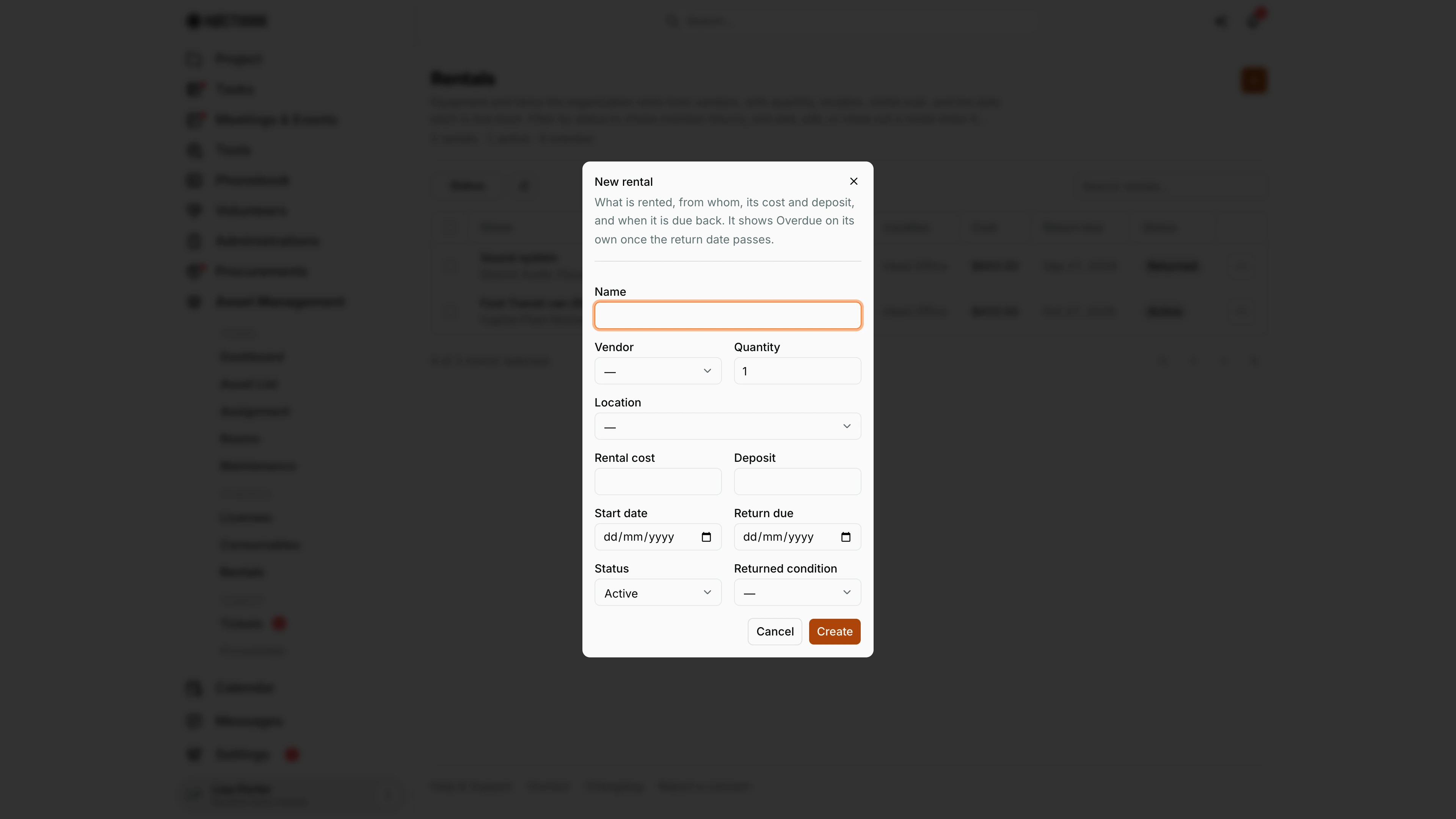
Screenshot: Lisa Porter (Operations Officer), Nocthink Demo Institute demo data.
+ opens New rental — "What is rented, from whom, its cost and deposit, and when it is due back. It shows Overdue on its own once the return date passes."
Fields: Name, Vendor, Quantity (1 by default), Location, Rental cost, Deposit, Start date, Return due, Status (Active by default) and Returned condition. Create saves; Cancel closes.
Return due must be on or after Start date. Once that date passes and the rental is still Active, the list shows it as Overdue and counts it in the header. Read-only roles see the form but get a permission error when saving.
Edit rental
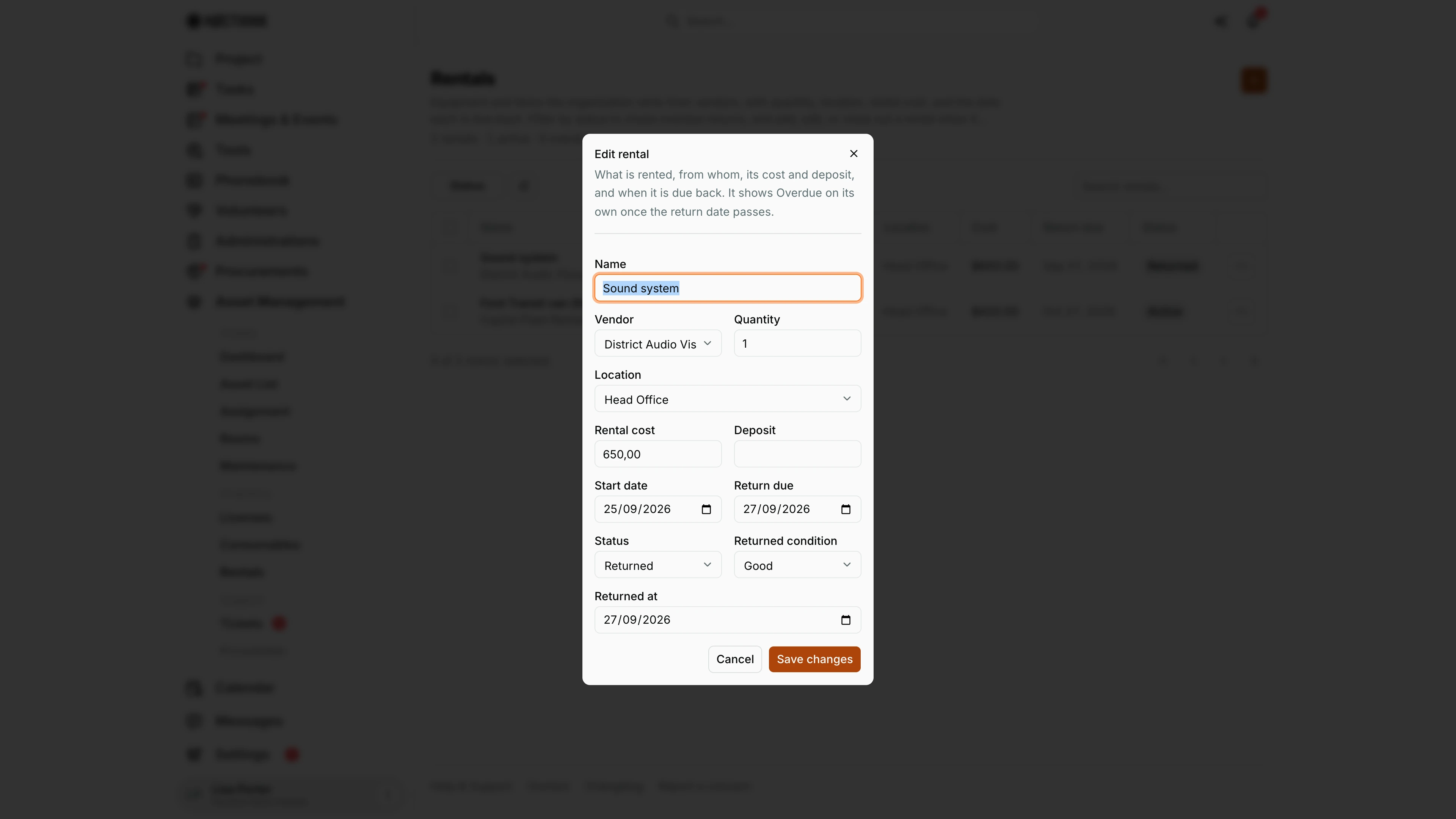
Screenshot: Lisa Porter (Operations Officer), Nocthink Demo Institute demo data.
⋯ → Edit opens Edit rental. Once Status is set to Returned, a Returned at date field appears under Returned condition (Good, Damaged, Lost). The example is a sound system that came back in good condition on 27/09/2026.
I use this dialog to close a rental out or to extend it by moving Return due. Save changes stores it.
A rental that is closed out as Returned stays on the list as history; deleting it is only for records entered by mistake. Editing needs asset_management.update.
Access & permissions
- Visible to anyone with
asset_management.view. Per docs/role.md: Asset Officer and Owner/Director full; General Affairs and Procurement write; Finance Staff, Finance Manager, and F.A.T. Manager read. - Creating, editing, and deleting need the matching
asset_managementpermissions on the server. - Finance authority is treated as having asset write access by the server.
Caveats
- Overdue is worked out from the Return due date; the form only offers Active and Returned. A rental with a Returned at date always counts as Returned.
- Setting Returned does not check that Returned condition or Returned at are filled in.
- Location is a site (from Settings → Asset Management), not a room.
- Amounts are shown in the organization's base currency. Cost is the total entered, not a daily or monthly rate.
- Delete is permanent.
Limitations
- No reminders or notifications before the return date.
- No link from this page to a purchase order or goods receipt (the API stores these links but the form does not expose them, and goods receipts cannot generate rentals).
- No deposit-refund tracking beyond the single Deposit amount.
- Rented items are not part of the asset register, so they cannot be assigned to people, audited, or given maintenance records.
- No export.
Related menus
- Licenses and Consumables — the other Inventory pages.
- Vendors — the vendor list in the Vendor picker.
- Purchase Orders — where a rental can be formally ordered.
- Supplier Bills — where the rental invoice is paid.
- All Events — events that often need rented equipment.