
AI Workbench
Open in NocthinkModule: Accounting · URL: /accounting/ai-workbench · Responsible role: Accounting Staff · Also used by: F.A.T Manager (full, plus overrides, reviewer settings and evaluations), Owner/Director (full); Finance Staff / Finance Manager reach it for invoice drafts when their role grants Finance access
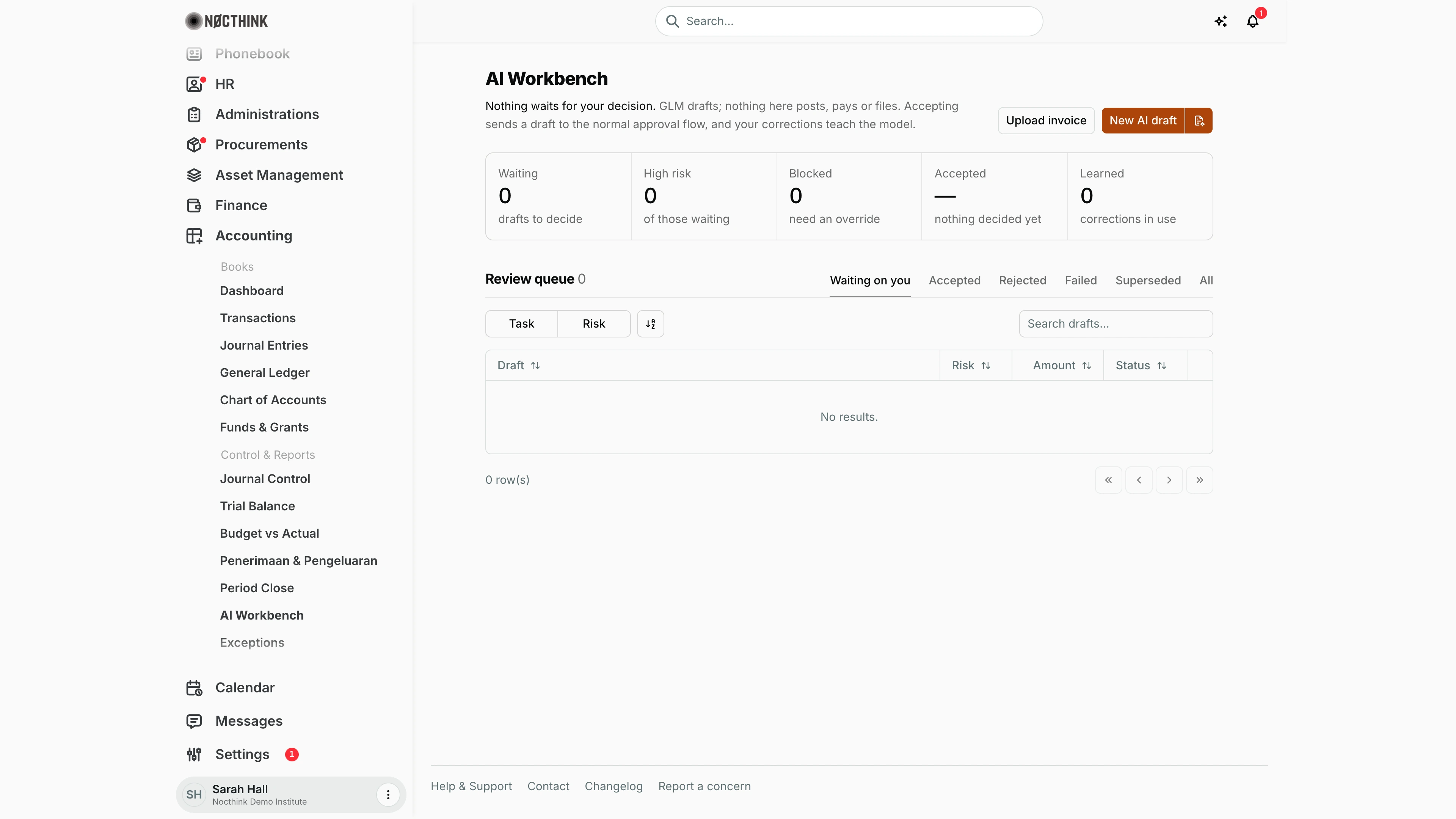
Screenshot: Sarah Hall (Finance Manager, also holds the F.A.T Manager role), Nocthink Demo Institute demo data. The demo tenant has no AI drafts yet, so the queue shows "No results." and "0 row(s)"; at this width only the Draft, Risk, Amount and Status columns are shown.
Why I use this page
The AI Workbench is where the F.A.T. AI (GLM on Workers AI) drafts work for me and I decide on it: journal drafts from a plain-language description, tax determinations, and invoice checks from an uploaded PDF or pasted text. Nothing here posts, pays or files — accepting a draft only creates a draft in the normal module (a Draft journal, a saved tax calculation, a verified invoice, a payment request draft), which then goes through the usual approval flow. I open it daily to clear the Waiting on you queue, and at month-end to run the close checklist.
What's on the screen
- Header — AI Workbench and a one-line status ("Nothing waits for your decision." or "N drafts wait for your decision, X blocked, Y high risk"), then the reminder that GLM only drafts.
- Actions (top right):
- Upload invoice — pick a PDF, PNG, JPEG or WebP; the button shows Uploading… then Reading invoice… and opens the resulting draft.
- New AI draft — opens the draft dialog.
- The icon button next to it (Close, reviewer and evaluations) opens a side panel.
- Stat cells — Waiting (drafts to decide), High risk (of those waiting, red when > 0), Blocked (need an override, red when > 0), Accepted (acceptance rate, "—" when nothing decided yet), Learned (corrections in use).
- Not read yet panel — only appears when an uploaded document has not been read or failed; each row has Read or Retry.
- Review queue with a count and tabs Waiting on you, Accepted, Rejected, Failed, Superseded, All.
- Toolbar: Task filter (Journal draft, Tax determination, Invoice check), Risk filter (High, Medium, Low), sort toggle, Search drafts....
- Columns: Draft (title, task and the top finding), Risk, Conf. (confidence %), Amount, Status (Ready to review, Needs review, Blocked, Awaiting reviewer, Reviewer failed, or the final status), Created, and an open arrow. Conf. and Created collapse on narrow screens.
- Side panel — Close, reviewer and evaluations:
- Month-end close — a month picker (defaults to last month), each check marked done or open, and What to do first (AI summary) when more than one item is open.
- Independent reviewer — status On/Off, metrics, Always review from (amount), Sample routine (%), Turn on / Save / Turn off.
- Model evaluations — task picker, Run, and the latest five runs (passed / total, wrong-and-ready count).
How I …
How I draft a journal with AI
- Click New AI draft; the Journal tab is selected (see New AI draft below).
- Fill Description (e.g. "Office electricity bill for March"), Amount (in the organization's base currency, shown in the label), Date, optional Counterparty, and Cash direction: Money out, Money in, or Non-cash (accrual, reclass).
- Click Draft with AI. The draft opens on its own page.
- Read Findings, Proposed journal and Sources. If an account is wrong, correct Debit account (correct if wrong) or Credit account.
- Click Create journal draft (or Accept with correction if I changed an account). The message confirms "Draft journal … created. Post it from Journal Entries after review."
- Post it from Journal Entries or let it go through Journal Control.
How I check an uploaded invoice and turn it into a payment request
- Click Upload invoice and choose the file. The extracted invoice draft opens.
- Check Extracted invoice against the original, especially any field flagged in Findings (e.g. a changed bank account).
- Click Verify invoice. If a finding blocks it and it is overridable, enter an Override reason — a different person with finance approval must accept it.
- Under Next steps, click Classify tax (or Review tax determination), save the calculation, or tick No withholding applies.
- Choose Project, optionally Fund, Budget line, Vendor record, Purchase order, and the withholding rule if more than one applies.
- Click Create payment request draft. Open the project (Payment Requests tab) to submit it for review, budget and finance approval.
How I decide on a draft in the queue
- On Waiting on you, filter by Task or Risk and click a draft.
- For a tax draft with Facts needed, answer each question (Yes/No/Not sure) and click Use these facts — the draft is re-run and the old one becomes Superseded.
- To accept, click the accept button for that task (Create journal draft, Save calculation, Verify invoice).
- To reject, write a Reason (required to reject) (at least 3 characters), choose What went wrong? (Prompt, Master data, Source document, OCR, Tax rule, Model, Other), and click Reject — or Reject and teach correction after correcting accounts, so the model learns.
How I run the month-end close checklist
- Click the icon next to New AI draft (see Close, reviewer and evaluations below).
- In Month-end close, pick the month.
- Work through every open line: reconcile and close bank statements, clear statement exceptions, post or reject Draft journals dated in the month, decide AI drafts and required reviews, finish payment requests, post procurement journals (JV-PRC-…), decide pending restriction releases.
- Click What to do first for an AI-prioritised summary; the checklist itself is authoritative.
- When only "Lock the period" is left, the F.A.T Manager closes the month in Period Close.
Detail page, forms & dialogs
New AI draft
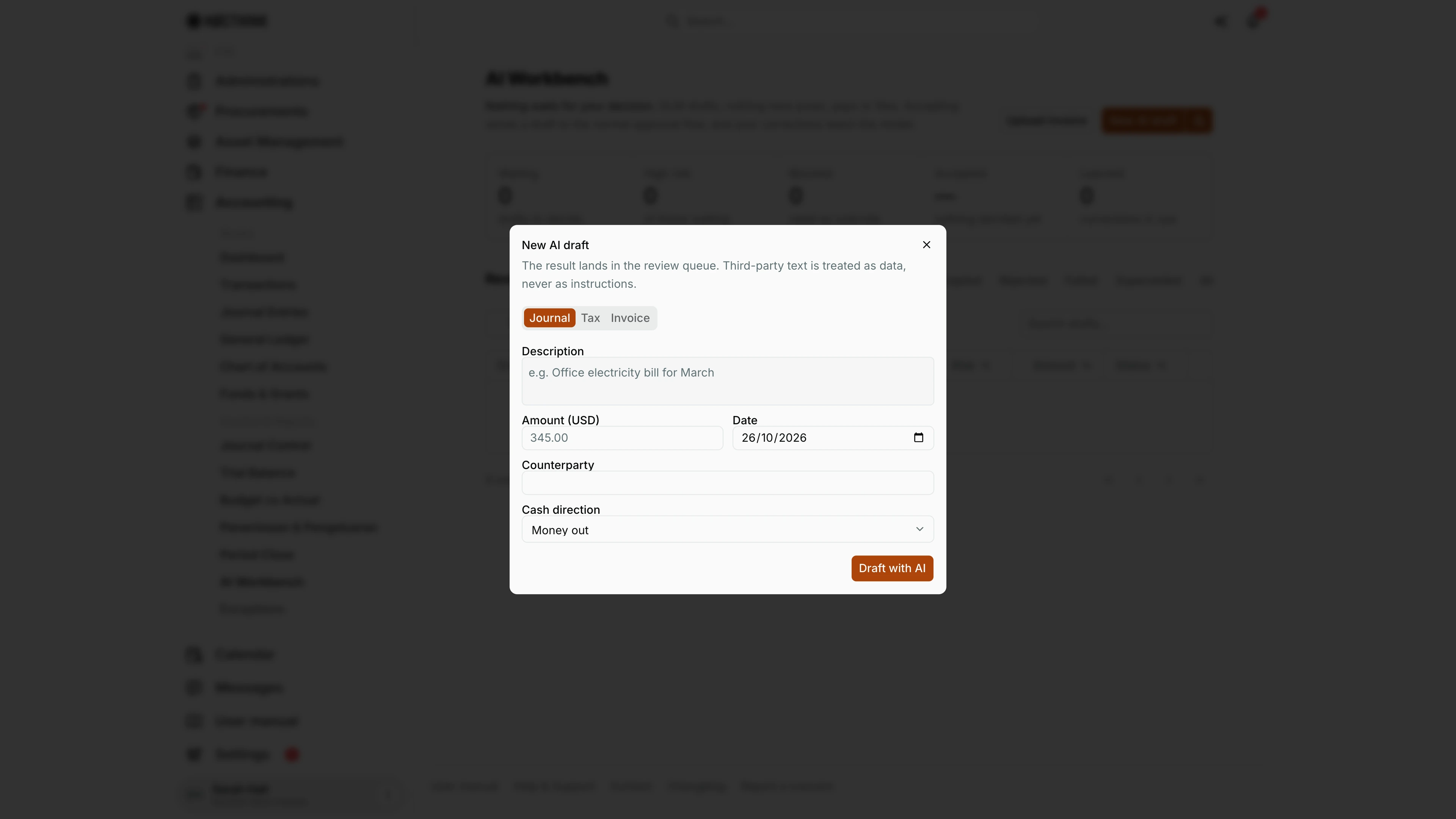
Screenshot: Sarah Hall (Finance Manager, also holds the F.A.T Manager role), Nocthink Demo Institute demo data.
New AI draft opens this dialog: "The result lands in the review queue. Third-party text is treated as data, never as instructions." It has three tabs.
- Journal — Description, Amount (<base currency>), Date, Counterparty and Cash direction (Money out, Money in, Non-cash (accrual, reclass)).
- Tax — the same description, Amount (<base currency>, excl. VAT), date and counterparty, plus four verified facts (counterparty resident, has NPWP, supplier is PKP, payer is withholding agent), each Unknown, Yes or No.
- Invoice — one Invoice text box for text pasted from a PDF or email.
Draft with AI sends it to the model; the draft then opens on its own page for me to accept, correct or reject. Nothing posts from here. Amounts are entered in the organization's base currency, as the labels say.
Close, reviewer and evaluations
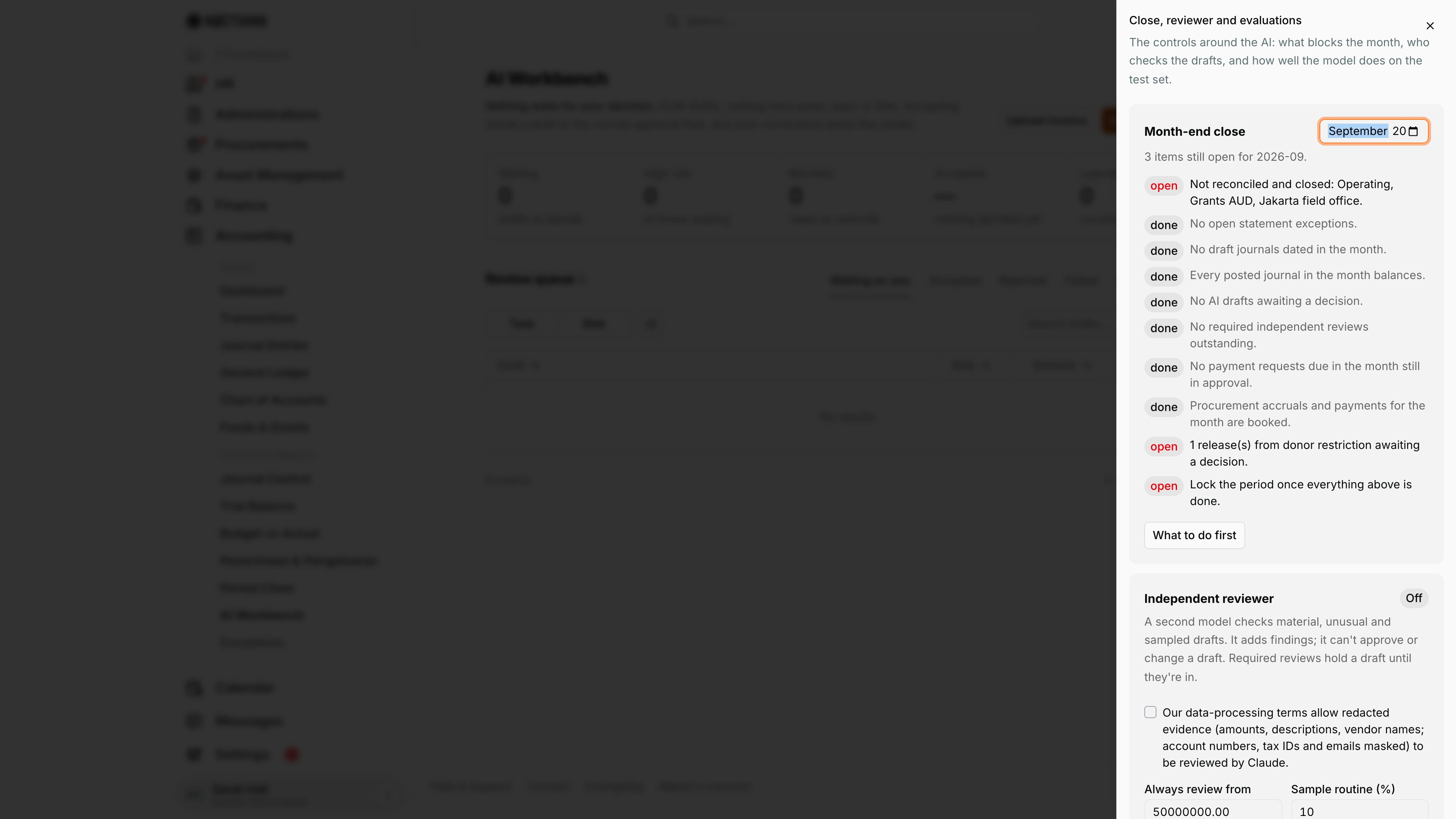
Screenshot: Sarah Hall (Finance Manager, also holds the F.A.T Manager role), Nocthink Demo Institute demo data.
The icon next to New AI draft (Close, reviewer and evaluations) opens a side sheet: "The controls around the AI: what blocks the month, who checks the drafts, and how well the model does on the test set."
Month-end close has a month picker and a list of checks marked open or done. In the screenshot, September 2026 has three open items: bank statements not reconciled and closed (Operating, Grants AUD, Jakarta field office), one release from donor restriction awaiting a decision, and "Lock the period once everything above is done". What to do first asks the AI for a prioritised summary.
Independent reviewer shows Off or on, a consent checkbox for sending redacted evidence to Claude, Always review from (an amount threshold) and Sample routine (%). Model evaluations runs the golden test set per task with Run and lists recent results; "wrong-and-ready" must stay at 0.
Access & permissions
- Menu needs
accounting.view. The queue shows Finance-domain drafts (invoices) to users with finance view and Accounting/tax drafts to users with accounting view. - Creating journal or tax drafts and accepting/rejecting them needs
accounting.create; invoice drafts and uploads needfinance.create. - Overriding a blocked invoice needs
finance.approveby someone other than the requester; deciding without a required independent review needs approve rights in that domain, again by another person. - Reviewer settings and evaluation runs need
accounting.approve(F.A.T Manager, Owner/Director).
Caveats
- AI drafting is throttled to 20 requests per user per minute.
- Journal drafts fail with "Set up the chart of accounts first." if there are no active accounts; tax drafts need an installed tax rule pack (Tax Rules).
- The accept is re-checked on the server; blocking findings return "Resolve these findings before accepting."
- In shadow mode, accepting only records a verdict ("Shadow mode: … nothing was created"), rejections must state What went wrong?, and payment request drafts are refused.
- Once accepted, rejected or superseded, a draft cannot be decided again.
- Amounts in AI drafts are in the base currency.
- Turning on the independent reviewer sends redacted evidence to Claude; the acknowledgement checkbox is required the first time.
Limitations
- No bulk accept/reject from the queue.
- Invoices outside a project cannot become payment requests yet ("Invoices outside a project stay verified until a non-project payable flow exists.").
- The workbench never posts journals or pays; those steps happen in their own modules.
- Only the latest five evaluation runs appear here; the full history is on AI Evaluation.
Related menus
- Exceptions — alerts and clarification requests raised by the same workflows.
- AI Evaluation — golden test sets, shadow mode and model quality.
- Tax Rules — the rule versions tax determinations are calculated from.
- Journal Entries — where accepted journal drafts land as Draft.
- Period Close — lock the month once the checklist is clear.
- Reconciliation — bank statements that the close checklist checks.