
Campaigns
Open in NocthinkModule: Grants & Fundraising · URL: /fundraising/campaigns · Responsible role: Finance Manager (demo role "Grants and fundraising") · Also used by: Executive Director and Deputy Director (full access). No other demo role has the fundraising domain.
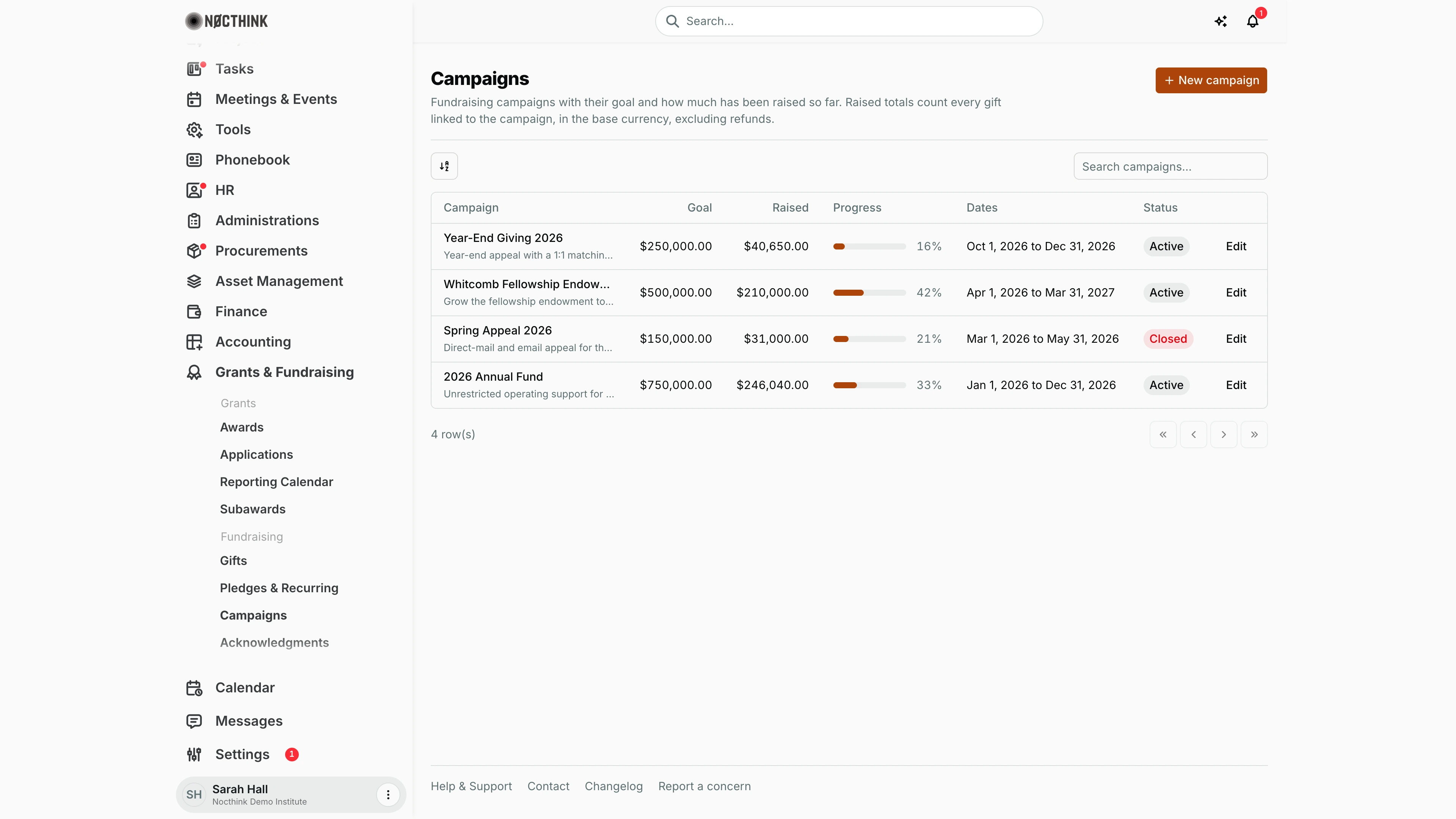
Screenshot: Sarah Hall (Finance Manager), Nocthink Demo Institute demo data.
Why I use this page
I use campaigns to group gifts under an appeal, such as the annual fund, a year-end drive or an endowment drive, and to watch progress toward each goal. I set up a campaign before the appeal launches, so that gifts and pledges can be tagged to it as they come in. During the appeal I check this page weekly to report progress to the Executive Director and the board.
Fundraising sits in the U.S. nonprofit modules, which are not covered in docs/role.md. The responsible role comes from the demo role "Grants and fundraising", which the seed gives to the Finance Manager.
What's on the screen
- Header: Campaigns, with the New campaign button. The description reminds me that raised totals count every gift linked to the campaign, in the base currency, excluding refunds.
- Toolbar: a sort button and Search campaigns… (searches the campaign name).
- Table columns:
- Campaign: the name, with its description underneath.
- Goal
- Raised
- Progress: a bar with the percentage of the goal.
- Dates: for example "Oct 1, 2026 to Dec 31, 2026".
- Status: Active or Closed (shown in red).
- An Edit button on each row.
- Footer: a row count and pagination.
The demo shows four campaigns:
| Campaign | Goal | Raised | Progress | Status |
|---|---|---|---|---|
| Year-End Giving 2026 | $250,000 | $40,650 | 16% | Active |
| Whitcomb Fellowship Endowment Drive | $500,000 | $210,000 | 42% | Active |
| Spring Appeal 2026 | $150,000 | $31,000 | 21% | Closed |
| 2026 Annual Fund | $750,000 | $246,040 | 33% | Active |
How I …
Create a campaign
- Click New campaign (see New campaign below).
- Enter the Name. It must be unique in the organization.
- Enter the Goal (USD). The goal is always in the organization's base currency, and zero is allowed.
- Optionally set the Start date and End date. The end cannot be earlier than the start.
- Add a Description, which appears under the name in the list.
- Click Create campaign. It appears with status Active and $0.00 raised.
Edit or close a campaign
- Click Edit on the campaign's row (see Edit campaign below).
- Change the Name, Goal, Start date, End date or Description.
- To close the campaign at the end of the appeal, set Status to Closed. Set it back to Active to reopen it.
- Click Save changes. Gifts already tagged to the campaign and its Raised total are not affected.
Tag gifts and pledges to a campaign
- When recording a gift in Gifts, choose the campaign in Campaign.
- For gifts that were already recorded but not yet posted, open the gift and use Edit designation to set the Campaign.
- For promises, choose the campaign in New pledge on Pledges & Recurring.
Report campaign progress
- Sort by Progress or Raised to rank the campaigns.
- Read Raised against Goal.
- To see which gifts make up a total, go to Gifts, where each gift's campaign is shown under the donor name. The Gifts page has no campaign filter, so scan the list or search by donor.
Detail page, forms & dialogs
New campaign
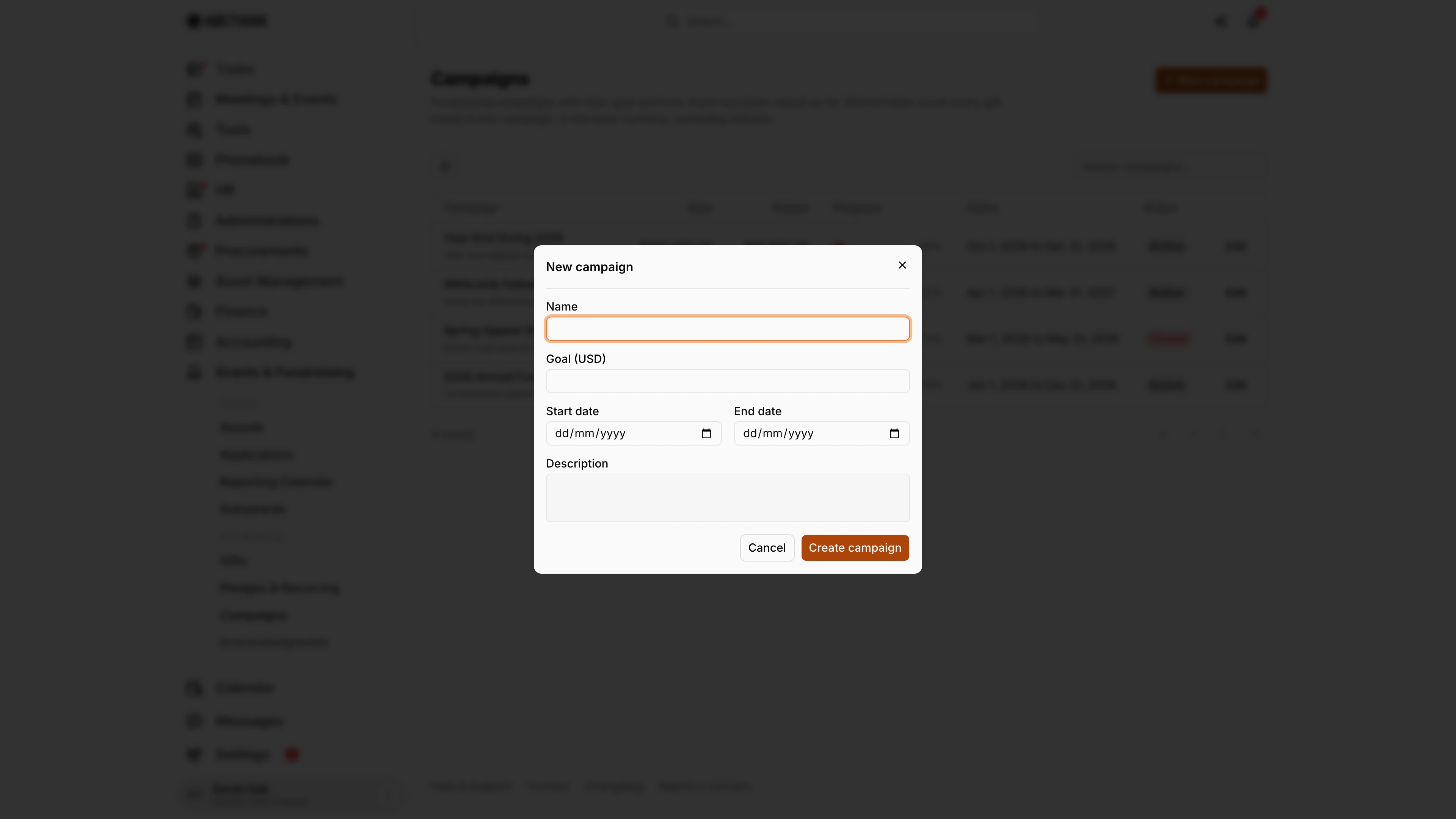
Screenshot: Sarah Hall (Finance Manager, also holds the F.A.T Manager role), Nocthink Demo Institute demo data.
New campaign opens a short form. Name is required and must be unique in the organization. Goal (USD) is always in the base currency; zero is allowed for a campaign without a target. Start date and End date are optional, and the end cannot be earlier than the start. Description appears under the name in the list, so I use it for the one line a colleague needs to know which appeal this is. Create campaign adds it as Active with nothing raised yet; it then appears in the Campaign pickers of Record gift and New pledge.
Edit campaign
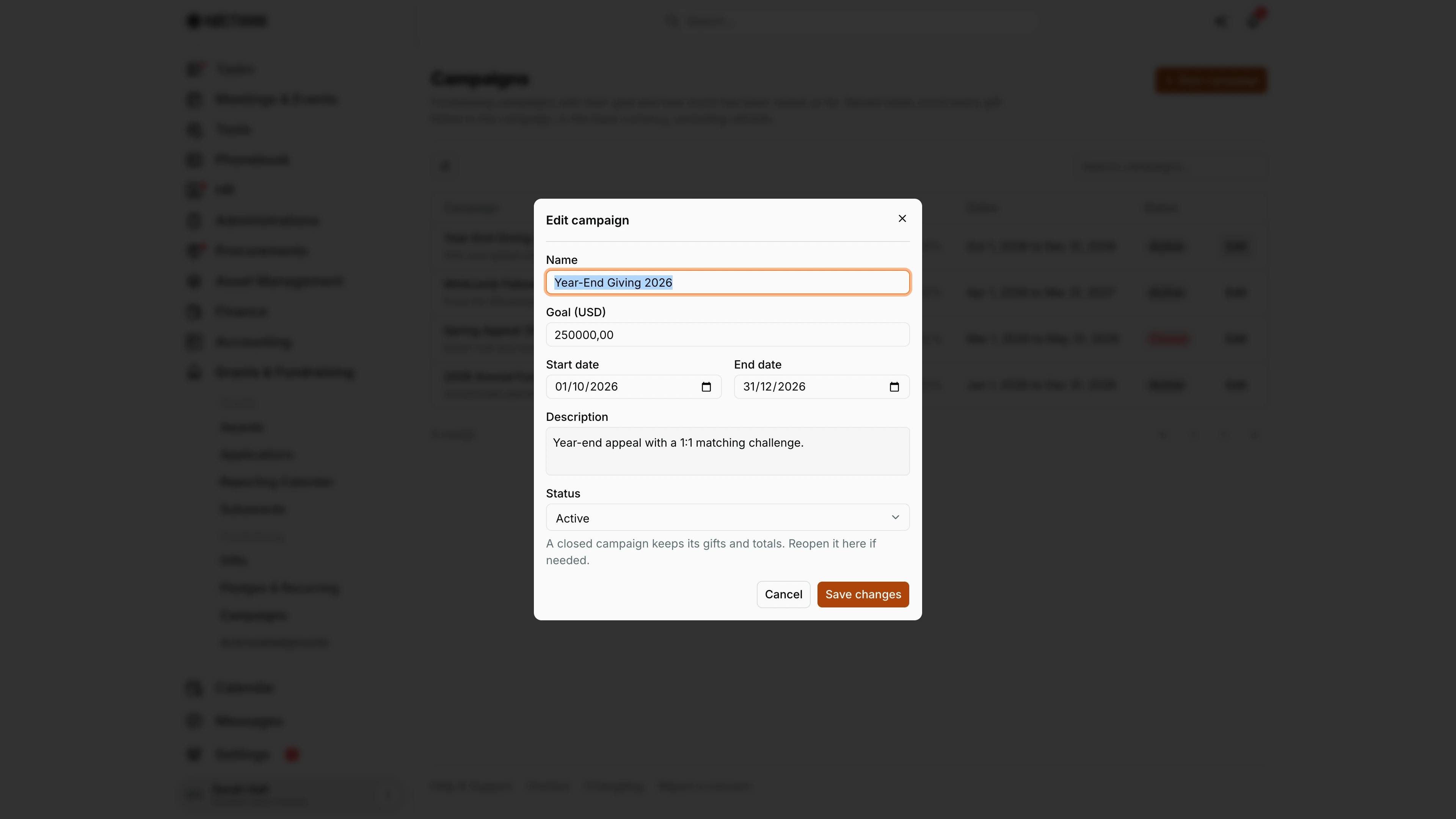
Screenshot: Sarah Hall (Finance Manager, also holds the F.A.T Manager role), Nocthink Demo Institute demo data.
Edit on a row opens the same form filled in with the campaign, for example Year-End Giving 2026 with its $250,000 goal, October 1 to December 31 dates and its description. It adds one field, Status: Active or Closed. The hint under it explains the effect: "A closed campaign keeps its gifts and totals. Reopen it here if needed." I close a campaign when the appeal ends so it stops being chosen for new gifts, and reopen it by setting Active again. Save changes applies the edit; gifts already tagged to the campaign and its Raised total stay as they are.
Access & permissions
- The page needs
fundraising.view. This domain is restricted, so the menu is hidden from staff without it. The U.S. nonprofit modules must also be on in Settings → Nonprofit. - New campaign needs
fundraising.create. - Edit (including closing a campaign) needs
fundraising.update. - In the demo, the Finance Manager can view, create and edit campaigns. The Executive Director and Deputy Director see everything.
Caveats
- Raised counts every non-refunded gift linked to the campaign. That includes gifts still Recorded (not posted). The figure can therefore be ahead of the ledger, and it changes if an unposted gift is moved to another campaign.
- Raised uses each gift's base amount. Foreign-currency gifts count at the base amount I entered when recording them.
- Pledges do not count toward Raised. Only gifts do.
- Refunding a gift lowers Raised straight away.
- Campaign dates are informational. A gift dated outside the campaign's dates can still be tagged to it.
- A duplicate name is rejected with "A campaign with this name already exists."
Limitations
- There is no delete. Close a campaign instead of removing it.
- Closing is a label only: a closed campaign can still be picked when recording or editing a gift.
- There is no campaign detail page and no drill-down into its gifts.
- There is no export, no donor count per campaign, and no pledge total per campaign.
Related menus
- Gifts: gifts tagged to a campaign make up Raised.
- Pledges & Recurring: pledges can be tagged to a campaign but are not counted in Raised.
- Acknowledgments: thank-you letters for campaign gifts.
- Donors: donor giving history.