
Pledges & Recurring
Open in NocthinkModule: Grants & Fundraising · URL: /fundraising/pledges · Responsible role: Finance Manager (demo role "Grants and fundraising") · Also used by: Executive Director and Deputy Director (full access). No other demo role has the fundraising domain.
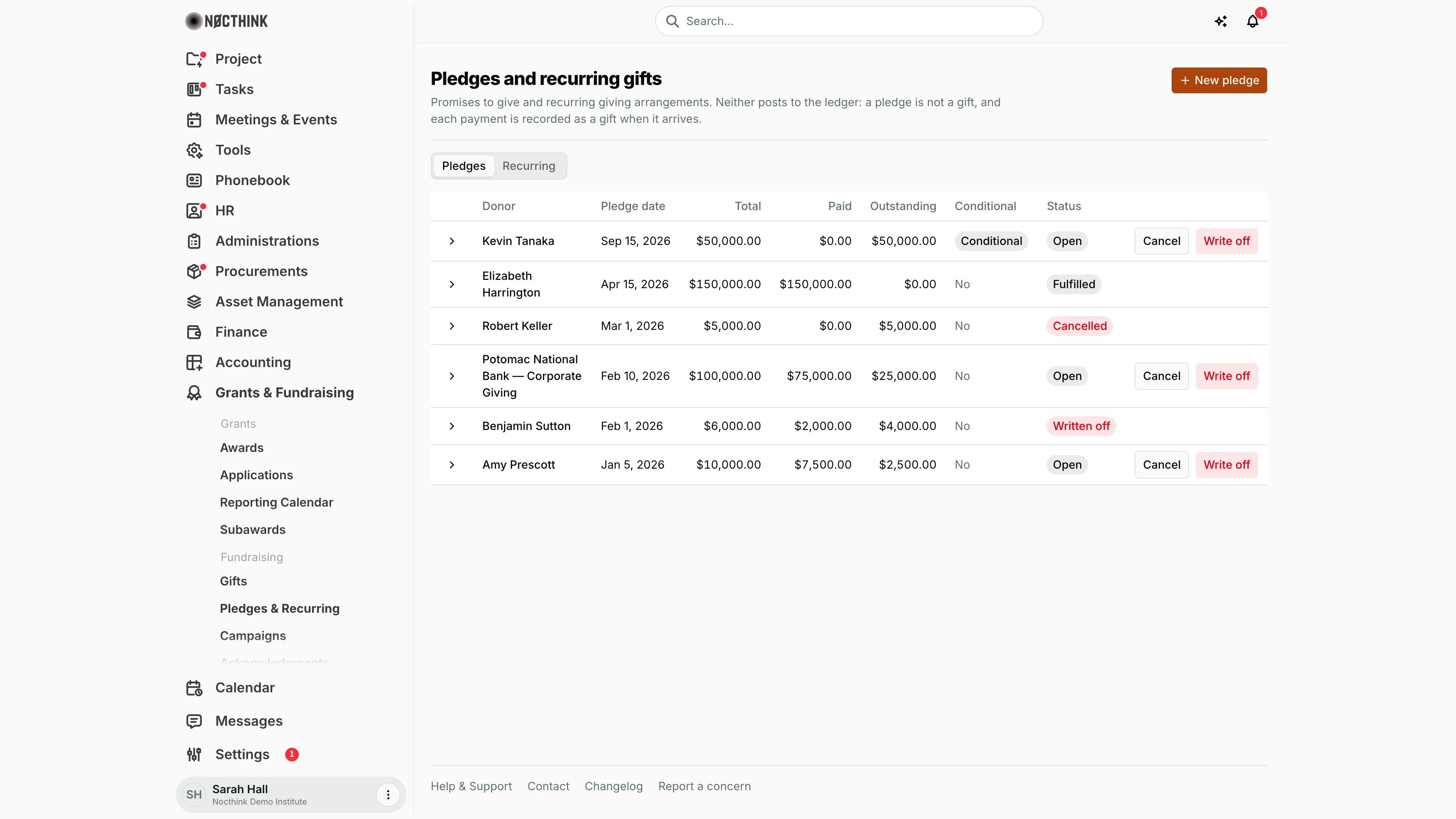
Screenshot: Sarah Hall (Finance Manager), Nocthink Demo Institute demo data.
Why I use this page
I use this page to track what donors have promised but not yet paid:
- Pledges: a total with a schedule of installments.
- Recurring agreements: monthly, quarterly or annual giving set up at our payment processor.
Neither of these posts anything to the ledger. Each payment is recorded as a gift when it arrives, and that gift is linked to the installment it pays. I review open pledges each month for overdue installments, and I cancel or write off the ones that will not be paid.
Fundraising sits in the U.S. nonprofit modules, which are not covered in docs/role.md. The responsible role comes from the demo role "Grants and fundraising", which the seed gives to the Finance Manager.
What's on the screen
- Header: Pledges and recurring gifts. The button on the right changes with the tab: New pledge on Pledges, New recurring agreement on Recurring.
- Tabs: Pledges and Recurring.
- Pledges table:
- An expand chevron.
- Donor
- Pledge date
- Total
- Paid
- Outstanding
- Conditional: a Conditional pill (hover it to see the condition), or "No".
- Status: Open, Fulfilled, Cancelled or Written off. The last two are shown in red.
- Actions: open pledges have Cancel and Write off.
- Expanded row: shows the Condition text, if any, and an installment table with Due, Amount and Status (Paid or "Not paid").
- Recurring tab:
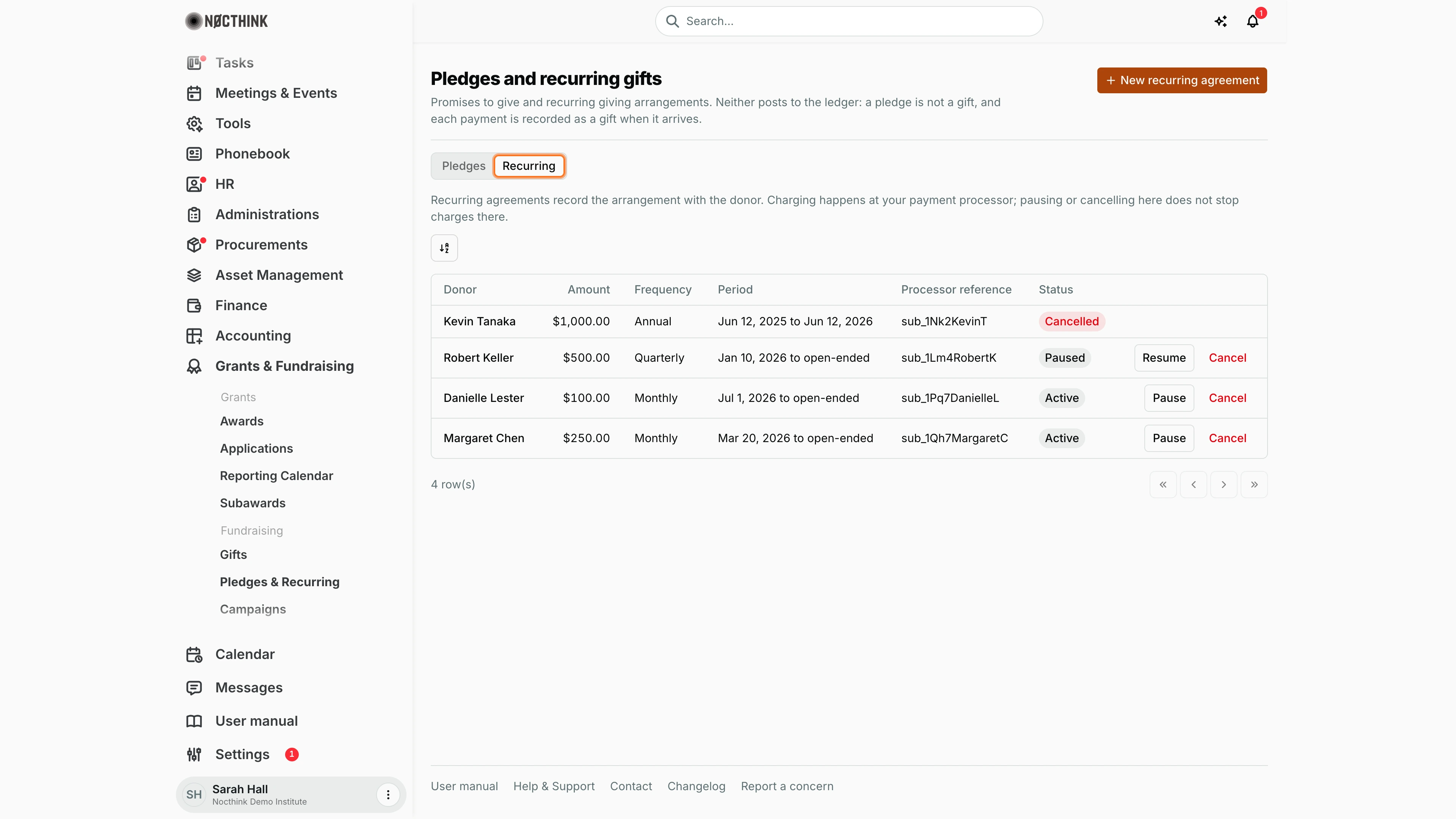
- A note that charging happens at the payment processor.
- A table with Donor, amount, Frequency, Period, Processor reference and Status.
- The actions Pause or Resume, and Cancel.
How I …
Record a new pledge
- On Pledges, click New pledge (see New pledge below).
- Pick the donor. This is a person (contact) or an organization.
- Enter the Pledge date, and optionally pick a Campaign.
- Enter the Total and the Currency (a three-letter code).
- If the promise depends on a barrier being overcome (for example a matching requirement), tick Conditional pledge and describe it in Condition.
- Under Installments, enter Due date 1 and Amount 1. Click Add installment for each further payment. Use the remove button to drop one.
- Click Create pledge. The pledge starts as Open.
Apply a payment to a pledge
- When the money arrives, go to Gifts and click Record gift. Pick the same donor.
- In Pays pledge installment, pick the open installment.
- Save the gift. Back here, that installment shows Paid, and Paid and Outstanding update. When every installment is paid, the pledge shows Fulfilled.
Cancel or write off a pledge
- On an Open pledge, click Cancel if the donor withdrew, or Write off if it is uncollectible.
- In the Cancel pledge or Write off pledge dialog (see Write off a pledge below), enter the Reason (required).
- Confirm with Cancel pledge or Write off pledge. The reason goes to the audit log.
Record and manage a recurring agreement
- Switch to Recurring and click New recurring agreement (see Recurring gifts and New recurring agreement below).
- Pick the donor.
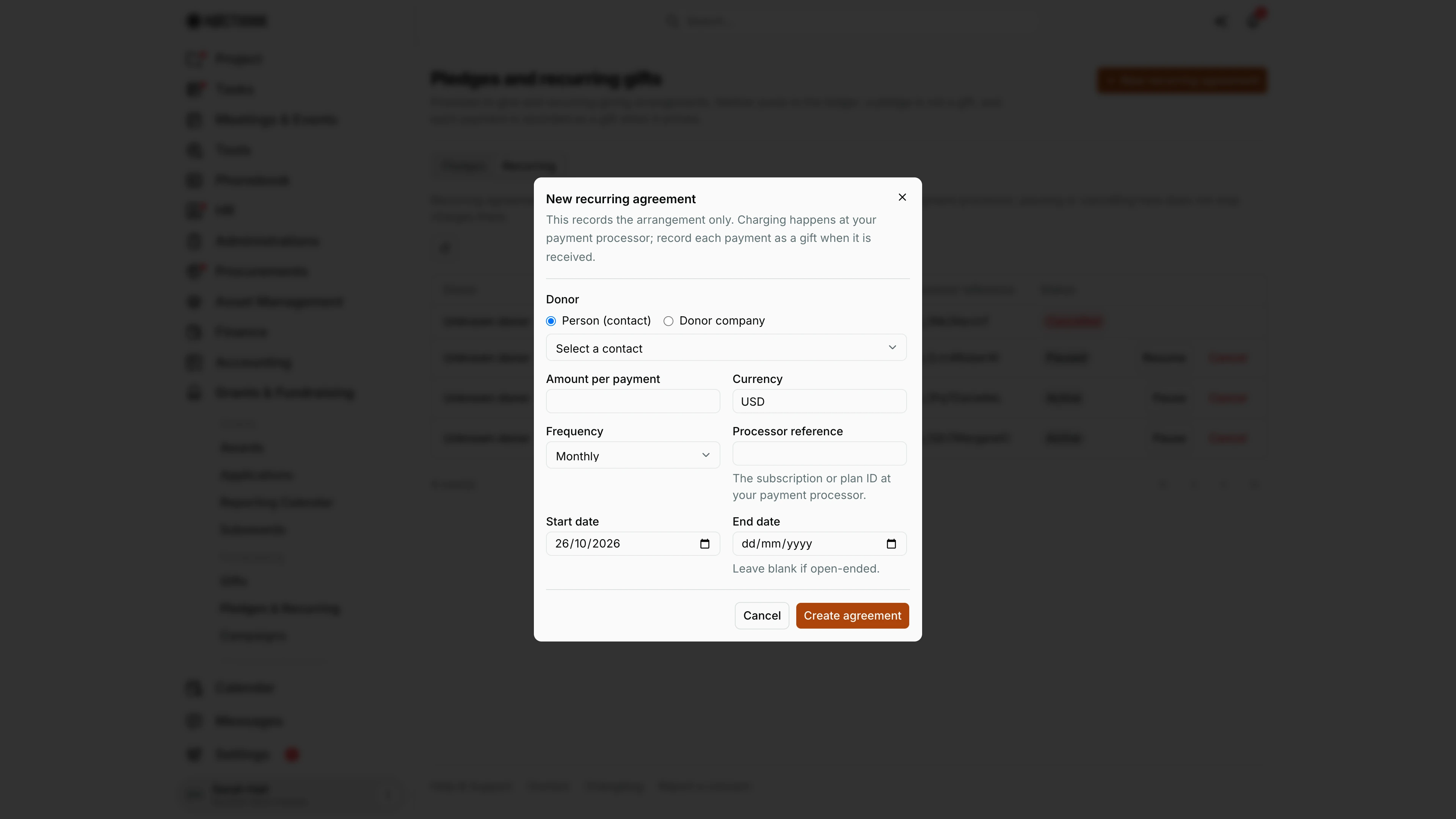
- Enter:
- Amount per payment and Currency
- Frequency: Monthly, Quarterly or Annual
- Processor reference: the subscription or plan ID
- Start date
- End date, or leave it blank if open-ended
- Click Create agreement.
- Later, use Pause or Resume to match what happened at the processor.
- To cancel, click Cancel, then Confirm cancel, or Keep to back out.
Detail page, forms & dialogs
Pledge installments
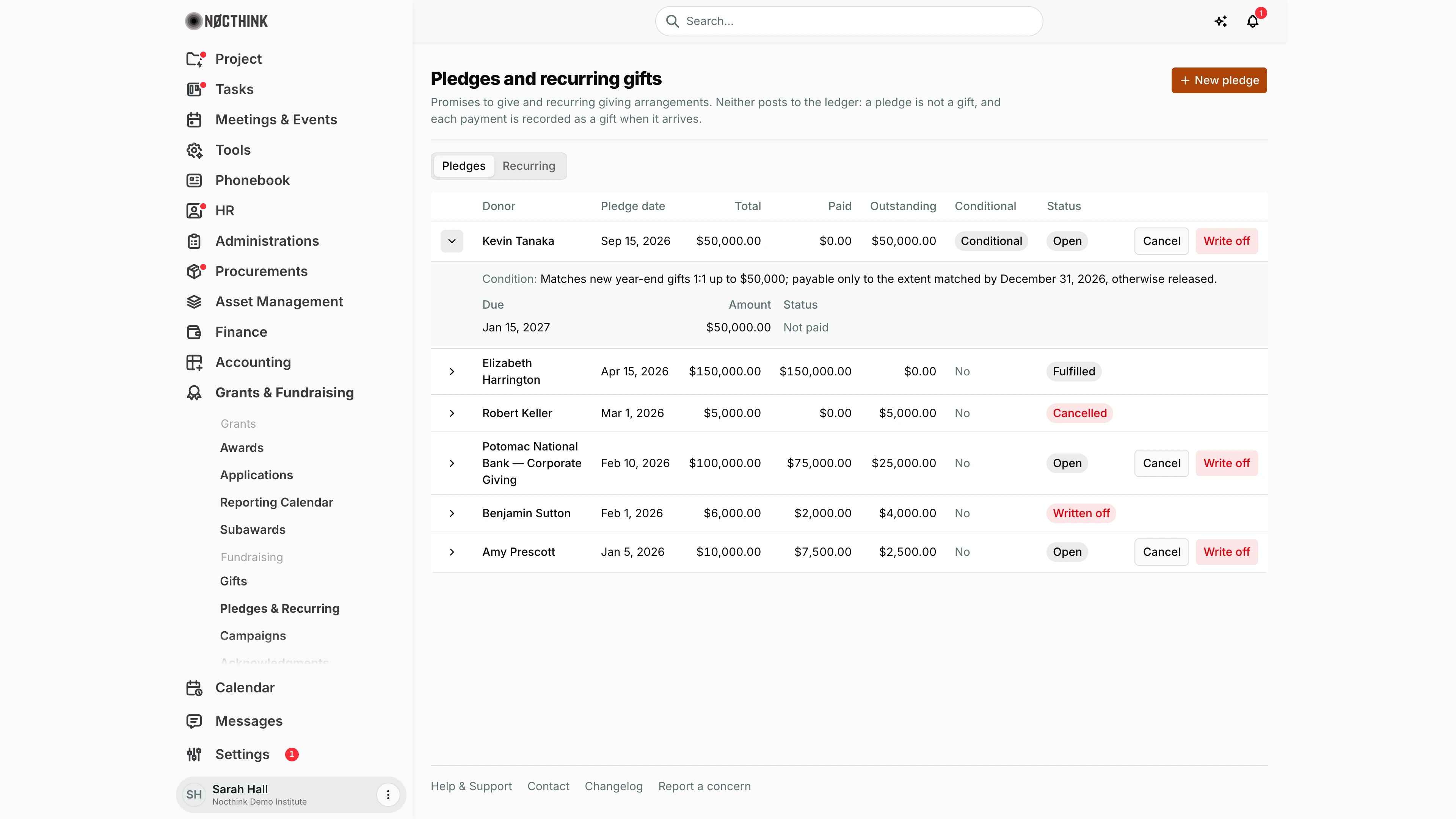
Screenshot: Sarah Hall (Finance Manager, also holds the F.A.T Manager role), Nocthink Demo Institute demo data.
The chevron at the start of a pledge row expands it. The expanded area shows the Condition text for a conditional pledge (here, a 1:1 match of new year-end gifts up to $50,000, payable only to the extent matched by December 31, 2026) and the installment schedule with Due, Amount and Status (Paid or "Not paid"). This is where I check which installment a donor's payment should be applied to before I record the gift with Pays pledge installment (see Apply a payment to a pledge above). The row keeps its Cancel and Write off buttons while the pledge is Open.
New pledge
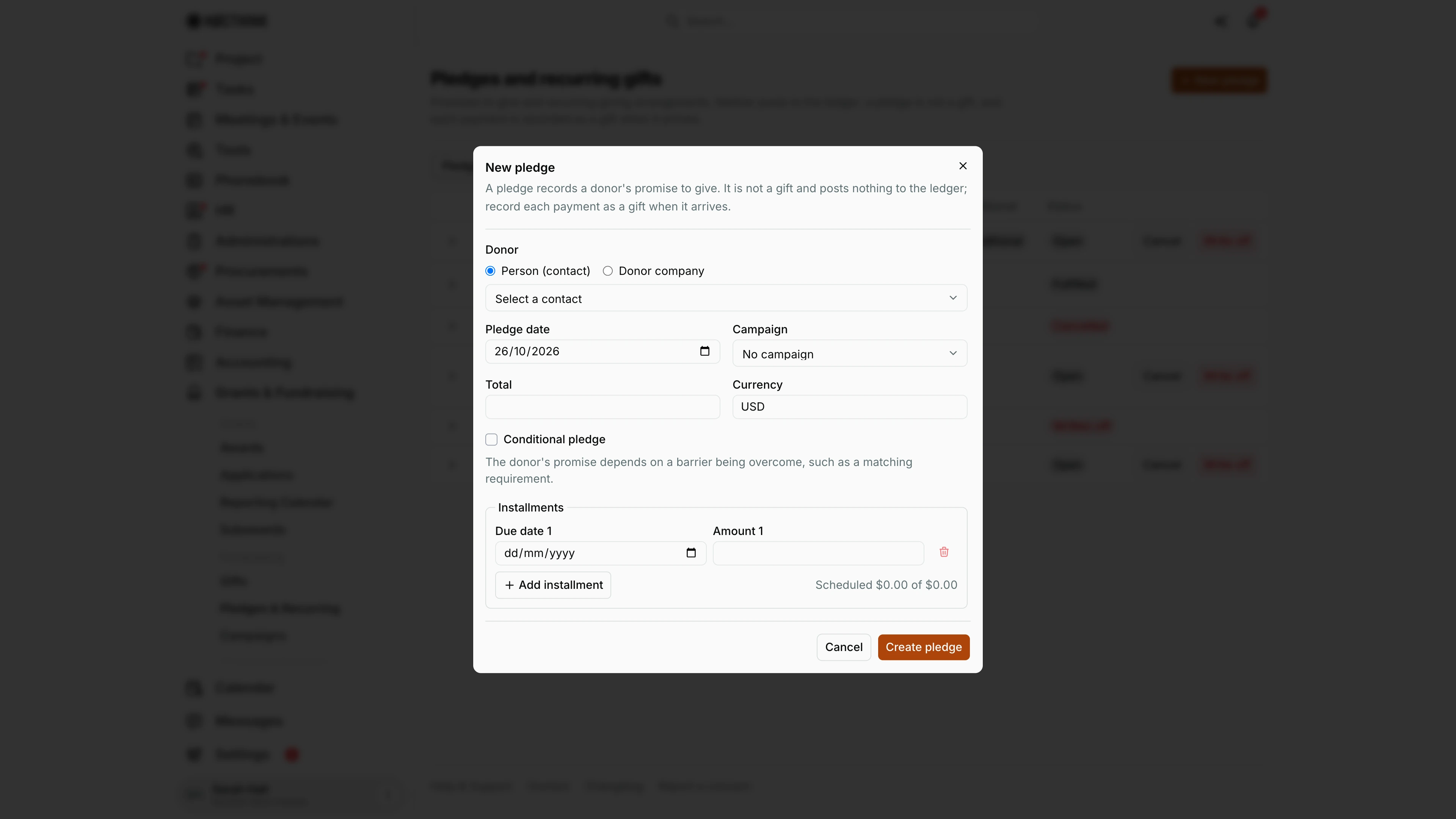
Screenshot: Sarah Hall (Finance Manager, also holds the F.A.T Manager role), Nocthink Demo Institute demo data.
New pledge opens this form. The description is the rule I keep in mind: "A pledge records a donor's promise to give. It is not a gift and posts nothing to the ledger; record each payment as a gift when it arrives." I pick the donor as Person (contact) or Donor company, set the Pledge date and an optional Campaign, and enter the Total and Currency. Conditional pledge marks a promise that depends on a barrier being overcome, such as a matching requirement, and asks for the condition. Installments starts with one row (Due date 1, Amount 1); Add installment adds more, and the footer shows how much is scheduled against the total. Create pledge saves it as Open.
Write off a pledge
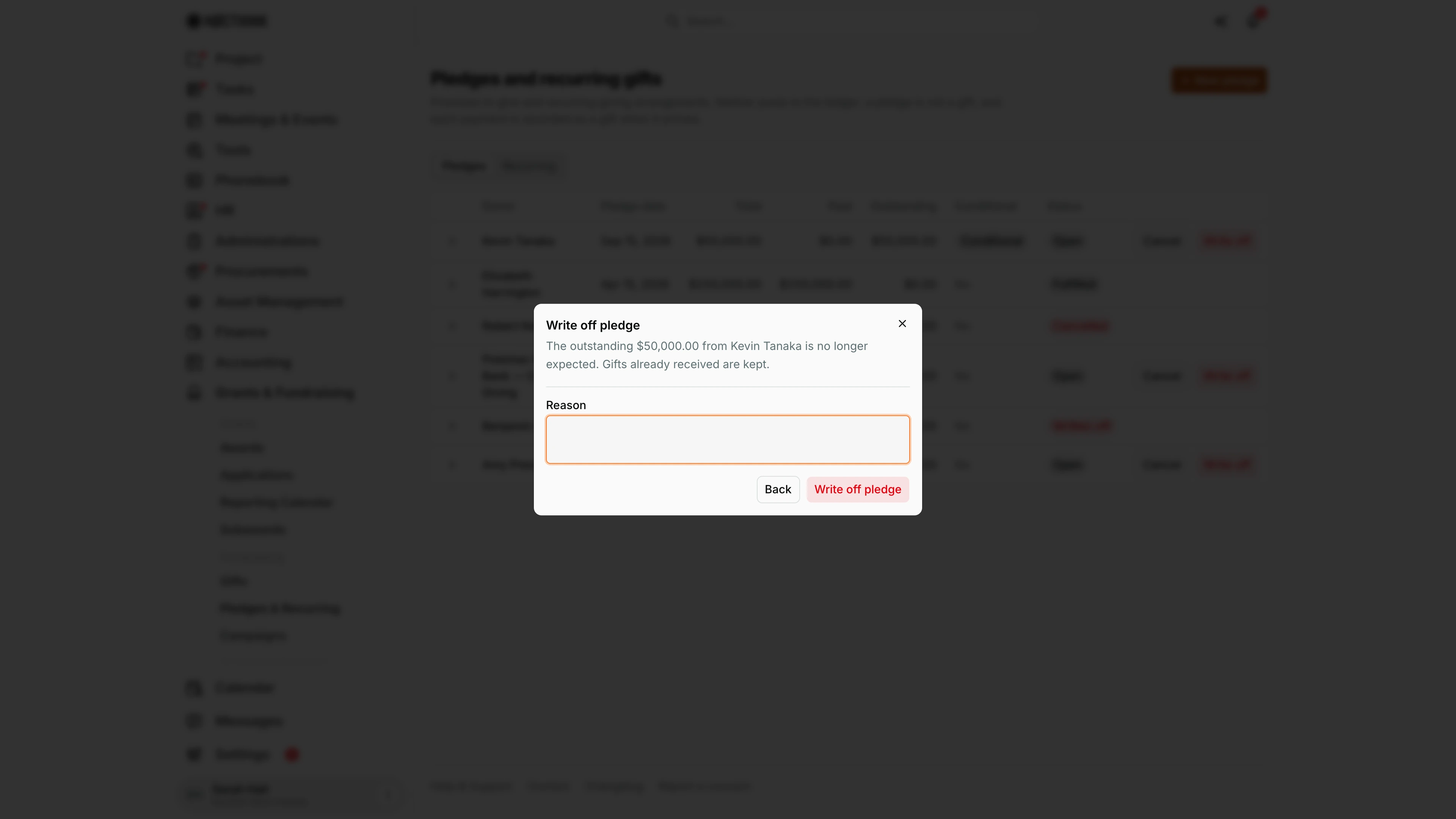
Screenshot: Sarah Hall (Finance Manager, also holds the F.A.T Manager role), Nocthink Demo Institute demo data.
Write off on an open pledge opens this dialog. It states what will happen: the outstanding amount from that donor is no longer expected, and gifts already received are kept. The Reason is required and goes to the audit log. Write off pledge marks the pledge Written off; Back closes the dialog without change. Cancel on the row opens the matching Cancel pledge dialog, which I use when the donor withdraws rather than when the pledge turns out to be uncollectible.
Recurring gifts
Screenshot: Sarah Hall (Finance Manager, also holds the F.A.T Manager role), Nocthink Demo Institute demo data.
The Recurring tab lists recurring giving agreements. The note above the table is the important part: charging happens at the payment processor, and pausing or cancelling here does not stop charges there. Each row shows Donor, the amount per payment, Frequency, Period (start to end, or "open-ended"), Processor reference and Status (Active, Paused or Cancelled). Active agreements have Pause, paused ones Resume, and both have Cancel, which asks me to confirm. I update these to match what the processor shows, and record each actual charge as a gift.
New recurring agreement
Screenshot: Sarah Hall (Finance Manager, also holds the F.A.T Manager role), Nocthink Demo Institute demo data.
On the Recurring tab the header button becomes New recurring agreement. The dialog says it "records the arrangement only. Charging happens at your payment processor; record each payment as a gift when it is received." I pick the donor, then enter Amount per payment, Currency and Frequency (Monthly, Quarterly or Annual). Processor reference is the subscription or plan ID at the processor, which lets me match the agreement to its charges. Start date defaults to today; End date stays blank for an open-ended agreement. Create agreement adds it as Active.
Access & permissions
-
The page needs
fundraising.view. This domain is restricted, so it is not open to all staff. The U.S. nonprofit modules must also be on in Settings → Nonprofit. -
Who can do what:
Action Permission needed New pledge, New recurring agreement fundraising.createPause, Resume or Cancel a recurring agreement fundraising.updateCancel or Write off a pledge fundraising.approve -
In the demo, the Finance Manager holds all of these. The Executive Director and Deputy Director see everything.
Caveats
- The installments must add up exactly to the pledge Total. The server rejects anything else, and the error shows the total.
- A conditional pledge needs a description of the condition.
- Only Open pledges can be cancelled or written off. Both are final: there is no reopen.
- A pledge is not revenue here. This page posts no pledge receivable or contribution entry. Only gifts post to the ledger.
- Pausing or cancelling a recurring agreement does not stop charges at the payment processor. Do that at the processor as well.
- Each recurring payment still has to be recorded as a gift. Nothing is created automatically.
- A pledge's currency is whatever I enter. Totals are not converted.
Limitations
- I cannot edit a pledge or its installments after creating it. To change the schedule, cancel the pledge and create a new one.
- There is no delete.
- There is no search, filter or export on the Pledges tab.
- Recurring agreements are not linked to the gifts they produce.
- There are no reminders for installments that are due.
- There is no pledge-receivable accounting. Booking pledges as revenue (ASC 958-605) has to be done by journal entry in Accounting.
Related menus
- Gifts: record each payment and link it to an installment.
- Campaigns: a pledge can be tagged to a campaign.
- Donors: the donor behind each pledge or agreement.
- Journal Entries: use this if a pledge receivable has to be booked manually.