
Gifts
Open in NocthinkModule: Grants & Fundraising · URL: /fundraising/gifts · Responsible role: Finance Manager (demo role "Grants and fundraising") · Also used by: Executive Director and Deputy Director (full access). No other demo role has the fundraising domain.
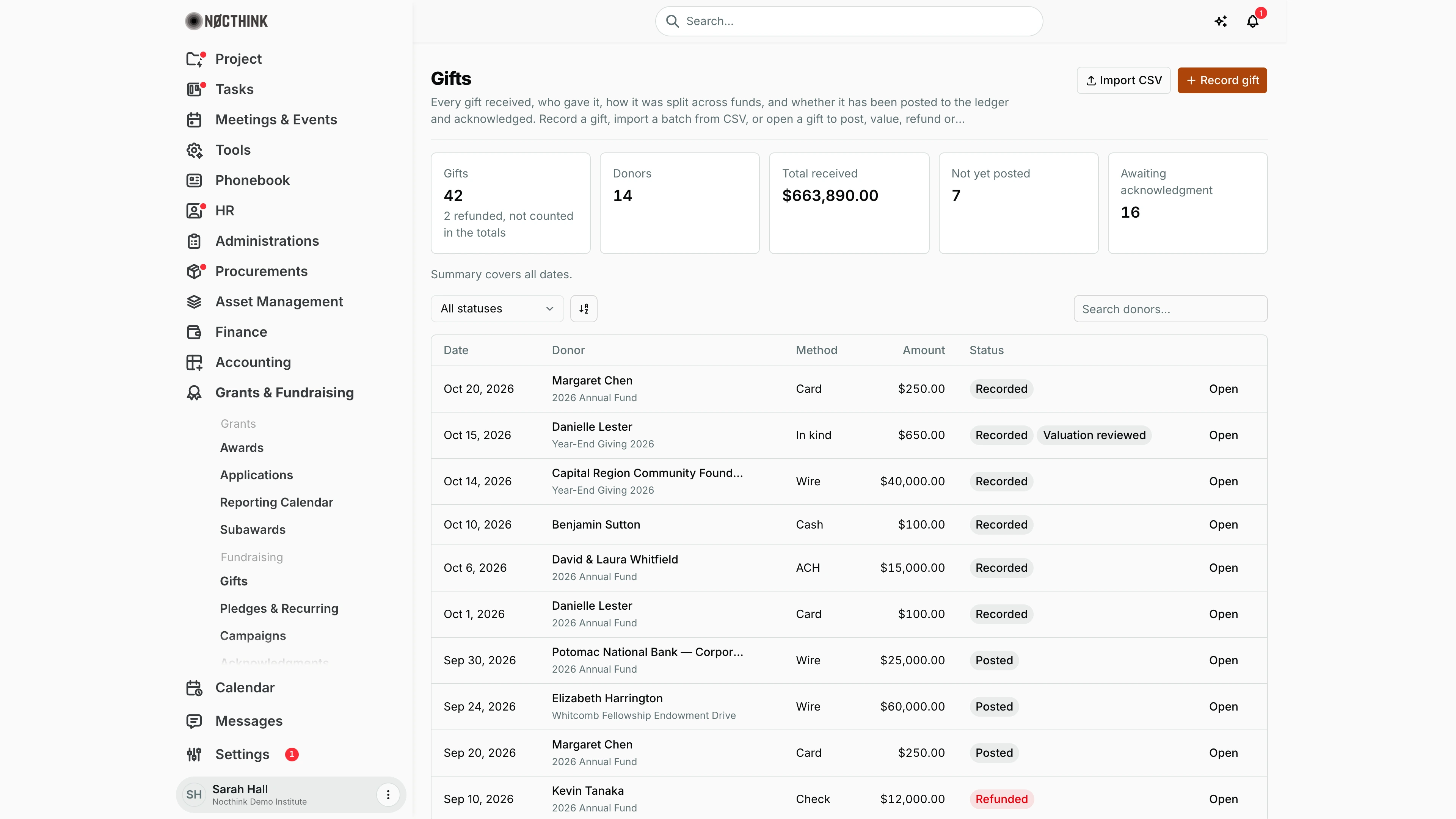
Screenshot: Sarah Hall (Finance Manager), Nocthink Demo Institute demo data.
Why I use this page
This is the gift register. Every donation we receive is entered here, either one at a time or as a CSV batch from our payment processor or bank. I record each gift, split it across funds and income accounts, value noncash gifts, and post it to the ledger. I draft the thank-you letter from here, and I refund a gift when needed.
I work through the Not yet posted count every week. At month end, nothing should be left unposted before the period is closed.
Fundraising sits in the U.S. nonprofit modules, which are not covered in docs/role.md. The responsible role comes from the demo role "Grants and fundraising", which the seed gives to the Finance Manager.
What's on the screen
-
Header: Gifts, with the Import CSV and Record gift buttons.
-
Summary cards:
- Gifts
- Donors
- Total received: in the base currency.
- Not yet posted
- Awaiting acknowledgment
The Gifts card counts every gift, including refunded ones; when some were refunded, a note under the number says how many and that they are left out of the totals. Under the cards, a line says which dates the summary covers ("Summary covers all dates." when no range is set).
-
Toolbar:
- A status filter: All statuses, Recorded (not posted), Posted or Refunded.
- A sort button and Search donors…
-
Table columns:
- Date
- Donor: with the campaign underneath, if the gift is tagged to one.
- Method: Cash, Check, Card, ACH, Wire, Stock, In kind or Other.
- Amount: in the gift currency. For a foreign-currency gift, the base amount is shown underneath.
- Status: Recorded, Posted or Refunded. Noncash gifts also show Valuation needs review or Valuation reviewed.
- An Open button.
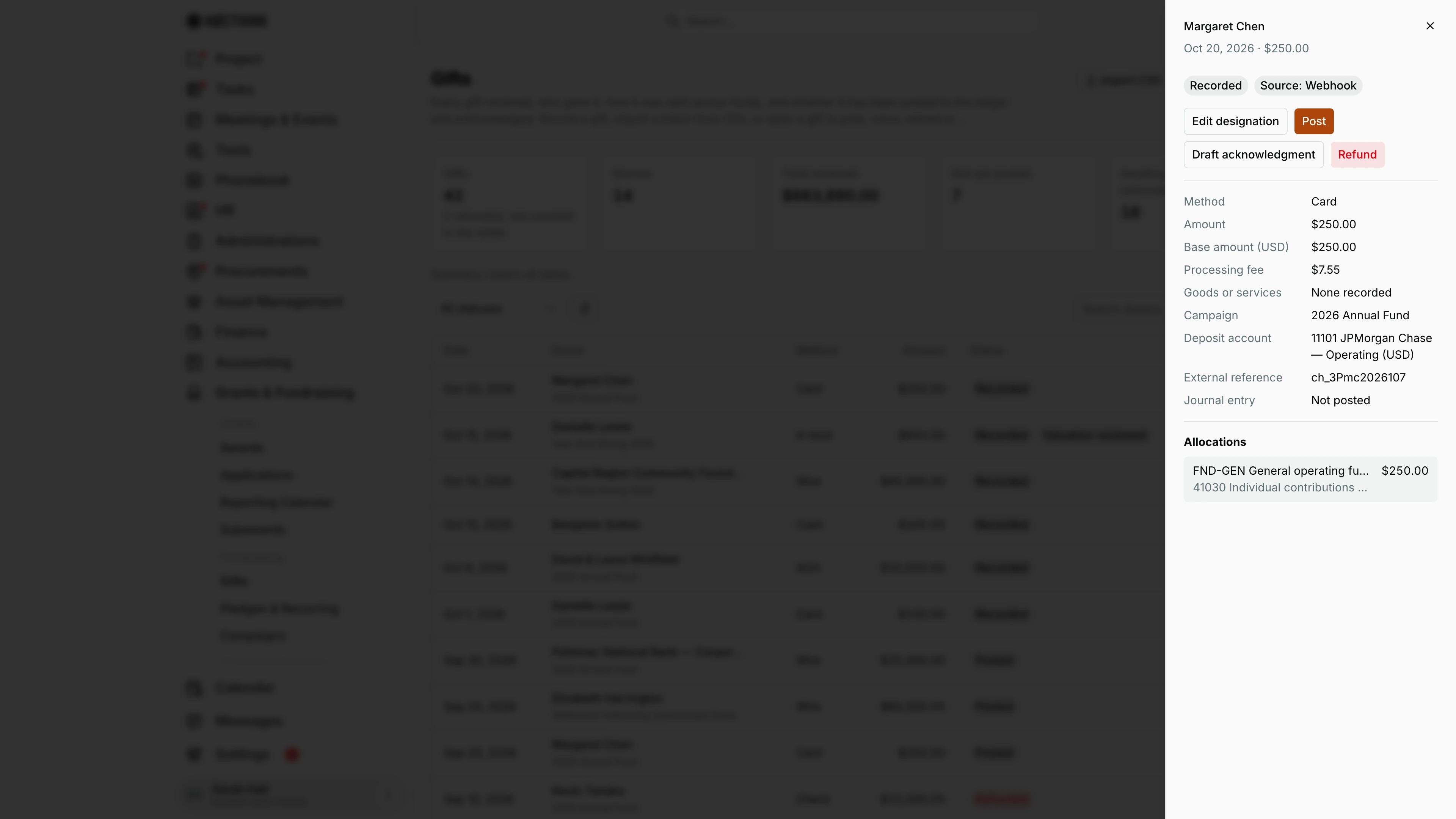
Open shows the gift's detail sheet:
- Method, Amount and Base amount
- Processing fee and Goods or services
- Campaign, Deposit account and External reference
- Journal entry, or "Not posted"
- the refund details, if it was refunded
- the allocations
The sheet also has action buttons. Which ones appear depends on the gift's status.
How I …
Record a single gift
- Click Record gift (see Record gift below).
- Choose the donor type, Person (contact) or organization, and pick the donor.
- Fill in:
- Gift date
- Method: choosing Stock or In kind ticks Noncash gift for me.
- Campaign (optional)
- Amount and Currency
- If the currency is not our base currency, fill in Amount in USD (or our base currency) using the rate we apply.
- Fill in these if they apply:
- Processing fee: in the base currency, and it must be less than the gift.
- Goods or services provided and Description of goods or services: for quid-pro-quo disclosure.
- Noncash description: required when Noncash gift is ticked.
- Choose the Deposit account. I can leave it as "Choose later", but the gift cannot be posted without one.
- Split the gift in the allocations editor. Give each line a Fund, an Income account, an Amount and an optional Designation. The lines must add up to the base amount.
- If this gift pays a pledge, pick the installment in Pays pledge installment.
- Add an External reference and Notes, then click Record gift. The gift is saved as Recorded.
Import a batch from CSV
- Click Import CSV (see Import gifts from CSV below).
- Choose a CSV file, or paste the rows into Or paste CSV.
- The header must include
gift_dateandamount. - The other recognized columns are
contact,donor_company,method,currency,base_amount,fee,external_ref,deposit_accountandnotes. - Give exactly one of
contactordonor_companyper row, as the record ID. - Dates use YYYY-MM-DD.
- A file can have at most 500 rows.
- The header must include
- Click Import. Each row is reported as Created, Duplicate or Error. Rows whose
external_refis already on file are skipped, so the same file can be imported again safely. - Imported gifts have no allocations or campaign. Open each one and use Edit designation before posting.
Value and post a gift
- Filter by Recorded (not posted) and click Open on a gift (see Gift detail below).
- For a noncash gift, click Record valuation. Enter the Value in USD and the Basis (for example an appraisal or the closing price), then click Save valuation.
- If anything is missing, click Edit designation to set the Deposit account, Campaign, allocations or Notes, then click Save changes.
- Click Post. If a processor fee was recorded, choose the Fee account (an Expense account). Then click Post gift.
- The ledger gets a posted journal entry,
JV-GIFT-…, dated on the gift date. It debits the deposit account (and the fee account, if any) and credits each income account by fund. The status becomes Posted.
Refund a gift
- Open the gift and click Refund.
- Enter the Reason (required) and the Refund date, then click Refund gift.
- If the gift was posted, a reversing journal entry is posted on the refund date, and the original entry is kept. Any draft or approved acknowledgment for the gift is voided.
Start the thank-you letter
- Open the gift and click Draft acknowledgment.
- Choose a Template, or keep "Most recent active template". Click Create draft.
- The letter appears in Acknowledgments as a Draft. Someone else must approve it.
Detail page, forms & dialogs
Gift detail
Screenshot: Sarah Hall (Finance Manager, also holds the F.A.T Manager role), Nocthink Demo Institute demo data.
Open on a row shows the gift in a side sheet. The title is the donor, with the gift date and amount underneath, then status pills: Recorded, Posted or Refunded, a Valuation pill for noncash gifts, and Source (for example Webhook). The action buttons follow the status. A recorded gift has Edit designation and Post, plus Record valuation if it is noncash; any gift that is not refunded has Draft acknowledgment and Refund. The fields list Method, Amount, Base amount, Processing fee, Goods or services, Campaign, Deposit account, External reference and Journal entry (a link once posted, otherwise "Not posted"). Allocations shows each fund and income account; an unallocated gift says it must be allocated before it can be posted. See Value and post a gift above for the posting steps.
Record gift
Screenshot: Sarah Hall (Finance Manager, also holds the F.A.T Manager role), Nocthink Demo Institute demo data.
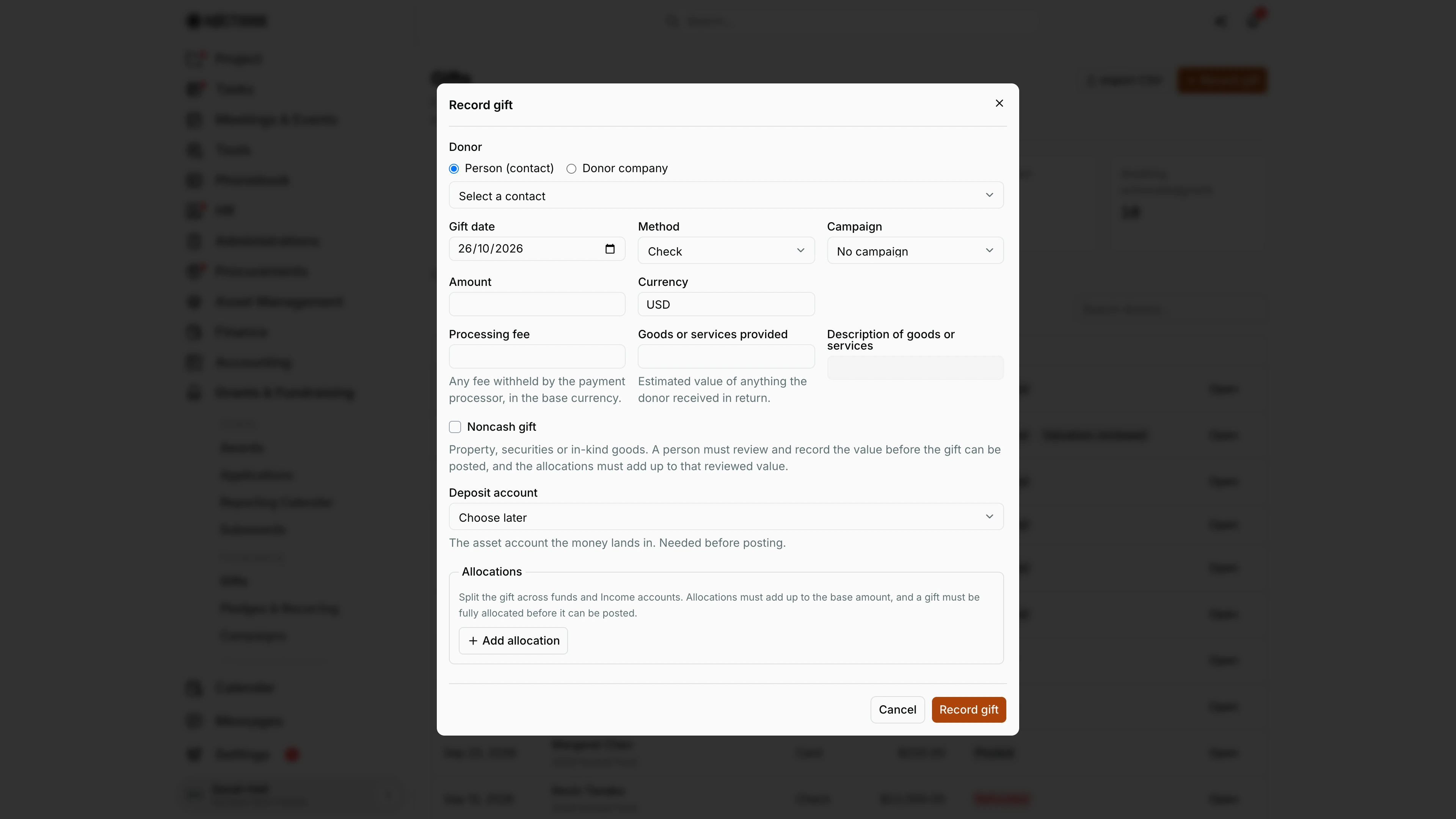
Record gift opens this form for a single gift. Donor switches between Person (contact) and Donor company, then I pick the donor. Gift date defaults to today, Method to Check, and Campaign to No campaign. Amount and Currency come next; a foreign currency adds an amount-in-base-currency field. Processing fee is what the processor withheld, in the base currency; Goods or services provided and its description cover quid-pro-quo disclosure. Noncash gift reveals the noncash description and means the value must be reviewed before posting. Deposit account can stay "Choose later", but the gift cannot be posted without one. Under Allocations, Add allocation splits the gift across funds and income accounts; the lines must add up to the base amount. Record gift saves it as Recorded (see Record a single gift above).
Import gifts from CSV
Screenshot: Sarah Hall (Finance Manager, also holds the F.A.T Manager role), Nocthink Demo Institute demo data.
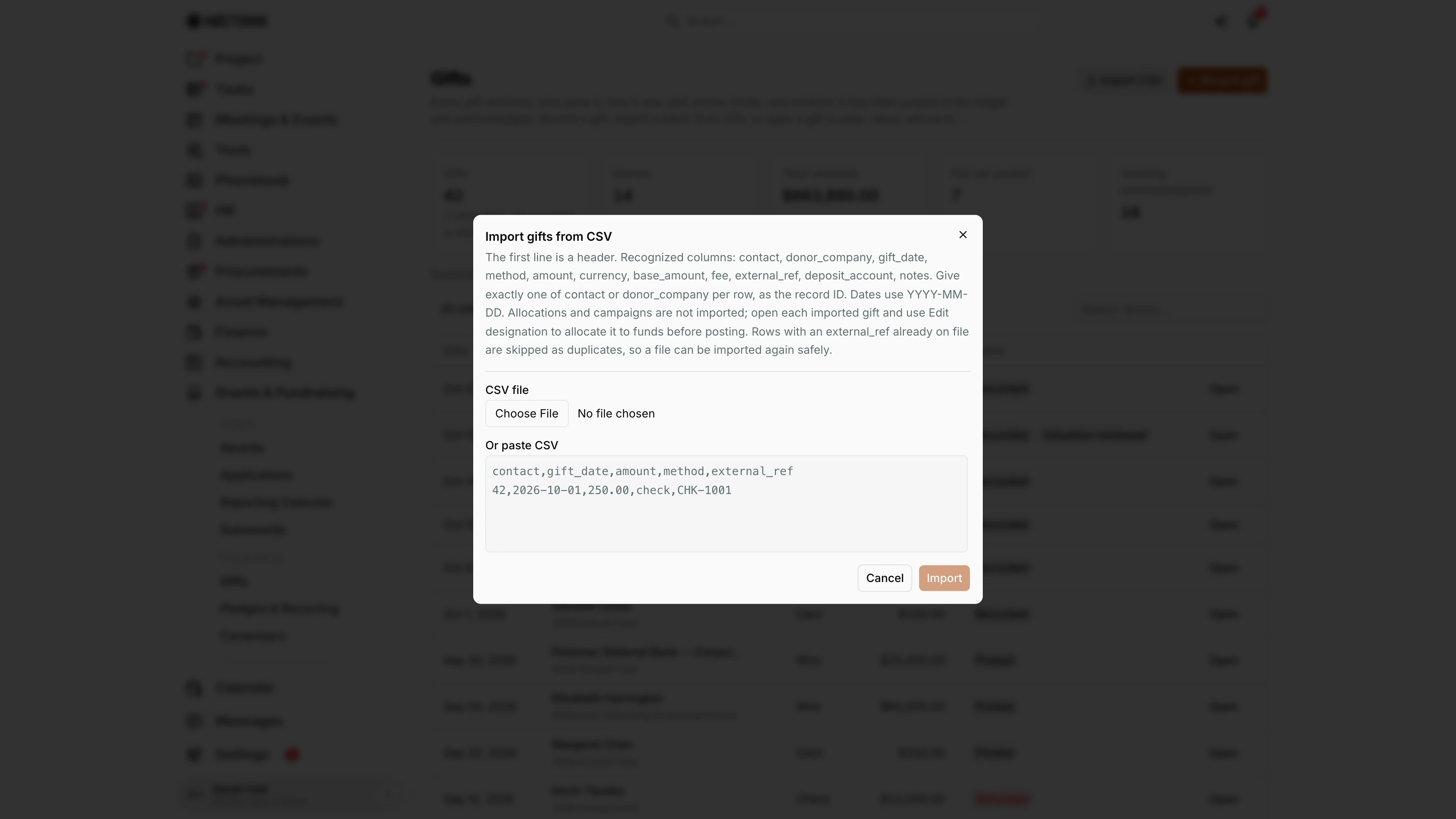
Import CSV opens this dialog for a batch, such as a processor export. The description lists the recognized columns and the rules: the first line is a header, each row gives exactly one of contact or donor_company as a record ID, dates use YYYY-MM-DD, and rows whose external_ref is already on file are skipped as duplicates, so the same file can be imported again safely. I either choose a CSV file or paste the rows into Or paste CSV; the hint under the box counts the rows ready to import and names any ignored columns. After the import, a summary reports how many rows were created, skipped as duplicates or had errors, with a per-row result. Imported gifts carry no allocations or campaign, so I open each one and use Edit designation before posting.
Access & permissions
-
The page needs
fundraising.view. This domain is restricted, so it is not open to all staff. The U.S. nonprofit modules must also be on in Settings → Nonprofit. -
Who can do what:
Action Permission needed Record gift, Import CSV, Draft acknowledgment fundraising.createEdit designation fundraising.updateRecord valuation, Post, Refund fundraising.approve -
In the demo, the Finance Manager holds all four permissions. The Executive Director and Deputy Director see everything.
Caveats
- Posting is refused in each of these cases:
- The gift is not fully allocated: "Designate the full gift to funds before posting."
- It has no deposit account.
- It is a noncash gift whose valuation has not been reviewed.
- The gift date falls in a closed accounting period.
- Only Recorded gifts can be edited. A posted gift can only be refunded, never edited.
- A refund cannot be undone, and a refunded gift cannot be acknowledged.
- Saving allocations in Edit designation replaces all existing lines on the gift.
- Recording the same External reference twice returns the original gift instead of creating a duplicate.
- The base amount for a foreign-currency gift is whatever I enter. The app does not look up an exchange rate.
- Donors, Total received, Not yet posted and Awaiting acknowledgment leave refunded gifts out. The Gifts card counts them, so it matches the table's row count under All statuses.
- The table lists the 500 most recent gifts. The summary cards count every gift.
Limitations
- There is no delete. Mistakes are corrected with Edit designation before posting, or with Refund after posting.
- CSV import does not bring in allocations or campaigns.
- There is no bulk post and no bulk acknowledgment.
- There is no export from this page.
- The page has no date-range picker for the summary.
- Donor records are not created here. The donor must already exist as a contact or an organization.
Related menus
- Pledges & Recurring: a gift can pay a pledge installment.
- Campaigns: campaign totals count the gifts linked to each campaign.
- Acknowledgments: the thank-you letters drafted from gifts.
- Donors: donor profiles and giving history.
- Journal Entries: where the
JV-GIFT-…postings and their reversals appear. - Donor Restrictions: gifts allocated to restricted funds show up here.