
Applications
Open in NocthinkModule: Grants & Fundraising · URL: /grants/applications · Responsible role: Finance Manager (demo role "Grants and fundraising"), acting as grants reviewer · Also used by: Executive Director and Deputy Director (full); Program and impact staff such as the Senior Researcher (view only); project leads draft applications on the project funding page
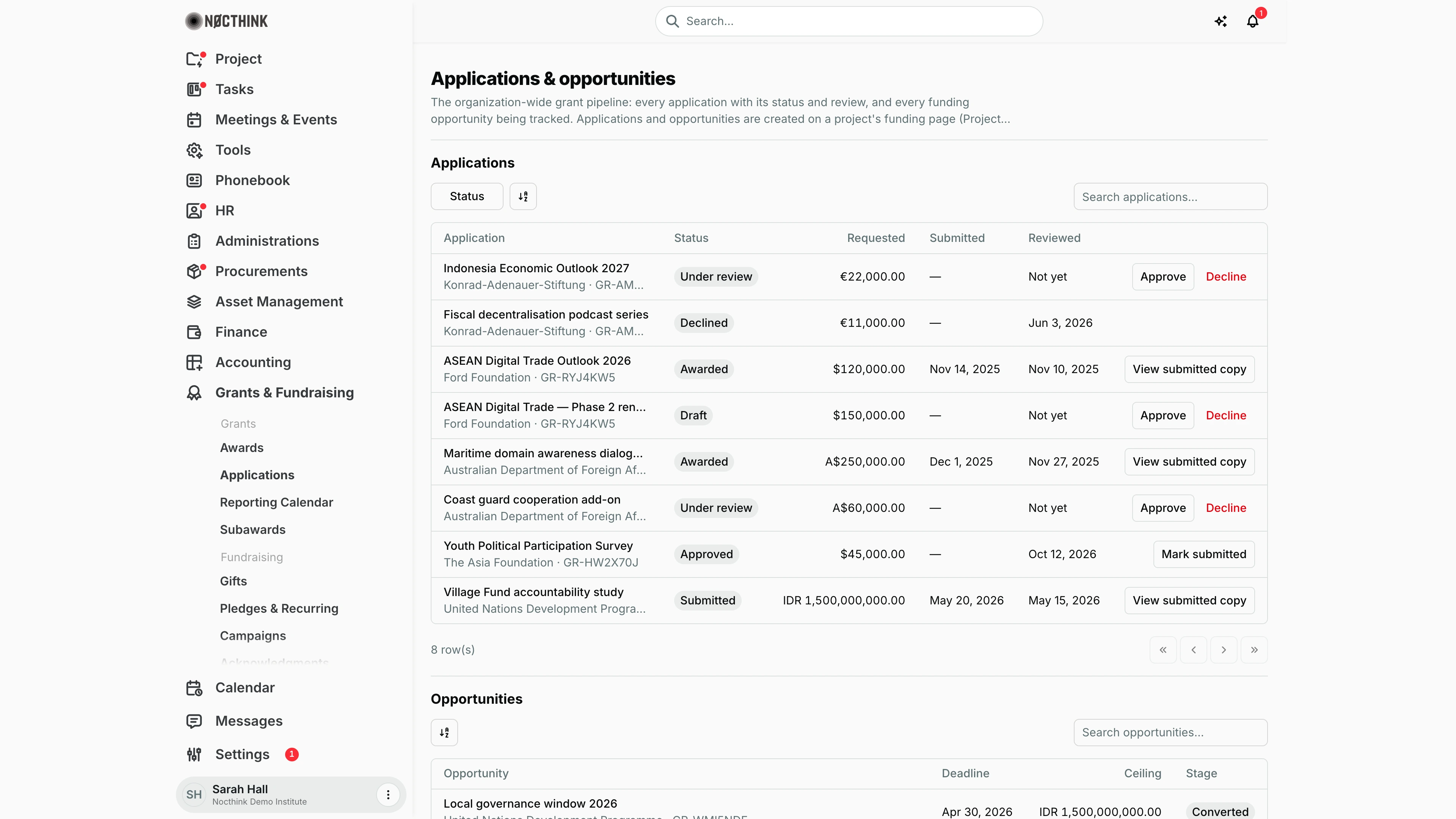
Screenshot: Sarah Hall (Finance Manager), Nocthink Demo Institute demo data.
Why I use this page
I use this page to see the whole grant pipeline across the organization in one place. Project teams write their applications and track funding opportunities on their project's funding page. I come here to sign each application off (approve or decline) before it goes out, and then to record the date it was actually sent. I check it every week, and more often when funder deadlines are close.
Grants sit in the U.S. nonprofit modules, which are not covered in docs/role.md. The responsible role comes from the demo role "Grants and fundraising", which the seed gives to the Finance Manager.
What's on the screen
-
Header: Applications & opportunities, with a note that applications and opportunities are created under Projects → Funds & Grants.
-
Applications section:
-
A Status filter. It is a checkbox list: Draft, Under review, Approved, Submitted, Declined and Awarded.
-
A sort button and a Search applications… box.
-
Table columns:
- Application: the title, with the funder and grant number underneath.
- Status
- Requested: in the award's currency.
- Submitted: the date.
- Reviewed: a date, or "Not yet".
- An actions column.
-
The action buttons depend on the status:
Status Buttons Draft or Under review Approve and Decline Approved Mark submitted Submitted or Awarded View submitted copy Declined None
-
-
Opportunities section (below; scroll to see it):
- A sort button and a Search opportunities… box.
- Table columns:
- Opportunity: the name, with the funder and grant number.
- Deadline
- Ceiling
- Stage: Screening, Applying, Converted or Dropped.
- This table is read-only.
How I …
Review an application
- In Status, tick Draft and Under review to see what is waiting for me.
- Read the application on its project's funding page (Projects → Funds & Grants), where the full document lives.
- Back here, click Approve or Decline on its row. The change is saved straight away, with no confirmation dialog.
- The status changes to Approved or Declined, and Reviewed shows today's date. The decision is written to the audit log with my name.
Record that an application was submitted
- Find the row with status Approved.
- Click Mark submitted.
- In the Mark as submitted dialog (see below), set Submitted on to the date the application went to the funder. It defaults to today.
- Click Mark submitted. The status becomes Submitted, and the app keeps a frozen copy of the application as it was at that moment.
Check what was actually sent
- On a Submitted or Awarded row, click View submitted copy.
- The Submitted copy dialog (see below) shows what was frozen at submission: title, requested amount (in the award currency), document, notes, reviewer, review time and submitted date. Later edits on the project do not change this copy.
Track upcoming deadlines
- Scroll to Opportunities.
- Sort by Deadline, or search by name.
- Look for Applying opportunities whose deadline is close. To change the stage or details, open the project's funding page.
Detail page, forms & dialogs
Mark as submitted
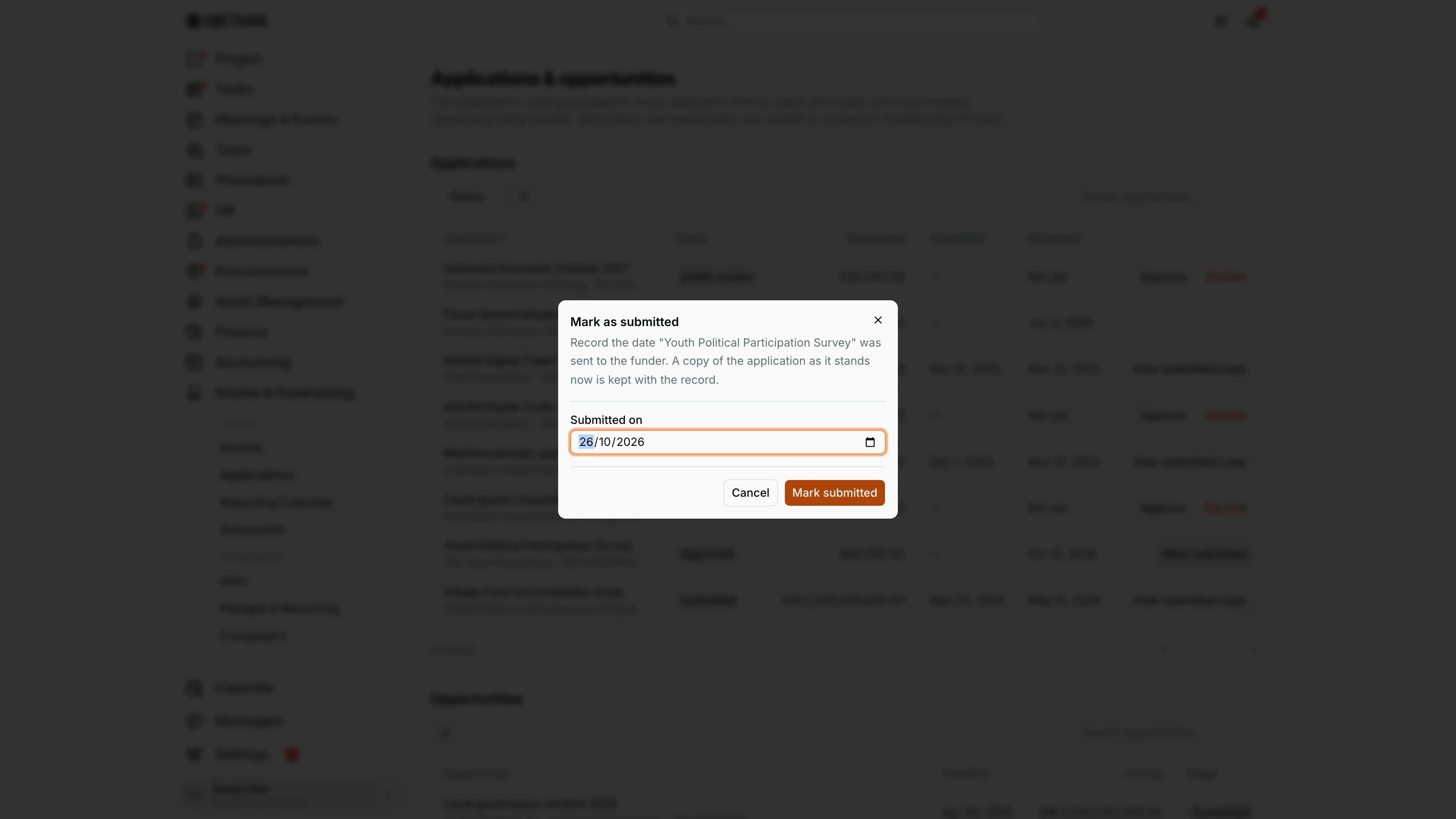
Screenshot: Sarah Hall (Finance Manager, also holds the F.A.T Manager role), Nocthink Demo Institute demo data.
Mark submitted appears only on an Approved application. The dialog names the application and explains what happens: it records the date the application was sent to the funder, and a copy of the application as it stands now is kept with the record. Submitted on defaults to today; I change it to the day it actually went out. Mark submitted changes the status to Submitted and freezes the copy; Cancel leaves the application approved. I only do this once the application has really left the organization, because later edits on the project's funding page no longer reach the frozen copy.
Submitted copy
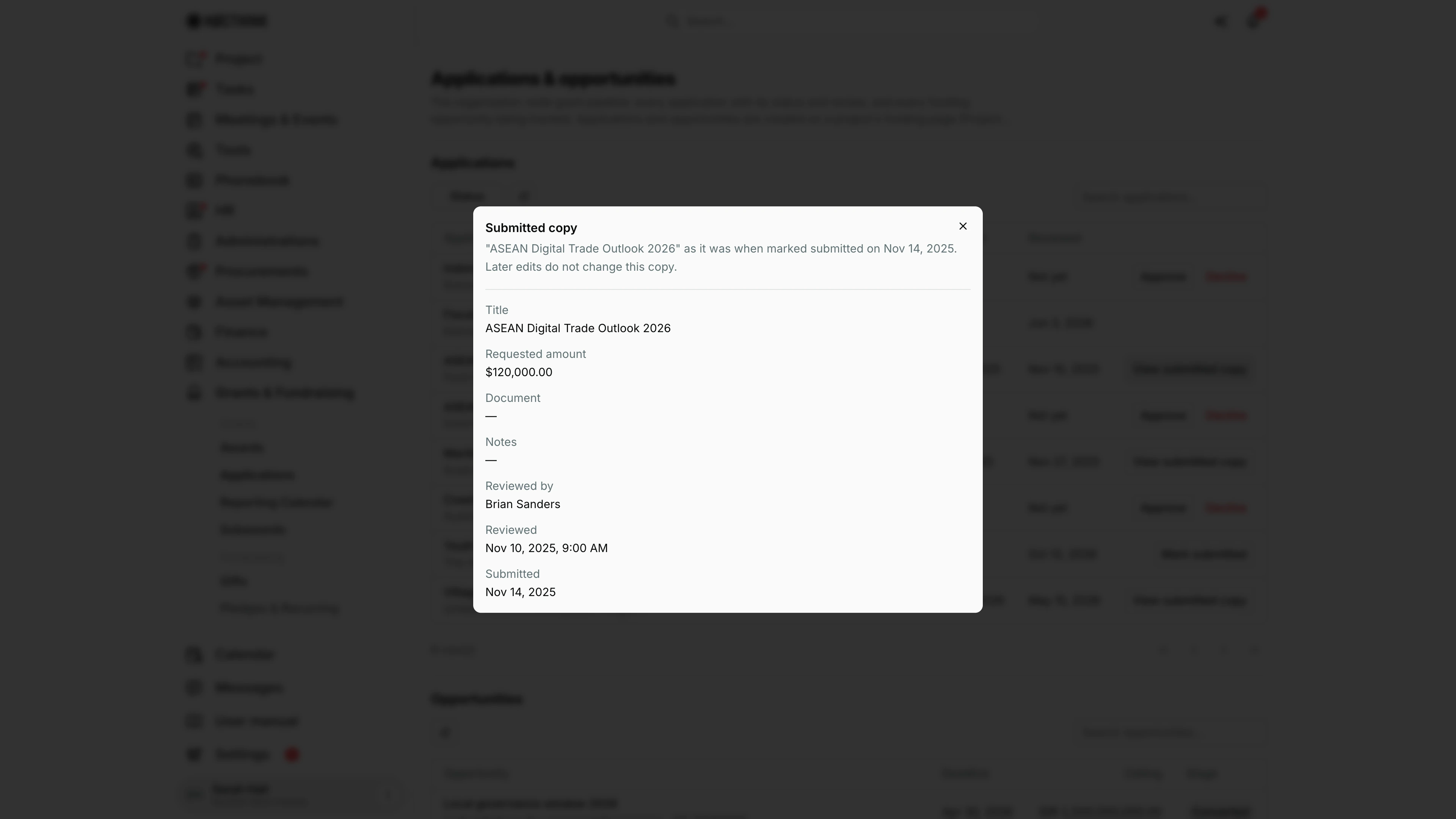
Screenshot: Sarah Hall (Finance Manager, also holds the F.A.T Manager role), Nocthink Demo Institute demo data.
View submitted copy appears on Submitted and Awarded applications. The dialog says when the copy was taken ("as it was when marked submitted on …") and that later edits do not change it. It lists the frozen fields one under another: Title, Requested amount in the award's currency, Document, Notes, Reviewed by (the reviewer's name), Reviewed (date and time) and Submitted (date). I use it when a funder or auditor asks exactly what we sent, or when the project's current proposal has moved on since submission. The dialog is read-only; close it with the X.
Access & permissions
-
The page needs
grants.view. Grants is a restricted domain, so it is not open to all staff. Without it the menu is hidden and typing the URL is blocked. -
The U.S. nonprofit modules must be switched on in Settings → Nonprofit.
-
Who can do what:
Action Permission needed Approve or Decline grants.approveMark submitted grants.update -
In the demo:
- The Finance Manager ("Grants and fundraising") holds both permissions.
- The Senior Researcher ("Program and impact") can only view.
- The Executive Director and Deputy Director see everything.
Caveats
- Only Draft or Under review applications can be signed off. Trying it on any other status returns an error.
- An application must be Approved before it can be marked submitted. The server rejects any other status.
- Approved can only be set here, by review. The project funding page can set an application to Draft, Under review or Declined, but not Approved.
- If someone else changes the application while the dialog is open, I get "This application changed; reload and try again."
- Decline is final as far as this page goes: a declined application has no actions here.
- The person who drafted an application cannot sign it off: their row shows "You drafted this; another approver signs it off" and the server refuses with "You drafted this application; another grants approver must sign it off." The exception is a one-person organization, where the owner signs off their own drafts. The drafter is recorded when the application is created on the project funding page. Applications created before that was added have no recorded drafter, so agree internally that someone else reviews those.
- Mark submitted only records the date. It does not send anything to the funder.
- A requested amount shows in the currency of the linked award. Without an award, it shows as a bare number.
Limitations
- I cannot create or edit applications or opportunities here. That is done on the project's funding page.
- There is no "Awarded" action here. That status comes from the project funding flow when the award is confirmed.
- There is no undo for Approve, Decline or Mark submitted.
- The page has no export and no bulk actions.
- The Opportunities table has no status filter, only search and sort.
Related menus
- Funds & Grants (Project): where applications and opportunities are written and edited.
- Awards: the award each application belongs to.
- Reporting Calendar: the reports owed once an application is awarded.
- Donors: the funder records behind each application.