
Awards
Open in NocthinkModule: Grants & Fundraising · URL: /grants/awards · Responsible role: Finance Manager (demo role "Grants and fundraising") · Also used by: Executive Director and Deputy Director (full access); Program and impact staff such as the Senior Researcher (view only)
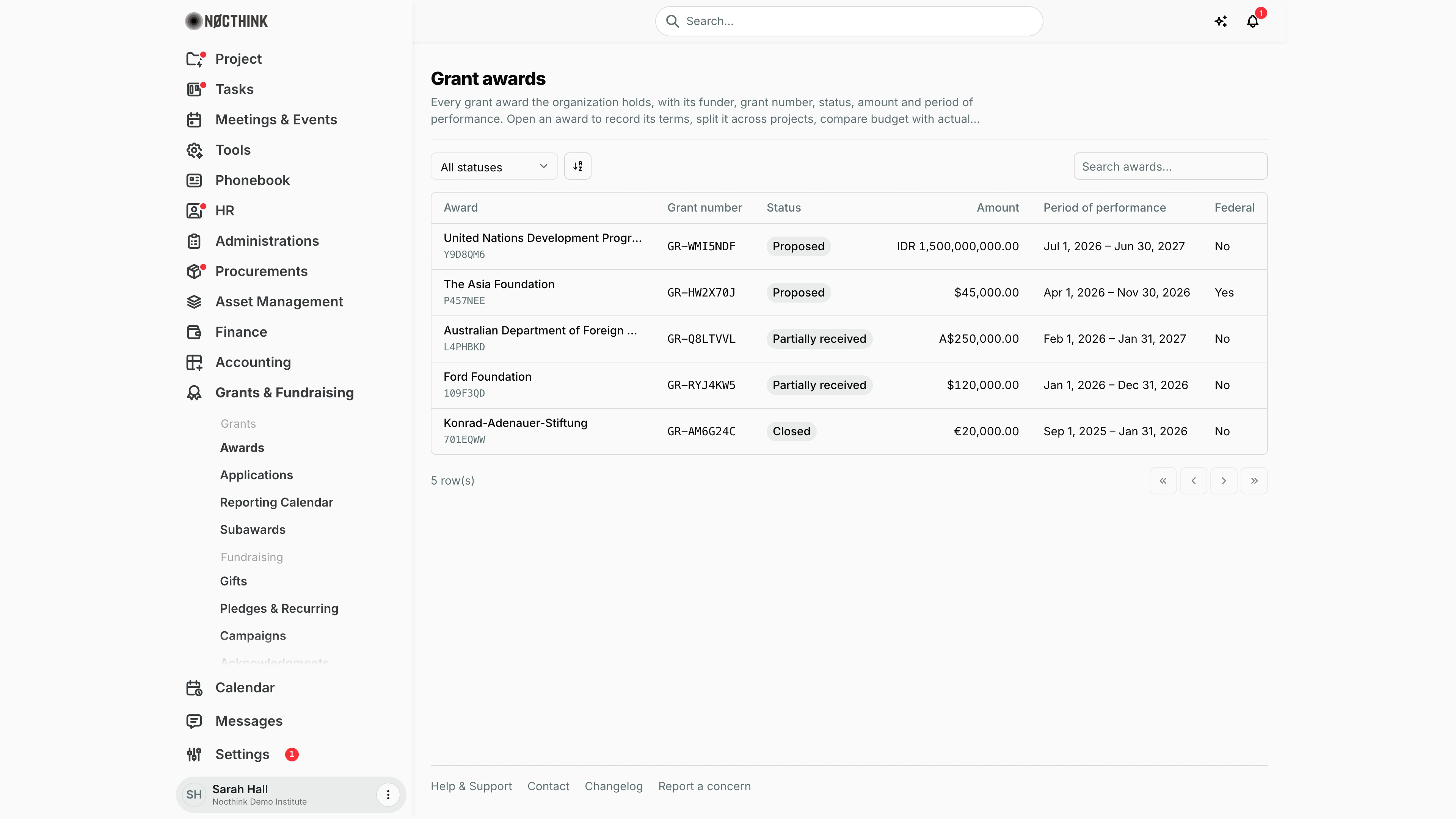
Screenshot: Sarah Hall (Finance Manager), Nocthink Demo Institute demo data.
Why I use this page
I use this page as the register of every grant award we hold. When a new agreement is signed I open the award here to record its terms (period of performance, federal identifiers, indirect rate, match, restrictions) and split it across the projects it funds. Every month I check Budget vs actual and the cost exceptions, and at the end of the period of performance I run the closeout checklist here.
Grants and fundraising sit in the U.S. nonprofit modules. They are not covered in docs/role.md. The responsible role here comes from the demo role "Grants and fundraising", which the seed gives to the Finance Manager.
What's on the screen
- Header: Grant awards, with a one-line description. There is no "New award" button on this page (see Limitations).
- Toolbar:
- A status filter, All statuses, with the options Proposed, Pledged, Partially received, Received, Allocated, Closed and Rejected.
- A sort button.
- A Search awards… box that searches the funder name.
- Table columns:
- Award: the funder name, with the fund code underneath in monospace (for example
Y9D8QM6). Click it to open the award. - Grant number
- Status
- Amount: in the award's own currency, for example $, €, IDR or A$.
- Period of performance, shown as "Not set" when it has no dates.
- Federal: Yes or No.
- Award: the funder name, with the fund code underneath in monospace (for example
- Footer: a row count and pagination.
When I open an award (/grants/awards/<id>) I see:
- Award Details rail on the left:
- Status, plus a Federal pill when it applies.
- Grant no.
- Amount, with the base-currency equivalent underneath when the award is in a foreign currency.
- Start and End.
- Agreement date.
- A Subawards under this award link.
- Tabs: Terms, Projects, Budget vs actual, Cost rules, Closeout and Grant to impact.
How I …
Record the award terms
- Click the funder name in the list. The award opens on the Terms tab (see Award detail: Terms below).
- Fill in Period start and Period end. The end cannot be earlier than the start.
- Tick Federal award if the money is federal, then enter the Assistance Listing number (for example
93.243) and the FAIN. - Enter the Indirect cost rate (%) (0–100) and choose the Indirect cost base: Modified total direct costs (MTDC), Total direct costs (TDC), Salaries and wages or Other. Leave the rate blank if no indirect costs are allowed.
- Enter Match required in the award currency, and paste the donor's wording into Restriction terms.
- Click Save terms. "Terms saved." appears, and the change is written to the audit log.
Split the award across projects
- Open the Projects tab (see Award detail: Projects below).
- In Add allocation, choose the Project, enter the Amount (in the award currency) and add a Note if useful.
- Click Add allocation. The summary updates Award amount, Allocated and Unallocated.
- To change a share, click Edit on its row. The form switches to Update allocation. Click Update allocation to save, or Clear to discard the change.
- To delete a share, click Remove on its row.
Compare budget with spending and check a cost
-
Open Budget vs actual. I see four figures:
- Budget, in the award currency.
- Allocated to projects, in the award currency.
- Received (tranches received), in the base currency.
- Spent (posted expenses), in the base currency.
Below them are actual spending by Account and a list of cost exceptions by Journal, Date, Account and Issues.
-
Open Cost rules and click Add rule (see Add cost rule below):
- Choose the Account.
- Choose the Rule: Allowed, Unallowable or Needs prior approval.
- Add a Note (for example "Clause 7.2 of the agreement").
- Optionally set Effective from and Effective to.
- Click Add rule.
-
To test a planned charge, use the check form on the same tab:
- Choose the Account and the Date.
- Click Check. The result is either "No issues found." or Flagged: with one or more of Before period, After period, Unallowable and Needs prior approval.
Close out the award
- Open Closeout (see Award detail: Closeout below). The Checklist shows each item as Done or Blocked:
- Reporting obligations submitted
- Reports accepted by the funder
- Deliverables approved
- Cash advances settled
- No draft journals
- Unspent balance
- Accounting fund linked
- If every item is done, click Complete closeout. The award becomes Closed.
- If items are still blocked, type an Override reason and click Complete closeout. Only a grants approver can override, and the reason is kept in the audit log.
Produce the grant-to-impact trail
- Open Grant to impact (see Award detail: Grant to impact below).
- Choose View:
- Internal (full detail and exceptions), or
- Donor (verified, donor-visible items only).
- Optionally set From and To. Blank dates use the period of performance.
- Review the coverage cards (Spending with a source document, Observations verified, Reports confirmed by the funder), then the exceptions and the six steps of the trail.
- Click Save snapshot to freeze the report with a fingerprint of every source record. Later I can verify the snapshot and see whether anything is Unchanged or Changed.
Detail page, forms & dialogs
Award detail: Terms
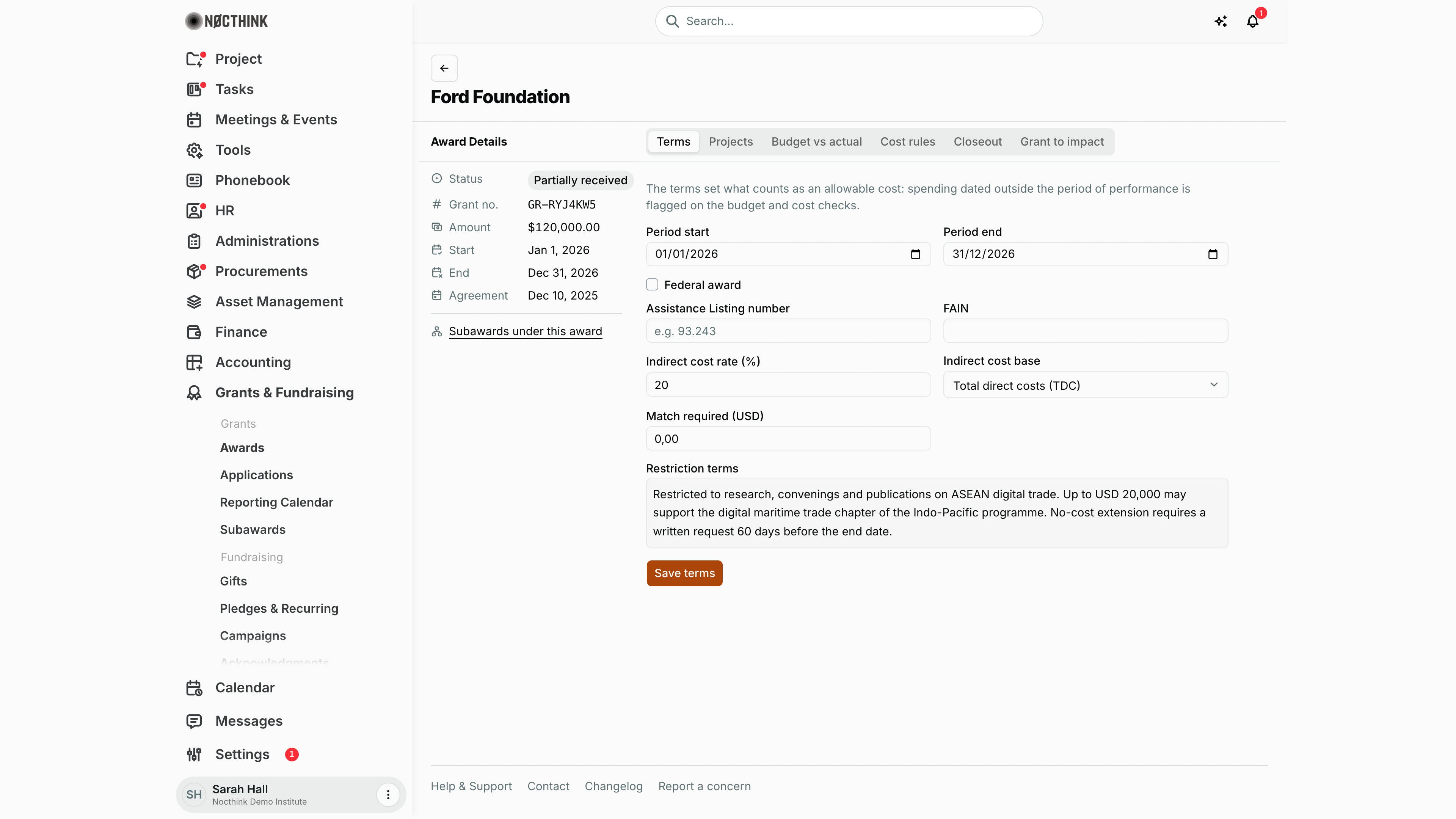
Screenshot: Sarah Hall (Finance Manager, also holds the F.A.T Manager role), Nocthink Demo Institute demo data.
This is the page I land on when I click a funder in the list. The header is the funder name, with a back arrow to the list. The Award Details rail on the left stays the same on every tab: Status (plus a Federal pill when it applies), Grant no., Amount with its base-currency equivalent underneath for a foreign-currency award, Start, End, Agreement and the Subawards under this award link. The Terms tab holds the fields that decide what counts as an allowable cost: Period start and Period end, Federal award with Assistance Listing number and FAIN, Indirect cost rate (%) and Indirect cost base, Match required in the award currency, and Restriction terms. Save terms writes them and logs the change. Spending dated outside the period is flagged on Budget vs actual and by the cost check (see Record the award terms above).
Award detail: Projects
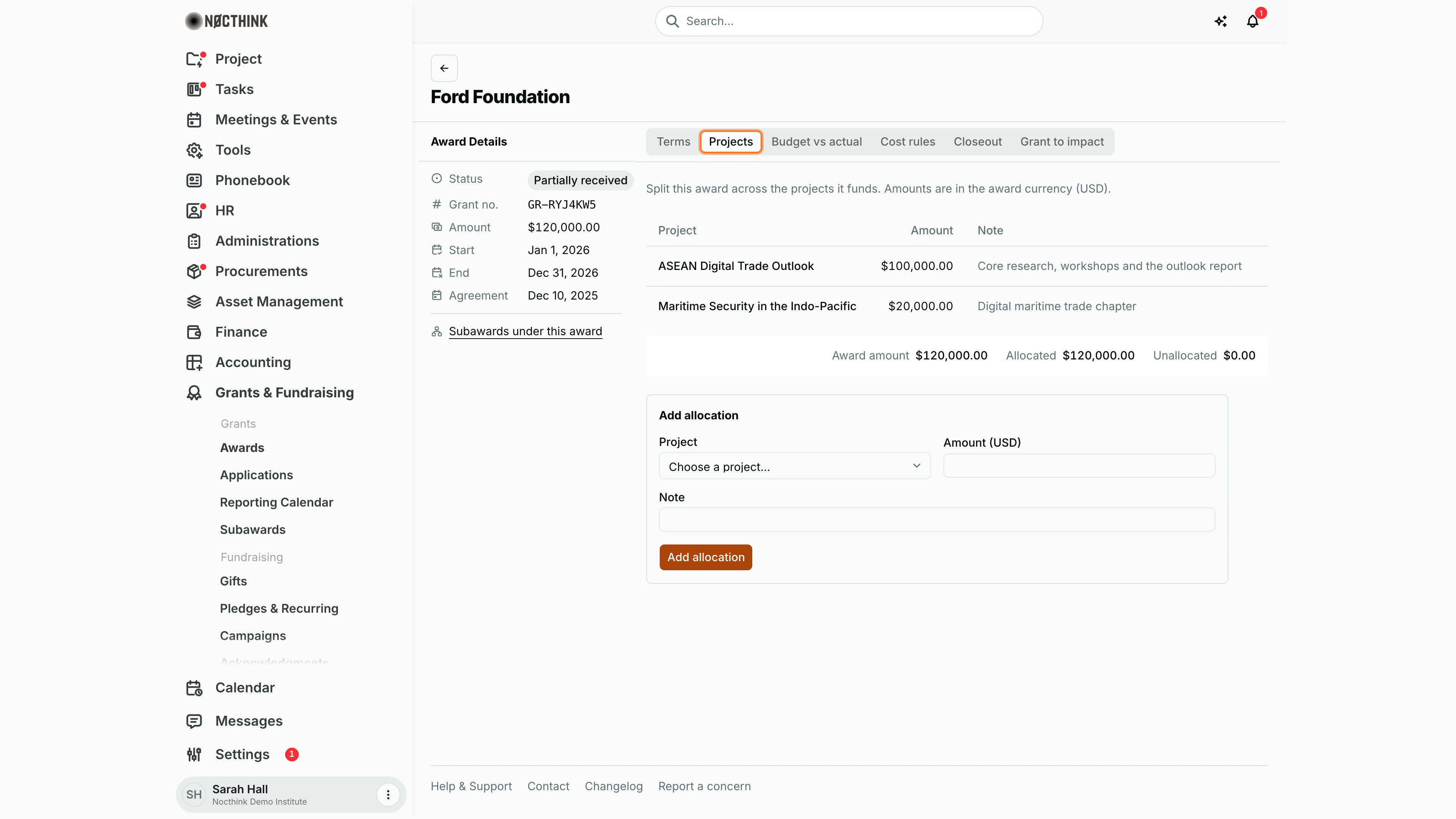
Screenshot: Sarah Hall (Finance Manager, also holds the F.A.T Manager role), Nocthink Demo Institute demo data.
The Projects tab splits the award across the projects it funds, in the award currency. Each row shows the Project, the Amount and a Note, with Edit and Remove on the right. Under the table a summary line shows Award amount, Allocated and Unallocated. The Add allocation form takes a Project, an Amount and an optional Note. When I click Edit on a row, the same form switches to Update allocation, with Clear to discard the change. Allocation is what lets project reports and the grant-to-impact trail follow the money from this award to the work.
Award detail: Budget vs actual
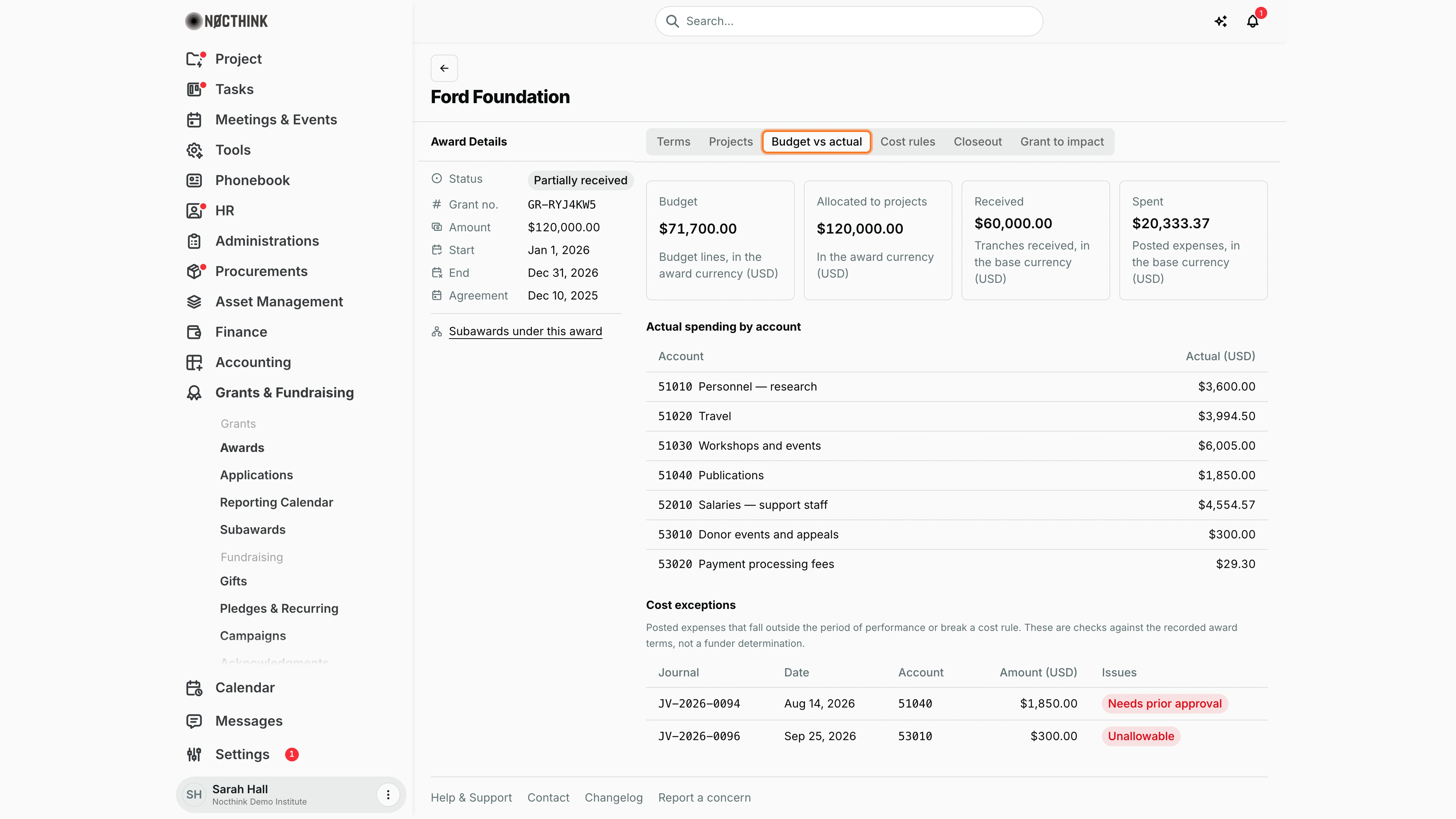
Screenshot: Sarah Hall (Finance Manager, also holds the F.A.T Manager role), Nocthink Demo Institute demo data.
Budget vs actual is my monthly check on the award. Four cards sit at the top: Budget (the award's budget lines, in the award currency), Allocated to projects (award currency), Received (tranches received, in the base currency) and Spent (posted expenses, base currency). Actual spending by account lists each expense account with its posted total; it says "No posted expenses for this award yet." when nothing has been charged. Cost exceptions lists posted expenses that fall outside the period of performance or break a cost rule, by Journal, Date, Account and Issues. These are checks against the recorded terms, not a funder determination. When the list says "No cost exceptions found." there is nothing to follow up.
Award detail: Cost rules
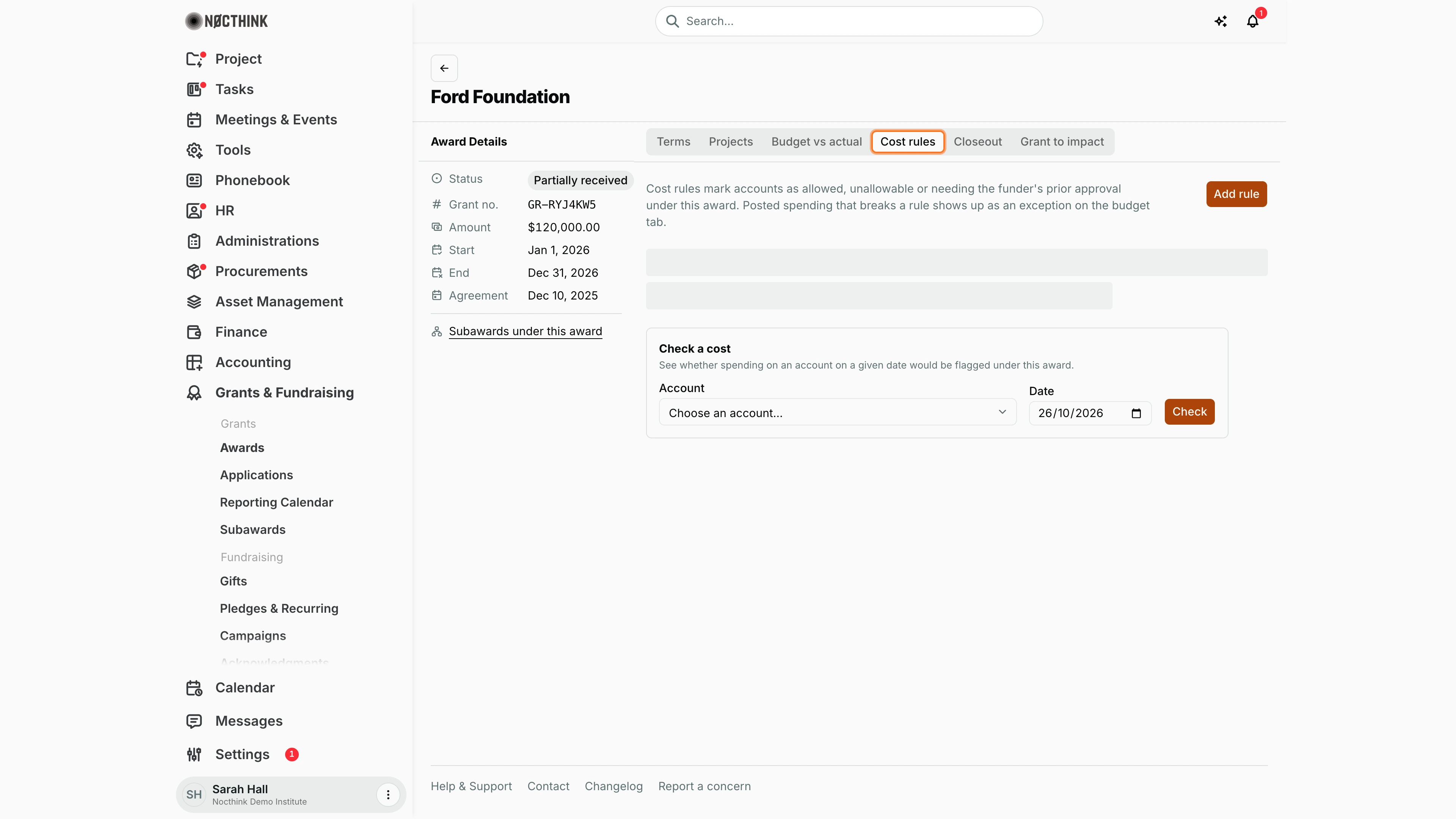
Screenshot: Sarah Hall (Finance Manager, also holds the F.A.T Manager role), Nocthink Demo Institute demo data.
Cost rules records how the agreement treats individual accounts. The table lists each rule by Account, Rule (Allowed, Unallowable or Needs prior approval), Effective dates and Note. With no rules it reads "No cost rules yet. Without rules, only the period of performance is checked." Below it, Check a cost lets me test a planned charge before anyone books it: I choose the Account and the Date and click Check. The answer is "No issues found." or Flagged: with the reasons. Posted spending that breaks a rule shows up as an exception on Budget vs actual, and an unallowable or prior-approval cost also stops or questions the journal when the F.A.T Manager posts it.
Add cost rule
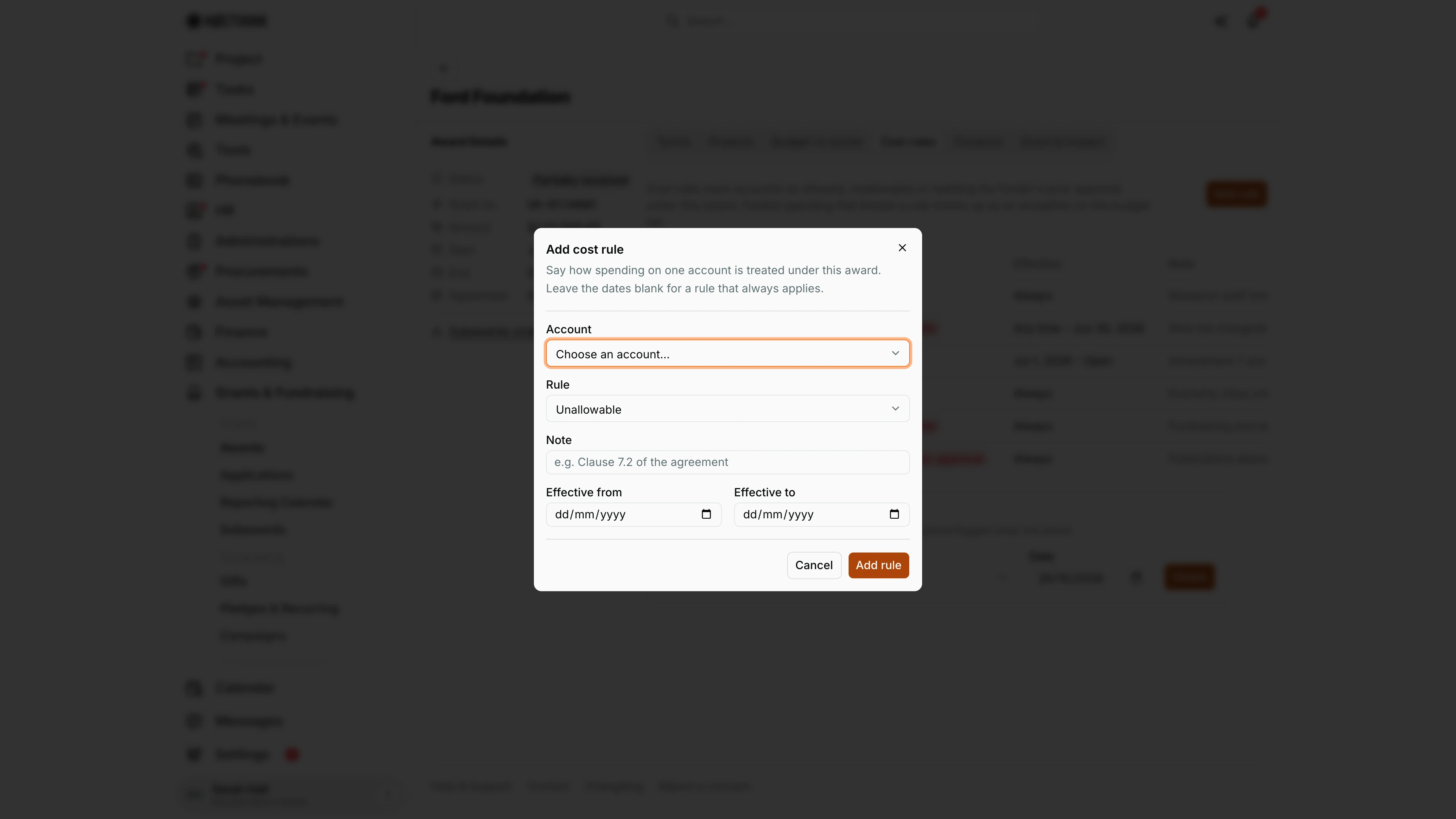
Screenshot: Sarah Hall (Finance Manager, also holds the F.A.T Manager role), Nocthink Demo Institute demo data.
Add rule on the Cost rules tab opens this dialog: "Say how spending on one account is treated under this award. Leave the dates blank for a rule that always applies." I choose the Account from the chart of accounts and the Rule: Allowed, Unallowable or Needs prior approval. In Note I cite the clause of the agreement (for example "Clause 7.2 of the agreement") so a reviewer can trace the rule back to the contract. Effective from and Effective to limit the rule to a date range, for example a budget revision that starts mid-award. Add rule saves it and it applies straight away to Check a cost and to the exceptions on Budget vs actual.
Award detail: Closeout
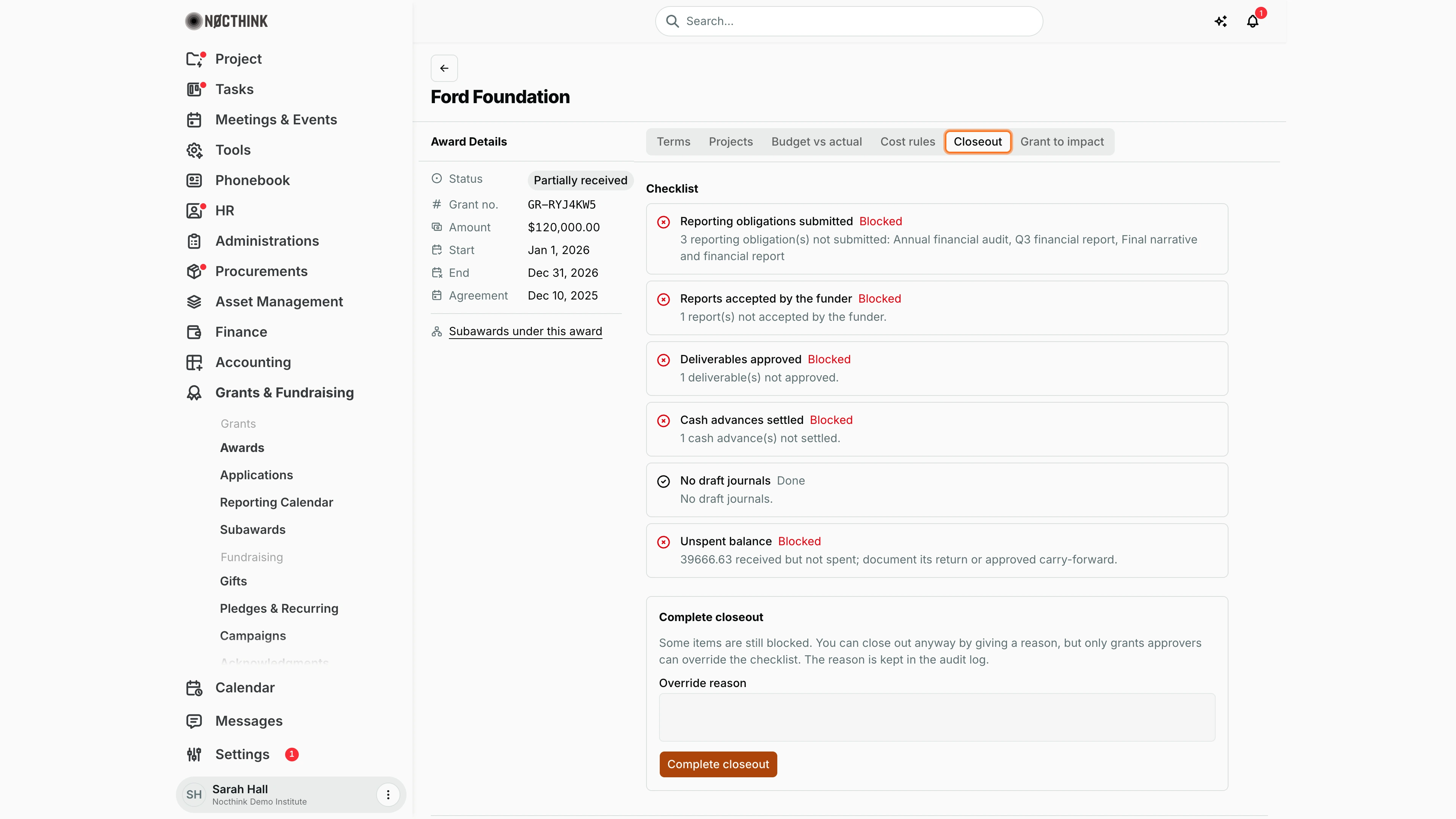
Screenshot: Sarah Hall (Finance Manager, also holds the F.A.T Manager role), Nocthink Demo Institute demo data.
Closeout is where I finish an award at the end of its period of performance. The Checklist shows each item as Done or Blocked, with a line explaining why: reporting obligations submitted, reports accepted by the funder, deliverables approved, cash advances settled, no draft journals, unspent balance, and the accounting fund link. A blocked item names what is outstanding, for example which reporting obligations are not yet submitted. Under it, Complete closeout either says every item is done or asks for an Override reason. Only a grants approver can complete with blocked items, and the reason is kept in the audit log. Completing marks the award Closed. Obligations are cleared on the Reporting Calendar.
Award detail: Grant to impact
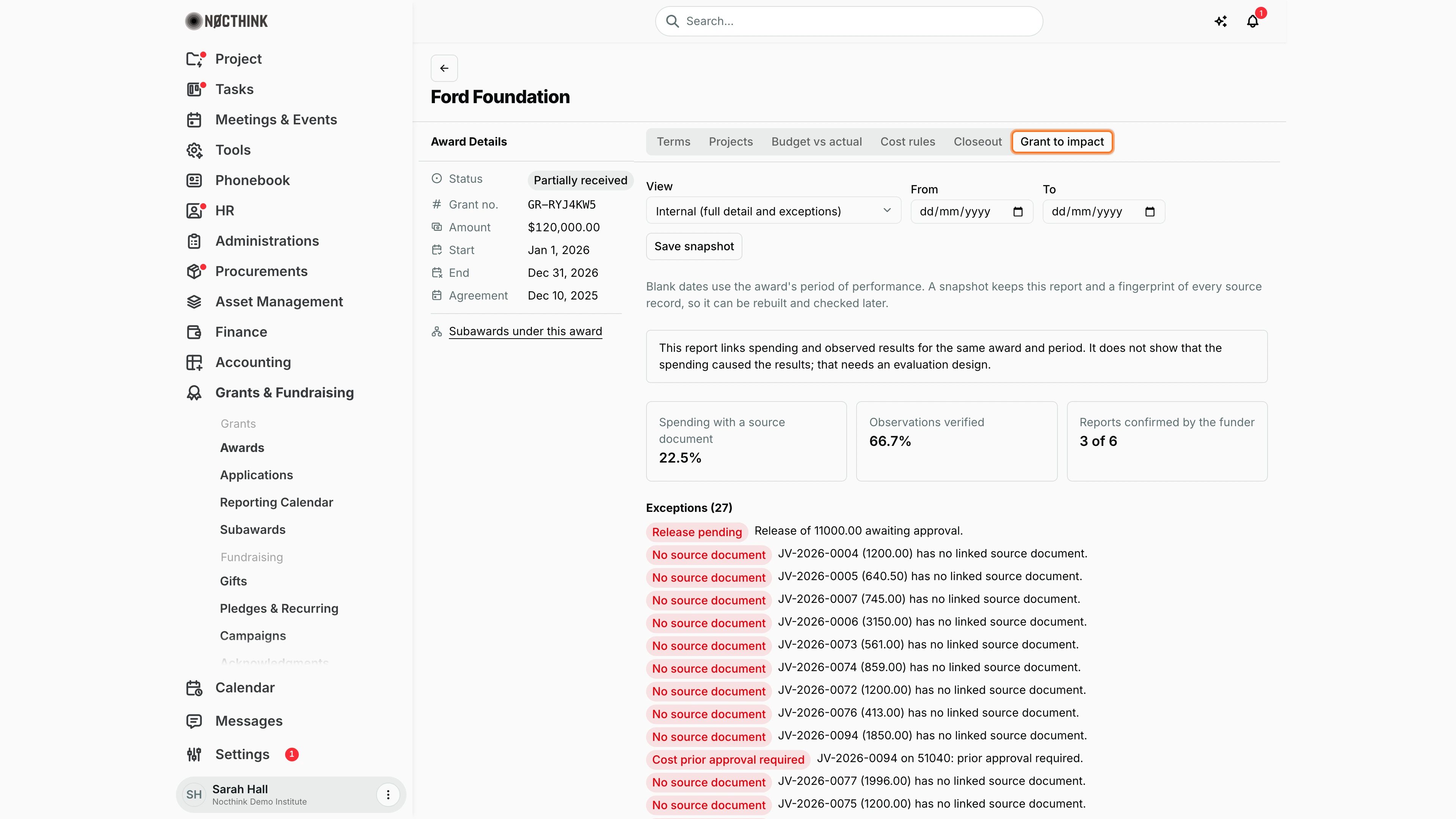
Screenshot: Sarah Hall (Finance Manager, also holds the F.A.T Manager role), Nocthink Demo Institute demo data.
Grant to impact builds the trail from this award to the results it paid for. View chooses Internal (full detail and exceptions) or Donor (verified, donor-visible items only); From and To narrow the dates, and blank dates use the award's period of performance. The report has six steps: Award and funder, Restrictions, Allocation to projects and approved budget, Posted expenses, Results: indicators, observations and verification, and Reports and submissions, with coverage cards and exceptions above them. Save snapshot freezes the report with a fingerprint of every source record, and the Snapshots list below shows each saved one so I can check later whether its sources are unchanged.
Access & permissions
-
Everything in
/grantsneedsgrants.view. This domain is restricted, so it is not open to all staff. People without it do not see the menu, and typing the URL is blocked. -
The organization also has to have the U.S. nonprofit modules switched on in Settings → Nonprofit. If they are off, the page shows "Not turned on".
-
Who can do what:
Action Permission needed Edit terms, allocations or cost rules; run a closeout grants.updateOverride a blocked closeout grants.approveRun a cost check grants.view -
In the demo:
- The "Grants and fundraising" role (Finance Manager) has view, create, update and approve.
- The "Program and impact" role (Senior Researcher) has view only.
- The Executive Director and Deputy Director see everything.
Caveats
- Allocations are checked on the server. One allocation must be greater than zero, and all allocations together cannot exceed the award amount. If they would, the error tells me how much is still unallocated.
- I cannot add, edit or remove an allocation for a project that is closed or archived.
- Allocations and the match are in the award currency, but Received and Spent are in the organization's base currency. Don't compare those figures directly without allowing for the exchange rate.
- Only posted journals count in Spent. Draft journals do not count, and they also block the closeout item "No draft journals".
- Completing a closeout cannot be undone from the UI. It sets the award to Closed and stores the checklist as it was at that moment. A second closeout is refused with "This award is already closed out."
- The cost check is advisory. It flags issues but does not stop anyone from posting.
- Without cost rules, only the period of performance is checked.
Limitations
- I cannot create awards here. Awards come from a project's funding page (Projects → Funds & Grants).
- There is no delete and no edit for an existing cost rule: the tab only has Add rule.
- The list has no export and no bulk actions.
- The award's amount, funder and status are not edited on this page. Status changes come from the project funding flow and from closeout.
Related menus
- Funds & Grants (Project): where awards, applications and opportunities are created.
- Applications: the grant pipeline that leads to an award.
- Reporting Calendar: the reports owed under each award, which feed the closeout checklist.
- Subawards: money passed on to partners from a prime award.
- Funds & Grants (Accounting): the ledger fund that the award is linked to.
- Donor Restrictions: the restricted net-asset roll-forward.