
Acknowledgments
Open in NocthinkModule: Grants & Fundraising · URL: /fundraising/acknowledgments · Responsible role: Finance Manager (demo role "Grants and fundraising") · Also used by: Executive Director and Deputy Director (full access), who act as the second approver for letters the Finance Manager drafted. No other demo role has the fundraising domain.
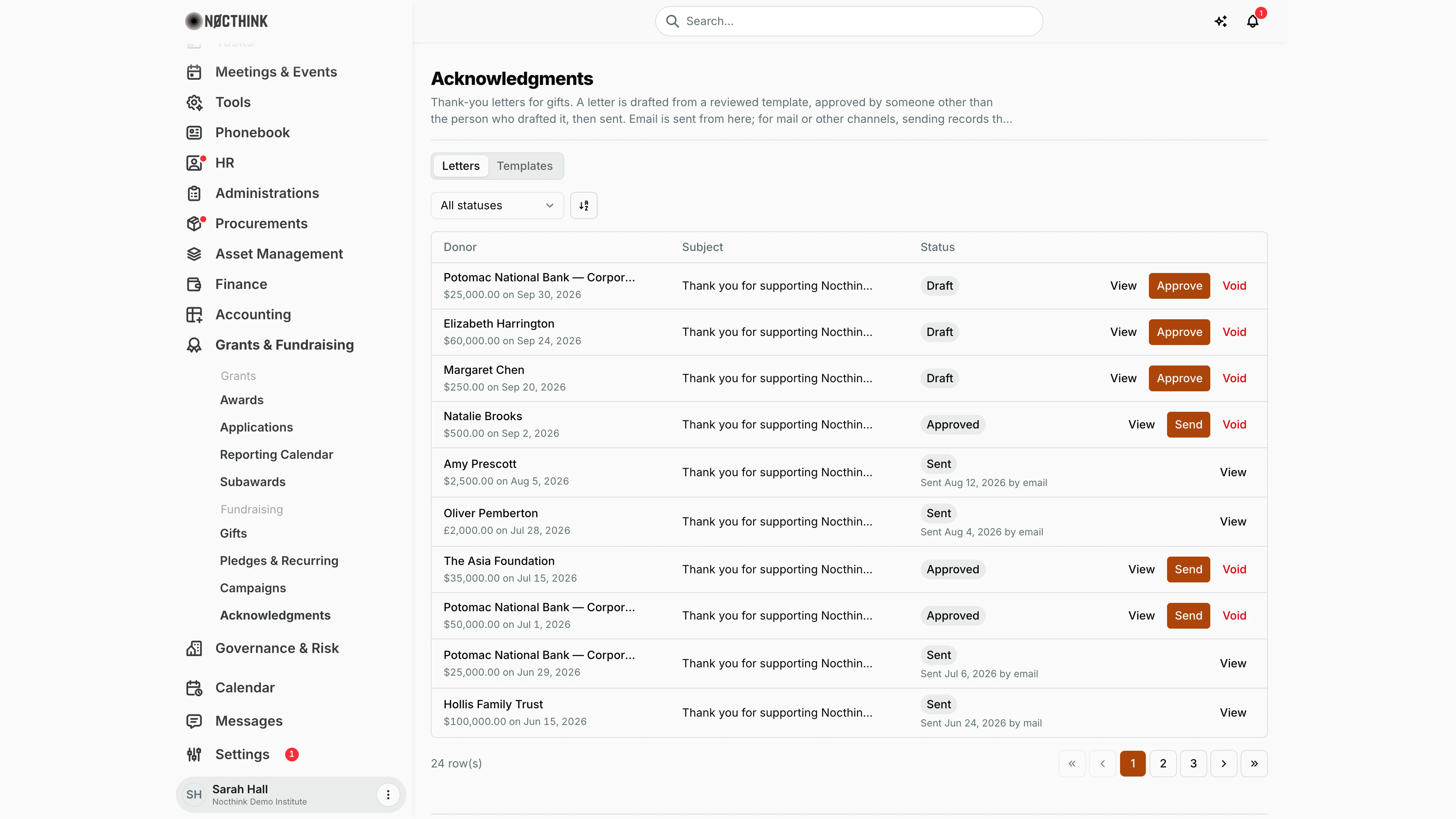
Screenshot: Sarah Hall (Finance Manager), Nocthink Demo Institute demo data.
Why I use this page
Every gift needs a written thank-you. For gifts of $250 or more, the U.S. tax rules expect a contemporaneous written acknowledgment that states whether any goods or services were provided in return.
On this page I:
- keep the reviewed letter templates;
- approve drafts that a colleague created;
- send approved letters by email, or record that they went out by mail.
I clear the Draft and Approved queues weekly so donors hear from us within days.
Fundraising sits in the U.S. nonprofit modules, which are not covered in docs/role.md. The responsible role comes from the demo role "Grants and fundraising", which the seed gives to the Finance Manager.
What's on the screen
- Header: Acknowledgments, with the rule: drafted from a reviewed template, approved by someone other than the drafter, then sent.
- Tabs: Letters and Templates.
- Letters tab:
- A status filter: All statuses, Draft, Approved, Sent or Voided.
- A sort button.
- Table columns:
- Donor: the donor's name, with the gift underneath, for example "$25,000.00 on Sep 30, 2026".
- Subject: long subjects are shortened; hover to read the full line.
- Status: once sent, the line underneath says when and how, for example "Sent Aug 12, 2026 by email".
- Actions.
- A row count and pagination below the table.
- The actions on each row depend on the status:
- Draft: View, Approve and Void.
- Approved: View, Send and Void.
- Sent: View only.
- Templates tab:
- A New template version button.
- A table with Name, Version, Active, Reviewed by and Created.
- Each row has a button to start a new version of that template.
How I …
Set up or revise a letter template
- Open Templates and click New template version (see Templates and New template version below). To revise an existing template, use the button on its row instead.
- Enter:
- Name: reusing an existing name creates the next version and makes it active.
- Subject
- Body
- Use the placeholders
{{donor_name}},{{amount}},{{gift_date}},{{legal_name}},{{ein}},{{goods_services_statement}}and{{description}}(for noncash gifts). - Enter Reviewed by: the person or adviser who checked the wording. This is required.
- Click Save version. Earlier versions, and the letters already drafted from them, are kept.
Draft a letter
- Go to Gifts, click Open on the gift, then click Draft acknowledgment.
- Choose a Template, or keep "Most recent active template". Click Create draft.
- The letter appears here as Draft, with the placeholders filled in.
Approve a colleague's draft
- Filter by Draft and click View to read the filled-in letter for that gift (see Acknowledgment letter below).
- Click Approve. In Approve acknowledgment, confirm the wording is right, then click Approve.
- If I drafted the letter myself, the server refuses: "Someone other than the drafter must approve an acknowledgment." In that case the Executive Director or Deputy Director approves it.
Send an approved letter
- On an Approved row, click Send (see Send acknowledgment below).
- Choose the Channel:
- Email: enter the Email address. The donor's email is suggested when the donor is a contact. Click Send email, and the letter is emailed now.
- Mail or Other: enter the Mailing address or Sent to, then click Record as sent. Nothing is sent from the app. This only records that the letter was dispatched.
- The row becomes Sent, and the line under the status shows the date and channel.
Void a letter
- On a Draft or Approved row, click Void, then Void letter.
- The letter is kept on record as Voided. To redraft, go back to the gift and click Draft acknowledgment again.
Detail page, forms & dialogs
Acknowledgment letter
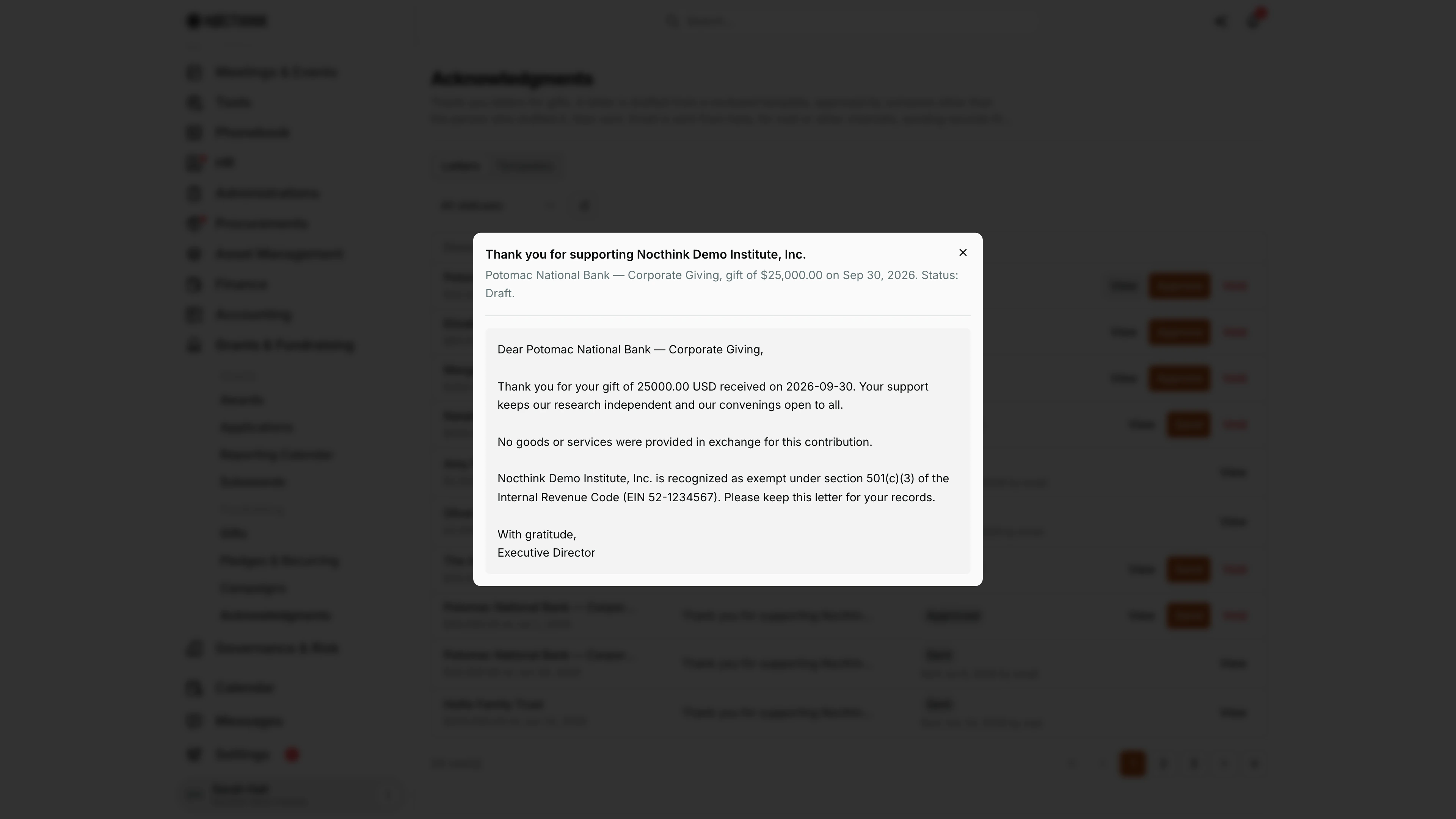
Screenshot: Sarah Hall (Finance Manager, also holds the F.A.T Manager role), Nocthink Demo Institute demo data.
View on any row opens the letter as the donor will read it. The title is the letter's subject; the line under it names the donor, the gift amount and date, and the status, plus when, how and to whom it was sent once it has gone. The body is the template with the placeholders filled in from the gift and our organization profile: the donor's name, the amount in the gift's currency (e.g. "$250.00") and the date written out (e.g. "May 1, 2026"), the goods-or-services statement, and our legal name and EIN. This is the step where I check the wording before I click Approve on a colleague's draft. The dialog is read-only; to change the wording, void the letter, revise the template and draft again.
Send acknowledgment
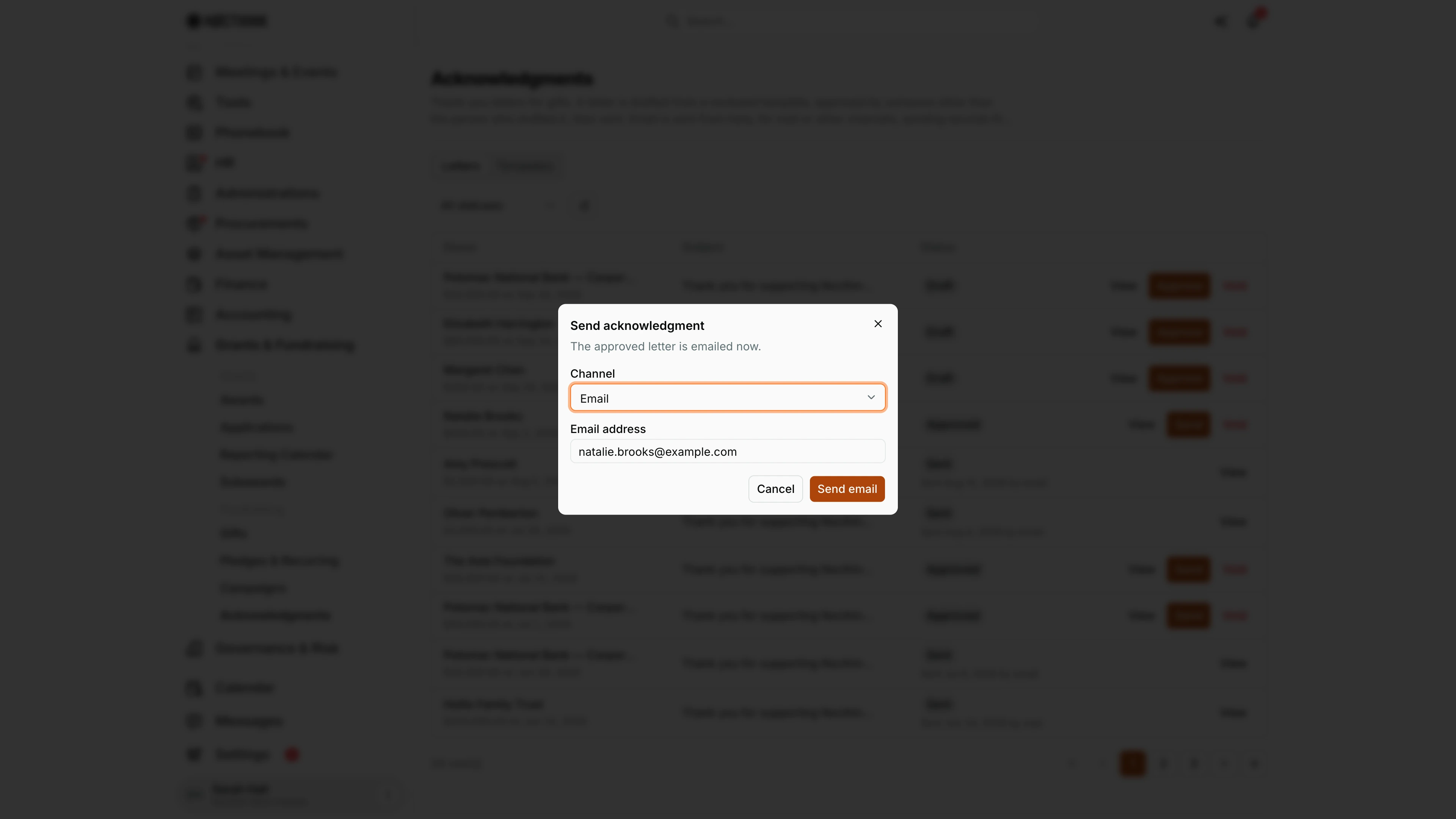
Screenshot: Sarah Hall (Finance Manager, also holds the F.A.T Manager role), Nocthink Demo Institute demo data.
Send appears only on Approved letters. The dialog asks for the Channel. With Email, the field is Email address, pre-filled with the donor's email when the donor is a contact, and the button is Send email: the approved letter is emailed now. With Mail or Other, the field becomes Mailing address or Sent to and the button Record as sent; nothing leaves the app, it only records that the letter was dispatched. Either way the row becomes Sent with the date and channel underneath (see Send an approved letter above).
Templates
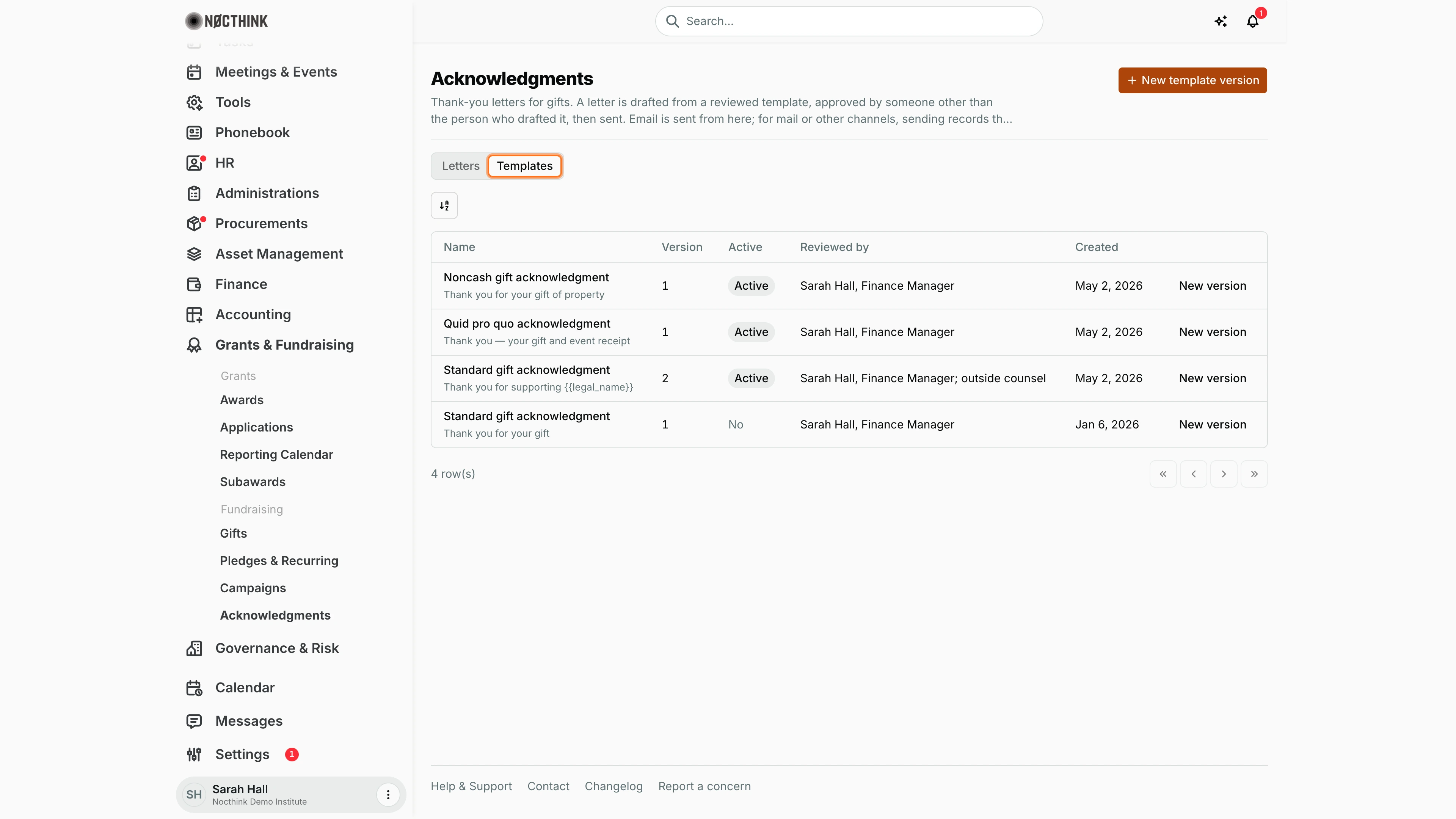
Screenshot: Sarah Hall (Finance Manager, also holds the F.A.T Manager role), Nocthink Demo Institute demo data.
The Templates tab lists the letter templates letters are drafted from. Each row shows Name, Version, whether it is the Active version, Reviewed by (the person or adviser who checked the wording) and Created. The header button changes to New template version, and each row has its own button to start the next version of that template with its current text. Earlier versions are kept, so letters already drafted from them still show the wording they were drafted with.
New template version
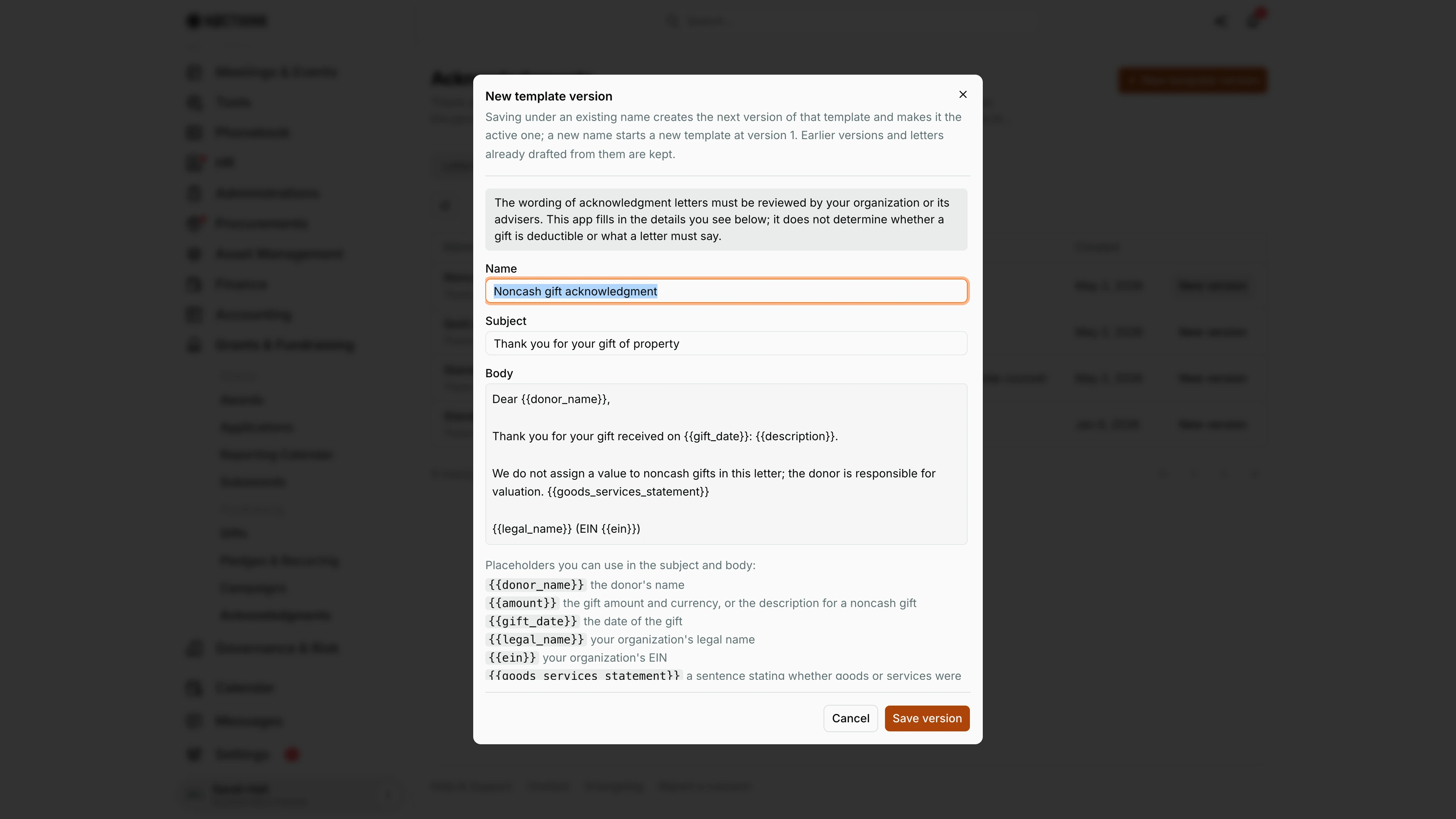
Screenshot: Sarah Hall (Finance Manager, also holds the F.A.T Manager role), Nocthink Demo Institute demo data.
This dialog opens from New template version or from a template's row, filled in with that template. It explains that saving under an existing name creates the next version and makes it active, while a new name starts a template at version 1. A notice reminds me that the wording must be reviewed by our organization or its advisers; the app fills in the details but does not decide whether a gift is deductible. I edit Name, Subject and Body, using the listed placeholders such as {{donor_name}}, {{amount}}, {{gift_date}}, {{legal_name}}, {{ein}} and {{goods_services_statement}}. Reviewed by is required. Save version stores it.
Access & permissions
-
The page needs
fundraising.view. This domain is restricted, so the menu is hidden from staff without it. The U.S. nonprofit modules must also be on in Settings → Nonprofit. -
Who can do what:
Action Permission needed Draft a letter fundraising.createSend fundraising.updateApprove, Void, save a template version fundraising.approve -
In the demo, the Finance Manager holds all of these. Because of the drafter rule, a second person (the Executive Director or Deputy Director) must approve the Finance Manager's own drafts.
Caveats
- A letter can only be drafted once a reviewed template exists. Otherwise the error is "Create a reviewed acknowledgment template first."
- Each gift can have only one live letter. A second draft is refused until the first is voided.
- A Sent letter cannot be voided. Issue a corrected letter instead.
- Refunded gifts cannot be acknowledged. Refunding a gift voids its draft and approved letters automatically.
- A letter must be Approved before it can be sent.
- If the email provider fails, the send is rejected ("The email could not be sent: …") and the letter stays Approved.
- The app fills in the details but does not decide whether a gift is deductible or what the letter must say. That is for the template reviewer.
Limitations
- There is no bulk approve or bulk send. Every letter is handled one at a time.
- I cannot edit a letter's text after drafting. Void it, fix the template, and redraft.
- Letters cannot be printed or saved as PDF from here, and attachments are not supported.
- There are no year-end summary statements. Each letter covers a single gift.
Related menus
- Gifts: where letters are drafted, and where the Awaiting acknowledgment count lives.
- Campaigns: the appeals the acknowledged gifts belong to.
- Donors: donor contact details used for sending.
- Email Logs: delivery records for acknowledgments sent by email.