
Subawards
Open in NocthinkModule: Grants & Fundraising · URL: /grants/subawards · Responsible role: Finance Manager (demo role "Grants and fundraising"), acting as pass-through grants manager · Also used by: Executive Director and Deputy Director (full); Program and impact staff such as the Senior Researcher (view only)
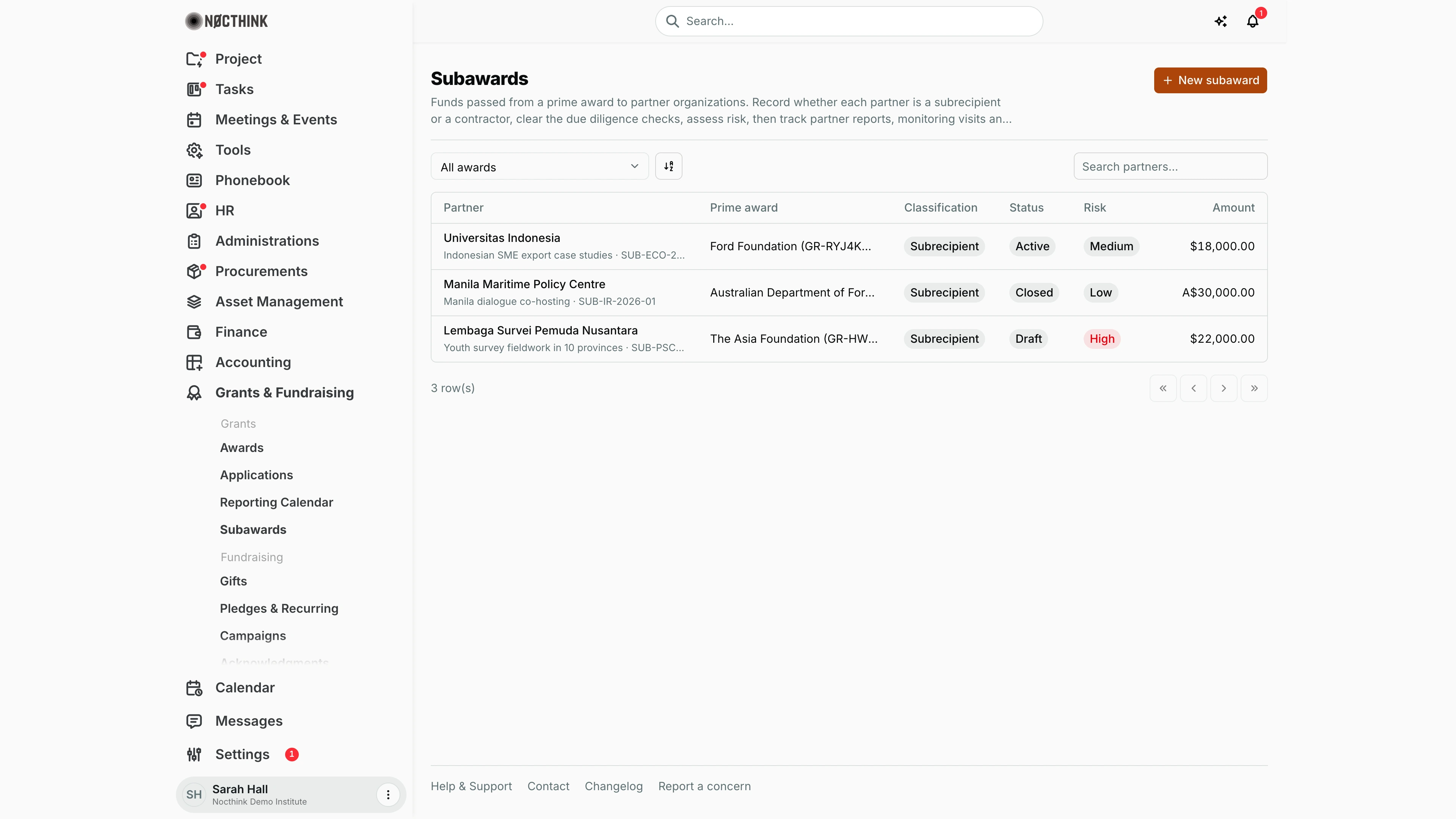
Screenshot: Sarah Hall (Finance Manager), Nocthink Demo Institute demo data.
Why I use this page
When we pass part of a prime award to a partner organization, I set it up here as a subaward. I follow the 2 CFR 200.331–332 steps:
- Decide whether the partner is a subrecipient or a contractor.
- Clear the due diligence checks (SAM.gov exclusion, UEI and so on).
- Assess the partner's risk.
- Record the flow-down terms.
- Activate the subaward.
While it runs, I record the partner's reports and our monitoring visits, and at the end I close it out. I open this page whenever a partner agreement is being drafted, and again around partner reporting deadlines.
Grants sit in the U.S. nonprofit modules, which are not covered in docs/role.md. The responsible role comes from the demo role "Grants and fundraising", which the seed gives to the Finance Manager.
What's on the screen
- Header: Subawards, with the orange New subaward button on the right.
- Toolbar:
- An award filter: All awards, or one prime award, shown as "Funder (grant number)".
- A sort button.
- Search partners…
- Table columns:
- Partner: the organization name, with the subaward title and number underneath. Click it to open the subaward.
- Prime award
- Classification: Subrecipient, Contractor or Not determined.
- Status: Draft, Active or Closed.
- Risk: Low, Medium or High. High is shown in red.
- Amount
The subaward detail page has these sections, from top to bottom:
- A summary of the subaward. While it is a Draft, this includes the Activate subaward button.
- Terms
- Classification
- Due diligence checks
- Risk assessments
- Partner reports
- Monitoring visits
- Open findings
- Closeout
How I …
Create a subaward
- Click New subaward (see New subaward below).
- Choose the Prime award and the Partner organization. The partner must already exist under Phonebook → Organizations.
- Enter the Title and, optionally, the Subaward number.
- Enter the Amount and the Currency. The currency is a three-letter code and defaults to the award's currency.
- Enter Period start and Period end.
- Click Create subaward. It starts as a Draft.
Get a draft ready and activate it
-
Open the subaward from the list (see Subaward detail below).
-
In Classification, choose Subrecipient or Contractor. Write the Justification: which 2 CFR 200.331 characteristics apply, and why. Then click Record determination. The app records who decided and when, and never infers the classification itself.
-
In Due diligence checks, work through each row:
- The checks are Exclusion check (SAM.gov), Unique Entity ID (UEI), Single audit review, Financial statements, Policies and procedures and Other.
- For each one, set Status to Pending, Cleared or Issue found, enter the Reference (for example the SAM.gov search date and result) and the date, then click Save.
- For a subrecipient, the exclusion check and the UEI are marked Required.
-
In Risk assessments, rate all four factors as low, medium or high:
- Prior experience with similar subawards
- Results of previous audits
- New or substantially changed systems or staff
- Results of prior monitoring
Set Assessed on, add Notes, and click Save assessment. The risk level follows from the ratings:
- Any High factor makes the risk High, and the app schedules a site visit 90 days out.
- Two or more Medium factors make the risk Medium, and the app schedules a desk review 180 days out.
- Anything else is Low, and no visit is scheduled.
-
In Terms, fill in Flow-down terms (the prime award terms that pass to the partner), then click Save terms.
-
Click Activate subaward. If something is missing, the page lists it, for example "Clear the Exclusion check (SAM.gov) due diligence check." For a subrecipient, activation needs:
- a classification
- both required checks cleared
- a risk assessment
- flow-down terms
A contractor only needs the classification.
Track partner reports
- In Partner reports (see Subaward detail: monitoring and closeout below), use Add a report:
- Choose the kind: Financial, Programmatic or Audit.
- Give it a label, for example "Q1 2026".
- Enter the due date.
- Click Add report.
- When the report arrives, set the received date and click Mark received.
- Review the report. Type an optional review note, then click Accept or Request revision. A report that needs revision goes back to the partner and can be received again.
Record a monitoring visit
- In Monitoring visits, use Plan a visit:
- Choose Desk review or Site visit.
- Choose the reason: Routine or Follow-up.
- Enter the planned date.
- Click Plan visit.
- After the visit, click Record visit:
- Enter Done on and a Summary.
- Use Add finding for each issue, giving each one a title and a severity of Low, Medium or High.
- Click Save visit.
- Findings appear under Open findings. They are also added to Governance & Risk → Findings & Actions with the source "Subrecipient".
Close out the subaward
- In Closeout, check the three items:
- All partner reports accepted
- All monitoring visits done
- All monitoring findings closed
- If every item is done, click Close subaward.
- If any item is still open, a grants approver can enter an Override reason and click Close with override.
Detail page, forms & dialogs
Subaward detail
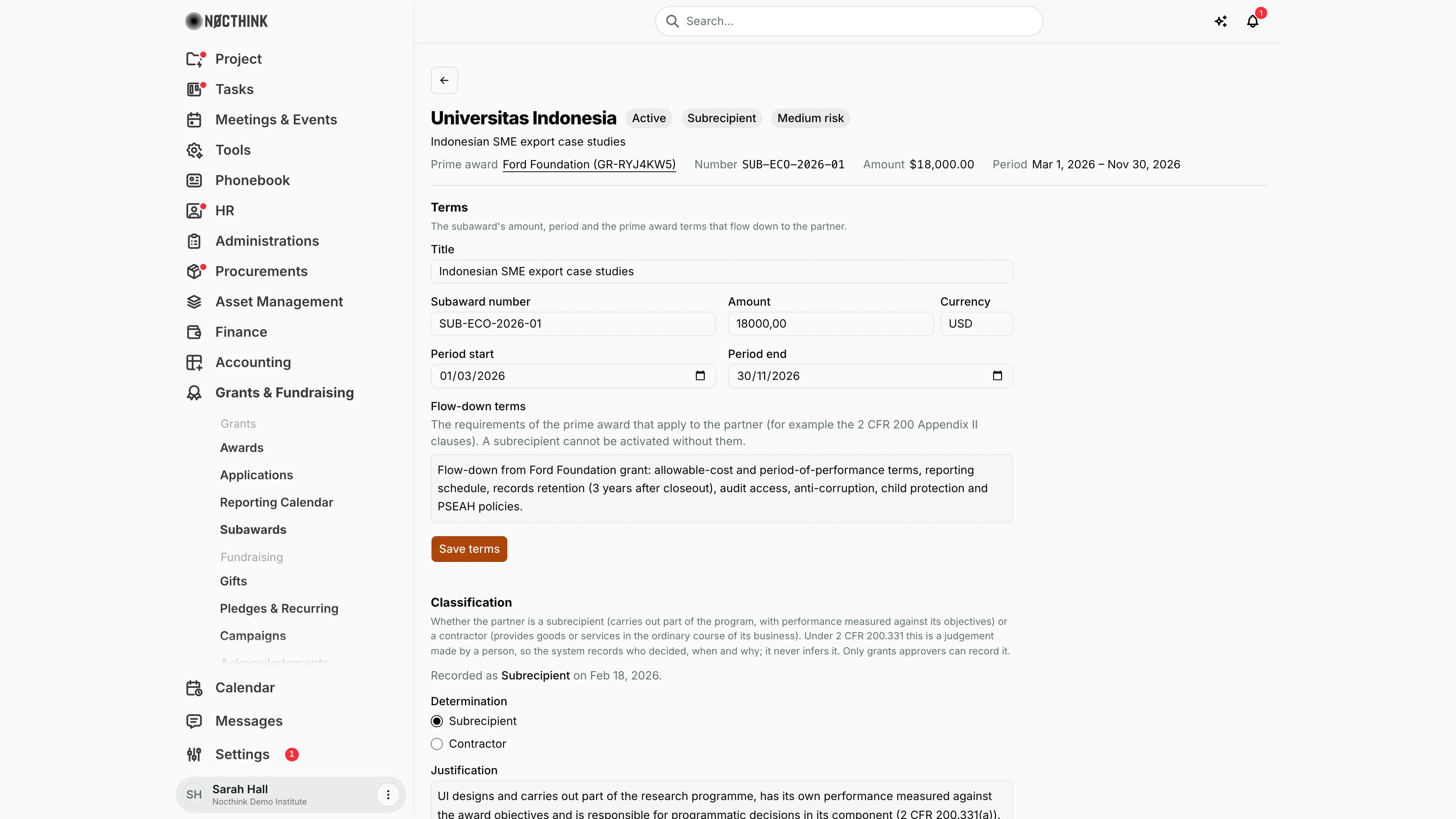
Screenshot: Sarah Hall (Finance Manager, also holds the F.A.T Manager role), Nocthink Demo Institute demo data.
Clicking a partner opens the subaward. The header shows the partner name with pills for the status (Draft, Active or Closed), the classification (Subrecipient, Contractor, or Not determined in red) and the risk level once assessed. Under it are the subaward title, Prime award (a link to the award), Number, Amount and Period. While the subaward is a draft, Activate subaward sits on the right; if something is missing, it lists what is "Still needed". The page then runs top to bottom through Terms, Classification, Due diligence checks and Risk assessments, the four steps I complete before activation (see Get a draft ready and activate it above).
Subaward detail: monitoring and closeout
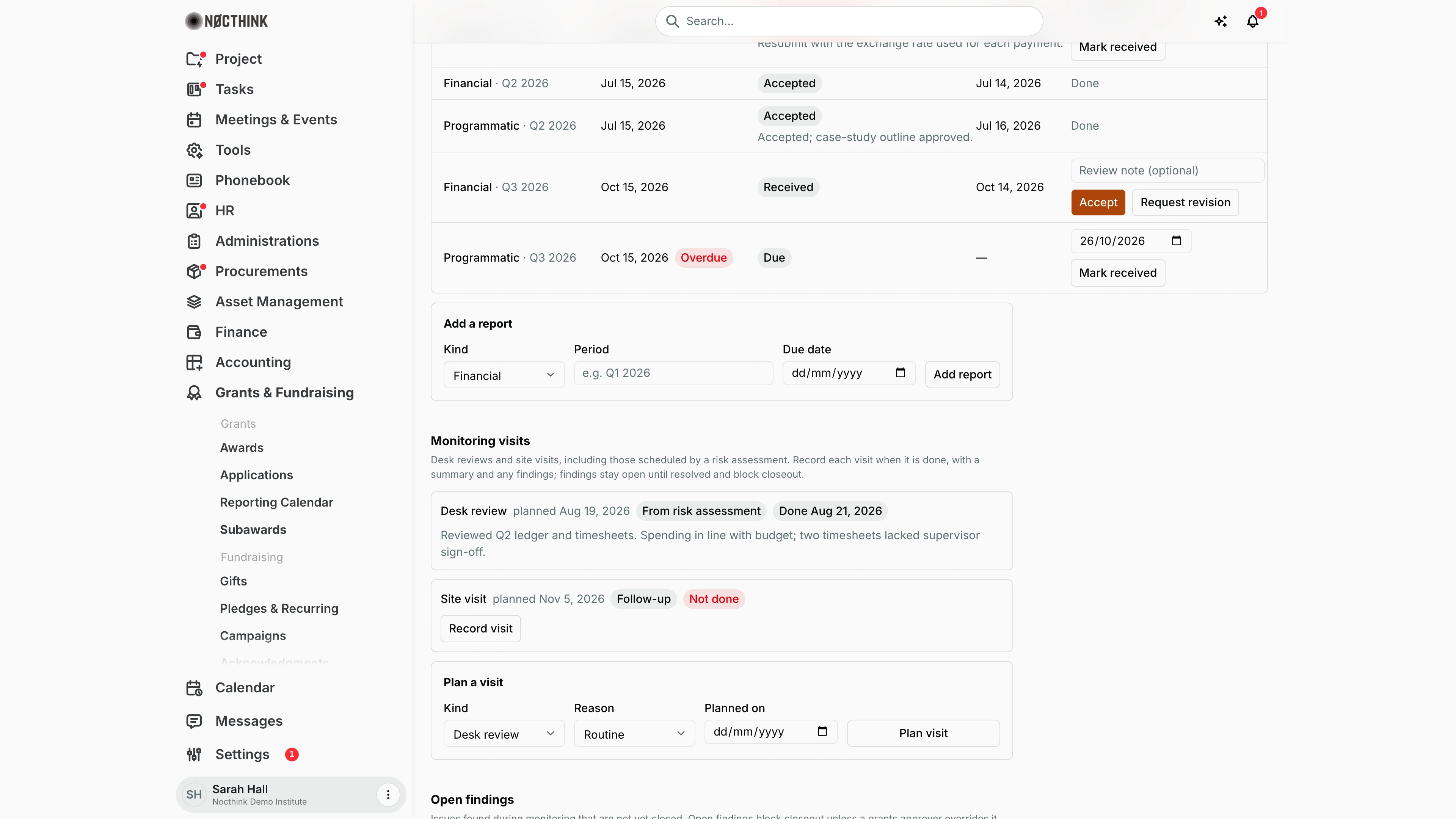
Screenshot: Sarah Hall (Finance Manager, also holds the F.A.T Manager role), Nocthink Demo Institute demo data.
Further down the same page are the sections I use while the subaward runs. Partner reports lists the financial, programmatic and audit reports the partner owes, with Mark received, Accept and Request revision. Monitoring visits lists desk reviews and site visits, including those scheduled automatically by a risk assessment, with Plan visit and Record visit. Open findings shows issues from monitoring that are not yet closed; they also appear in Governance & Risk → Findings & Actions. Closeout checks that all reports are accepted, all visits done and all findings closed, then offers Close subaward, or Close with override with a reason for a grants approver.
New subaward
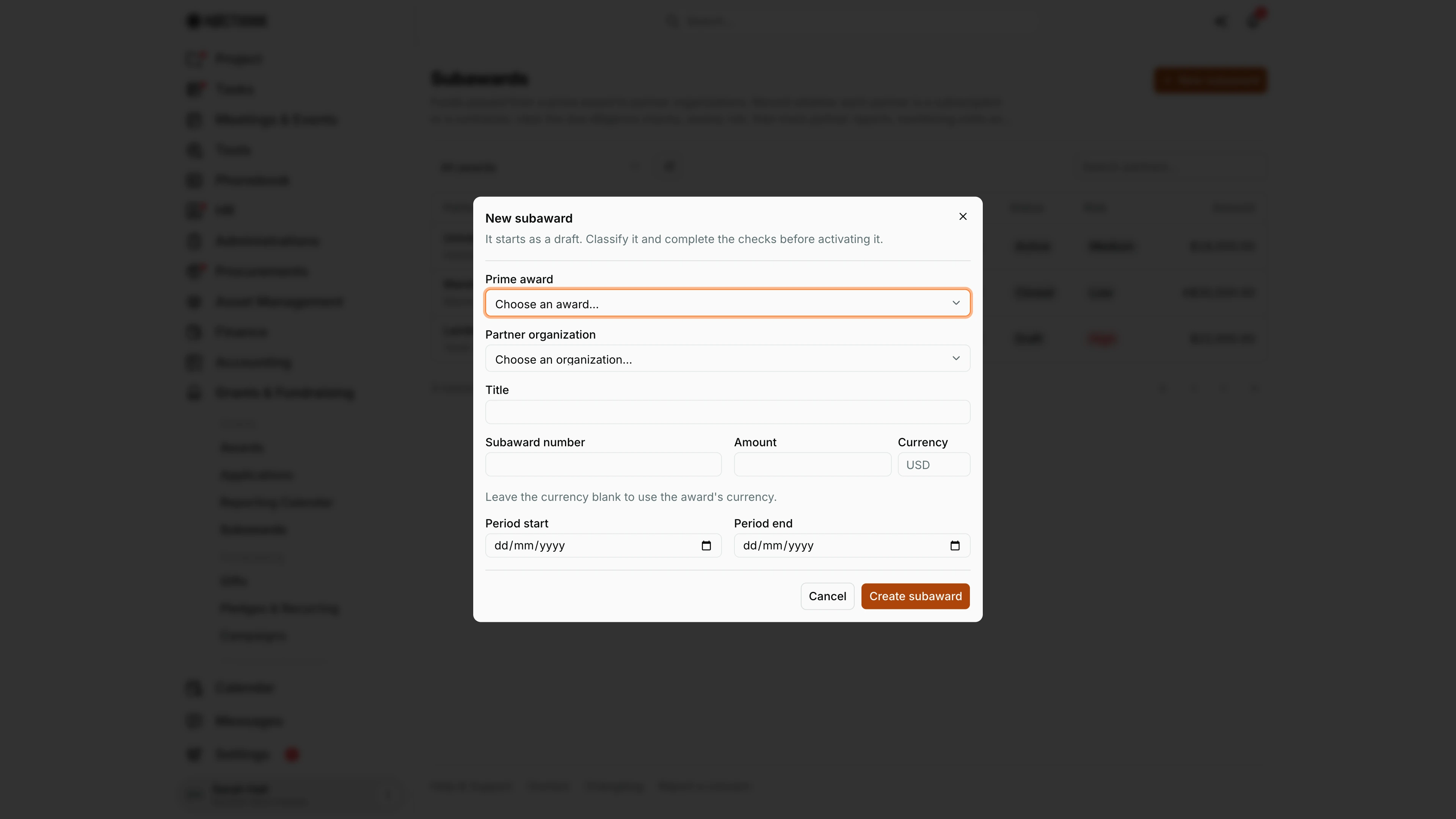
Screenshot: Sarah Hall (Finance Manager, also holds the F.A.T Manager role), Nocthink Demo Institute demo data.
New subaward opens this dialog. It says the subaward "starts as a draft. Classify it and complete the checks before activating it." I choose the Prime award and the Partner organization (which must already exist in Phonebook → Organizations), then enter the Title, an optional Subaward number, the Amount and the Currency. Leaving the currency blank uses the award's currency. Period start and Period end set the partner's period. Create subaward saves it as Draft and it appears in the list; nothing is activated or paid at this point.
Access & permissions
-
The page needs
grants.view. Grants is a restricted domain, so the menu is hidden from staff without it, and typing the URL is blocked. -
The U.S. nonprofit modules must be on in Settings → Nonprofit.
-
Who can do what:
Action Permission needed New subaward grants.createEdit terms, save checks and risk assessments, add reports and visits, mark reports received, close out grants.updateRecord determination, Activate subaward, Accept or Request revision on a report, Close with override grants.approve -
In the demo, the Finance Manager holds all four permissions. The Senior Researcher can only view. The Executive Director and Deputy Director see everything.
Caveats
- A check can only be marked Cleared with a reference. The server enforces this.
- The risk level comes from the latest assessment. Each new assessment overwrites the subaward's Risk, and a Medium or High result adds another scheduled visit.
- A report must be Mark received before it can be reviewed.
- A visit can be recorded only once. A second attempt returns "This visit is already recorded."
- Once a subaward is Closed, its terms can no longer change, and closing cannot be undone here.
- Activation cannot be reversed from the UI.
- The subaward amount can be in a different currency from the prime award. The page does not check that subawards add up to less than the prime award.
Limitations
- Findings cannot be resolved on this page. Their corrective actions and closing are handled in Findings & Actions.
- There is no delete for subawards, reports or visits.
- There is no document upload for checks or reports. The only evidence is the reference text.
- The list has no export.
Related menus
- Awards: the prime award. Its detail page links to "Subawards under this award".
- Organizations: partner organizations must exist here first.
- Findings & Actions: monitoring findings are tracked to closure here.
- Risk Register: sub-recipient non-compliance is a tracked organizational risk.
- Reporting Calendar: our own reports to the prime funder, which depend on partner reports.