
Board Packets & Minutes
Open in NocthinkModule: Governance & Risk · URL: /governance/packets · Responsible role: Executive Director / Deputy Director acting as board secretary · Also used by: governance approvers (issue packets, approve minutes, confidential packets); users with a governance role (draft packets and minutes); not visible to ordinary staff
Screenshot: Brian Sanders (Deputy Director), Nocthink Demo Institute demo data.
Why I use this page
Before each board or committee meeting I assemble the packet here — agenda, reports, financials and draft resolutions — and issue it so the board receives a fixed version with a tamper-evident fingerprint. After the meeting I write the draft minutes on the Minutes tab and keep them in draft until the board adopts a resolution approving them, usually at the next meeting. I work on this page in the two weeks before a meeting and the week after it.
What's on the screen
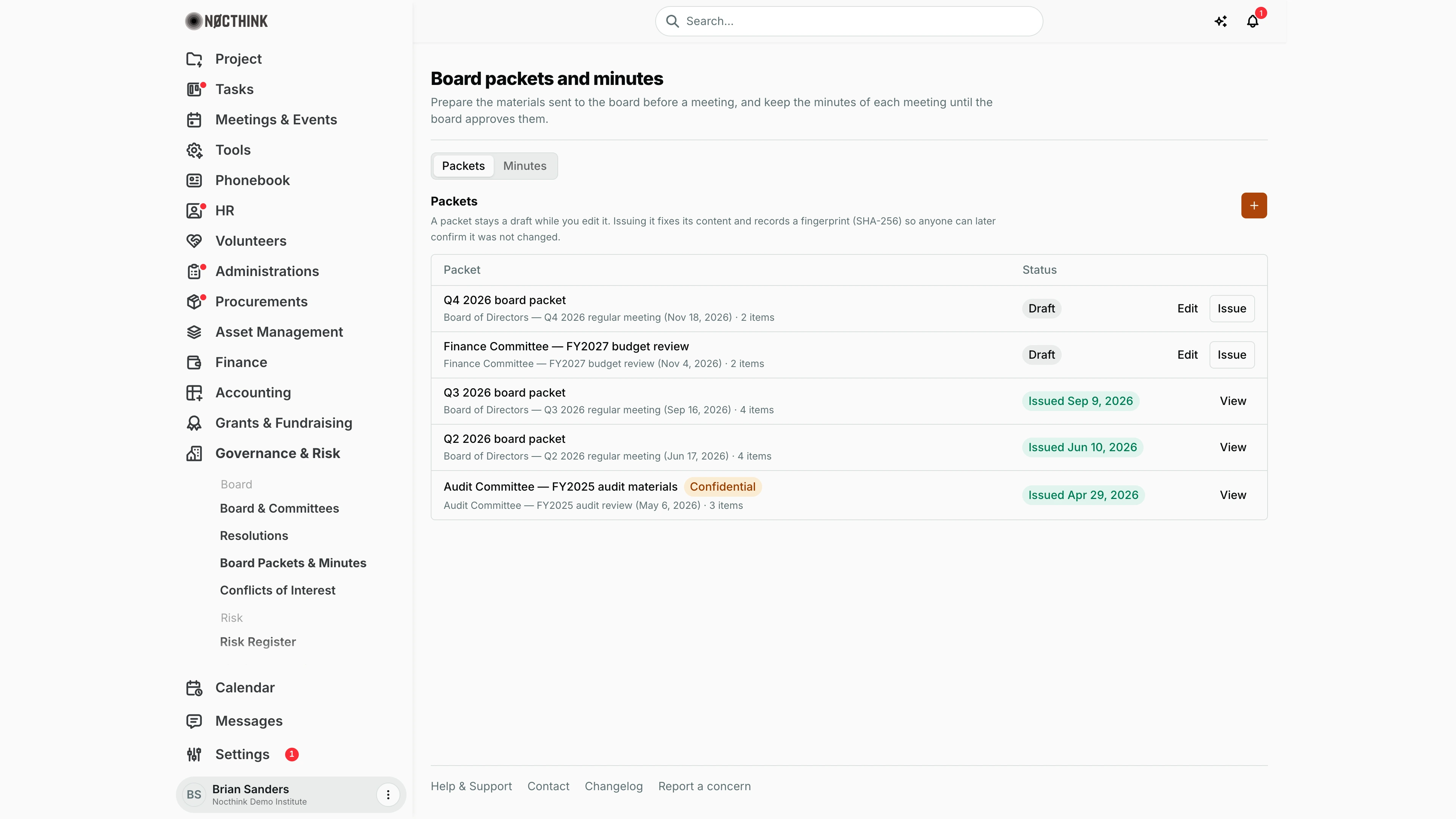
- Header: Board packets and minutes.
- Tabs: Packets and Minutes.
- Packets tab: a Packets section with the orange + (New packet) and a note that issuing fixes the content and records a SHA-256 fingerprint. Columns:
- Packet — the title (with an amber Confidential pill where applicable); underneath, the linked meeting with its date (or "No meeting") and the number of items
- Status — Draft or green Issued <date>
- Actions — Edit and Issue for drafts; View for issued packets.
- Minutes tab: a Meeting picker (newest first). For a draft: a Draft minutes text box with Save draft, then an Approve minutes block with an Approving resolution picker. For approved minutes: a read-only notice showing the approval date and resolution, and the text.
How I …
Build a packet for a meeting
- On Packets, click + (see New packet below).
- Enter the Title (e.g. "Q4 2026 board packet") and choose the Meeting (optional; it can only be set when creating).
- If it is an executive-session or audit packet and I am an approver, tick Confidential (approvers only).
- For each item, fill in Item N title (required), choose Kind (Agenda, Report, Financials, Resolution, Other) and paste the Content.
- Use Add item for more items, the up/down arrows to reorder, and the bin icon to remove one.
- Click Save draft. I can return with Edit (see Edit draft packet below) to change the title and items until the packet is issued.
Issue a packet
- On a Draft row, click Issue (governance approvers only; others see "Only governance approvers can issue packets.").
- Check the item count in Issue packet? (see Issue packet below) and click Issue.
- The dialog switches to Packet issued and shows the Issued timestamp and the SHA-256 fingerprint. Click Done.
- Send the fingerprint with the packet if board members want to verify they received the unchanged version.
Review an issued packet
- Click View on an issued row (see Board packet below).
- The dialog shows the meeting, the issue date, the fingerprint and every item in order with its kind and content.
Record draft minutes
- Open Minutes and pick the Meeting (see Minutes below).
- Type the minutes into Draft minutes (present/absent, call to order, decisions, adjournment).
- Click Save draft; "Saved." confirms. I can keep editing and saving until the minutes are approved.
Approve minutes
- First adopt a resolution approving the minutes on Resolutions.
- Back on Minutes, pick the meeting and make sure the draft is saved (the button is disabled with "Save the draft before approving." if there are unsaved edits).
- In Approving resolution, choose the adopted resolution and click Approve minutes. The minutes become read-only.
Detail page, forms & dialogs
Board packet
Screenshot: Brian Sanders (Deputy Director), Nocthink Demo Institute demo data.
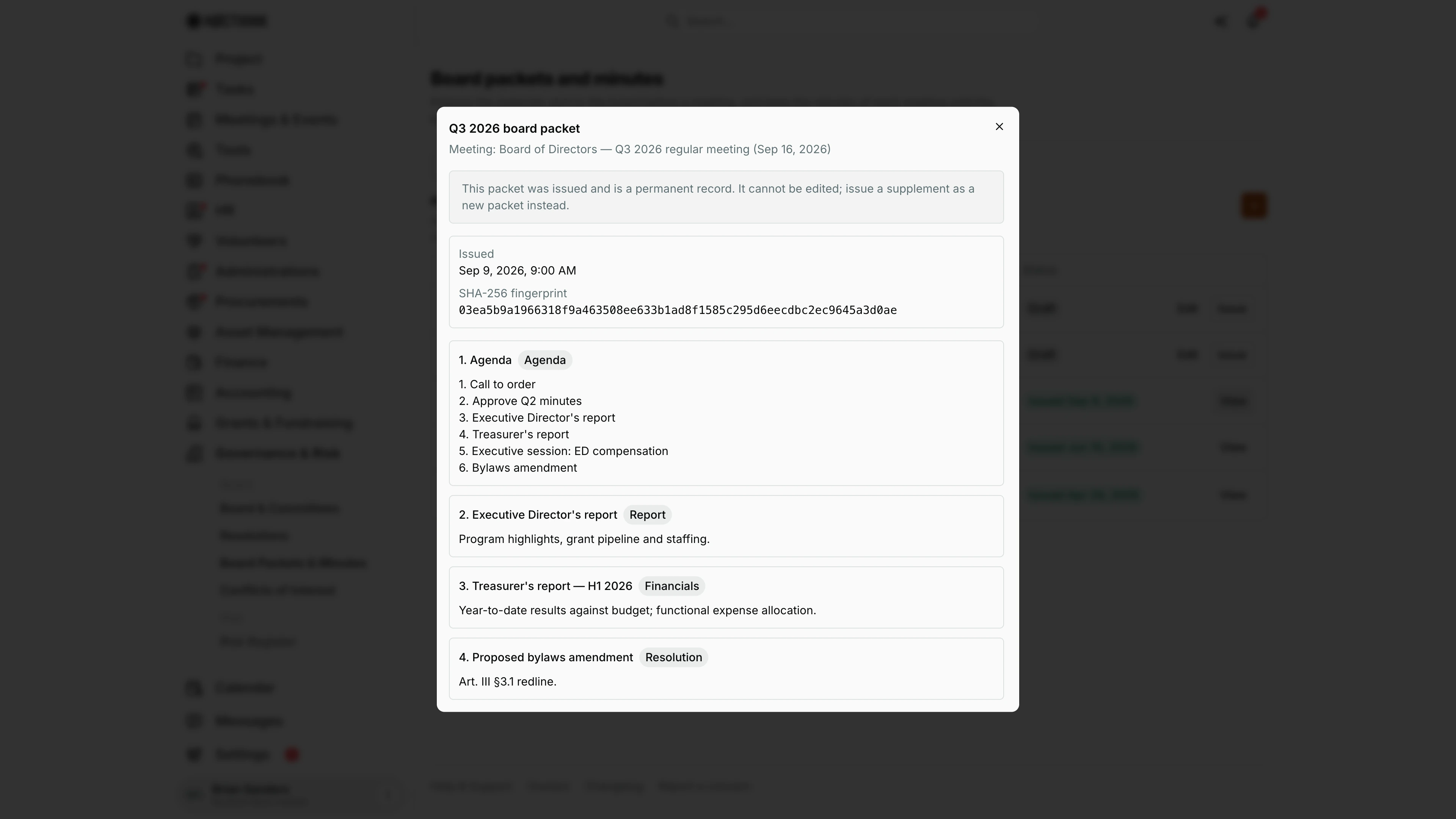
View on an issued packet opens it read-only. Under the title is the Meeting (here the Board of Directors Q3 2026 regular meeting, Sep 16, 2026) and a notice: "This packet was issued and is a permanent record. It cannot be edited; issue a supplement as a new packet instead."
The facts box shows Issued (date and time) and the SHA-256 fingerprint of the issued content. Then every item follows in order, numbered, with its title, a Kind pill (Agenda, Report, Financials, Resolution or Other) and its content. A board member who received the packet by email can compare the fingerprint to confirm they have the unchanged version.
New packet
Screenshot: Brian Sanders (Deputy Director), Nocthink Demo Institute demo data.
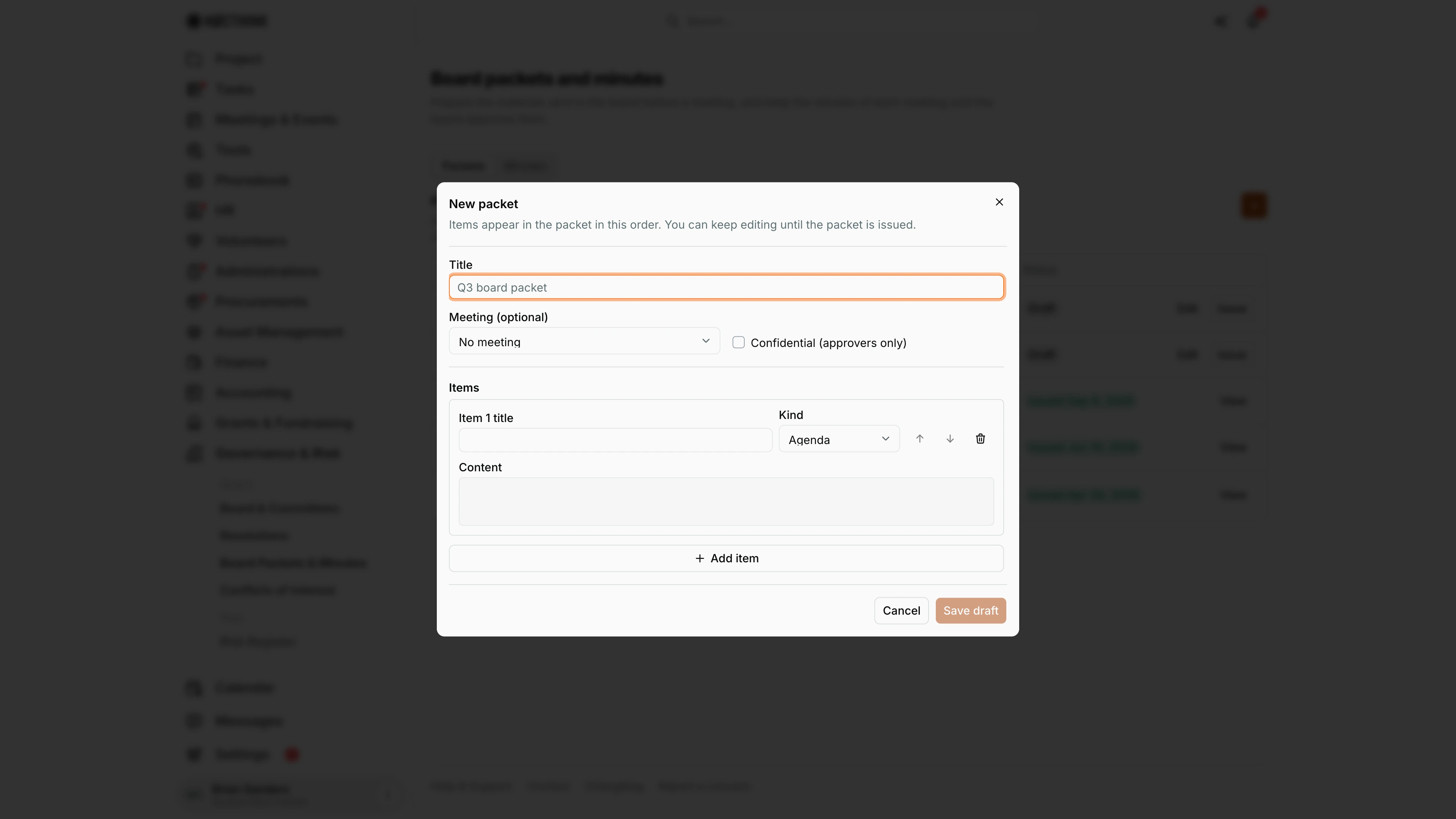
The + on Packets opens New packet: "Items appear in the packet in this order. You can keep editing until the packet is issued."
- Title is required (placeholder "Q3 board packet").
- Meeting (optional) lists meetings from Meetings & Events. It can only be set here, not when editing.
- Confidential (approvers only) appears only for governance approvers.
- Each item has Item N title (required), Kind (Agenda, Report, Financials, Resolution, Other) and Content, with arrows to move it up or down and a bin to remove it. Add item adds another.
Save draft stays disabled until the title and every item title are filled in.
Edit draft packet
Screenshot: Brian Sanders (Deputy Director), Nocthink Demo Institute demo data.
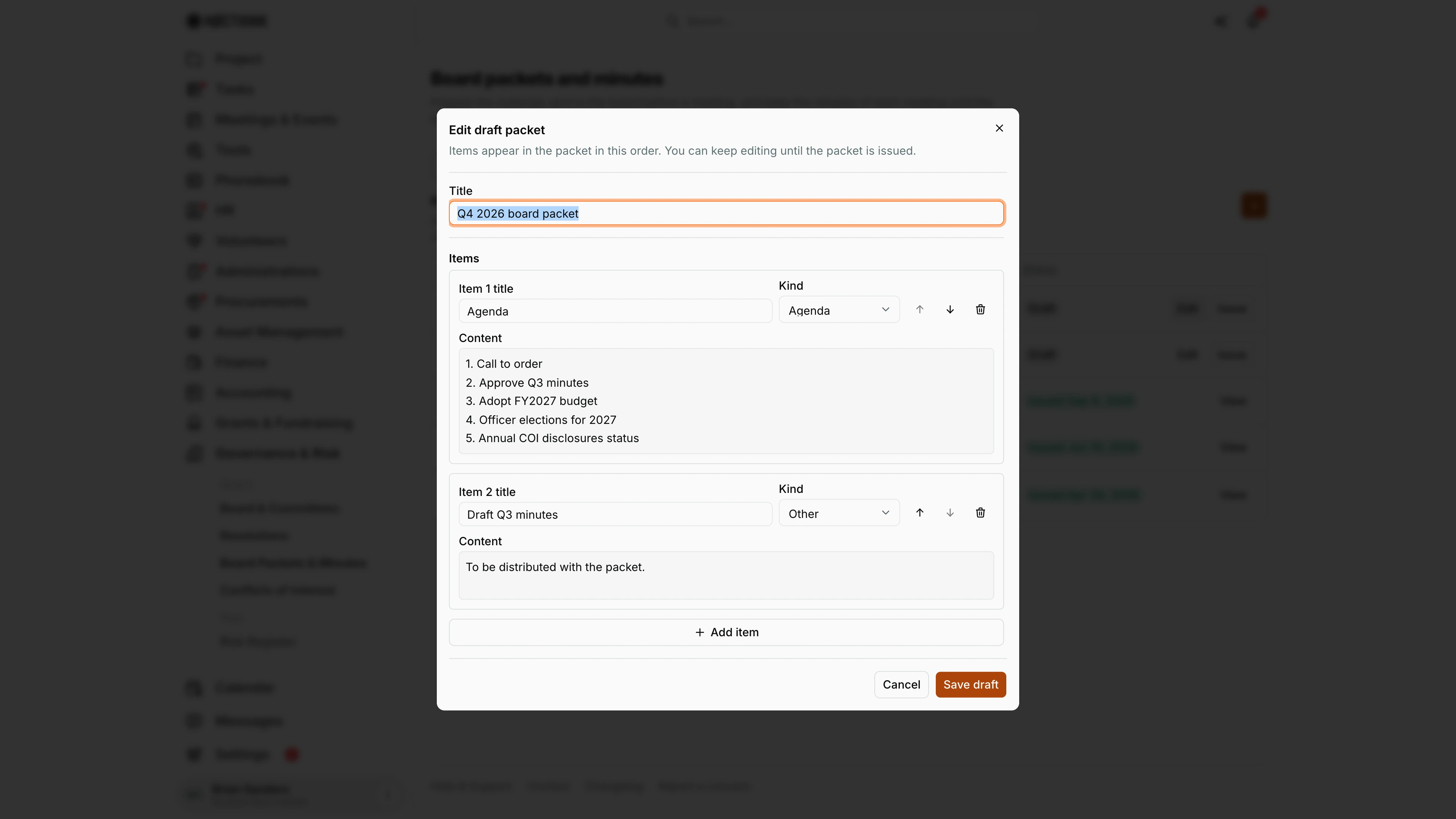
Edit on a Draft row opens Edit draft packet with the saved title and items, here the Q4 2026 board packet with an Agenda item and a "Draft Q3 minutes" item of kind Other.
I can change the Title, rewrite any item, change its Kind, reorder with the arrows, remove items with the bin, and Add item. The meeting and the confidential flag are fixed when the packet is created and do not appear here. Save draft keeps it a draft; nothing is sent or frozen until the packet is issued.
Issue packet
Screenshot: Brian Sanders (Deputy Director), Nocthink Demo Institute demo data.
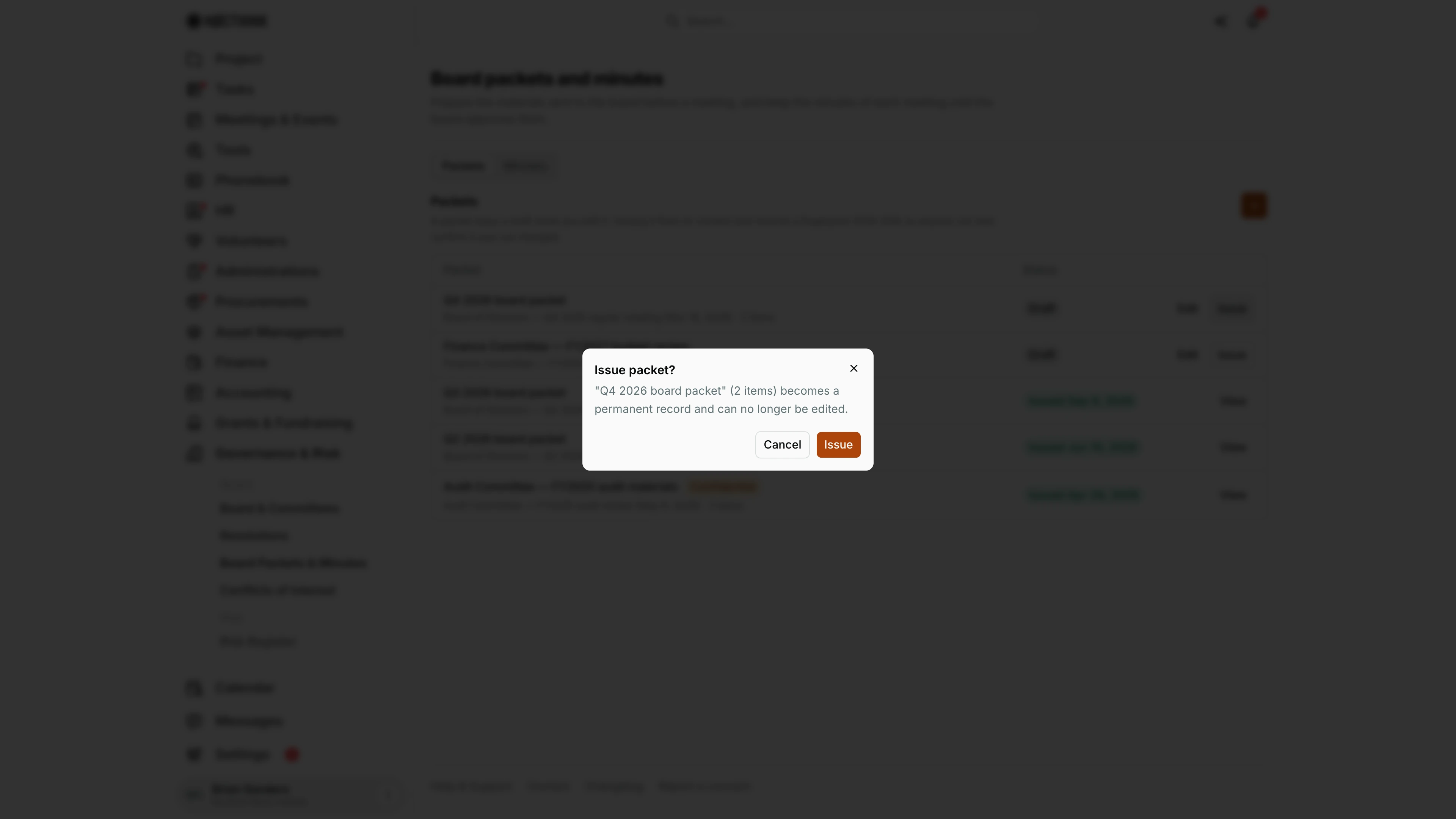
Issue on a draft row asks for confirmation: "Q4 2026 board packet" (2 items) "becomes a permanent record and can no longer be edited." Issue is disabled for a packet with no items.
After I confirm, the dialog changes to Packet issued ("The packet is now a permanent record. To change anything, issue a supplement as a new packet.") and shows the Issued time and the SHA-256 fingerprint; Done closes it. The row then offers View instead of Edit and Issue. Only governance approvers can issue; others see "Only governance approvers can issue packets."
Minutes
Screenshot: Brian Sanders (Deputy Director), Nocthink Demo Institute demo data.
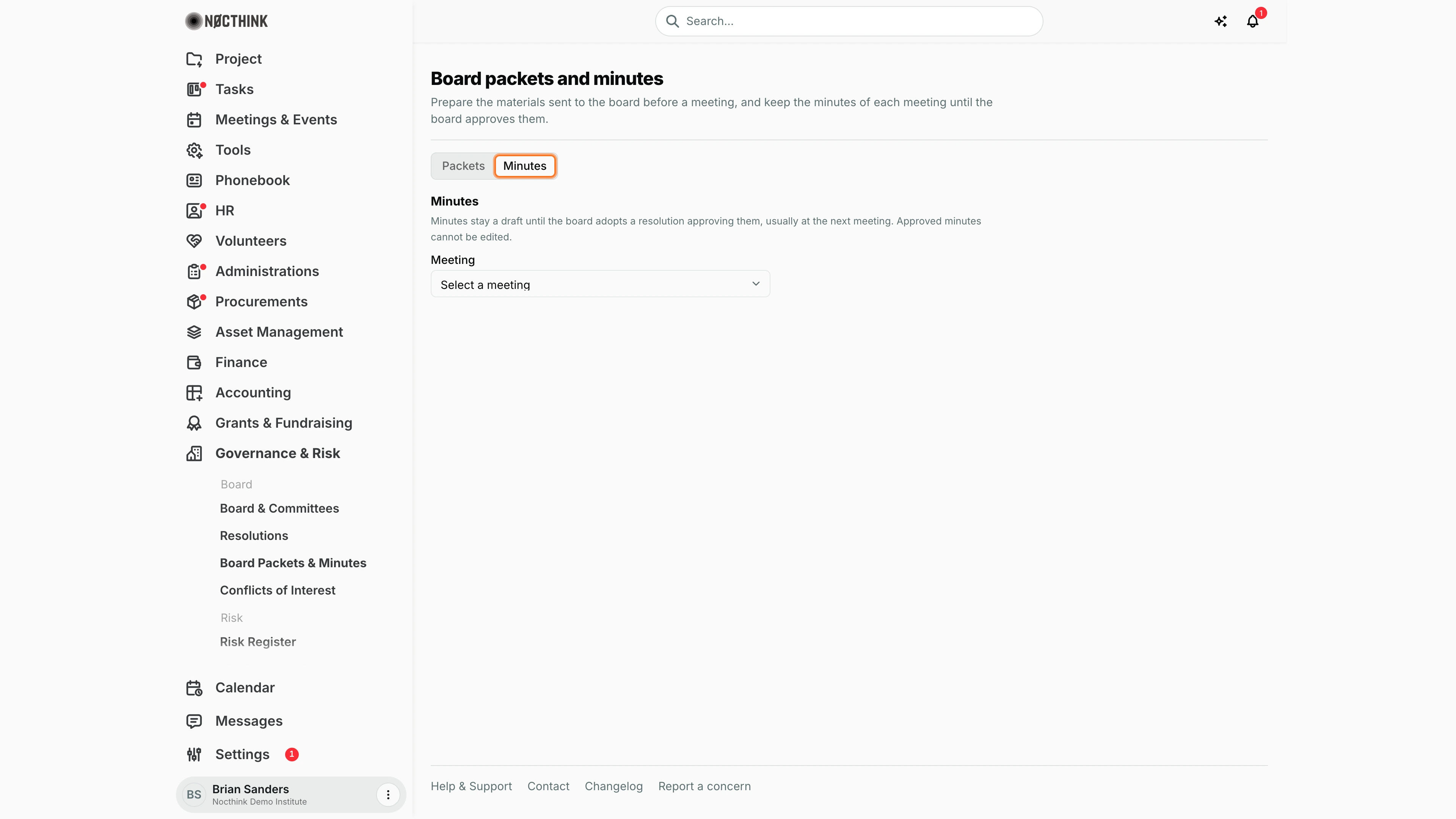
The Minutes tab starts with a Meeting picker ("Select a meeting"): "Minutes stay a draft until the board adopts a resolution approving them, usually at the next meeting. Approved minutes cannot be edited." If no meetings exist yet, it says to schedule one first.
After I pick a meeting:
- For a draft, Draft minutes is a text box with Save draft. Under it, governance approvers get Approving resolution, a list of adopted resolutions, and Approve minutes, which stays disabled while there are unsaved changes ("Save the draft before approving."). Others see "Only governance approvers can approve minutes."
- For approved minutes, a notice names the date and the approving resolution, and the text is read-only.
Access & permissions
- Governance is a restricted-view domain: the owner, directors and users with
governance.viewcan open the page. - Creating a packet needs
governance.create; editing draft packets and saving minutes needgovernance.update; Issue and Approve minutes needgovernance.approve. - Confidential packets are visible only to governance approvers, and only they can create them.
Caveats
- Issuing is irreversible: an issued packet "is a permanent record and cannot be edited". To correct it, create a new packet as a supplement.
- A packet needs at least one item before it can be issued, and every item needs a title.
- The fingerprint covers the packet title and items only, not the meeting link or attachments.
- Approved minutes cannot be edited. Only an Adopted resolution can approve them.
- Minutes are keyed to a meeting from Meetings & Events; schedule the meeting there first ("No meetings yet…").
- The Meeting and Confidential settings of a packet cannot be changed after it is created.
Limitations
- No file attachments, PDF generation or distribution to board members from this page; the packet is text items only.
- No delete for draft packets or minutes.
- Minutes are plain text with no template, attendance list or link back from the minutes to the resolutions adopted at that meeting.
- No search or filter on the packet list.
Related menus
- Resolutions — draft resolutions for the packet and the resolution that approves minutes.
- Board & Committees — the board and committees that meet.
- Conflicts of Interest — disclosures to review before the meeting.
- Meetings & Events — where the meetings themselves are scheduled.