
Rules Registry
Open in NocthinkModule: Governance & Risk (Compliance) · URL: /compliance/rules · Responsible role: Finance Manager (drafts and maintains the filing rules) · Also used by: a second compliance approver who verifies each rule against its source (compliance.approve, e.g. Executive Director or another finance approver); Executive Director / Deputy Director (full access); not visible to ordinary staff
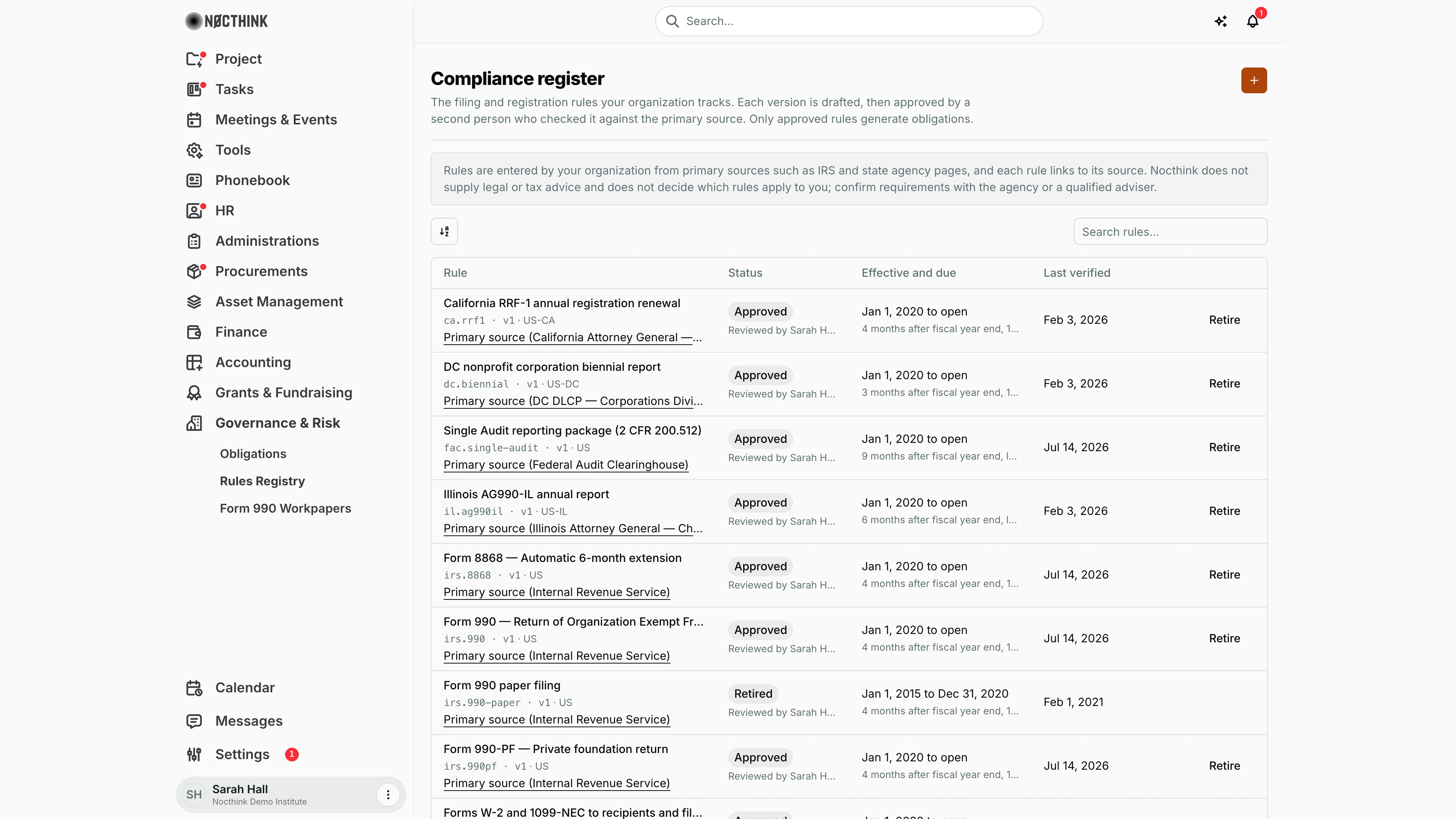
Screenshot: Sarah Hall (Finance Manager), Nocthink Demo Institute demo data. The page heading reads Compliance register.
Why I use this page
The app does not decide which filings we owe; we do. This register holds every filing and registration rule we track — Form 990 and 8868, W-2/1099, the Single Audit package, state charity registrations and corporate reports — each entered from its primary source and approved by a second person. Only approved rules generate obligations. I come here when we register in a new state, when an agency changes a deadline, and once a year before generating the new fiscal year's obligations, to re-verify each rule against its source.
What's on the screen
- Header: Compliance register with the orange + (New rule or new version).
- Notice: rules are entered by us from primary sources; Nocthink gives no legal or tax advice.
- Toolbar: sort control and Search rules… (by title).
- Table (grouped by rule key, newest version first; 50 per page):
- Rule — title,
rule_key · vNwith the jurisdiction (USor a state code such asUS-CA), and a Primary source (agency) link - Status — Draft, Approved, Retired, with "Reviewed by …" (the name and role entered at approval) or "Not reviewed" underneath; long reviewer text is shortened, hover to read it in full
- Effective and due — "Jan 1, 2020 to open" or a closed range, with the due rule underneath, e.g. "4 months after fiscal year end, 15th day", "(one time)" for one-off rules; hover to read a shortened line in full
- Last verified — the date it was checked against the source
- Actions — Approve (drafts) and Retire (drafts and approved).
- Rule — title,
How I …
Add a new rule
- Click + (see New rule or new version below).
- Fill in Rule key (lowercase letters, digits, dot, dash, underscore — e.g.
ny.char500), Jurisdiction (USorUS-NY), Title, Source agency and Primary source link (required). - Choose Recurrence: Every fiscal year or One time.
- Set the due date as Months after year end (0–36) and Due day (1–31, or 0 for the last day of the month).
- Set Effective from (required) and, if known, Effective to.
- Under Applies to, leave everything blank for a universal rule, or narrow it: Exemption types, Expected returns, Only organizations that receive federal awards, Solicits in state, Incorporated in state.
- Add Notes (e.g. thresholds or exemptions) and click Save draft. The rule appears as Draft v1.
Approve a rule (second person)
- As an approver who did not draft it, click Approve on the draft row.
- Open the primary source link shown in the dialog (see Approve rule below) and check the rule.
- Enter Reviewed by (name and role, e.g. "J. Smith, outside counsel") and Verified against the source on.
- Click Approve. The rule now generates obligations.
Record a change in the rules (new version)
- Click + and reuse the existing rule key; the new row becomes the next version (v2…).
- Set Effective from to the date the change takes effect, and save the draft.
- Have it approved, then Retire the old version if it should no longer apply.
Retire a rule
- Click Retire on the version.
- Confirm Retire. It no longer generates obligations; obligations already created stay as they are.
Detail page, forms & dialogs
New rule or new version
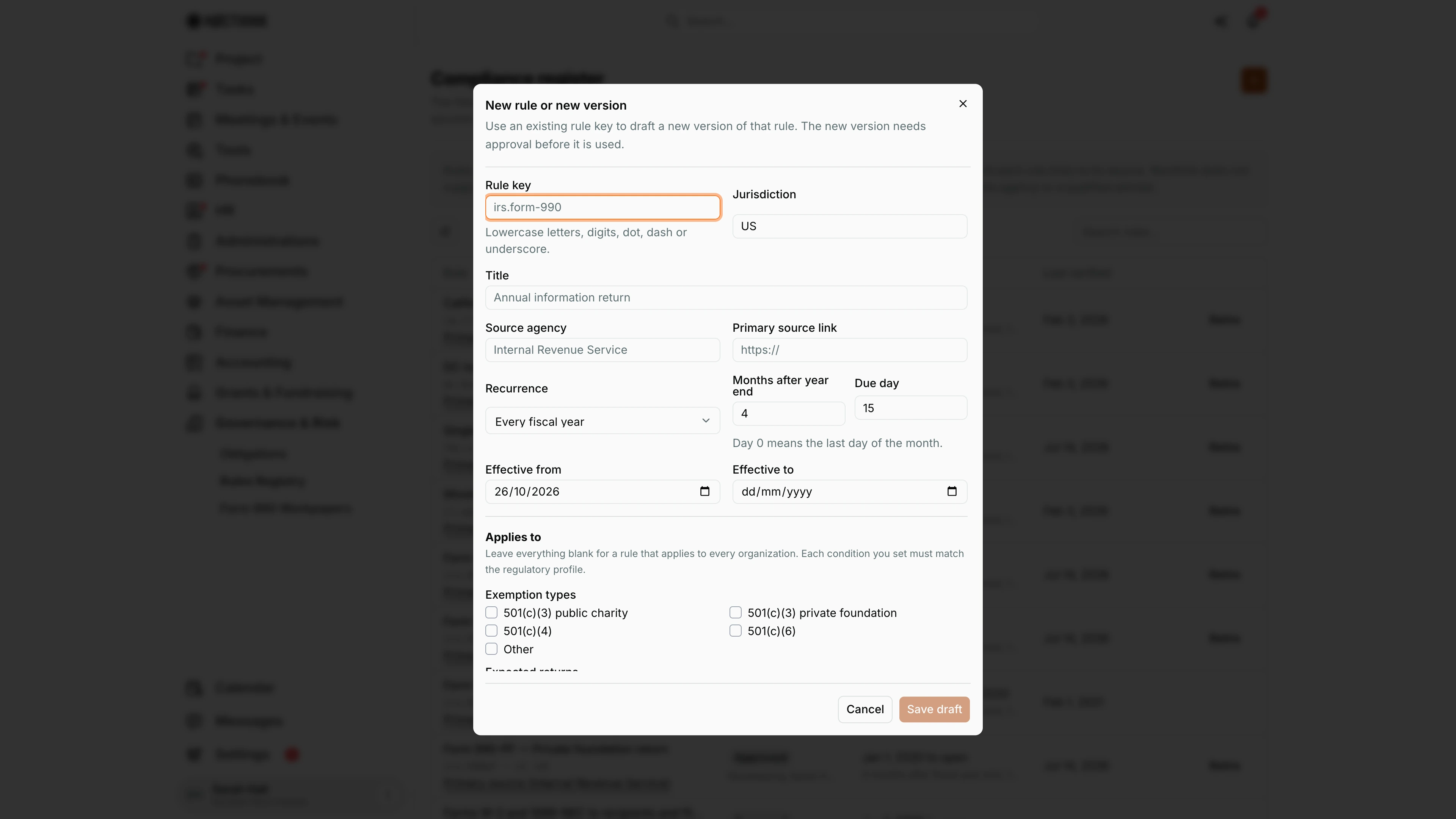
Screenshot: Sarah Hall (Finance Manager, also holds the F.A.T Manager role), Nocthink Demo Institute demo data.
+ opens New rule or new version: "Use an existing rule key to draft a new version of that rule. The new version needs approval before it is used."
- Rule key ("Lowercase letters, digits, dot, dash or underscore."), Jurisdiction, Title, Source agency and Primary source link.
- Recurrence (Every fiscal year or One time), Months after year end and Due day ("Day 0 means the last day of the month.").
- Effective from and Effective to.
- Applies to: "Leave everything blank for a rule that applies to every organization. Each condition you set must match the regulatory profile." The conditions are Exemption types, Expected returns, Only organizations that receive federal awards, Solicits in state and Incorporated in state.
- Notes.
Save draft saves it as a draft version, which generates nothing until a second person approves it.
Approve rule
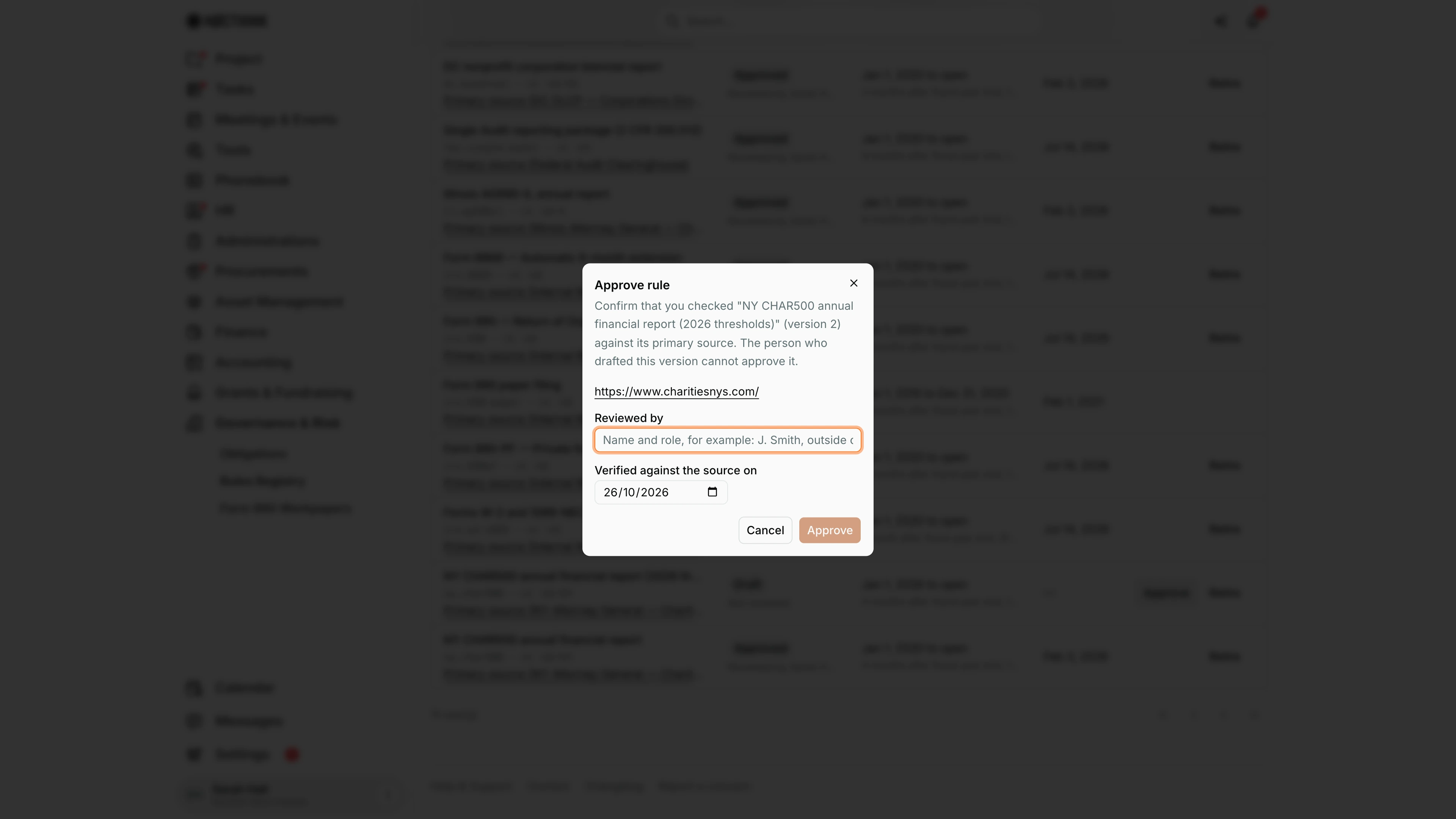
Screenshot: Sarah Hall (Finance Manager, also holds the F.A.T Manager role), Nocthink Demo Institute demo data.
Approve on a draft row opens Approve rule: "Confirm that you checked "NY CHAR500 annual financial report (2026 thresholds)" (version 2) against its primary source. The person who drafted this version cannot approve it."
The dialog shows the rule's primary source link so I can open it and compare the rate, threshold and due date. I enter Reviewed by (name and role, for example "J. Smith, outside counsel") and Verified against the source on (defaults to today). Approve makes the version active, and from then on it generates obligations.
Access & permissions
- Compliance is a restricted-view domain and part of the opt-in U.S. nonprofit modules (Settings → Nonprofit).
- Viewing needs
compliance.view; drafting needscompliance.create; Approve and Retire needcompliance.approve. - The server refuses approval by the person who drafted the version ("Someone other than the drafter must approve a rule.").
Caveats
- Rules cannot be edited after saving — not even drafts. Fix a mistake by drafting a new version with the same key.
- Retire is irreversible and has no "un-retire".
- When generating obligations, the latest approved version in force at the fiscal year end is used, and only if its Applies to conditions match our regulatory profile (set in Settings → Nonprofit). A condition we forgot to set makes the rule apply to everyone.
- Due dates are calculated from our fiscal year end in the profile; a wrong fiscal year start month shifts every due date.
- Reviewed by is free text; it records who vouched for the rule but is not tied to a user account (the approving user is stored separately in the audit trail).
Limitations
- No library of pre-built rules; each organization enters its own.
- No delete, edit or filter by jurisdiction/status.
- No reminder to re-verify rules periodically; Last verified must be checked by eye.
Related menus
- Obligations — generated from the approved rules here.
- Form 990 Workpapers — preparation for the
irs.990rule's filing. - Nonprofit settings — holds the regulatory profile the rules are matched against.