
Obligations
Open in NocthinkModule: Governance & Risk (Compliance) · URL: /compliance/obligations · Responsible role: Finance Manager (compliance lead for IRS, state and federal-audit filings) · Also used by: obligation owners such as the HR Officer (W-2/1099) and Operations Officer (state corporate reports) with compliance.update; a second compliance approver for reviewer sign-off; Executive Director / Deputy Director (full access); not visible to ordinary staff
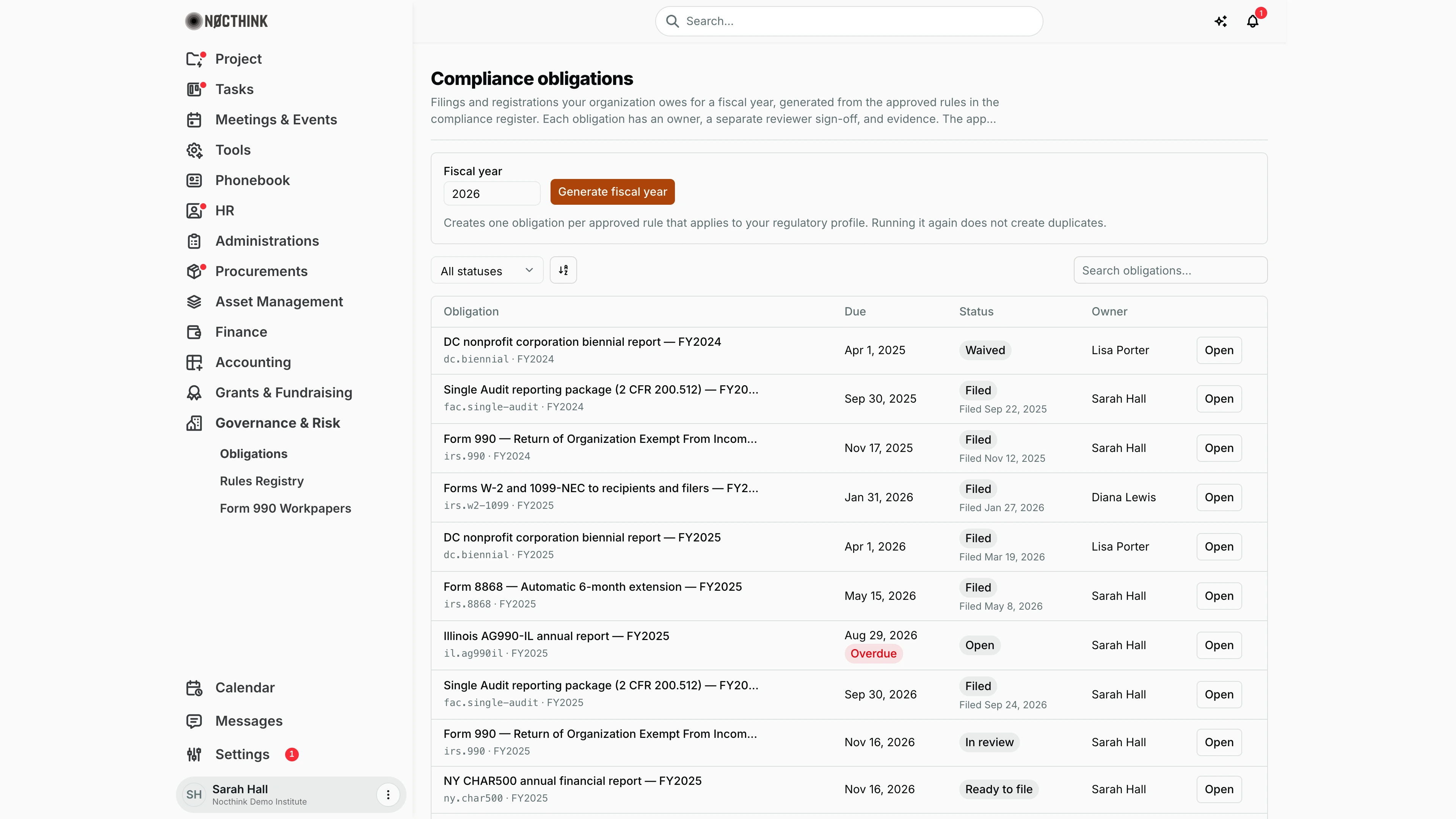
Screenshot: Sarah Hall (Finance Manager), Nocthink Demo Institute demo data.
Why I use this page
This is our filing calendar for every regulatory obligation the organization owes — Form 990 and 8868, W-2/1099, the Single Audit package, state charity registrations and corporate reports. Each fiscal year I generate the year's obligations from the approved rules, assign an owner to each, and walk them through review to filing. I open it at least monthly, and the system reminds each owner 30 days, 7 days and on the day an item falls due. Nothing is filed by the app: an obligation counts as filed only when I record the agency's confirmation.
What's on the screen
- Header: Compliance obligations, with a reminder that the app never files with an agency.
- Generate panel: Fiscal year field (pre-filled with the current year), Generate fiscal year button, and the note that re-running does not create duplicates. After a run it reports how many obligations were created and which rules do not apply to our profile.
- Toolbar: All statuses filter (Open, In review, Ready to file, Filed, Not applicable, Waived), sort control, Search obligations….
- Table (50 per page):
- Obligation — title with the rule key and period underneath (e.g.
irs.990· FY2025); click to open - Due — with a red Overdue pill under it if past due and not closed
- Status — with "Filed <date>" underneath once filed
- Owner, and an Open button.
- Obligation — title with the rule key and period underneath (e.g.
- Detail panel: rule, status, period end, owner, reviewer, confirmation, filed date, note; then, depending on status, Owner and progress, Reviewer sign-off, Record filing, Close without filing, and Evidence.
How I …
Generate the year's obligations
- Make sure the rules we need are Approved on the Rules Registry.
- Enter the Fiscal year (2000–2100) and click Generate fiscal year.
- Read the result: "N new obligations created", plus any Rules that do not apply to your profile. Due dates are calculated from our fiscal year end.
Assign an owner and prepare the filing
- Click an obligation (or Open); see Obligation detail below.
- Under Owner and progress, choose the Owner and add a Note (e.g. "preparer engaged, draft due Oct 15"); click Save.
- Add support under Evidence: a Description and a Link (both required), then Add evidence.
- When the work is ready, set Status to In review (ask for sign-off) and Save.
Sign off as reviewer
- Open an In review obligation. I cannot sign off if I own it or submitted it for review.
- Check the evidence, add an optional Review note.
- Click Mark ready to file, or Send back to open if something is missing.
Record the filing
- File with the agency myself or through the preparer.
- Open the Ready to file obligation and, under Record filing, enter the Agency confirmation (confirmation or submission ID) and Filed on date.
- Click Record filing. The status becomes Filed. Add the acceptance e-mail or receipt link under Evidence.
Close an obligation that does not apply
- Open the obligation and go to Close without filing.
- Choose Close as Not applicable or Waived and give the Reason (required).
- Click Close obligation.
Detail page, forms & dialogs
Obligation detail
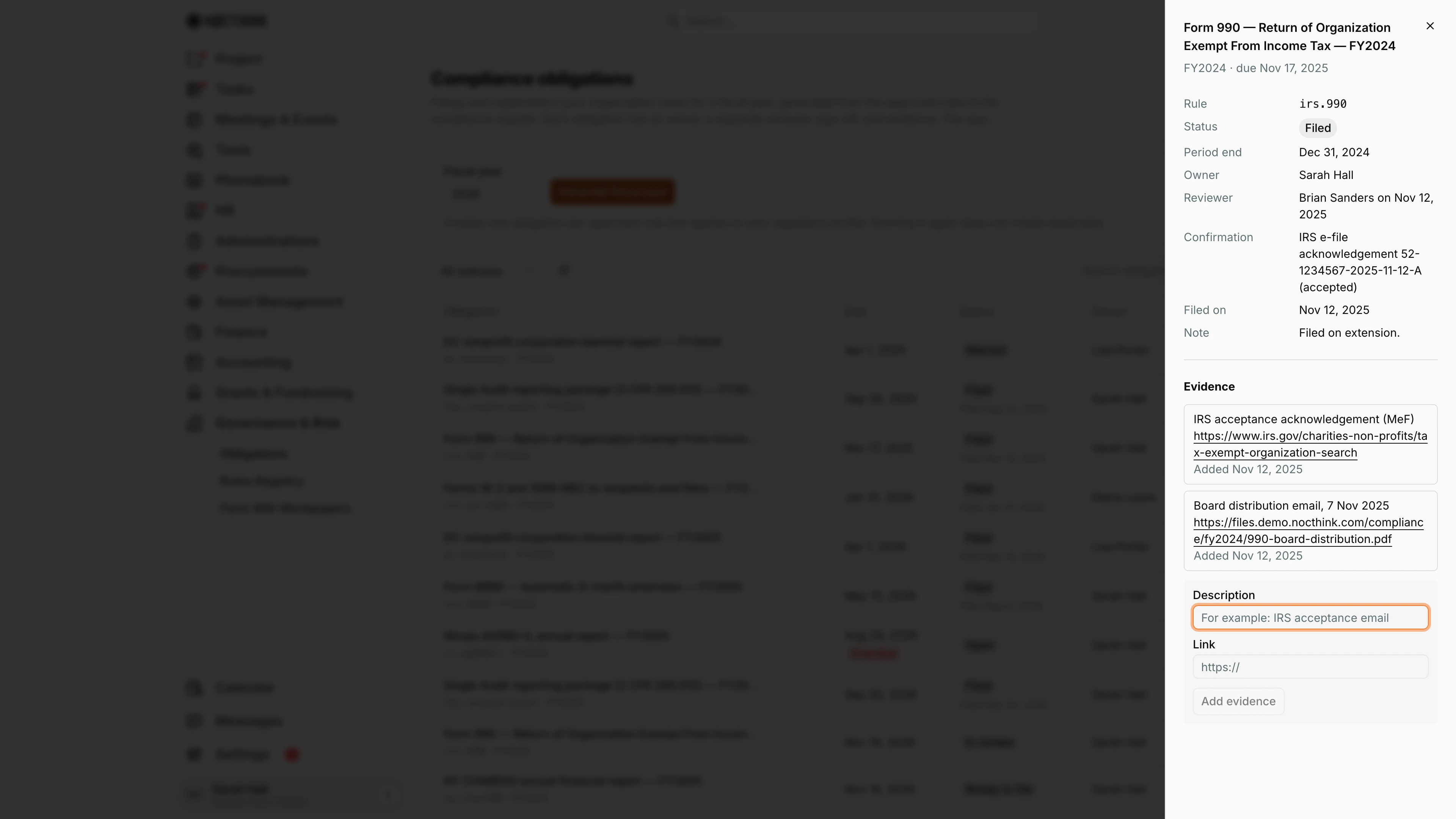
Screenshot: Sarah Hall (Finance Manager, also holds the F.A.T Manager role), Nocthink Demo Institute demo data.
Open on a row, or the obligation title, opens its panel. The header gives the fiscal year and due date. The facts list Rule (the rule key, here irs.990), Status, Period end, Owner, Reviewer with the sign-off date, Confirmation (the agency's confirmation, here the IRS e-file acknowledgement), Filed on and Note.
The forms below follow the status:
- not yet closed: Owner and progress (Owner, Status, Note, Save)
- In review: the reviewer's Review note with Mark ready to file or Send back to open; the owner cannot review their own obligation
- Ready to file: Record filing with Agency confirmation and Filed on
- Close without filing with Close as and Reason, for an obligation that does not apply
Evidence is always available: each item shows its description, link and date, and Add evidence takes a Description and a Link. A filed obligation, like this one, shows only the facts and the evidence.
Access & permissions
- Compliance is a restricted-view domain and part of the opt-in U.S. nonprofit modules: the organization owner must turn them on in Settings → Nonprofit, otherwise the page says "Not turned on".
- Viewing needs
compliance.view; Generate fiscal year needscompliance.create; assigning, notes, evidence and Record filing needcompliance.update; Reviewer sign-off and Close without filing needcompliance.approve. - In the demo, the "Grants and fundraising" role gives the Finance Manager view/create/update/approve on compliance; owner and directors see everything.
Caveats
- Filed, Not applicable and Waived are final: closed obligations can no longer be edited, reassigned or reopened.
- Filed is only reachable from Ready to file, which needs a sign-off from someone other than the owner and the person who submitted it for review — plan for two people on every filing.
- The owner cannot be changed while an obligation is In review; send it back to open first.
- Overdue is calculated against today's date in UTC.
- Changing a rule after generation does not change obligations already created; retire the old version and generate again for future years.
- Reminders go only to the assigned owner; unassigned obligations get no reminder.
Limitations
- No e-filing or submission to the IRS or states.
- Obligations cannot be created by hand or deleted; they come only from approved rules.
- Evidence is a description plus a link from this page (file attachments are supported by the API but not offered here).
- No calendar view or export.
Related menus
- Rules Registry — the approved rules that generate these obligations.
- Form 990 Workpapers — the preparation workpaper behind the
irs.990obligation. - Reporting Calendar — reports owed to funders, tracked separately from regulatory filings.
- Findings & Actions — audit results that follow the Single Audit filing.