
Dashboard
Open in NocthinkModule: Administrations · URL: /administrations/dashboard · Responsible role: General Affairs / Admin (general-affairs) · Also used by: Owner/Director (full, organisation-wide), every staff member (their own requests only)
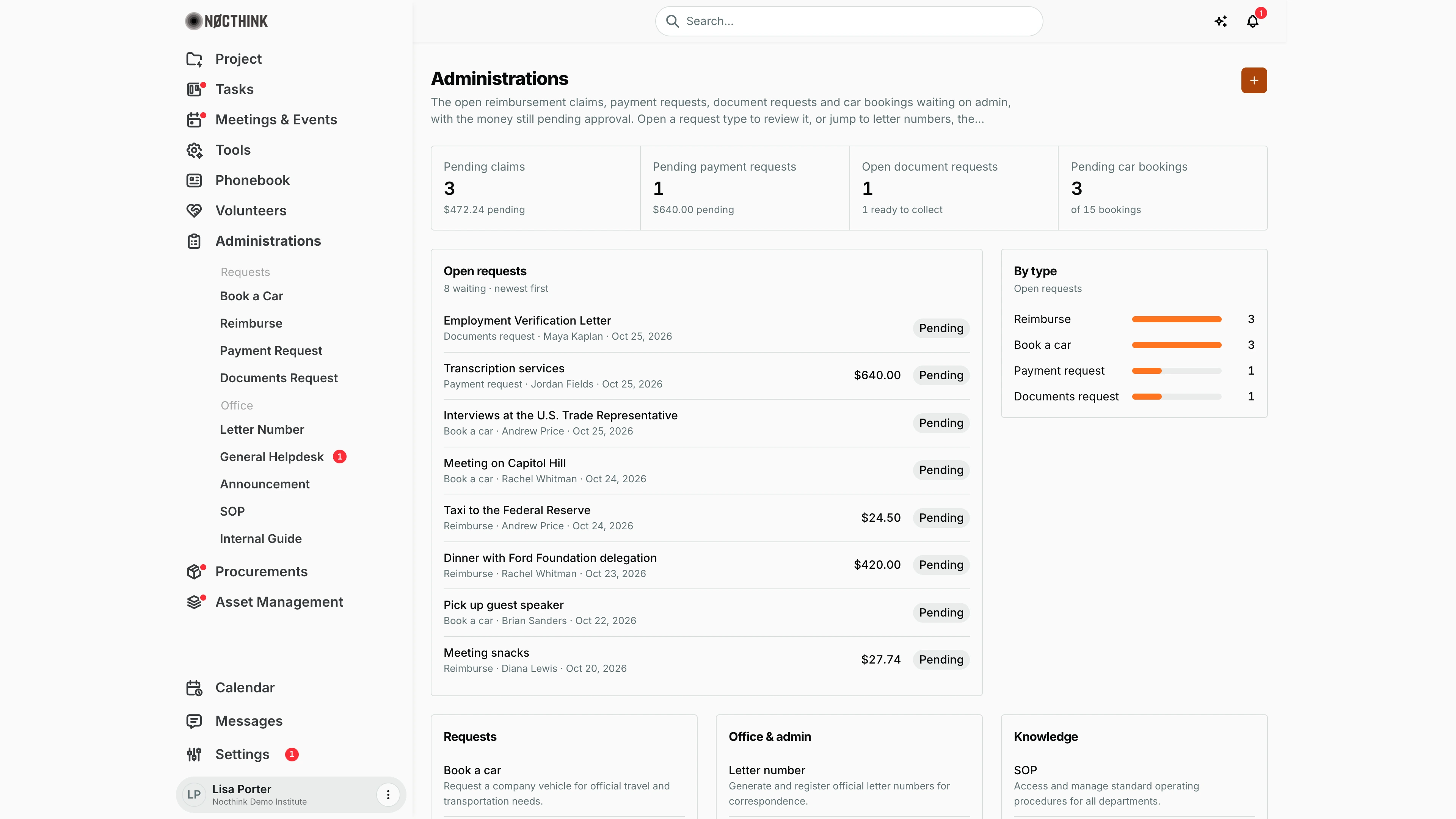
Screenshot: Lisa Porter (Operations Officer), Nocthink Demo Institute demo data. As General Affairs she sees every requester's open requests, like a Director.
Why I use this page
I start my admin day here. The page puts every reimbursement claim, payment request, document request and car booking that is still waiting on us into one queue, newest first, with the money still pending approval. I work down the queue, open each request type to decide or process it, and use the link cards to get to letter numbers, the helpdesk, announcements, SOPs and internal guides without going through the sidebar.
What's on the screen
- Header: the title Administrations, a one-line description, and the orange + button (New request). The + opens a menu with Book a car, Reimburse, Payment request and Documents request. Each one takes me to that page, where I use its own + to file the request.
- Counters, each linking to its page:
- Pending claims: reimbursements in pending, with "… pending" (the sum of their amounts in the org base currency).
- Pending payment requests: payment requests in pending, with the pending sum.
- Open document requests: requests in pending or in progress, with "N ready to collect" (status ready).
- Pending car bookings: bookings in pending, "of N bookings" in total.
- In the screenshot the counters read:
- Pending claims: 3, "$472.24 pending".
- Pending payment requests: 1, "$640.00 pending".
- Open document requests: 1, "1 ready to collect".
- Pending car bookings: 3, "of 15 bookings".
- Open requests: up to 8 waiting items, newest first. "N waiting · newest first" counts all of them.
- Each row shows the title, then the type, requester and submitted date, the amount (claims and payment requests only) and a status pill. Clicking a row opens that request type's page.
- The screenshot shows "8 waiting", from Maya Kaplan's Employment Verification Letter at the top down to Diana Lewis' Meeting snacks claim ($27.74).
- By type: one bar per request type with its open count, sorted from most to least. In the screenshot: Reimburse 3, Book a car 3, Payment request 1, Documents request 1.
- Requests, Office & admin and Knowledge: link cards with a one-line description of each page (Book a car, Reimburse, Payment request, Documents request; Letter number, General helpdesk, Announcement; SOP, Internal guide).
How I …
Work through the morning queue
- Open Administrations → Dashboard.
- Check the four counters. A high Pending claims or Pending payment requests sum tells me how much money is waiting on a decision.
- In Open requests, click the oldest item that matters. The list is newest first, so I scroll to the bottom of the 8 rows, or open the type page and sort by date.
- On the request page, open the row's ⋯ menu, choose Edit, set Status (for example Approved, Rejected or In progress) and save. The rules for each type are in the pages linked under Related menus.
- Come back to the dashboard. The counters and queue refresh when I return.
See which request type is piling up
- Look at By type. The longest bar is the type with the most open requests.
- Click the matching counter card above (for example Open document requests) to open the full list.
- Use the Status filter on that page to show only Pending (or In progress for documents).
File a request for myself
- Click the orange + at the top right.
- Pick Book a car, Reimburse, Payment request or Documents request.
- On that page, click its + and fill in the form. The steps are in each page's manual.
Jump to an office page
- Under Office & admin or Knowledge, click Letter number, General helpdesk, Announcement, SOP or Internal guide.
Access & permissions
- The menu needs
administrations.view. The baseline Staff role has it, so every member sees the Administrations module. - What the counters and queue include depends on the person and the request type:
- Owner, Director, and anyone holding
administrations.delete(thegeneral-affairsrole has it) see every request in the organisation. - Finance authority (finance department,
finance.approveor a finance role) also sees every reimbursement and payment request; HR authority orhr.updateevery documents request. - Everyone else sees only the requests they filed themselves.
- Owner, Director, and anyone holding
- The Administrations sidebar badge shows how many of my own requests are still pending, not the organisation's queue.
Caveats
- Amounts are shown in the organisation's base currency (e.g. "$24.50" for a U.S. org, "Rp 24.500" for an Indonesian one). Requests carry no currency of their own and nothing is converted.
- The queue shows only pending claims, payment requests and car bookings. An approved claim that still needs paying is no longer in the queue; find it on Reimburse with the Approved filter.
- Document requests count as open while pending or in progress. Ready ones appear only in the "ready to collect" note.
- Each list loads at most the newest 100 records per type, so counts in a very busy organisation can be understated.
- Helpdesk tickets, letter numbers and announcements are not counted here.
Limitations
- No date-range or department filter, and no export.
- I can't approve or reject from the dashboard; every decision is made on the request type's own page.
- The queue is capped at 8 rows and has no "show all" link. Use the type pages for the full list.
- It shows no history or turnaround times (for example, average days to approve).
Related menus
- Book a Car: car bookings counted in Pending car bookings.
- Reimburse: claims behind Pending claims.
- Payment Request: requests behind Pending payment requests.
- Documents Request: requests behind Open document requests.
- Letter Number: issue the letter number a document request needs.
- General Helpdesk, Announcement, SOP, Internal Guide: the office and knowledge pages linked from the cards.
- Finance Dashboard: paid claims and payment requests show up there as expenses.