
Book a Car
Open in NocthinkModule: Administrations · URL: /administrations/book-a-car · Responsible role: Staff (every member books for their own trips) · Also used by: General Affairs (full: sees, approves and completes every booking), Owner/Director (full)
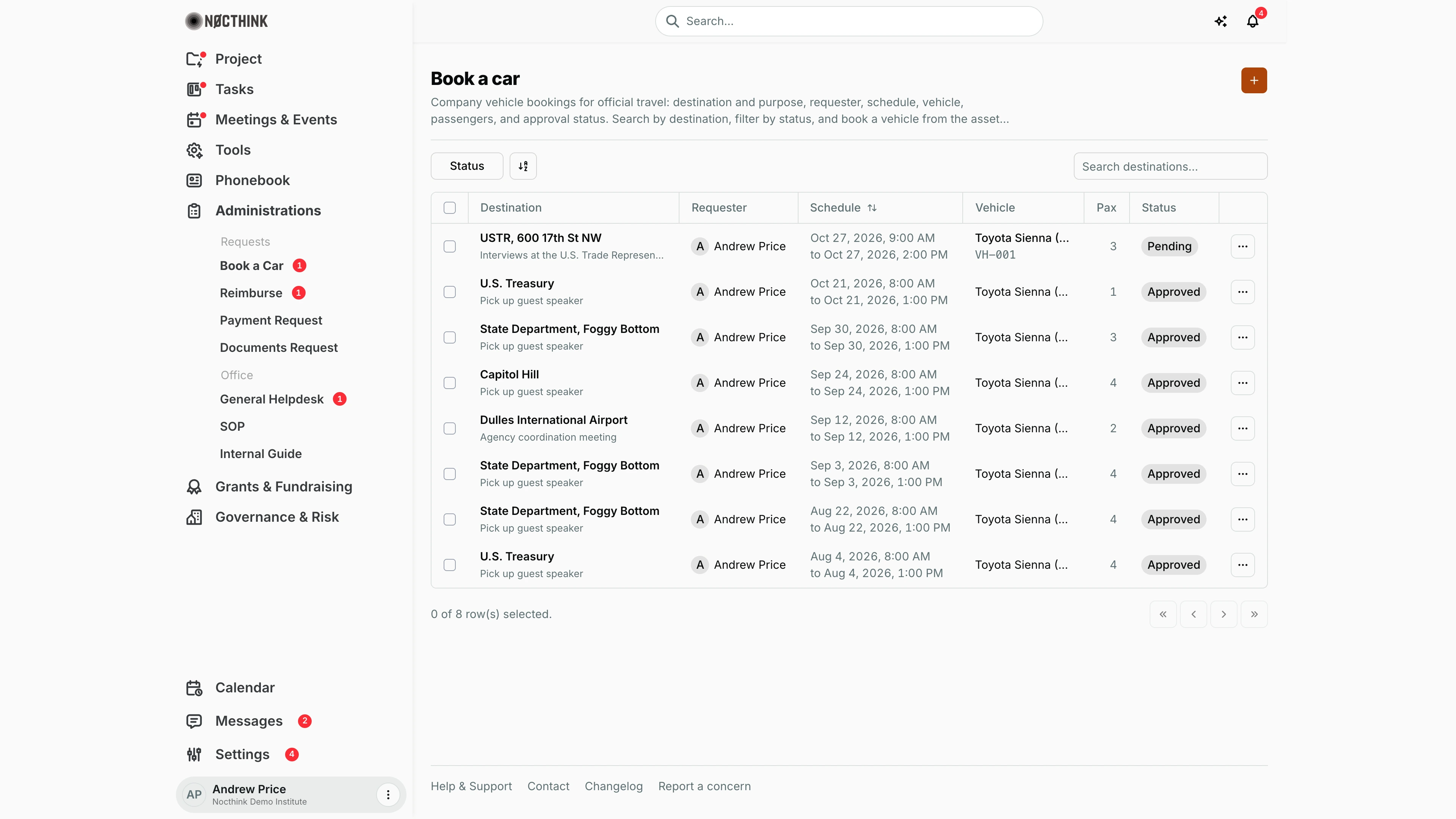
Screenshot: Andrew Price (Senior Researcher), Nocthink Demo Institute demo data. He sees only his own eight bookings: one pending, seven approved. Only the pending one shows the asset tag (VH-001); the older ones aren't linked to the asset register. The vehicle name is cut short ("Toyota Sienna (…") at this width.
Why I use this page
When I need an office vehicle for official travel (a field visit, an interview, picking up a speaker), I book it here so General Affairs can approve it and nobody else takes the same car. I come back to check whether the booking was approved, and to change or withdraw it if my plans move. General Affairs uses the same page to see everyone's bookings and decide them.
What's on the screen
- Header: Book a car, a short description, and the orange + (New car booking) at the top right.
- Toolbar:
- Status filter (checkboxes): Pending, Approved, Rejected, Completed, Cancelled.
- A column/sort control.
- Search destinations…, which matches the destination text.
- Table columns:
- Destination, with the purpose underneath. This column stays frozen when the table scrolls sideways.
- Requester.
- Schedule, showing "start" and "to end". Click the header to sort.
- Vehicle: name, plus asset tag (e.g.
VH-001) when the car is linked to the asset register. The name links to the asset. - Pax (number of passengers).
- Status pill. Rejected and cancelled show in red.
- ⋯ row menu with Edit and Delete.
- Footer: row selection count and paging.
How I …
Book a car for a trip
- Click + to open New car booking (see New car booking below).
- Vehicle: pick a car. The list shows only Asset Management assets in the Vehicle category. A car that is not available shows its state in brackets, e.g. "(maintenance)".
- Destination: where I'm going.
- Purpose: why (required).
- Start and End: date and time. End must be after Start.
- Passengers: at least 1.
- A new booking starts as Pending. The Status field appears only for people who decide bookings.
- Notes: optional (driver needed, luggage, pickup point).
- Click Create booking. If the car is already taken, I get a message like "Toyota Sienna is already booked 27 Oct 2026 13:00–18:00 by Andrew Price (Pending). Choose another vehicle or time slot." In that case I pick another vehicle or time.
- The booking appears as Pending, and the Book a Car sidebar badge counts it until someone decides it.
Change or withdraw my booking
- Find the booking (search the destination or filter Pending).
- To change it, click ⋯ → Edit, adjust the fields and click Save changes. This only works while the booking is Pending. Once it has been decided, the save fails with "This request is already approved; its details can no longer be changed."
- To withdraw it, click ⋯ → Delete and confirm "Delete booking to "…"?". This frees the car.
Approve, reject or complete bookings (General Affairs)
- Filter Status → Pending. As an approver, I see every requester's bookings.
- Click ⋯ → Edit on the booking.
- Set Status to Approved or Rejected and click Save changes. The requester gets an in-app notification "Car booking approved/rejected" that opens this page.
- After the trip, open it again and set Completed. Set Cancelled if the trip was called off.
Detail page, forms & dialogs
New car booking
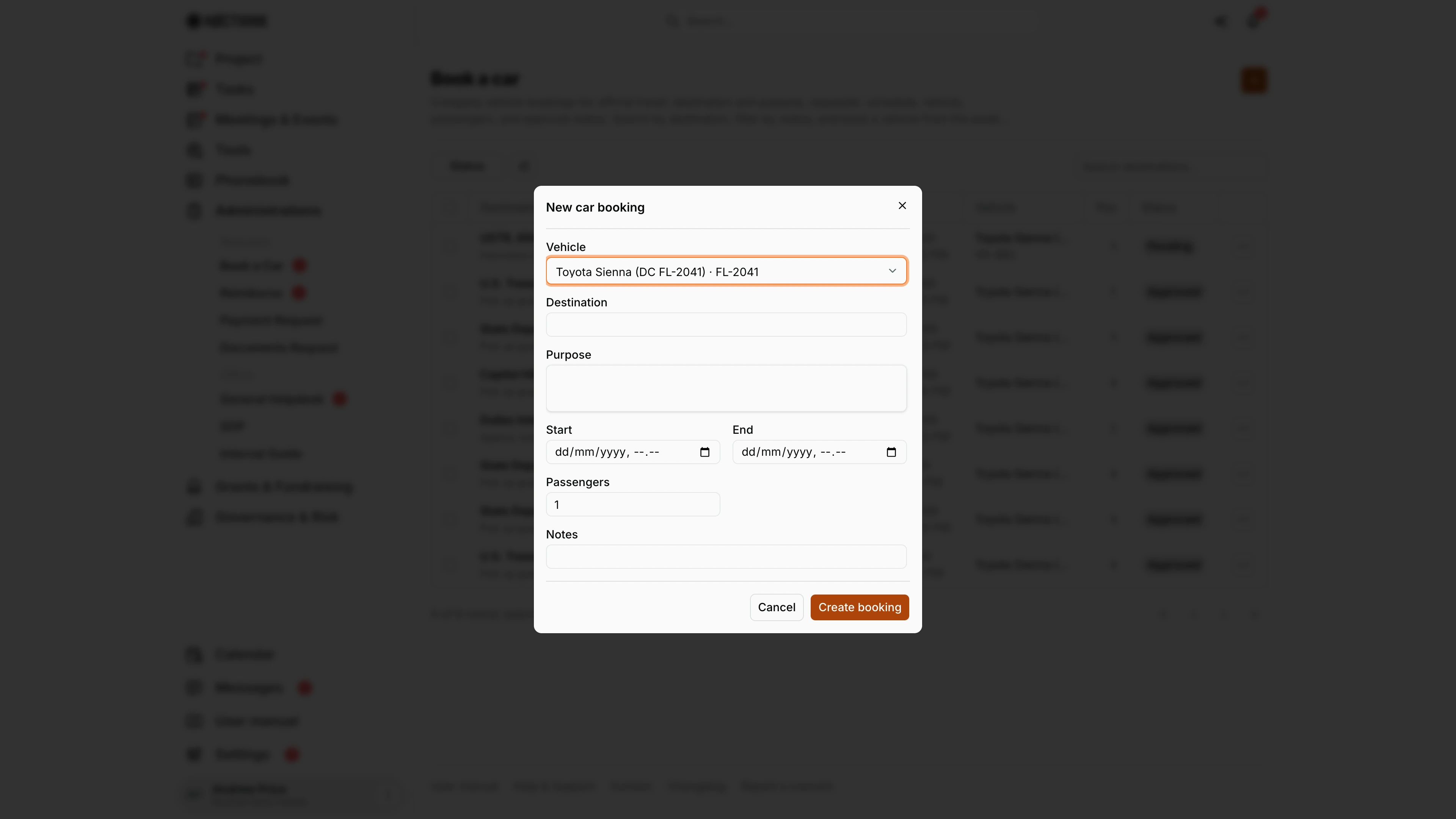
Screenshot: Andrew Price (Senior Researcher), Nocthink Demo Institute demo data.
+ opens New car booking. Vehicle lists the cars from Asset Management, Destination is where I am going and Purpose why (required). Start and End are date and time; End must be after Start. Passengers is at least 1, and Notes takes anything the driver or General Affairs should know. As a requester I do not see Status: every new booking starts Pending, and only people who decide bookings get the Status field. Create booking checks the car's calendar and refuses a clash with a message naming the other booking. In the demo the Vehicle list is empty (see Caveats).
Edit car booking
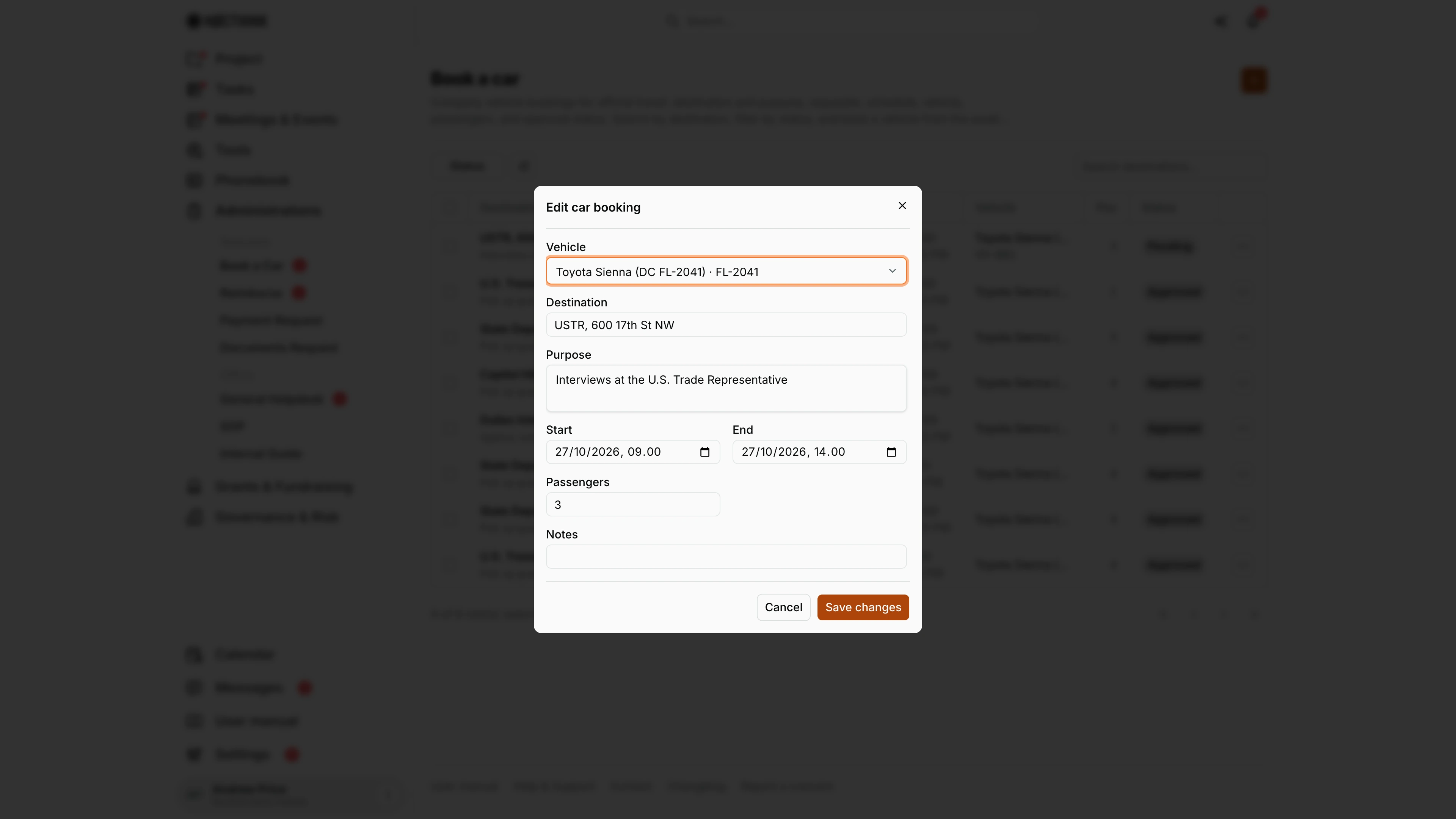
Screenshot: Andrew Price (Senior Researcher), Nocthink Demo Institute demo data.
⋯ → Edit on my own booking opens Edit car booking with the same fields, filled in. While the booking is Pending I can change any of them and click Save changes; once it has been decided, the save is refused. General Affairs uses the same dialog with an extra Status field (Pending, Approved, Rejected, Completed, Cancelled) to decide the booking, which notifies the requester. Cancel closes without saving. To withdraw a booking instead, use ⋯ → Delete; that frees the car for others.
Access & permissions
- Every member can open the page: it is in the personal-access list, so it works even without
administrations.view. - Every member books cars for their own trips and edits or deletes their own bookings; no administrations permission is needed.
- Staff see only their own bookings. Owner, Director and holders of
administrations.delete(General Affairs) see and edit all bookings. - Deciding a booking:
- Changing Status needs
administrations.delete(General Affairs) or Owner/Director. - Nobody may approve their own booking. An approver who edited a booking's details may not then decide it; another approver must.
- Changing Status needs
Caveats
- Clash check: a vehicle can't be double-booked for overlapping times while the other booking is pending, approved or completed. Rejected and cancelled bookings don't block it.
- The clash message prints the other booking's times in UTC, not my local time.
- Editing a decided booking:
- When an approver changes the details of an approved booking, it goes back to Pending and someone else must approve it again.
- The requester can't edit it at all once it has been decided.
- Delete is permanent and has no status check. It removes an approved booking too, and if the delete fails nothing is shown on screen.
- Times are entered in my browser's time zone and stored in UTC.
- A booking for a car in maintenance can still be saved. The "(maintenance)" label is only a warning.
Limitations
- No calendar or availability view. I find a free slot only by trying, or by reading the list.
- Not easy to see who decided. The approver's name isn't shown in the table, and no rejection reason is captured apart from Notes.
- Approver needs Asset Management. The vehicle list comes from the asset register, so an approver without Asset Management access sees an empty vehicle list.
- No mileage, fuel or driver assignment, and no export.
- Only the newest 100 bookings are loaded.
Related menus
- Dashboard: Pending car bookings counter and the open-requests queue.
- Asset List: vehicles are assets in the Vehicle category; add or retire cars there.
- Maintenance: cars under maintenance show as unavailable in the vehicle list.
- Reimburse: claim fuel, tolls or parking from the trip.
- SOP: the official-travel procedure (in the demo, SOP-OPS-001 Official Travel).