
Payment Request
Open in NocthinkModule: Administrations · URL: /administrations/payment-request · Responsible role: Staff (every member requests payments for their own work) · Also used by: General Affairs and Owner/Director (full: see all, approve, mark paid). Finance Staff/Manager and F.A.T Manager process requests per docs/role.md (see Access). Accounting Staff (read).
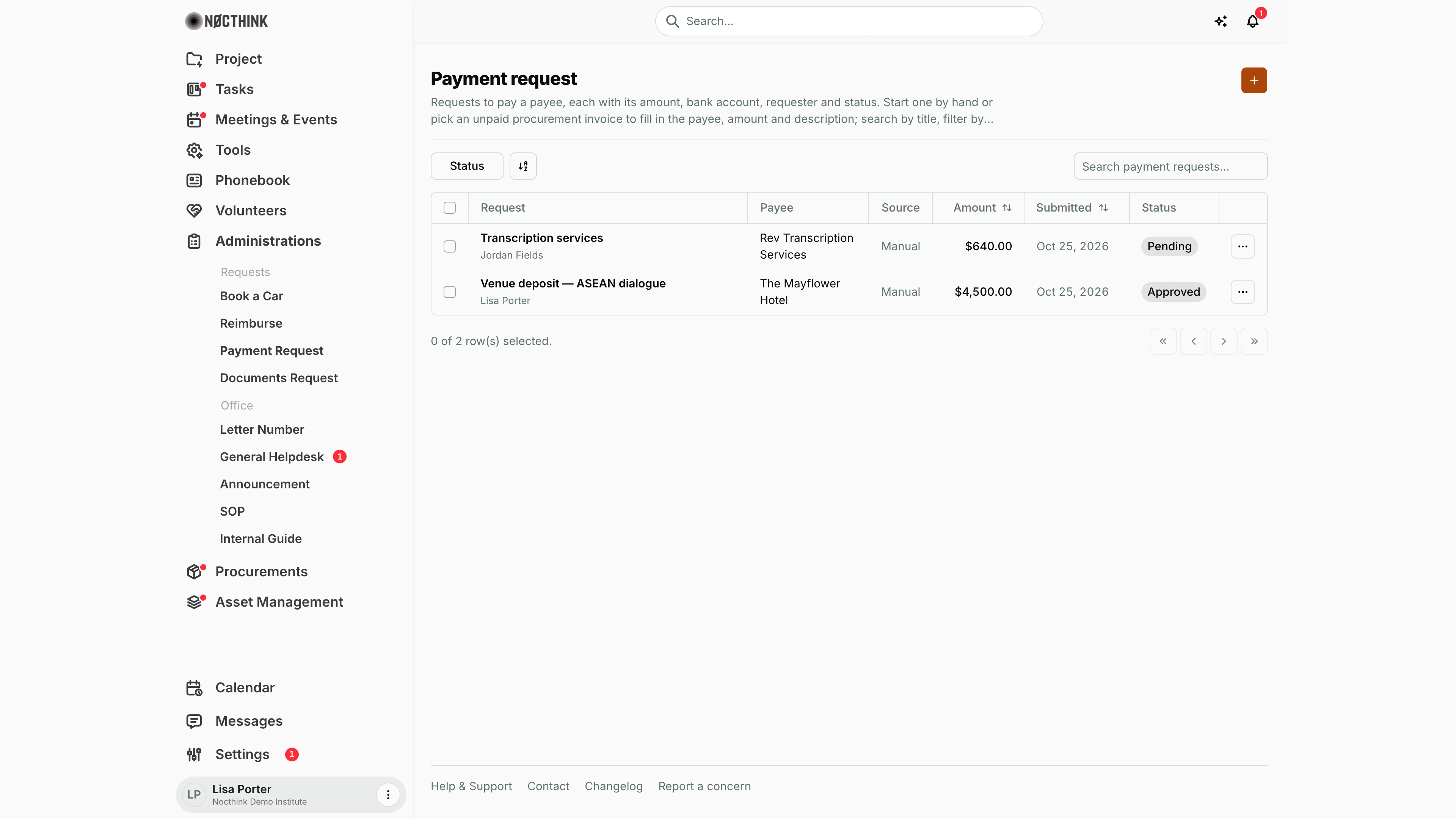
Screenshot: Lisa Porter (Operations Officer), Nocthink Demo Institute demo data. As General Affairs she sees every requester's payment requests, not only her own.
Why I use this page
When the organisation needs to pay someone directly (a venue deposit, a transcription service, a consultant), and I'm not paying it myself, I raise a payment request here. It records who to pay, how much and into which account. If the payment is for a procurement invoice, I pick the invoice and the form fills itself in. I come back to see whether it was approved and paid.
What's on the screen
- Header: Payment request, a short description, and the orange + (New payment request) at the top right.
- Toolbar:
- Status filter: Pending, Approved, Rejected, Paid.
- A column/sort control.
- Search payment requests…, which matches the title.
- Table columns:
- Request: title, with requester and description underneath.
- Payee.
- Source: the procurement invoice number, linked to the invoice, or Manual.
- Amount (sortable).
- Submitted (sortable).
- Status pill.
- ⋯ with Edit and Delete.
- Rows in the screenshot:
- Transcription services by Jordan Fields, payee Rev Transcription Services, Source: Manual, $640.00, submitted Oct 25, 2026, Pending.
- Venue deposit — ASEAN dialogue by Lisa Porter, payee The Mayflower Hotel, Source: Manual, $4,500.00, submitted Oct 25, 2026, Approved. It still has to be marked Paid once the transfer has gone out.
- Footer: "0 of 2 row(s) selected." and paging.
How I …
Request payment of a procurement invoice
- Click + to open New Payment Request (see New payment request below).
- In Procurement Invoice (auto-fills the fields below), pick the invoice. Each option shows "number · vendor · amount", and only invoices that are not paid or cancelled are offered.
- The form fills in Title ("Payment for INV-…"), Payee (the vendor), Amount (the invoice total) and Description ("Procurement invoice … · PO …"). Adjust them if needed.
- Enter Bank Account in the form "Bank · account no.".
- The request starts as Pending (the Status field appears only for people who decide payment requests). Add Notes if useful, and click Submit Request.
Request a manual payment
- Click +. Leave Procurement Invoice on Manual entry (no procurement invoice).
- Fill in Title, Description, Payee and Amount (in the org base currency; all required, amount above zero).
- Optionally fill in Bank Account and Notes.
- Click Submit Request. It appears as Pending with Source: Manual.
Change or withdraw my request
- While it is Pending, click ⋯ → Edit, change fields and click Save Changes. A request that started from an invoice can't switch to another invoice; the picker is hidden.
- To withdraw it, click ⋯ → Delete and confirm "Delete payment request "…"?".
Approve and pay (approver)
- Filter Status → Pending.
- Click ⋯ → Edit and check Payee, Amount and Bank Account. If there is a Source invoice, open it to compare.
- Set Approved or Rejected and click Save Changes. The requester is notified "Payment request approved/rejected".
- After the transfer, set Paid and save. The paid date is stamped automatically.
Detail page, forms & dialogs
New payment request
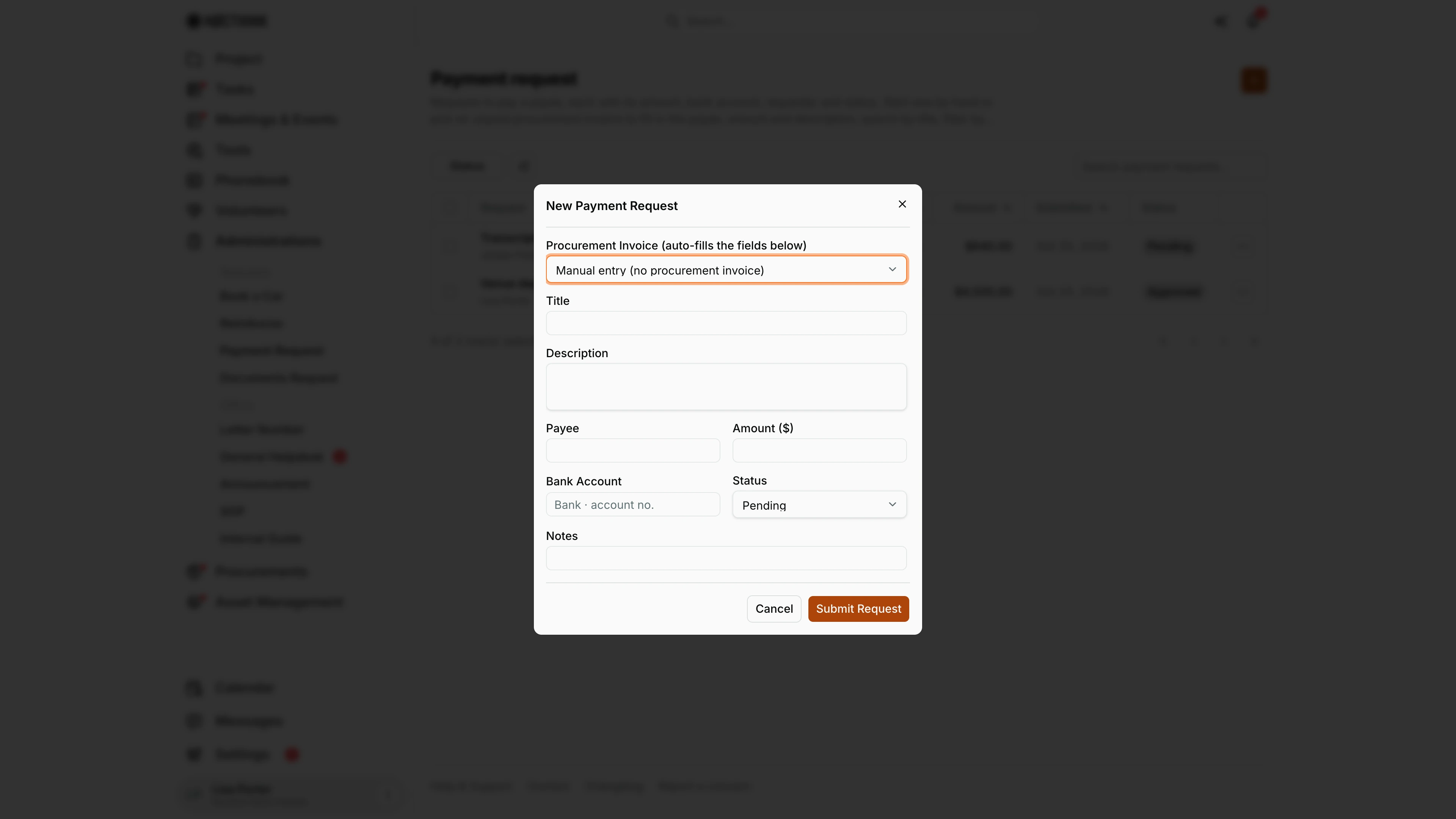
Screenshot: Lisa Porter (Operations Officer), Nocthink Demo Institute demo data.
+ opens New Payment Request. The first field, Procurement Invoice (auto-fills the fields below), either picks an open procurement invoice, which fills Title, Payee, Amount and Description, or stays on Manual entry (no procurement invoice). Title, Description, Payee and Amount ($) are required, with the amount above zero. Bank Account is written as "Bank · account no.". Because Lisa Porter can decide payment requests, she also sees Status (Pending, Approved, Rejected, Paid); requesters do not. Submit Request files it as Pending unless a decider picked another status.
Edit payment request
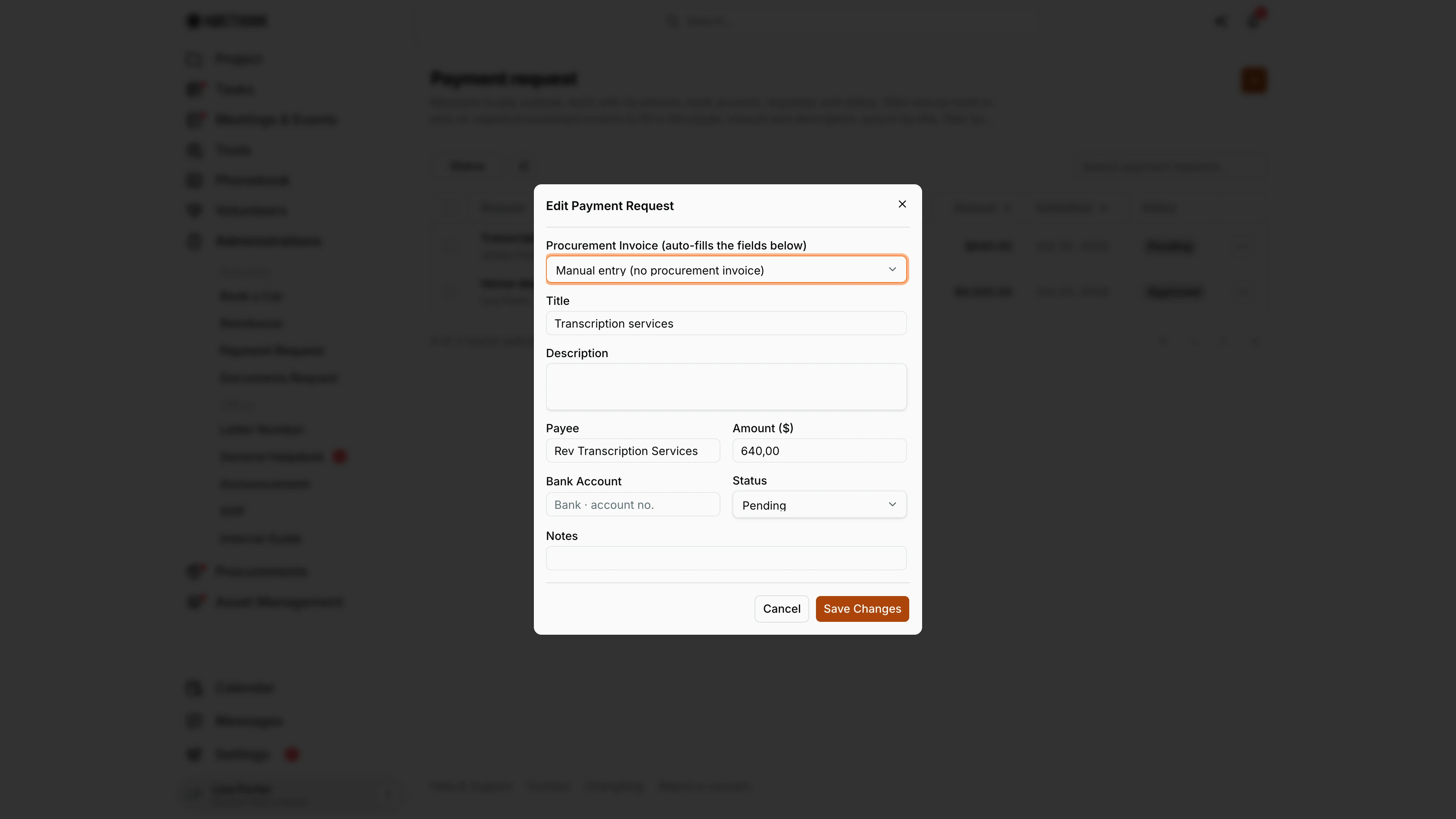
Screenshot: Lisa Porter (Operations Officer), Nocthink Demo Institute demo data.
⋯ → Edit opens Edit Payment Request. The requester can change a Pending request; a request that started from an invoice keeps that invoice. An approver uses this dialog to check Payee, Amount and Bank Account and set Approved or Rejected, then Paid after the transfer; the requester is notified of each decision and the paid date is stamped automatically. Save Changes applies the edit. If an invoice is linked, compare it with the Source before deciding. Cancel closes the dialog without saving, and ⋯ → Delete withdraws a request that is still Pending.
Access & permissions
- Every member can open the page; it is personal access.
- Staff see only their own requests.
- Finance authority (finance department,
finance.approve, or a finance role), holders ofadministrations.delete(thegeneral-affairsrole), Owner and Director see all requests.
- Creating a request needs no administrations permission: every member files and edits their own.
- Status changes need finance authority,
administrations.delete, or Owner/Director. - Separation of duties: no one decides their own request, and someone who edited it since the last approval can't decide it.
- The invoice picker lists only procurement invoices I'm allowed to see in Procurements. For ordinary staff that is usually none.
Caveats
- The amount is in the org base currency and shown in its format. Up to 12 digits.
- Approved requests are locked for the requester. An approver who changes the content (amount, payee, bank account) sends the request back to Pending for another approver.
- A Paid request is frozen: "This request has been paid and can no longer be edited."
- Marking a request Paid does not mark the procurement invoice paid. Record the payment in Payments as well.
- Both paid payment requests and procurement payments feed Finance's cash transactions, so agree with Finance which record counts to avoid double-counting.
- Delete is permanent, has no status check, and a failed delete shows no message.
- The bank account is free text. It is not validated against the vendor's bank details.
Limitations
- No file attachment (quote or invoice scan) on a manual request.
- No link to a project, grant or budget line, so Finance gets it as an unallocated expense.
- No partial payments. A request is either paid or not.
- The approver and paid date aren't shown in the table.
- No export or bulk actions; only the newest 100 requests load.
Related menus
- Dashboard: Pending payment requests counter and sum.
- Reimburse: use it when I already paid and want my money back.
- Invoices: the source of auto-filled requests.
- Payments and Payment Release: where Finance releases payment against procurement invoices.
- Finance Dashboard: paid requests appear as expenses.