
Reimburse
Open in NocthinkModule: Administrations · URL: /administrations/reimburse · Responsible role: Staff (every member claims their own expenses) · Also used by: General Affairs and Owner/Director (full: see all claims, approve, mark paid). Finance Staff/Manager and F.A.T Manager process claims per docs/role.md (see Access). Accounting Staff (read).
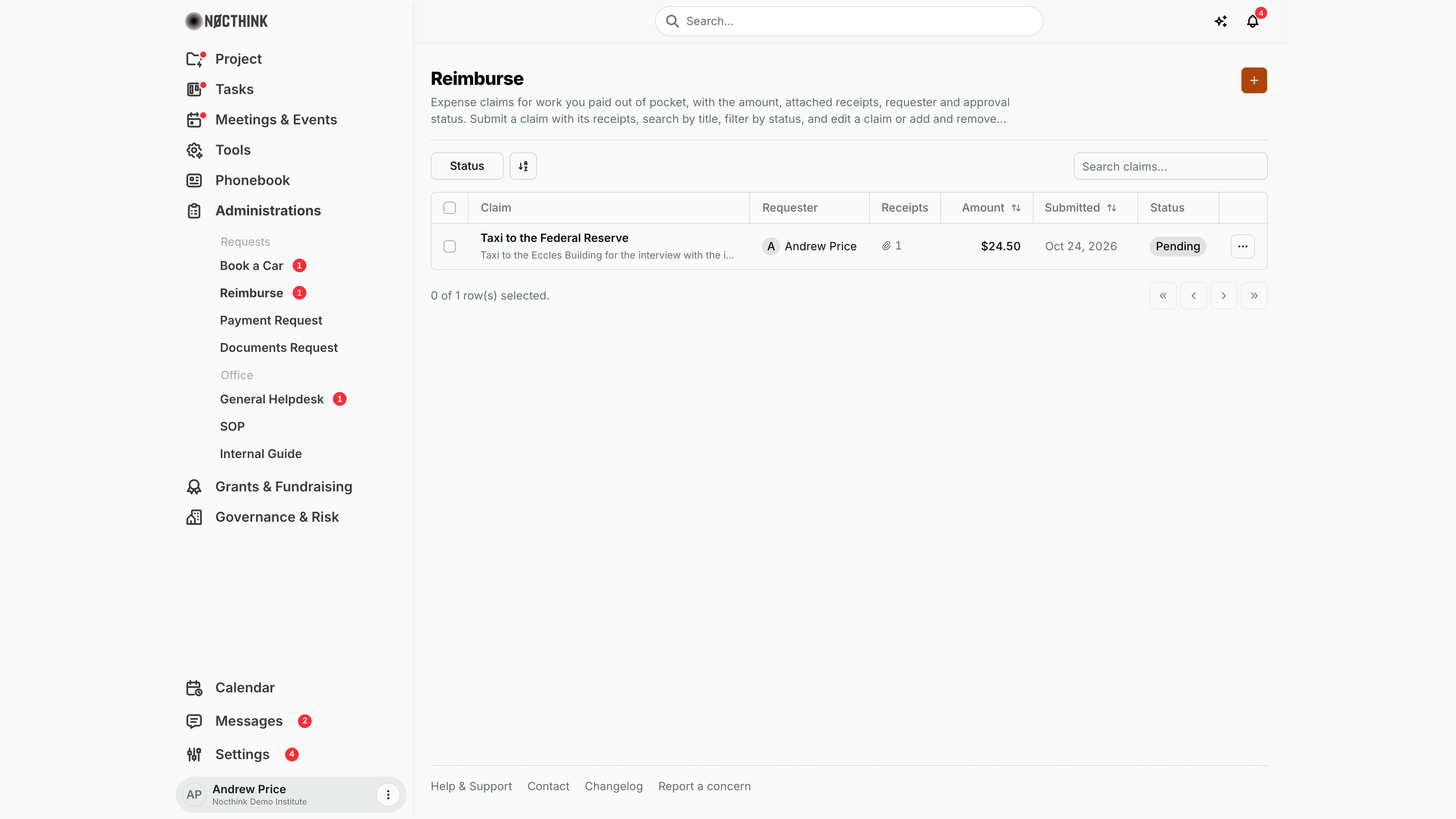
Screenshot: Andrew Price (Senior Researcher), Nocthink Demo Institute demo data. He sees only his own claims; he has one, still pending.
Why I use this page
When I pay for something work-related out of my own pocket (a taxi to a meeting, parking, printing), I file a claim here with the receipts so I get the money back. I check back to see whether it was approved and paid. Whoever processes claims uses the same page to review everyone's claims, approve or reject them, and mark them paid once the money has gone out.
What's on the screen
- Header: Reimburse, a short description, and the orange + (New reimbursement claim) at the top right.
- Toolbar:
- Status filter: Pending, Approved, Rejected, Paid.
- A column/sort control.
- Search claims…, which matches the claim title.
- Table columns:
- Claim: title in bold, description underneath.
- Requester.
- Receipts: paperclip and the number of attached files.
- Amount (sortable).
- Submitted: date, sortable.
- Status pill. Rejected shows in red.
- ⋯ with Edit and Delete.
- Footer: selection count and paging.
How I …
Submit a claim with receipts
- Click + to open New Reimbursement Claim (see New reimbursement claim below).
- Title: e.g. "Taxi to the Federal Reserve".
- Description: what it was for (required).
- Amount (labelled with the org base currency symbol, e.g. "Amount ($)"): the amount paid. It must be greater than zero.
- The claim starts as Pending. The Status field appears only for people who decide claims.
- Notes: optional.
- Under Receipts (image or PDF), click Add receipt files and pick one or more images or PDFs. Remove a wrong file with its ×.
- Click Submit Claim. The claim is saved first, then the receipts upload. The claim appears as Pending and the Reimburse sidebar badge counts it.
Add or fix receipts on a pending claim
- Click ⋯ → Edit on the claim.
- Under Uploaded Receipts, click a file name to open it, or the delete icon to remove it.
- Use Add receipt files to attach more.
- Change any other field if needed and click Save Changes.
Withdraw a claim
- Click ⋯ → Delete and confirm "Delete claim "…"?".
Approve, reject and mark a claim paid (approver)
- Filter Status → Pending. As an approver, I see every requester's claims.
- Click ⋯ → Edit, open the receipts under Uploaded Receipts, and check that Amount matches them.
- Set Status to Approved or Rejected and click Save Changes. The requester is notified "Reimbursement approved/rejected".
- When the money has been transferred, open the claim again, set Status to Paid and save. The payment date is stamped automatically.
Detail page, forms & dialogs
New reimbursement claim
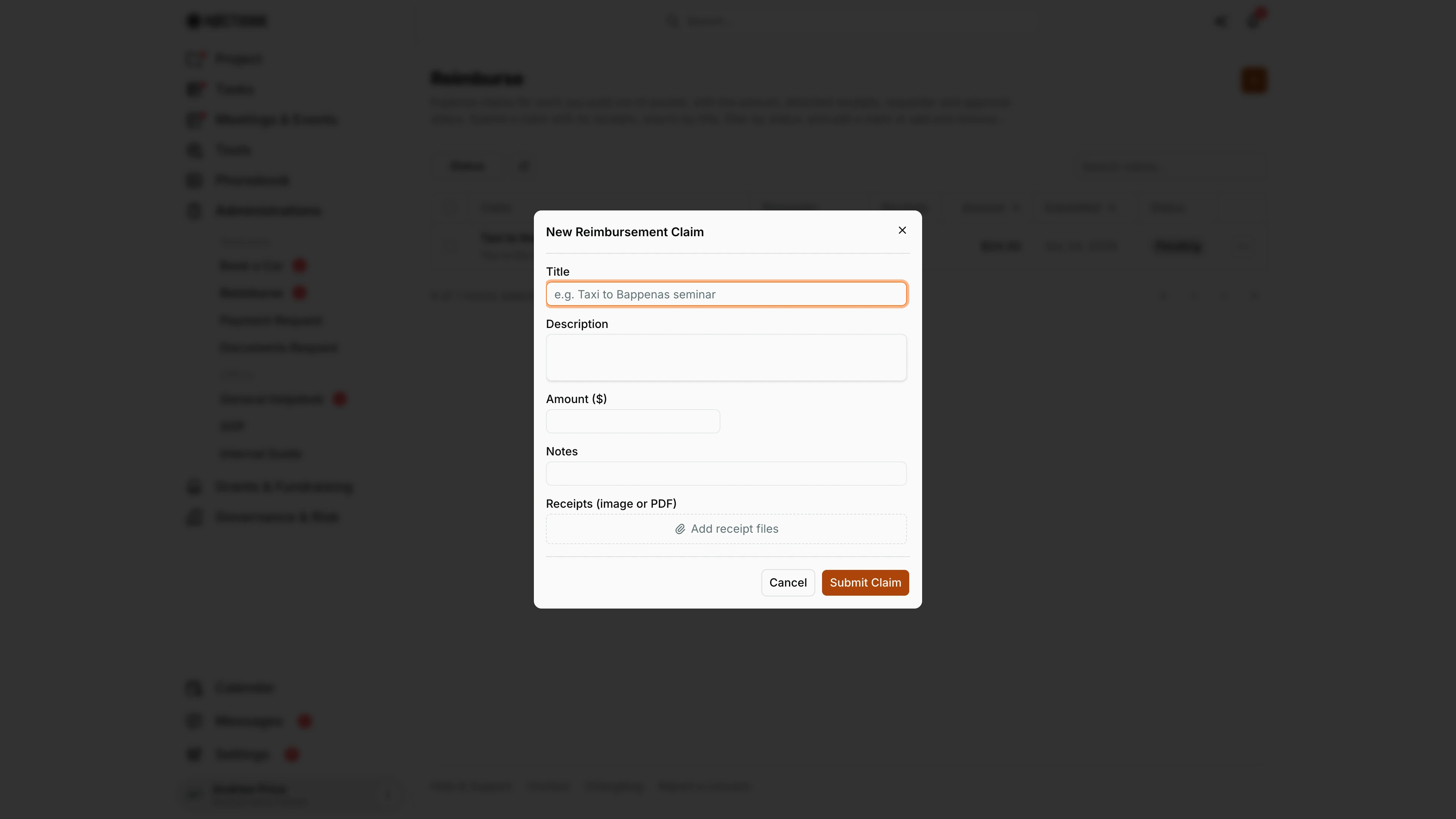
Screenshot: Andrew Price (Senior Researcher), Nocthink Demo Institute demo data.
+ opens New Reimbursement Claim. Title and Description say what was paid and why. Amount is labelled with the org base currency, here Amount ($), and must be above zero. Notes is optional. Receipts (image or PDF) has Add receipt files, which accepts several files; each one can be removed before sending. As a requester I do not see Status; claims start Pending. Submit Claim saves the claim, then uploads the receipts. The Reimburse sidebar badge counts it until it is decided. Cancel discards the claim and any files picked.
Edit reimbursement claim
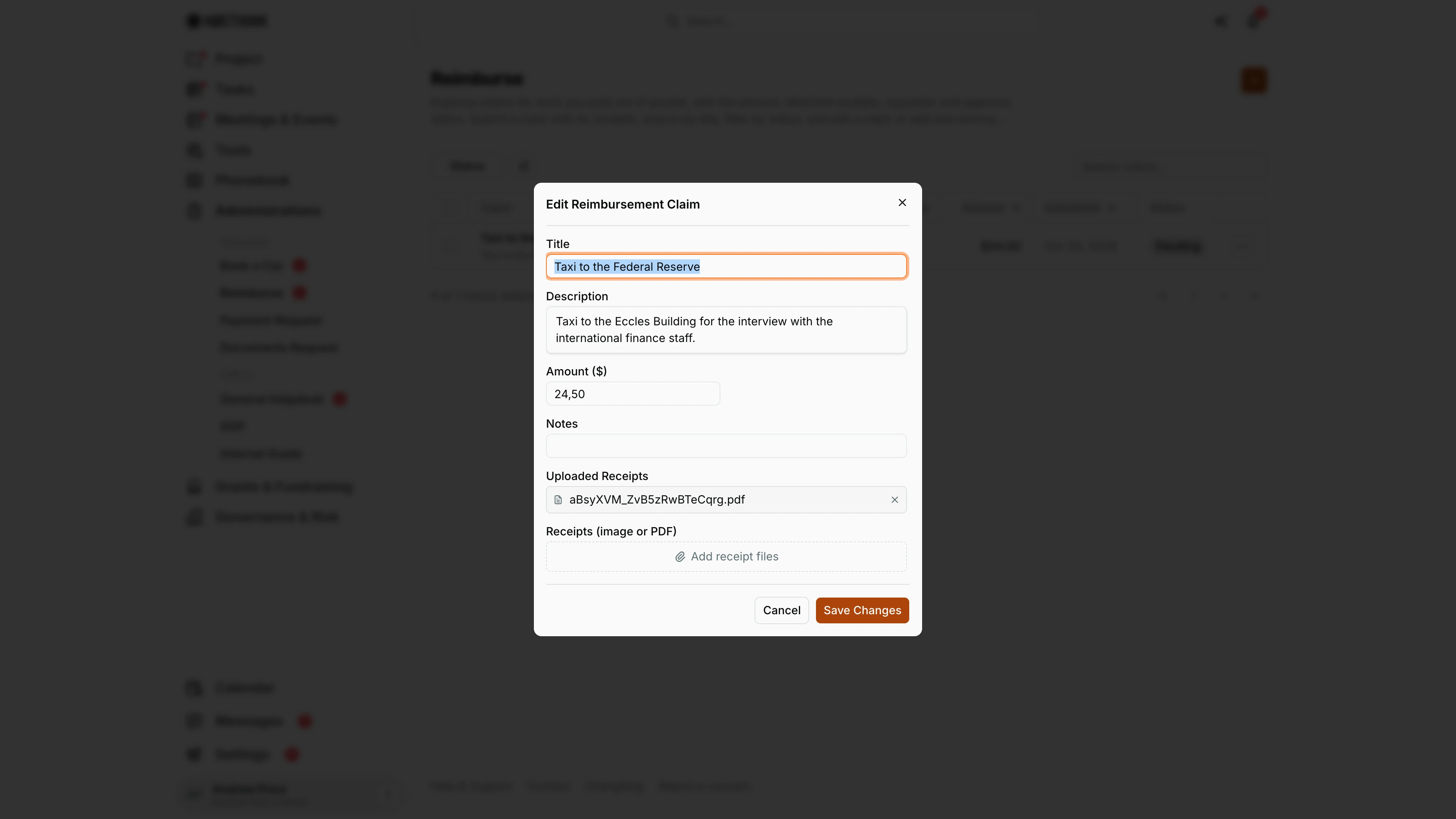
Screenshot: Andrew Price (Senior Researcher), Nocthink Demo Institute demo data.
⋯ → Edit opens Edit Reimbursement Claim. On top of the claim fields it lists Uploaded Receipts: click a file name to open it, or the delete icon to remove it. Add receipt files attaches more. The approver opens the same dialog, checks the receipts against Amount, and sets Status to Approved, Rejected or, after the transfer, Paid. Save Changes applies the edit; a decided claim can no longer be changed by the requester. To withdraw the claim, use ⋯ → Delete instead.
Access & permissions
- Every member can open the page; it is personal access.
- Staff see only their own claims.
- Finance authority (finance department,
finance.approve, or the Finance Staff, Finance Manager and F.A.T Manager roles) and holders ofadministrations.delete(General Affairs), plus Owner and Director, see everyone's claims.
- Filing a claim needs no administrations permission: every member files and edits their own claims and receipts.
- Approving, rejecting and marking paid need finance authority,
administrations.delete, or Owner/Director. - Separation of duties:
- No one can decide their own claim.
- Anyone who edited a claim's details or receipts since the last approval can't decide it; another approver must.
Caveats
- The amount is in the org base currency and shown in its format (e.g. "$24.50"; "Rp 24.500" for IDR). The amount allows up to 12 digits.
- Receipts can only change while the claim is Pending. After a decision, uploads and deletions fail with "This reimbursement is already approved; its receipts can no longer be changed."
- After a decision, details are locked:
- The requester can't edit an approved or rejected claim.
- An approver who changes an approved claim's details sends it back to Pending for someone else to approve.
- A Paid claim is frozen for everyone: "This request has been paid and can no longer be edited."
- Delete is permanent, has no status check, and a failed delete shows no message.
- Paid claims count as expenses. They show up in Finance's cash transactions and the Finance dashboard, dated on the paid date.
- Notifications go to the requester only. They are sent on approve and reject, not on paid. Approvers aren't notified of new claims; they check this page or the Dashboard.
Limitations
- No link to a project, grant or budget line, and no expense category. A paid claim reaches Finance as an unallocated expense.
- No approval chain or amount threshold: one approver decides.
- The approver's name and the paid date are stored but not shown in the table.
- No export or bulk approve. Only the newest 100 claims load.
Related menus
- Dashboard: Pending claims counter and sum.
- Payment Request: use it instead when the organisation should pay a third party directly.
- Book a Car: the trip a fuel or parking claim usually belongs to.
- Finance Dashboard: paid claims appear as expenses.
- SOP: the reimbursement rules (the demo SOP says submit within 30 days).