
Letter Number
Open in NocthinkModule: Administrations · URL: /administrations/letter-number · Responsible role: General Affairs / Admin (general-affairs) · Also used by: Owner/Director (full); nobody else — the page needs administrations.update
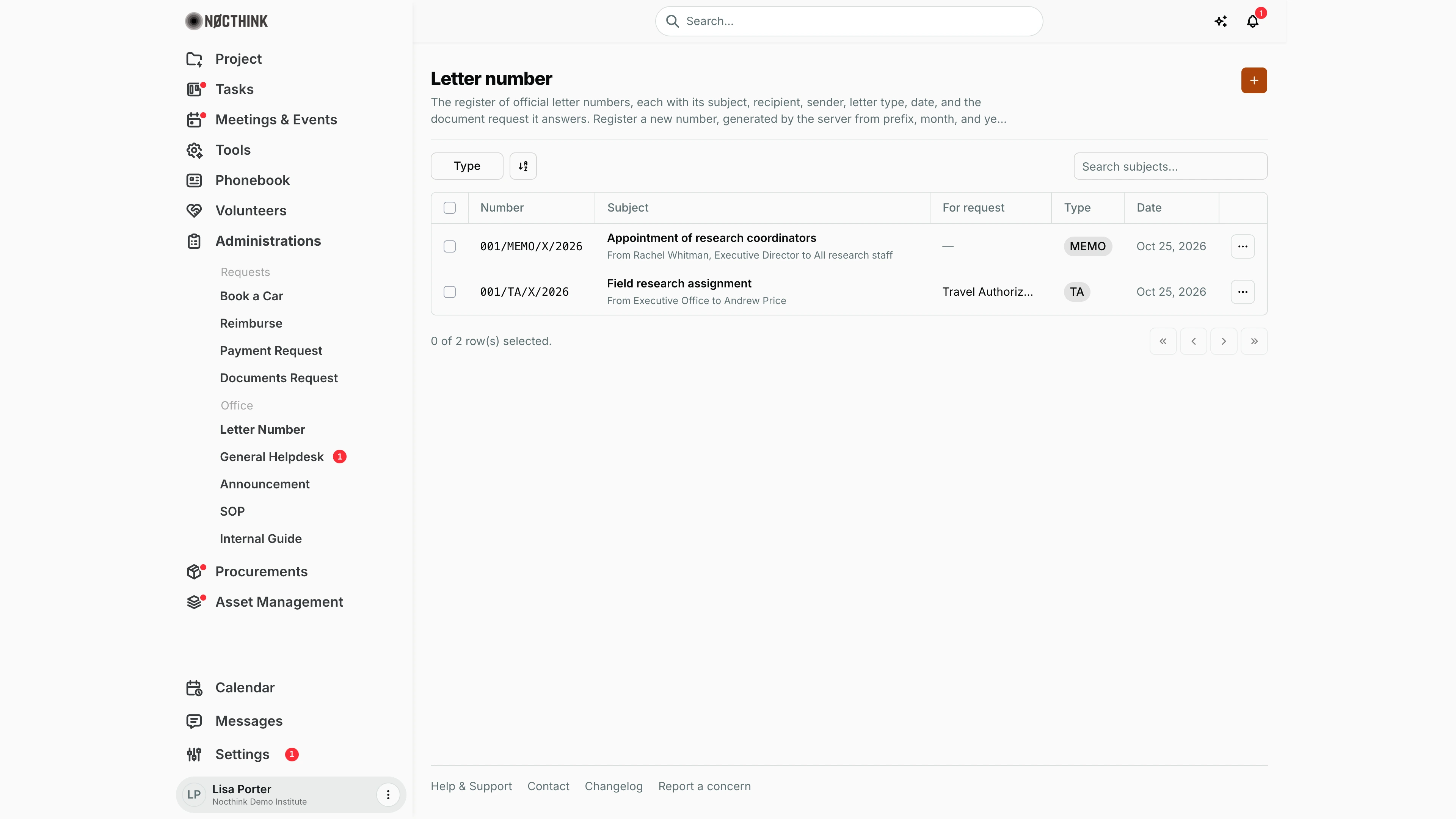
Screenshot: Lisa Porter (Operations Officer), Nocthink Demo Institute demo data. She holds General Affairs, so she sees the full register.
Why I use this page
This is our outgoing-letter register. Whenever anyone in the institute needs an official number for a letter, memo, assignment letter (Surat Tugas) or travel authorization, I register it here so the number is unique and in sequence. I also use it to close document requests: when I register a number against a request, that request is marked ready for the staff member who asked for it. I open it several times a week, and at month end to check the register against the letters actually sent.
What's on the screen
- Header — Letter number with a short description, and the orange + button (Register letter number) at the top right.
- Toolbar — the Type filter (one checkbox per letter prefix, e.g. MEMO, TA), a sort control, and Search subjects… on the right (searches the subject only).
- Table columns
- Number — the full generated number, e.g.
001/TA/X/2026(sequence / prefix code / month in Roman numerals / year). This column stays frozen when the table scrolls sideways. - Subject — the subject in bold, with From sender to recipient underneath (or just To recipient when there is no sender).
- For request — the document type of the linked document request, or —.
- Type — the prefix code as a pill.
- Date — the letter date (e.g. "Oct 25, 2026").
- ⋯ — row menu with Edit and Delete.
- Number — the full generated number, e.g.
- Footer — row-selection count and paging buttons. Newest letter dates are listed first.
How I …
Register a new letter number
- Click +. The Register letter number dialog opens ("The full number is generated by the server from prefix, month, and year."); see Register letter number below.
- Fill in Subject, Recipient and Sender — all three are required.
- Pick the Prefix (shown as
CODE — Label). It defaults to the first prefix in the list. - Check Date (defaults to today), Month (1–12, defaults to this month) and Year (defaults to this year). Month and year go into the number; the date is the letter's own date.
- Optionally add Notes.
- If the letter answers a staff document request, choose it in Related document request (listed as
Document type — Requester; only requests that do not have a letter yet appear). - Click Register. The new number appears at the top of the table. I copy the Number onto the letter before it is signed.
Issue a letter for a document request
- Open Documents Request to see what the staff member asked for.
- Come back here and register the number as above, selecting that request in Related document request.
- On save the server sets the document request's status to Ready, so the requester sees it is done. The register shows the request's document type under For request.
Correct a registered letter
- Click ⋯ → Edit on the row. The dialog shows the full number under Edit Letter.
- Change Subject, Recipient, Sender, Date or Notes (subject, recipient, sender and date stay required).
- Click Save changes.
Find a letter
- Type part of the subject in Search subjects….
- Narrow with Type to one or more prefixes.
Detail page, forms & dialogs
Register letter number
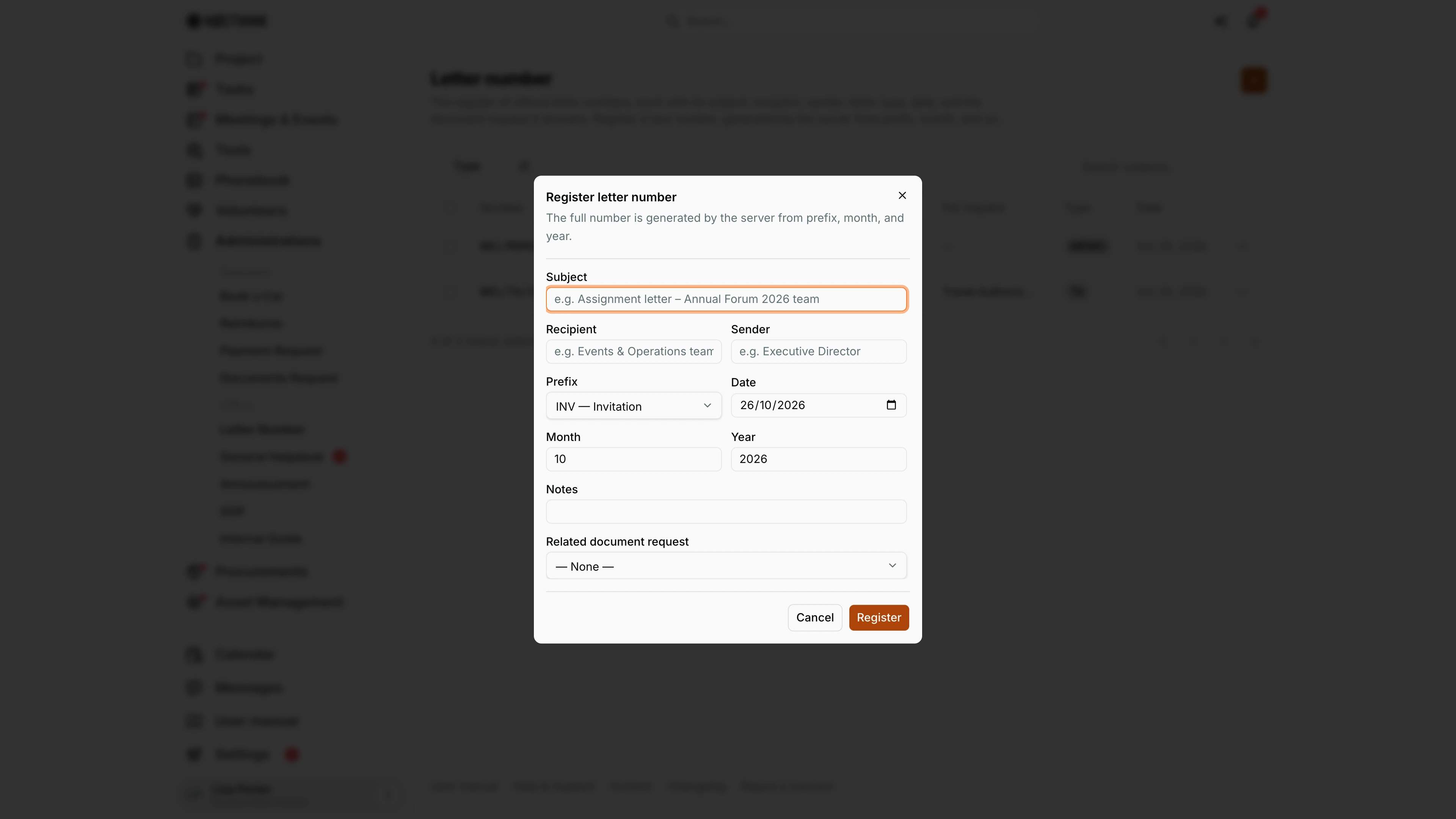
Screenshot: Lisa Porter (Operations Officer), Nocthink Demo Institute demo data.
+ opens Register letter number: "The full number is generated by the server from prefix, month, and year." Subject, Recipient and Sender are required. Prefix lists the letter types as CODE — Label (here INV — Invitation, MEMO — Executive Memorandum, TA — Travel Authorization) and defaults to the first. Date is the letter's own date; Month and Year go into the number and default to today. Notes is optional. Related document request links the letter to an open staff request (listed as "Document type — Requester"), which then switches to Ready. Register reserves the next number for that prefix and year and adds it to the top of the table.
Edit letter
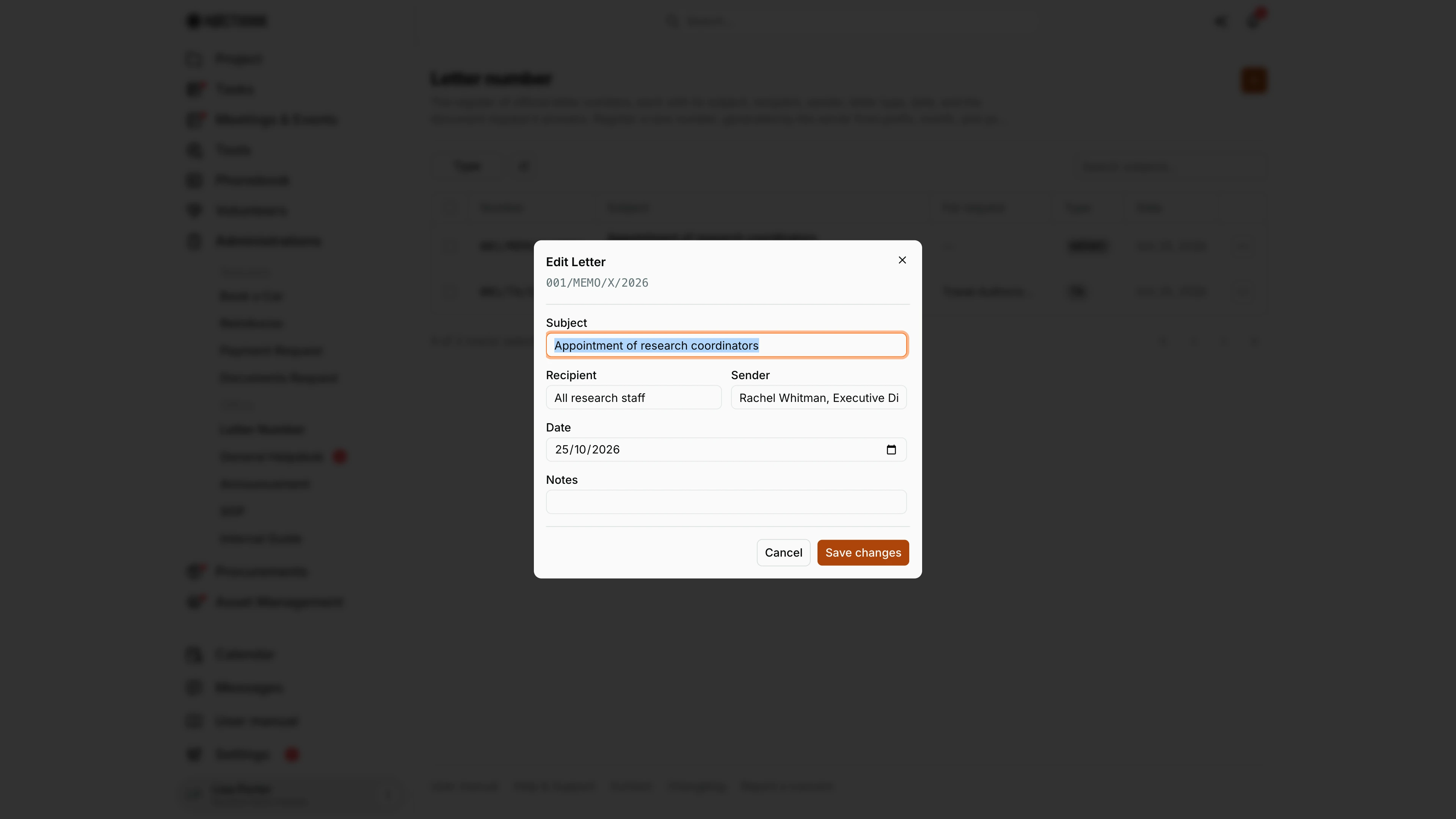
Screenshot: Lisa Porter (Operations Officer), Nocthink Demo Institute demo data.
⋯ → Edit opens Edit Letter, with the full number (e.g. 001/MEMO/X/2026) under the title. Only Subject, Recipient, Sender, Date and Notes can change; the prefix, month, year and sequence are fixed once registered, so a wrong prefix means registering a new number. Save changes applies the edit. Subject, recipient, sender and date stay required. A letter linked to a document request keeps that link; the request's document type shows under For request in the table. A number registered by mistake can be removed with ⋯ → Delete, but once a number is on a signed letter, correct the record rather than deleting it. Cancel closes without saving.
Access & permissions
- The menu and URL require
administrations.update(lib/domain-routes.ts). In the role matrix that is Owner/Director and General Affairs only; ordinary staff, Finance and HR do not see it. - Registering and editing need
administrations.update, deletingadministrations.deleteon the server. Thegeneral-affairsrole has all of them. This also applies to Issue Letter on Documents Request. - Letter types (prefixes) are maintained in Settings → General → Letter Number, which only the organization owner can open.
Caveats
- Prefix, month and year cannot be changed after registering. The edit dialog only covers content fields, because changing them could break the sequence. If I picked the wrong prefix or month, I delete the entry and register again (see the next point).
- The sequence runs per prefix per year, not per month. The server takes the highest sequence for that prefix and year and adds one, so
005/MEMO/III/2026can follow004/MEMO/II/2026. - Deleting is permanent and can reuse a number. Delete asks "Delete letter "number"?" and cannot be undone. If I delete the highest number of a prefix/year, the next registration gets that same number again — only delete numbers that were never sent out. If a delete fails, no message is shown; the row simply stays.
- If two people register at the same moment, one may get "That letter number was just taken; please submit again." — just click Register again.
- Register is disabled and the form says "No letter types yet — add one in Settings → General → Letter Number." when the organization has no prefixes.
- The linked document request cannot be changed or removed with Edit; linking a request marks it Ready immediately and that is not reversed if the letter is deleted.
- Dates are plain calendar dates; the month in the number comes from the Month field, not from Date, so keep them consistent.
Limitations
- No file upload: the API accepts a scanned letter file, but the dialog has no upload field (marked TODO in the code), so the signed letter cannot be attached here.
- No export or print of the register, and no filter by date range or sender.
- Search covers the subject only, not the number, recipient or sender.
- Selecting rows offers no bulk action.
- I cannot add or edit letter types from this page.
Related menus
- Documents Request — staff requests that a registered letter fulfils (status becomes Ready).
- Dashboard — Administrations overview.
- General settings — Letter Number prefixes (letter types) are defined there by the owner.
- Announcement and SOP — the other Office menus I maintain.