
Module: Administrations · URL: /administrations/sop · Responsible role: General Affairs / Admin (general-affairs) · Also used by: Owner/Director (full); every staff member (read — SOPs open to the whole organization, or restricted ones they are given access to); an SOP's approving authority (can publish or retire it)
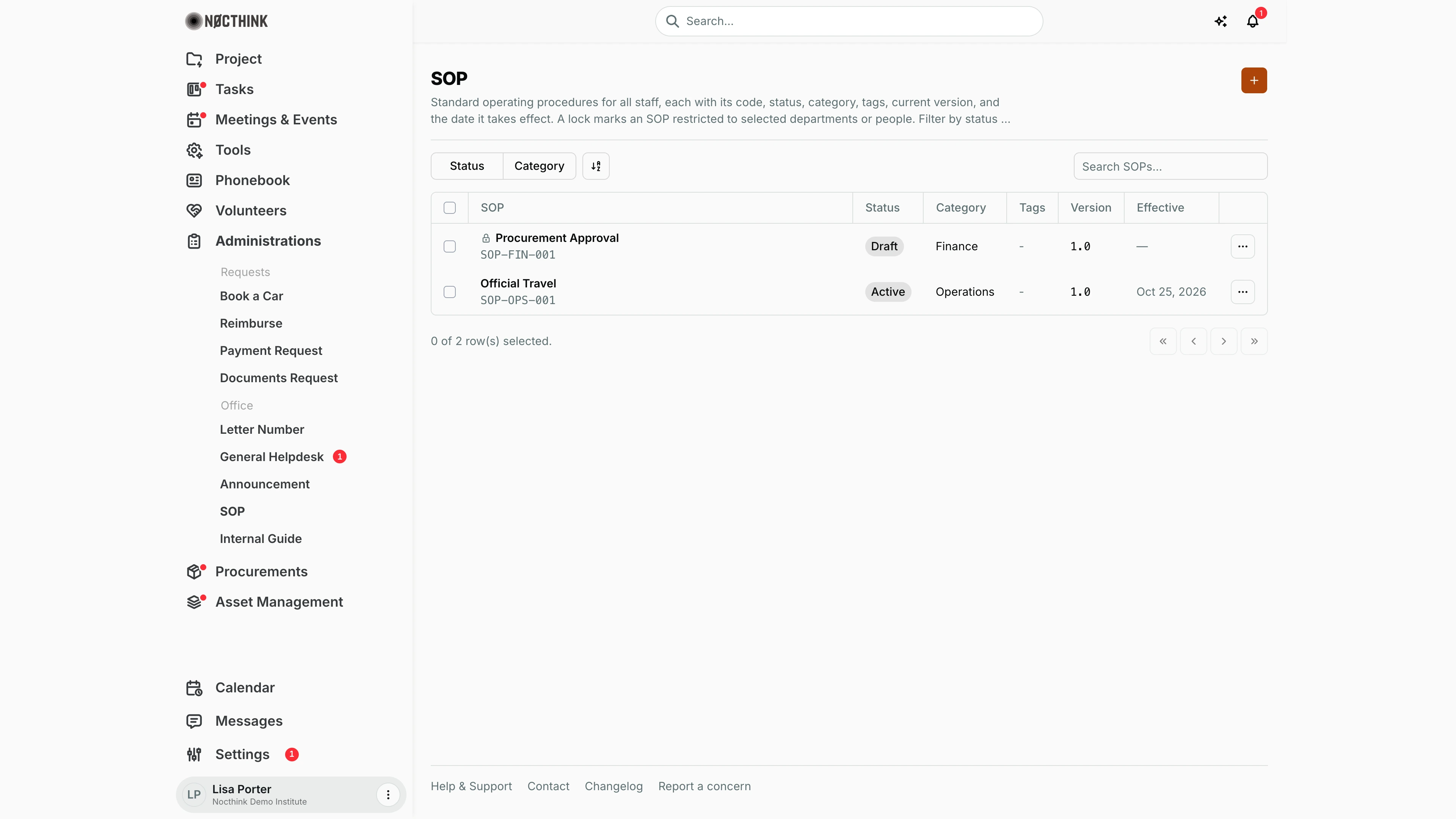
Screenshot: Lisa Porter (Operations Officer), Nocthink Demo Institute demo data. The draft SOP-FIN-001 has no effective date yet, so its Effective cell shows "—".
Why I use this page
This is our library of standard operating procedures — official travel, procurement steps, office rules. I keep it current: I draft new SOPs, send them for review, have the approving authority publish them, and retire old ones when they are superseded. Staff come here to read the procedure that applies to them, so the Active version must always be the one we actually follow. I review it whenever a policy changes and at least once a quarter.
What's on the screen
- Header — SOP with a short description, and the orange + button (New SOP).
- Toolbar — filters Status (Draft, Review, Active, Obsolete) and Category (built from the categories in use), a sort control, and Search SOPs… (searches the title).
- Table columns
- SOP — title in bold with the code underneath (e.g.
SOP-OPS-001); a lock icon marks a restricted SOP. Click to open. - Status — pill; Obsolete is red so nobody follows a superseded procedure.
- Category, Tags (or -), Version (e.g.
1.0), Effective (date it takes effect, or — when none is set). - ⋯ — View, Edit, Delete.
- SOP — title in bold with the code underneath (e.g.
Opening an SOP shows a ← SOP back link, the title, and a ⋯ menu (Edit, Share, Delete). The left panel lists SOP details — Code, Category, Version, Status, Access, Effective date, Tags, Author, Approving authority, Attachments, Version history, Created, Updated — and Related SOPs (same category) or Recent SOPs. The main area is the Procedure text, editable in place, followed by attachments and the Version history list.
How I …
Write a new SOP
- Click +. The New SOP page opens (see New SOP below).
- Identity — enter Code (e.g.
SOP-HR-2026-01), Category (suggestions come from the SOP categories list) and Title. All three are required. - Version and status — the version starts at v1.0. Leave Status on Draft (or Review if it is ready for sign-off). Set Effective starting (required). Change note is optional; the first version is recorded as "Initial version" if left empty.
- Tags and approval — type tags and press Enter; choose the Approving authority (an employee who signs off).
- Access — Everyone in the organization, or Restricted — selected departments and people only and then tick Departments and People.
- Content — write the procedure (type
/for headings, lists and other blocks). Content is required. - Attachments — Upload files for forms or templates.
- Click Create SOP.
Take an SOP through review and publish it
- While drafting, switch Status between Draft and Review freely.
- When it is approved, the Approving authority named on the SOP (or an administrations approver such as General Affairs or the owner) opens Edit, sets Status to Active and clicks Save changes.
- Staff now see it as Active; check Effective is correct.
Revise an active SOP
- Open the SOP and choose ⋯ → Edit (see Edit SOP below).
- Make the changes and write a Change note ("What changed in this version").
- Click Save changes. The version goes up by one minor step (1.0 → 1.1) and a new entry is added to Version history with my note.
- For a small wording fix I can also edit the Procedure text directly on the SOP page and click Save (or Discard).
Retire an SOP
- Open it, ⋯ → Edit, set Status to Obsolete, add a change note pointing to its replacement, and save. Only the approving authority or an administrations approver can do this.
Detail page, forms & dialogs
SOP detail
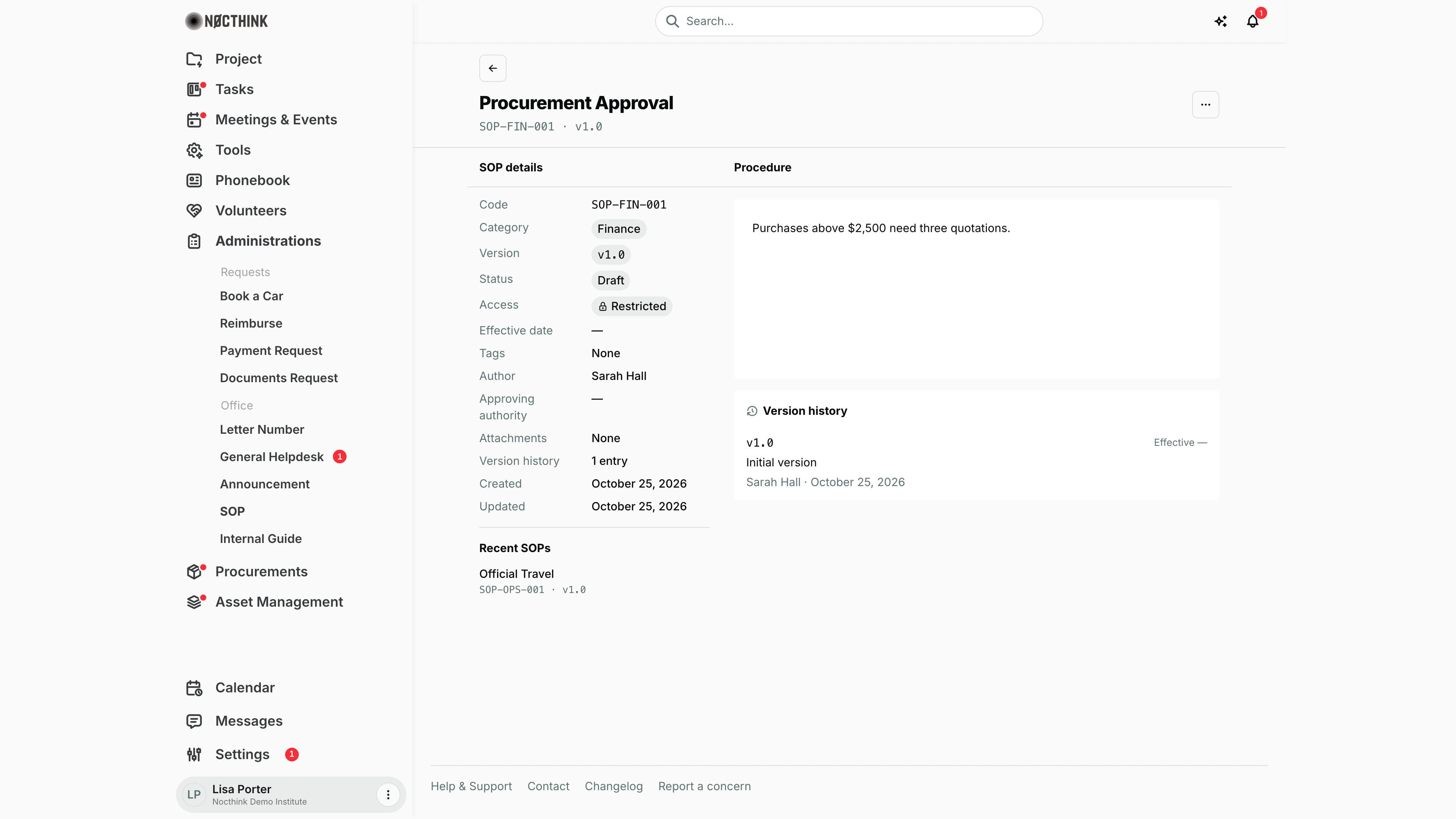
Screenshot: Lisa Porter (Operations Officer), Nocthink Demo Institute demo data.
Clicking an SOP opens its page. The header shows the title, code · v<version> and the ⋯ menu with Edit, Share (copies the link) and Delete. SOP details lists Code, Category, Version, Status, Access, Effective date, Tags, Author, Approving authority, Attachments (a count), Version history (the number of entries), Created and Updated. Below, Related SOPs (same category) or Recent SOPs link to other procedures; attached files and the version list sit under the procedure text.
Procedure holds the text. People who can edit the SOP can change it in place and click Save or Discard. Restricted SOPs open only for their author, the approving authority, administrations managers and the departments and people listed under Access.
New SOP
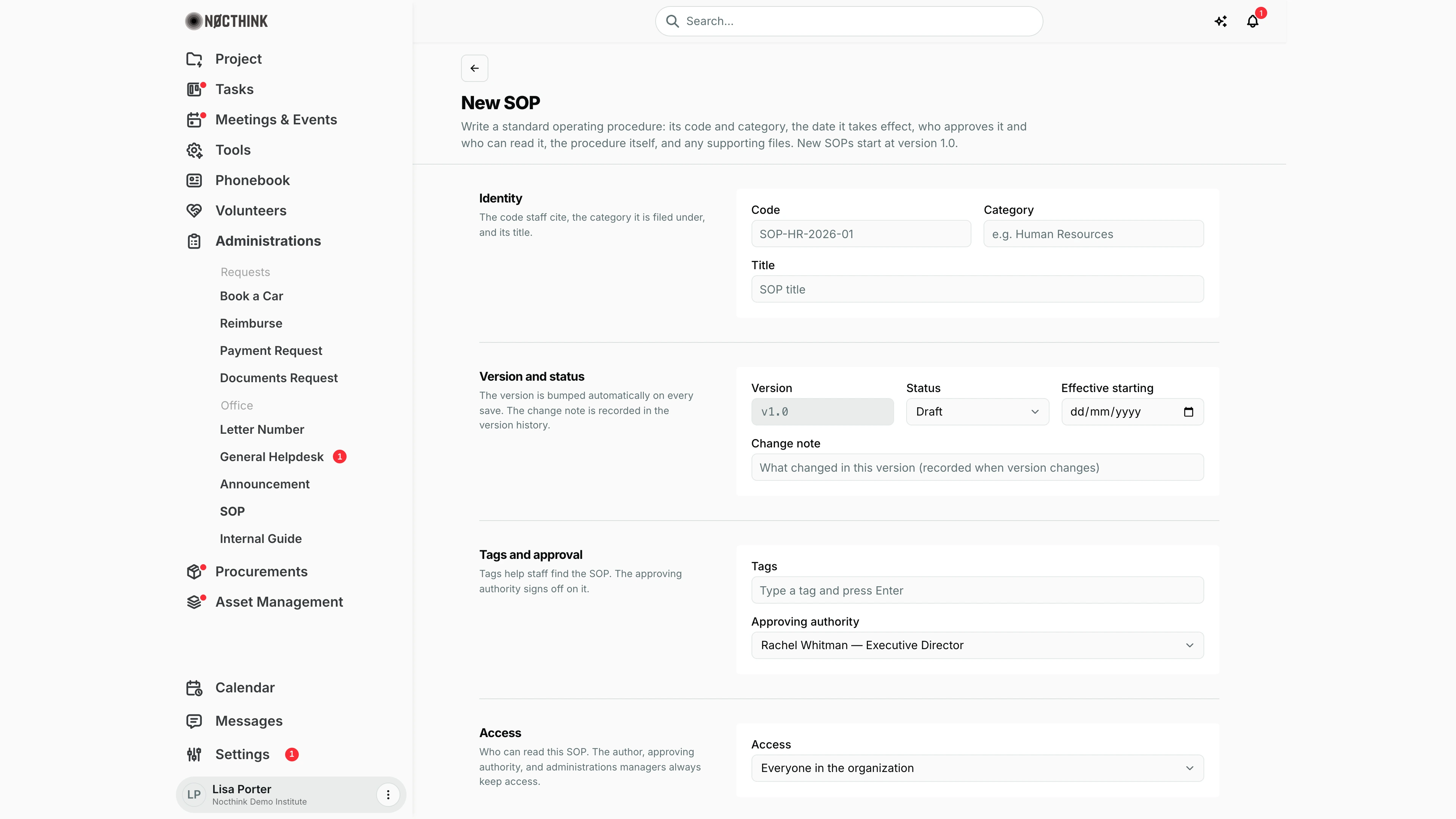
Screenshot: Lisa Porter (Operations Officer), Nocthink Demo Institute demo data.
+ opens the New SOP page: "New SOPs start at version 1.0." Identity takes Code, Category and Title (all required). Version and status shows v1.0, the Status (Draft or Review while writing), Effective starting and an optional Change note. Tags and approval takes tags (press Enter after each) and the Approving authority. Access is Everyone in the organization or Restricted — selected departments and people only, with Departments and People to tick. Content is the procedure editor and Attachments has Upload files. Create SOP saves it.
Edit SOP
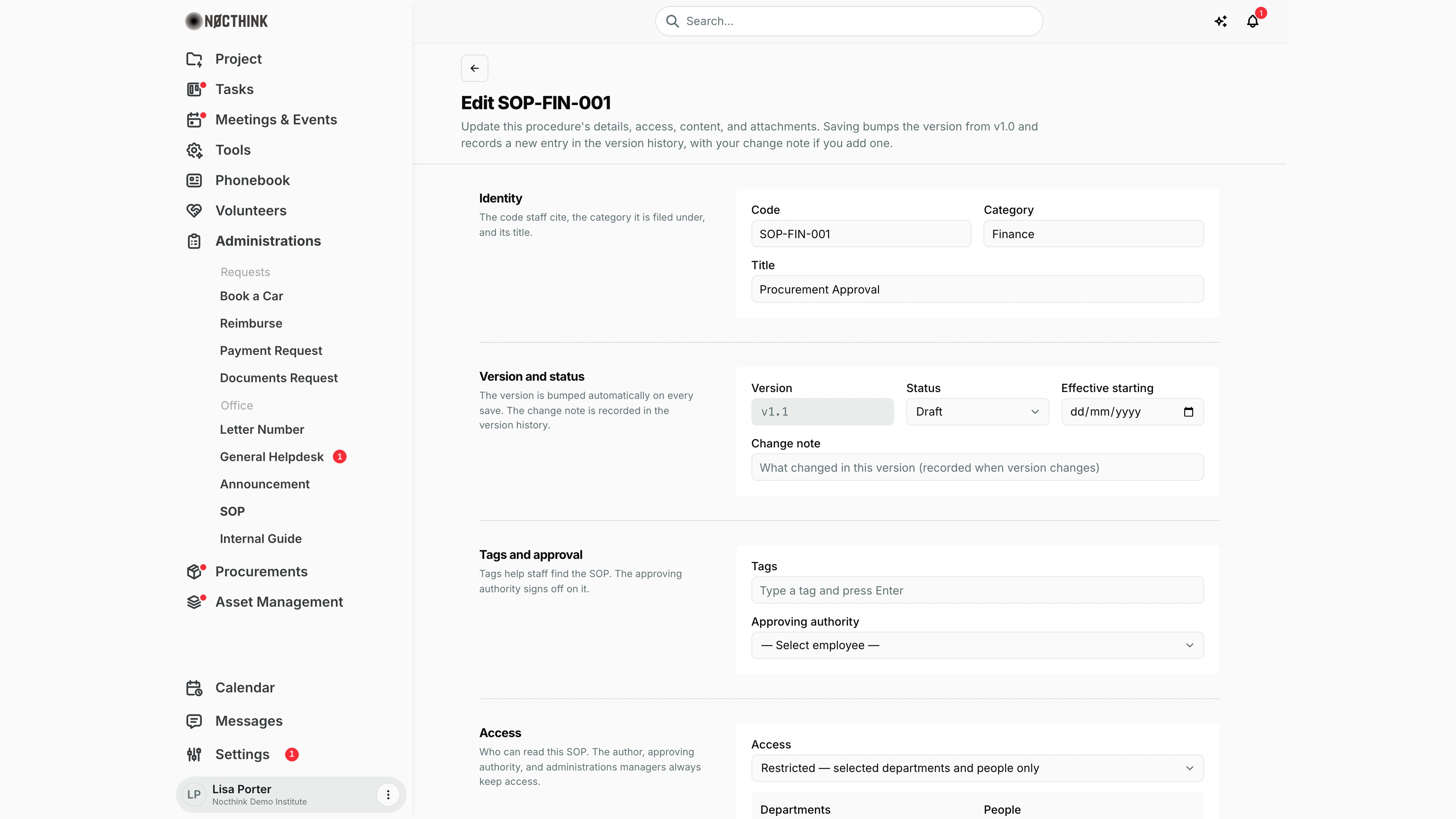
Screenshot: Lisa Porter (Operations Officer), Nocthink Demo Institute demo data.
⋯ → Edit opens Edit <code> with the same sections as New SOP, filled in. The intro states the rule: saving "bumps the version from v1.0 and records a new entry in the version history, with your change note if you add one", so the Version box already shows the next number (v1.1). Write a Change note that says what changed. Only the approving authority or an administrations approver can set Status to Active or Obsolete. Save changes stores the new version; the back arrow leaves without saving.
Access & permissions
- Every staff member can open the menu (the Administrations view is part of the Staff baseline) and reads SOPs visible to them: organization-wide SOPs, restricted SOPs that list their department or name them, ones they wrote, and ones where they are the approving authority. Owner/Director and anyone with
administrations.deletesee all SOPs. - Creating and editing need
administrations.update, deletingadministrations.delete— General Affairs has both. The + button is shown only withadministrations.update. - Moving an SOP to Active or Obsolete (or back out of them) is limited to the SOP's approving authority or an administrations approver (
administrations.approveor Owner/Director). Only an approver may set or change Approving authority.
Caveats
- Every full save bumps the version, even if I changed nothing, and adds a history entry. Open Edit only when I mean to revise.
- Saving the Procedure inline does not bump the version or add a history entry — use Edit for real revisions so the history stays truthful.
- Staff without write permission still see Edit and the inline editor on an SOP page, but saving fails with a permission error.
- Code must be unique ("An SOP with this code already exists.").
- Delete asks "Delete code?" and is permanent, including its version history. Prefer Obsolete.
- Changing access on a restricted SOP is written to the audit log (
sop_access_changed).
Limitations
- No approval workflow or notification: sending for Review does not alert the approving authority; tell them yourself.
- No "acknowledged/read by" tracking for staff.
- Version history shows past entries but there is no restore or side-by-side compare.
- SOP categories are managed in Settings → General (owner only); the category field also accepts free text.
- No export or print layout; no bulk actions.
Related menus
- Internal Guide — informal how-tos; SOPs are the formal, versioned rules.
- Announcement — announce a new or changed SOP to staff.
- General settings — SOP categories.
- General Helpdesk — point recurring questions to the relevant SOP.
- Dashboard — Administrations overview.