
Announcement
Open in NocthinkModule: Administrations · URL: /administrations/announcement · Responsible role: General Affairs / Admin (general-affairs) · Also used by: Owner/Director (full); HR Staff / HR Manager publish the same messages from HR → Announcements; ordinary staff read announcements from HR and their notifications
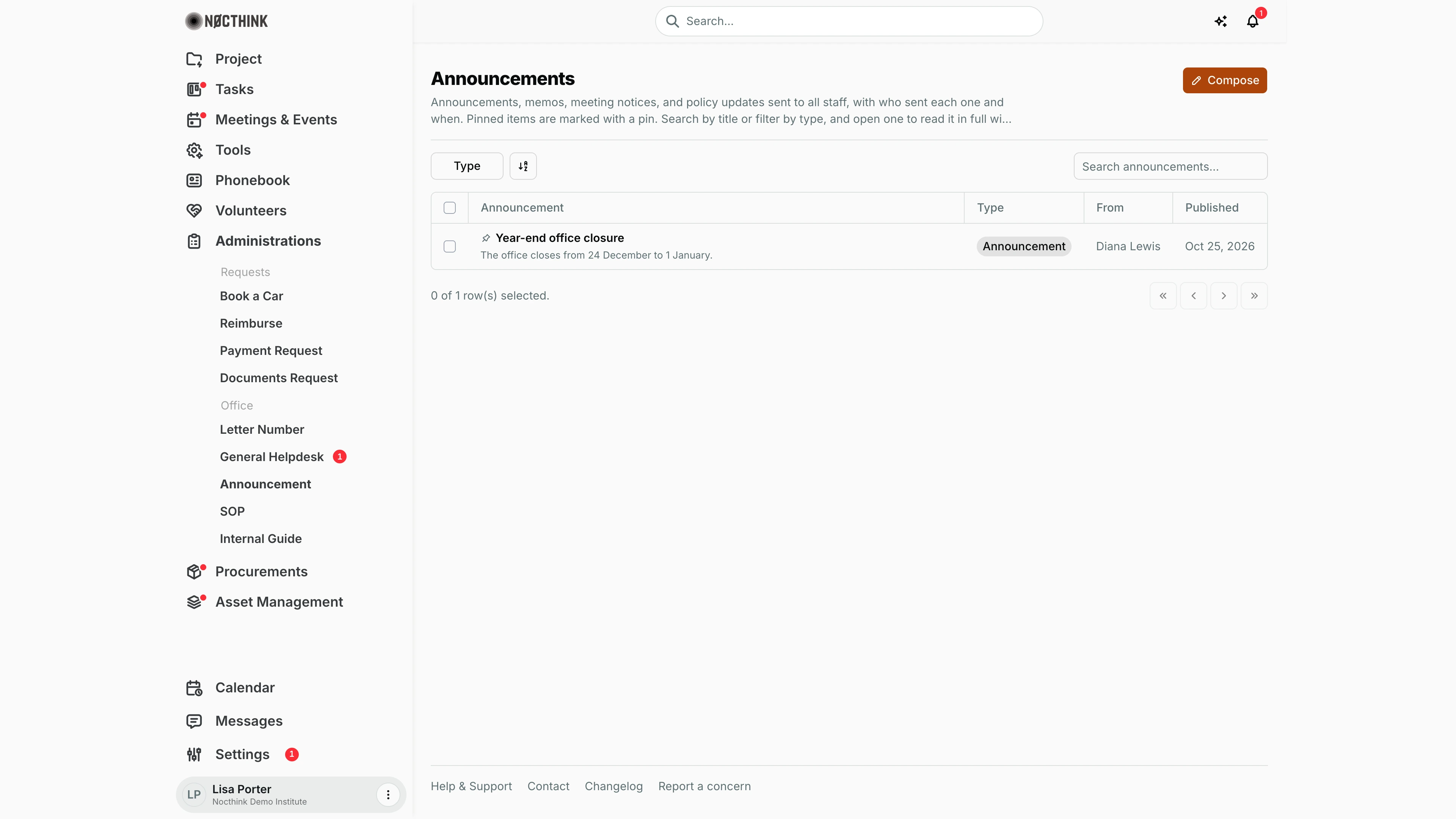
Screenshot: Lisa Porter (Operations Officer), Nocthink Demo Institute demo data. As General Affairs she sees the Compose button. The announcement shown was sent by Diana Lewis (HR Officer).
Why I use this page
This is the Office view of everything the institute has told its staff: announcements, memos, meeting notices and policy updates. I use it to check what has already gone out before I draft a new notice (office closures, facilities work, travel rules), to find an old memo when someone asks "where was that written?", and to copy a link to a notice into a helpdesk reply or a letter.
What's on the screen
- Header — Announcements with a short description, and a Compose button for people who may post (
administrations.updateorhr.create). - Toolbar — the Type filter (Announcement, Memo, Meeting, Policy), a sort control, and Search announcements… (searches the title).
- Table columns
- Announcement — the title in bold (a pin icon marks pinned items), with a plain-text preview of the content underneath. Click the title to open it.
- Type — pill with the message type.
- From — the author.
- Published — date sent (e.g. "Oct 25, 2026").
- Footer — row-selection count and paging. Pinned items are listed first, then newest first.
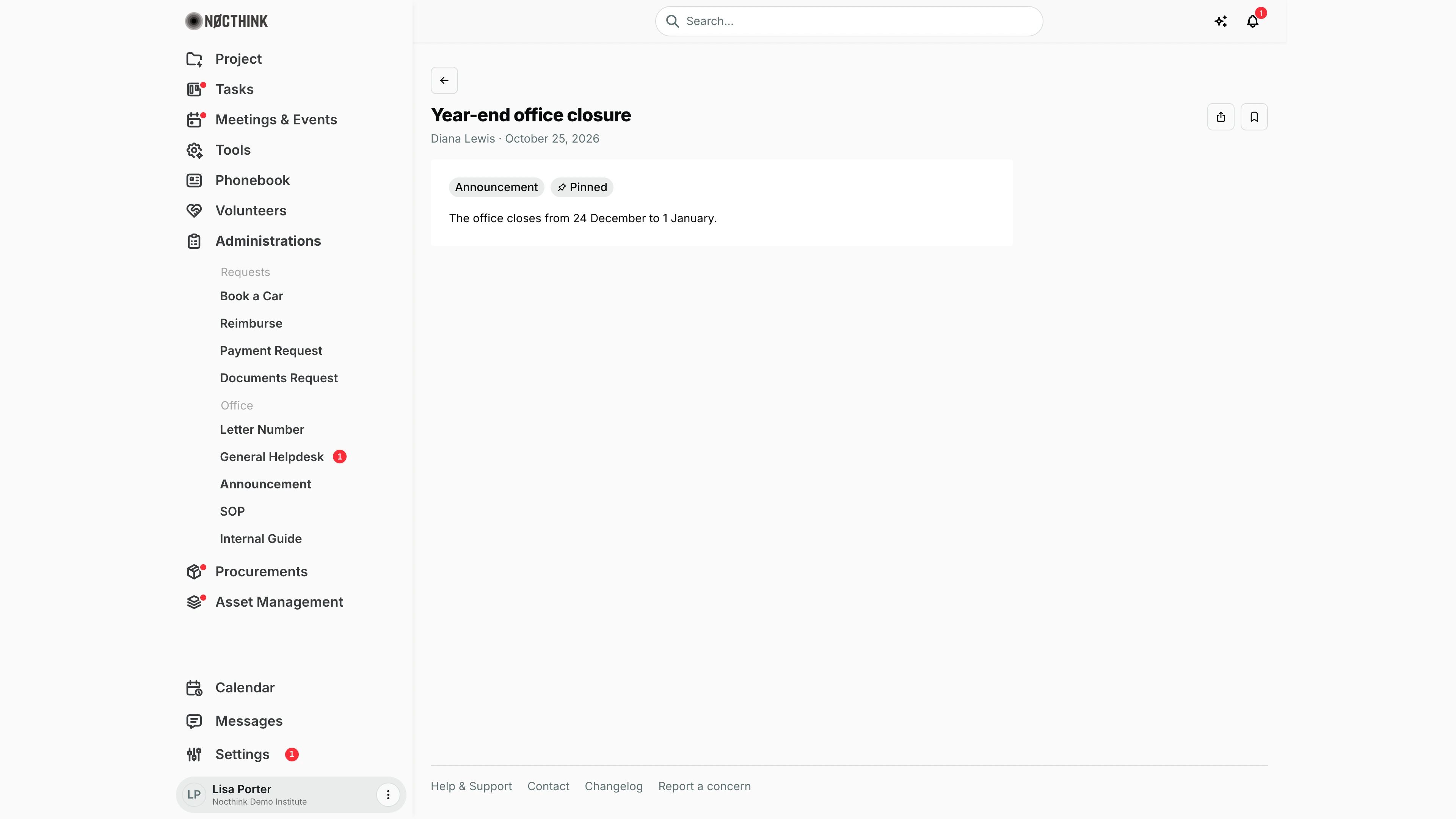
Opening an announcement shows a ← Announcements back link, the title with author and date, Copy link and Bookmark buttons, the type and Pinned pills, the formatted content, and an Attachments list (each file opens in a new tab).
How I …
Check what has been announced
- Open Administrations → Announcement.
- Filter Type to, say, Policy or Memo.
- Type a keyword from the title in Search announcements….
- Click the title to read the full text and open attachments.
Share an announcement with a colleague
- Open the announcement.
- Click Copy link (share icon) — the page address is copied to the clipboard.
- Paste it into a message, a helpdesk reply or an email.
Publish a new announcement
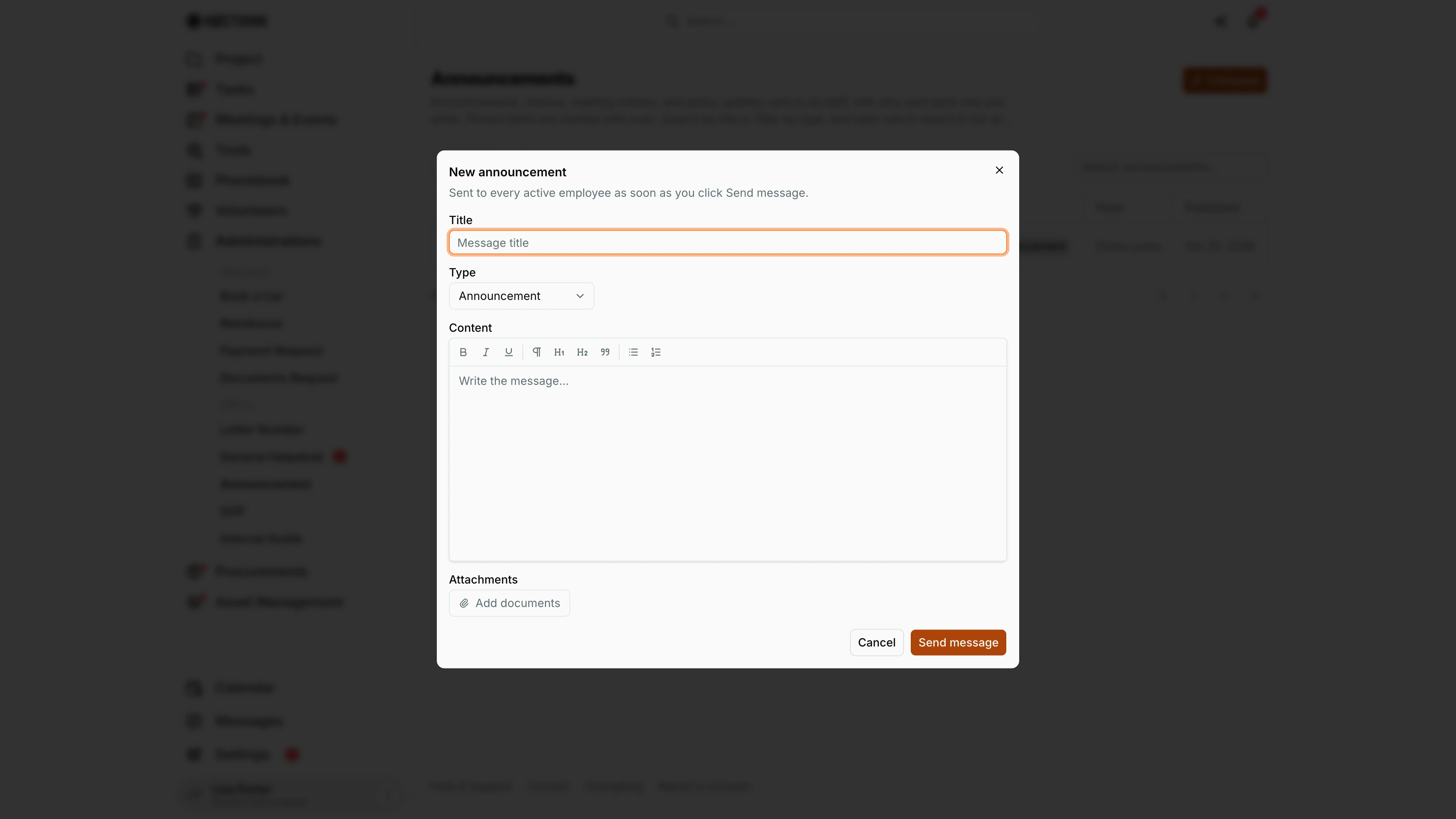
- Click Compose. The New announcement dialog opens with the same composer HR uses (see New announcement below).
- Enter Title, choose Type (Announcement, Memo, Meeting, Policy), write the Content, and add Attachments if needed.
- Click Send message. Every active employee receives an in-app notification ("New type from HR."), and the message appears here and in HR → Announcements.
Detail page, forms & dialogs
Announcement detail
Screenshot: Lisa Porter (Operations Officer), Nocthink Demo Institute demo data.
Clicking a title opens the announcement (/administrations/announcement/<id>). It is the same message HR sees: title, author and date, then the type tag, a Pinned tag when pinned, the formatted text and any Attachments. Copy link (share icon) copies the page address; Bookmark marks it for me while the page is open. Announcements cannot be edited once sent. This page and HR → Announcements show the same messages, so General Affairs and HR read one shared board. Attachments open in a new tab.
New announcement
Screenshot: Lisa Porter (Operations Officer), Nocthink Demo Institute demo data.
Compose opens New announcement: "Sent to every active employee as soon as you click Send message." It is the HR composer in a dialog: Title, Type (Announcement, Memo, Meeting, Policy), Content (rich text, required) and Attachments (Add documents). Send message publishes it here and in HR → Announcements and notifies everyone at once; Cancel discards the draft. Pick the Type carefully: staff filter the list by it, and the notification reads "New <type> from HR." An empty title or body is refused before anything is sent.
Access & permissions
- The menu needs
administrations.update(lib/domain-routes.ts), so in the sidebar it appears only for Owner/Director and General Affairs. Ordinary staff do not see this menu; they read announcements in HR → Announcements and through notifications. - The list itself is served by the HR communications API, which every staff member may read.
- Posting a message needs
administrations.update(General Affairs) orhr.create(HR). Editing and deleting messages through the API need the same, or the matching HR permission; the UI has no edit or delete.
Caveats
- Bookmark only toggles the icon for the current visit; it is not saved anywhere.
- Sending a message notifies all active employees immediately — check the text first; there is no draft or schedule.
- Pinning cannot be set from the new-message form; pinned items come from data set elsewhere (the pin is display-only here).
- The preview line strips formatting; open the item to see headings, lists and links as written.
- Notifications link to the HR copy of the announcement (
/hr/communication/...), not to this page.
Limitations
- No edit, pin or delete actions on this page; only Compose.
- No priority, validity period (valid from / until) or audience targeting in the UI, although the Administrations API has an announcement model with priority and validity dates — this page does not use it.
- No read receipts: I cannot see who has opened an announcement.
- No export, and search covers titles only.
Related menus
- HR → Announcements — where announcements are written and sent.
- SOP — formal procedures that a policy announcement may point to.
- Internal Guide — longer reference material for staff.
- Letter Number — register a number if a memo also goes out as an official letter.
- Dashboard — Administrations overview.