
General
Open in NocthinkModule: Settings · URL: /settings/general · Responsible role: Owner (organization admin) · Also used by: platform operators (extra AI, Email and Backups tabs); nobody else — Directors and staff cannot open it
Screenshot: Rachel Whitman (Executive Director, organization owner), Nocthink Demo Institute demo data.
Why I use this page
As the owner, this is where I set the organization-wide plumbing that other modules depend on: the default calendar view and our holiday list, the department codes used to number official letters, the categories for SOPs, and — rarely — exporting all our data or closing the organization. I set most of it up once at onboarding, then come back at the start of each year for the holiday calendar and whenever a new department needs its own letter code.
What's on the screen
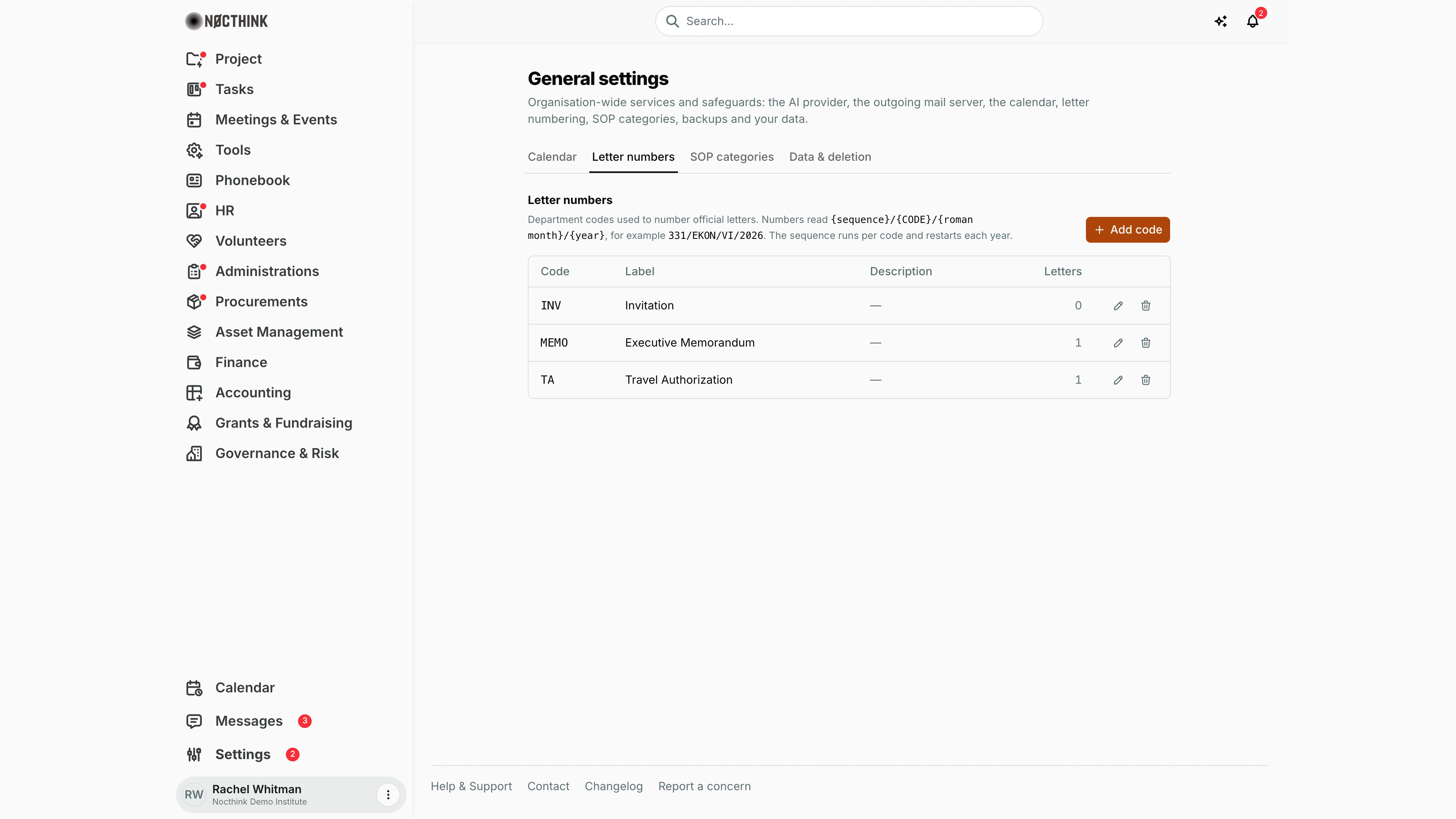
- Header — General settings with "Organisation-wide services and safeguards: the AI provider, the outgoing mail server, the calendar, letter numbering, SOP categories, backups and your data."
- Tabs (as an owner) — Calendar, Letter numbers, SOP categories, Data & deletion. Platform operators additionally see AI assistant, Email and Backups; those are platform-wide, not per organization.
- Letter numbers (shown) — explanation of the number format
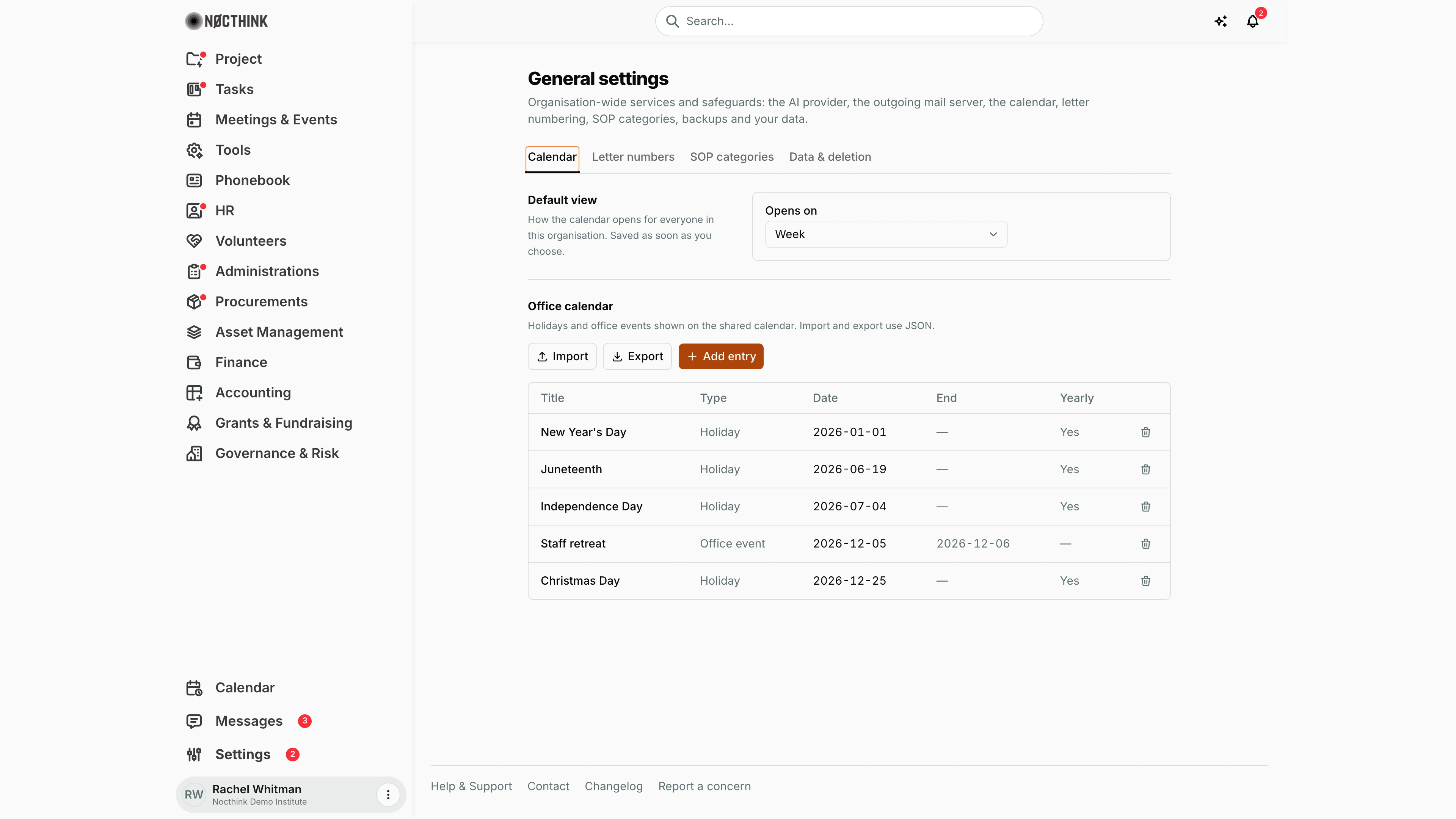
{sequence}/{CODE}/{roman month}/{year}(example331/EKON/VI/2026), the + Add code button, and a table with Code, Label, Description, Letters (how many numbers were issued with that code) and edit / delete icons per row. - Calendar — Default view (Opens on: Week or Month, saved as soon as I choose) and Office calendar (holidays and office events) with Import, Export and an add-entry button, and a table with Title, type, Date.
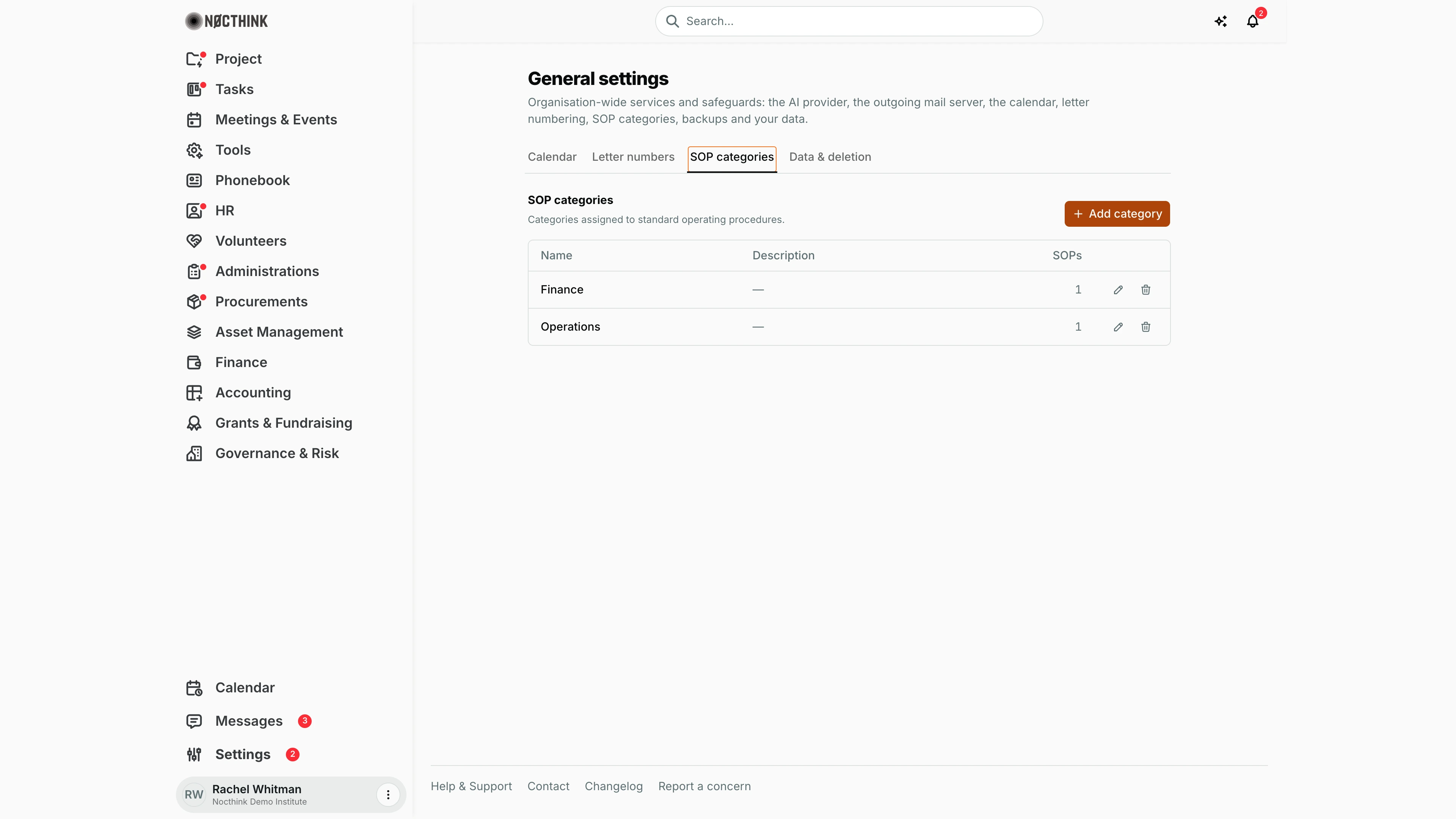
- SOP categories — table with Name and description, plus add / edit / delete.
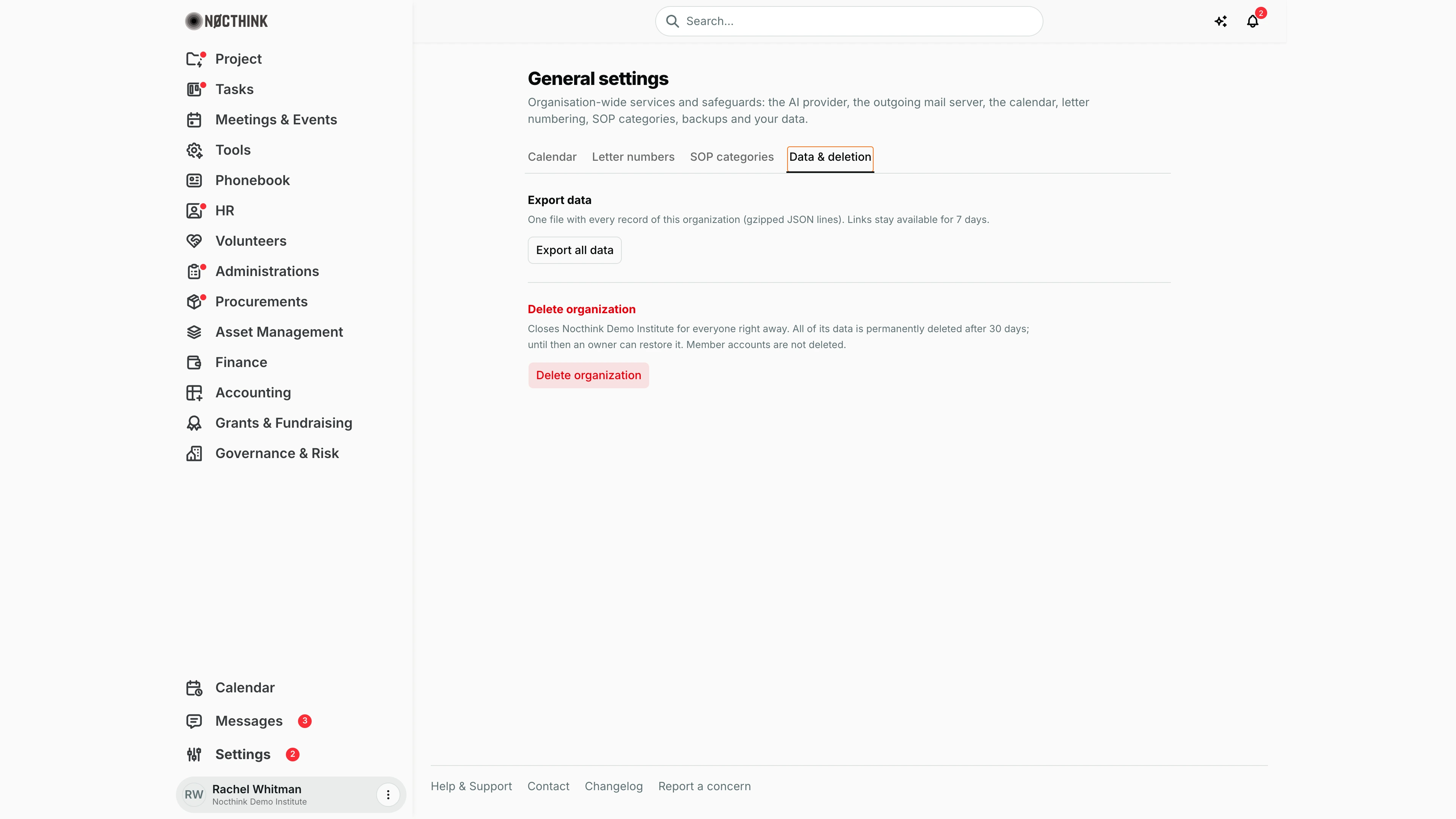
- Data & deletion — Export data (Export all data) and Delete organization.
How I …
Add a letter code for a department
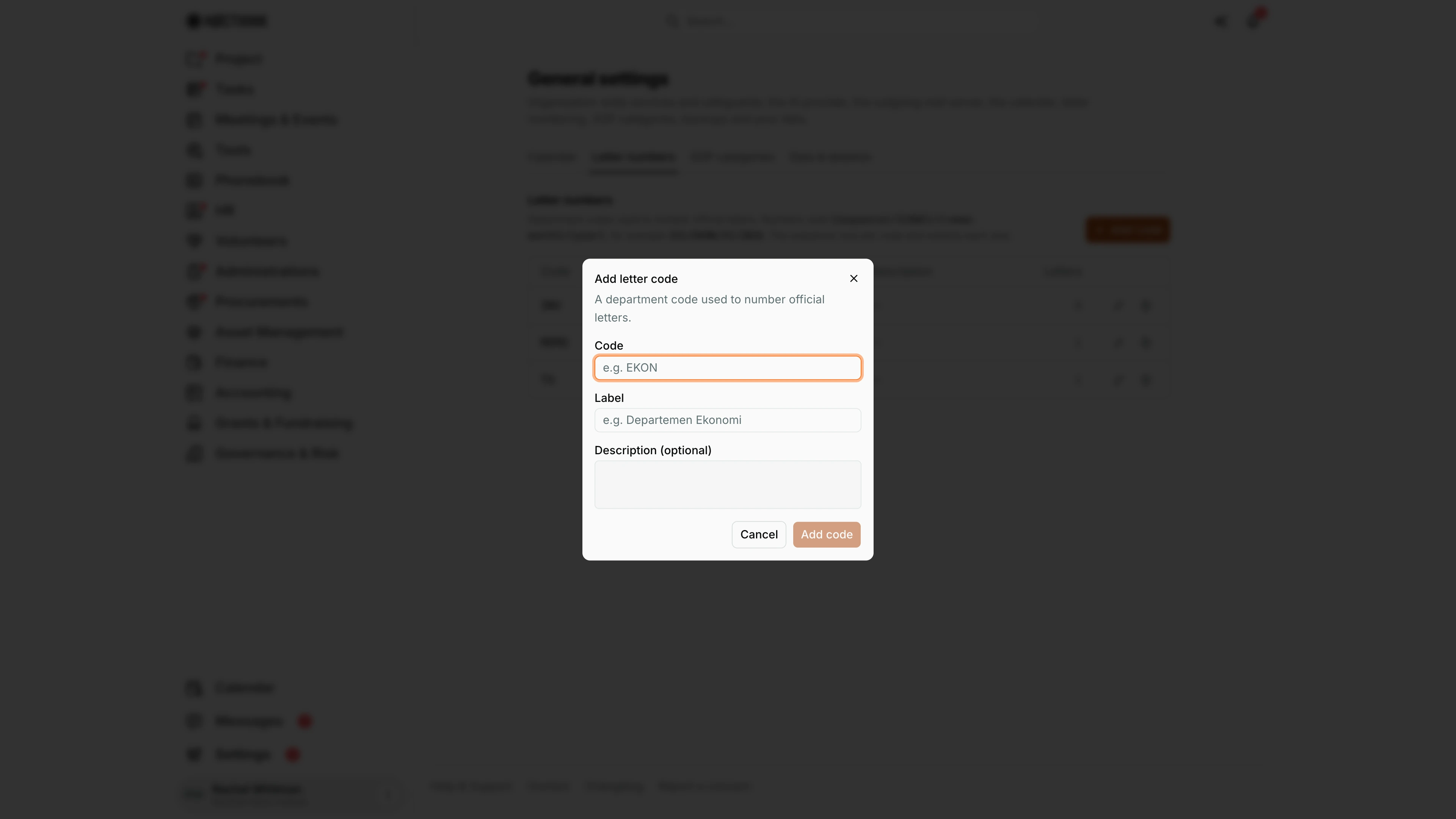
- Open the Letter numbers tab and click + Add code (see Add letter code below).
- Enter Code (e.g.
EKON) and Label (e.g. "Departemen Ekonomi"); Description (optional). - Click Add code. The code is now available when General Affairs issues a letter number.
- To change it, click the pencil icon, edit, and click Save changes.
Load this year's holidays
- Open Calendar.
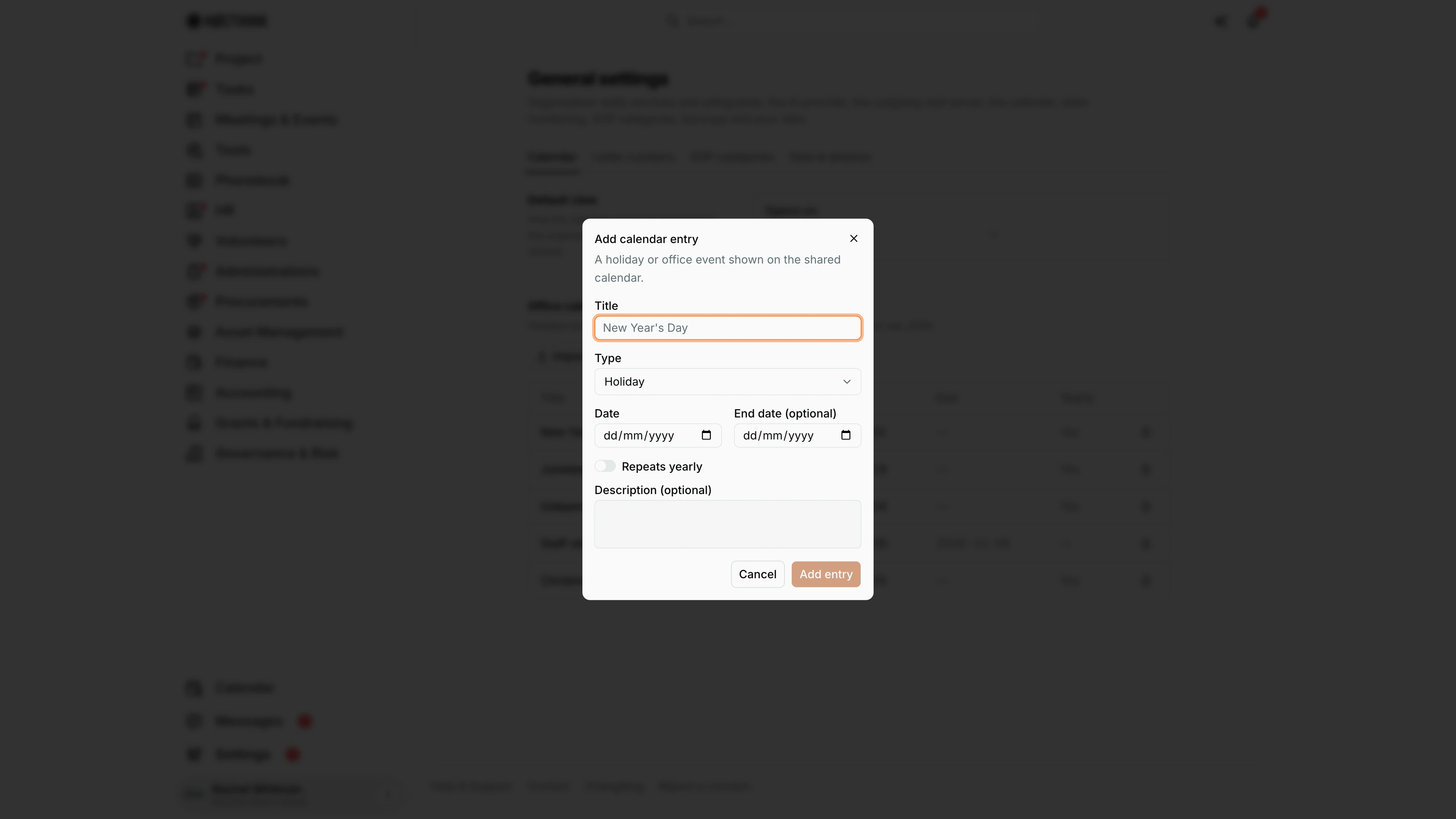
- Either click the add-entry button (see Add calendar entry below) and fill Title, Type (Holiday or Office event), Date, End date (optional), Repeats yearly, Description (optional), then Add entry;
- Or click Import, pick a JSON file, and answer the prompt: OK replaces all existing entries, Cancel appends.
- Use Export to download the current list as
office-calendar.json(handy as a template for next year). - Under Default view, pick Week or Month for Opens on; "Saved" confirms it.
Maintain SOP categories
- Open SOP categories (see below) and click the add button.
- Enter Name (e.g. "Human Resources") and an optional description, then Add category.
- Edit with the pencil icon (Save changes) or delete with the bin icon (confirm "Delete category …?").
Export all our data
- Open Data & deletion (see below).
- Click Export all data. When "Preparing export…" finishes, download the file: every record of the organization as gzipped JSON lines. The link stays available for 7 days.
Close the organization
- Export the data first.
- Under Delete organization, open the dialog, type the Organization name exactly and Your password.
- Click Delete organization. The workspace closes for everyone immediately; data is permanently deleted after 30 days, and until then an owner can restore it.
Detail page, forms & dialogs
Calendar
Screenshot: Rachel Whitman (Executive Director, organization owner), Nocthink Demo Institute demo data.
The Calendar tab has two parts. Default view sets how the shared calendar opens for everyone in the organization: Opens on Week or Month, "Saved as soon as you choose", so there is no save button. Office calendar lists the holidays and office events shown on everyone's calendar, with Title, Type (Holiday or Office event), Date, End, Yearly and a delete icon per row. In the demo it holds New Year's Day, Juneteenth, Independence Day and Christmas Day as yearly holidays, plus the two-day Staff retreat (Dec 5–6, 2026) as an office event. Import and Export move the whole list as JSON, and + Add entry opens Add calendar entry (below). There is no edit icon: to fix an entry I delete it and add it again. Only organization admins see this tab.
Add calendar entry
Screenshot: Rachel Whitman (Executive Director, organization owner), Nocthink Demo Institute demo data.
+ Add entry on the Calendar tab opens this dialog: "A holiday or office event shown on the shared calendar." I fill Title (placeholder "New Year's Day"), choose Type (Holiday or Office event) and a Date, and add an End date (optional) for something that spans several days, such as a retreat. I switch on Repeats yearly for fixed-date holidays so I don't have to re-enter them each year, and can add a Description (optional). Add entry saves it and it appears on the shared calendar straight away; Cancel closes the dialog without saving.
Add letter code
Screenshot: Rachel Whitman (Executive Director, organization owner), Nocthink Demo Institute demo data.
+ Add code on the Letter numbers tab opens this dialog: "A department code used to number official letters." Code is the part that goes into the number (placeholder "e.g. EKON"; it produces numbers like 331/EKON/VI/2026). Label is the readable name General Affairs picks from (placeholder "e.g. Departemen Ekonomi"). Description (optional) explains when to use the code. Add code saves it; the sequence runs per code and restarts each year. The pencil icon on a row opens the same dialog as Edit letter code, with Save changes. The demo has three codes: INV (Invitation), MEMO (Executive Memorandum) and TA (Travel Authorization).
SOP categories
Screenshot: Rachel Whitman (Executive Director, organization owner), Nocthink Demo Institute demo data.
SOP categories lists the categories that standard operating procedures are filed under in Administrations, with Name, Description ("—" when empty), SOPs (how many procedures use the category) and pencil / bin icons per row. + Add category opens Add category ("A category assigned to standard operating procedures."), which has Name (placeholder "e.g. Human Resources") and Description (optional); Add category stays disabled until a name is entered. The pencil opens the same form as Edit category. The bin asks "Delete category "…"?" and shows the reason in red above the table if the server refuses. With no categories yet the table reads "No categories yet. Add one to categorise SOPs."
Data & deletion
Screenshot: Rachel Whitman (Executive Director, organization owner), Nocthink Demo Institute demo data.
Data & deletion is the owner's exit route. Export data explains "One file with every record of this organization (gzipped JSON lines). Links stay available for 7 days." and has Export all data. Delete organization warns that it "Closes Nocthink Demo Institute for everyone right away. All of its data is permanently deleted after 30 days; until then an owner can restore it. Member accounts are not deleted." The red Delete organization button opens a confirmation that needs the exact organization name and my password (see Close the organization above). I always run an export first. The tab only appears for organization admins.
Access & permissions
- The route needs organization-admin status (
*), so only the Owner (and platform operators) can open it; the Settings index hides it from everyone else, Directors included. - AI assistant, Email and Backups tabs only appear for platform operators (
is_superuser); an owner never sees or changes the AI provider or the SMTP server. - Letter codes and SOP categories are used by General Affairs in Administrations, but they are maintained here.
Caveats
- Letter codes must be unique: "A letter prefix with this code already exists." Code and Label are required.
- Letter sequences run per code and restart every year, so renaming a code changes how new numbers read but not issued ones.
- Deleting a letter code or SOP category asks for confirmation and cannot be undone; if the server refuses (for example, the code is in use), the error appears above the table.
- Calendar Import with OK wipes all existing entries first. The file must be a JSON array; otherwise "Invalid JSON file." or "No entries found in file."
- Delete organization closes access for every member at once; member accounts themselves are not deleted.
Limitations
- No editing of an office calendar entry — delete and re-add it.
- Import/export of the office calendar is JSON only (no iCal/CSV).
- The letter-number format is fixed; only the department code is configurable.
- AI provider, mail server and backups are not configurable per organization.
Related menus
- Letter Number — issues numbers using these codes.
- SOP — SOPs filed under these categories.
- Calendar — shows the office holidays and opens on the default view.
- Billing — plan and seats; cancellation is there, not here.
- Company — organization profile and departments.