
Announcements
Open in NocthinkModule: HR · URL: /hr/communication · Responsible role: HR Staff (write) · Also used by: HR Manager and Owner/Director (full), General Affairs (writes from Administrations → Announcement), all other staff (read)
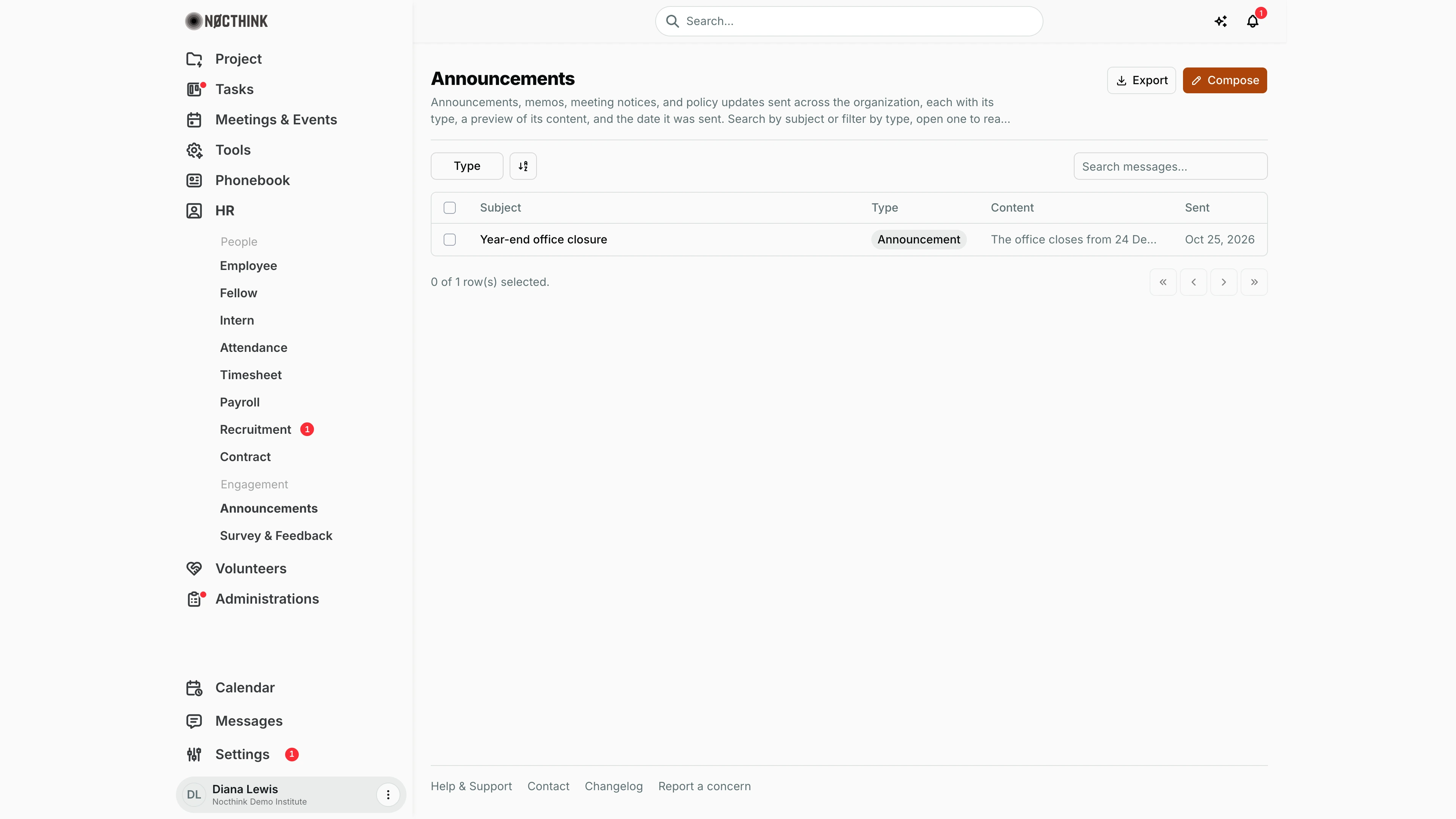
Screenshot: Diana Lewis (HR Officer), Nocthink Demo Institute demo data. As HR Staff she has Compose.
Why I use this page
I use Announcements to send organization-wide messages: general announcements, memos, meeting notices and policy updates. Every active employee gets an in-app notification that links to the message, and this list serves as the archive of what HR has sent. I open it when I have news to share (office closures, policy changes, meeting calls) and when someone asks "when did we announce that?".
What's on the screen
- Header: Announcements, a short description, and two buttons: Export and Compose (Compose only with
hr.create). - Filters: a Type checkbox filter (Announcement, Memo, Meeting, Policy), a view-options button, and a Search messages... box that searches by subject.
- Table columns: Subject (a link that opens the message), Type, Content (a one-line plain-text preview) and Sent (date). Pinned messages are listed first, then newest first. In the demo there is one row: "Year-end office closure", an Announcement saying "The office closes from 24 December to 1 January.", sent Oct 25, 2026.
- Message page (after clicking a subject): a back link to Announcements, the title, a Copy link button, the type pill (plus Pinned if pinned), the formatted body, and an Attachments list.
How I …
Send an announcement
- Click Compose (see Compose announcement below).
- Enter a Title (required, up to 255 characters).
- Pick the Type: Announcement (default), Memo, Meeting or Policy.
- Write the Content in the rich-text editor (required). An empty editor is rejected with "Message content is required".
- Optionally click Add documents to attach one or more files. Remove a file with the x next to it before sending.
- Click Send message. The attachments upload first, then the message is created and I return to the list.
- Every active employee receives a notification titled with the subject, reading "New <type> from HR.", linking to the message.
Find a past message
- Type part of the subject into Search messages....
- Or open Type and tick, for example, Policy to see only policy updates.
- Click the subject to read it in full and open its attachments.
Share a message with someone
- Open the message.
- Click Copy link and paste the URL into chat or email.
Detail page, forms & dialogs
Announcement detail
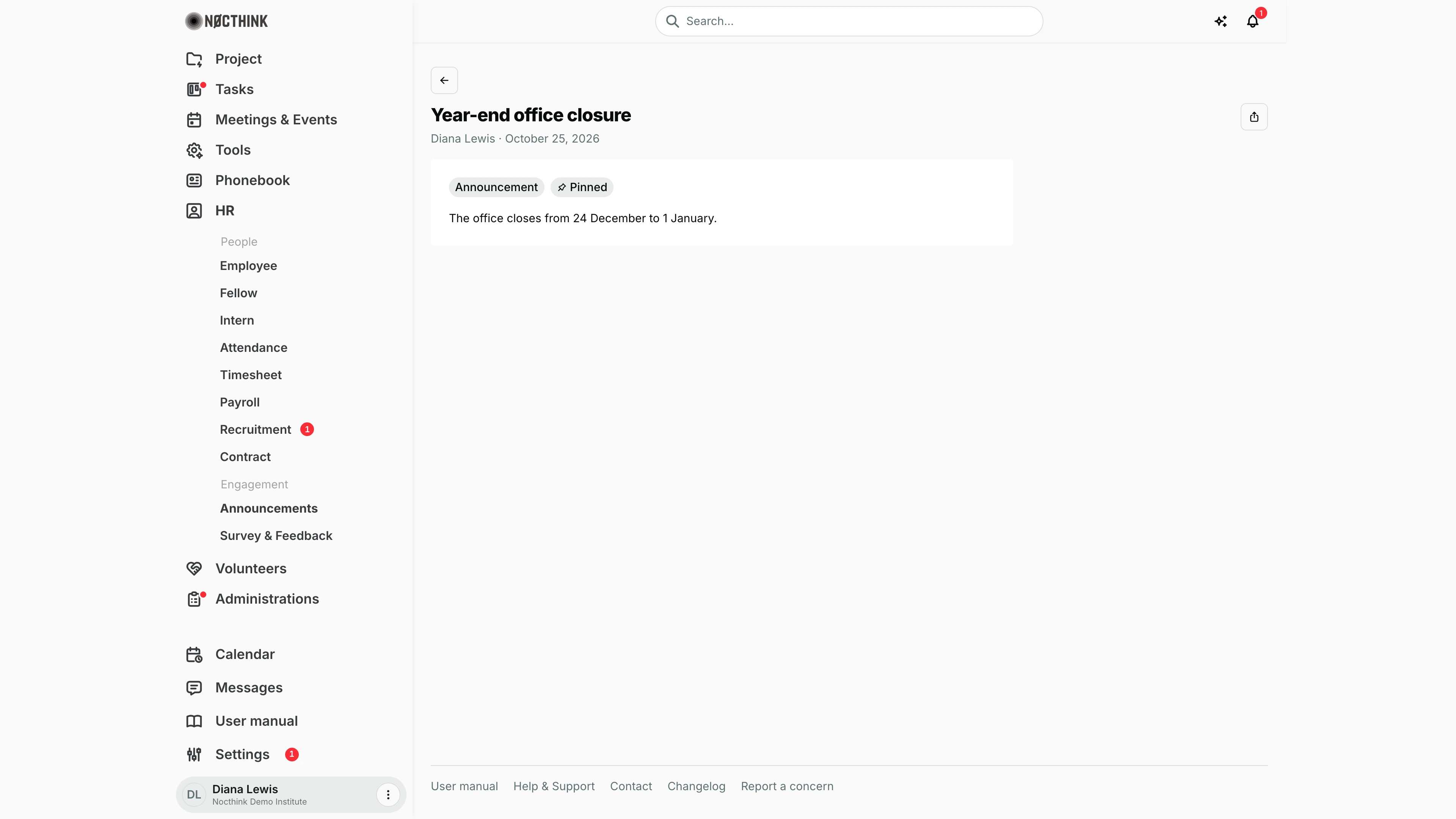
Screenshot: Diana Lewis (HR Officer), Nocthink Demo Institute demo data.
Clicking a subject opens the message. The header shows the title, the author and the date, with a Copy link button on the right (copies the page URL to share in chat or email). The body card starts with the type tag (Announcement, Memo, Meeting or Policy) and a Pinned tag when the message is pinned, followed by the formatted content. When files were attached, an Attachments list follows; each file opens in a new tab. The page is read-only: messages cannot be edited after sending.
Compose announcement
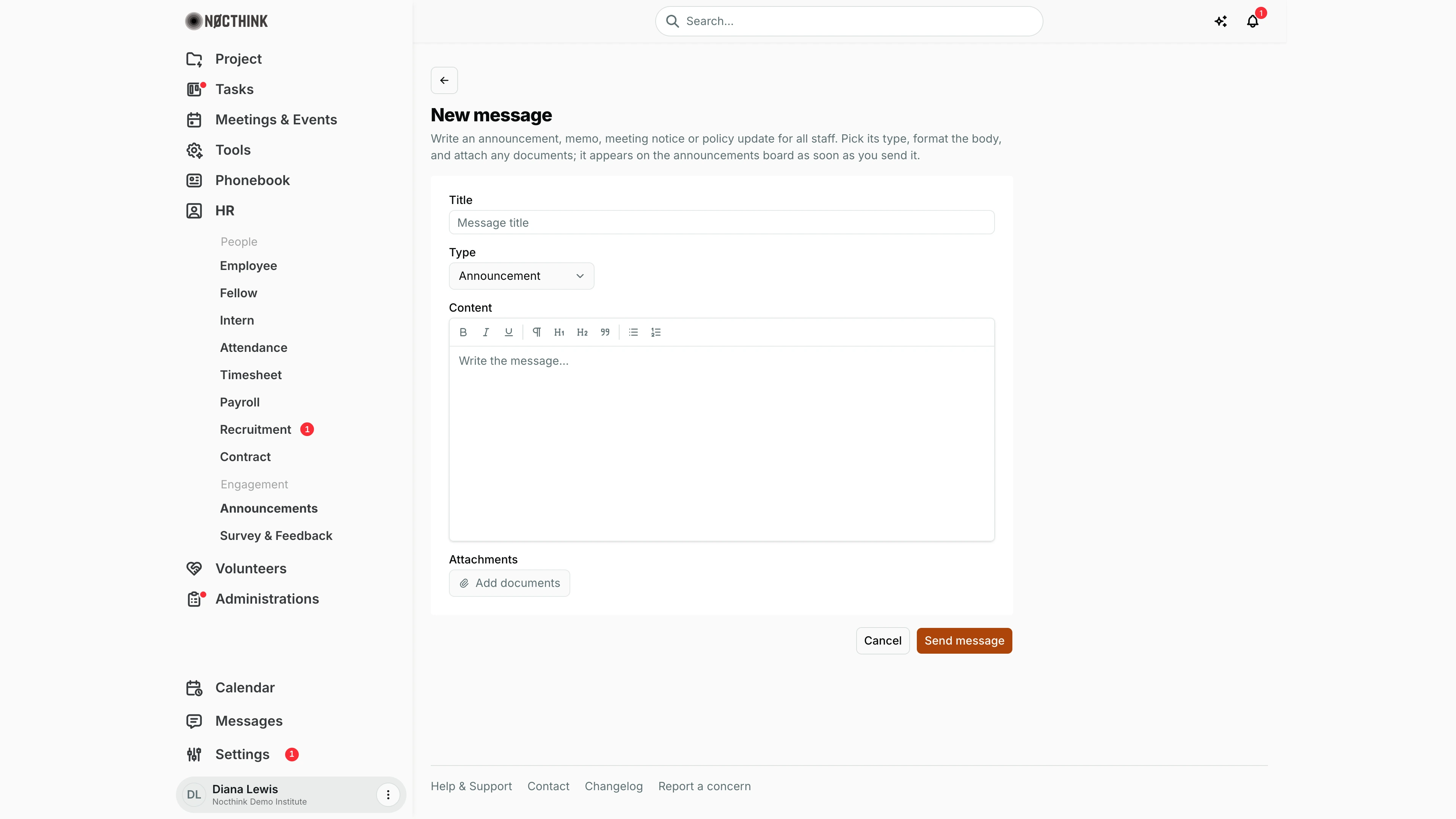
Screenshot: Diana Lewis (HR Officer), Nocthink Demo Institute demo data.
Compose opens the New message page (/hr/communication/new). Title is required. Type defaults to Announcement; Memo, Meeting and Policy are the other choices. Content is a rich-text editor with bold, italic, underline, paragraph, H1, H2, quote and bulleted or numbered lists; an empty body is refused. Add documents attaches one or more files.
Send message uploads the attachments, creates the message and notifies every active employee straight away, so check the text before clicking it. Cancel returns to the list without sending anything.
Access & permissions
- The page is open to every staff member (personal-access route), so everyone can read announcements and follow the notification link.
- Compose shows only with
hr.create; the new-message page itself needshr.create. - The server accepts a new message from anyone with
hr.createoradministrations.update(General Affairs, who post from Administrations → Announcement with the same composer).
Caveats
- Sending is immediate. There is no draft, schedule or preview step.
- Notifications go only to employees whose status is active. Terminated staff and members without an employee record are not notified.
- Attachment uploads are validated (type and size). A rejected file stops the whole send. Remove it and try again.
Limitations
- Export downloads the list as CSV (subject, type, author, pinned, sent date and the plain text of the content); attachments are not included.
- No edit or delete for a sent message from the UI.
- No way to pin a message from the compose form. Pinned only shows if it was set through the API.
- No audience targeting (department, role). Every message goes to all active staff.
- No read receipts or acknowledgement tracking.
Related menus
- Survey & Feedback: follow up an announcement with a staff survey.
- Employee: only active employees receive the notification.
- Administrations dashboard: General Affairs' operations area, which has its own announcement page.
- Messages: direct conversations, as opposed to broadcast announcements.