
Employee
Open in NocthinkModule: HR · URL: /hr/employees · Responsible role: HR Staff (write) · Also used by: HR Manager (full, including delete), Owner/Director (full). Finance and F.A.T. (read-only).
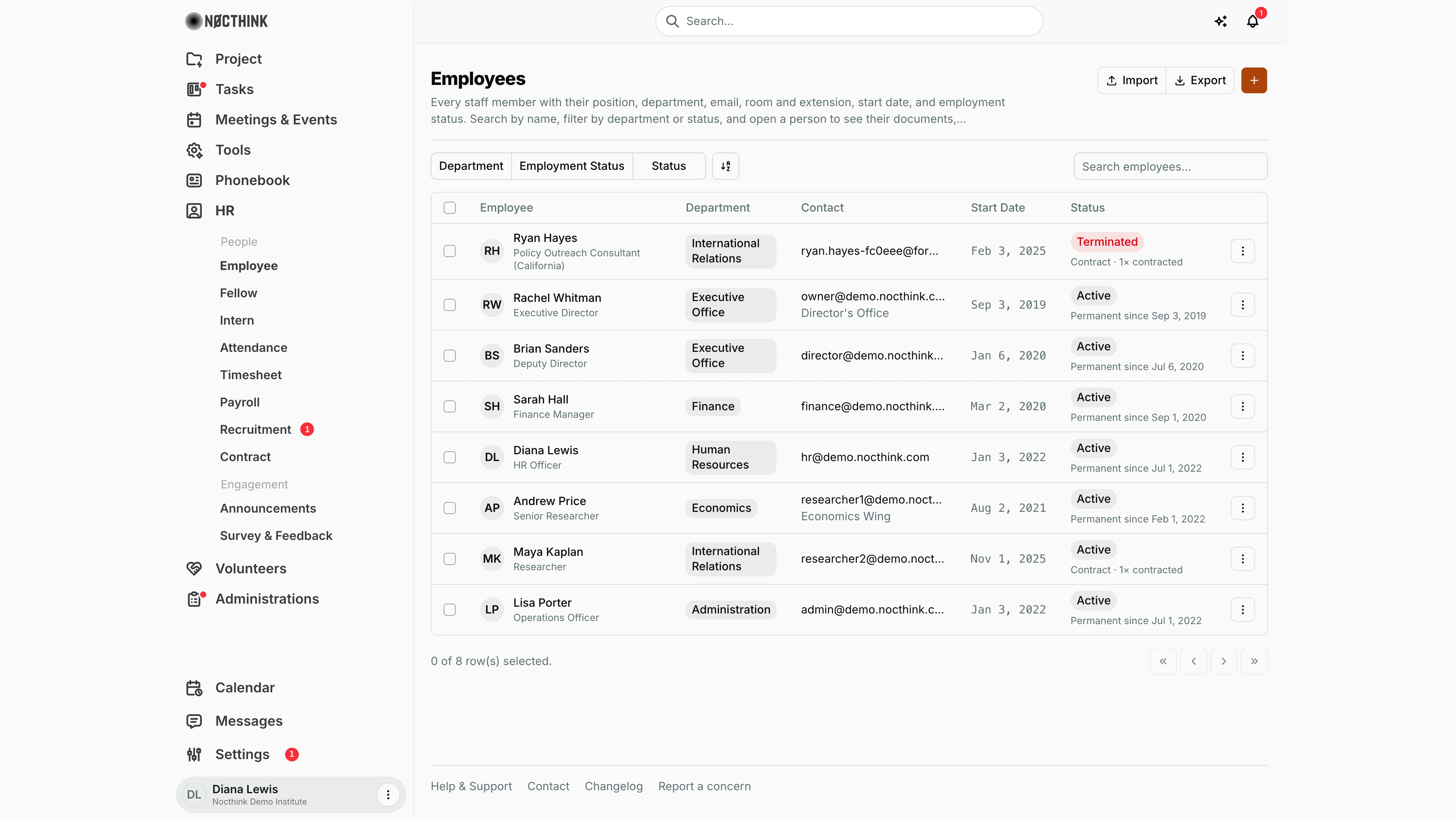
Screenshot: Diana Lewis (HR Officer), Nocthink Demo Institute demo data. As HR Staff she sees Import, + and the row menu (Edit only; Delete needs hr.delete). No one in the demo has documents pending review, so no red avatar dot shows.
Why I use this page
I use Employee as the master record for every staff member. I add new starters here, and that creates their login account. I keep each person's position, department, extension and status up to date, and I open a profile to file documents, check attendance and timesheets, and set salary for payroll. I open it whenever someone joins, moves department, changes contract terms or leaves. I also open it when a red dot tells me a document request is waiting.
What's on the screen
- Header: the title Employees and a description. On the right are Import and Export (a button group) and a + button for Add Employee.
- Filters: Department, Employment Status (Permanent / Contract) and Status (Active / On Leave / Terminated), plus a search box ("Search employees...") that matches on name.
- Table columns:
- Employee: avatar or initials, name and position. A red dot on the avatar means documents are pending review.
- Department: shown as a pill; long names wrap onto a second line.
- Contact: email, with room and extension under it (e.g. "Director's Office" under Rachel Whitman).
- Start Date.
- Status: Active, On Leave or Terminated. Under the pill is the employment line: "Permanent since Jul 1, 2022" or "Contract · 1× contracted".
- Row menu (⋮): Edit and Delete.
- The list shows staff only (
employment_type = staff). Fellows and interns have their own pages. In the demo you can see terminated people, such as Ryan Hayes with aformer.demoemail, next to active staff.
How I …
Add a new employee
- Click + at the top right. The Add Employee dialog opens (see Add employee below).
- Fill in Full Name and Email, which are both required. Optionally add Phone, Extension, Position, Department (from the org's department list), Start Date and Status, which defaults to Active.
- Click Add Employee.
- The dialog switches to Employee Created and shows a temporary password once only. Copy it with the copy button and pass it to the new starter, who must change it at first login. Click Close dialog.
Import a spreadsheet of people
- Prepare an .xlsx, .xls or .csv file with a header row. The columns read are Employee (or Name), Email, Position, Department, Ext and Start Date. The easiest template is a file from Export.
- Click Import and pick the file. The button shows "Importing..." while each row is sent.
- If some rows fail, a red banner reads "Imported X of Y. Failed: …" with the reason for each name. Fix those rows and import them again; rows that were created are not rolled back.
Update someone's details or status
- Use the row menu ⋮ → Edit, or open the person and choose ⋯ → Edit on the profile.
- The list dialog edits extension, position, department, start date and status. It shows Full Name, Email and Phone greyed out, with the note "Name, email and phone come from the person's account — change them in Settings → Users"; the link opens Settings → Users (or my own Profile when I am editing myself), where those three are changed. The profile's Edit employee dialog also covers Employment type, Employment (permanent or contract), Permanent since, Contract ends, Hire date, Address and emergency contact.
- Click Save Changes (in the list) or save in the profile dialog.
Work on a person's profile
- Click a name to open
/hr/employees/<id>(see Employee profile below). - Use the tabs Documents, Attendance, Timesheets, Activities, Payroll, Assets and Families.
- On Documents, click + to Add document (Document type, Title, Date, a file, Notes). Approve or reject pending document requests from the row icons.
- On Attendance, click + to Add attendance with Type, Date, Time and Notes.
- On Families, click + to Add family member.
- On Activities, use Approve or Reject on pending items.
- Choose ⋯ → Settings to open Employee settings. The Salary tab holds Monthly salary (plus PTKP status and NPWP for IDR organizations). The Payroll & work tab holds the transport allowance mode and the overtime mode. Payroll runs use these values (see Employee settings below).
- Click the photo to change it.
Remove an employee
- Choose ⋮ → Delete (or ⋯ → Delete on the profile) and confirm.
- Prefer setting Status to Terminated instead. Delete is permanent and is refused if the person still has protected records, such as cash advances.
Detail page, forms & dialogs
Employee profile
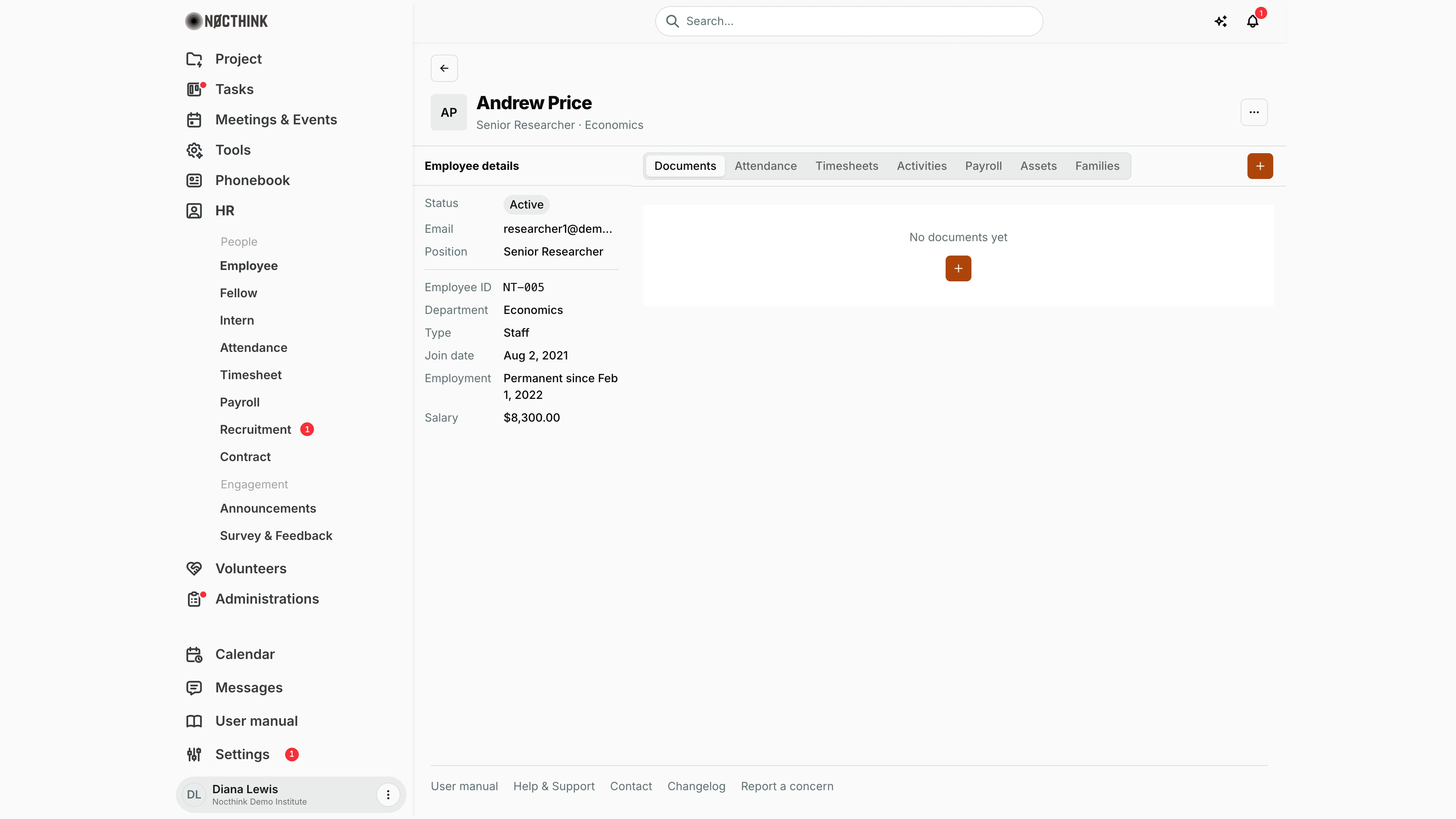
Screenshot: Diana Lewis (HR Officer), Nocthink Demo Institute demo data.
Clicking a name opens the profile (/hr/employees/<id>). The header shows the photo or initials (click it to change the photo), name, position and department, and the ⋯ menu with Edit, Settings and, for the HR Manager, Delete.
Employee details on the left lists Status, Email, Position, Employee ID, Department, Type (Staff, Fellow or Intern), Join date, Employment ("Permanent since …" or the contract end), and for HR and finance readers Salary. Organizations whose base currency is IDR also see PTKP and NPWP (Indonesian PPh 21 fields); a missing NPWP is shown in red with the 120% PPh 21 surcharge it triggers.
The tabs on the right are Documents, Attendance, Timesheets, Activities, Payroll, Assets and Families. The + at the end of the tab bar adds to the open tab: Add document on Documents (also open to the employee), Add attendance on Attendance and Add family member on Families (both need hr.update). Documents lists filed and requested documents; pending requests show approve and reject icons.
Employee profile — Attendance tab
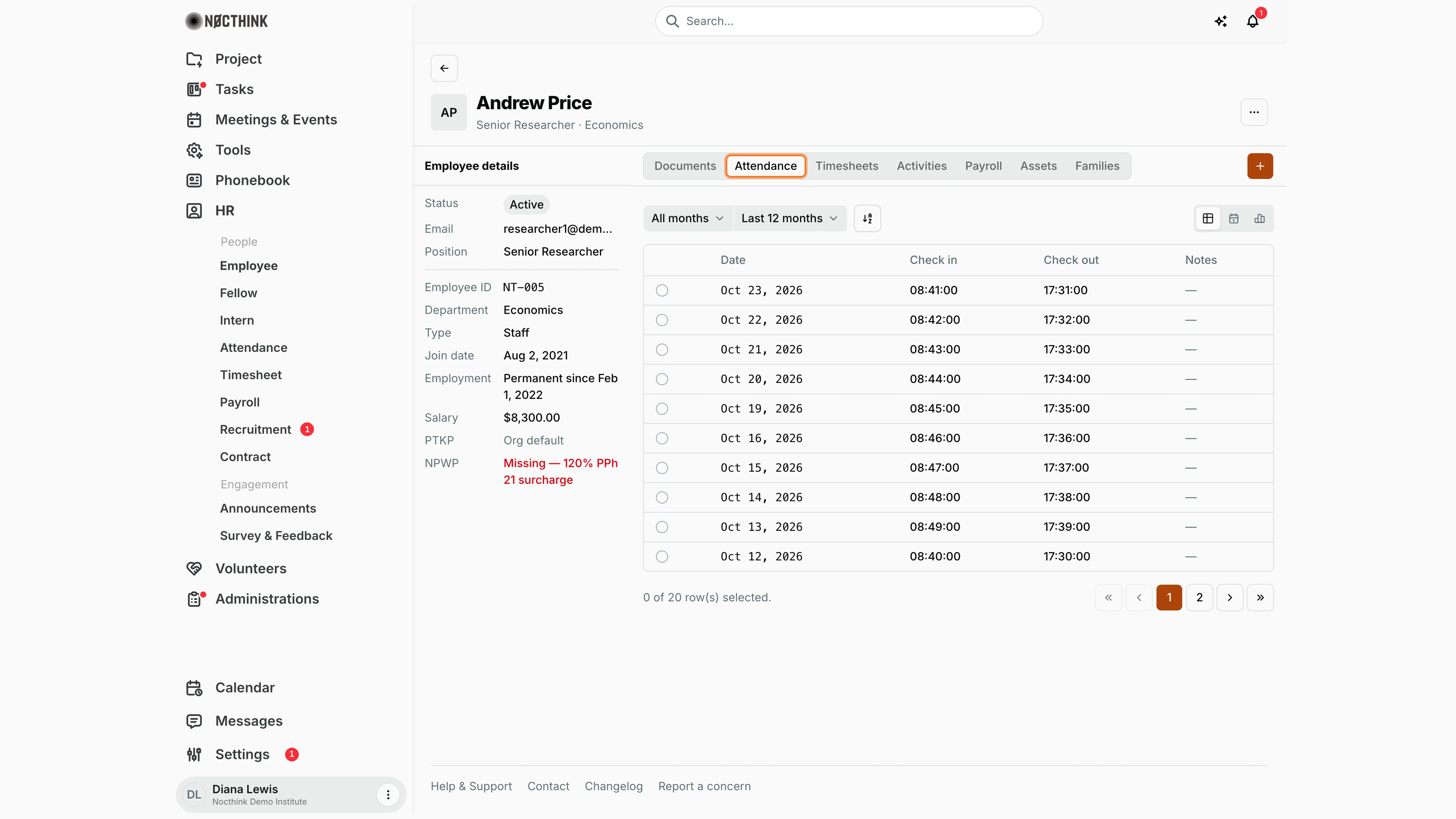
Screenshot: Diana Lewis (HR Officer), Nocthink Demo Institute demo data.
Attendance lists this person's days with Date, Check in, Check out and Notes. Filter by month and period (All months, Last 12 months) and switch between the table, calendar and chart views with the buttons on the right. + opens Add attendance (Type: Check in, Check out, Absent or Leave; Date; Time; Notes) to correct a day; the Attendance row is rebuilt from the events. The row menu Open employee attendance on the Attendance page lands here. Check this tab before payroll.
Employee profile — Timesheets tab
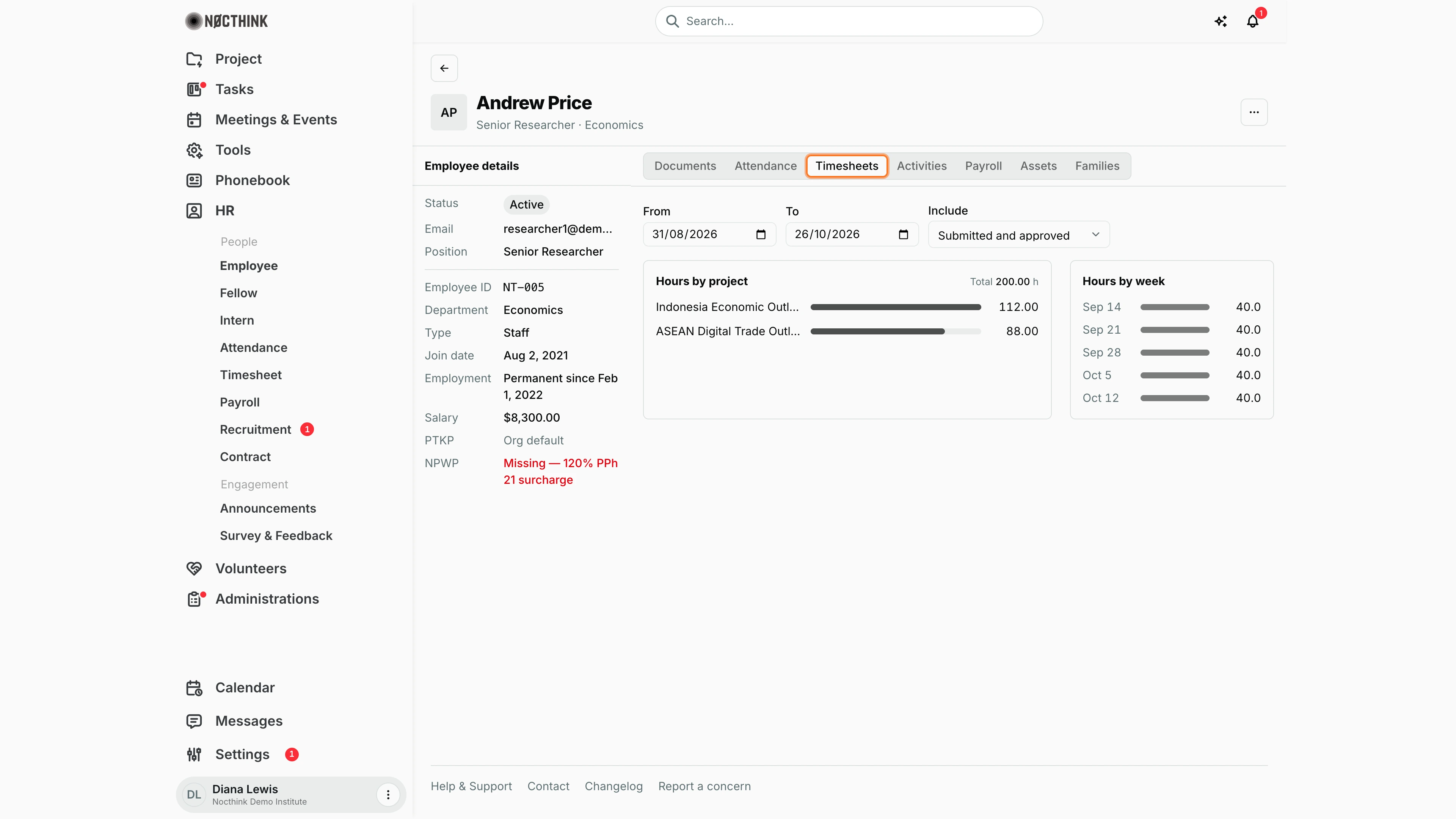
Screenshot: Diana Lewis (HR Officer), Nocthink Demo Institute demo data.
Timesheets summarises the hours this person logged in Timesheet: Hours by project and Hours by week. Set From and To and choose whether to Include "Submitted and approved" weeks or "Approved only". The totals are read-only here; weeks are submitted and reviewed on the Timesheet page. Use it to confirm, before the payroll and grant allocation runs, that the person's approved hours for the month are complete. If a week is missing, ask the person to submit it, or the reviewer to approve it, on the Timesheet page. Weeks still awaiting review count only under "Submitted and approved".
Employee profile — Payroll tab
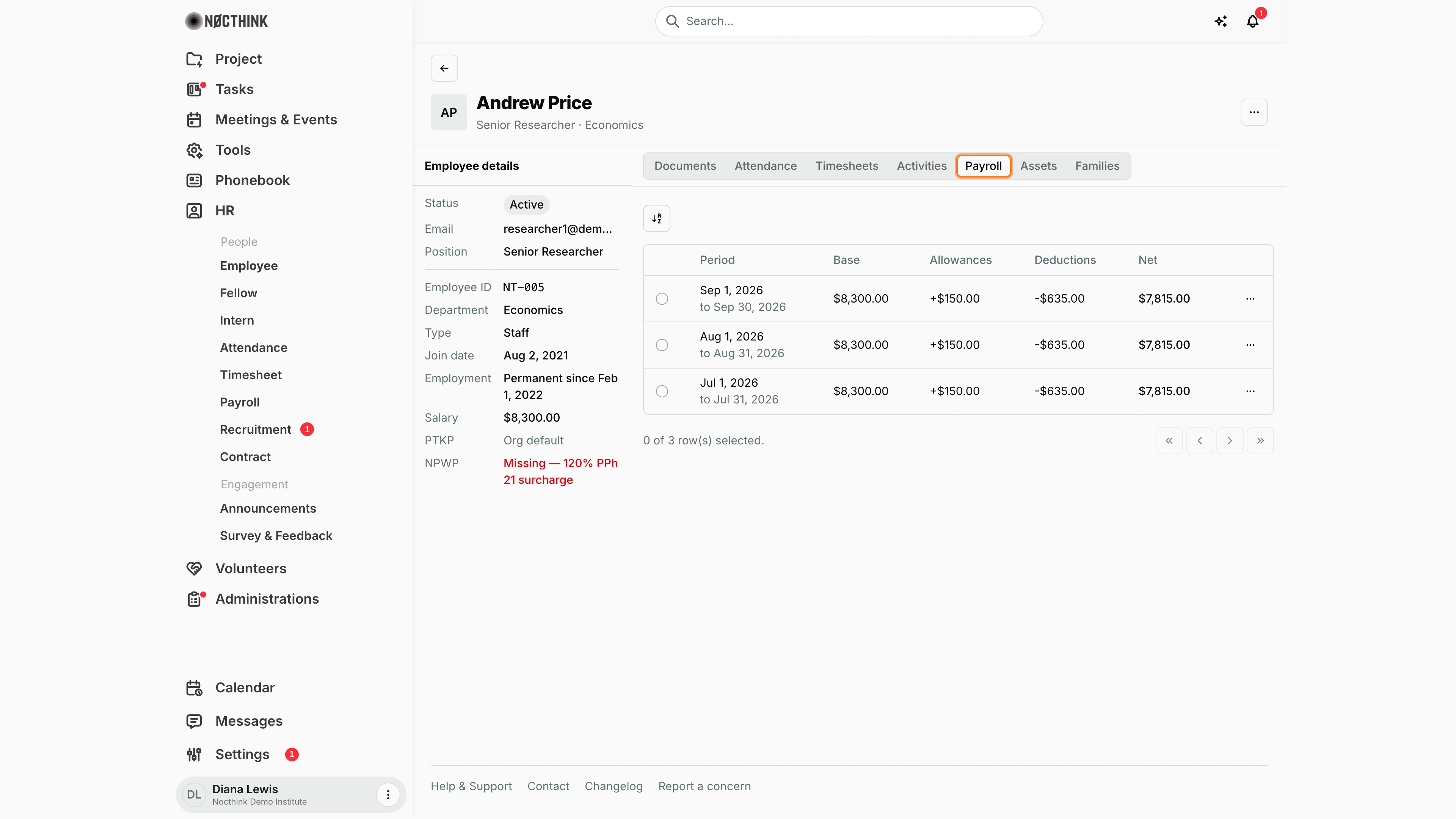
Screenshot: Diana Lewis (HR Officer), Nocthink Demo Institute demo data.
Payroll lists this person's payslips, newest first: Period, Base, Allowances, Deductions and Net. The row menu (⋯) downloads the payslip as a PDF. Payslips are created and moved through their statuses on Payroll; the salary used comes from ⋯ → Settings. The figures are the same as on the batch page: Base is the monthly salary, Allowances the sum of allowances (shown with +) and Deductions the sum of deductions (shown with -). Use this tab when an employee asks for an old payslip or a summary of their pay for a period; for statuses and posting, open the batch on the Payroll page.
Employee profile — Assets tab
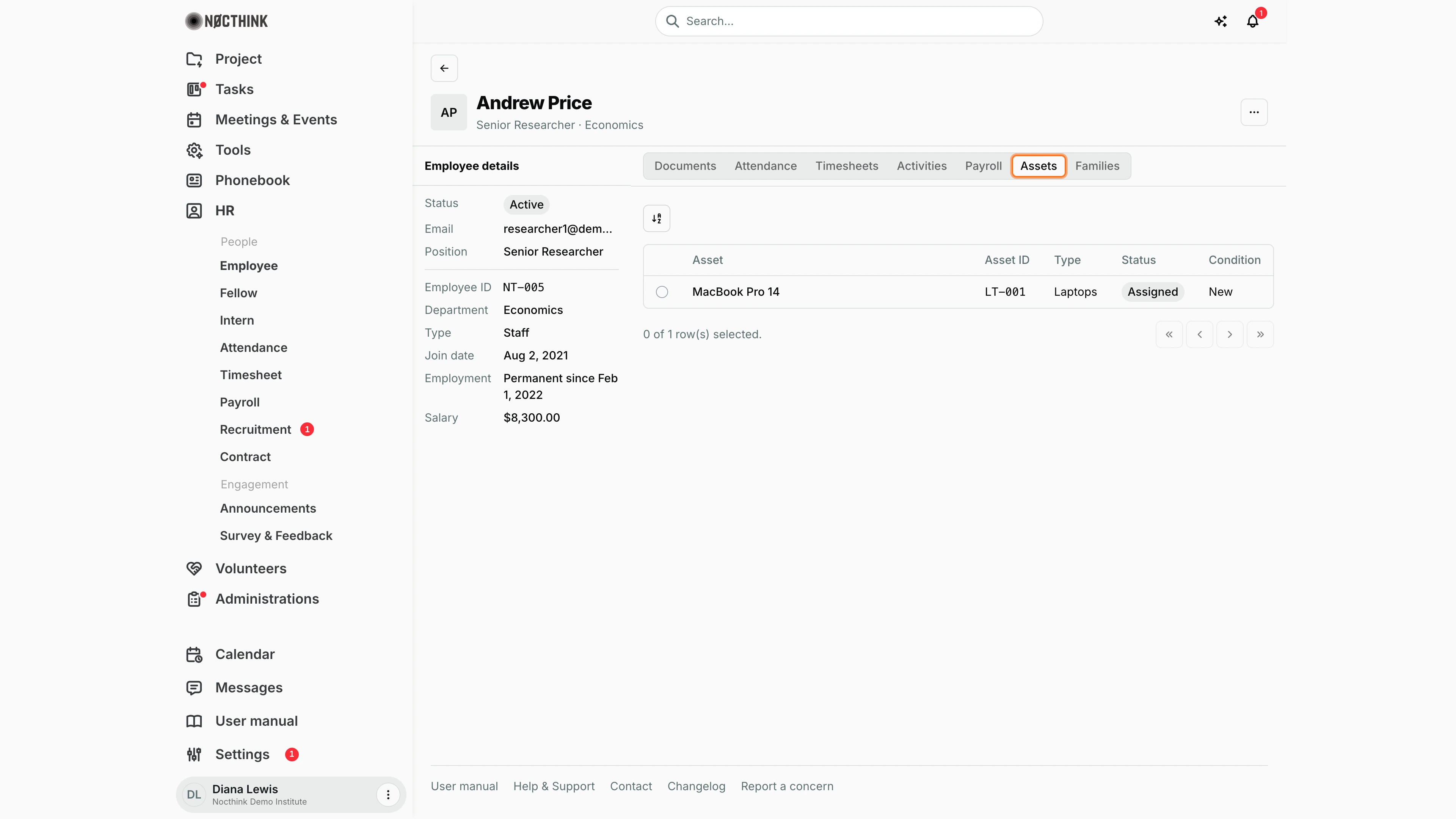
Screenshot: Diana Lewis (HR Officer), Nocthink Demo Institute demo data.
Assets lists equipment currently assigned to the person from Asset Management: Asset, Asset ID, Type, Status and Condition. Check it when someone leaves, so every laptop and phone is returned before offboarding. Assignments are changed in Asset Management, not here. In the demo Andrew Price holds one MacBook Pro 14 (LT-001), Assigned and in New condition. When the person leaves, check this tab first and have the equipment returned in Asset Management; the list empties as each asset is checked in.
Add employee
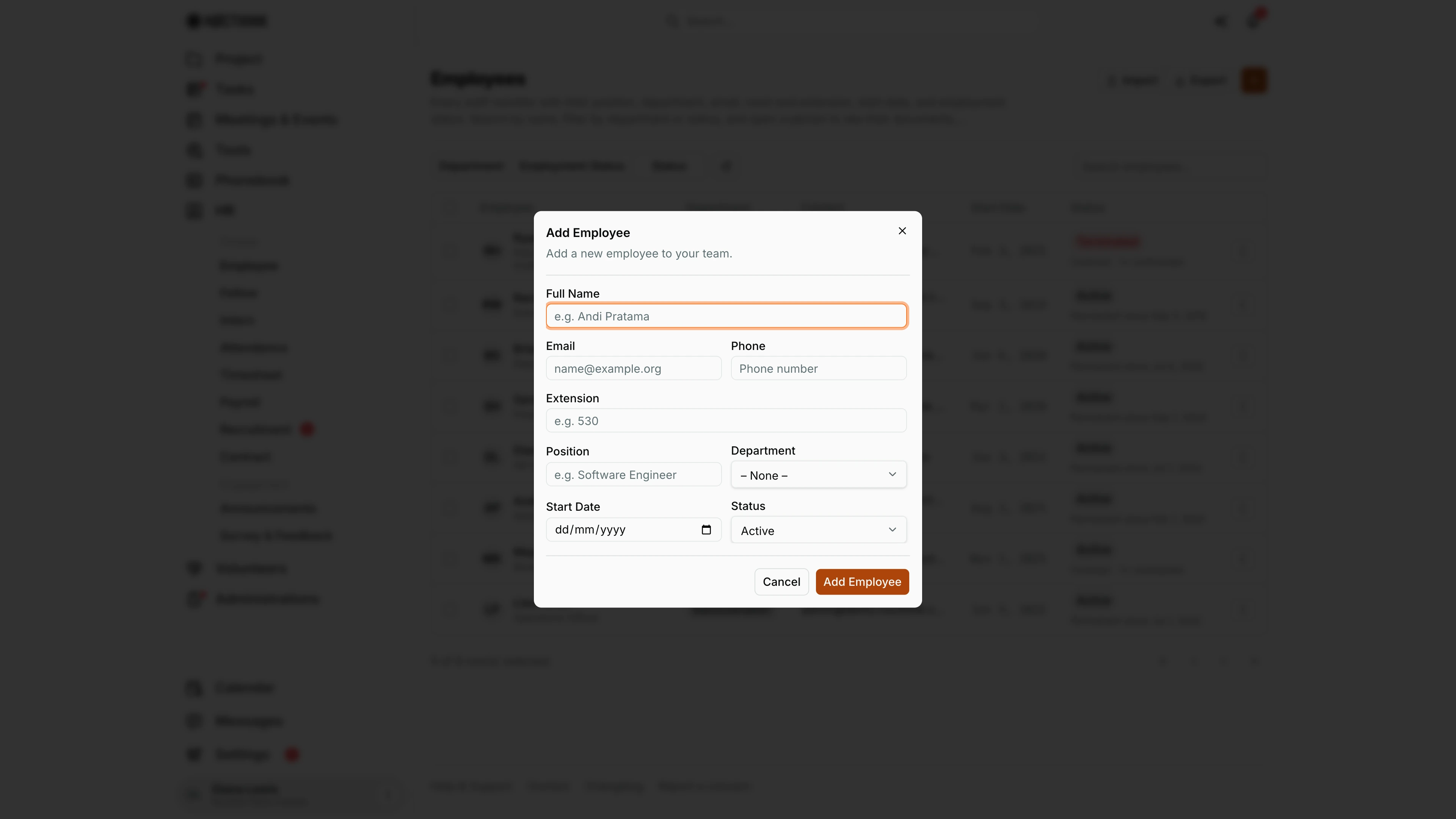
Screenshot: Diana Lewis (HR Officer), Nocthink Demo Institute demo data.
+ opens Add Employee ("Add a new employee to your team."). Full Name and Email are required, because the login account is issued against the email. Phone, Extension, Position, Department (the org's departments, or "– None –"), Start Date and Status (Active, On Leave, Terminated; default Active) are optional. Add Employee creates the person and switches the dialog to Employee Created, which shows a temporary password once only; copy it before closing. The new person appears in the list as Active (or the status chosen) and can log in with the temporary password, which they must change at first login.
Edit employee
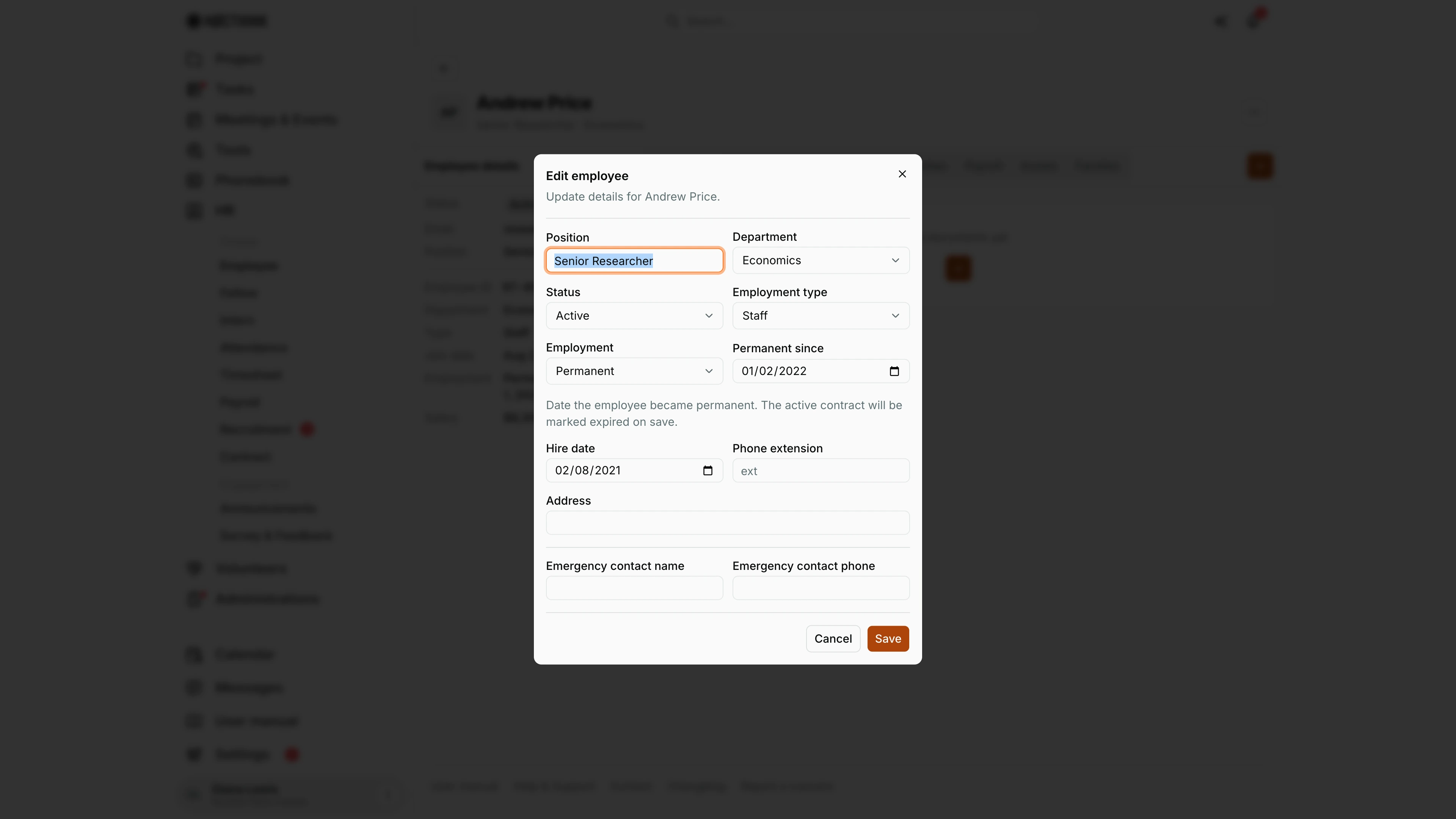
Screenshot: Diana Lewis (HR Officer), Nocthink Demo Institute demo data.
⋯ → Edit on the profile opens Edit employee ("Update details for <name>."). It covers more than the list's Edit dialog: Position, Department, Status (Active, On leave, Terminated, Inactive), Employment type (Staff, Fellow, Intern), Employment (Fixed-term or Permanent; IDR organizations see the Indonesian terms Contract (PKWT) and Permanent (PKWTT)), then Permanent since for permanent staff or Contract ends for contract staff, Hire date, Phone extension, Address and the Emergency contact name and phone.
Setting Permanent since marks the active contract expired on save; setting Contract ends updates the active contract, or creates one from the hire date if there is none. Name, email and phone are not here: they belong to the login account (Settings → Users). Save applies the changes.
Employee settings
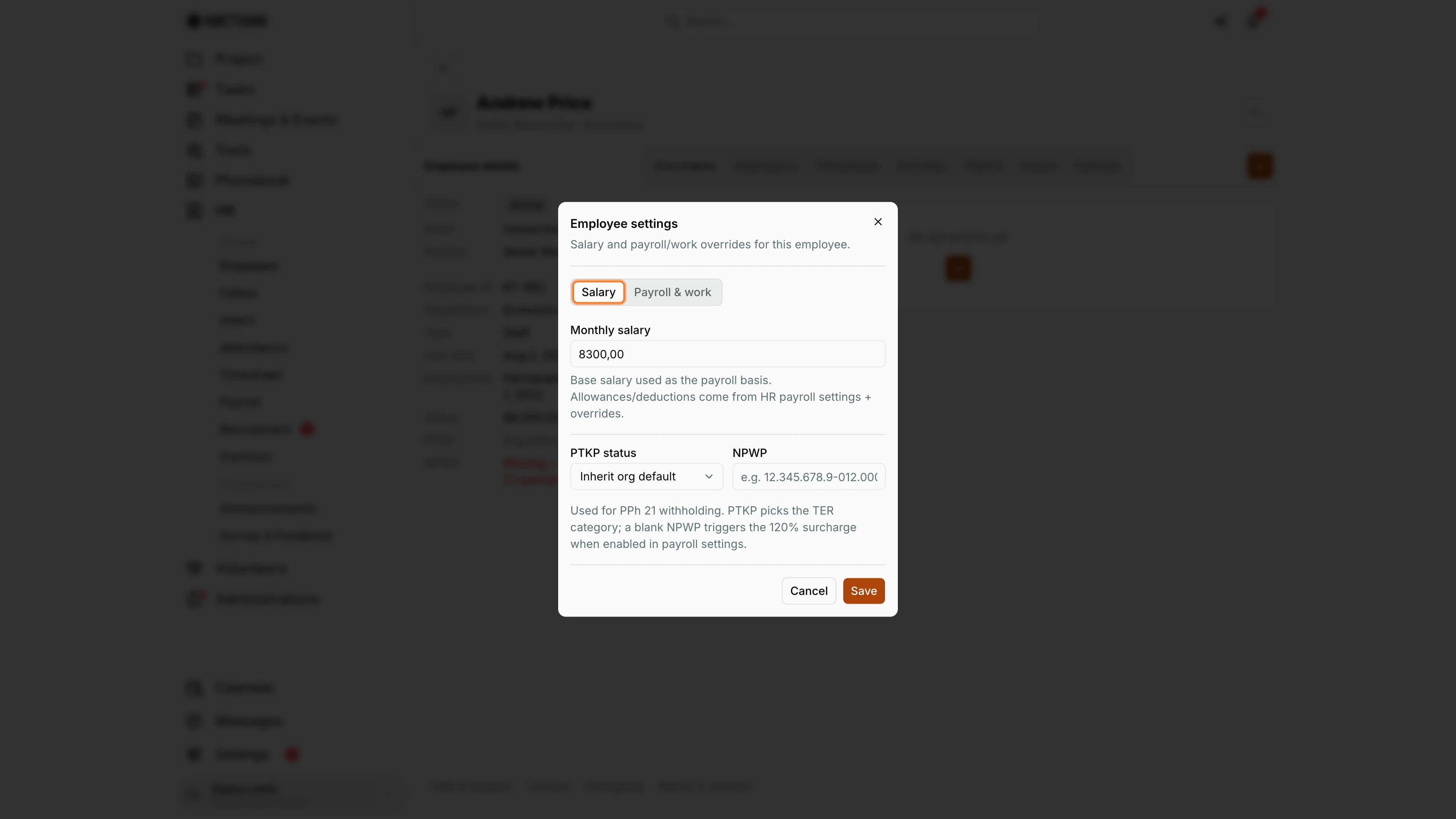
Screenshot: Diana Lewis (HR Officer), Nocthink Demo Institute demo data.
⋯ → Settings opens Employee settings ("Salary and payroll/work overrides for this employee."). The Salary tab holds Monthly salary (the payroll basis) and, for IDR organizations, PTKP status (Inherit org default or a TK/K/KI code) and NPWP; a blank NPWP triggers the 120% PPh 21 surcharge when that option is on in payroll settings. The Payroll & work tab overrides the transport allowance mode and the overtime mode for this person. Save stores the values; the next payroll run uses them. These values are returned only to the person, HR authority and finance readers.
Access & permissions
- To open the page you need
hr.updateorfinance.update(lib/domain-routes.ts). That covers HR Staff, HR Manager, Owner, Director and the finance roles. - Creating needs
hr.create, editing needshr.updateand deleting needshr.delete, which belongs to the HR Manager role. Withouthr.updatethe page is read-only: Import, +, the row menu and the profile's ⋯ menu (Edit, Settings, Delete) are hidden, and Delete only shows withhr.delete. - The full record (salary, NPWP, PTKP) is returned to the person themself, HR authority and finance authority (finance department,
finance.approveor a finance role). Others see directory fields only. - Staff can change their own photo. Changing anyone else's needs
hr.update.
Caveats
- Email is required because the login account is issued against it. A duplicate email is rejected by the API.
- The temporary password is shown only once. If you lose it, the user has to reset it from the login page.
- Changing a photo submits it as a pending face enrollment for attendance check-in. Another HR approver must approve it on Attendance.
- Delete cannot be undone, and in the list it fails silently: nothing changes if the server refuses. Check that the row really disappeared.
- Changing Contract ends on the profile updates the end date of the active contract.
- Permanent date cannot be in the future or before the hire date, and contract end cannot be before the hire date.
- The contract count, contract end, phone and the pending-document dot come with the list only for HR or finance record readers; other viewers see the directory columns.
- An employee's name, email and phone belong to their login account, not the HR record, so neither edit dialog changes them; the list's Edit dialog shows them read-only and points to Settings → Users (or the person's own Profile).
Limitations
- There is no bulk edit or bulk delete. Row selection exists but has no actions.
- Export writes only Employee, Position, Department, Email, Ext and Start Date, not status or salary.
- Import always creates people as Active, and of the type this page is for. It does not update existing people; rows already present just fail.
Related menus
- Fellow and Intern: the same list for other employment types.
- Contract: contract history and expiries for these people.
- Payroll: uses the salary and allowance settings from the profile.
- Attendance: daily rows and face-enrollment approvals.
- Engagements: worker classification facts per person.
- Legal Holds & Offboarding: what happens to access and records when someone leaves.