
Vendors
Open in NocthinkModule: Procurements · URL: /procurements/vendors · Responsible role: Procurement Officer (procurement) · Also used by: Owner/Director (full), Asset Officer (read), Finance Staff / Finance Manager / F.A.T Manager / Accounting (read; Finance also sees bank details)
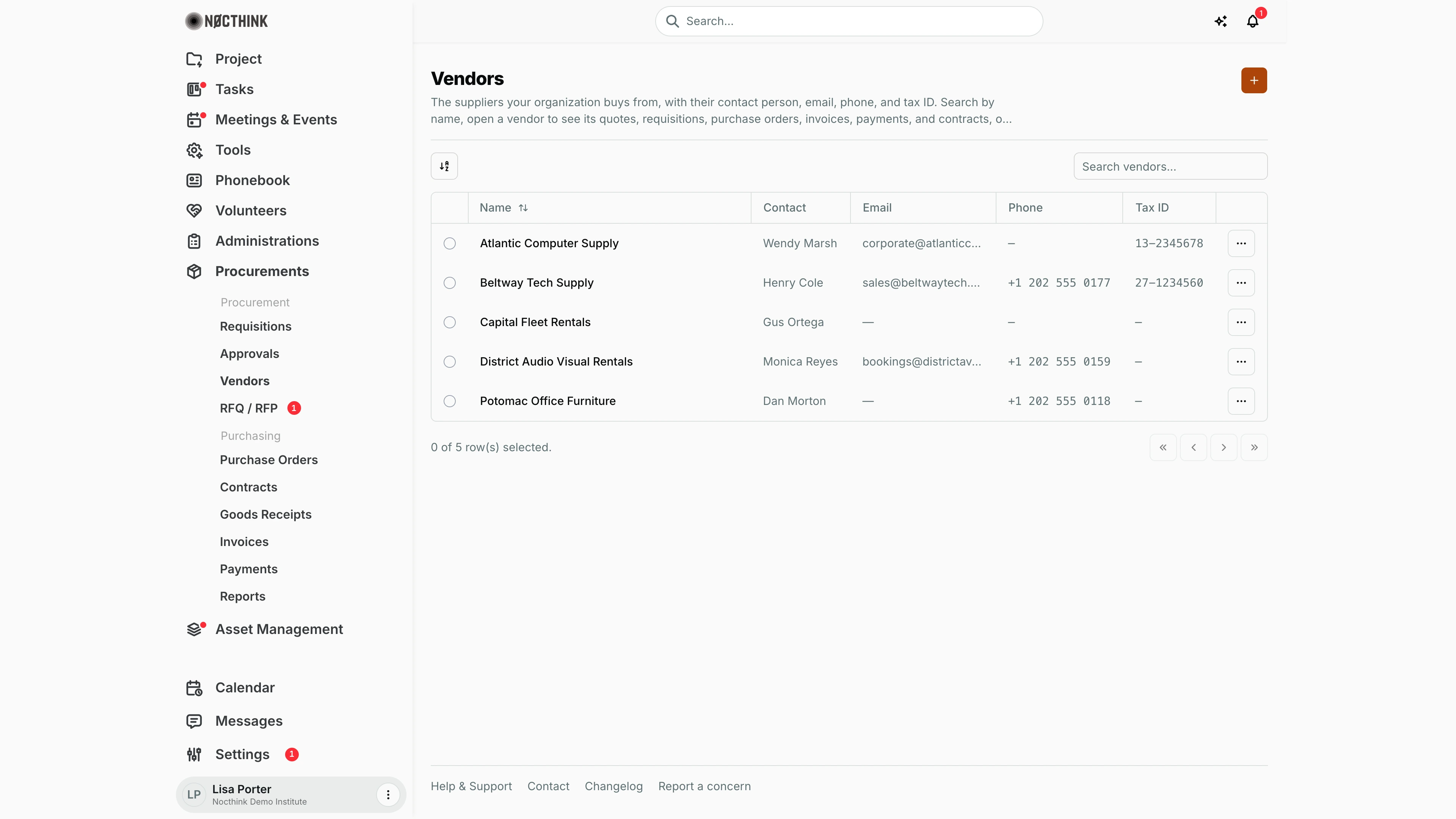
Screenshot: Lisa Porter (Operations Officer), Nocthink Demo Institute demo data.
Why I use this page
This is our supplier master list. Every quote, RFQ, purchase order, contract, invoice and payment points to a vendor here, so I add a vendor before anyone can quote or be ordered from, and I keep contacts and tax IDs correct so POs and invoices print the right details. I also open a vendor's page when I want its full history with us — what we asked for, what we ordered, what we still owe.
What's on the screen
- Header — Vendors with a short description, and the orange + button (New vendor) at the top right.
- Toolbar — sort control and Search vendors... (searches the name). There are no filters.
- Table columns — Name (sortable; click to open the vendor), Contact, Email, Phone, Tax ID, and the ⋯ row menu with Edit and Delete. Empty fields show —; long email addresses are cut off with "…".
- Footer — row selection (radio) and paging. Selecting a vendor offers a Delete (1) bulk action.
Opening a vendor shows:
- Header — the vendor name, an Edit button and a ⋯ menu with Delete vendor.
- Vendor details — Contact, Email, Phone, Address, Tax ID, Registered.
- Activity — counts of Quotes, Requisitions, Approvals, Purchase orders, Invoices, Payments.
- Spend — Total paid and Outstanding.
- Tabs — Quotes (RFQ / RFP records addressed to this vendor and the quotes it gave on requisitions: Title, Type, Amount, Date, Status), Requisitions (Number, Title, Total, Created, Status), Approvals (Requisition, Approver, Status, Resolved), Transactions (purchase orders, invoices and payments, with a type filter: Reference, Amount, Status) and Contracts (Title with contract number, Value, Status).
How I …
Add a new vendor
- Click + to open New vendor (see New vendor below).
- Under Vendor, enter **Name *** (the registered name printed on POs and invoices) and Tax ID.
- Under Contact, enter Contact person, Email and Phone.
- Under Address, enter the full address: street, city, province and postal code in one field.
- Click Create vendor. I return to the list and the vendor is available in every vendor drop-down (requisitions, quotes, RFQs, POs).
Update a vendor's details
- Click ⋯ → Edit on the row, or open the vendor and click Edit (see Edit vendor below).
- Change the fields and save.
- If the save fails with "A vendor with this tax ID already exists.", another vendor in our organization already has that tax ID — open that one instead of creating a duplicate.
Review a vendor before awarding or paying
- Open the vendor by its name (see Vendor detail below).
- Check Activity and Spend — a large Outstanding means invoices are still unpaid.
- Open Transactions and use the type filter (Purchase order, Invoice, Payment) to see each document and its status.
- Open Contracts to confirm there is an active contract if the purchase falls under one.
- Open Approvals to see how earlier requisitions for this vendor were decided.
Find a vendor quickly
- Type part of the name in Search vendors....
- Click Name to sort A–Z / Z–A.
Detail page, forms & dialogs
Vendor detail
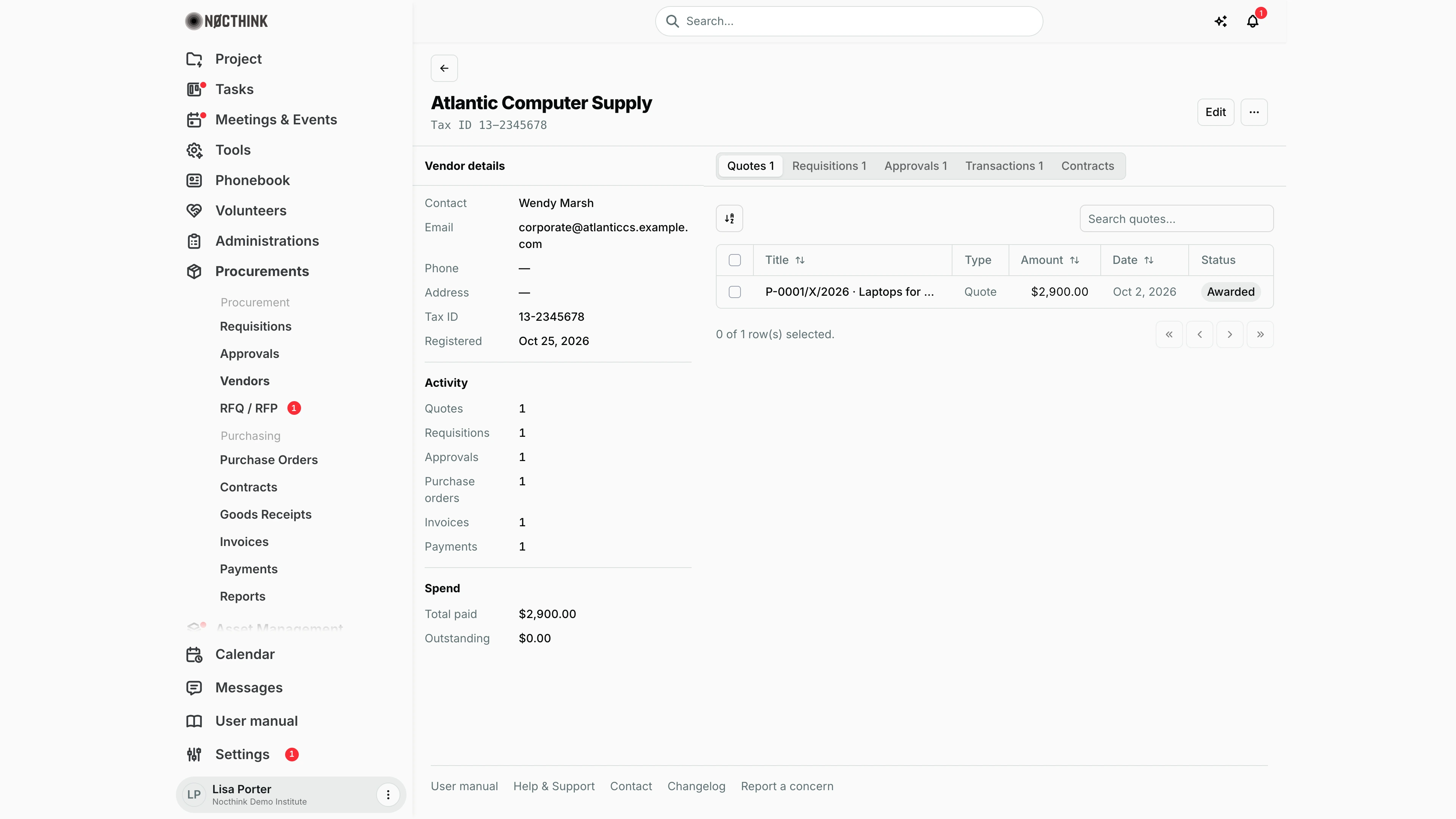
Screenshot: Lisa Porter (Operations Officer), Nocthink Demo Institute demo data.
Clicking a vendor opens its page. The header shows the name and Tax ID, an Edit button and a ⋯ menu.
The left column has Vendor details (Contact, Email, Phone, Address, Tax ID, Registered), Activity (counts of Quotes, Requisitions, Approvals, Purchase orders, Invoices, Payments) and Spend (Total paid, Outstanding).
The tabs are Quotes, Requisitions, Approvals, Transactions and Contracts, each with a count. Quotes lists RFQ / RFP records addressed to the vendor and its quotes on requisitions (the requisition number and title, type Quote, with the quoted amount and Awarded when it won); each title opens the RFQ or the requisition.
Vendor detail — Transactions tab
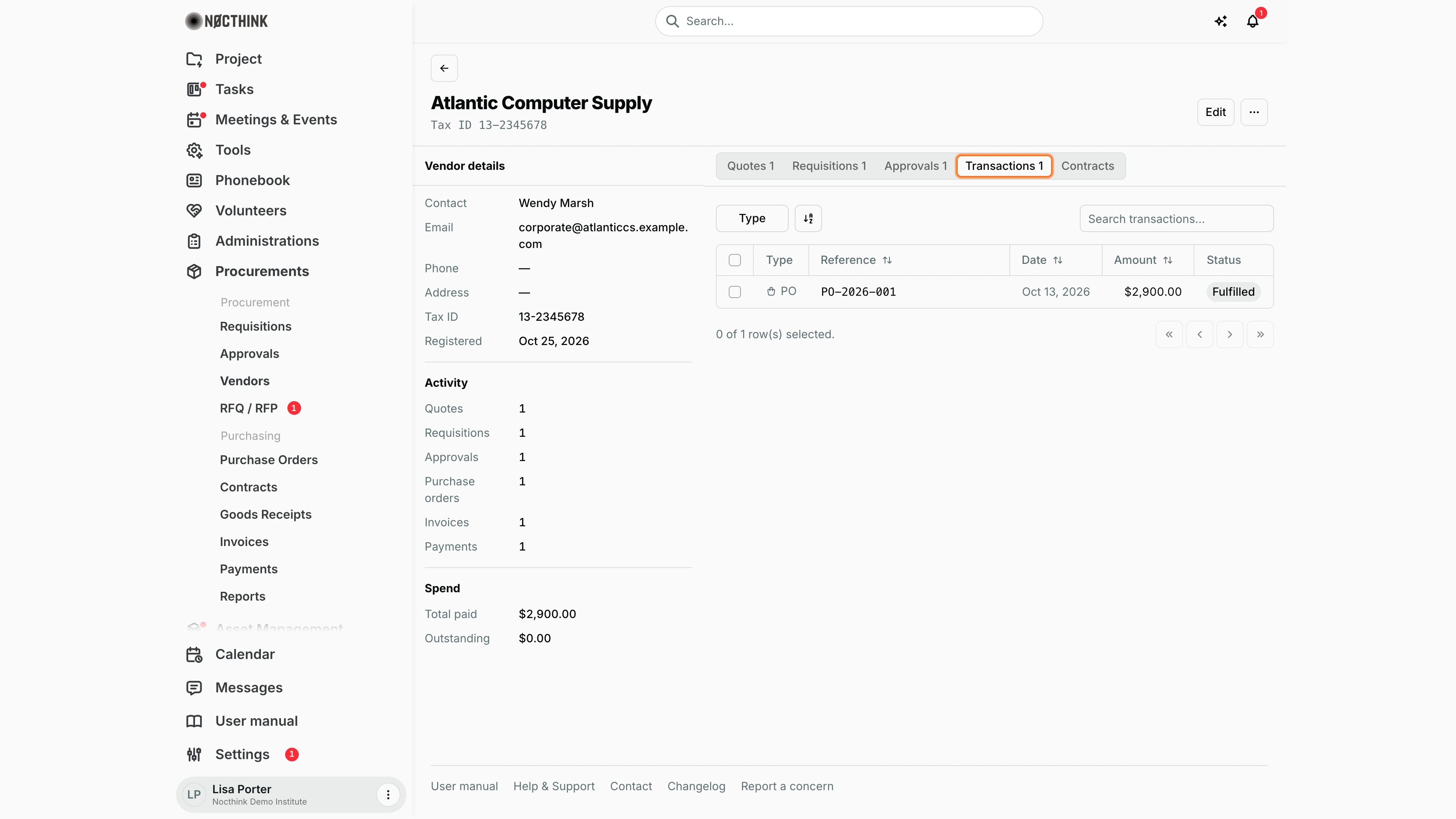
Screenshot: Lisa Porter (Operations Officer), Nocthink Demo Institute demo data.
Transactions puts the vendor's purchase orders, invoices and payments in one table: Type, Reference, Date, Amount, Status. The Type filter narrows it to one kind of document, and the search box matches the reference. I check this tab before paying a vendor to see what is already ordered, billed and paid.
The amounts are in each document's own currency, and the Status column follows the document (e.g. Fulfilled for an order, Paid for an invoice).
Vendor detail — Approvals tab
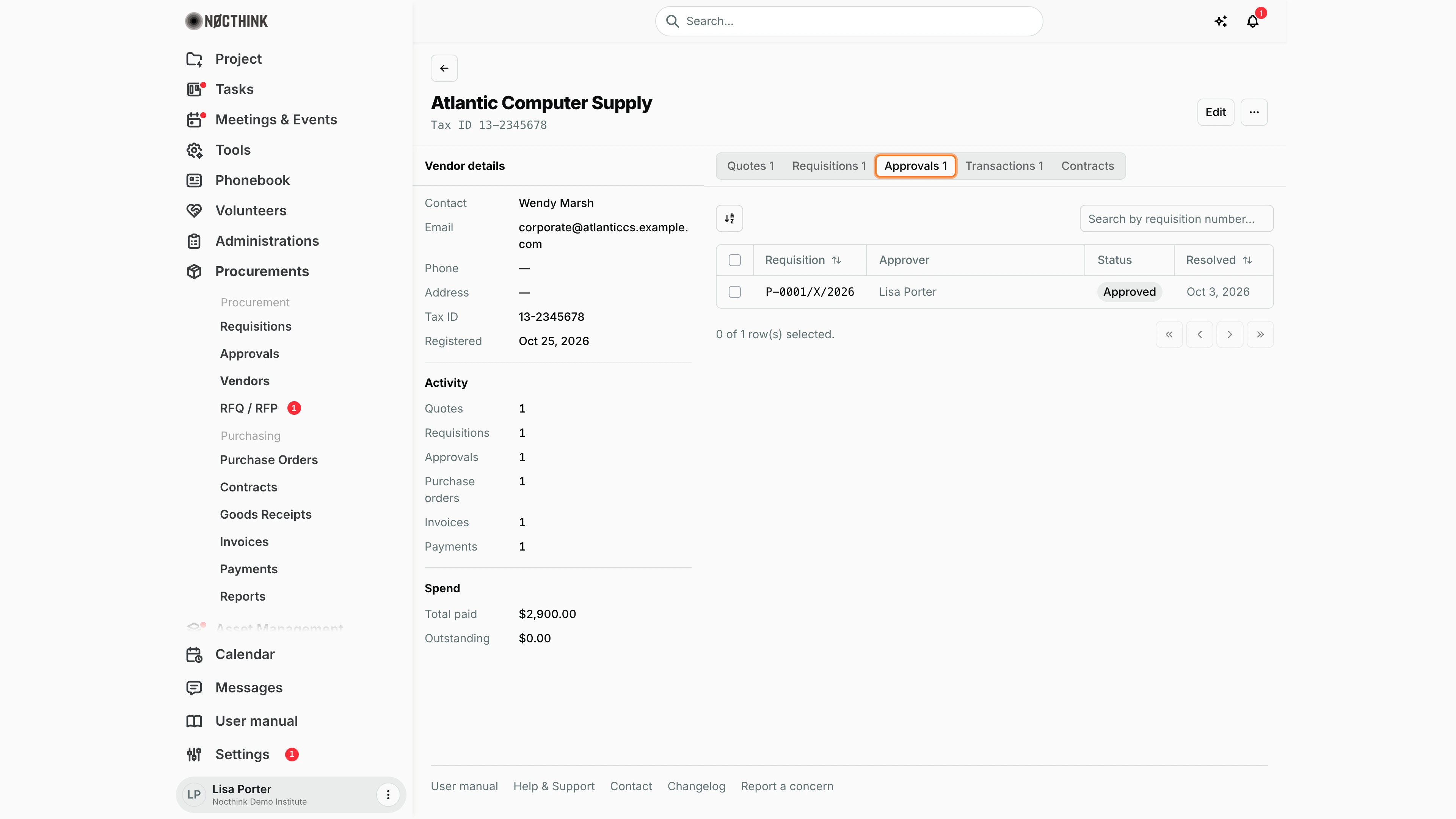
Screenshot: Lisa Porter (Operations Officer), Nocthink Demo Institute demo data.
Approvals lists the approval steps on requisitions routed to this vendor: Requisition, Approver, Status, Resolved. It shows how earlier purchases from the vendor were decided, which helps when I justify an award to the same supplier.
The Requisitions tab next to it lists the requisitions routed to this vendor, and Contracts lists its contracts, which I check before buying something a contract should already cover.
New vendor
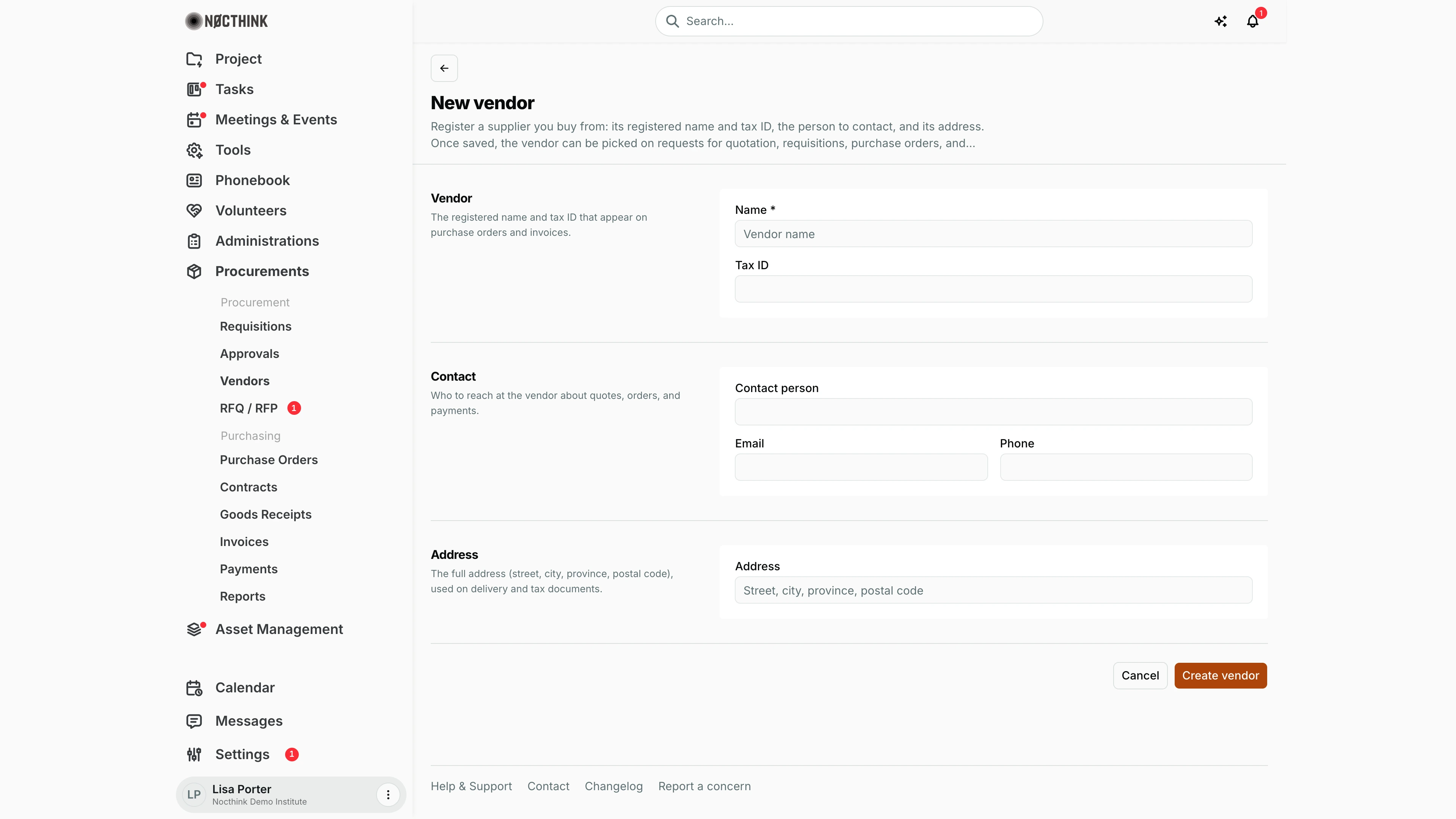
Screenshot: Lisa Porter (Operations Officer), Nocthink Demo Institute demo data.
+ opens the New vendor page. Vendor takes Name * and Tax ID ("The registered name and tax ID that appear on purchase orders and invoices."). Contact takes Contact person, Email and Phone. Address is one field for the full address, used on delivery and tax documents. Create vendor saves it and returns to the list; the vendor is then available in every vendor drop-down.
Creating a vendor is checked against the Asset Management permissions on the server, because the vendor list is shared with assets, licenses, rentals and consumables. Bank details are not on this form; they are kept by Finance.
Edit vendor
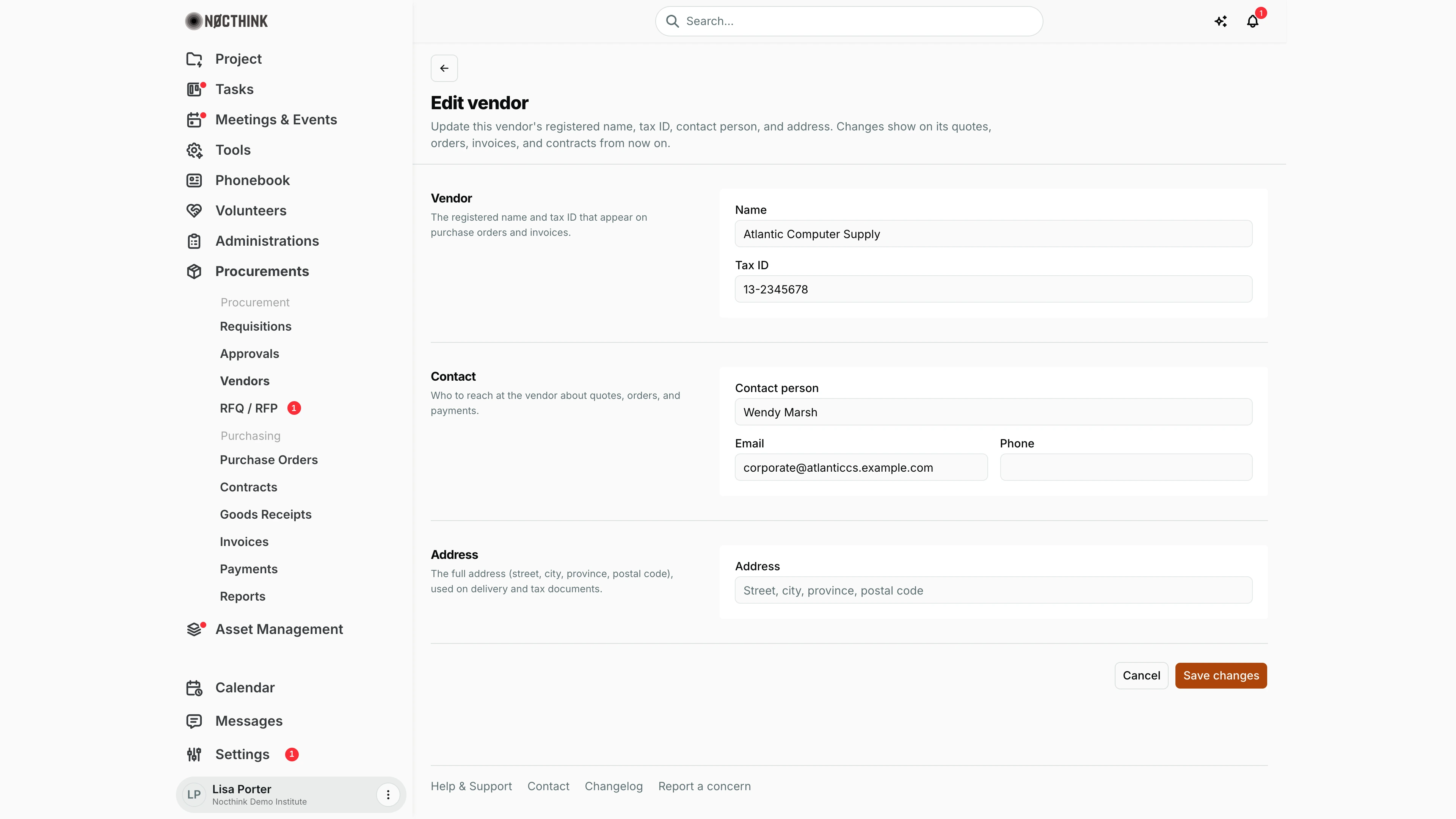
Screenshot: Lisa Porter (Operations Officer), Nocthink Demo Institute demo data.
Edit on the vendor page (or ⋯ → Edit on the list) opens Edit vendor with the same three sections, filled in. Save changes stores them. A tax ID that another vendor already uses is refused with "A vendor with this tax ID already exists.".
The page says: "Update this vendor's registered name, tax ID, contact person, and address. Changes show on its quotes, orders, invoices, and contracts from now on." Editing is checked against the Asset Management permissions, so a read-only user gets a permission error on save.
Access & permissions
- The page needs
procurements.viewplus one ofprocurements.update,finance.view,accounting.vieworasset_management.delete— so Procurement, Finance roles, Accounting Staff, Asset Officer and Owner/Director can open it; ordinary staff cannot. - Creating, editing and deleting vendors is checked against the Asset Management permissions on the server (the vendor list is shared with assets, licenses, rentals and consumables). Someone with read-only access there gets a permission error when saving.
- Bank details are stored on the vendor but only returned to Finance authorities, and only Finance can change them through the API; this page does not show them.
Caveats
- Name is required; email and phone are checked for format. Phone is limited to 20 characters, Tax ID to 50.
- Tax ID must be unique within the organization (blank is allowed for several vendors).
- There are no separate City, Province or Postal code fields; type the full address (street, city, province, postal code) in Address.
- Delete is permanent ("Delete this vendor? This cannot be undone."). A vendor already used on quotes, POs, invoices or payments should not be deleted; if the server refuses, the reason is shown in an alert.
- The same vendor list feeds Asset Management, so a change here also shows on assets and licenses.
- Activity and Spend count everything recorded for the vendor in the organization, while the tabs list only the records I may open. A procurement officer who is not in Finance sees the invoice and payment counts and Total paid but no invoice rows on Transactions.
Limitations
- Vendor status (pending, active, suspended, blacklisted), risk level, tax/bank verification and notes exist in the data model but cannot be viewed or set on these pages.
- No filters (e.g. by status or category) and no export.
- No vendor performance rating, despite the dashboard description "performance"; the vendor page shows counts and spend only.
- Vendor responses to RFQs are not recorded on the vendor; quotes are entered on the requisition (they then show on the vendor's Quotes tab).
Related menus
- Requisitions — Preferred vendor and vendor quotes come from this list.
- RFQ / RFP — requests sent to a specific vendor show under the vendor's Quotes tab.
- Purchase Orders and Contracts — issued to the awarded vendor.
- Invoices and Payments — feed the vendor's Total paid and Outstanding.
- Supplier Bills — Finance's view of the same vendor invoices.
- Dashboard — overview of the whole chain.