
Requisitions
Open in NocthinkModule: Procurements · URL: /procurements/requisitions · Responsible role: Staff (every member, for their own purchase requests) · Also used by: Procurement (full: all requisitions, quotes, award), Finance Staff / Finance Manager / F.A.T Manager / Accounting (read all), department managers and project team members (read the requisitions of their department or project), Owner/Director (full)
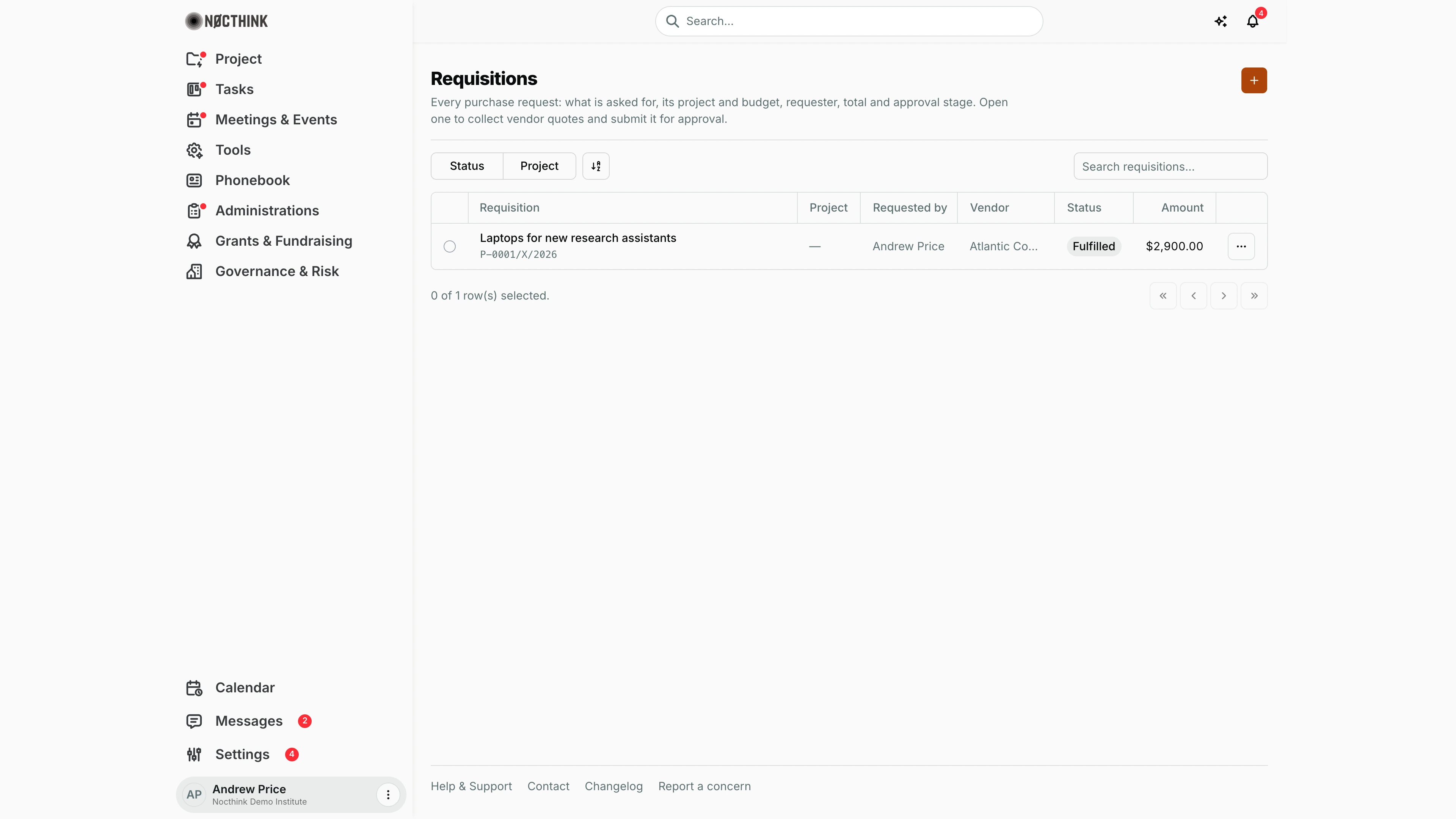
Screenshot: Andrew Price (Senior Researcher), Nocthink Demo Institute demo data. As a regular staff member he has no Procurements module in the sidebar; he reaches this page from Tools → My work → Requisitions.
Why I use this page
Whenever I need something bought for my work or my project — laptops, printing, a venue — I raise a requisition here. It records what I need, which project or budget line pays for it, and the line items with prices. Once it is complete I submit it for approval, and I come back to follow its status until Procurement awards a vendor and issues a purchase order.
What's on the screen
- Header — Requisitions with a short description, and the orange + button (New requisition) at the top right.
- Filters — Status (Draft, Pending, Approved, Rejected, Fulfilled) and Project (active projects), plus a sort control and the Search requisitions... box (searches the title).
- Table columns:
- Requisition — title, with the requisition number underneath (format
P-0001/X/2026: running number / Roman month / year). Click it to open the requisition. - Project — the project it is charged to, or — for the organization budget.
- Requested by — who raised it.
- Vendor — the preferred vendor, if one was chosen.
- Status — Draft, Pending, Approved, Rejected (red), Fulfilled (set automatically once its purchase order is fulfilled and no other order on it is still open).
- Amount — the requisition total.
- ⋯ row menu — Edit and Delete while the requisition is a Draft; for any other status it only says "Submitted requisitions can't be edited or deleted."
- Requisition — title, with the requisition number underneath (format
- Footer — "0 of N row(s) selected" and paging controls. Selecting a row (radio button) shows a Delete (1) bulk action.
How I …
Raise a new requisition
- Click + to open the New requisition dialog (see New requisition below).
- Enter **Title *** ("What is being requested").
- Choose a Project, or leave No project (organization budget).
- Pick a Budget line. With a project selected the list shows that project's fund lines ("from project fund"); without one it shows the organization budget. If the project has no lines yet, the dialog says so — ask Finance or the project manager to allocate one first.
- Optionally choose a Preferred vendor and add a Description (justification / details).
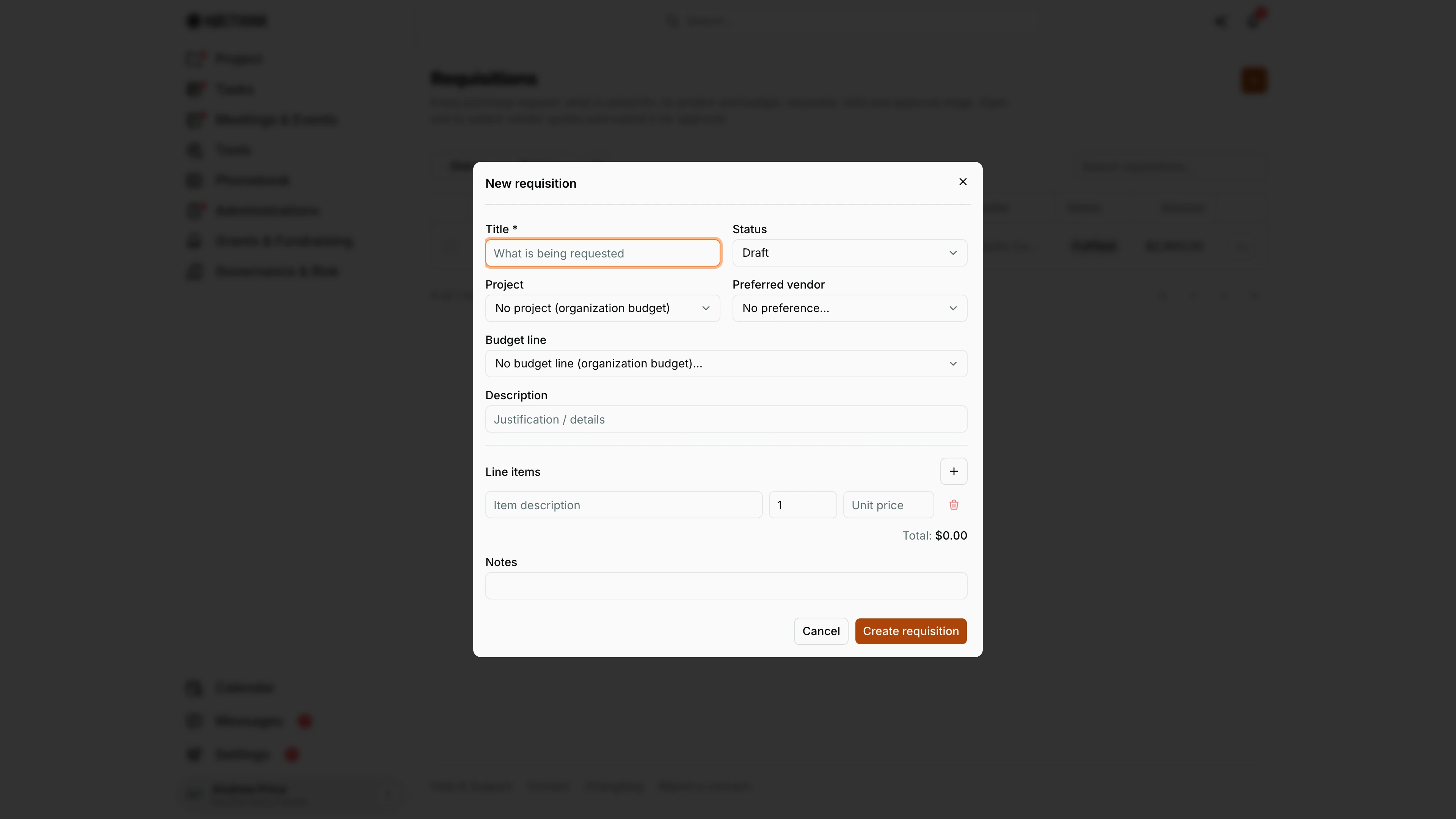
- Under Line items, fill each row's item description, Qty and Unit price. Click + (Add line item) for more rows; the bin icon removes a row (not the last one). The Total updates as I type.
- Add Notes if useful, then click Create requisition. It is saved as Draft and gets its number.
Submit it for approval
- Open the requisition from the list (see Requisition detail below).
- Check the left panel (Requisition details: Number, Status, Requested by, Project, Vendor, Total, Created) and the Overview tab (Description, Notes, Budget).
- Click Submit for approval and confirm "Submit this requisition for approval? The chain is set by its total amount."
- The status becomes Pending and the Approval log tab shows the chain. The approvers of the first step are notified.
The chain depends on the total:
| Total, rupiah organization | Total, other base currency (e.g. USD) | Steps (in order) |
|---|---|---|
| below 10,000,000 | below 10,000 | Procurement |
| 10,000,000 – below 50,000,000 | 10,000 – below 50,000 | Procurement → Finance Manager |
| 50,000,000 and above | 50,000 and above | Procurement → Finance Manager → Director |
The total is in the organization's base currency, and the bands are fixed per currency as shown.
The organization's Procurement settings also decide the sourcing method at submission: below the Direct purchase limit one vendor is enough; up to the Formal sourcing limit three quotes are needed; above it a formal RFQ.
Follow its progress
- Open the requisition and look at Progress in the left panel: Quotes, Awarded, Lowest bid, Decisions, Approved, Pending, Rejected.
- The Approval log tab (see Requisition detail — Approval log below) lists each step with its role and status, and a timeline of who decided and when.
- I also get a notification when it is approved, rejected (with the approver's reason, if given) or when a quote is awarded.
Add vendor quotes (Procurement, or me if asked to collect quotes)
- Open the Quotes tab. In Add vendor quote, choose **Vendor *** and enter **Amount ***, optional Delivery (e.g. "2 weeks") and Notes.
- Attach the quotation file with the paperclip (PDF, image, Word or Excel).
- Click Add quote. The table shows Vendor, Quoted amount (the cheapest is tagged Lowest), Quotation and Award.
Award a vendor and create the purchase order (Procurement)
- Once the requisition is Approved, click Award on the chosen quote and confirm. If it is not the lowest bid, a prompt asks for the justification — it is required.
- The quote shows Awarded and the requester is notified.
- Click Create purchase order in the header; the PO form opens with the vendor and requisition filled in. Continue in Purchase Orders.
Detail page, forms & dialogs
Requisition detail
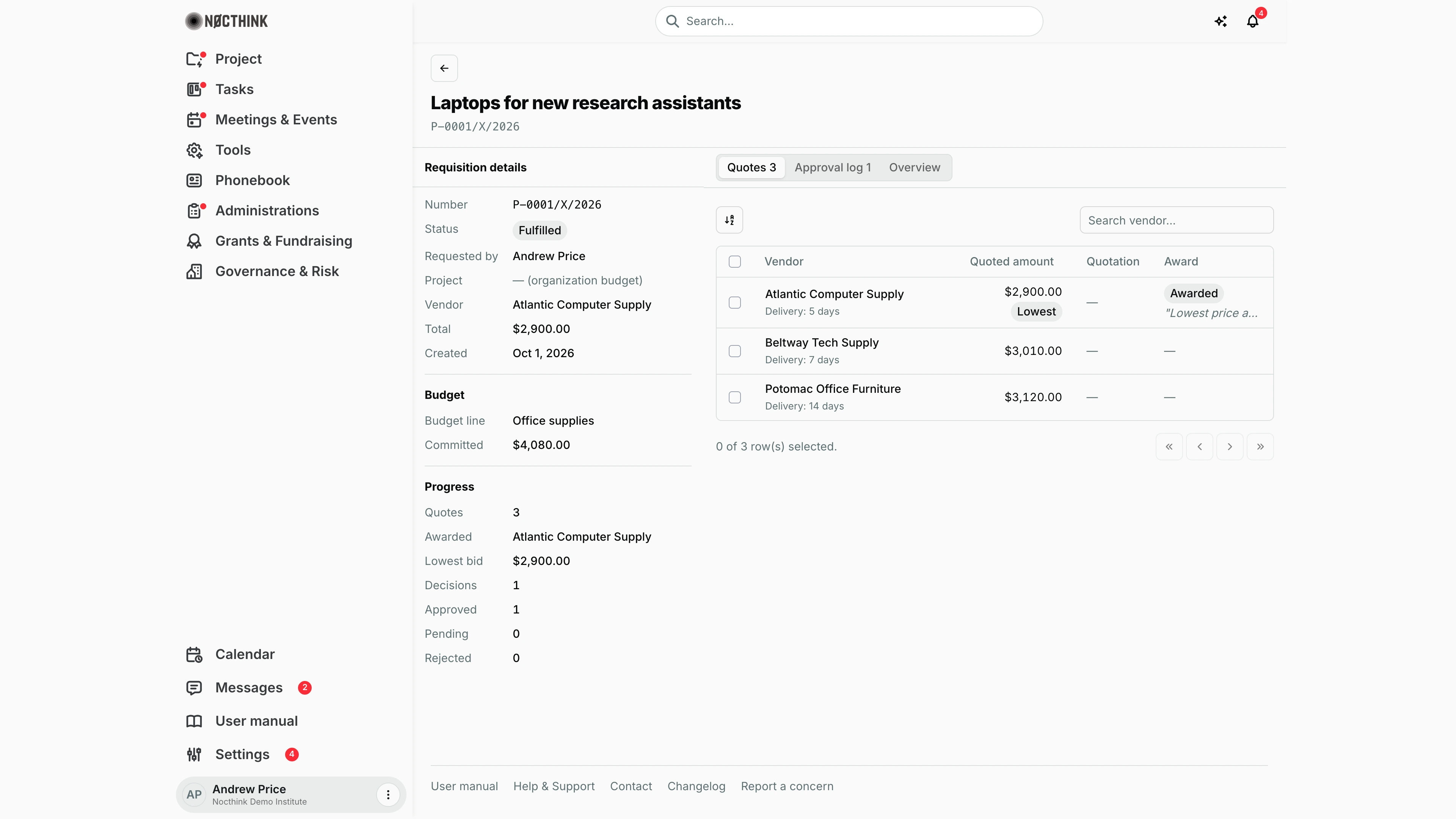
Screenshot: Andrew Price (Senior Researcher), Nocthink Demo Institute demo data.
Clicking a requisition opens its page. The header shows the title and number, plus the next action: Submit for approval while it is a draft with no approval chain yet, or Create purchase order once it is Approved and a quote is awarded.
The left column has three blocks. Requisition details: Number, Status, Requested by, Project ("— (organization budget)" when none), Vendor, Total, Created. Budget: the Budget line and how much is Committed against it. Progress: Quotes, Awarded, Lowest bid, Decisions, Approved, Pending, Rejected.
The Quotes tab opens first. Add vendor quote takes Vendor *, Amount *, Delivery, Notes and a quotation file (paperclip), then Add quote. The table lists each quote with Quoted amount (the cheapest tagged Lowest), the Quotation file and the Award column: Awarded with the reason, or the Award button and a bin icon. Awarding is Procurement's step; as the requester I mostly read this tab.
Requisition detail — Approval log
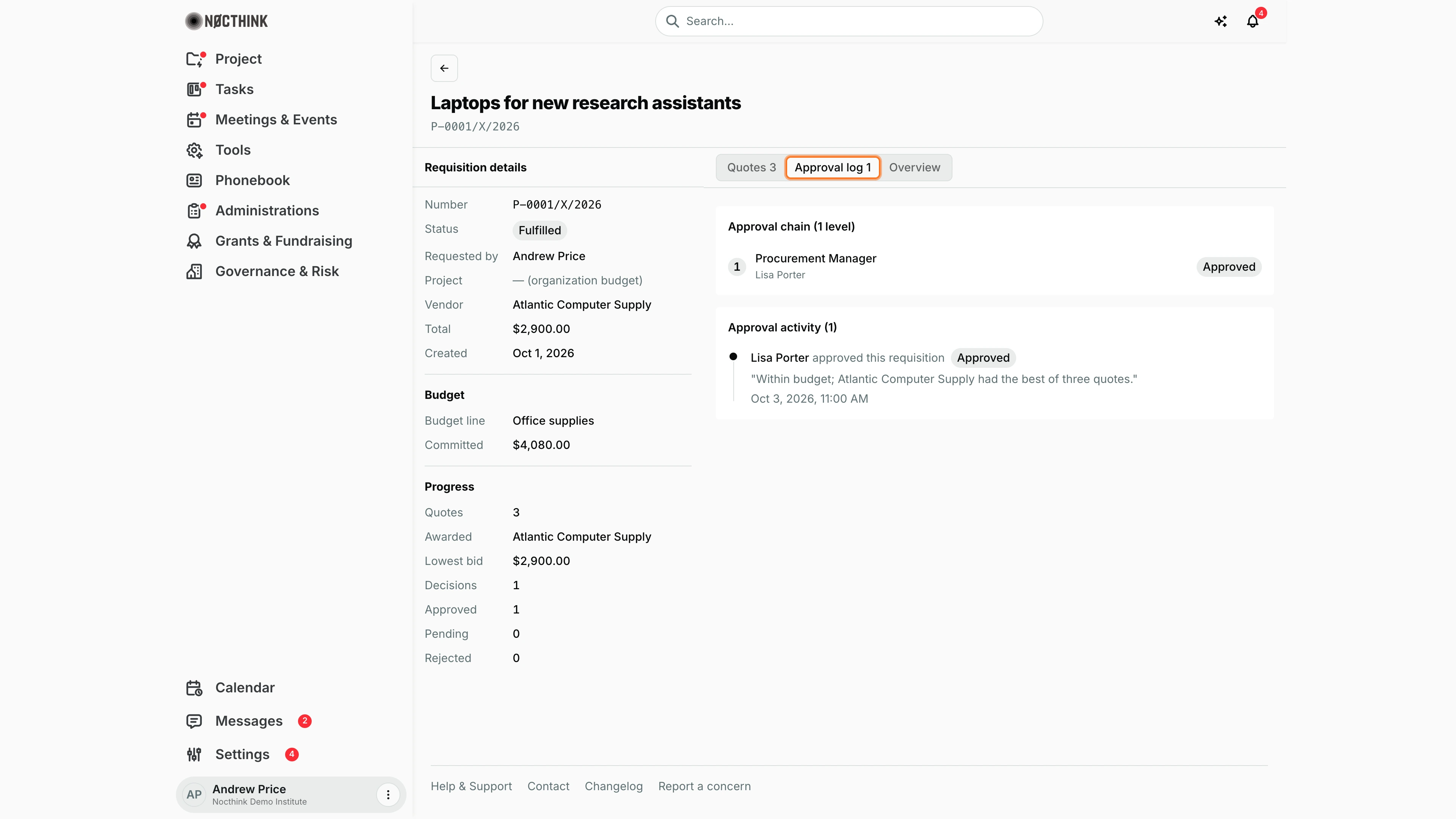
Screenshot: Andrew Price (Senior Researcher), Nocthink Demo Institute demo data.
The Approval log tab shows the chain generated when the requisition was submitted. Approval chain (n levels) lists each level with its role label (Procurement Manager, Finance, Director), the person who decided and the status. When a level is pending and I may decide it, the approve and reject buttons appear on that line.
Approval activity below is the timeline: who approved or rejected, the comment ("Within budget; Atlantic Computer Supply had the best of three quotes."), and the date and time. Before submission the tab reads "Not submitted for approval".
Requisition detail — Overview
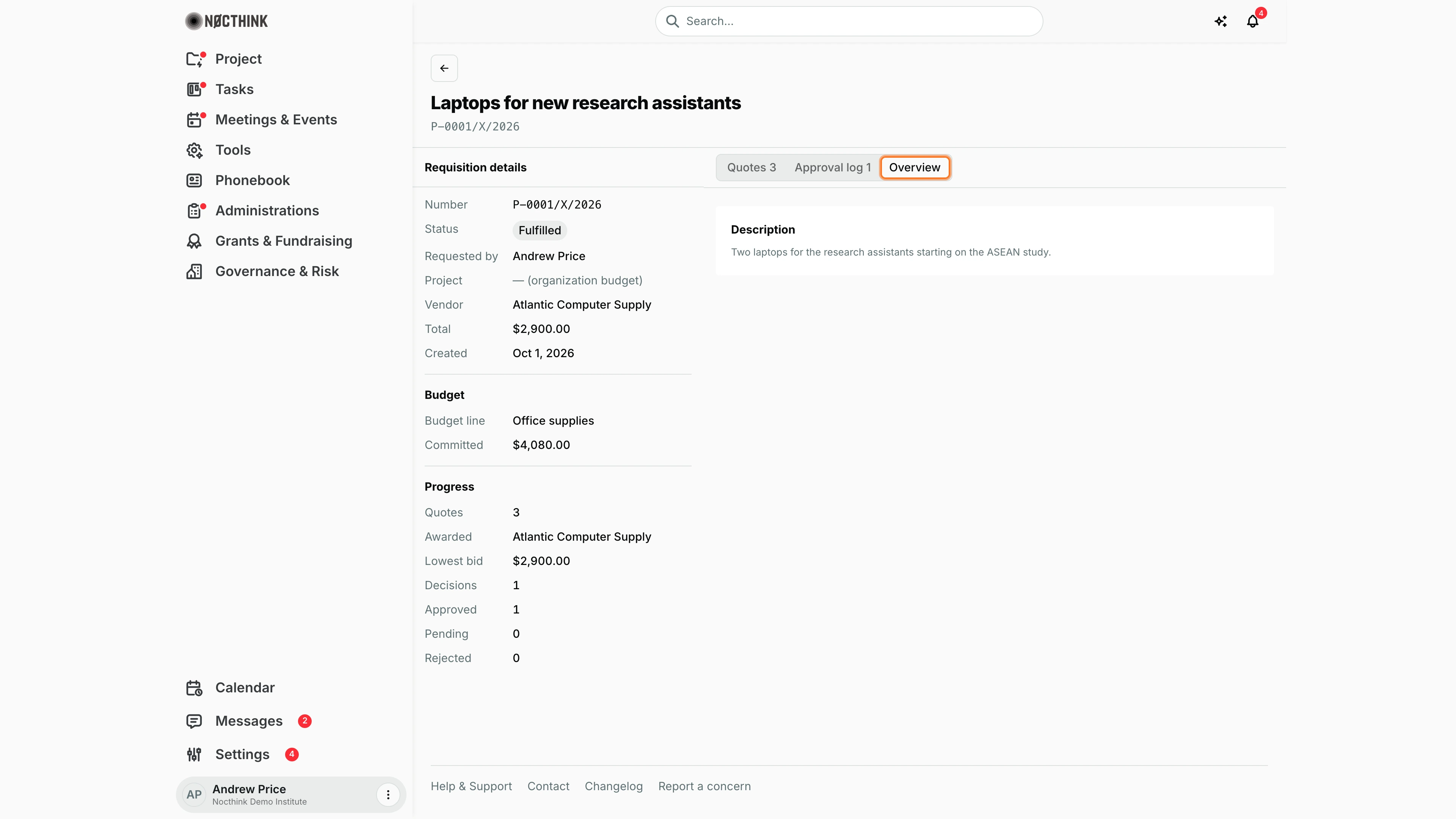
Screenshot: Andrew Price (Senior Researcher), Nocthink Demo Institute demo data.
The Overview tab holds the written part of the request: Description (the justification) and Notes when they were entered. Approvers read this tab to understand why the purchase is needed before they decide.
Only drafts can be edited, so the justification has to be complete before Submit for approval; approvers decide on what this tab says. If an approver needs more, they reject with a reason and the requester raises a corrected requisition.
New requisition
Screenshot: Andrew Price (Senior Researcher), Nocthink Demo Institute demo data.
+ opens New requisition. Title * ("What is being requested") and Status (Draft) sit at the top, then Project ("No project (organization budget)"), Preferred vendor ("No preference...") and Budget line, whose list depends on the project chosen. Description takes the justification.
Line items starts with one row (item description, quantity 1, unit price); + adds a row and the bin removes one. Total updates as I type. Notes is free text. Create requisition saves it as a draft with its number; nothing goes to approvers until I click Submit for approval on the requisition page.
Access & permissions
- Every member can open this page (personal access), even without
procurements.view. - What I see: my own requisitions, those of departments I manage and of projects I am on. Procurement and Finance authorities (and Owner/Director) see all of them.
- Only the requester (or someone with full procurement scope) can edit or submit a requisition. Seeing a requisition through my department or project is read-only.
- Awarding a quote needs
procurements.approve, and the requester can never award their own requisition.
Caveats
- Submission needs a positive total and a budget line. Without a Budget line the submit fails with "A budget line is required before submission."
- After submission it is locked. Editing a submitted requisition fails with "A submitted requisition is immutable; create a revision." Fix everything while it is Draft.
- The Status field in the create dialog has no effect: new requisitions always start as Draft, and status only changes through Submit, approval decisions and award.
- Line rows without a description are dropped on save; every kept row needs a quantity and a unit price of zero or more.
- One quote per vendor per requisition; a second quote from the same vendor is refused.
- Quotes can be added or deleted only while the requisition is Draft, Pending or Approved, and Award appears only on an Approved one. On a Fulfilled, Rejected or Cancelled requisition the Quotes tab is read-only, and the awarded quote can never be deleted.
- The edit page opens only for a Draft; for a submitted requisition it says it can no longer be edited, and a requisition I can't see shows Not found instead of an empty form.
- For three-quote and formal RFQ purchases, Award is refused until the minimum number of quotes (3 by default) is recorded.
- Changing the Project clears the chosen Budget line, because the list of lines changes.
- Amounts are shown in the organization's base currency.
Limitations
- Only a Draft can be deleted (row ⋯ → Delete or the bulk Delete (n)), by its requester or someone with full procurement scope; its quotes go with it. A submitted requisition cannot be deleted ("Only draft requisitions can be deleted; submitted ones are withdrawn or cancelled."), and there is no Withdraw or Cancel button yet; ask Procurement if one must be stopped.
- No way to edit and resubmit a rejected requisition; raise a new one.
- No export; the only bulk action is Delete, which works for drafts only.
- Procurement method (single source, emergency) and its justification cannot be set from this page.
Related menus
- Approvals — where approvers act on the steps my submission creates.
- Vendors — the vendor list behind Preferred vendor and quotes.
- RFQ / RFP — formal requests to vendors for larger purchases.
- Purchase Orders — created from an approved, awarded requisition.
- Goods Receipts, Invoices, Payments — the later stages of the same chain.
- Dashboard — counts of requisitions and approvals.