
Reports
Open in NocthinkModule: Procurements · URL: /procurements/reports · Responsible role: Procurement Officer (with the F.A.T. Manager, both full) · Also used by: Owner/Director (full), Finance Staff / Finance Manager / Accounting Staff (read)
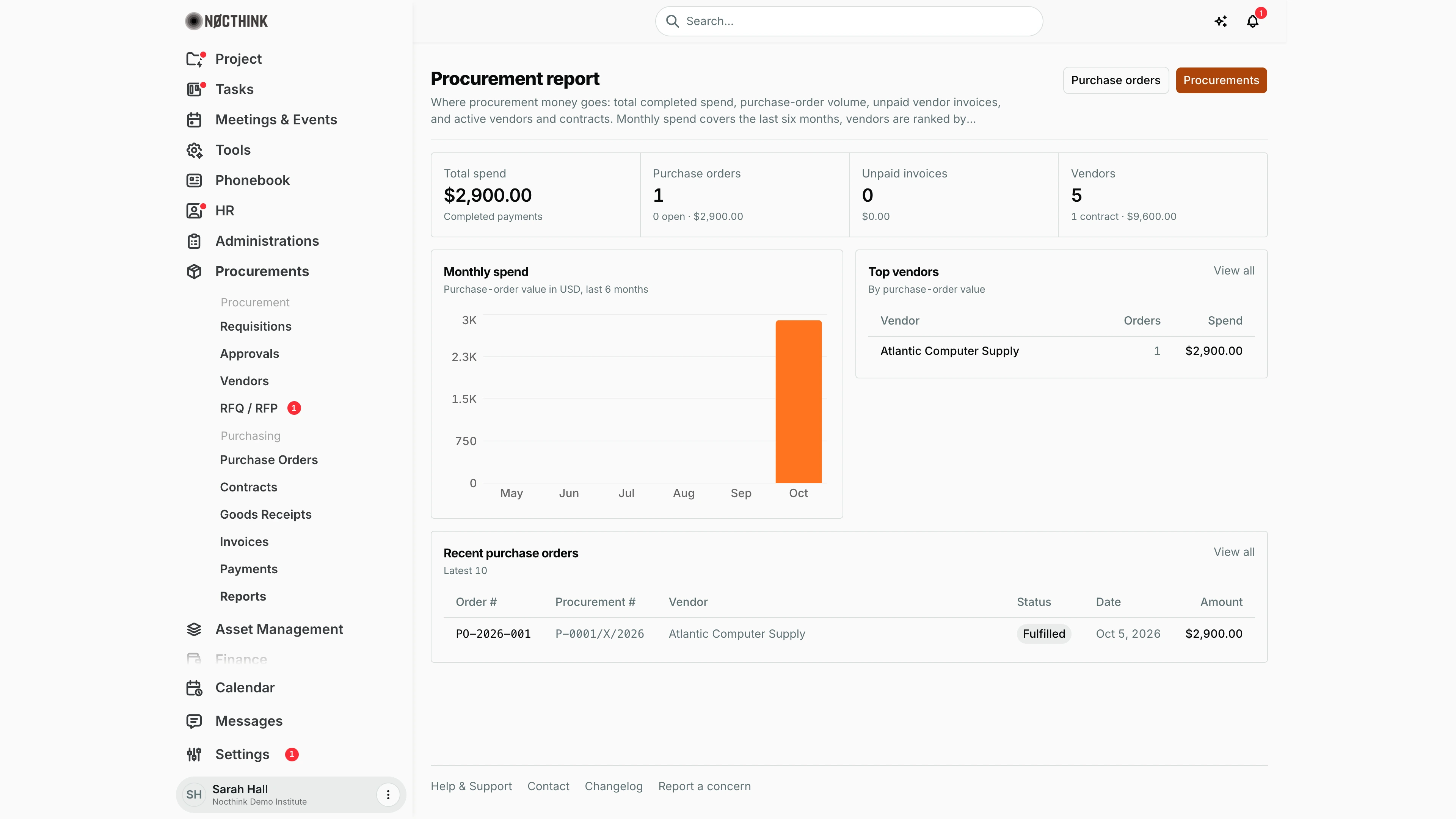
Screenshot: Sarah Hall (Finance Manager), Nocthink Demo Institute demo data. A Procurement Officer sees the same layout, but the spend and invoice figures depend on finance access (see Caveats).
Why I use this page
I use this page for the one-screen summary of where procurement money goes: how much we've ordered and paid, which vendors get the most business, and which orders are still open. I open it before the monthly management meeting and when the F.A.T. Manager asks for vendor concentration or spend trends. It is read-only. Every figure links back to the working pages where things get fixed.
What's on the screen
- Header: the title Procurement report, a description, and two buttons: Purchase orders (opens Purchase Orders) and Procurements (the procurement overview).
- Stat cards:
- Total spend — the sum of completed vendor payments. Note line: "Completed payments".
- Purchase orders — the number of orders. Note line: "<n> open · <total value of all orders>". Open means Draft, Sent or Acknowledged.
- Unpaid invoices — the count of vendor invoices in pending or overdue, with their total amount underneath.
- Vendors — the number of vendors in the organization. Note line: "<n> contract(s) · <total contract value>".
- Total spend and Unpaid invoices appear only for users with finance authority; others see the two remaining cards.
- Monthly spend — a bar chart titled "Purchase-order value in <base currency>, last 6 months". Each bar is the total value of orders created that month (current month plus the five before it). The y-axis scales with the figures (e.g. "750", "1.5K", "3K").
- Top vendors — "By purchase-order value". Up to six vendors with Vendor (linked to the vendor page), Orders and Spend. View all opens Vendors.
- Recent purchase orders — "Latest 10", with Order # (linked), Procurement #, Vendor, Status, Date and Amount. View all opens Purchase Orders.
How I …
Prepare the monthly procurement summary
- Open Procurements › Reports.
- Note Total spend (money actually paid) and the Purchase orders value (money committed). The gap between the two is roughly what we still owe or haven't been billed for yet.
- Read the Monthly spend chart to see whether ordering is rising or falling. Hover over a bar for the exact figure.
- Copy the Top vendors table into the meeting notes.
Check vendor concentration
- Look at Top vendors. If one vendor holds most of the spend, open it (click its name) to review its contracts and orders.
- Use View all to compare against the full vendor list in Vendors.
Chase open orders
- In Recent purchase orders, look for rows still in Draft, Sent or Acknowledged.
- Click the Order # to open the order. Issue it, or record the delivery in Goods Receipts.
- For older orders, click View all and filter by status on the Purchase Orders page.
Check the payment backlog with Finance
- Read Unpaid invoices (count and amount).
- If it is growing, review Invoices together with Finance. Bills are released in Payment Release.
Access & permissions
- The menu needs
procurements.viewplusprocurements.update,finance.vieworaccounting.view. - Per docs/role.md: Procurement, F.A.T. Manager and Owner/Director have full access. Finance Staff, Finance Manager and Accounting Staff can read. Ordinary staff do not see the menu.
- The page has no write actions, so full and read access look the same here.
Caveats
- Spend and invoice figures need finance access. Total spend and Unpaid invoices are shown only to users with finance or accounting authority (Finance department,
finance.approve,accounting.approve, or the finance-staff, finance-manager, fat-manager or accounting-staff roles). A Procurement Officer without finance access does not see those two cards. - Order figures follow your visibility. Procurement and finance authorities see every order. Anyone else would see only orders on requisitions they can see.
- Monthly spend counts order value, not payments, by the order's creation date in UTC. Cancelled orders are still counted, in the chart and in Top vendors.
- Contract value on the Vendors card adds up all contracts in every status, including draft and terminated ones.
- The Vendors count includes every vendor on file, not only active ones.
- Totals are in the organization's base currency. Orders, contracts, invoices and payments in another currency are converted at the rate on the day each was created. A document with no known rate is left out of the totals, and a line under the cards says how many were left out. Recent purchase orders shows each order in its own currency.
Limitations
- No date-range picker. The chart is fixed to the last six months, and the cards cover all time.
- No export (CSV/PDF) and no print view.
- No breakdown by project, department or budget line. The server's budget-reconciliation check (commitments against encumbrance journals) is not shown on this page.
- Only the latest 10 orders and the top 6 vendors are listed. Use View all for the rest.
Related menus
- Dashboard — the day-to-day procurement overview. This page is the summary view.
- Purchase Orders — the source of the order counts, the chart and recent orders.
- Vendors — the vendor count. Top vendors link there.
- Contracts — the contract count and value on the Vendors card.
- Invoices / Supplier Bills — the source of Unpaid invoices.
- Payments / Payment Release — completed payments make up Total spend.
- Requisitions — the Procurement # column links each order to its request.