
Goods Receipts
Open in NocthinkModule: Procurements · URL: /procurements/goods-receipts · Responsible role: Procurement Officer · Also used by: Owner/Director (full), General Affairs and Asset Officer (write: record deliveries, generate assets/stock), Finance Staff / Finance Manager / F.A.T. Manager and Accounting Staff (read)
Screenshot: Lisa Porter (Operations Officer), Nocthink Demo Institute demo data.
Why I use this page
I use this page to record what actually arrived against a purchase order: when it came, who took delivery, and whether it was complete, short or rejected. A receipt is the second leg of the three-way match (order, receipt, invoice), so Finance can't pay a vendor's bill until the receipt is in. I open it on the day a delivery lands. General Affairs or the Asset Officer often record the delivery, and I follow up on short or rejected ones with the vendor.
What's on the screen
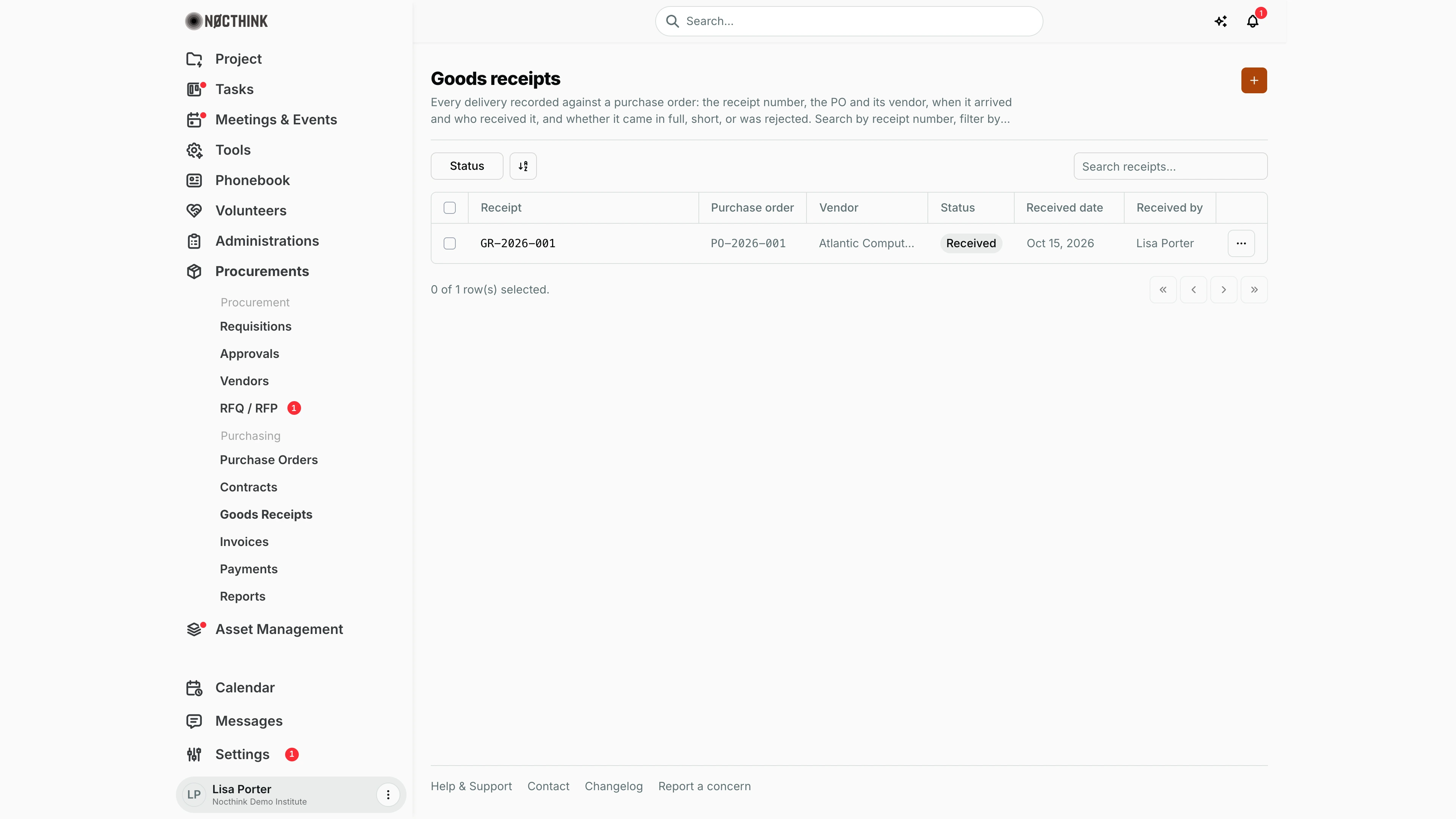
- Header: the title Goods receipts, a description, and the orange + button (New goods receipt).
- Toolbar: a Status filter (Pending, Received, Partial, Rejected), a sort/view control, and Search receipts... (matches the receipt number).
- Table columns:
- Receipt — the receipt number (e.g.
GR-2026-001). Click it to open the receipt. - Purchase order — the order number.
- Vendor — the vendor on that order.
- Status — Pending, Received, Partial or Rejected.
- Received date — shown as "Oct 15, 2026"; sortable.
- Received by — the person who accepted the delivery.
- ⋯ — Edit and Delete while the receipt is Pending; on any other status it only offers Open receipt.
- Receipt — the receipt number (e.g.
- Selecting rows enables bulk delete (pending receipts only).
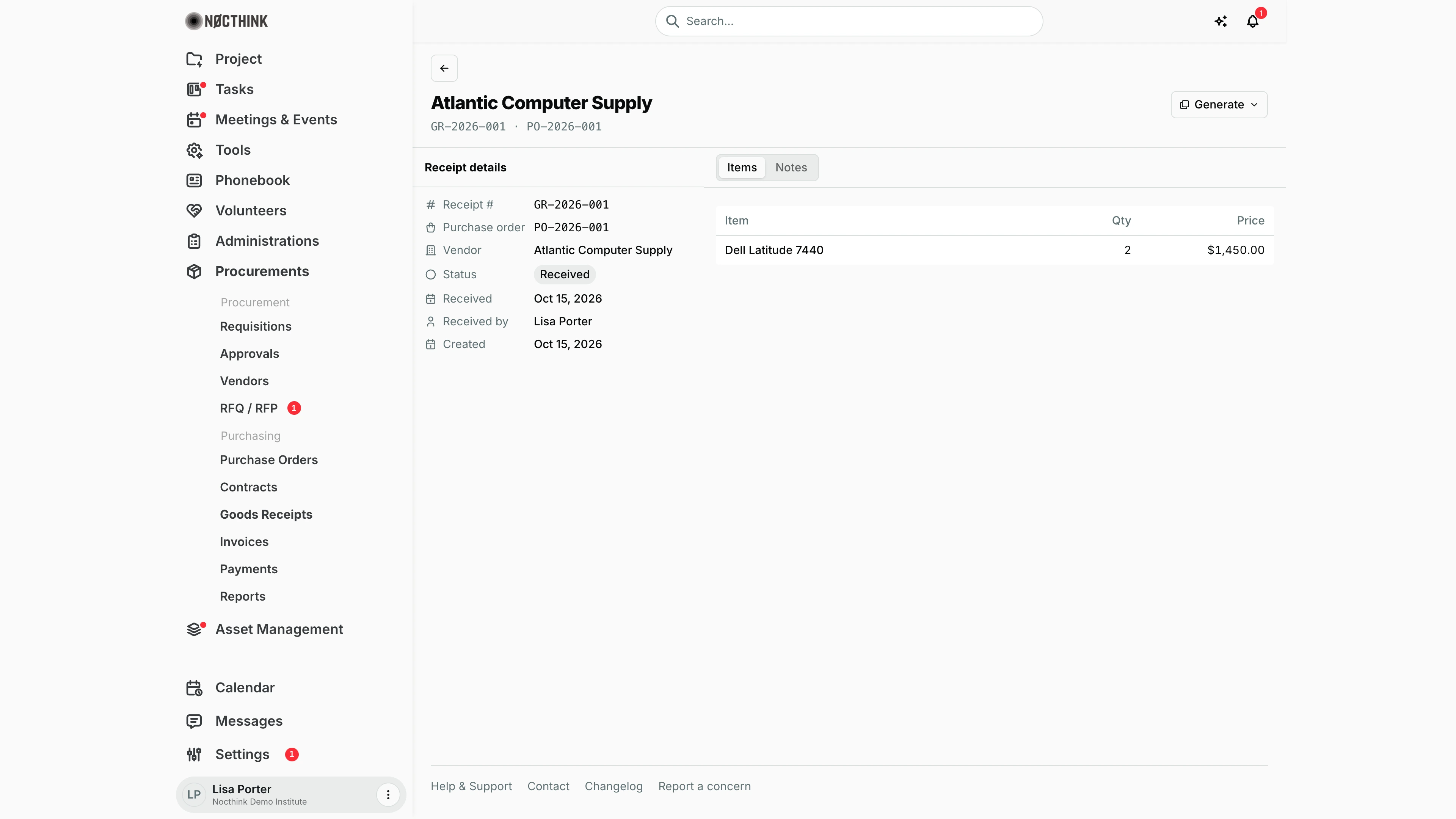
The receipt detail page has a back link, a title, and the receipt and PO numbers. Its actions are Reject and Accept delivery (while the receipt is Pending), a Generate menu once it is Received or Partial (Generate assets, Generate licenses, Generate stock), and ⋯ → Edit / Delete (shown only while the receipt is pending). The left panel, Receipt details, shows the receipt number, Purchase order (linked), Vendor, Status, Received, Received by and Created. The tabs are Items (Item, Qty, Price) and Notes.
How I …
Record a delivery
- Check that the purchase order has been sent to the vendor (Purchase Orders).
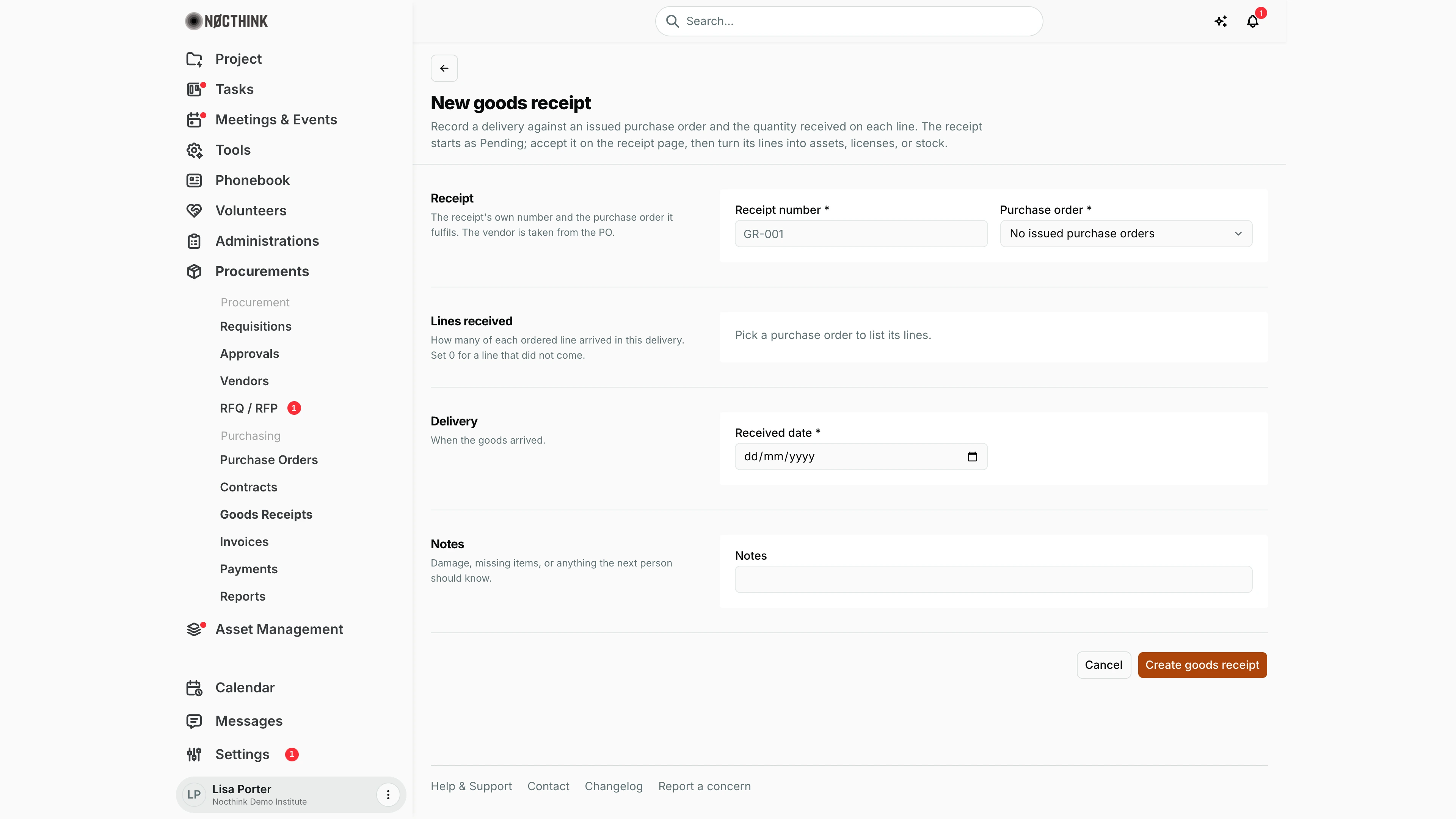
- Click + on the list. The New goods receipt page opens (see New goods receipt below):
- Receipt number * — use our numbering, e.g.
GR-2026-002. It must be unique. - Purchase order * — only issued orders (Sent or Acknowledged) are listed.
- Lines received — every line of the order with its Ordered quantity and a Received box, pre-filled with the ordered quantity. Lower it for a short delivery, or set 0 for a line that did not come.
- Received date * and Notes (damage, missing items, delivery note number).
- Receipt number * — use our numbering, e.g.
- Click Create goods receipt. The receipt is saved as Pending with the received lines (and the PO's unit prices), and no one in Received by yet.
Accept or reject the delivery
- Open the pending receipt (see Goods receipt detail below).
- Click Accept delivery and confirm. Or click Reject and give the reason in the prompt.
- On the server, acceptance compares the receipt's lines with the order. Each line must be on the order, and accepted quantities (across all receipts for that order) cannot exceed what was ordered. The result is Received if every ordered line is now fully covered, otherwise Partial. A Received result also fulfils the purchase order. Errors are shown in an alert.
- The requester is notified ("Goods receipt received/partial/rejected"). Rejections are sent as high priority.
Turn received lines into assets, licenses or stock
- Open a receipt with status Received or Partial.
- Click Generate and choose one of the following:
- Generate assets — creates inventory assets from the line items. It is safe to run again, because only missing assets are created.
- Generate licenses — one software license per line, with seats taken from the quantity. Safe to re-run.
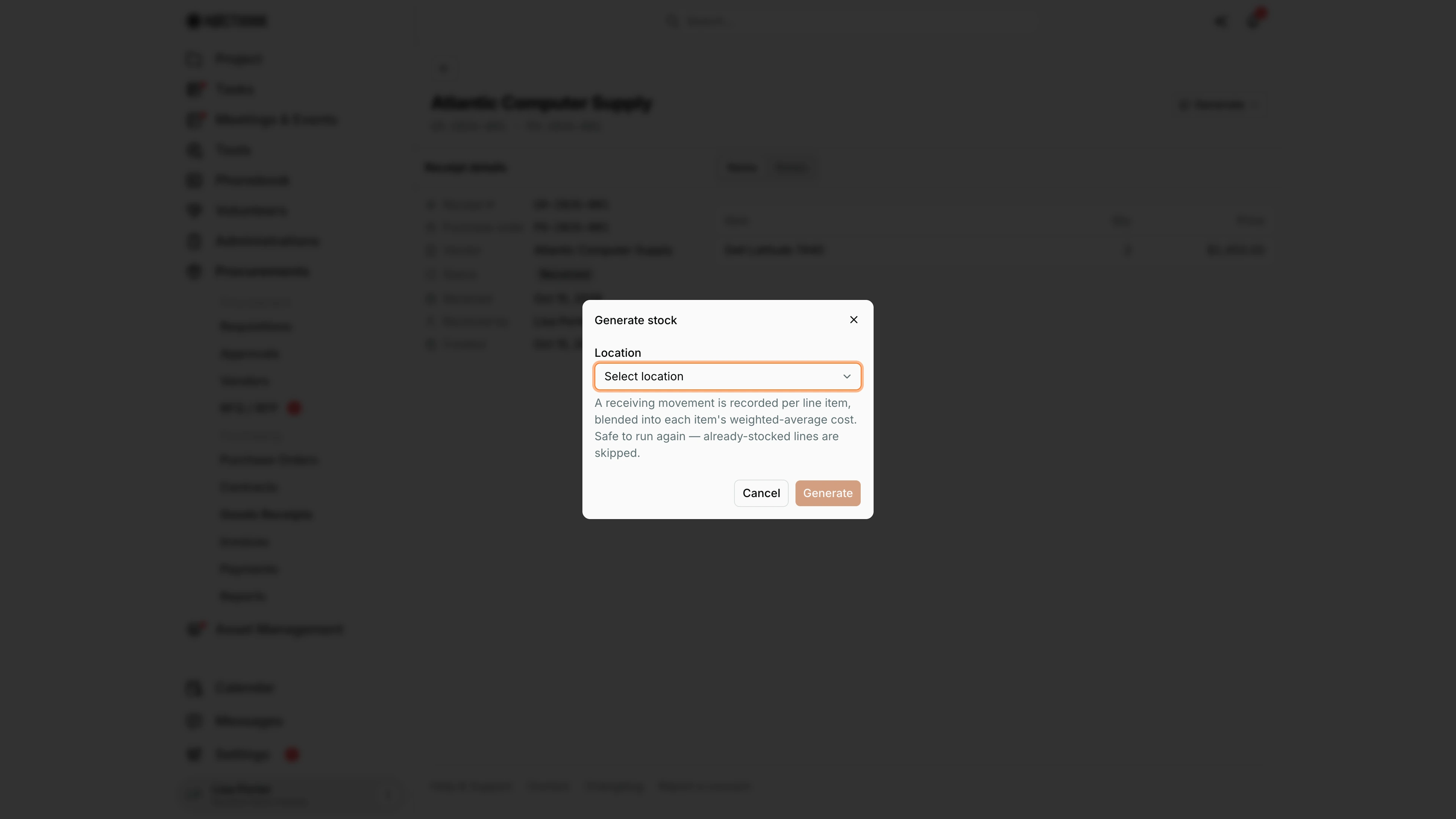
- Generate stock — pick a Location in the Generate stock dialog, then click Generate. A location is required.
- Check the result in Asset Management.
Follow up a short or rejected delivery
- Filter Status by Partial or Rejected.
- Open the receipt and read Notes and Items.
- Contact the vendor (from Vendors). Record the replacement delivery as a new receipt against the same purchase order.
Detail page, forms & dialogs
Goods receipt detail
Screenshot: Lisa Porter (Operations Officer), Nocthink Demo Institute demo data.
Clicking a receipt opens its page. The header shows the vendor, the receipt number and the PO number. The buttons depend on the status:
- Pending: Reject and Accept delivery, plus a ⋯ menu with Edit and Delete. Accept delivery asks "Accept this delivery? If every ordered quantity has now arrived the purchase order is fulfilled." and then checks the lines against the order.
- Received or Partial: Generate, with Generate assets, Generate licenses and Generate stock.
Receipt details lists Receipt #, Purchase order (linked), Vendor, Status, Received, Received by and Created. Items lists each line with Qty and Price; Notes holds damage or shortfalls.
The demo receipt is already Received, so Accept delivery is not shown; it appears on any new pending receipt.
Generate stock
Screenshot: Lisa Porter (Operations Officer), Nocthink Demo Institute demo data.
Generate → Generate stock opens Generate stock, which asks for the Location the received items go into: "A receiving movement is recorded per line item, blended into each item's weighted-average cost. Safe to run again — already-stocked lines are skipped." Generate stays disabled until a location is picked; afterwards an alert reports "Created n stock movement(s)." and the stock shows on Consumables.
Generate assets and Generate licenses need no dialog. Each asks for confirmation ("Create inventory assets from the received line items? Safe to run again — only missing assets are created.") and creates only what is missing, so running them twice does no harm.
New goods receipt
Screenshot: Lisa Porter (Operations Officer), Nocthink Demo Institute demo data.
+ opens New goods receipt: "Record a delivery against an issued purchase order and the quantity received on each line. The receipt starts as Pending; accept it on the receipt page, then turn its lines into assets, licenses, or stock." Receipt takes Receipt number * and Purchase order * ("The vendor is taken from the PO."). Lines received lists the ordered lines once a PO is picked: "How many of each ordered line arrived in this delivery. Set 0 for a line that did not come." Delivery takes Received date *, and Notes records damage or missing items. Only sent or acknowledged orders are offered; in the demo data the only order is already fulfilled, so the picker reads "No issued purchase orders".
Create goods receipt saves it as Pending; it is accepted or rejected from the receipt page.
Access & permissions
- The menu needs
procurements.viewplus one ofprocurements.update,finance.view,accounting.vieworasset_management.update. - Per docs/role.md: Procurement and Owner/Director have full access. General Affairs and Asset Officer can write. Finance Staff, Finance Manager, F.A.T. Manager and Accounting Staff have read-only access.
- Accepting a receipt (received / partial / rejected) needs
procurements.approve. Creating receipts and generating assets, licenses or stock needsprocurements.create. - Scope: authorities see every receipt. Others see only receipts on orders whose requisition they can see.
Caveats
- Receipt number and received date are required. Numbers must be unique ("A goods receipt with this number already exists.").
- New receipts always start as Pending, and only a pending receipt can be edited ("Receipt decisions must use the acceptance action.").
- Received quantities are fixed at creation. The edit form changes the number, order, date and notes, not the lines; to correct quantities delete the pending receipt and record it again.
- A purchase order without line items gives a receipt with no lines; acceptance then ends as Partial and Generate has nothing to create.
- Only pending receipts can be deleted. A decided receipt is rejected or reversed instead.
- A receipt against a cancelled purchase order can't be accepted ("This purchase order was cancelled.").
- Accepting Received closes the purchase order and requisition. There is no undo on this page.
- The Price column on Items uses the line's unit price as recorded on the receipt.
Limitations
- Received quantities can be entered only when the receipt is created, not edited afterwards.
- No attachment upload for delivery notes or photos. No export. Search covers the receipt number only.
Related menus
- Purchase Orders — every receipt belongs to an order. A full receipt fulfils it.
- Requisitions — the requester is notified when the goods arrive.
- Vendors — who to chase for short or rejected deliveries.
- Invoices / Supplier Bills — the invoice is matched against the order and this receipt before approval.
- Payments / Payment Release — payment needs an approved, matched invoice.
- Dashboard — the pending-receipt count also appears as the sidebar badge.