
RFQ / RFP
Open in NocthinkModule: Procurements · URL: /procurements/rfq-rfp · Responsible role: Procurement Officer (procurement) · Also used by: Owner/Director (full), Finance Manager and F.A.T Manager (read, via finance.approve)
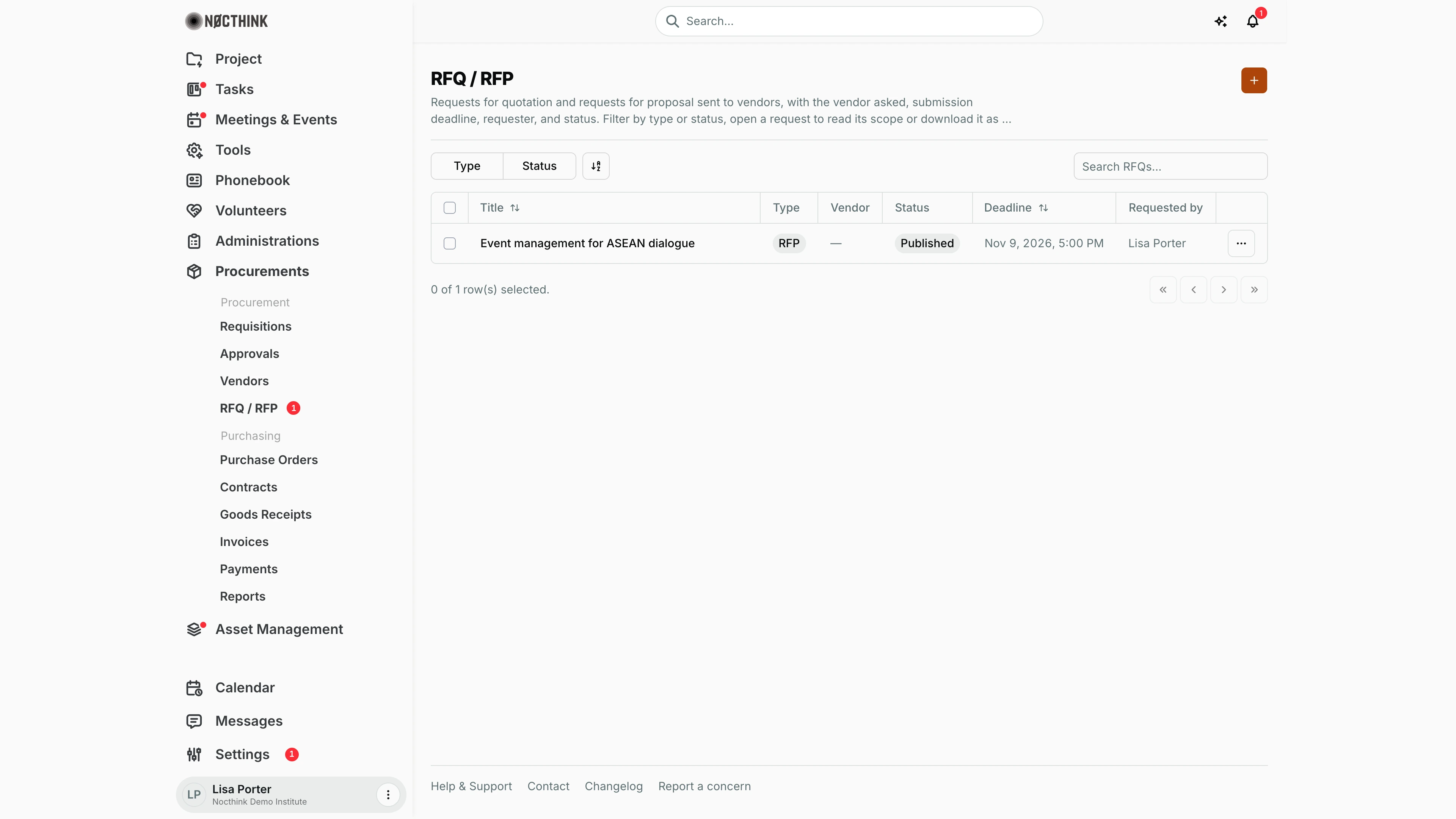
Screenshot: Lisa Porter (Operations Officer), Nocthink Demo Institute demo data.
Why I use this page
When a purchase is too large for a direct buy, or I need vendors to propose how they would do a job, I write a formal Request for Quotation (RFQ — priced goods or services with a clear spec) or Request for Proposal (RFP — vendors propose an approach, e.g. event management). This page holds those documents: I draft them, publish them, download them as PDF to send to vendors, and close or mark them awarded when the deadline passes. The sidebar badge on RFQ / RFP reminds me how many are still open.
What's on the screen
- Header — RFQ / RFP with a short description, and the orange + button (New RFQ or RFP) at the top right.
- Filters — Type (RFQ, RFP) and Status (Draft, Published, Closed, Awarded), a sort control and Search RFQs... (searches the title).
- Table columns:
- Title (sortable) — click to open the request.
- Type — RFQ or RFP.
- Vendor — the vendor it was addressed to; — means an open broadcast to any vendor.
- Status — Draft, Published, Closed or Awarded.
- Deadline (sortable) — submission deadline with date and time.
- Requested by — who created it.
- ⋯ row menu — Edit (opens the Edit RFQ / RFP dialog) and Delete.
- Footer — row selection and paging; ticked rows offer a Delete (N) bulk action.
Opening a request shows Download PDF and a ⋯ menu (Edit, Delete) in the header; a Request details panel (Type, Status, Deadline, Issued by, Created) and a Vendor section (a link to the vendor, or "Open broadcast, no vendor assigned."); and tabs Description, Requirements and Instructions (standard submission instructions printed for vendors).
How I …
Draft a new RFQ or RFP
- Click + to open New RFQ / RFP (see New RFQ / RFP below).
- Enter Title, choose Type (RFQ or RFP), and leave Status on Draft.
- Choose a Vendor to address one supplier, or leave Select vendor… empty to broadcast it openly.
- Set the Submission deadline (date and time).
- Write the Description (what the work or goods involve) and the Requirements (what a vendor must meet to be considered).
- Click Create. Title, Description, Requirements and Deadline are all required; the dialog marks any that are missing.
Publish it and send it to vendors
- Open the request and check Description, Requirements and Instructions (see RFQ / RFP detail below).
- Click ⋯ → Edit (see Edit RFQ / RFP below), change Status to Published, and click Save changes.
- Click Download PDF (it shows "Generating…" while building). The file is named like
RFP-Event-management-for-ASEAN-dialogue.pdf. - Email the PDF to the vendor(s) from my own mail; the app does not send it.
Record the outcome
- When vendors reply, enter their prices as quotes on the related requisition: Requisitions → Quotes tab → Add vendor quote, attaching the vendor's file.
- After the deadline, edit the RFQ/RFP and set Status to Closed.
- When a quote is awarded on the requisition, set the RFQ/RFP Status to Awarded.
Correct or withdraw a request
- Use ⋯ → Edit on the row (dialog) or Edit on the detail page (full form with the sections Request, Scope, Vendor and deadline). The PDF reflects the new details after saving.
- To remove a draft created by mistake, use Delete and confirm "Delete this RFQ / RFP? This cannot be undone." For a published request, prefer setting it to Closed so the record stays.
Detail page, forms & dialogs
RFQ / RFP detail
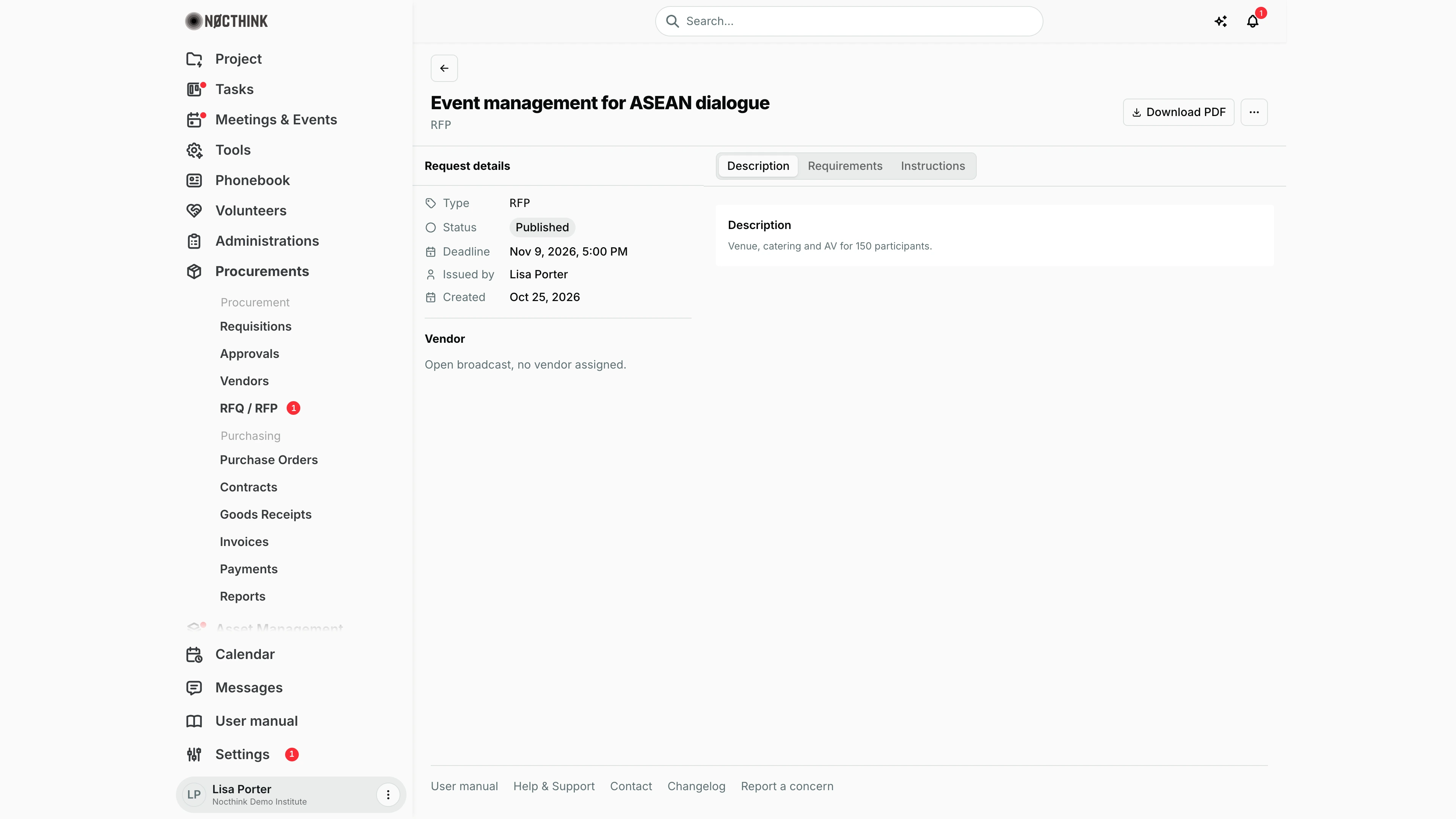
Screenshot: Lisa Porter (Operations Officer), Nocthink Demo Institute demo data.
Clicking a request opens its page. The header shows the title and type, Download PDF and a ⋯ menu with Edit.
Request details on the left lists Type, Status, Deadline, Issued by and Created; the Vendor block names the addressed supplier or reads "Open broadcast, no vendor assigned."
The tabs are Description (what the work or goods involve), Requirements (what a vendor must meet) and Instructions (how to respond). The same text goes into the PDF I send to vendors.
RFQ / RFP detail — Requirements
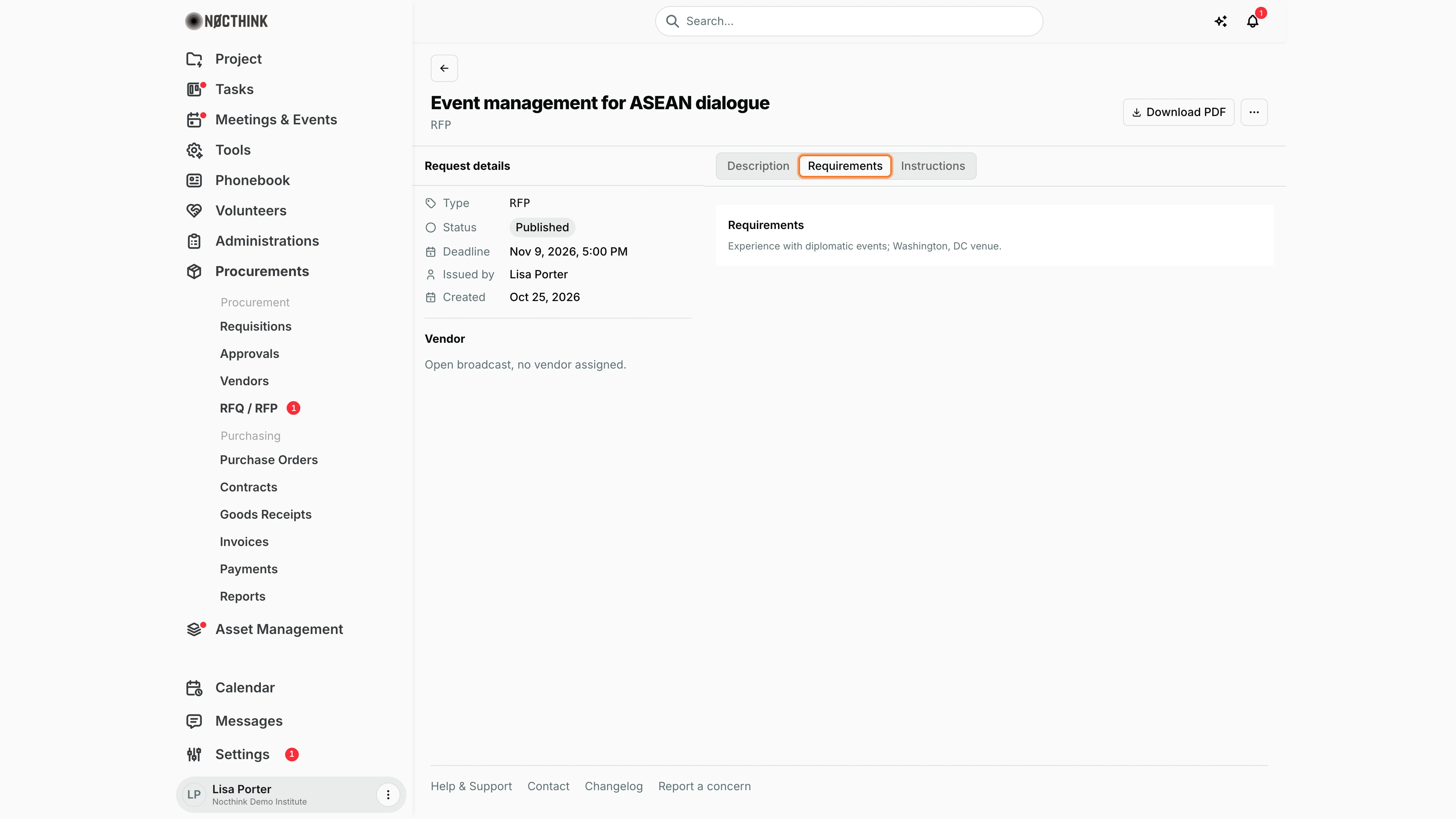
Screenshot: Lisa Porter (Operations Officer), Nocthink Demo Institute demo data.
The Requirements tab shows the conditions a vendor must meet to be considered, exactly as they will print in the PDF. I check it before publishing so vendors are not judged on criteria they were never told about.
The Instructions tab next to it tells vendors how and by when to respond. Neither tab can be edited here; I change the text with ⋯ → Edit.
New RFQ / RFP
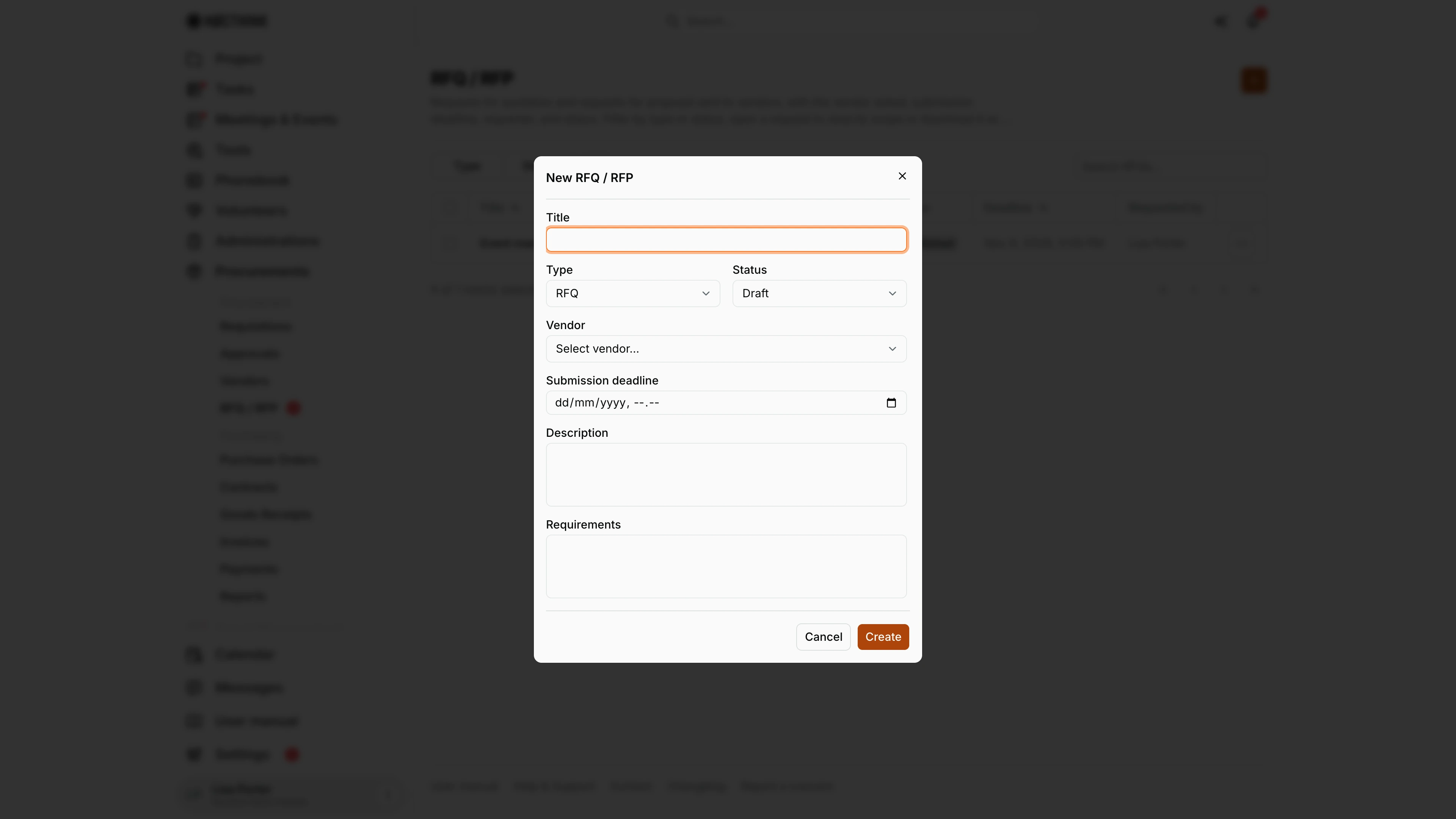
Screenshot: Lisa Porter (Operations Officer), Nocthink Demo Institute demo data.
+ opens New RFQ / RFP: Title, Type (RFQ by default), Status (Draft), Vendor ("Select vendor..." left empty for an open broadcast), Submission deadline (date and time), Description and Requirements. Create saves it; title, description, requirements and deadline are all required.
A new request starts as Draft; I publish it from the request page's Edit form once the text is final, then send the PDF myself. Saving needs procurements.create, so a Finance reader who opens the page gets a permission error.
Edit RFQ / RFP
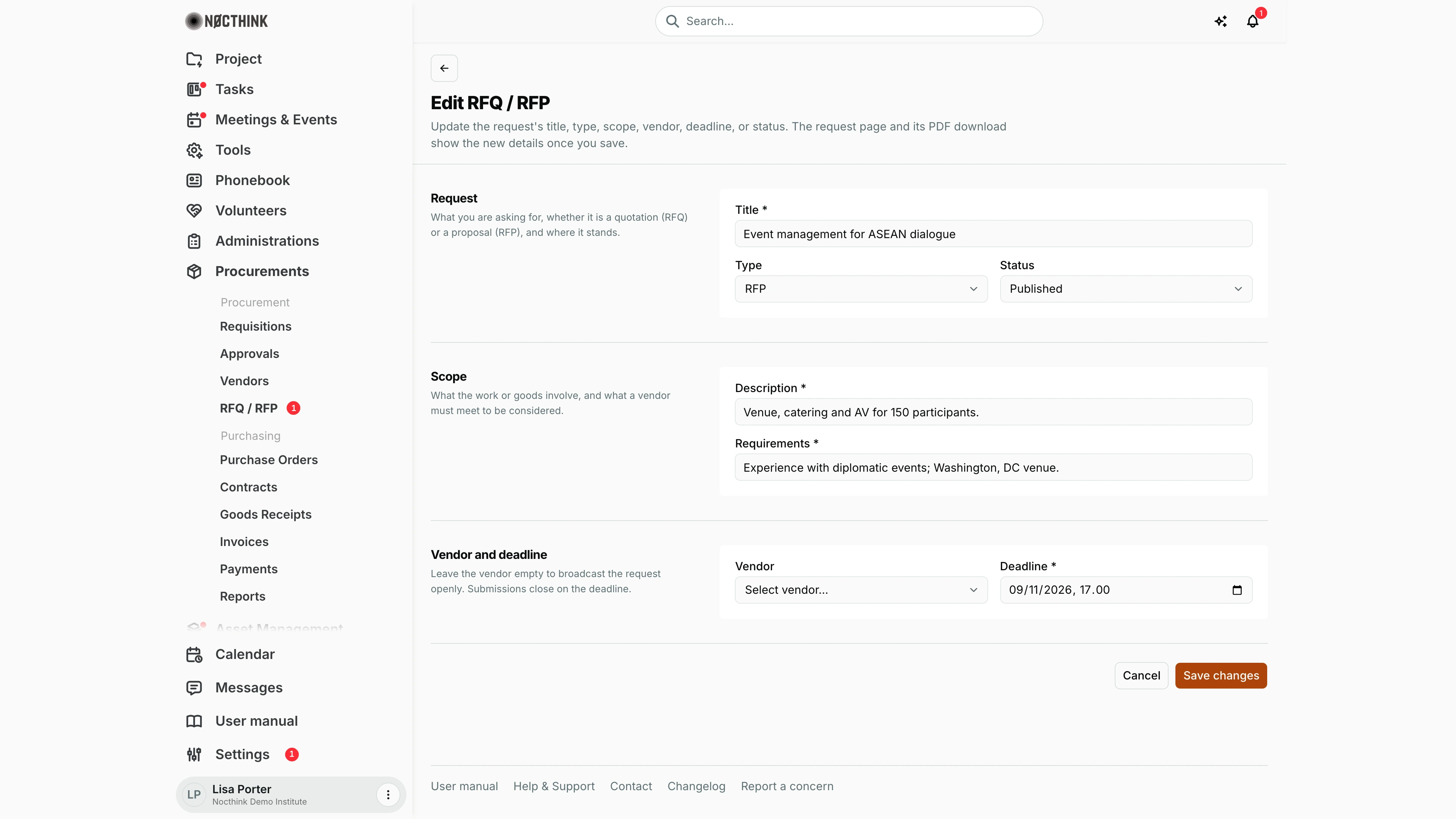
Screenshot: Lisa Porter (Operations Officer), Nocthink Demo Institute demo data.
⋯ → Edit on the request page opens the full Edit RFQ / RFP form: "Update the request's title, type, scope, vendor, deadline, or status. The request page and its PDF download show the new details once you save."
Request has Title *, Type and Status (this is where a draft is Published, and later Closed or Awarded). Scope has Description * and Requirements *. Vendor and deadline has Vendor and Deadline *. Like the create dialog, Deadline takes a date and a time in my time zone. Save changes stores it.
Access & permissions
- The page needs
procurements.viewplusprocurements.updateorfinance.approve. Procurement and Owner/Director work here; Finance Manager and F.A.T Manager can open it for reference. - Creating, editing and deleting are checked against the Procurements write permissions (
procurements.create/update/delete) on the server, so a Finance reader gets a permission error if they try to save. - All RFQs/RFPs of the organization are visible to everyone who can open the page; there is no per-requester scoping.
Caveats
- Status is set by hand. Nothing moves an RFQ to Closed at the deadline or to Awarded when a quote is awarded; keep it up to date yourself.
- The deadline is entered and shown in my browser's time zone (e.g. "Oct 25, 2026, 3:00 PM"), on the list, the detail page and the PDF.
- Choosing a vendor makes the request appear on that vendor's Quotes tab in Vendors; a broadcast request (no vendor) appears on no vendor page.
- Delete is permanent and has no undo.
Limitations
- An RFQ/RFP is not linked to a requisition: there is no field connecting them, and the requisition's required sourcing method ("formal RFQ") is not checked against this page.
- Vendor submissions are not collected or compared here; quotes live on the requisition.
- The app does not email the request to vendors; distribute the PDF yourself.
- Only one vendor can be addressed per request; for several named vendors create one request each or use a broadcast.
- Attachments are stored in the data model but cannot be uploaded from these forms. No export of the list.
Related menus
- Requisitions — where vendor quotes are recorded and a vendor is awarded.
- Vendors — the vendor list; each vendor's Quotes tab lists RFQs addressed to it.
- Approvals — the requisition must be approved before a quote can be awarded.
- Purchase Orders and Contracts — issued to the awarded vendor.
- Dashboard — overview of the procurement chain.