
Contracts
Open in NocthinkModule: Procurements · URL: /procurements/contracts · Responsible role: Procurement Officer · Also used by: Owner/Director (full), Finance Staff / Finance Manager / F.A.T. Manager (read), Accounting Staff (read), Asset Officer (read)
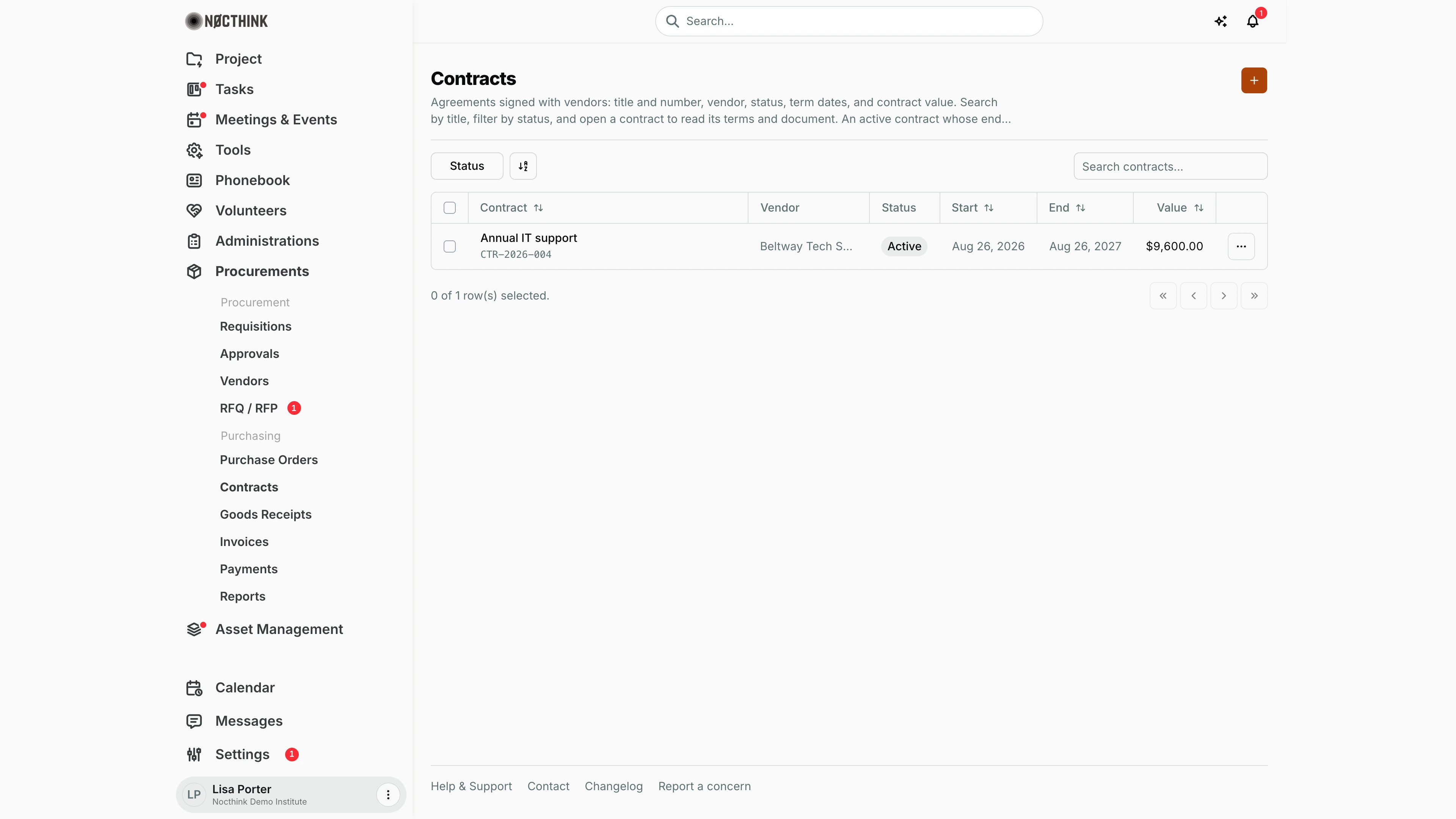
Screenshot: Lisa Porter (Operations Officer), Nocthink Demo Institute demo data.
Why I use this page
I use this page as the register of agreements we hold with vendors: service contracts, retainers and supply agreements that run over a period instead of a one-off purchase order. I check it every month for contracts that are about to end, so they can be renewed or retendered in time. I also open it when Finance asks what we have committed to a vendor. Signing a contract commits its value against the budget, just as issuing a purchase order does.
What's on the screen
- Header: the title Contracts, a description, and the orange + button (New contract).
- Toolbar: a Status filter (Draft, Active, Terminated), a sort/view control, and Search contracts... (matches the title).
- Table columns:
- Contract — the title (e.g. Annual IT support) with the contract number underneath (
CTR-2026-004, or "No number"). Click it to open the contract. - Vendor.
- Status — a pill. Terminated (and lapsed states) show in red.
- Start and End — dates such as "Aug 26, 2026" (sortable). For an Active contract whose end date is within 30 days, or already past, the End date turns red. Hover over it to see "Expires in N days" or "Ended N days ago but still marked active".
- Value — contract value (sortable).
- ⋯ — Edit and Delete for a Draft contract; signed ones show a note instead.
- Contract — the title (e.g. Annual IT support) with the contract number underneath (
- Selecting rows shows a bulk Delete (n) button.
The contract detail page has Edit and Delete buttons at the top while the contract is a draft. The left panel, Contract details, shows Contract #, Status, Vendor (linked), Value, Start, End (flagged when expiring) and Created. The right side has a Terms tab and, when a file is attached, a Document tab with a download button.
How I …
Register a new contract
- Make sure the underlying requisition is approved and its vendor awarded (Requisitions, RFQ / RFP).
- On the list, click +. The New contract page opens (see New contract below).
- In Requisition and vendor, pick the approved Requisition *. The awarded Vendor * is filled in, and so are an empty Title and Value (from the requisition title and the awarded quote).
- Fill in Contract number * (unique), Title *, Start date *, End date (leave it empty for an open-ended agreement; it cannot be before the start date), Value * and Terms (payment schedule, deliverables, renewal, termination).
- Click Create contract. The contract is saved as Draft.
Watch for contracts that are ending
- Open the list and tick Active under Status.
- Sort by End (click the column header).
- Red end dates are within 30 days or already past. Open each one, read the Terms tab for the renewal and notice conditions, and start a new requisition if a renewal is needed.
Look up terms or the signed document
- Search for the contract by title, or filter by status.
- Click the title to open it (see Contract detail below).
- Read Terms. Open Document and click the download button for the signed file, if one is attached.
Correct a draft contract
- Open the contract and click Edit (or use ⋯ → Edit on the list).
- Update Contract number, Title, Vendor, Start date, End date, Value or Terms, then Save changes.
- Only Draft contracts can be changed. A signed contract is immutable.
Detail page, forms & dialogs
Contract detail
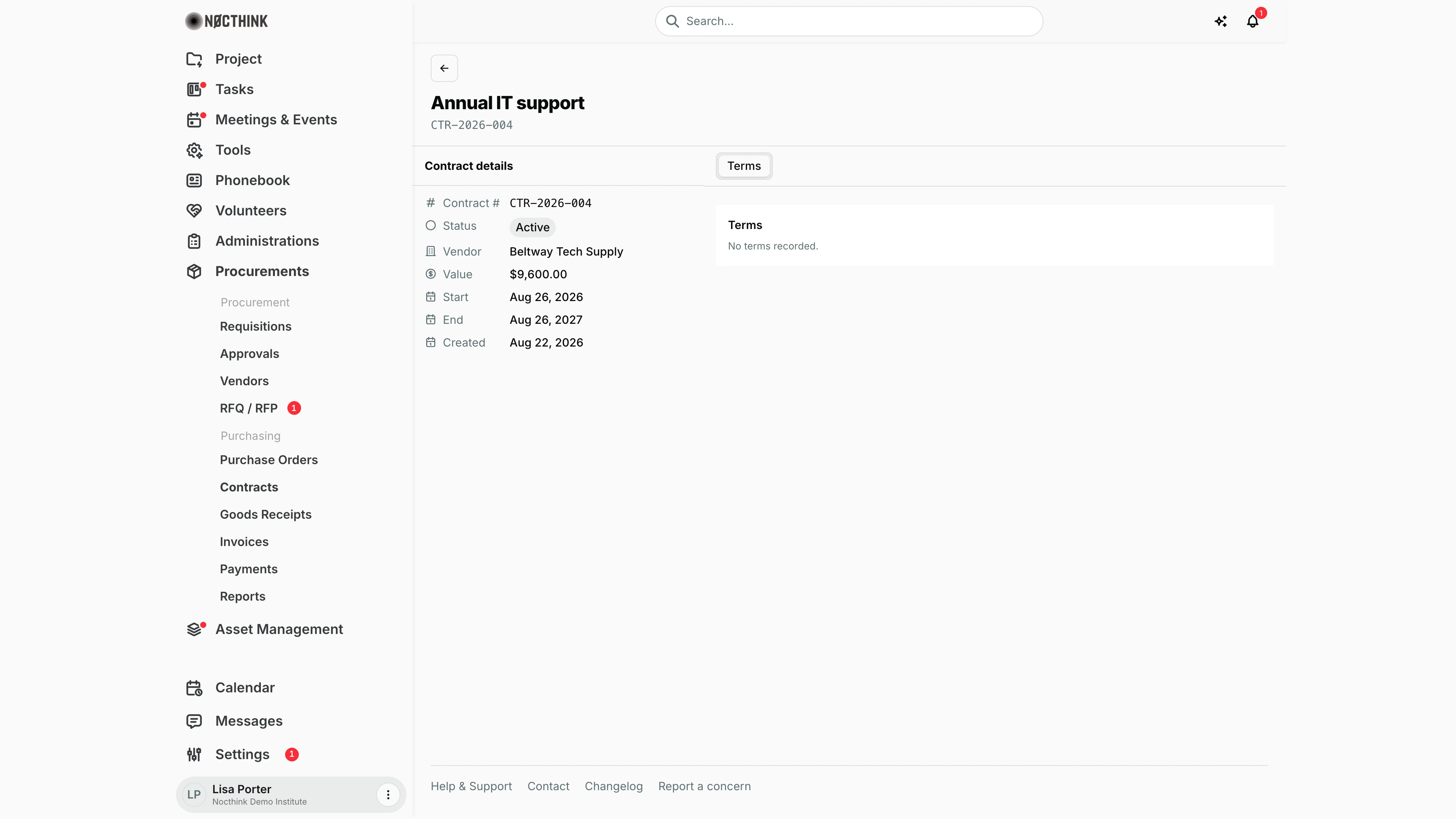
Screenshot: Lisa Porter (Operations Officer), Nocthink Demo Institute demo data.
Clicking a contract opens its page. The header shows the title and contract number; an Edit button appears only while the contract is a Draft.
Contract details lists Contract #, Status, Vendor (linked), Value, Start, End and Created. The Terms tab shows the payment schedule, deliverables, renewal and termination conditions ("No terms recorded." when empty). When a signed file is attached, a Document tab appears with a download button.
This contract is Active, so it can no longer be edited; a signed contract is changed by a new one.
New contract
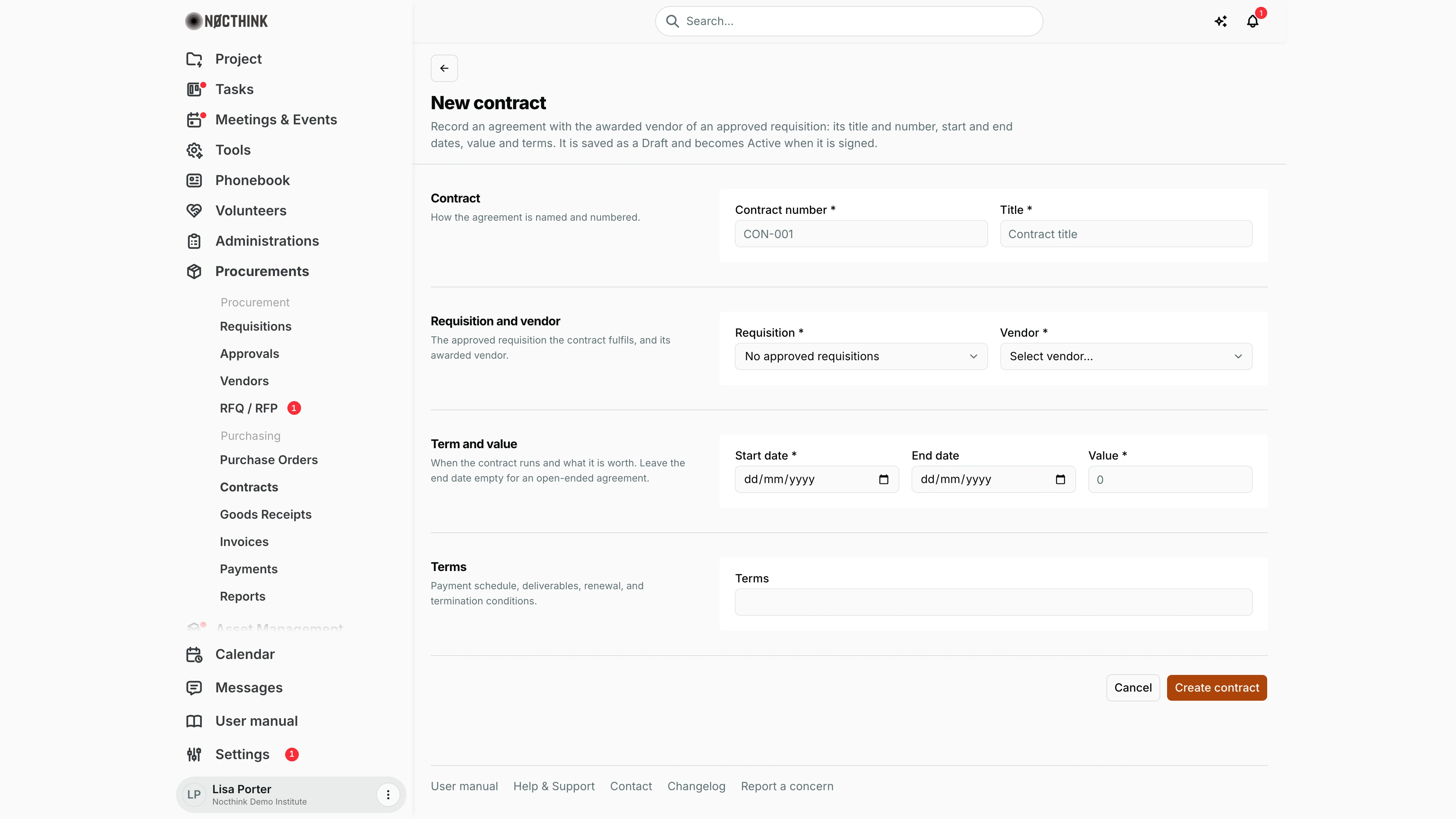
Screenshot: Lisa Porter (Operations Officer), Nocthink Demo Institute demo data.
+ opens the New contract page: "Record an agreement with the awarded vendor of an approved requisition… It is saved as a Draft and becomes Active when it is signed." Contract has Contract number * and Title *. Requisition and vendor has Requisition * ("The approved requisition the contract fulfils") and Vendor *, the awarded vendor. Term and value has Start date *, End date (empty for an open-ended agreement) and Value *. Terms is free text for payment schedule, deliverables, renewal and termination.
Create contract saves it as Draft. In the demo data no requisition is approved and still open, so the picker reads "No approved requisitions".
Only approved requisitions are offered. Picking one fills the awarded Vendor, and an empty Title and Value from the requisition title and the awarded quote. The contract number must be unique, and the end date cannot be before the start date.
Access & permissions
- The menu needs
procurements.viewplus one ofprocurements.update,finance.view,accounting.vieworasset_management.delete. - Per docs/role.md: Procurement and Owner/Director have full access. Finance Staff, Finance Manager, F.A.T. Manager, Accounting Staff and Asset Officer have read-only access.
- Signing and terminating are approve-level server actions (
procurements.approve), and the creator of a contract cannot sign it. - Scope: procurement, finance and accounting authorities see all contracts. Others see only contracts on requisitions they can see (their own, departments they manage, or their projects).
Caveats
- A contract must be linked to an approved requisition, and its number is required. The vendor must be the requisition's awarded vendor, or signing is refused.
- New contracts always start as Draft. A contract becomes Active only through the server's sign action, which checks that the requisition is approved, the vendor is the awarded one, and the value fits the remaining budget on the requisition's budget line.
- Signed contracts are immutable. Editing one fails with "Signed contracts are immutable; create an amendment."
- Only drafts can be deleted. A signed contract is terminated instead ("Only draft contracts can be deleted; signed ones are terminated or amended."). Delete errors are shown in an alert.
- Terminating (server side) requires a reason, works only on Active contracts, releases the budget commitment, and notifies the requester (high priority).
- The statuses are Draft, Active and Terminated. "Expiring" is only a visual flag on the end date.
- Value is shown in the contract's own currency (e.g.
Rp 9.600for IDR,$9,600.00for USD). A new contract without a currency gets the organization's base currency. - The expiry warning is computed in the browser from the end date and today. Nothing changes the status to expired automatically.
Limitations
- There are no Sign or Terminate buttons on the page, although the server supports both. Amendments have no screen either.
- The document can't be uploaded from these forms; the Document tab only shows a file that is already attached.
- No export. Search covers the title only.
Related menus
- Requisitions — every contract hangs off an approved requisition.
- RFQ / RFP — the tender that awards the vendor.
- Vendors — the counterparty. The vendor name links there.
- Purchase Orders — one-off orders. Use a contract for recurring services.
- Invoices / Supplier Bills — vendor bills raised under the contract.
- Payments / Payment Release — payments against those bills.
- Reports — the Vendors card shows the contract count and total contract value.