
Purchase Orders
Open in NocthinkModule: Procurements · URL: /procurements/purchase-orders · Responsible role: Procurement Officer · Also used by: Owner/Director (full), Finance Staff / Finance Manager / F.A.T. Manager (read), Accounting Staff (read), Asset Officer (read); requesters see orders raised from their own requisitions
Screenshot: Lisa Porter (Operations Officer), Nocthink Demo Institute demo data.
Why I use this page
I use this page to turn approved requisitions into orders we place with the vendor who won the quote, and then to track each order until it is delivered. I open it whenever a requisition is approved and awarded, when a vendor confirms an order, and at the end of each week to chase orders that are still open. Issuing an order here is also the point where the money is committed against the budget line, so the numbers on this page drive what Finance sees later.
What's on the screen
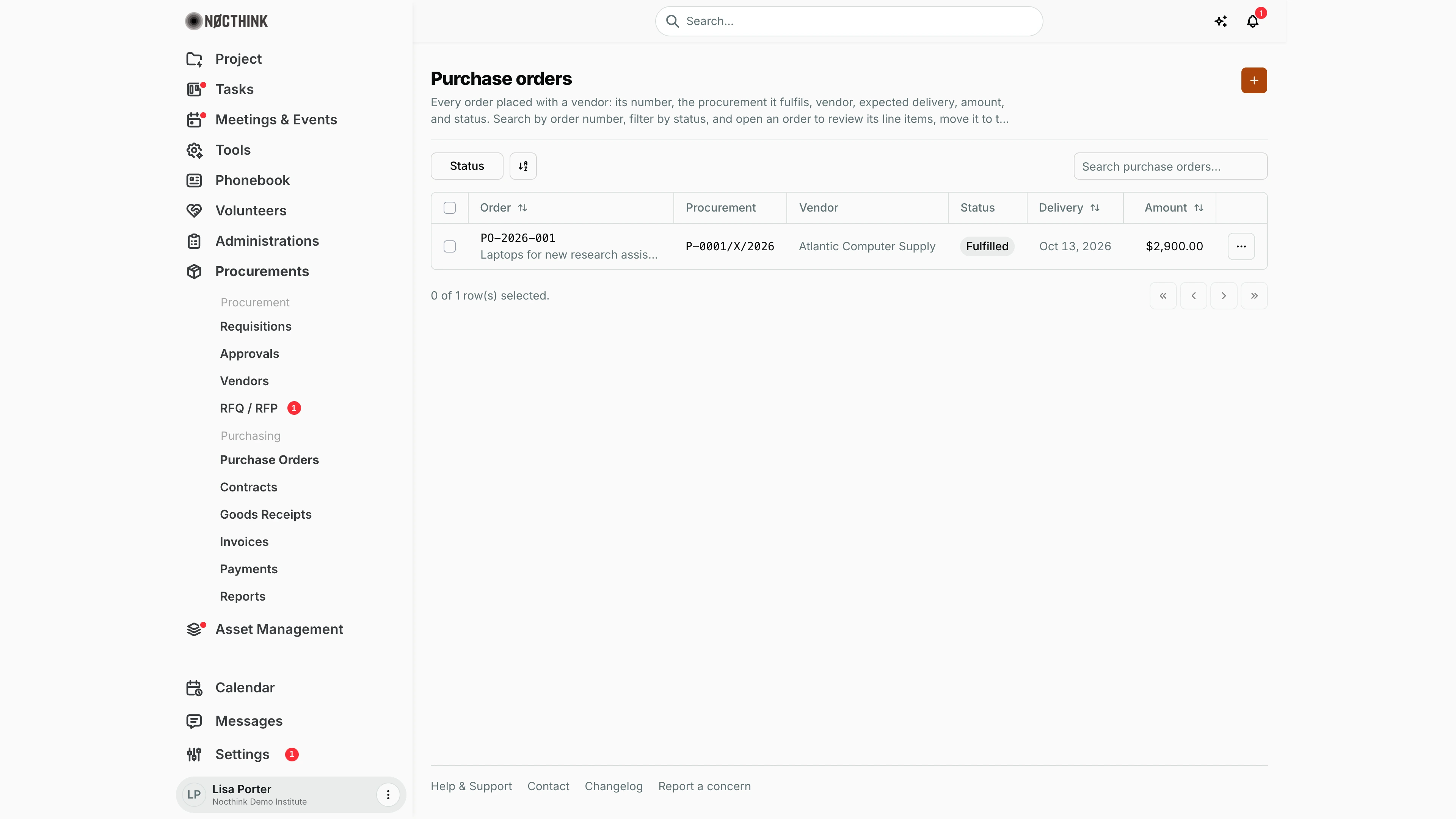
- Header: the title Purchase orders, a short description, and an orange + button (New purchase order) at the top right.
- Toolbar: a Status filter (checkboxes for Draft, Sent, Acknowledged, Fulfilled, Cancelled), a sort/view control, and the Search purchase orders... box on the right. Search matches the order number only.
- Table columns:
- Order — the order number (e.g.
PO-2026-001) with the requisition title or order title underneath. Click it to open the order. - Procurement — the requisition number (e.g.
P-0001/X/2026), linked to the requisition. - Vendor — the vendor name.
- Status — a pill; only Cancelled is shown in red.
- Delivery — expected delivery date (sortable).
- Amount — order total in the order's own currency (sortable).
- ⋯ — row menu with Edit and Delete while the order is Draft; for other orders it explains that the order page moves it on.
- Order — the order number (e.g.
- Footer: "0 of 1 row(s) selected." and pagination. Ticking rows shows a Delete (n) bulk button.
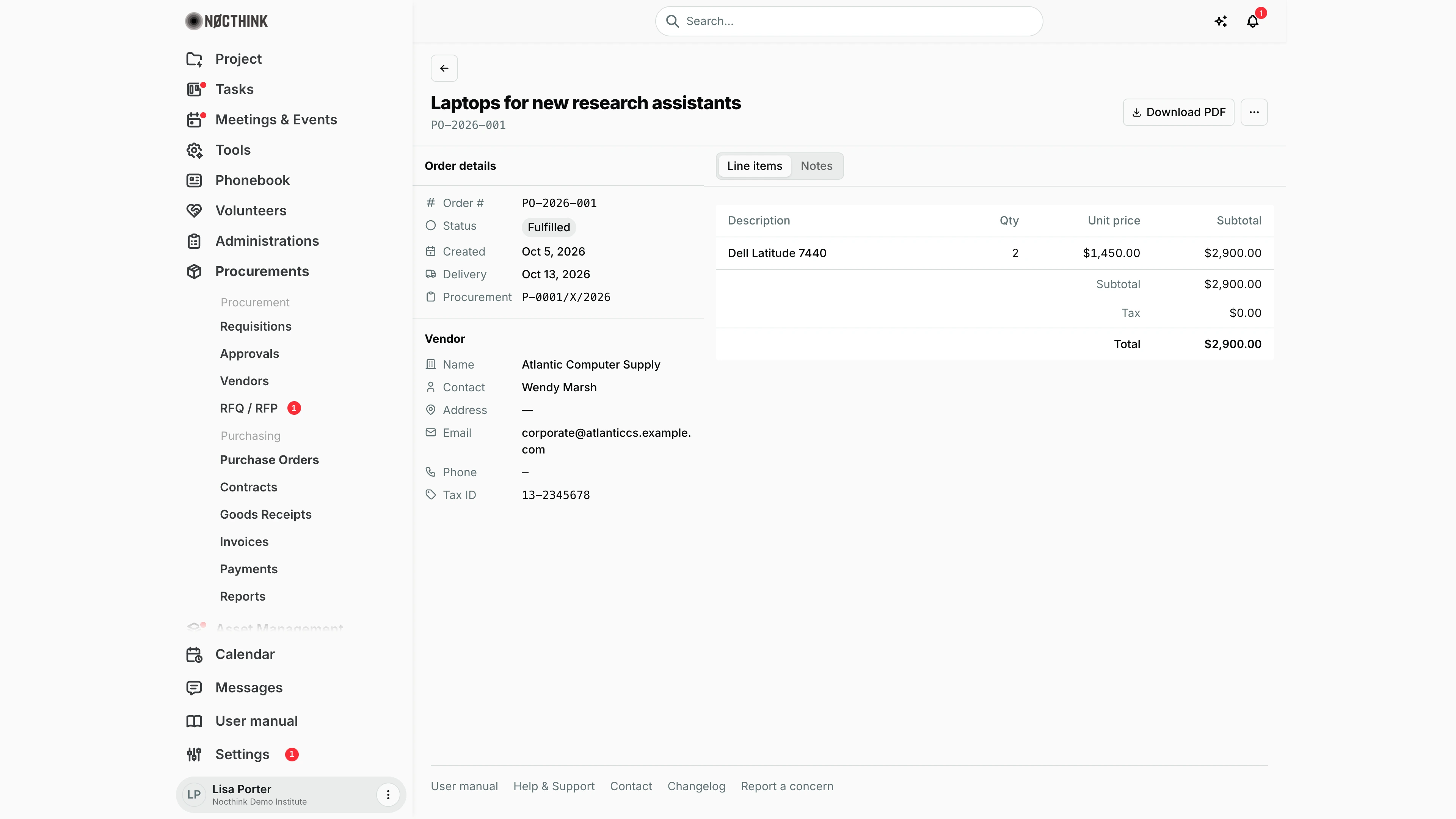
Opening an order shows the detail page: a back link, the order title and number, the next-step button (see below), a PDF download button, and a ⋯ menu (Edit, Delete, for drafts only). The left panel lists Order details (Order #, Status, Created, Delivery, Procurement) and Vendor (Name, Contact, Address, Email, Phone, and the vendor's tax ID, labelled Tax ID, or NPWP when the organization's base currency is IDR). The PO and RFQ PDFs label the organization's own tax ID the same way. The right side has two tabs: Line items (Description, Qty, Unit price, Subtotal, then Subtotal, Tax and Total) and Notes.
How I …
Create a purchase order from an approved requisition
Every order comes from a requisition.
- Open the requisition under Requisitions. It must be approved and have a selected (awarded) quote from RFQ / RFP.
- Click Create purchase order in the requisition header. Alternatively, click + on the list, pick the approved requisition in the New purchase order dialog (see New purchase order below) and click Continue. The New purchase order page opens pre-filled: Order number
PO-<requisition number>, Vendor set to the awarded vendor, the requisition's line items and total, and a note "Auto-generated from requisition …". - Check Order number * and Vendor *. The vendor must stay the awarded vendor, or the server refuses with "A purchase order requires an approved requisition and awarded vendor."
- Check Subtotal *, Tax and Total *, and set Expected delivery.
- Add anything the vendor needs to know in Notes.
- Click Create purchase order. You return to the list, and the new order is in Draft.
Send an order to the vendor (issue it)
- Open the order from the list (see Purchase order detail below).
- Click Send to vendor (shown only while the order is Draft).
- The server checks that the requisition is still approved, the vendor is still the awarded one, and the total fits the budget (project fund allocation, or the budget line). If it fits, the order moves to Sent, a budget commitment is recorded, and the requester gets a "Purchase order issued" notification.
- Click the PDF button to download the order and send it to the vendor.
Issuing needs approve rights on Procurements, and the person who created the order cannot issue it. Ask a colleague or your manager to press Send to vendor.
Record the vendor's confirmation and delivery
- When the vendor confirms, open the order and click Mark acknowledged (status Sent → Acknowledged).
- When everything has arrived, click Mark fulfilled (Acknowledged → Fulfilled). The requester is notified. Once no other order on the requisition is still open (Draft, Sent or Acknowledged), the requisition moves from Approved to Fulfilled.
- The order is also fulfilled automatically when a goods receipt covering every ordered line is accepted (see Goods Receipts).
Correct a draft order
- Open the order, then ⋯ → Edit (or Edit in the row menu on the list).
- Change Order number, Vendor, Subtotal, Tax, Total, Expected delivery or Notes, then Save changes.
- Only Draft orders can be edited. The form has no Status field; status moves with the action buttons on the order page.
Detail page, forms & dialogs
Purchase order detail
Screenshot: Lisa Porter (Operations Officer), Nocthink Demo Institute demo data.
The order page header shows the title and order number, the next-step button for the current status (Send to vendor for a draft, Mark acknowledged once sent, Mark fulfilled once acknowledged; none for a fulfilled order), Download PDF and a ⋯ menu.
Order details lists Order #, Status, Created, Delivery and Procurement (the requisition, linked). Vendor lists Name (linked), Contact, Address, Email, Phone and Tax ID.
Line items shows Description, Qty, Unit price and Subtotal, then the order Subtotal, Tax and Total. Notes holds anything recorded for the vendor ("No notes" otherwise). Here the order is Fulfilled, so no action button is shown.
New purchase order
Screenshot: Lisa Porter (Operations Officer), Nocthink Demo Institute demo data.
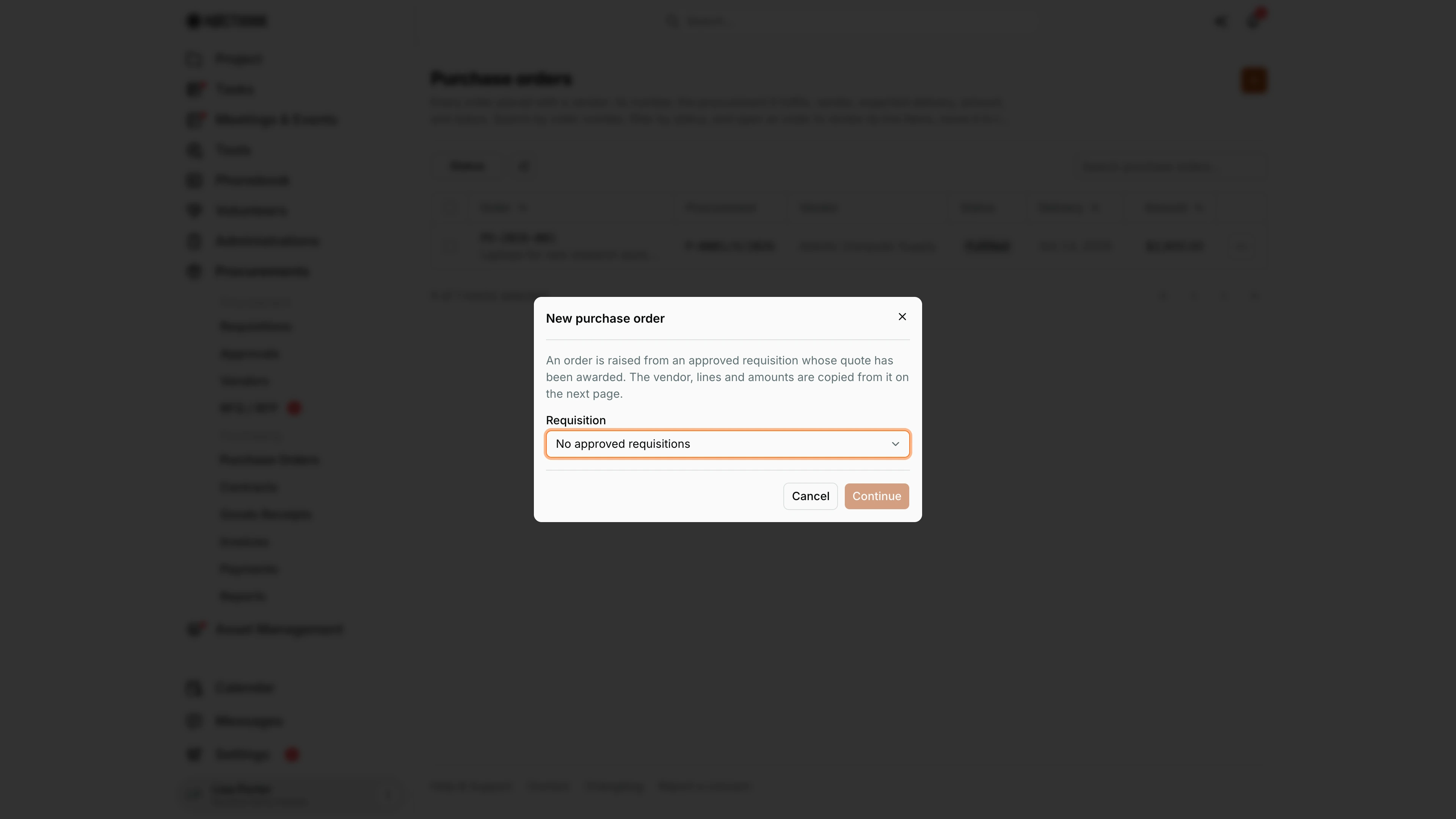
+ on the list opens New purchase order: "An order is raised from an approved requisition whose quote has been awarded. The vendor, lines and amounts are copied from it on the next page."
I pick the Requisition and click Continue to reach the pre-filled order form. In the demo data every requisition is either still pending or already ordered, so the picker reads "No approved requisitions" and Continue stays disabled.
Only requisitions that are Approved with an awarded quote are listed. On the next page the line items come over from the requisition and cannot be changed; the order number, totals, expected delivery and notes can.
Access & permissions
- The menu needs
procurements.viewplus one ofprocurements.update,finance.view,accounting.vieworasset_management.delete(lib/domain-routes.ts). Ordinary staff do not see it. - Per docs/role.md: Procurement and Owner/Director have full access. Finance Staff, Finance Manager, F.A.T. Manager, Accounting Staff and Asset Officer have read-only access.
- Send to vendor needs
procurements.approve. Mark acknowledged and Mark fulfilled needprocurements.update. - Data scope: procurement, finance and accounting authorities see every order in the organization. Everyone else sees only orders on requisitions they requested, on departments they manage, or on their projects, plus orders they created.
Caveats
- Every order needs a requisition. The new-order page opened without one shows "A purchase order needs an approved requisition…"; start from the list's + or the requisition's Create purchase order.
- Status is controlled by the action buttons, not by the form. New orders start as Draft (Draft → Sent → Acknowledged → Fulfilled, or Cancelled). Only drafts can be edited ("Only draft purchase orders without a status change can be edited.").
- Only drafts can be deleted. Once issued, an order is cancelled instead ("Only draft purchase orders can be deleted; issued ones are cancelled."). Delete errors are shown in an alert.
- Cancelling is an approve-level server action that needs a reason. It is refused once an order has accepted receipts or any non-cancelled invoice. When it succeeds, it releases the budget commitment and notifies the requester (high priority).
- Budget check on issue: if the project has no FX rate for the order currency today, issuing fails with "No <base> rate for <currency> today; set a fixed rate on the project first."
- Amounts are shown in the order's own currency (e.g.
$2,900.00for a USD order,Rp 2.900for IDR). A new order without a currency gets the organization's base currency. The Tax row shows the stored tax figure; the PDF prints amounts in the order's currency too. - Order numbers must be unique ("A purchase order with this number already exists.").
Limitations
- There is no Cancel button on the page, although the server supports cancelling (with a reason).
- Line items cannot be added or edited on the page. The new and edit forms keep whatever came over from the requisition.
- There is no export of the list. The PDF is per order.
- Search covers the order number only, not the vendor or title.
Related menus
- Requisitions — the approved request each order must come from. Create purchase order lives there.
- Approvals — where the requisition gets approved before an order is possible.
- RFQ / RFP — picks the awarded vendor the order must use.
- Vendors — vendor contact, address and tax ID shown on the order.
- Contracts — the alternative commitment for services and recurring supply.
- Goods Receipts — record deliveries against the order. A full receipt fulfils it.
- Invoices / Supplier Bills — the vendor's bill is matched to the order and receipt.
- Payments / Payment Release — Finance pays the matched invoice.
- Reports — order volume, open orders and top vendors.
- Dashboard — open-order counts at a glance.