
Dashboard
Open in NocthinkModule: Procurements · URL: /procurements/dashboard · Responsible role: Procurement Officer (procurement) · Also used by: Owner/Director (full), Finance Staff / Finance Manager / F.A.T Manager (read, via the Finance links), anyone else holding procurements.view
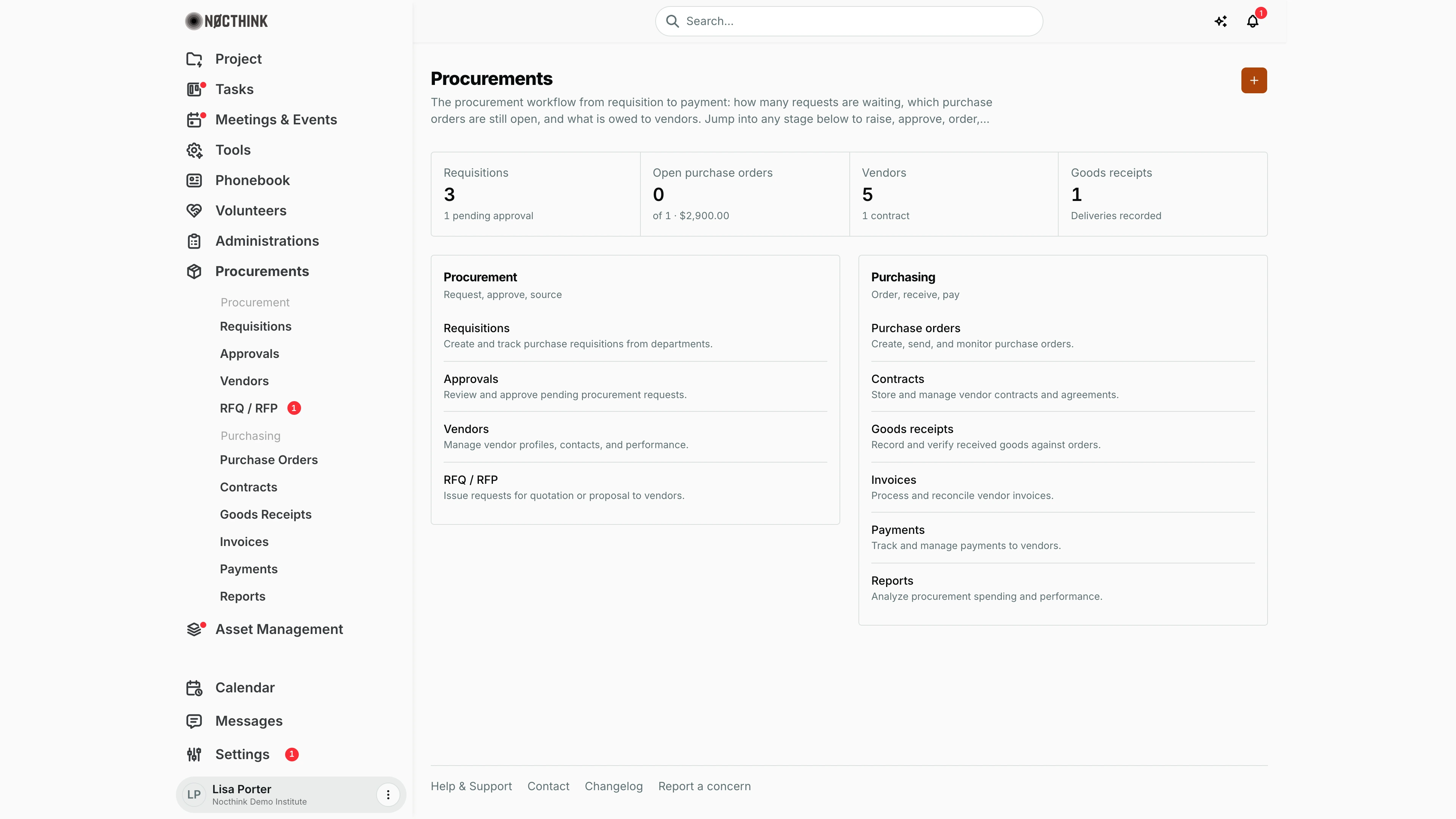
Screenshot: Lisa Porter (Operations Officer), Nocthink Demo Institute demo data. Lisa holds the procurement role but no finance authority, so the last two figures are Vendors and Goods receipts instead of Unpaid invoices and Total spend (see Caveats).
Why I use this page
I open the Procurements dashboard first thing on Monday and whenever the sidebar badge on Procurements jumps. It tells me in one glance how many requisitions are in the system, how many purchase orders are still open, what we owe vendors on unpaid invoices and how much we have actually paid out. From here I jump straight into whichever stage of the chain (requisition → approval → sourcing → order → receipt → invoice → payment) needs me.
What's on the screen
- Header — the title Procurements with a one-line explanation of the workflow, and an orange + button (New procurement) at the top right that opens the New procurement form.
- Summary strip — four clickable figures; each one opens the matching list:
- Requisitions — total number of requisitions I can see, with a note "N pending approval(s)" (approval steps still pending across the organization). Opens Requisitions.
- Open purchase orders — orders not yet closed, with "of N · $…" (all purchase orders and their total value, e.g. "of 1 · $2,900.00"). Opens Purchase Orders.
- Unpaid invoices — count and amount of vendor invoices with status pending or overdue. Opens Invoices.
- Total spend — the sum of Completed payments. Opens Payments.
- Without finance authority these last two are replaced by Vendors (vendor count, with the number of contracts) and Goods receipts (receipts recorded), because invoice and payment figures are finance-only.
- Procurement card ("Request, approve, source") — links to Requisitions, Approvals, Vendors, RFQ / RFP, each with a one-line description.
- Purchasing card ("Order, receive, pay") — links to Purchase orders, Contracts, Goods receipts, Invoices, Payments, Reports.
- Sidebar badges — the numbers next to sidebar items (e.g. RFQ / RFP 1 in the screenshot) are open-work counters: pending approvals, my own open requests, open RFQs, open POs, pending goods receipts, unpaid invoices and pending payments.
How I …
Check what needs attention this week
- Open Procurements → Dashboard (or click Procurements in the sidebar).
- Read the four figures left to right. A rising Unpaid invoices amount means Finance has a backlog; open Open purchase orders count means goods are still expected.
- Look at the sidebar badges; a red number on Approvals means a step is waiting for someone with an approving role.
- Click the figure or card link for the stage I want to work on.
Raise a quick procurement request
The + button creates an informal procurement record, not a requisition. Use it when a colleague tells me what they need and I want to capture it before it is fully specified.
- Click + (New procurement).
- Under Request, fill Title (required), Description and Category.
- Under Vendor and asset, optionally choose a Vendor and the Asset the purchase is for (or No specific asset).
- Under Quantity and cost, enter Quantity (must be positive), Total amount and Delivery date.
- Under Status and notes, leave Status at Draft unless I am recording something historical, and add Notes.
- Click Create procurement. The app opens the procurement's detail page.
Promote a procurement to a formal requisition
- On the procurement detail page, check Procurement details, Costs, Schedule and the Requested items tab.
- Click Promote to requisition and confirm "Promote this to a formal Requisition and enter the procurement chain?".
- The app opens the new requisition. The original requester gets a "Procurement promoted" notification. The procurement now shows View requisition instead of the promote button.
- Continue on the requisition: add quotes and Submit for approval (see Requisitions).
Jump to a stage
- Click any row in the Procurement or Purchasing card, for example Goods receipts to record a delivery.
- Use the browser back button or the sidebar to return to the dashboard.
Access & permissions
- The page needs
procurements.view. The Procurement role, Finance roles, Owner and Director have it; ordinary Staff do not, and they reach their own requisitions through Tools → My work → Requisitions instead. - The figures are as wide as the data I can see: procurement and finance authorities see the whole organization; others see only requisitions they raised, requisitions of departments they manage, and requisitions on projects they belong to.
- Each linked page has its own extra requirement (for example Approvals needs
procurements.approve; Invoices and Payments needfinance.vieworprocurements.approve). A link I cannot open redirects me away.
Caveats
- Unpaid invoices and Total spend are shown only to people with finance authority; a Procurement Officer sees Vendors and Goods receipts in their place. Check Reports with a finance login for the spend figures.
- Open purchase orders counts orders in Draft, Sent or Acknowledged; fulfilled and cancelled orders are excluded.
- Amounts are in the organization's base currency ("Rp 2.900" for IDR, "$2,900.00" for USD). Orders, invoices and payments in another currency are converted at the rate on the day the document was created; a document with no known rate is left out (the Reports page says how many).
- Total spend counts only payments whose status is completed; released-but-pending or approved-only payments are not included.
- The dashboard does not refresh itself while open; reload or navigate back to pick up new numbers.
- A procurement created with + does not enter any approval chain until it is promoted. Deleting a procurement ("Delete this procurement? This cannot be undone.") is permanent.
Limitations
- No date filter, period selector or department breakdown here; use Reports for analysis.
- No export or print from the dashboard.
- The informal procurement list itself (
/procurements) is not in the sidebar; I reach it only through the Procurements back link on a procurement's page. - No chart or trend over time; the four figures are current totals only.
Related menus
- Requisitions — formal purchase requests and quotes; the start of the chain.
- Approvals — the amount-based sign-off steps generated on submission.
- Vendors — supplier master data used everywhere in this module.
- RFQ / RFP — formal requests for quotation or proposal.
- Purchase Orders — source of the Open purchase orders figure.
- Invoices and Payments — source of Unpaid invoices and Total spend.
- Reports — spending analysis behind the same numbers.
- Supplier Bills and Payment Release — the Finance view of the last two stages.