
Journal Entries
Open in NocthinkModule: Accounting · URL: /accounting/journal-entries · Responsible role: Accounting Staff (prepares drafts) · Also used by: F.A.T Manager (full, posts journals), Owner/Director (full); Finance Staff/Manager (read-only)
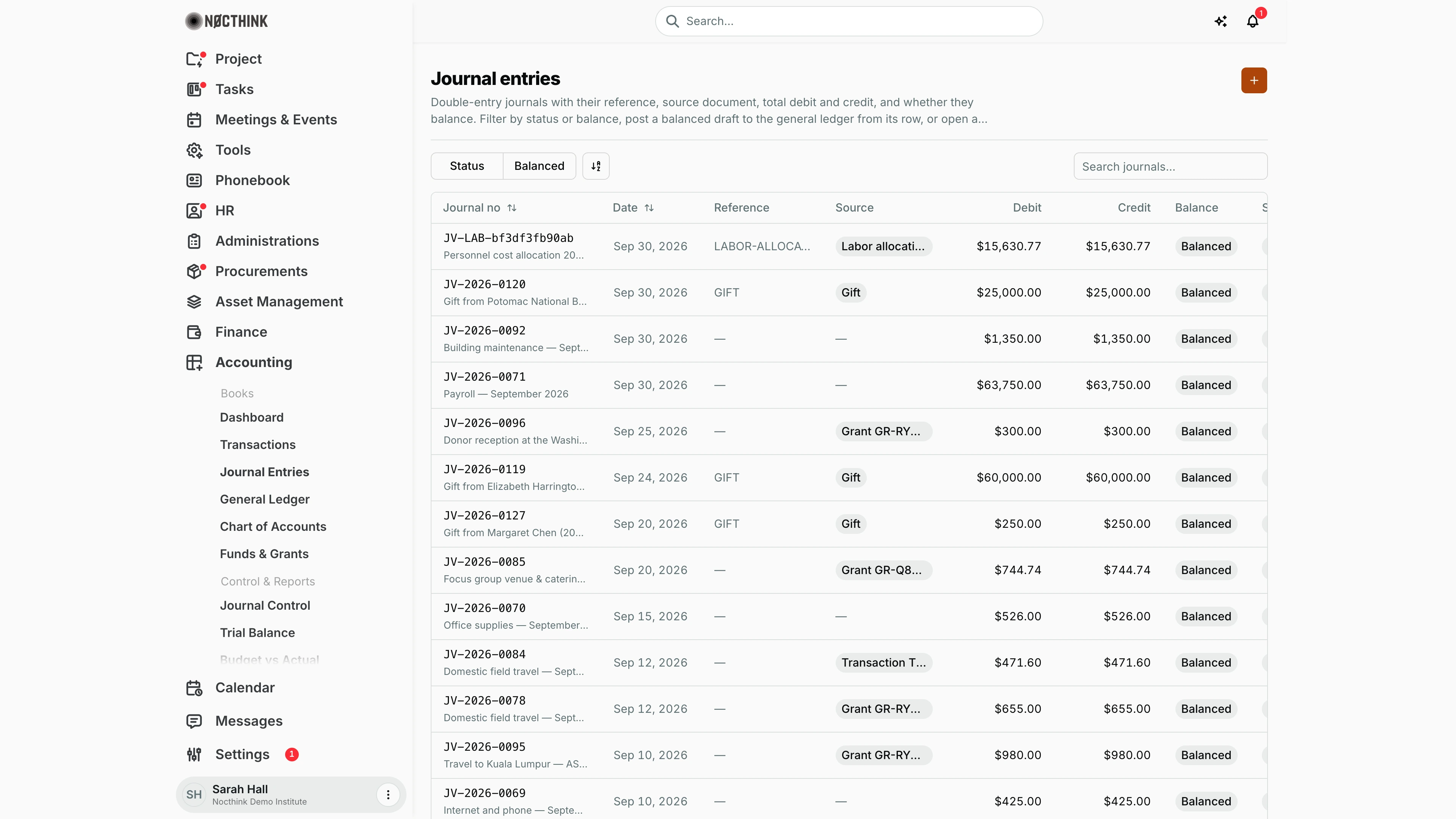
Screenshot: Sarah Hall (Finance Manager, also holds the F.A.T Manager role), Nocthink Demo Institute demo data. The Status and Action columns are off-screen to the right; every journal shown is Posted.
Why I use this page
Every amount in the ledger and the financial statements starts as a journal here. I key in manual journal vouchers: opening balances, accruals, corrections and reclassifications. I also review the drafts that other parts of the system create for me, from project-fund expenses and cash advances to payroll, gifts and labor allocation. Once a draft balances, it goes to the F.A.T Manager, who posts it to the ledger.
What's on the screen
- Header — the title Journal entries and an orange + button (New journal entry).
- Toolbar — a Status filter (Draft, Posted, Rejected), a Balanced filter (Balanced, Unbalanced), a sort/view control, and Search journals…, which matches the journal number.
- Table — Journal no (it stays in place when I scroll sideways and can be sorted; the description shows underneath and the number links to the detail page), Date (sortable), Reference (for example
GIFTorLABOR-ALLOCA…), Source (a pill naming where the journal came from as source type and document number, e.g. "Transaction TX-2026-0001", "Invoice INV-…", "Grant Ford Foundation", "Gift", "Restriction release" or "Labor allocation"), Debit, Credit, Balance (red when Unbalanced), Status, and an Action column with a Post button (shown only to users who can post; greyed out on journals that are already Posted or do not balance). - Pager — the server sends 100 journals per page, newest first.
- Detail page — the header shows the journal number, status and description, with Post balanced journal while the journal is a Draft. The side panel shows Total debit, Total credit, Control (Balanced/Unbalanced) and Journal context (Date, Reference, Fund as its fund ID, Project as project number and name, Source; a hand-keyed journal shows "Manual journal"). The Lines table lists Account, Description, Debit and Credit.
How I …
Key in a manual journal
- Click +. The New journal entry dialog (see below) says the journal will be "Saved as a draft. Post it from the list once total debit equals total credit."
- Enter Journal no (required and unique in the organization, for example
JV-2026-0090). - Check Date. It defaults to today in my local time zone.
- Optionally enter Reference (the source document number) and Description.
- Optionally choose Project, which is a ledger fund picker labelled by project, and then Budget line, which lists that fund's grant or project budget allocations. A journal reaches project reports only through its fund.
- Under Lines, choose an Account in each row. The search box takes a code or a name, results are grouped by type, and only active accounts are listed. Enter either Debit or Credit on each line, never both, and never a negative amount (use the other column instead).
- Add rows with the + next to Lines. Remove rows with the trash icon (the last two rows can't be removed). A row with no account is dropped when I save.
- Watch the footer. It shows Balanced, or Out of balance by … in red.
- Click Create journal. I need at least two lines that have an account. The journal is saved as Draft.
Get a draft posted
- Filter Status to Draft and Balanced to Balanced.
- Open the journal and check the lines and context (see Journal entry detail below).
- The F.A.T Manager (anyone with
accounting.approve) clicks Post in the row, or Post balanced journal on the detail page. The button is disabled while the journal is unbalanced. - If the journal charges a restricted grant, the server checks the grant rules:
- A frozen grant or an unallowable cost stops posting completely.
- A date outside the grant period, or a cost that needs the funder's prior approval, opens a browser prompt asking for a reason of at least 10 characters. The reason is written to the audit log and the post goes through.
- After posting, the journal shows in the General Ledger, the Trial Balance, Budget vs Actual and the statements.
Correct a posted journal
- Posted journals can't be changed or deleted. The fix is a reversing entry, which the server creates as
<journal no>-REVwith debits and credits swapped and posts immediately. - There is no Reverse button on this page today. Ask the F.A.T Manager to reverse the journal through the API (
POST /accounting/journal-entries/<id>/reversewith a reason). Then key in the correct journal as a new draft.
Detail page, forms & dialogs
Journal entry detail
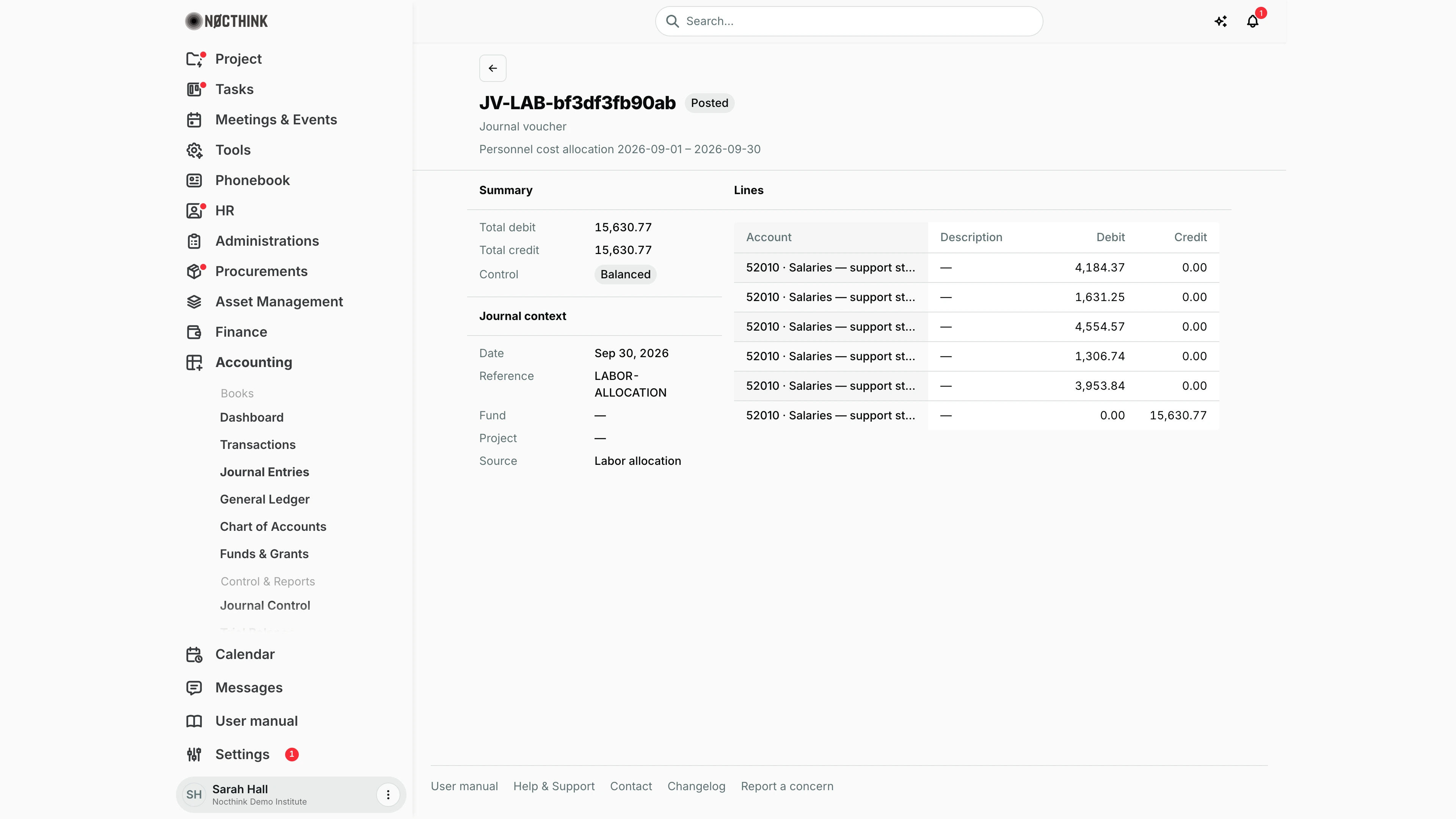
Screenshot: Sarah Hall (Finance Manager, also holds the F.A.T Manager role), Nocthink Demo Institute demo data.
Clicking a journal number opens the voucher. The header shows Journal voucher, the journal number, its status pill and description. While the journal is a Draft and I hold accounting.approve, a Post balanced journal button sits at the top right; it is disabled until the journal balances. Posted journals, like the JV-LAB personnel allocation in the screenshot, have no button.
The Summary side panel shows Total debit, Total credit and Control (Balanced or Unbalanced). Under it, Journal context lists Date, Reference, Fund, Project and Source ("Labor allocation" here; a hand-keyed journal reads "Manual journal").
The Lines table lists Account (code · name), Description, Debit and Credit for every line. Long account names are truncated; hover to see the full name. If posting is blocked by a grant rule, the same reason prompt as on the list appears.
New journal entry
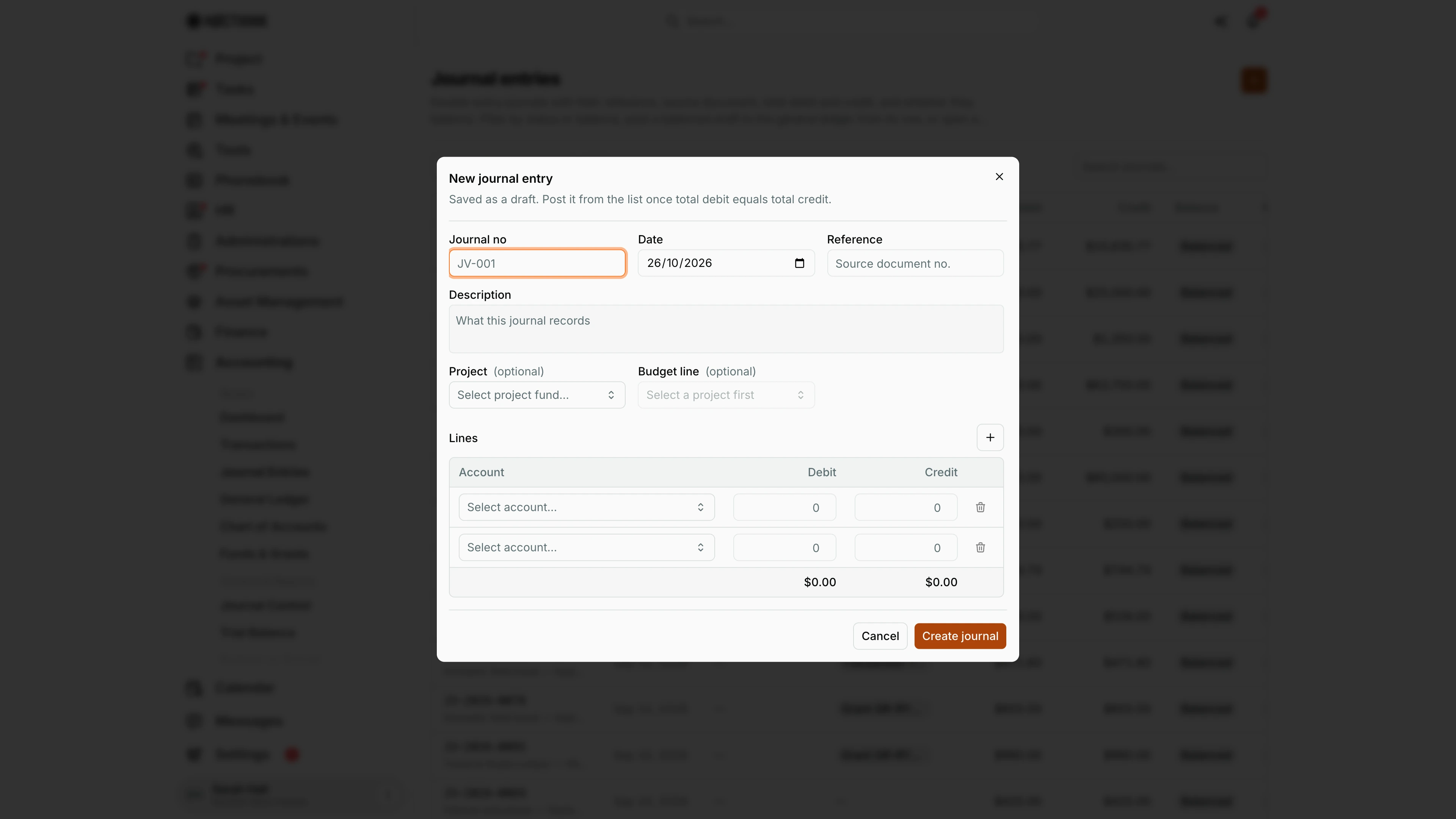
Screenshot: Sarah Hall (Finance Manager, also holds the F.A.T Manager role), Nocthink Demo Institute demo data.
The + button (New journal entry) opens this dialog. Its subtitle reads "Saved as a draft. Post it from the list once total debit equals total credit."
The top row has Journal no (placeholder JV-001), Date (today) and Reference ("Source document no."), then Description ("What this journal records"). Project (optional) is a fund picker labelled by project; Budget line (optional) stays disabled with "Select a project first" until a project is chosen.
Under Lines, each row has Select account…, Debit and Credit, and a trash icon. The + beside Lines adds a row. The footer totals debit and credit in dollars and shows whether the entry balances.
Create journal saves a Draft; Cancel closes without saving. The draft then waits for the F.A.T Manager to post it.
Access & permissions
- To see the page: accounting authority, meaning the
accounting-stafforfat-managerrole, oraccounting.approve. Owners and Directors always pass. - Create a draft:
accounting.create, which Accounting Staff and the F.A.T Manager have. - Post or reverse:
accounting.approve, which the F.A.T Manager has and Accounting Staff does not. Without it the Post buttons are hidden, so Accounting Staff see drafts read-only and hand them to the F.A.T Manager. - Delete a draft:
accounting.delete, which only Owners and Directors have, and only through the API. - Finance Staff and Finance Manager are read-only here: their seeded roles include
accounting.view, and the server lets finance authority withaccounting.viewread the books. They can't create, change or post anything on this page.
Caveats
- A journal can't be posted if its date falls on or before the closing date set in Period Close. The error reads "The books are closed through …". Date the journal after the closing date, or ask for the period to be reopened.
- Posting only works on Draft journals and only once. If two people click at the same moment, the second gets "This journal was changed by someone else".
- Every create, update, delete, post and reverse is written to the audit log.
- Amounts are stored in the base currency. The form has no foreign-currency fields.
- Rejected journals (from source flows) stay in the list with a red status pill.
Limitations
- No edit or delete in the UI. Both are API-only, and only for drafts.
- No reverse button; reversing is API-only.
- The new-journal form can't set a fund on an individual line, a functional class (program, management and general, or fundraising), or a link to a transaction. All of these are accepted by the API.
- No export or bulk post. Row selection is turned off.
- Filters and search only apply to the 100 journals on the current page.
Related menus
- General Ledger — the posted lines this page produces.
- Journal Control — the F.A.T Manager's check of balance and posting status across journals.
- Chart of Accounts — the accounts I can pick on a line.
- Period Close — the closing date that blocks back-dated posting.
- AI Workbench — journals drafted from invoices by the F.A.T. AI flow.
- Project Funds & Grants — where expense and cash-advance journals are drafted from project documents.
- Grant Labor Allocation — the source of the
LABOR-ALLOCATIONjournals.