
Email Logs
Open in NocthinkModule: Settings (Access) · URL: /settings/email-logs · Responsible role: Owner (organization admin) · Also used by: platform operators (see every organization's emails); anyone else who holds rbac.manage
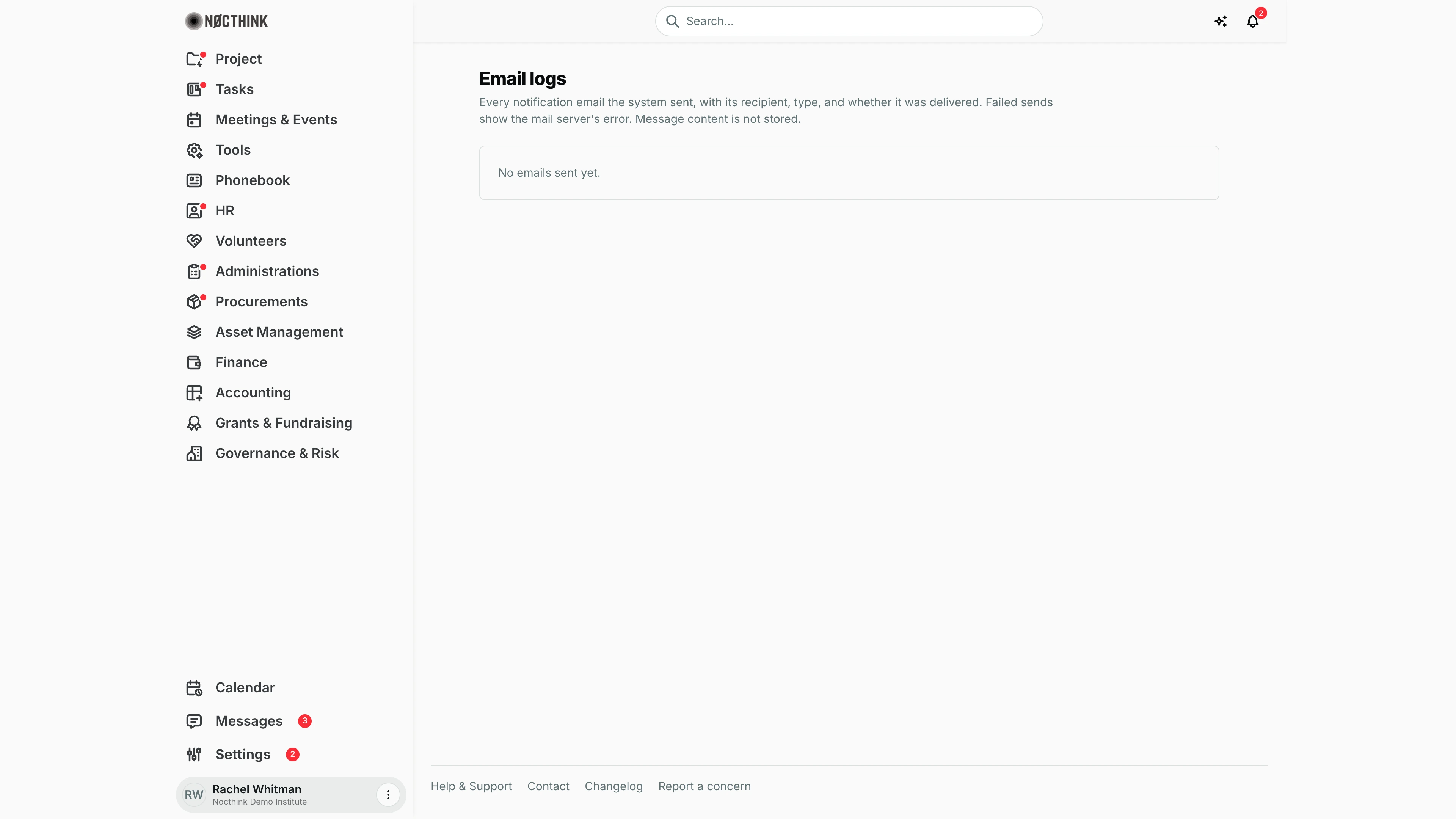
Screenshot: Rachel Whitman (Executive Director, organization owner), Nocthink Demo Institute demo data. The demo environment sends no mail, so the table is replaced by the empty state.
Why I use this page
When a colleague says "I never got the invitation" or "I wasn't told my request was approved", this is where I check. Every notification email the system sends is logged with its recipient, type and whether the mail server accepted it; failed sends show the server's error. I open it when someone reports a missing email, after inviting a batch of new users, and occasionally to spot a bouncing address (e.g. someone who left).
What's on the screen
- Header — Email logs with "Every notification email the system sent, with its recipient, type, and whether it was delivered. Failed sends show the mail server's error. Message content is not stored."
- Empty state (as in the screenshot) — "No emails sent yet."
- Table (once emails exist), newest first, 50 per page, the Sent column frozen while scrolling sideways:
- Sent — date and time.
- Status — Sent or Failed (red).
- Subject — the email subject; for a failed send, the mail server's error underneath in red (hover to read it in full).
- Recipient — email address, with the person's name underneath when they are a user.
- Type — the notification type (e.g. an invitation, an approval request), or —.
- Paging controls at the bottom.
How I …
Check whether someone received a notification
- Open Settings → Email Logs.
- Page to the date and time the email should have gone out.
- Find the row with their address under Recipient and the expected Subject / Type.
- Sent means our mail server accepted it — ask them to check spam or their mail filters. Failed means it never left; read the error under the subject.
Resolve a failed invitation
- Find the Failed row for the invitation and read the error (e.g. a mistyped or non-existent address).
- In Users, ⋮ → Revoke invite on the wrong address and invite the correct one, or use ⋮ → Resend and copy link and pass the link on directly.
- Come back here to confirm the new send shows Sent.
Spot people who receive no email at all
- Look for repeated Failed rows for the same Recipient.
- Correct their address with the platform operator or HR, or ask them whether they turned off email notifications in their own Profile → Notifications.
Access & permissions
- The menu and route require
rbac.manage(Access group). - The server returns entries to the organization admin and to any holder of
rbac.manage, the same people who see the menu. - I only see emails sent for my organization; platform operators see all organizations.
Caveats
- Sent means accepted by the outgoing mail server, not that it reached the inbox; spam filtering and later bounces are not tracked.
- Message content is not stored — I can see the subject, recipient and type, but not the body.
- A person who turned off email notifications, or is inside their quiet hours, is not emailed; check their preferences before suspecting the mail server.
- The mail server itself is configured by the platform operator (General → Email), not by the Owner.
- Times are shown in my browser's locale and time zone.
Limitations
- No search or filters on the page (the server supports filtering by status, but the UI does not expose it).
- No resend from this page; resending is done from the originating feature (e.g. Users → Resend and copy link).
- No export.