
Donor Restrictions
Open in NocthinkModule: Accounting · URL: /accounting/donor-restrictions · Responsible role: Accounting Staff (rollforward, release requests) with F.A.T Manager approving releases · Also used by: Owner/Director (full); Finance Staff / Finance Manager (read-only)
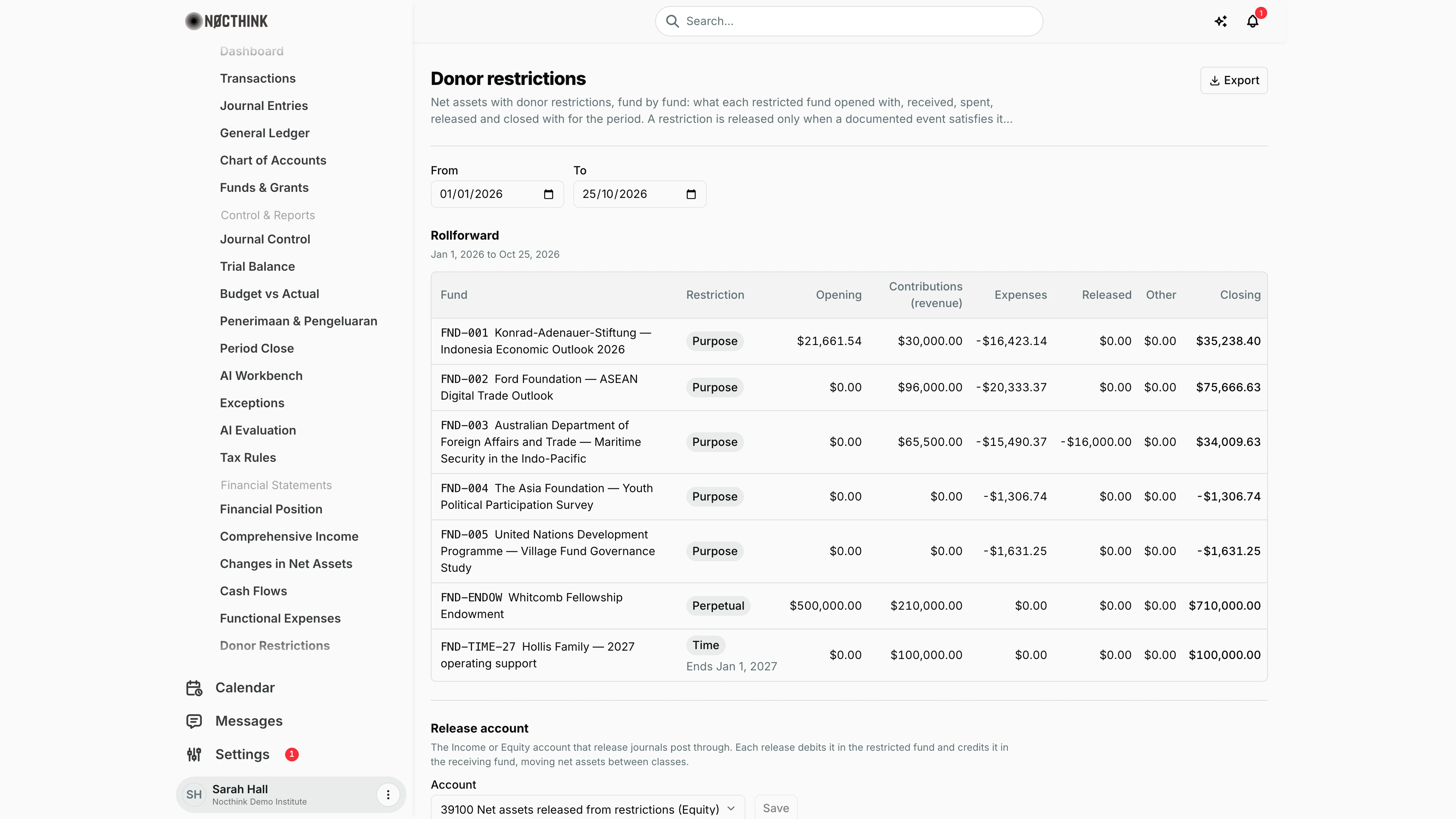
Screenshot: Sarah Hall (Finance Manager, also holds the F.A.T Manager role), Nocthink Demo Institute demo data.
Why I use this page
I use this page to see what each donor-restricted fund opened with, received, spent and released in a period, and what is still restricted at the end. It is also where a restriction is formally released once the donor's purpose has been met or its time has passed. A release is a two-person action: I request it with the justification, and someone else approves it. That approval posts the journal that moves the money to net assets without donor restrictions. I open the page at month end and whenever a grant's deliverables are signed off.
What's on the screen
Header
- The title is Donor restrictions.
- A short explanation states that nothing is released automatically.
- Export at the top right, with PDF, Excel, CSV and JSON for the rollforward.
Period
- From defaults to 1 January this year.
- To defaults to today.
Rollforward
- The table has one row per fund of type Restricted. The columns are:
| Column | What it shows |
|---|---|
| Fund | Fund ID and name |
| Restriction | Purpose, Time, Perpetual or Not set, with the end date underneath when there is one |
| Opening | Balance at the start of the period |
| Contributions (revenue) | Income lines: restricted revenue booked in the ledger, including pledges and gifts not yet collected |
| Expenses | Expense lines, shown with a minus sign (e.g. -$20,333.37) |
| Released | Lines on the release account |
| Other | Any other lines |
| Closing | Balance at the end of the period |
- If there are no restricted funds, the section reads "No restricted funds. Funds of type Restricted appear here."
Release account
- An Account dropdown lists active Income or Equity accounts, plus Not set.
- A Save button sits next to it.
- While the account is unset, the hint reads "Set this before approving a release."
Releases from restriction
- A + button opens Request release.
- A Status filter offers All, Awaiting approval, Posted and Rejected.
- The table has the columns Date, From fund, To fund, Amount, Basis (with the justification underneath) and Status.
- Under Status you see "Requested by …" and, once decided, "Approved by … on …" or "Rejected by … on …".
- Pending rows have a Decide button.
- In the demo there are four requests, all to FND-GEN and requested by Sarah Hall: a posted $16,000.00 release from FND-003 (Apr 15, 2026, purpose satisfied), a $28,000.00 request on FND-002 that Brian Sanders rejected on Jul 2, 2026, and two awaiting approval ($11,000.00 from FND-002 dated Sep 30, 2026, and the $100,000.00 Hollis Family time release dated Jan 1, 2027).
How I …
Check restricted balances for a period
- Set From and To.
- Read each fund's row. Closing = Opening + Contributions + Expenses + Released + Other. Expenses and releases are negative.
- Investigate any Other amounts. These are lines that are neither Income, Expense nor the release account, for example a direct Equity posting. Open General Ledger to find them.
- Check that the closing total agrees with "With donor restrictions" on Financial Position at the same date.
Set the release account (one-time setup)
- Under Release account, choose the Income or Equity account that release journals should use. Many organizations use a "Net assets released from restriction" account.
- Click Save. Approvals fail until this is set.
Request a release
- Click + (Request release); see Request release below.
- Choose the Restricted fund. Only Restricted funds are listed.
- Choose the Receiving fund (without donor restrictions).
- Enter the Amount, which must be greater than zero, and the Release date.
- Pick the Basis: Purpose satisfied, Time restriction ended, Donor approved in writing or Other documented event.
- Write the Justification, which is required (up to 4,000 characters). Say what happened and where the documentation is.
- Click Request release. The row shows Awaiting approval.
Approve or reject a release (F.A.T Manager, not the requester)
- Filter Status to Awaiting approval and click Decide on the row (see Approve or reject release below).
- Read the justification shown in the dialog. Add a Note if useful (optional).
- Click Approve and post to book the journal, or Reject to close the request with no journal.
- On approval the system posts journal
JV-REL-…(referenceRESTRICTION-RELEASE), dated on the release date. It debits the release account in the restricted fund and credits it in the receiving fund. The row becomes Posted and the amount appears in Released.
Detail page, forms & dialogs
Request release
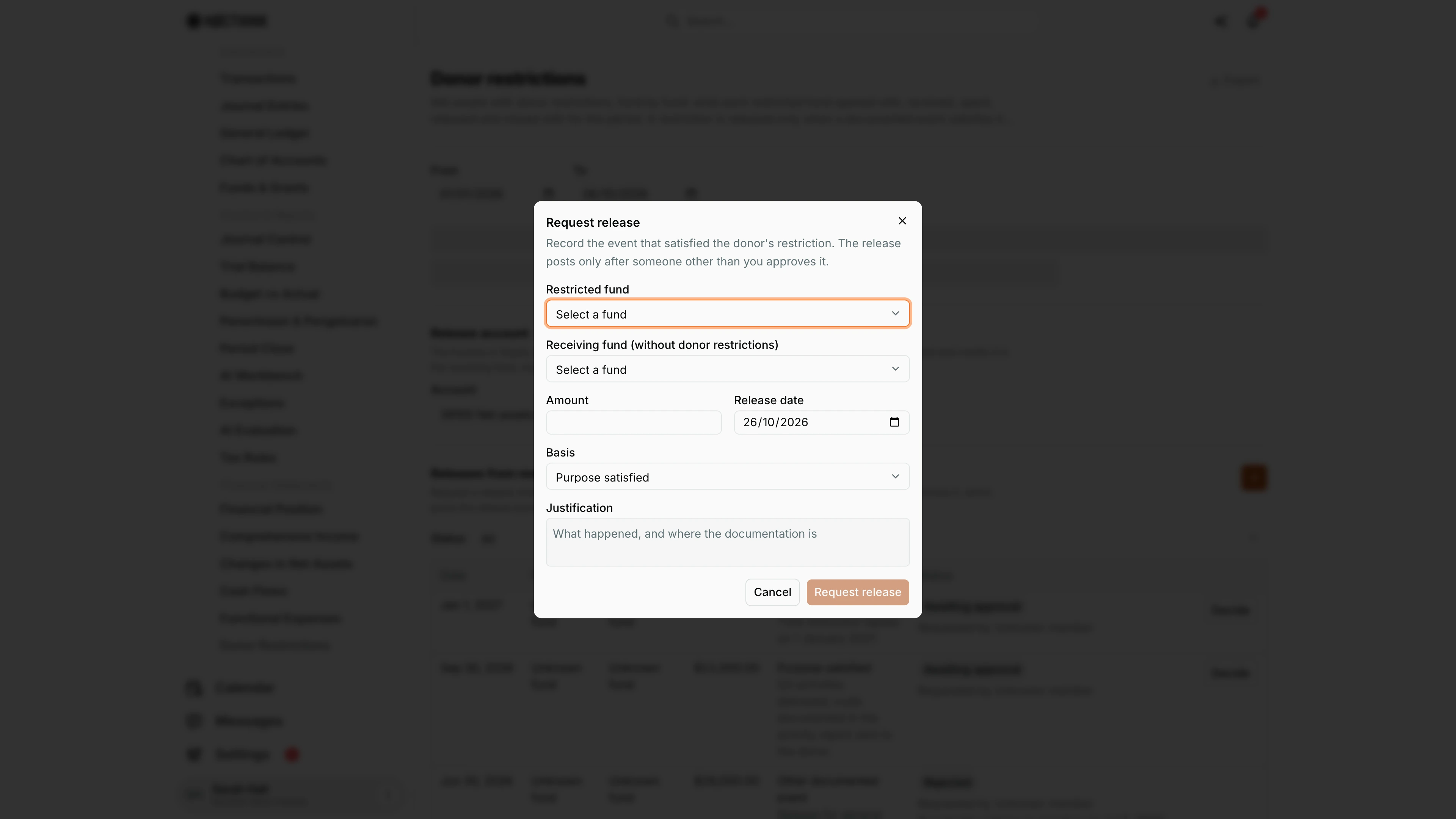
Screenshot: Sarah Hall (Finance Manager, also holds the F.A.T Manager role), Nocthink Demo Institute demo data.
The + in Releases from restriction (Request release) opens this dialog: "Record the event that satisfied the donor's restriction. The release posts only after someone other than you approves it."
Restricted fund lists only Restricted funds; Receiving fund (without donor restrictions) lists the others. Then Amount, Release date (today by default), Basis (Purpose satisfied, Time restriction ended, Donor approved in writing, Other documented event) and Justification ("What happened, and where the documentation is").
Request release stays disabled until both funds, a positive amount, a date and a justification are filled. Saving adds a row with status Awaiting approval and my name as requester. No journal is posted yet.
Approve or reject release
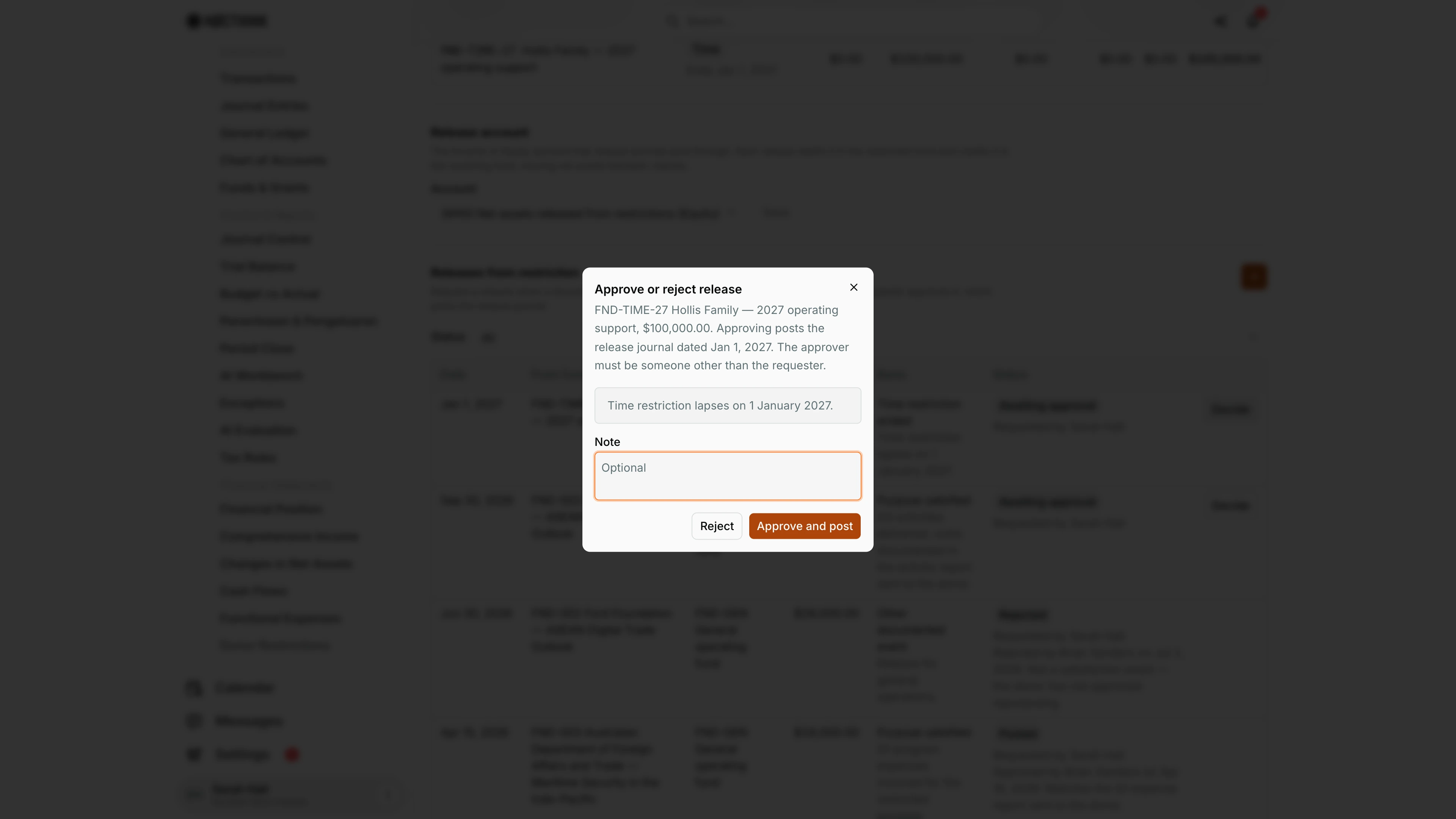
Screenshot: Sarah Hall (Finance Manager, also holds the F.A.T Manager role), Nocthink Demo Institute demo data.
Decide on a row that is Awaiting approval opens Approve or reject release. It appears only for users with accounting.approve. The description names the fund and amount, for example "FND-TIME-27 Hollis Family — 2027 operating support, $100,000.00. Approving posts the release journal dated Jan 1, 2027. The approver must be someone other than the requester."
The requester's justification shows in a grey box ("Time restriction lapses on 1 January 2027."), followed by an optional Note.
Approve and post posts the release journal and marks the row Posted. Reject closes the request with no journal and marks it Rejected. My name, the date and the note are recorded on the row either way. The server refuses the decision if I am the requester or if no release account is set.
Access & permissions
- Viewing the page requires
accounting.viewplus accounting authority: theaccounting-stafforfat-managerrole, oraccounting.approve. - Requesting a release requires
accounting.create, which Accounting Staff and F.A.T Manager both have. - Saving the Release account requires
accounting.update; without it the account shows read-only and there is no Save button. - Approve and post and Reject require
accounting.approve, so only the F.A.T Manager or Owner/Director can do them. The Decide button is shown only to them. - The server also refuses an approval by the person who requested it: "Someone other than the requester must approve a release." The Decide button is still shown to the requester.
- Finance Staff and Finance Manager are read-only here: their seeded roles include
accounting.view, and the server lets finance authority withaccounting.viewread the books. They can't create, change or post anything on this page.
Caveats
- Available balance is checked twice. The amount cannot exceed the fund's restricted net assets minus other pending releases. This is checked at request and again at approval. The error reads "Only $X is available to release from this fund."
- Perpetual restrictions are never released. The request is refused, and the error tells you to record the permitted endowment draw instead.
- The receiving fund must not be Restricted.
- Approval posts immediately and cannot be undone here. To unwind a release, reverse its
JV-REL-…journal in Journal Entries. The release record stays Posted. - The release date must fall in an open period. Approval is refused if the date is in a period locked on Period Close.
- If no release account is set, approval fails with "Set the release account under Accounting → Donor Restrictions (Release account) first." Set it in the Release account section on this page.
- Contributions are revenue, not cash. They can differ from Received on Funds & Grants, which is cash per the grant's tranche register. In the demo, FND-002 shows $96,000.00 in contributions for 2026 (95,000.00 of restricted grant income plus 1,000.00 of individual contributions in the ledger) against $60,000.00 received there. The page description says the same.
- Only lines carrying a Restricted fund count. Restricted spending posted without the fund does not reduce the balance here.
Limitations
- Export (PDF, Excel, CSV, JSON) covers the rollforward only, with a totals row in PDF and Excel; the releases list has no export.
- There is no totals row in the rollforward on screen.
- No supporting document can be attached in the request dialog. The API accepts an evidence attachment ID, but the form does not offer it.
- Nothing is released automatically when a time restriction's Ends on date passes. A release has to be requested.
- A pending request cannot be edited or withdrawn. It can only be rejected by an approver.
- Restriction Kind and Ends on are not set on this page or on the Funds & Grants form today.
Related menus
- Funds & Grants: a fund's type (Restricted or not) decides whether it appears here.
- Financial Position: the "With donor restrictions" net assets total.
- Changes in Net Assets: shows the class movement that releases create.
- Journal Entries: find or reverse
JV-REL-…journals. - Period Close: approve releases before the period is locked.
- Awards: the grant awards behind the restricted funds.