
Dashboard
Open in NocthinkModule: HR · URL: /hr/dashboard · Responsible role: HR Manager · Also used by: HR Staff in the HR department (read), Owner/Director (full).
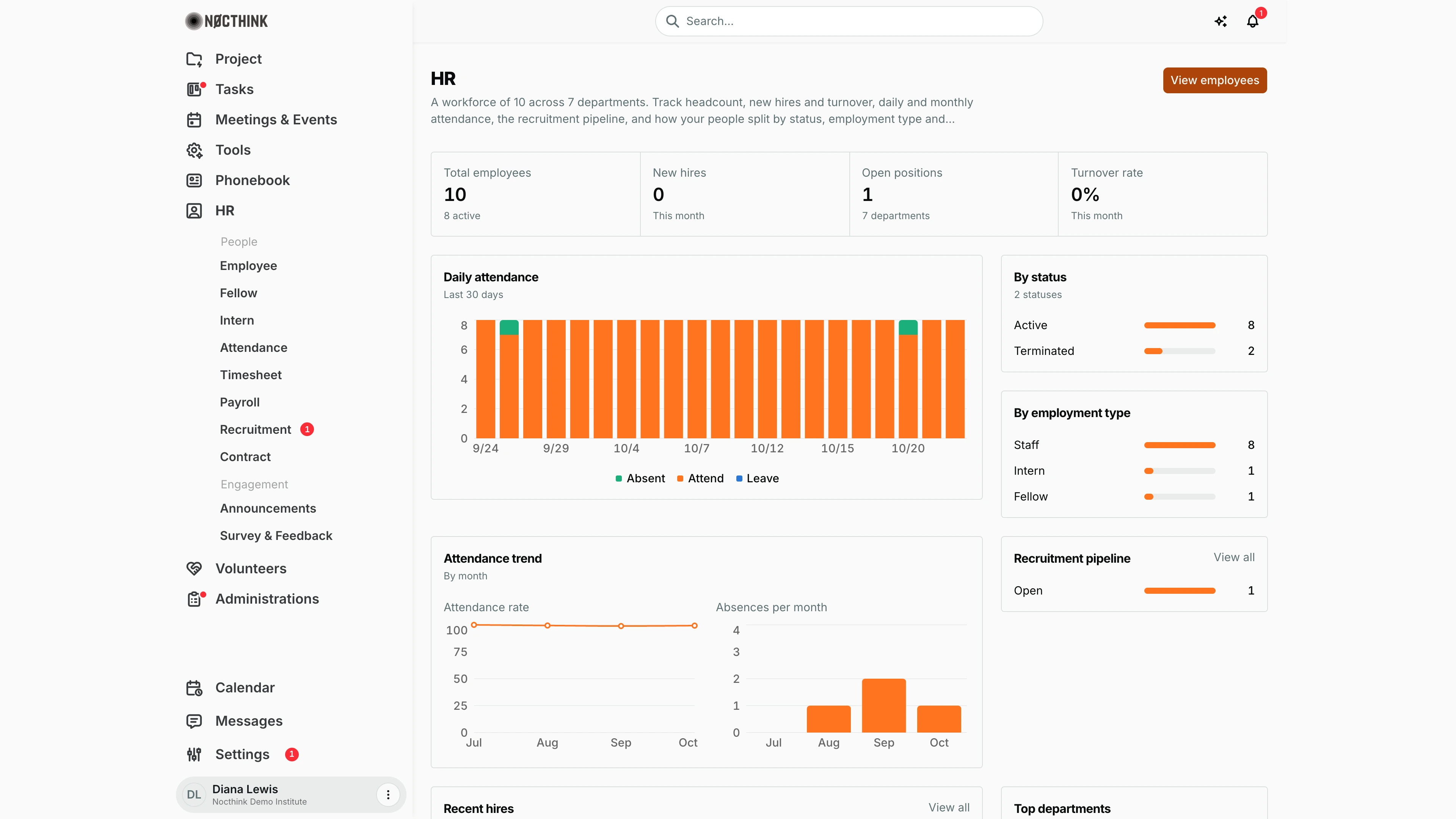
Screenshot: Diana Lewis (HR Officer), Nocthink Demo Institute demo data. She holds the HR Staff role and sits in the HR department, so the figures load for her. Her sidebar shows the HR Staff menus only; the manager menus (Engagements, Grant Labor Allocation, Audit Trails, Legal Holds & Offboarding, Access Grants) need hr.delete.
Why I use this page
I use the HR dashboard as my Monday-morning check on the workforce. It shows headcount, new hires and turnover for the month, whether attendance is holding up, how many positions are open, and how people split across departments and employment types. When a number looks wrong I click through to the list behind it: Employees, Recruitment, Attendance. I also open it before the monthly management meeting, where the Executive Director asks for exactly these figures.
What's on the screen
- Header: the title HR with a one-line summary built from live data ("A workforce of 10 across 7 departments…"). On the right is the View employees button, which opens Employee.
- Contracts ending soon dialog: this pops up over every HR page while an active contract ends within the reminder window, which is 30 days by default. It lists each person with their end date and days left. Dismiss hides it for the rest of the browser session. Review contracts opens Contract.
- Stat cards (four):
- Total employees, with a note showing how many are active. Clicking it opens Employees.
- New hires, for this month.
- Open positions, with the number of departments under it. Clicking it opens Recruitment.
- Turnover rate, as a percentage for this month.
- Daily attendance: a stacked bar chart of Attend / Leave / Absent per day over the last 30 days.
- By status: ranked bars by employee status (Active, On leave, Terminated, Inactive). The demo shows 8 Active and 2 Terminated.
- By employment type: ranked bars for Staff, Fellow and Intern. The demo shows 8 Staff, 1 Intern and 1 Fellow.
- Attendance trend (by month): two small charts, Attendance rate (a line, in %) and Absences per month (bars).
- Recruitment pipeline: postings counted by status (Open, Closed, On hold), with a View all link to Recruitment. The demo has 1 Open posting.
- Recent hires (last 90 days): a table of Name, Department, Hire date and Status, with a View all link. In the demo this panel shows "Nothing here." because the latest hire (Jordan Fields, Jul 1, 2026) is more than 90 days ago.
- Top departments (by headcount): ranked bars. People with no department are grouped as "Unassigned". The demo lists seven departments, led by International Relations, Economics and Executive Office with 2 each.
How I …
Check the monthly people numbers
- Open HR → Dashboard in the sidebar.
- If the Contracts ending soon dialog appears, note the names, then click Dismiss. Alternatively, click Review contracts to handle them first.
- Read the four stat cards. New hires and Turnover rate cover the current calendar month only.
- Click Total employees to check the list if the active count looks off.
Spot an attendance problem
- Look at Daily attendance for days with a tall Absent segment. Hover a bar to see the exact counts.
- Compare the month in Attendance trend: a falling Attendance rate line or a rising Absences per month bar shows a pattern.
- Go to Attendance, set the date range to the days in question, and filter Status to Absent or Late to see who it was.
Follow up on hiring
- In Recruitment pipeline, check how many postings are Open.
- Click View all, or the Open positions card, to open Recruitment and review applicants.
- After someone is hired and converted to an employee, they appear under Recent hires with their hire date.
Access & permissions
- The page opens with
hr.view, the HR section permission. Staff without an HR role do not see the HR section in the sidebar, and typing the URL is blocked by the route guard (lib/domain-routes.ts). - The figures come from
/employees/dashboard-stats. That endpoint answers only for HR authority (a Director, or a member of the HR department) or someone holdinghr.delete, which in practice means the HR Manager or the Owner. Anyone else who reaches the page sees "Failed to load HR dashboard." So an HR Staff user needs to be in the HR department for the numbers to load. - docs/role.md does not list the dashboard in its matrix. In practice it follows the HR section: HR Manager and Owner/Director use it for oversight, and HR Staff for day-to-day checks.
- The contract reminder only appears when it is switched on in Settings → HR (contract reminder); the days-before value is set there too.
Caveats
- New hires and Turnover rate are for the current month, not a rolling 30 days. Early in the month both are often 0.
- Daily attendance counts check-in, leave and absent events. A day with no record for a person is not counted as absent.
- Dismissing the contract reminder lasts for the browser session only. It comes back in a new session, or in another browser, until the contract is renewed or ended.
- Department breakdowns use the department name stored on each employee. Renaming a department in Settings does not rewrite old employee records.
Limitations
- The dashboard is read-only. It has no date picker, no department filter and no export.
- Charts cannot be clicked through to the underlying rows. Only the Total employees and Open positions cards and the View all links navigate.
- It does not show payroll cost or timesheet hours; use Payroll and Timesheet for those.
Related menus
- Employee: the list behind Total employees and View employees.
- Attendance: daily rows behind the attendance charts.
- Recruitment: the postings behind Open positions and Recruitment pipeline.
- Contract: where Review contracts in the reminder leads.
- Payroll: monthly pay runs, not shown on the dashboard.