
Contract
Open in NocthinkModule: HR · URL: /hr/contracts · Responsible role: HR Staff (write) · Also used by: HR Manager (full), Owner/Director (full), F.A.T. Manager (read per docs/role.md)
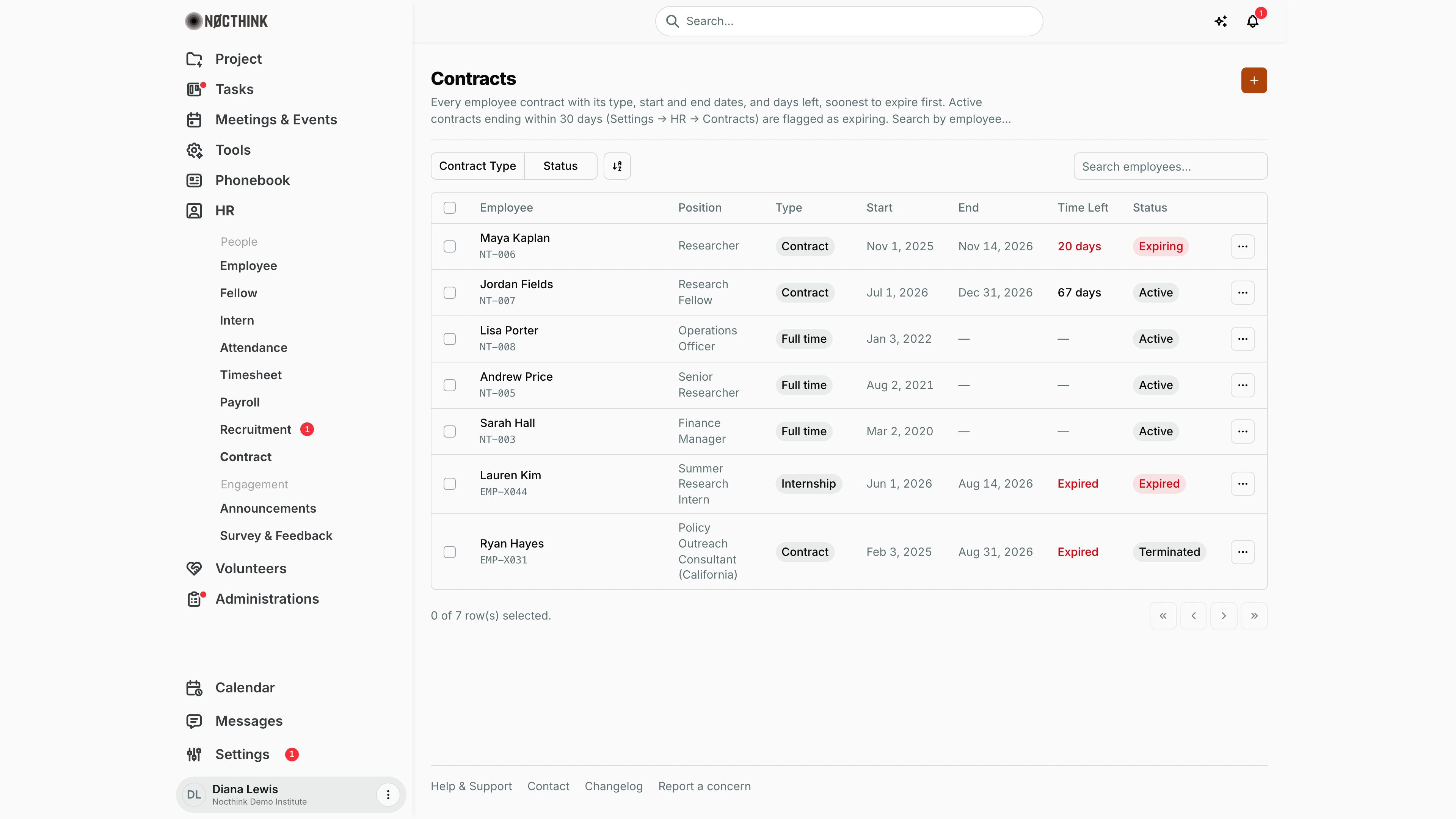
Screenshot: Diana Lewis (HR Officer), Nocthink Demo Institute demo data. Maya Kaplan's contract is inside the 30-day window, so with the contract reminder switched on the Contracts ending soon dialog would list her; the dialog is not in the screenshot.
Why I use this page
I use Contracts to keep track of every employment contract: who is on which type, when it started, when it ends, and how many days are left. I check it at the start of each week to catch contracts entering the 30-day window, so I can arrange a renewal, a conversion to permanent, or an exit with the line manager before the end date. I also record a new contract here when someone is hired or renewed.
What's on the screen
- Header: title Contracts, a one-line description, and a + button (New contract) on the right.
- Contracts ending soon dialog (not shown in the screenshot): opens over any HR page when an active contract ends within the reminder window. Each row shows the employee, their position, contract #n (how many contracts that person has had), the end date and n days left. Dismiss hides it for the rest of the browser session. Review contracts dismisses it and opens this page.
- Filters: Contract Type (Full Time, Part Time, Contract, Internship) and Status (Active, Expiring, Expired, Terminated, Renewed) checkbox filters, a view-options button, and a Search employees... box on the right.
- Table columns: Employee (name with employee code below), Position, Type, Start, End, Time Left, Status. Rows are ordered by expiry: active contracts with an end date first (soonest first), then open-ended active contracts, then the rest. In the demo, Maya Kaplan (Contract, ends Nov 14, 2026, 20 days, Expiring) is first, then Jordan Fields (Contract, ends Dec 31, 2026, 67 days), then open-ended full-time staff (Lisa Porter, Andrew Price, Sarah Hall), then Lauren Kim (Internship, Expired) and Ryan Hayes (Contract, Terminated). Long positions wrap onto several lines (e.g. "Policy Outreach Consultant (California)").
- Time Left shows "n days" (red at 30 days or less), Expired when the end date has passed, or "—" for open-ended contracts.
- Footer: row-selection count and pagination.
How I …
Add a new contract
- Click the + button (New contract) at the top right (see Create contract below).
- In Create Contract, choose the Employee from the list (names show the employee code in brackets).
- Pick the Type: Full Time, Part Time, Contract or Internship (default Full Time).
- Pick the Status: Active, Expired, Terminated or Renewed (default Active).
- Enter the Start Date (required) and, for fixed-term contracts, the End Date. Leave End Date empty for an open-ended contract.
- Add any Terms (contract terms or notes).
- Click Create Contract. The dialog closes and the row appears in the list.
Find contracts that need action
- Open Status and tick Expiring to see active contracts ending within 30 days, and Expired for ones already past their end date.
- Use Contract Type to narrow to, for example, Contract or Internship.
- Type a name in Search employees... to find one person.
- For each expiring contract, agree the next step with the manager, then record it (a new contract, or a status change on the employee's profile).
Renew or change a contract
- To correct a contract, open its row menu (⋯) and choose Edit. Edit Contract lets me change the type, status, dates and terms (not the employee). Click save.
- To change the end date of a person's current contract from their record instead, open the person under Employee, edit Contract ends there, and save. It updates the active contract row.
- For a renewal, set the old contract's Status to Renewed and add a new contract here with the new dates. The old one stays as history.
Respond to the expiry reminder
- When Contracts ending soon appears, read the list of names and end dates.
- Click Review contracts to jump here, or Dismiss to hide it until I open a new browser session.
Detail page, forms & dialogs
Create contract
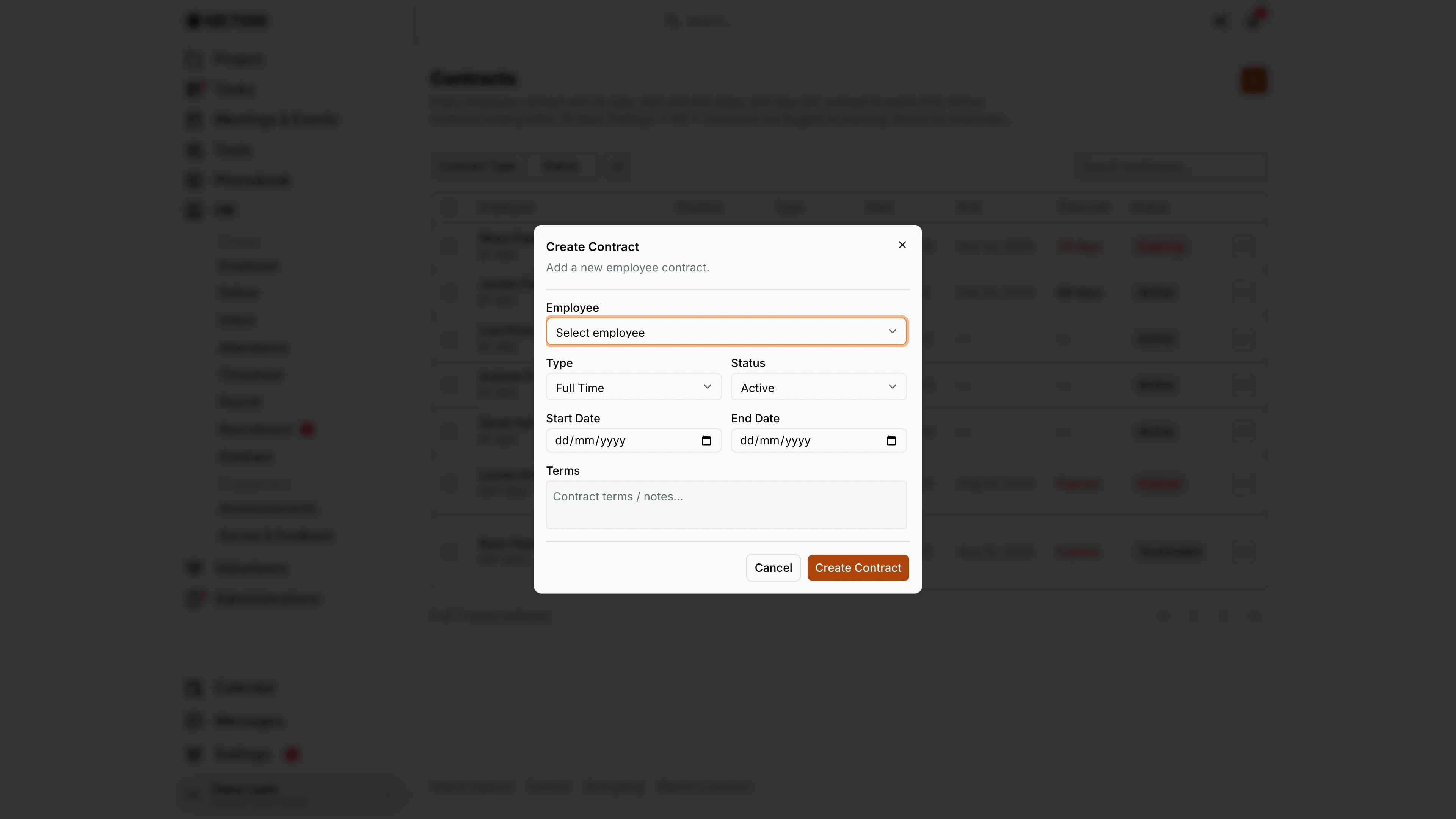
Screenshot: Diana Lewis (HR Officer), Nocthink Demo Institute demo data.
The + button (New contract) opens Create Contract ("Add a new employee contract."). Employee lists everyone with their employee code, e.g. "Jordan Fields (NT-007)". Type is Full Time, Part Time, Contract or Internship, and Status is Active, Expired, Terminated or Renewed; both default to the first option. Start Date is required. Leave End Date empty for an open-ended contract; fill it for fixed-term contracts, because the Expiring filter and the "Contracts ending soon" reminder use it. Terms holds the contract terms or notes. Create Contract saves the row; Cancel discards it.
Edit contract
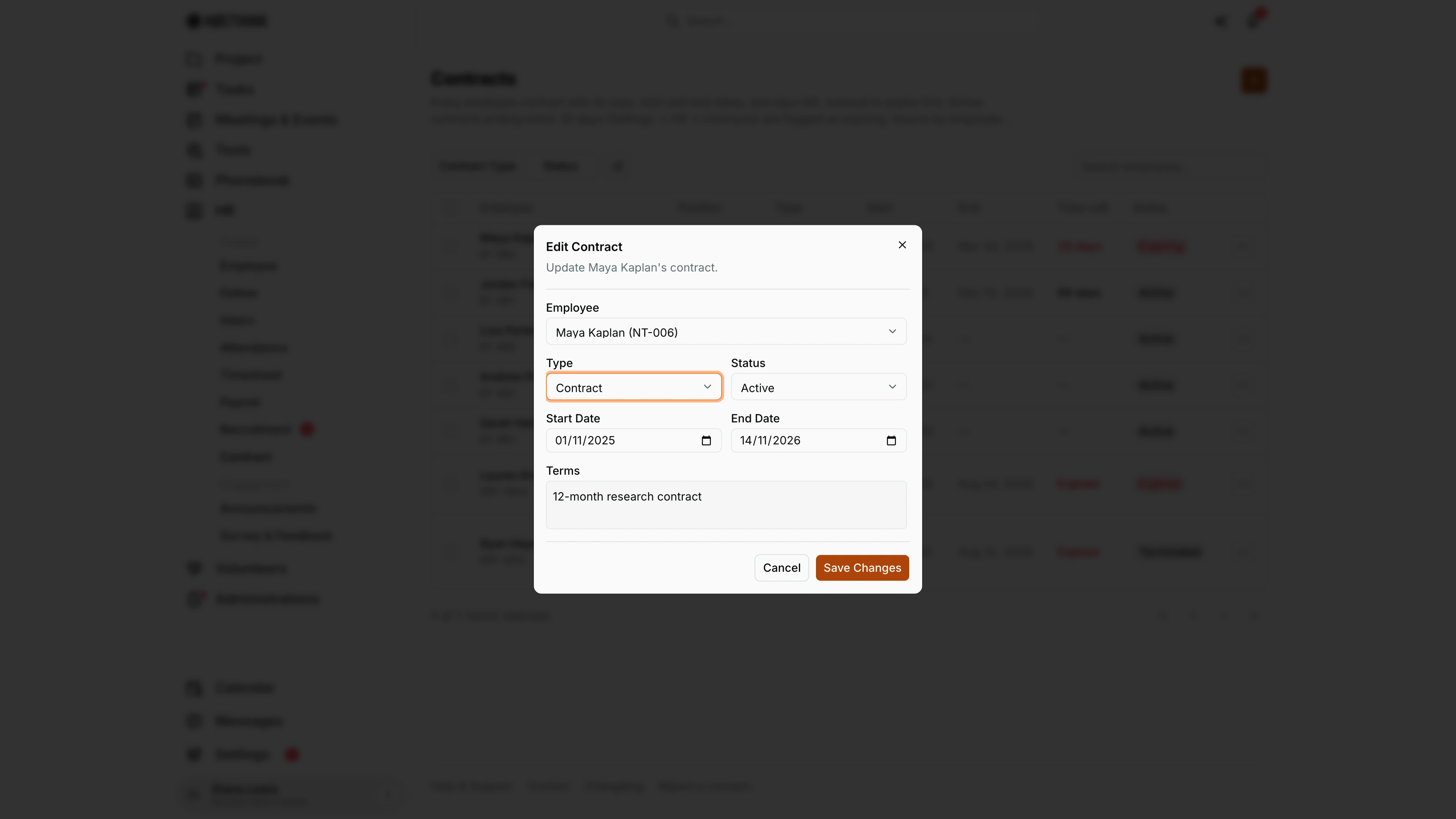
Screenshot: Diana Lewis (HR Officer), Nocthink Demo Institute demo data.
The row menu (⋯ → Edit) opens Edit Contract ("Update <name>'s contract.") with the same fields as Create, filled in. Use it to correct dates or terms, or to mark a contract Renewed or Terminated. For a renewal, change the old contract's status here and then create a new contract with the new dates, so the history stays. Save Changes applies the edit. Expired and terminated contracts drop out of the Expiring filter and the reminder, so keep the status current. Cancel closes without saving, and ⋯ → Delete on the row removes a contract entered in error after a confirmation.
Access & permissions
- The menu needs
hr.updateoraccounting.approve(lib/domain-routes.ts). In docs/role.md, HR Staff have write access, HR Managers and Owners/Directors have full access, and the F.A.T. Manager is listed as read. - +, and Edit in the row menu, need
hr.update; Delete needshr.delete. Without them the controls are hidden. - On the server, the contract list is "own rows unless HR authority": HR authority (directors and HR department members) see everyone's contracts. Anyone else only sees their own.
- The expiry reminder settings (on/off and days before) are under Settings → HR → Contracts, which needs
hr.approve(HR Manager).
Caveats
- End Date must be on or after Start Date, or the form refuses to save.
- Expiring is not a stored status. It is computed when the status is Active and the end date is within the days before window from Settings → HR → Contracts (30 by default), the same window the pop-up reminder uses. The Status filter uses this computed value, but the record itself still says Active.
- Contracts are not set to Expired automatically. After the end date, Time Left shows Expired, but the stored status stays whatever was last saved.
- Dismissing the reminder only lasts for the current browser session (sessionStorage). It is not a shared acknowledgement.
- Dates are shown in US format (e.g., Nov 14, 2026). Days left are counted against today's date in UTC.
Limitations
- The row menu has Edit (type, status, dates, terms; the employee cannot be changed) and Delete (permanent, with a confirmation). There is no one-click renew: to renew, set the old contract to Renewed and add a new one.
- No import or export button on this page.
- The form has no field for uploading the signed contract document, although the API accepts a
documentfile.
Related menus
- Employee: edit a person's employment status and the current contract end date.
- Fellow and Intern: fixed-term people whose contracts appear here.
- Engagements: each contract is also an engagement, with classification checks.
- Access Grants: a grant can be set to end when one of these engagements ends.
- Legal Holds & Offboarding: what happens to access once someone's employment ends.
- HR Dashboard: headcount and turnover overview.