
Recruitment
Open in NocthinkModule: HR · URL: /hr/recruitment · Responsible role: HR Staff (write) · Also used by: HR Manager and Owner/Director (full). No other role has access per docs/role.md.
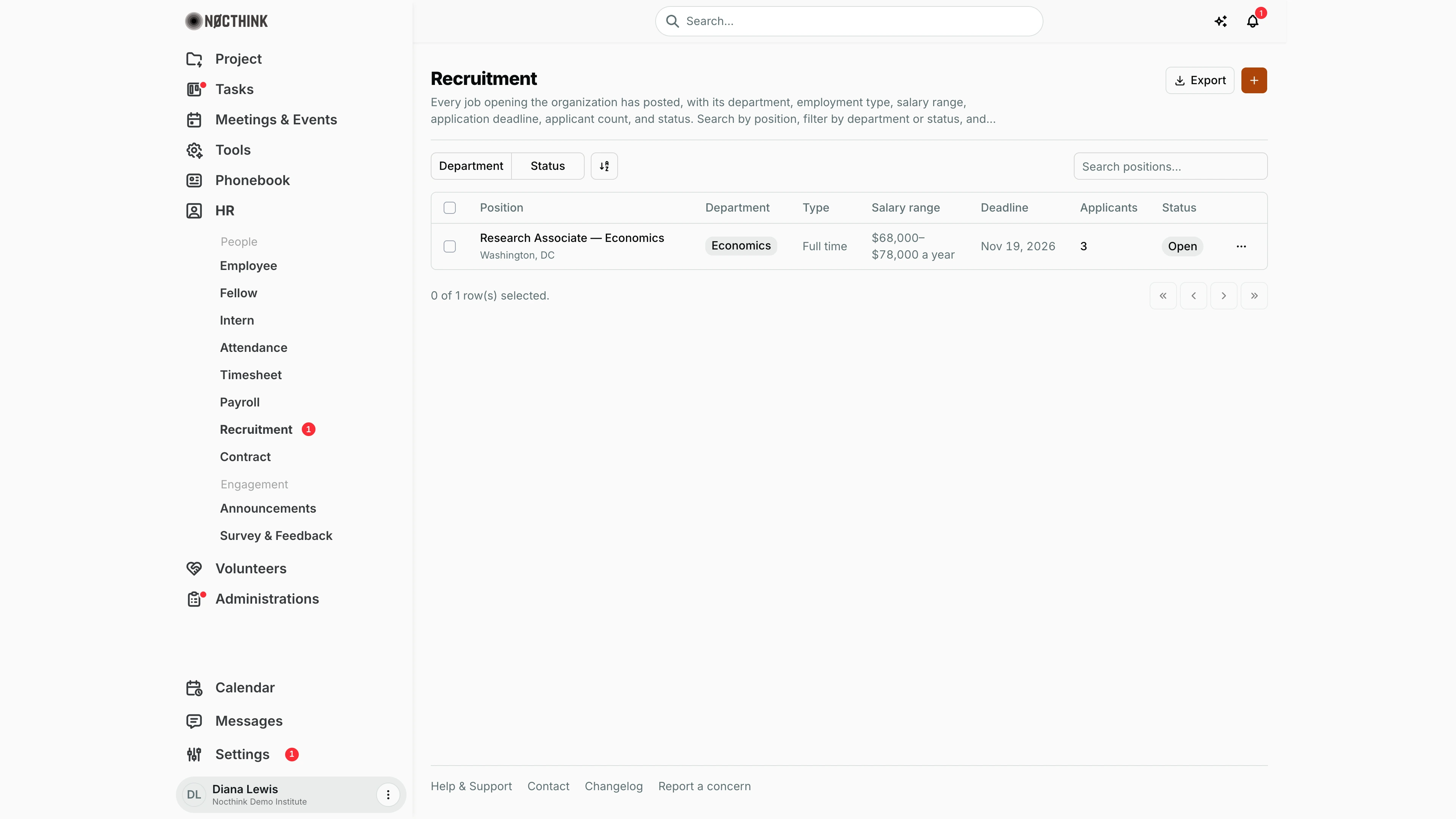
Screenshot: Diana Lewis (HR Officer), Nocthink Demo Institute demo data.
Why I use this page
I use Recruitment to post job openings and run each hiring pipeline. When a department head approves a new role, I create the posting; it gets a public careers page that candidates apply through. I then check the applicants a few times a week, move them through screening, interview and offer, and when someone is hired I turn them into an employee account in one click.
What's on the screen
- Header: the title Recruitment and a description. On the right are Export and + (Add recruitment).
- Filters: Department (the org's departments, plus any older department text still on a posting) and Status (Open / Closed / On hold), plus the search box "Search positions...".
- Table columns:
- Position: with the location under it. Click it to open the posting.
- Department.
- Type: Full time, Part time, Contract or Internship.
- Salary range.
- Deadline.
- Applicants.
- Status.
- Actions (⋯): Edit and Delete.
- Posting page (
/hr/recruitment/<id>):- Public page (opens
/careers/<id>in a new tab) and the actions menu. - A Details panel: Status, Department, Type, Location, Salary range, Deadline and Applicants.
- Description and Requirements.
- An Applicants table: Candidate (photo, name, email), Phone, Resume (View), Writing (View), Applied and a Stage dropdown. A Make employee button appears for hired candidates.
- Public page (opens
How I …
Post a new opening
- Click +. The Add recruitment dialog opens (see Add recruitment below).
- Fill in Position and Department, which are both required. Pick a Type, then add Location, Salary range (free text, e.g. "$68,000–$78,000 a year"), Application deadline, Status (Open by default, or On hold / Closed), Description and Requirements.
- Click Add recruitment.
- Open the posting and click Public page to get the link to share.
Move candidates through the pipeline
- Open the posting from the list (see Recruitment posting detail below).
- In Applicants, open each Resume and Writing sample with View.
- Change the Stage dropdown: Applied → Screening → Interview → Offer → Hired, or Rejected. The change saves immediately.
- Use the Stage filter to see only one stage, for example everyone in Interview.
Hire a candidate
- Set the candidate's Stage to Hired.
- Click Make employee on that row.
- The Employee created dialog shows the new Employee ID and a Temp password. Share them with the new hire, who must change the password at first login. Click Done.
- The row now shows Employee, which links to the new profile. Complete their details in Employee and add a contract in Contract.
Close or pause a posting
- Use ⋯ → Edit, set Status to Closed or On hold, and click Save changes.
- Use ⋯ → Delete only for postings created by mistake. The confirmation asks "Delete recruitment?".
Detail page, forms & dialogs
Recruitment posting detail
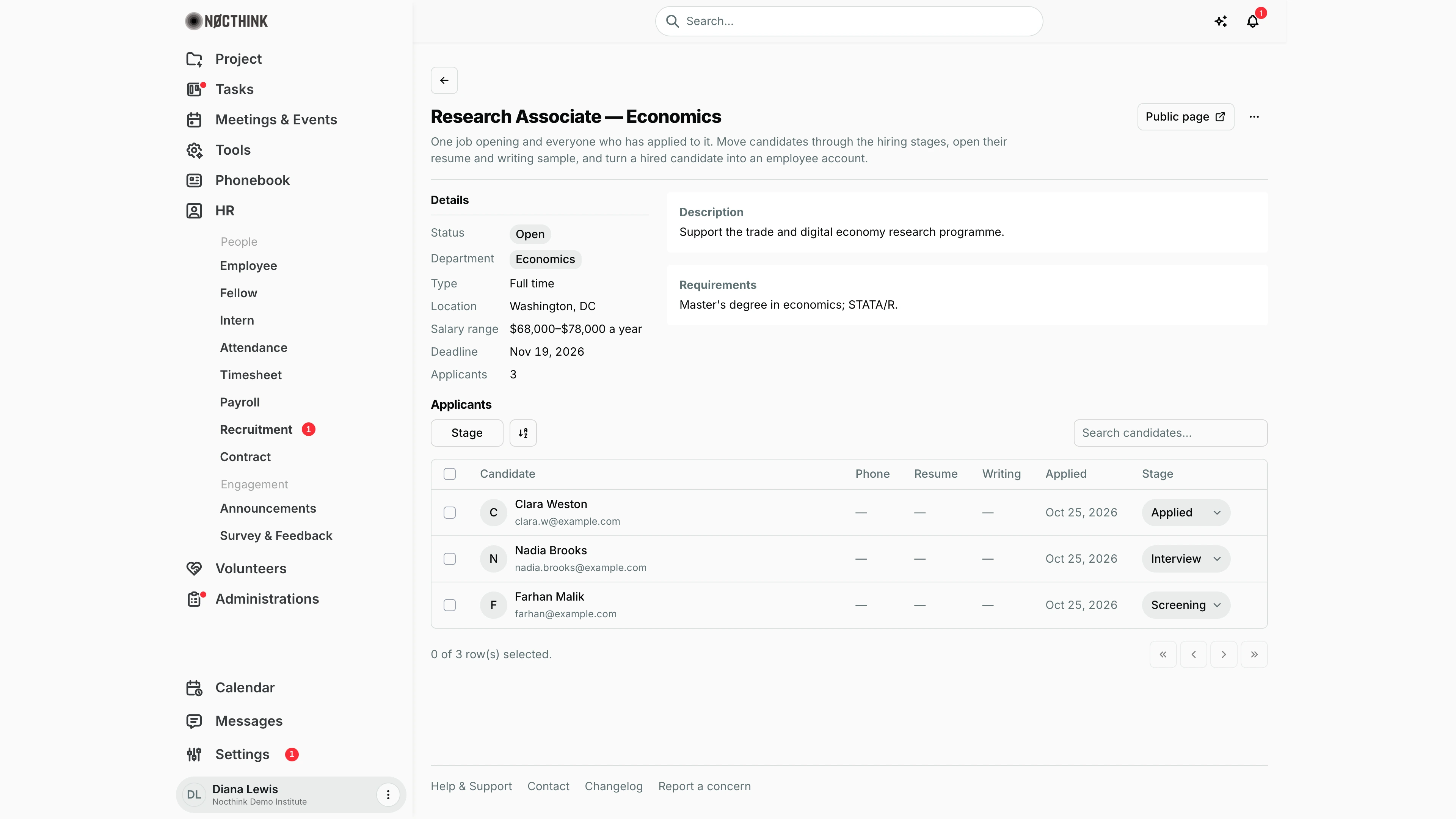
Screenshot: Diana Lewis (HR Officer), Nocthink Demo Institute demo data.
Clicking a position opens the posting. The header has a back button, the position as title, Public page (the careers page applicants use, opened in a new tab) and the ⋯ menu with Edit and Delete. Details shows Status, Department, Type, Location, Salary range, Deadline and the number of Applicants; Description and Requirements sit on the right.
Applicants is the pipeline: Candidate (name and email), Phone, Resume and Writing (a View link when a file was uploaded, a dash otherwise), Applied date and Stage. The Stage dropdown saves as soon as I change it (Applied, Screening, Interview, Offer, Hired, Rejected). When a candidate reaches Hired, a Make employee button appears on the row; it creates the employee account and shows the new Employee ID and temporary password once. Use the Stage filter or Search candidates... to narrow the list.
Add recruitment
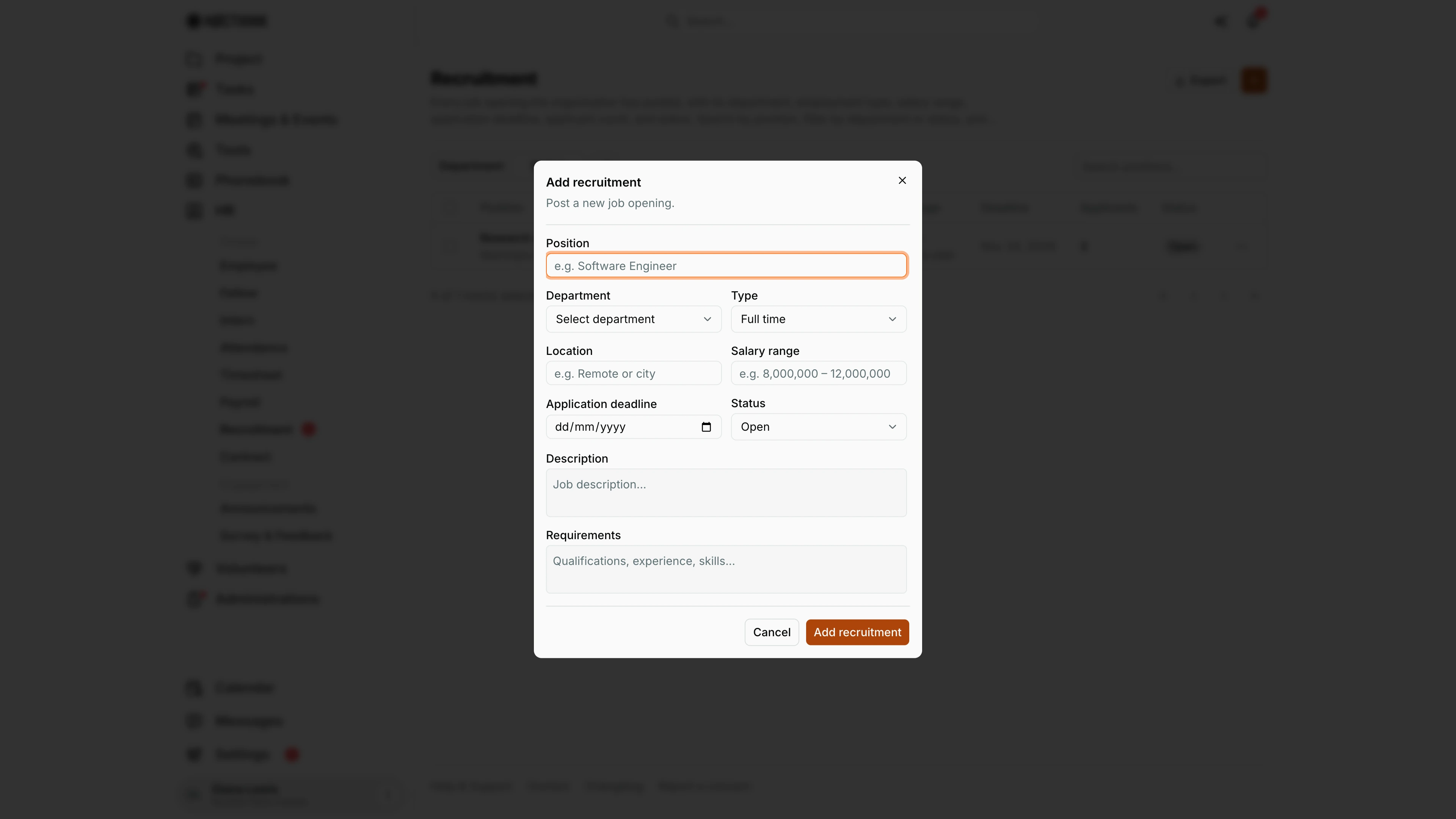
Screenshot: Diana Lewis (HR Officer), Nocthink Demo Institute demo data.
+ opens Add recruitment ("Post a new job opening."). Position and Department are required; Department lists the organization's departments. Type is Full time, Part time, Contract or Internship. Location and Salary range are free text, so write the range the way it should read on the public page. Application deadline is a date. Status starts on Open; choose On hold or Closed to save a posting without accepting applications. Description and Requirements appear on the posting and on the public page. Add recruitment saves it; Cancel discards it.
Edit recruitment
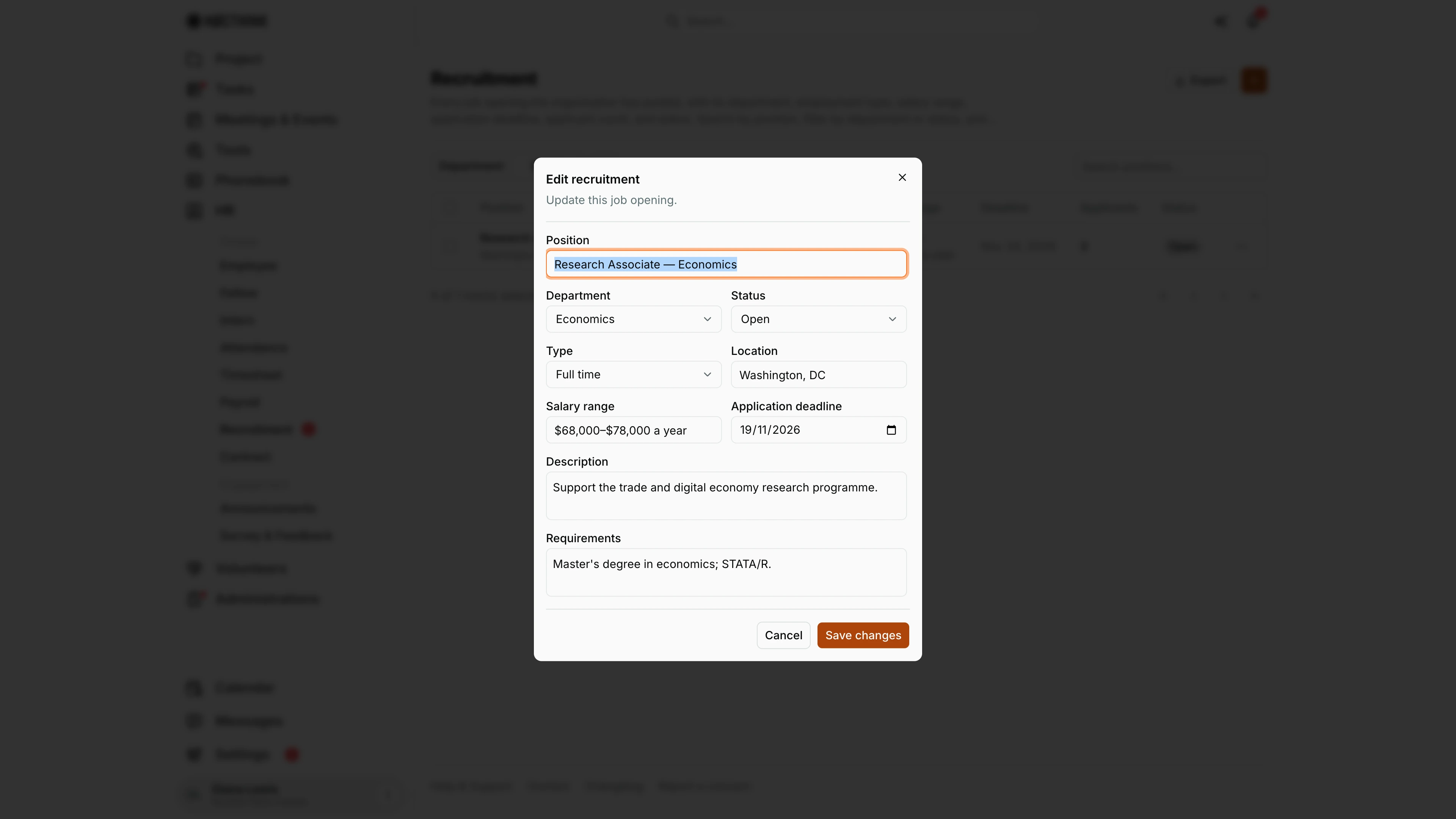
Screenshot: Diana Lewis (HR Officer), Nocthink Demo Institute demo data.
⋯ → Edit on a list row (or on the posting page) opens Edit recruitment ("Update this job opening.") with the same fields as Add, filled in. This is where I close or pause a posting by changing Status, extend the Application deadline, or correct the salary text. Save changes applies the edit; existing applicants and their stages are not affected. Changing the status does not touch applicants already in the pipeline. Use ⋯ → Delete only for postings created by mistake. Cancel closes without saving.
Access & permissions
- To open the page you need
hr.viewandhr.update(lib/domain-routes.ts). That covers HR Staff, HR Manager, Owner and Director. - Candidates never log in. They apply through the public careers page.
- The badge on Recruitment in the sidebar is the number of postings with status Open (1 in the demo).
Caveats
- Make employee appears only at the Hired stage, and only once per candidate. It creates a login account immediately, and the temporary password is shown only once.
- Stage changes have no confirmation and no undo, so be careful moving someone to Rejected.
- Deleting a posting is permanent, and a failed delete is silent (it is only logged in the browser console).
- After the Deadline (UTC date), the public form refuses new applications ("Applications for this position have closed."), but the posting's status stays Open and keeps counting in the sidebar badge until you set it to Closed.
Limitations
- Export downloads the postings as CSV (position, department, type, location, salary range, deadline, applicants, status); it does not include applicants.
- There are no interview scheduling, scorecards or candidate notes on this page, and no emails to candidates.
- Applicants cannot be added by hand; they come only from the public page.