
Fellow
Open in NocthinkModule: HR · URL: /hr/fellows · Responsible role: HR Staff (write) · Also used by: HR Manager (full, including delete), Owner/Director (full). Finance and F.A.T. (read-only).
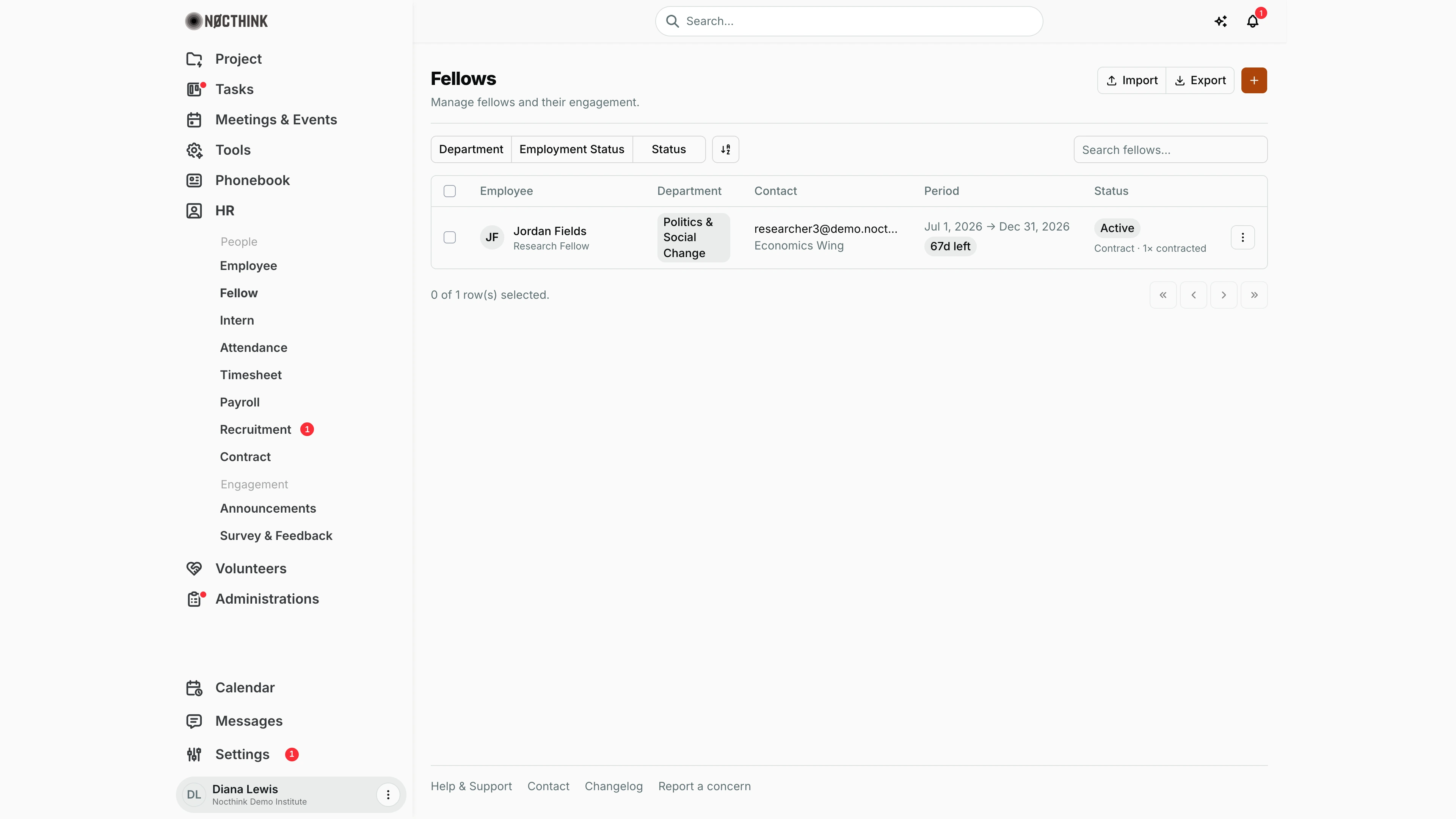
Screenshot: Diana Lewis (HR Officer), Nocthink Demo Institute demo data.
Why I use this page
I use Fellow to manage visiting and research fellows separately from regular staff. Fellows usually have a fixed period and a stipend rather than a salary, so the list shows how long each one has left. I check it when a fellowship starts, when one is about to end, and when a programme lead asks who is currently in residence and what they have been given (contracts, assets, tasks).
What's on the screen
- Header: the title Fellows ("Manage fellows and their engagement."). On the right are Import, Export and + (Add Fellow).
- Filters: Department, Employment Status (Permanent / Contract) and Status (Active / On Leave / Terminated), plus the search box "Search fellows...".
- Table columns:
- Employee: name and position.
- Department.
- Contact: email, room and extension.
- Period: start date → end date of the active contract (e.g. "Jul 1, 2026 → Dec 31, 2026"), with a pill showing "Nd left" or "Expired". The pill is red when 30 days or fewer remain. The column shows "—" when the person has no active contract with an end date.
- Status: with "Permanent since…" or "Contract · N× contracted" under it.
- Row menu (⋮): Edit and Delete.
- Only records with
employment_type = felloware listed.
How I …
Add a fellow
- Click +. The dialog is titled Add Fellow.
- Enter Full Name and Email (both required). Optionally add Phone, Extension, Position, Department, Start Date and Status.
- Click Add Fellow.
- Copy the one-time temporary password from the Fellow Created screen and send it to the fellow. Click Close dialog.
- Record the fellowship period as a contract in Contract so the Period column and the expiry reminder work.
Look up a fellow's details
- Click the fellow's name. Unlike Employees, this opens a side drawer; Open full profile at its top right goes to the full employee profile (see Fellow detail drawer below).
- The drawer shows Contact, Details (Employee ID, Department, Stipend), Contracts, Assets and Tasks assigned to them.
- Close it with the × at the top right.
Edit or end a fellowship
- Use ⋮ → Edit on the row to change position, department, dates or Status.
- When the fellowship ends, set Status to Terminated rather than deleting, so the history stays.
- For salary or stipend, documents, attendance or timesheets, click Open full profile in the drawer.
Import or export fellows
- Export downloads
fellows-fellow.xlsxwith Employee, Position, Department, Email, Ext and Start Date. - Import reads the same columns and creates every row as an Active fellow. Failed rows are listed in a red banner.
Detail page, forms & dialogs
Fellow detail drawer
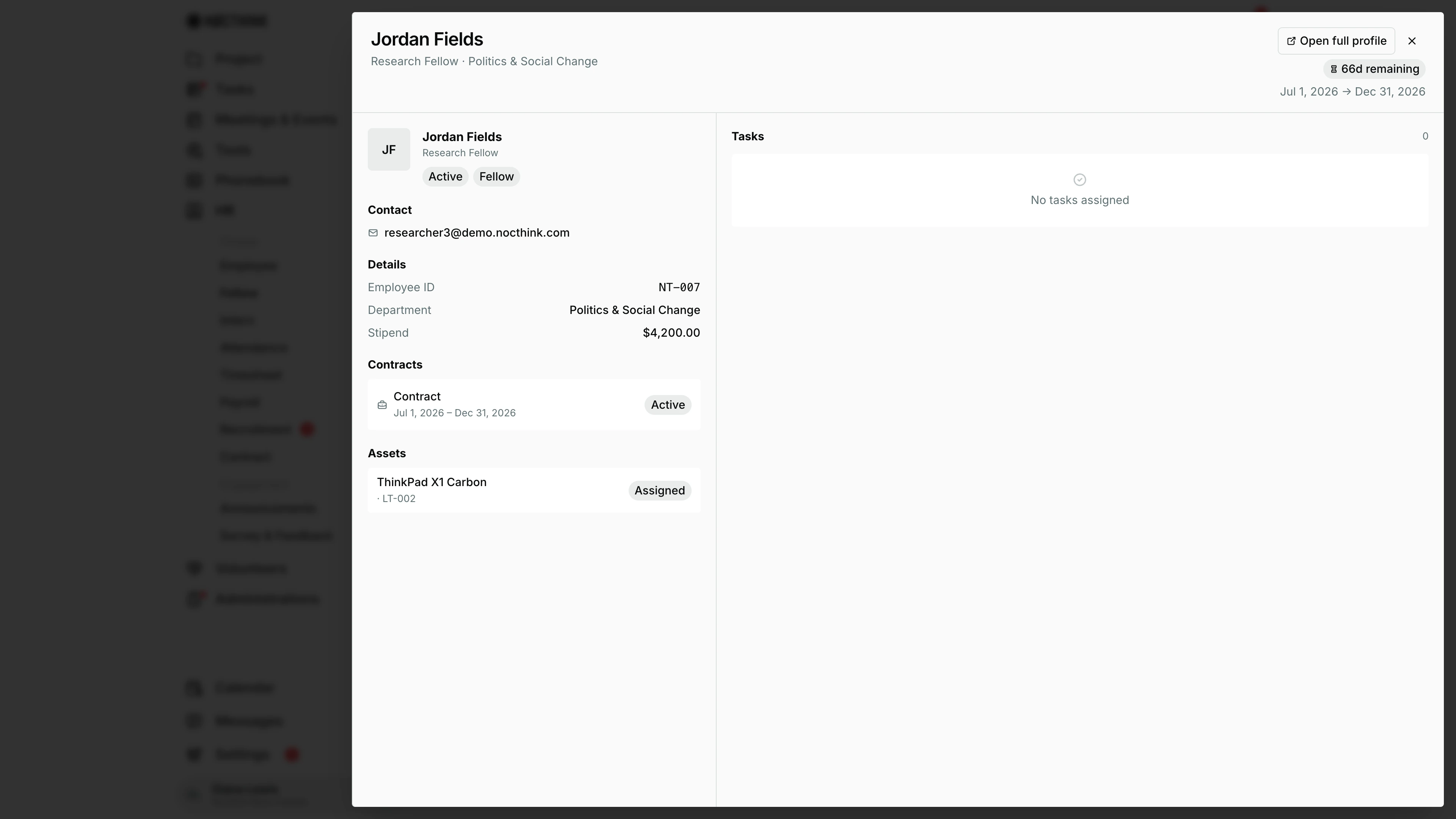
Screenshot: Diana Lewis (HR Officer), Nocthink Demo Institute demo data.
Clicking a fellow opens a wide drawer instead of a full page. The header has the name, position and department, Open full profile (the same employee profile as staff, with all its tabs) and ×. At the top of the body, a fellowship bar shows the days remaining and the period from the active contract ("66d remaining", "Jul 1, 2026 → Dec 31, 2026").
The left column shows the photo or initials, status and type tags (Active, Fellow), Contact (email), Details (Employee ID, Department, Stipend), Contracts (each with dates and status) and Assets currently assigned, e.g. "ThinkPad X1 Carbon · LT-002 · Assigned". Tasks on the right lists open tasks assigned to the fellow. The drawer is read-only: edit details with the row menu, and use Open full profile for documents, attendance, timesheets and pay settings.
Add fellow
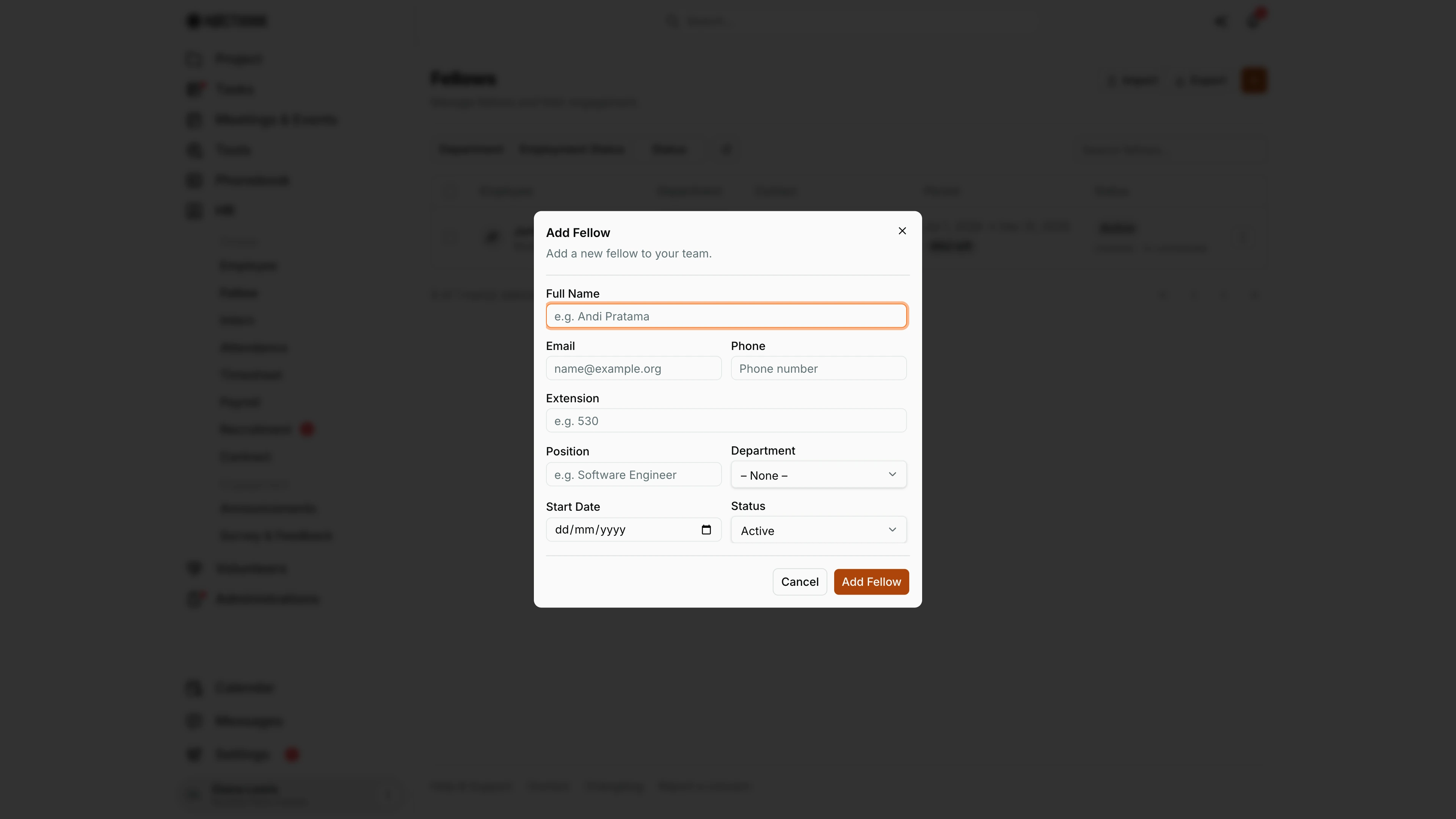
Screenshot: Diana Lewis (HR Officer), Nocthink Demo Institute demo data.
+ opens Add Fellow, the same form as Add Employee but saving the person with employment type Fellow. Full Name and Email are required; Phone, Extension, Position, Department, Start Date and Status (default Active) are optional. Add Fellow creates the login account and the dialog then shows a one-time temporary password to copy and pass on. Record the fellowship period as a contract in Contract afterwards so the drawer shows the days remaining. Cancel closes the form without creating anyone.
Access & permissions
- To open the page you need
hr.updateorfinance.update. HR Staff, HR Manager, Owner, Director and the finance roles qualify. - Create, edit and delete follow
hr.create,hr.updateandhr.delete. Delete is the HR Manager's call. Withouthr.update, Import, + and the row menu are hidden. - Finance authority also gets the full record (stipend) from the API.
- Fellows themselves do not use this page; they see their own records under their profile and the self-service menus.
Caveats
- The Period column needs an active contract with an end date. Without one (including when the contract has already been marked Expired or Terminated) it shows "—" and the fellow will not trigger the Contracts ending soon reminder. The Period column, the "N× contracted" line and the pending-document dot are filled only for HR or finance record readers; other viewers see "—".
- The red "days left" pill uses the same window as the pop-up reminder: the days set in Settings → HR → Contracts (30 by default).
- Changing a fellow's employment type on the full profile moves them to the Employee or Intern list.
- Delete is permanent, and is refused if protected records exist.
Limitations
- The drawer is read-only. Editing happens through the row menu or the full employee profile (Open full profile).
- There are no bulk actions on selected rows.
- No fellowship-specific fields (host programme, funder) exist beyond Position, Department and Stipend.
Related menus
- Employee: the same list for staff, with the full profile page.
- Intern: the same list for interns.
- Contract: where the fellowship period is recorded.
- Engagements: worker classification and pay-basis checks for fellows (e.g. stipend, exempt status).