
Access Grants
Open in NocthinkModule: HR · URL: /hr/access-grants · Responsible role: HR Manager · Also used by: Owner/Director (full: request, approve, revoke). Any holder can revoke their own grant through the API. Not available to HR Staff.
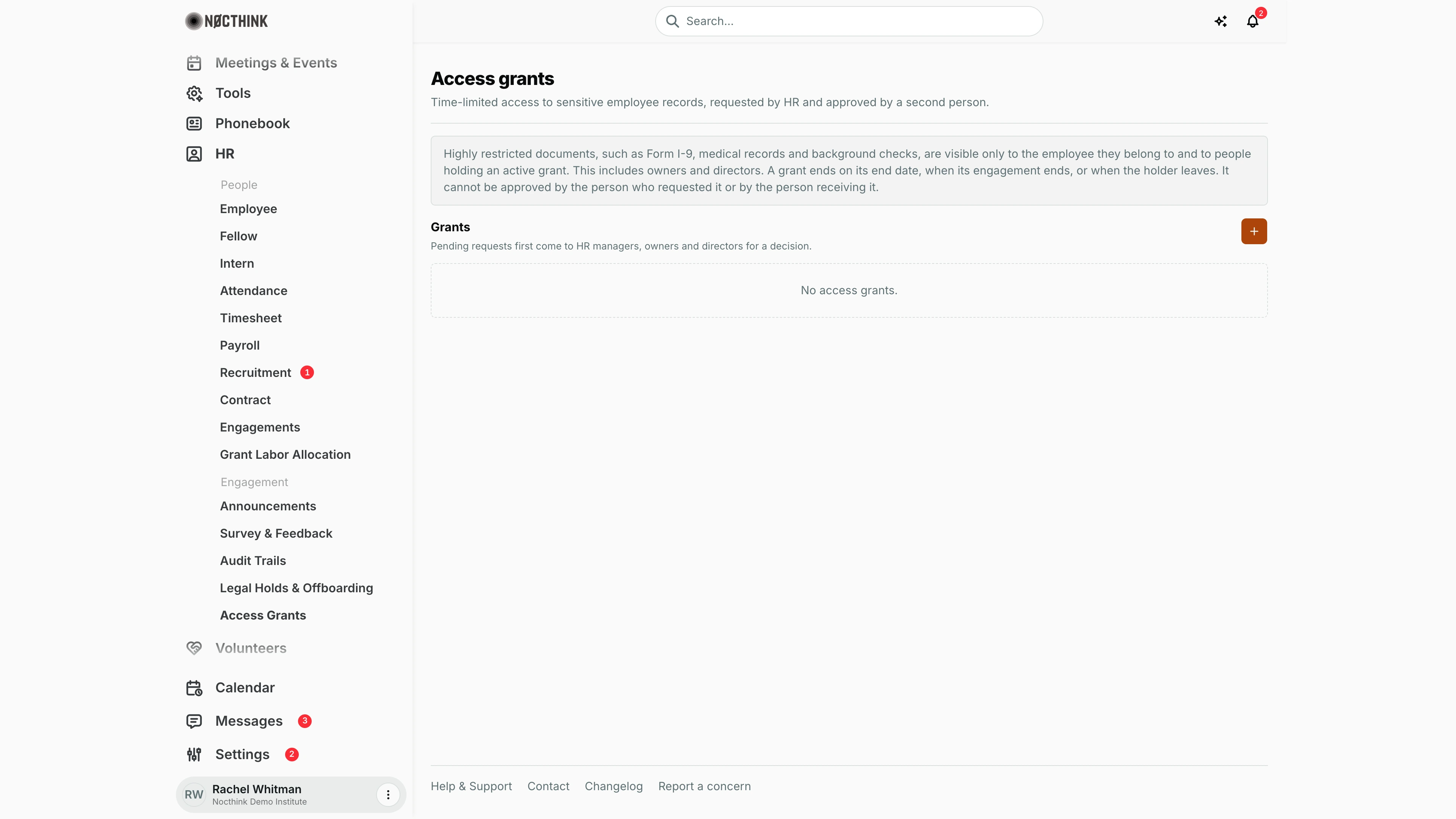
Screenshot: Rachel Whitman (Executive Director, org owner), Nocthink Demo Institute demo data. The demo HR login (Diana Lewis) holds HR Staff, which lacks hr.delete, so this page is not in her sidebar.
Why I use this page
Highly restricted employee documents, such as Form I-9, medical records and background checks, are hidden from everyone except the employee they belong to. That includes owners and directors. When someone legitimately needs them (for example, to complete I-9 verification for new hires), I use this page to request time-limited access for that person. A second person then approves it. I review the list regularly and revoke grants that are no longer needed.
What's on the screen
- Header: Access grants: "Time-limited access to sensitive employee records, requested by HR and approved by a second person."
- Notice: who can see highly restricted documents, when a grant ends (its end date, when its engagement ends, or when the holder leaves), and that it cannot be approved by the requester or the receiver.
- Grants section, with a + button (Request access grant) and the note "Pending requests first come to HR managers, owners and directors for a decision."
- Table columns:
- Holder: the person receiving access, with the justification.
- Records: one employee or All employees, plus "Up to <level> · read only" or "read and manage".
- Valid: from and until dates.
- Status: Awaiting decision, Active, Starts later, Expired, Engagement ended, Rejected or Revoked, with "Requested by …, approved/rejected by …" and any revoke reason.
- Actions: Approve / Reject on pending rows (for eligible deciders), and Revoke on pending or active rows.
- In the demo there are no grants yet ("No access grants.").
How I …
Request access for someone
- Click + (Request access grant); see Request access grant below.
- Holder: choose who receives access (required).
- Ends with engagement (optional): pick one of the holder's contracts so the grant ends when that engagement ends, or leave it on Not tied to an engagement.
- Records of: choose one employee, or leave it on All employees.
- Up to: choose the highest classification covered: Internal, Restricted, or Highly restricted (I-9, medical, background checks) (the default).
- Tick Also file, edit and review these documents only if the holder must manage the documents. Read access is always included.
- Last day of access: defaults to 30 days from today. It can be at most one year ahead.
- Justification (required), e.g., "complete Form I-9 verification for new hires".
- Click Request. The row appears as Awaiting decision.
Approve or reject a request
- Ask another HR Manager, owner or director (not me, and not the holder) to open the page.
- They click Approve, or Reject, enter a Reason (required, shown to the requester) and click Reject again.
- Once approved, the status becomes Active, or Starts later if the start is in the future.
Revoke a grant early
- Click Revoke on a pending or active grant.
- Enter the Reason, e.g., "verification complete".
- Click Revoke. The holder loses access immediately, including links to files they already opened.
Detail page, forms & dialogs
Request access grant
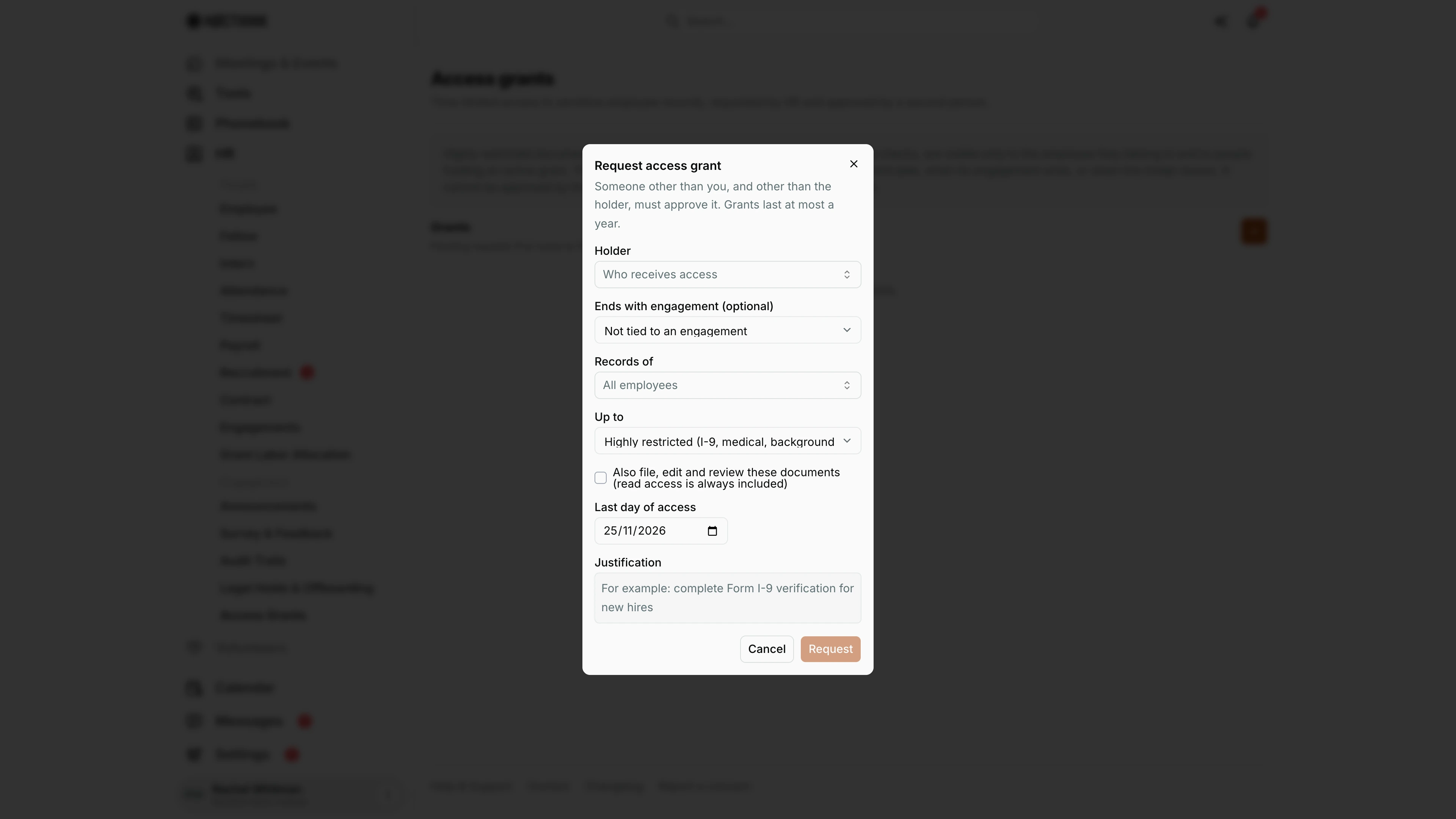
Screenshot: Rachel Whitman (Executive Director), Nocthink Demo Institute demo data.
+ opens Request access grant. The note at the top sets the rules: "Someone other than you, and other than the holder, must approve it. Grants last at most a year." Holder is who receives access. Ends with engagement (optional) ties the grant to one of the holder's contracts, or leave it on Not tied to an engagement. Records of is one employee or All employees. Up to is the highest classification covered: Internal, Restricted or Highly restricted (I-9, medical, background checks). Tick Also file, edit and review these documents only when the holder must manage the files; read access is always included. Last day of access and a Justification are required.
Request files the grant as Awaiting decision; it gives no access until a second person approves it on this page.
Access & permissions
- The page needs
hr.viewplushr.delete(HR full scope: HR Manager, Owner, Director). Requesting, approving and rejecting all need HR full scope on the server. - The Approve / Reject buttons are hidden for the requester and for the holder. The API also refuses them ("Someone other than the requester must decide on this request.", "You cannot decide on access granted to yourself.").
- Owners and directors do not see highly restricted documents by default. They need an active grant like anyone else.
Caveats
- The Holder must be a member of the organization with a linked user. The Request button stays disabled until a holder with a user account is chosen.
- A grant can last at most 366 days. The end date must be in the future, and it counts through the end of that day.
- Approving a request whose end date has already passed fails with "This request has already expired. Ask for a new one."
- If two people decide at the same time, only the first decision counts. The second gets "This request has already been decided."
- Only pending or active grants can be revoked. Revoking cannot be undone. Request a new grant instead.
- Every request, approval, rejection and revocation is written to the audit log.
Limitations
- No edit or extend action. To change scope or dates, revoke and request again.
- No email or in-app notification to approvers when a request is made. Deciders need to check this page.
- Grants cover HR documents only (resource type
hr_documents). - No filter, search or export on the grants table.
Related menus
- Employee: where the restricted documents live on each person's profile.
- Contract and Engagements: a grant can end with the holder's engagement.
- Legal Holds & Offboarding: offboarding ends a leaver's grants.
- Audit Trails: the record of who requested, approved and revoked access.
- Recruitment: new hires often trigger I-9 verification grants.