
Attendance
Open in NocthinkModule: HR · URL: /hr/attendance · Responsible role: HR Staff (write) · Also used by: HR Manager and Owner/Director (full). Every other staff member gets self-service access (their own rows only).
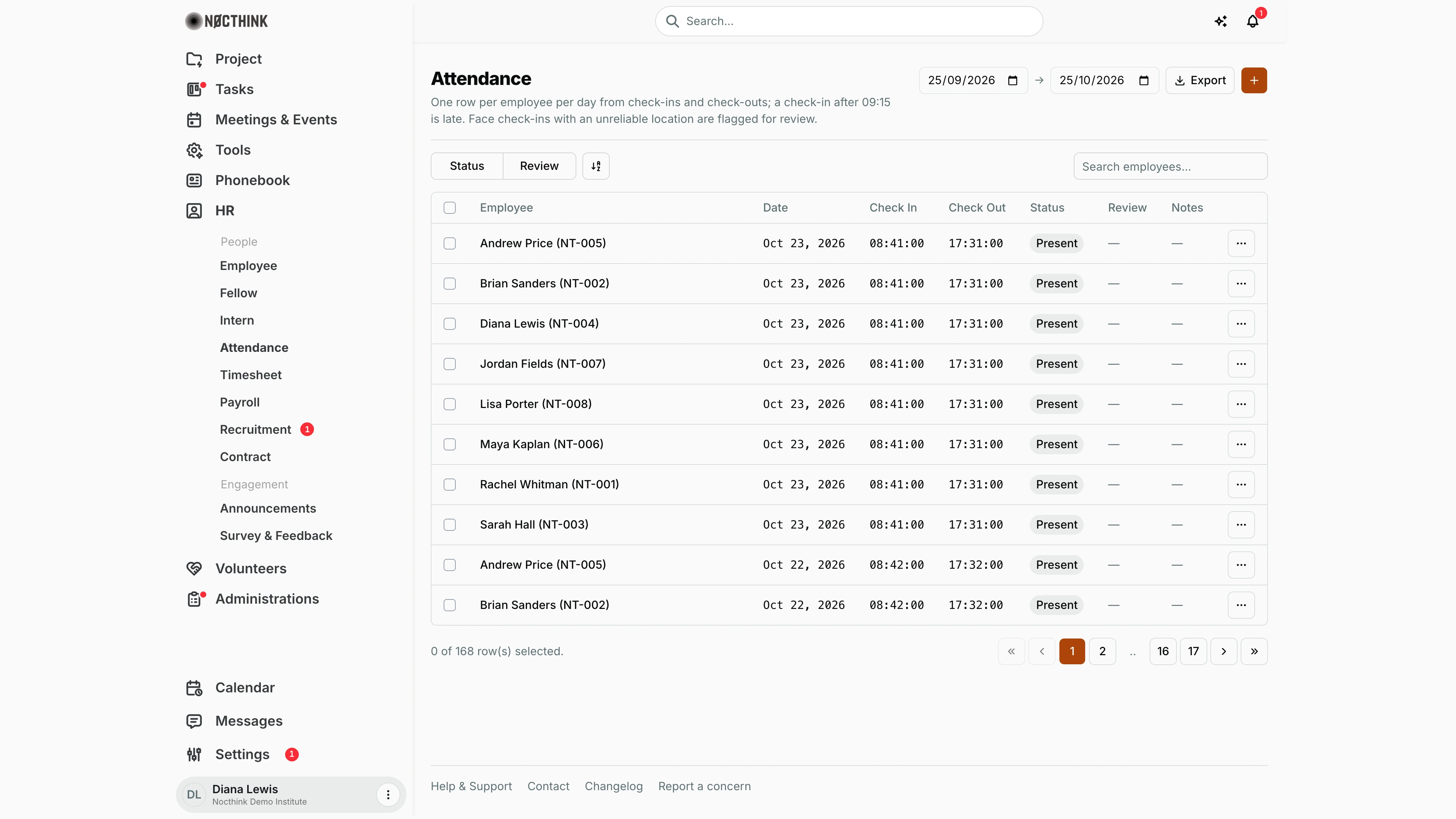
Screenshot: Diana Lewis (HR Officer), Nocthink Demo Institute demo data. Because she is in the HR department she counts as HR authority, so she sees every employee's rows (168 rows over the last 30 days), and as HR Staff she has the + (Record attendance) button.
Why I use this page
I use Attendance to see who came in, when, and who was late, absent or on leave, for the whole organization. I check it daily to clear face check-ins that were flagged for an unreliable location, and to approve new face enrollments. At month-end I review it before running payroll, because absences and late arrivals are deducted on the payslip.
What's on the screen
- Header: the title Attendance and the rule in the description: one row per employee per day, and a check-in after the late cut-off counts as late. The cut-off shown is the core start plus the clock-in grace from Settings → HR → Attendance (09:15 with the defaults 09:00 + 15 minutes).
- Header actions: a From date → To date range, which defaults to the last 30 days (the date fields use the browser's own date format, e.g. 25/09/2026 in the screenshot); Export (downloads the rows in the range as CSV); and + (Record attendance, shown only to people with
hr.create). - Face enrollment review: a panel that appears only when face enrollments are pending. Each row shows the submitted photo, the person, the source (Self-enrolled, Profile photo or Legacy) and the submission time, with Reject and Approve buttons.
- Filters: Status (Present / Late / Absent / Leave) and Review (Flagged / Clear), plus the search box "Search employees...".
- Table columns:
- Employee: name and employee code, e.g. "Andrew Price (NT-005)".
- Date.
- Check In and Check Out, as clock times with seconds (e.g. 08:41:00).
- Status: Late and Absent are tinted red.
- Review: a red Flagged pill when any face check-in that day had an unreliable location. Hover it to see the reasons.
- Notes.
- Row menu: Open employee attendance opens the person's profile on the Attendance tab.
- Pagination at the bottom, ten rows per page. The demo has 17 pages.
How I …
Review flagged check-ins
- Set From date and To date to the period I am checking.
- Open the Review filter and tick Flagged.
- Hover each Flagged pill to read the flag reasons (e.g. mocked or inaccurate location).
- Follow up with the employee or their manager. To correct the record, add the right event from the person's profile (see below).
Approve a face enrollment
- When the Face enrollment review panel appears at the top, compare the submitted photo with the person.
- Click Approve to let them clock in by face, or Reject to make them submit again.
- If the row reads "Another HR approver must decide", I submitted the photo or it is my own face. A second HR person has to act.
Record a day's attendance
- Click + (Record Attendance); see Record attendance below.
- Pick the Employee and the Date.
- Choose Status: Present (enter Check In, and Check Out if known), Absent or Leave. Add Notes if needed.
- Click Save Record. A present day is saved as a check-in event plus an optional check-out event; Late is worked out from the check-in time.
Correct a day's attendance
- Open the row menu and choose Open employee attendance (or open the person in Employee and go to the Attendance tab).
- Click + (Add attendance). Choose Type (Check in, Check out, Absent or Leave), set Date and Time, and add Notes.
- Save. The day's row on this page re-rolls from the events: a check-in after the late cut-off makes the row Late.
Export attendance
- Set From date and To date.
- Click Export. A CSV with employee, date, check-in, check-out, status, review flag and notes downloads.
Check attendance before payroll
- Set the date range to the payroll period (cut-off to cut-off, see Payroll).
- Filter Status to Absent and then to Late, and confirm each one is genuine.
- Fix any errors before clicking Run payroll. The run deducts one daily rate (monthly salary ÷ weekdays in the period) for each Absent event, and 10% of the daily rate for each check-in after the late cut-off (the same cut-off this page uses).
Detail page, forms & dialogs
Record attendance
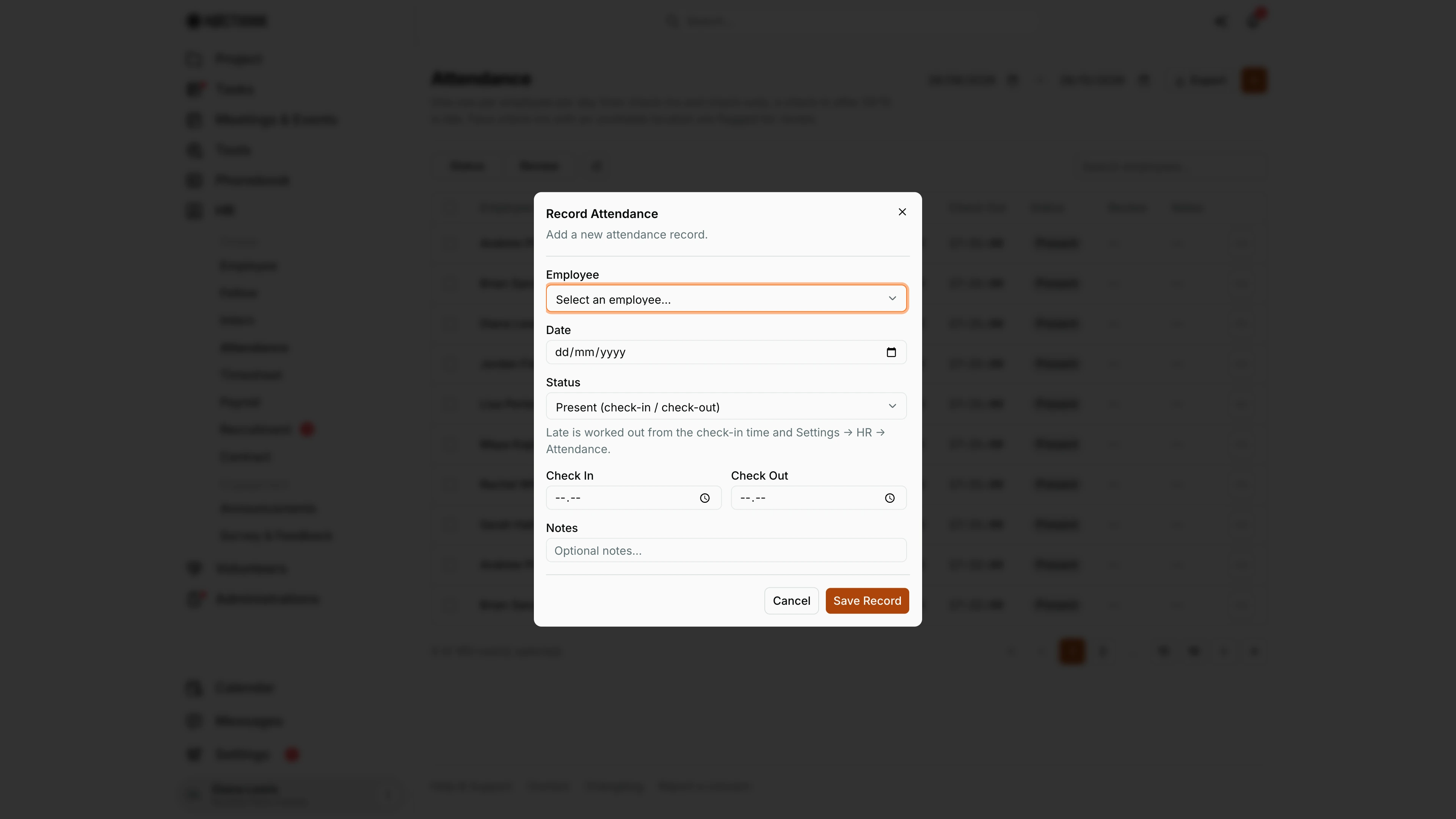
Screenshot: Diana Lewis (HR Officer), Nocthink Demo Institute demo data.
The + button (Record attendance) opens Record Attendance ("Add a new attendance record."). Employee lists every person with their employee code in brackets, e.g. "Andrew Price (NT-005)". Date is the day being recorded. Status has three choices: Present (check-in / check-out), Absent and Leave. With Present selected, Check In and Check Out time fields show; the dialog notes that "Late is worked out from the check-in time and Settings → HR → Attendance", so there is no Late option to pick. Notes takes a free-text reason, for example a doctor's note or a missed clock-in.
Save Record writes the day as events: a check-in plus an optional check-out for Present, or a single Absent or Leave event. The row on this page is rebuilt from those events, and Payroll later deducts a daily rate for each Absent day and 10% of the daily rate for a late check-in. Cancel closes the dialog without saving. To correct a day that already exists, add the right event from the person's profile instead (see Correct a day's attendance).
Access & permissions
- The page is in the self-service list (
PERSONAL_ACCESS_ROUTES), so every staff member can open it withouthr.view. - The API returns everyone's rows only to HR authority: a Director, or a member of the HR department. Everyone else sees only their own rows.
- Recording attendance for someone (the + button) needs
hr.create; the button is hidden otherwise. - Face-enrollment decisions are HR-only, and the person who submitted a photo, or whose face it is, cannot decide on it.
- docs/role.md: HR Staff W, HR Manager and Owner F, all other roles S (self).
Caveats
- Status is derived, not stored. A check-in after the late cut-off (core start + clock-in grace in Settings → HR → Attendance) is Late, a check-out alone counts as Present, and a day with no events produces no row (it is not shown as Absent).
- Only one event of each type per employee per day is allowed ("employee, date, type must make a unique set").
- When no From date is set, the API returns the last 30 days only. Widen the range to see older records.
- The list loads every record in the range, page by page, so its rows match the Daily attendance chart on the Dashboard; a very long range on a large organization takes a moment longer to load.
- Times are shown as stored (local wall-clock time from the check-in device). They are not converted to your timezone.
Limitations
- Records cannot be edited or deleted from this page; corrections are added as events on the employee profile.
- There is no bulk approval for flagged rows and no way to clear a flag from this page.
- There is no Holiday status; a public holiday simply has no events.
- Shift templates in Settings → HR do not change the late cut-off; only the core start and clock-in grace do.
Related menus
- Employee: the per-person Attendance tab where records are added.
- Timesheet: hours per project, which are separate from check-in/check-out.
- Payroll: uses absences and late arrivals for the period.
- Dashboard: daily and monthly attendance charts.
- HR settings: attendance, leave and shift configuration.