
Survey & Feedback
Open in NocthinkModule: HR · URL: /hr/surveys · Responsible role: HR Staff (write) · Also used by: HR Manager and Owner/Director (full), all other staff (self: fill in surveys)
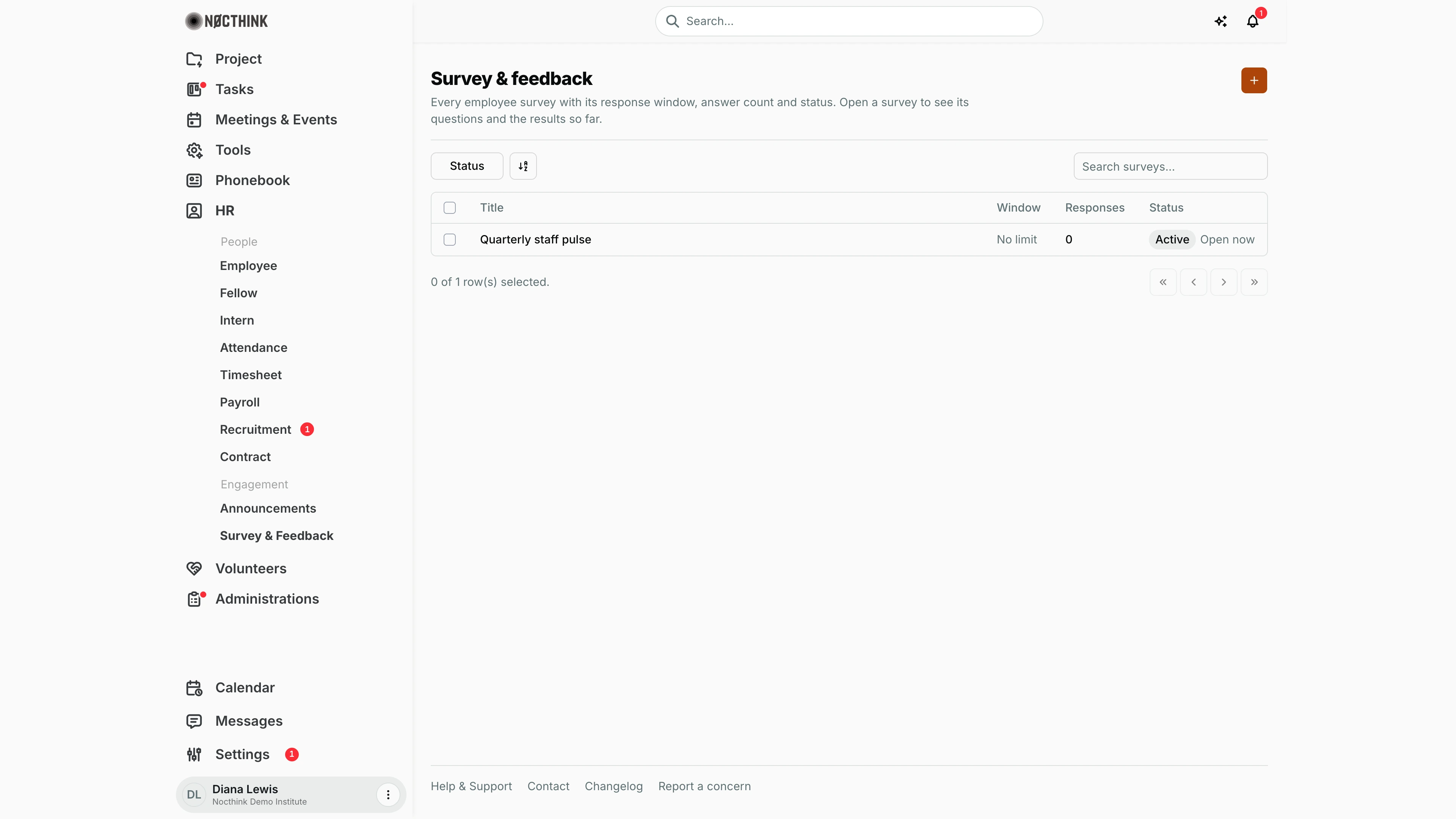
Screenshot: Diana Lewis (HR Officer), Nocthink Demo Institute demo data. As HR Staff she sees the + (New survey) button.
Why I use this page
I use Survey & Feedback to run employee surveys, such as the quarterly staff pulse or a post-event or policy feedback form, and to read the results. I build the questions, set the response window, make the survey active, and then check the response count and answer distribution as replies come in. Staff use the same page to find open surveys and fill them in.
What's on the screen
- Header: Survey & feedback, a short description, and a + button (New survey) on the right.
- Filters: a Status checkbox filter (Active, Draft, Closed), a view-options button, and Search surveys....
- Table columns: Title (a link to the survey), Window ("open → close" date-times, or No limit), Responses (number of distinct respondents) and Status (Draft, Active, Closed, plus Open now when it is accepting answers). In the demo: "Quarterly staff pulse", No limit, 0 responses, Active, Open now.
- Survey page (after clicking a title): a Details panel (Status, Availability, Opens, Closes, Responses), a Questions list (type, options, red * for required), a Results section, and either a Fill survey button or a You responded badge.
How I …
Create a survey
- Click + (New survey); see Create survey below.
- Enter the Title (required) and an optional Description.
- Set the Status: Draft (default), Active or Closed. Only Active surveys accept answers.
- Optionally set Opens and Closes (date and time). Leave both empty for no time limit. Closes must be on or after Opens.
- Under Questions, fill in the first question's label and pick its type: Short text, Long text, Single choice or Rating 1–5.
- For Single choice, type the options separated by commas (e.g., "Yes, No, Maybe").
- Tick or untick Required for each question. Add more questions with the + (Add question) button, and remove one with the trash icon.
- Click Create survey. Questions without a label are dropped. If none are left, I get "Add at least one question with a label."
Fill in a survey (any staff member)
- Open the survey from the list.
- Click Fill survey. It only shows while the survey is Active and inside its window, and I have not answered yet (see Fill survey below).
- Answer the questions. Required ones are marked with *.
- Click Submit response. The survey page then shows You responded.
Read the results
- Open the survey. Results shows the total number of responses (see Survey detail below).
- For Single choice and Rating questions, each answer value is shown with a bar and a count.
- For text questions, the first 10 answers are listed, with "+n more" for the rest.
Detail page, forms & dialogs
Survey detail
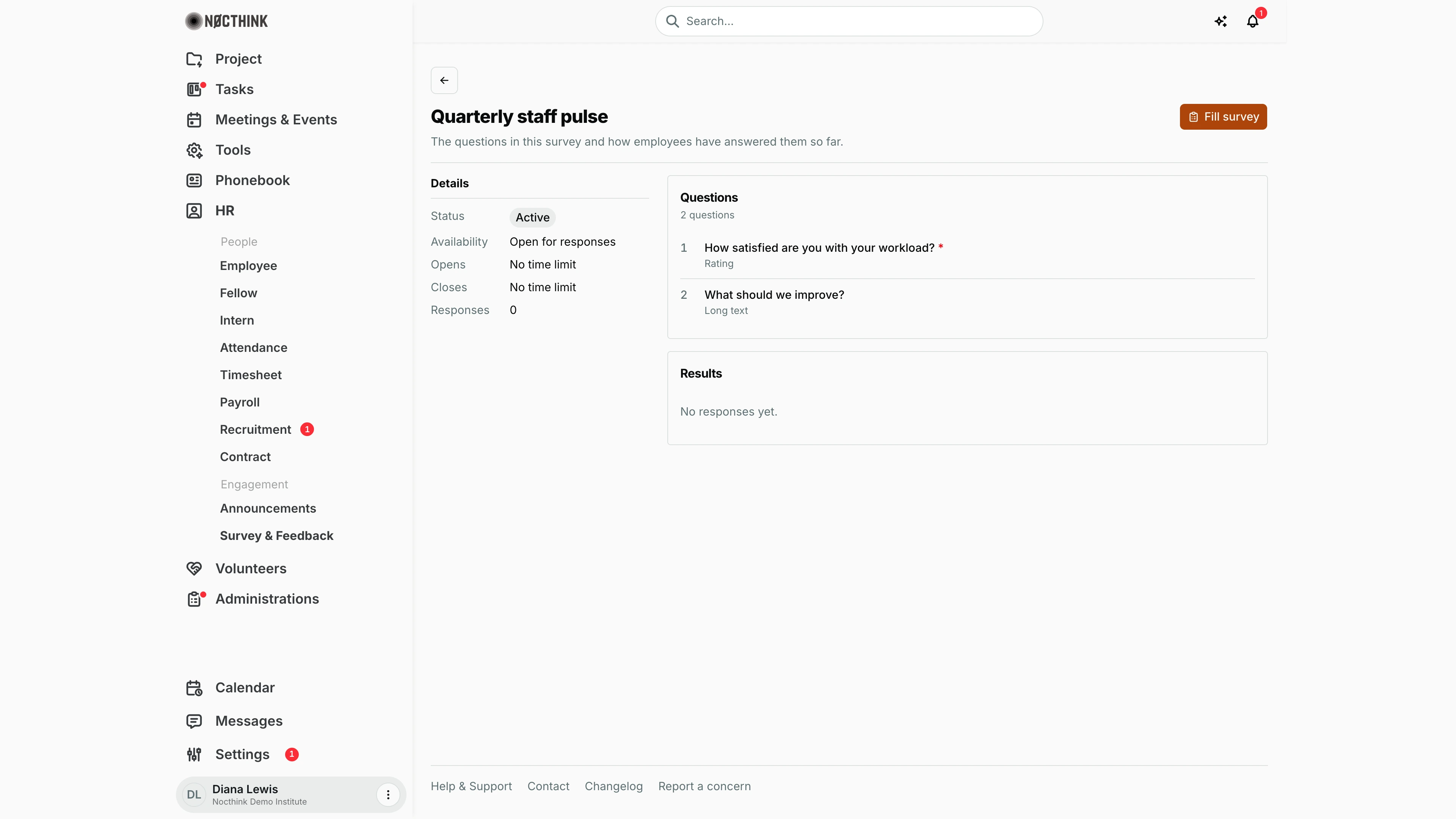
Screenshot: Diana Lewis (HR Officer), Nocthink Demo Institute demo data.
Clicking a survey opens its page. Fill survey at the top right shows while the survey is Active, inside its window and not yet answered by me. Details lists Status, Availability (e.g. "Open for responses"), Opens, Closes ("No time limit" when empty) and the number of Responses. Questions numbers each question with its type (Rating, Long text, Short text, Single choice); a red asterisk marks required ones. Results summarises answers: bars and counts for rating and single-choice questions, and the first answers for text questions. With no answers yet it reads "No responses yet."
Fill survey
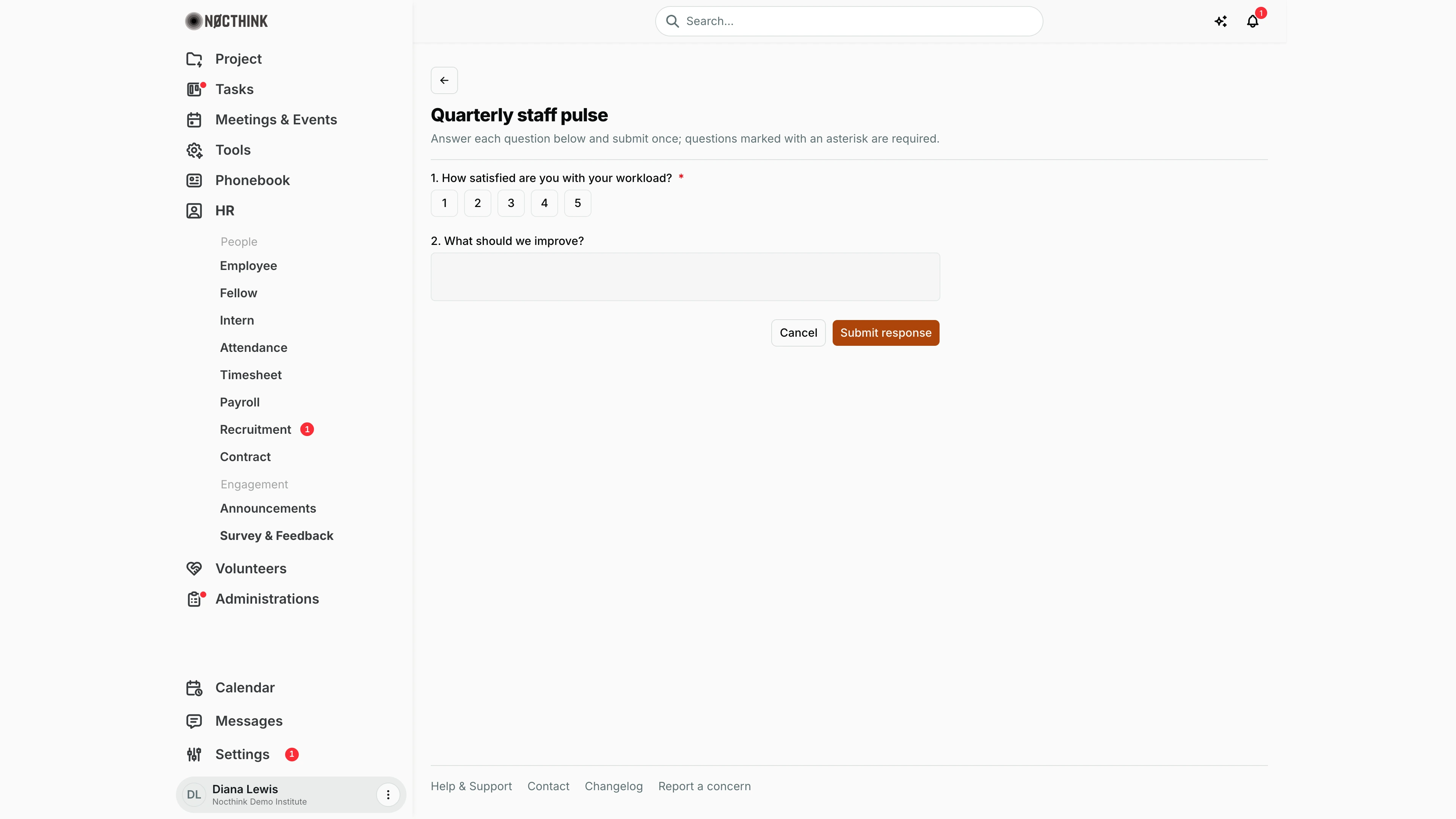
Screenshot: Diana Lewis (HR Officer), Nocthink Demo Institute demo data.
Fill survey opens the response form (/hr/surveys/<id>/respond): "Answer each question below and submit once; questions marked with an asterisk are required." Rating questions show buttons 1 to 5, single-choice questions show their options, and text questions show a text box. Submit response records the answers once; afterwards the survey page shows You responded. Cancel returns to the survey without saving. A required question left empty stops the submission until it is answered. Answers count towards Results on the survey page straight away. Cancel returns to the survey page.
Create survey
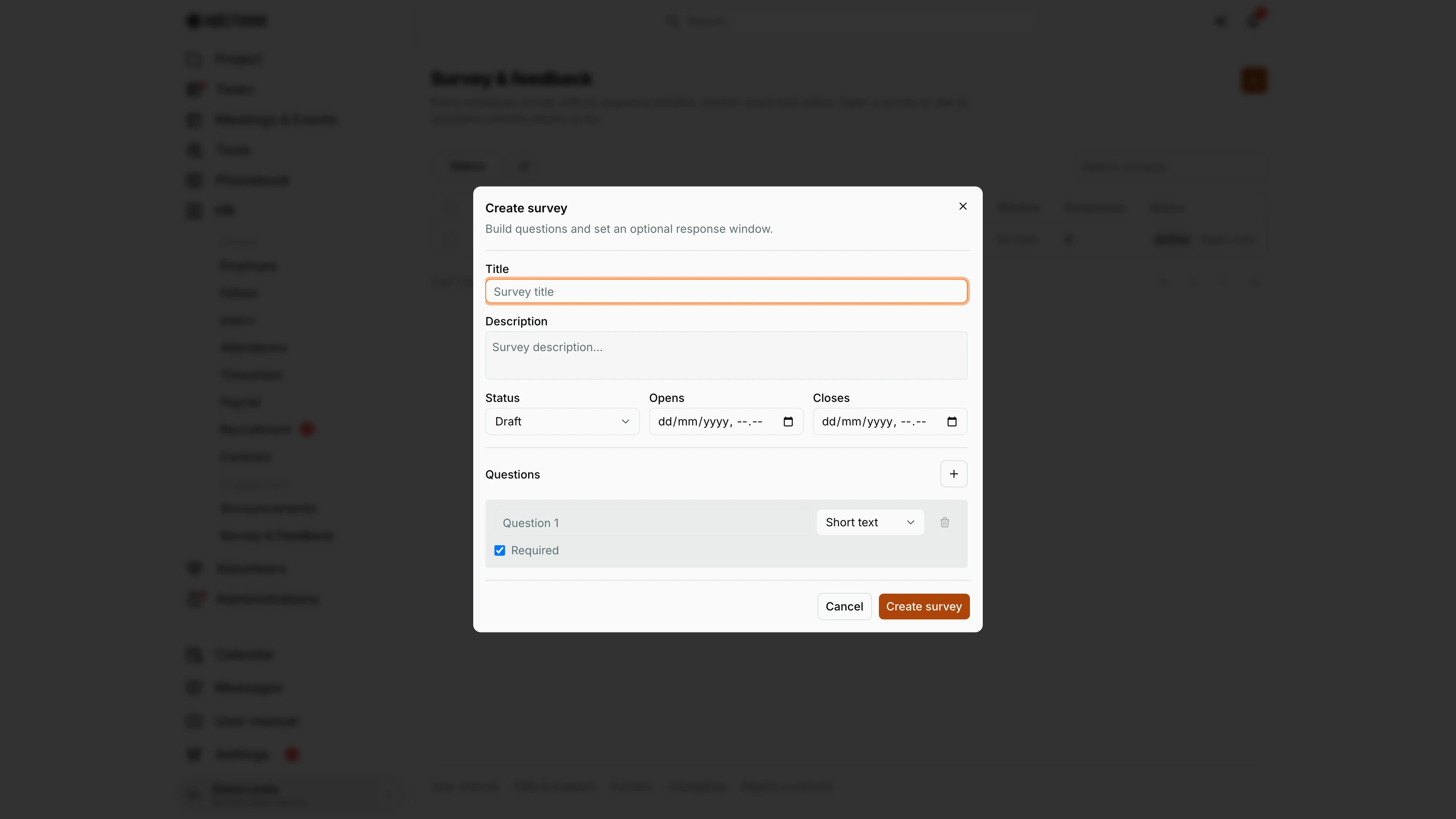
Screenshot: Diana Lewis (HR Officer), Nocthink Demo Institute demo data.
+ (New survey) opens Create survey ("Build questions and set an optional response window."). Enter the Title and an optional Description, choose the Status (Draft, Active or Closed) and, optionally, Opens and Closes dates and times. Under Questions, each row has the question text, its type (Short text, Long text, Single choice, Rating 1–5), a remove button and Required; + adds another row. Create survey saves it. Staff can answer only once the status is Active.
Access & permissions
/hr/surveysis a personal-access route. Every staff member can open the list and fill in open surveys, even without the HR role.- Creating surveys needs
hr.create. The + button is shown only to people who have it. - Results are visible only to the survey creator and to HR authority (directors and HR department members). Others get "Only the survey creator or HR can view results."
Caveats
- One response per person. A second attempt is rejected with "You have already responded to this survey."
- Answers are stored against the respondent's account, so surveys are not anonymous to administrators, even though the results view does not show names.
- Submitting with a required question empty fails with "Please answer the required questions: …".
- A survey set to Active with an Opens time in the future shows Active but not Open now until that time. After Closes, responses are refused ("This survey is not open for responses.").
- Window times are entered and shown in my browser's local time.
- A survey whose questions have no label is refused with "Add at least one question with a label."
Limitations
- No edit, close or delete action in the UI. Status and questions cannot be changed after creation from this page.
- No export of results, and no per-respondent view.
- No targeting to a department or group. Every staff member can see every survey.
- No anonymous mode.
Related menus
- Announcements: announce a new survey to all staff.
- Employee: who counts as staff.
- HR Dashboard: overall workforce picture.