
Intern
Open in NocthinkModule: HR · URL: /hr/interns · Responsible role: HR Staff (write) · Also used by: HR Manager (full, including delete), Owner/Director (full). Finance and F.A.T. (read-only).
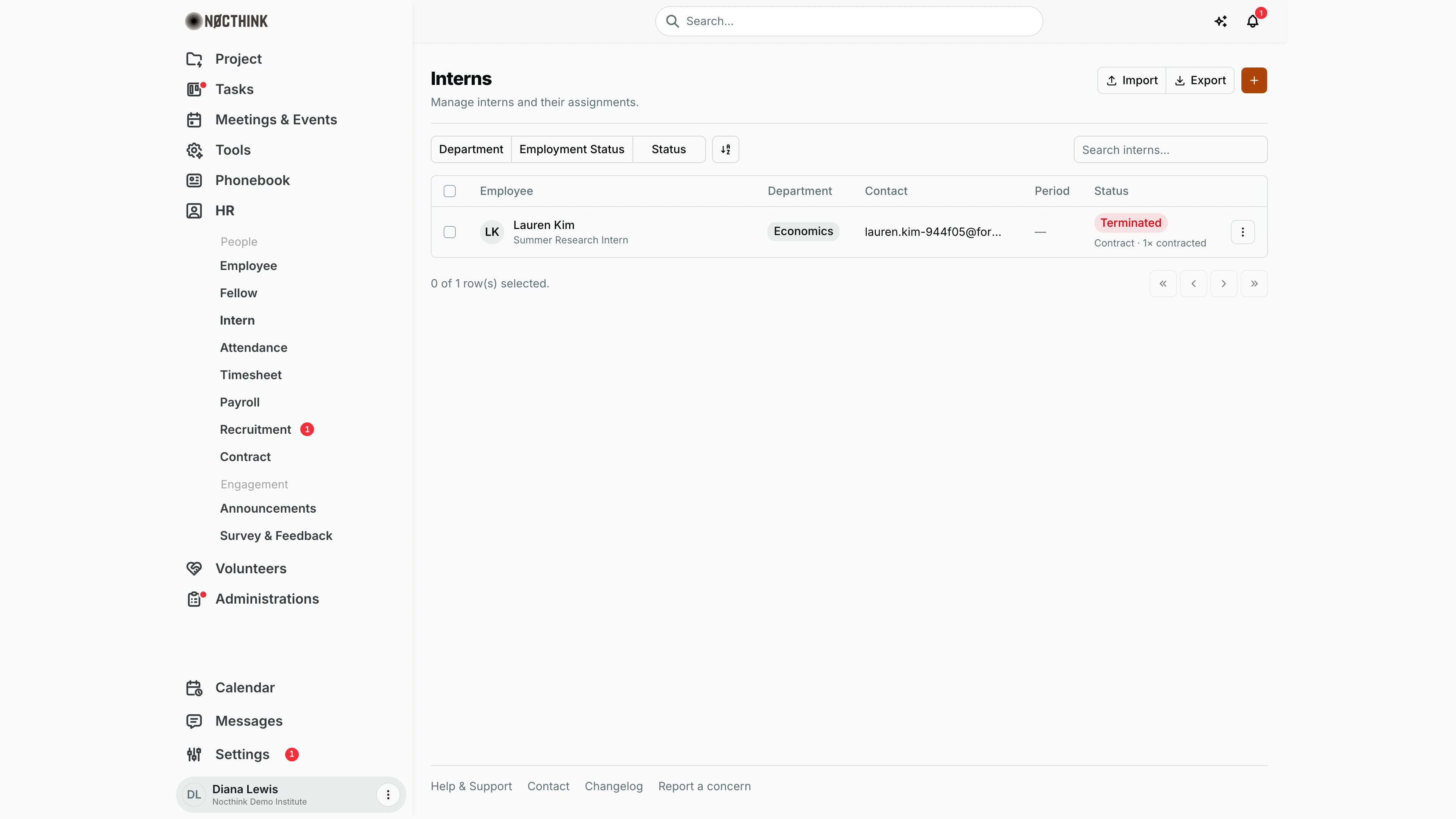
Screenshot: Diana Lewis (HR Officer), Nocthink Demo Institute demo data. Lauren Kim's internship contract (Jun 1 – Aug 14, 2026) is already marked Expired, so Period shows "—": the column only reads the end date of an active contract.
Why I use this page
I use Intern to run the internship intake: I add each intern when they start, track how many days are left in their placement, and close them out when the placement ends. It is busiest around the summer and semester intakes. Between intakes I check it to make sure finished interns are marked Terminated and their accounts are not left active.
What's on the screen
- Header: the title Interns ("Manage interns and their assignments."). On the right are Import, Export and + (Add Intern).
- Filters: Department, Employment Status (Permanent / Contract) and Status (Active / On Leave / Terminated), plus the search box "Search interns...".
- Table columns:
- Employee: name and position.
- Department.
- Contact: email, room and extension.
- Period: start date → end date of the active contract, with an "Nd left" or "Expired" pill ("—" when there is no active contract with an end date). The pill turns red inside the contract reminder window (Settings → HR → Contracts, 30 days by default).
- Status: with the employment line under it.
- Row menu (⋮): Edit and Delete.
- Only records with
employment_type = internare listed. In the demo, Lauren Kim's former-staff email and the Terminated status show a finished placement.
How I …
Onboard an intern
- Click +. The dialog is titled Add Intern.
- Enter Full Name and Email (both required). Add Position (e.g. "Summer Research Intern"), Department and Start Date, and leave Status as Active.
- Click Add Intern.
- Copy the temporary password from Intern Created. It is shown once. Share it with the intern, then click Close dialog.
- Record the internship in Contract with type Internship and an end date, so the Period column and expiry reminder work.
Check an intern's placement
- Click the intern's name to open the side drawer.
- Review Contact, Details (Employee ID, Department, Stipend if set), Contracts, Assets issued, and Tasks assigned.
- Close it with ×.
Close out a finished placement
- When the Period pill shows Expired, the reminder lists the intern, or Contract shows the contract as Expired, use ⋮ → Edit.
- Set Status to Terminated and click Save Changes.
- Check the drawer's Assets list and recover any laptop or badge through Asset List.
- If the intern was unpaid, confirm that Engagements shows a completed classification review.
Bulk-load an intake
- Click Export to get a template (
interns-intern.xlsx). - Fill one row per intern (Employee, Email, Position, Department, Ext, Start Date) and use Import.
- Every imported row is created as an Active intern. Fix any rows listed in the red error banner and import them again.
Detail page, forms & dialogs
Intern detail drawer
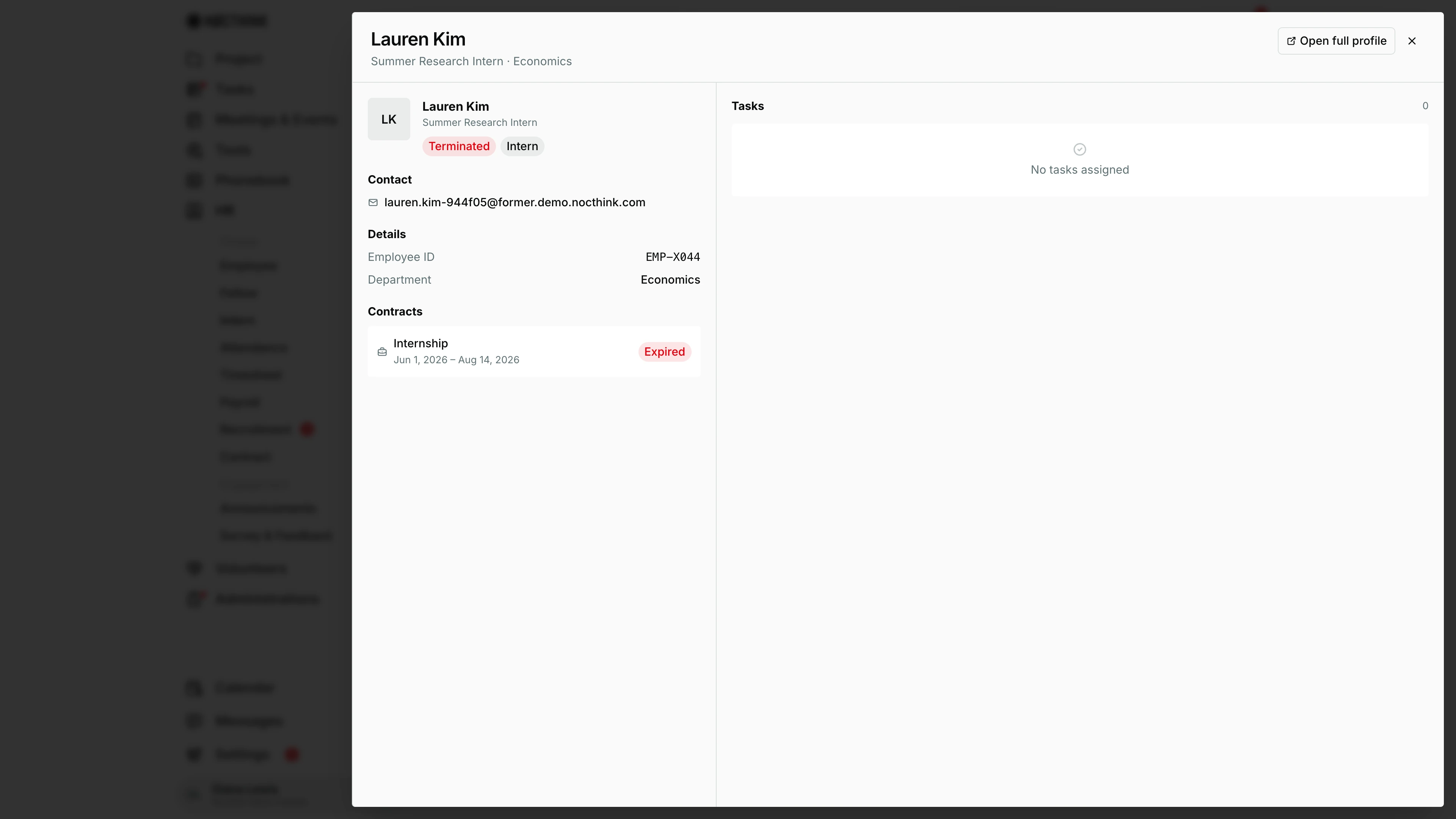
Screenshot: Diana Lewis (HR Officer), Nocthink Demo Institute demo data.
Clicking an intern opens the same drawer as on Fellow. The header has the name, position and department, Open full profile and ×. The left column shows the status and type tags (here Terminated and Intern), Contact, Details (Employee ID, Department, and the stipend when one is set), Contracts with their dates and status (an internship that has ended shows Expired) and any assigned Assets. Tasks on the right lists the intern's open tasks. When the internship contract is still running, a bar at the top shows the days remaining.
In the demo the only intern finished on Aug 14, 2026 and was offboarded; the drawer still shows the full HR record.
Add intern
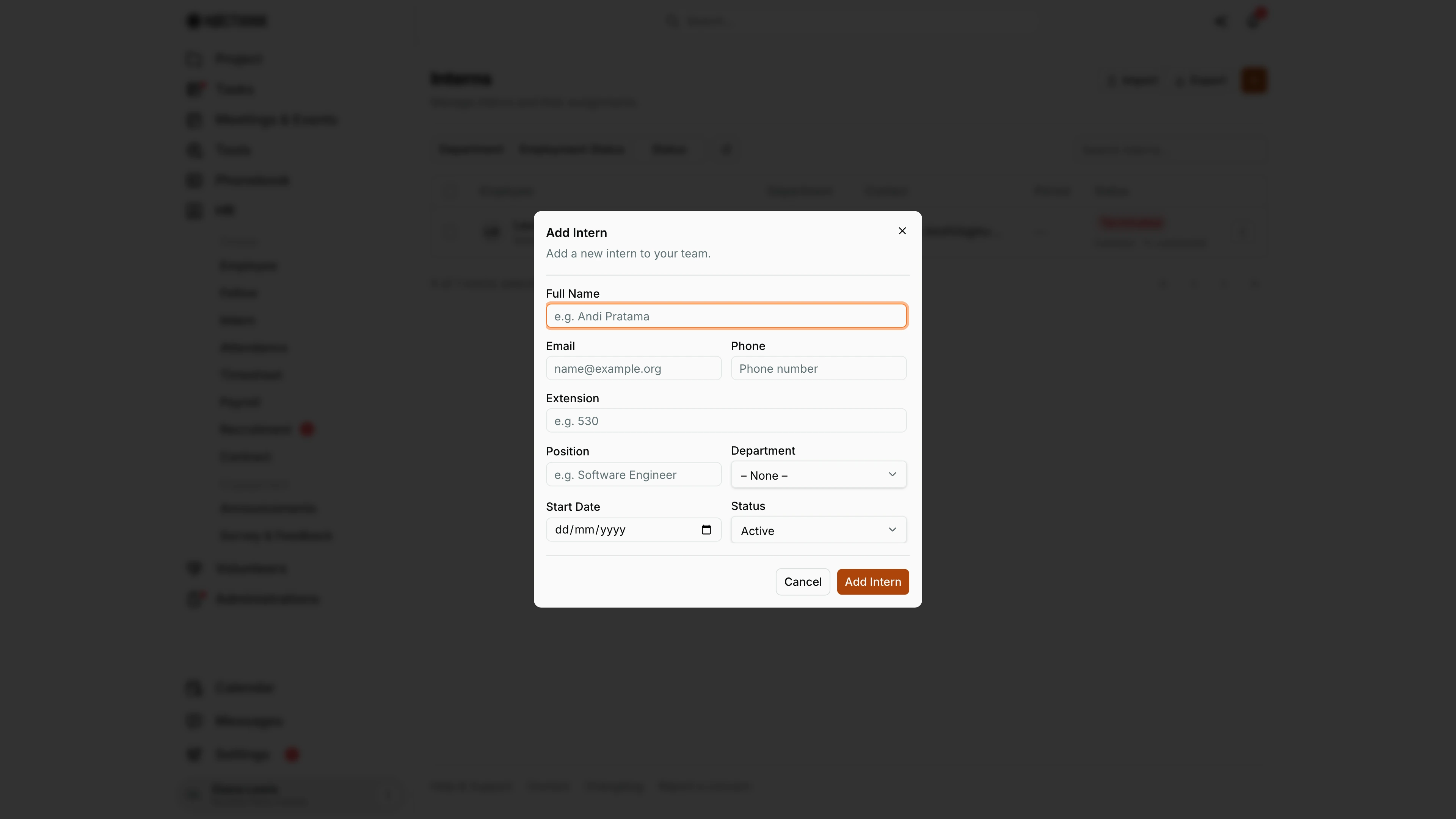
Screenshot: Diana Lewis (HR Officer), Nocthink Demo Institute demo data.
+ opens Add Intern ("Add a new intern to your team."), the employee form saving the person as an Intern. Full Name and Email are required; the rest is optional and Status defaults to Active. Add Intern creates the login and shows the one-time temporary password. Add an Internship contract with the start and end dates in Contract so the period shows in the list and drawer. The intern can then log in, fill timesheets and receive payslips like any employee. Cancel closes the form without creating anyone.
Access & permissions
- To open the page you need
hr.updateorfinance.update. HR Staff, HR Manager, Owner, Director and the finance roles qualify. - Create needs
hr.create, edit needshr.updateand delete needshr.delete(HR Manager). Withouthr.update, Import, + and the row menu are hidden. - Finance authority also gets the full record (stipend) from the API.
- Interns do not use this page; their own attendance, timesheets and requests are self-service.
Caveats
- Without an active contract that has an end date the Period column shows "—" and no expiry warning appears. Once the contract is marked Expired the column also falls back to "—", so the Expired pill only shows while the contract is still active past its end date. The Period column is filled only for HR or finance record readers; other viewers see "—".
- Unpaid internships are a classification risk. Engagements flags them for review, but the check never decides legality.
- Delete is permanent and blocked when protected records exist. Use Terminated instead.
- Setting Status to Terminated does not revoke the login by itself. Review access in Legal Holds & Offboarding.
Limitations
- The drawer is read-only. Use Open full profile in the drawer for documents, attendance or salary settings.
- There are no bulk status changes. Each intern is closed out one at a time.
- There are no internship-specific fields (school, supervisor, learning objectives).
Related menus
- Employee: the full profile page and the staff list.
- Fellow: the same list for fellows.
- Contract: records the internship period.
- Engagements: unpaid-internship and classification checks.
- Recruitment: postings of type Internship and their applicants.