
HR
Module: Settings › Apps · URL: /settings/hr (opens /settings/hr/attendance) · Responsible role: HR Manager (hr-manager) · Also used by: Owner/Director (full); the Ledger posting accounts block on Payroll also needs Accounting write access (F.A.T Manager / Accounting Staff)
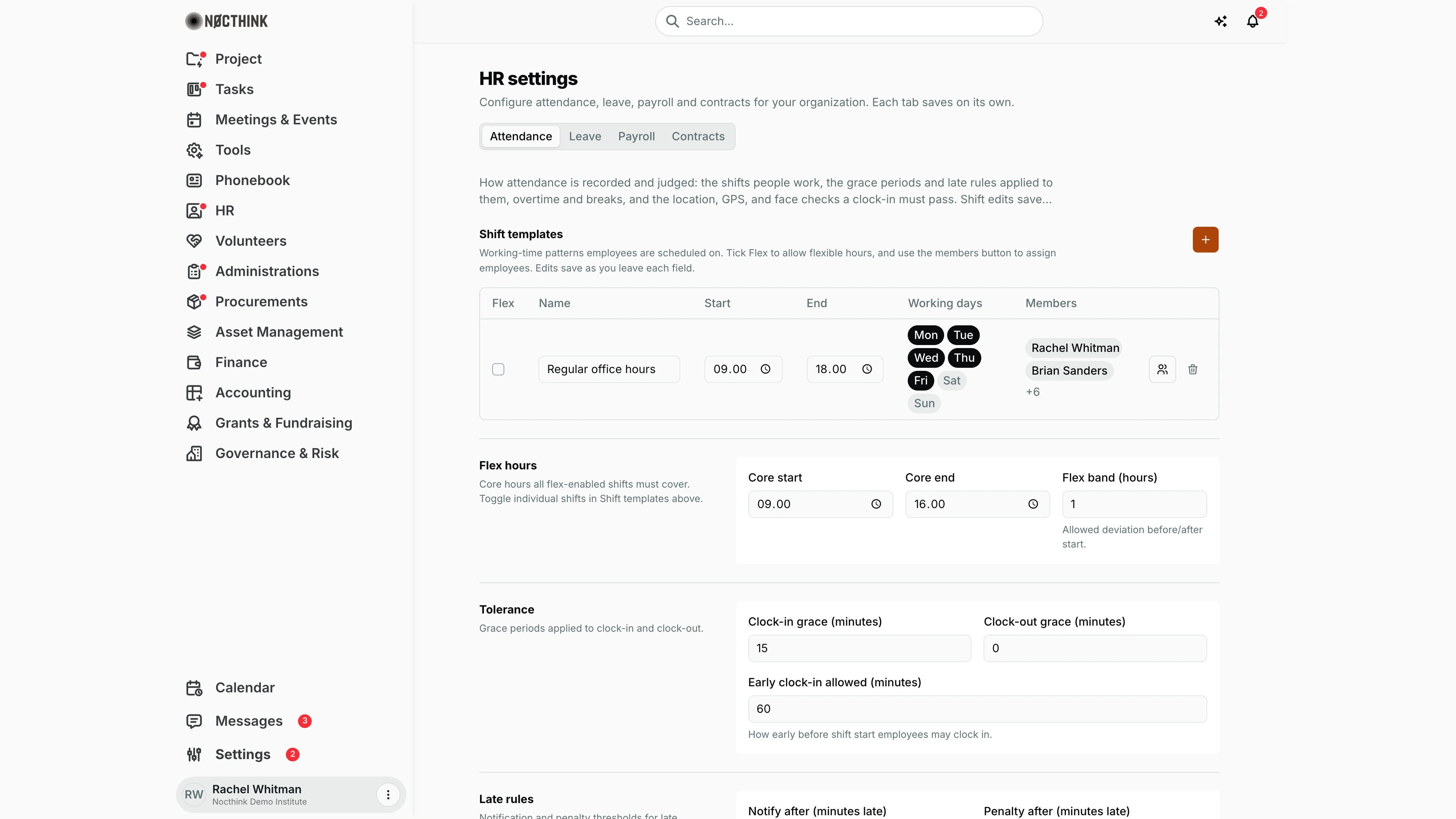
Screenshot: Rachel Whitman (Executive Director, org owner), Nocthink Demo Institute demo data. As HR Manager I see the same page.
Why I use this page
This is where I set the rules HR runs on: the shifts people work and how lateness, overtime, breaks and location checks are judged; the leave types and their quotas; how payroll is calculated (PPh 21, BPJS, THR, allowances and deductions); and when I am reminded that a contract is about to end. I configure it at the start of the year, when regulations or company policy change (new UMR-based caps, a new leave type, a new payroll officer), and whenever a team moves to a different shift.
What's on the screen
- Header — HR settings: in a Rupiah (IDR) organization, "Configure attendance, leave, payroll and contracts with Indonesian-compliant defaults (PPh 21, BPJS, THR, PKWT). Each tab saves on its own."; in any other organization, "Configure attendance, leave, payroll and contracts for your organization. Each tab saves on its own."
- Tabs — Attendance, Leave, Payroll, Contracts (each is its own URL).
- Attendance (shown):
- Shift templates table — Flex checkbox, Name, Start, End, Working days (Mon–Sun chips), Members, a members button and a trash icon; + (Add shift) at the top right.
- Flex hours — Core start, Core end, Flex band (hours).
- Tolerance — Clock-in grace (minutes), Clock-out grace (minutes), Early clock-in allowed (minutes).
- Further down: Late rules (Notify after, Penalty after, Monthly allowed lates), Overtime (Enable overtime, Trigger after (minutes past shift end), Weekday rate, Weekend rate, Holiday rate), Breaks, Geofencing, GPS attendance, Face recognition, Auto checkout, and a save bar showing Unsaved changes / Save changes.
- Leave — Leave types table (Active switch, Type, Days / year, Rules button, remove icon, + to add) and General (Leave year starts, Allow negative balance, Count public holidays as leave, Sandwich leave). Rules opens a dialog per type: Paid leave, Accrual, Days accrued per month, Carry forward unused days, Max days carried, Expires end of, Allow half-days, Max consecutive days, Minimum notice (days), Requires supporting document, Only required after (days), Approvers (Direct manager, HR), Auto-approve under (days).
- Payroll — Payroll officer, Payroll period (Period type, Currency, Cut-off day, Pay day), Allowances, Deductions, Contribution rates (BPJS), Salary caps, Tax (PPh 21), THR (Tunjangan Hari Raya), Fund and budget line, Ledger posting accounts.
- Contracts — Contract expiry reminder: Remind me before contracts end switch and Days before end.
How I …
Set up a shift and assign people
- On Attendance, click + — a "New shift" 09:00–18:00, Mon–Fri row appears.
- Type the Name, set Start and End, and click the day chips to choose Working days. Each field saves as I leave it.
- Tick Flex if the shift may start within the flex band.
- Click the members button and pick the employees on this shift (see Shift members below).
- To remove a shift, click the trash icon (it is deleted immediately).
Change lateness, overtime and check-in rules
- On Attendance, scroll to the section (Tolerance, Late rules, Overtime, Breaks, Geofencing, GPS attendance, Face recognition, Auto checkout).
- Change the values; the save bar shows Unsaved changes.
- Click Save changes.
Add or adjust a leave type
- On Leave, click + and type the Type name and Days / year.
- Click Rules (see Leave type rules below) and set paid/unpaid, accrual, carry-forward, notice, documents and Approvers; click Done.
- Use the Active switch to retire a type without losing it on past requests.
- Set the General options and click Save changes.
Configure payroll
- On Payroll (see Payroll settings below), choose the Payroll officer (name and authorization appear on every payslip) and Title.
- Set Period type (Monthly, Bi-weekly, Weekly), Currency (Organization base currency, IDR, USD), Cut-off day and Pay day.
- Add default Allowances (label + default amount; the column is headed with the payroll currency, e.g. Default (Rp) or Default (USD)) and Deductions (label + %).
- For an Indonesian payroll, check BPJS Contribution rates and Salary caps (Kesehatan salary cap, JP salary cap, in the payroll currency).
- Under Tax (PPh 21), enable withholding, pick Tax method (Netto, Gross, Gross Up), the fallback PTKP basis, and whether to apply the 120% surcharge without NPWP.
- Under THR, enable it and set Full THR after (months) and Basis.
- Click Save changes.
- With an Accounting colleague, pick all four Ledger posting accounts (salary expense, cash/bank, PPh 21 payable, other deductions payable) and the optional Fund / Budget line, then save that block.
Turn on contract expiry reminders
- On Contracts (see Contract settings below), switch on Remind me before contracts end.
- Enter Days before end (1–365) and click Save changes.
Detail page, forms & dialogs
Shift members
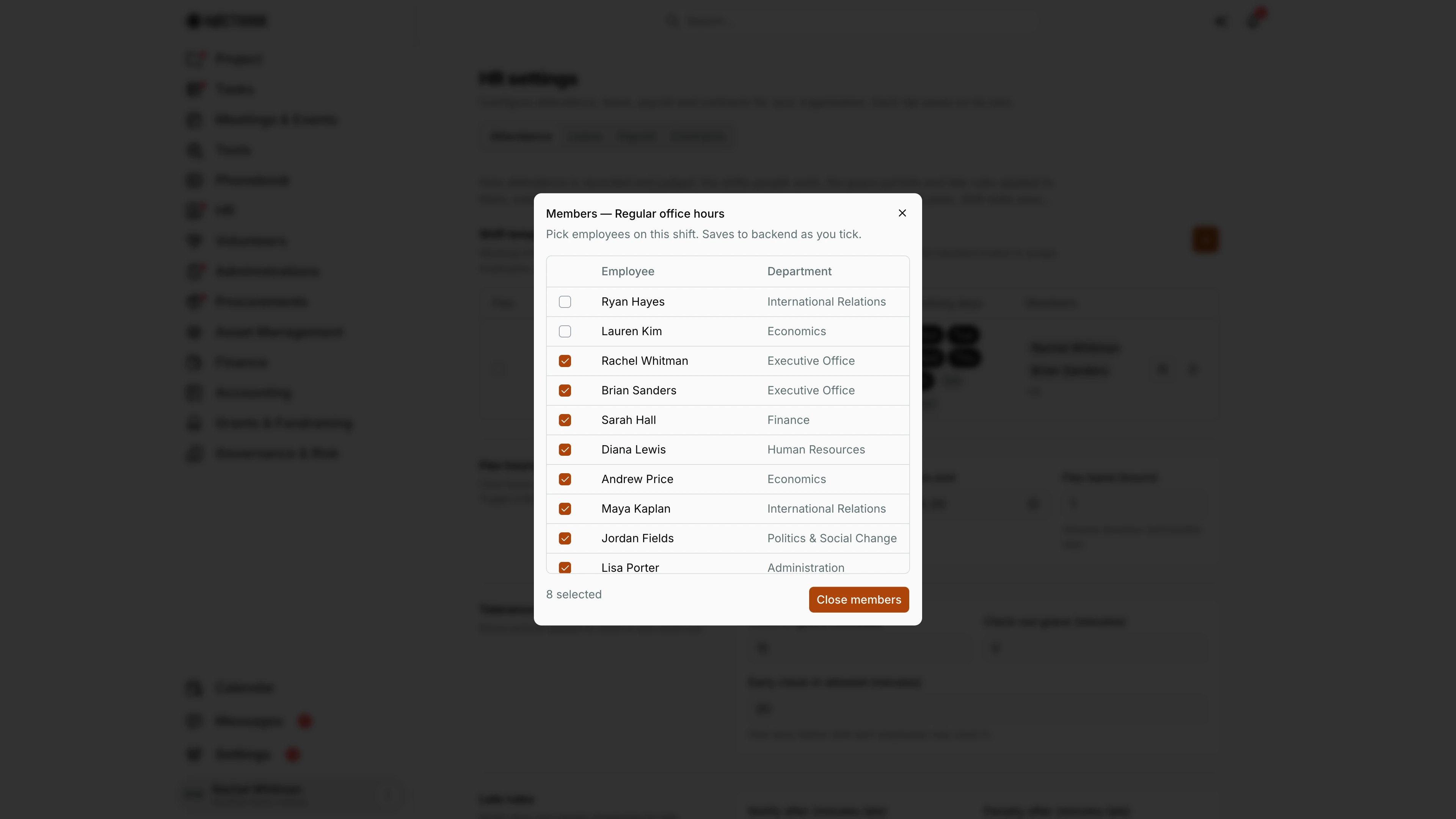
Screenshot: Rachel Whitman (Executive Director, organization owner), Nocthink Demo Institute demo data.
The members button on a shift row (Members of <shift>) opens Members — <shift name>: "Pick employees on this shift. Saves to backend as you tick." The table lists every employee with Employee and Department and a checkbox. Each tick or untick is saved at once, so there is no save button, only Close members. The footer counts the selection ("8 selected" for Regular office hours in the demo). An employee's shift decides which start and end times, working days and flex rules their attendance is judged against. Back on the table, the Members column shows the first two names and a "+N" count.
Leave settings
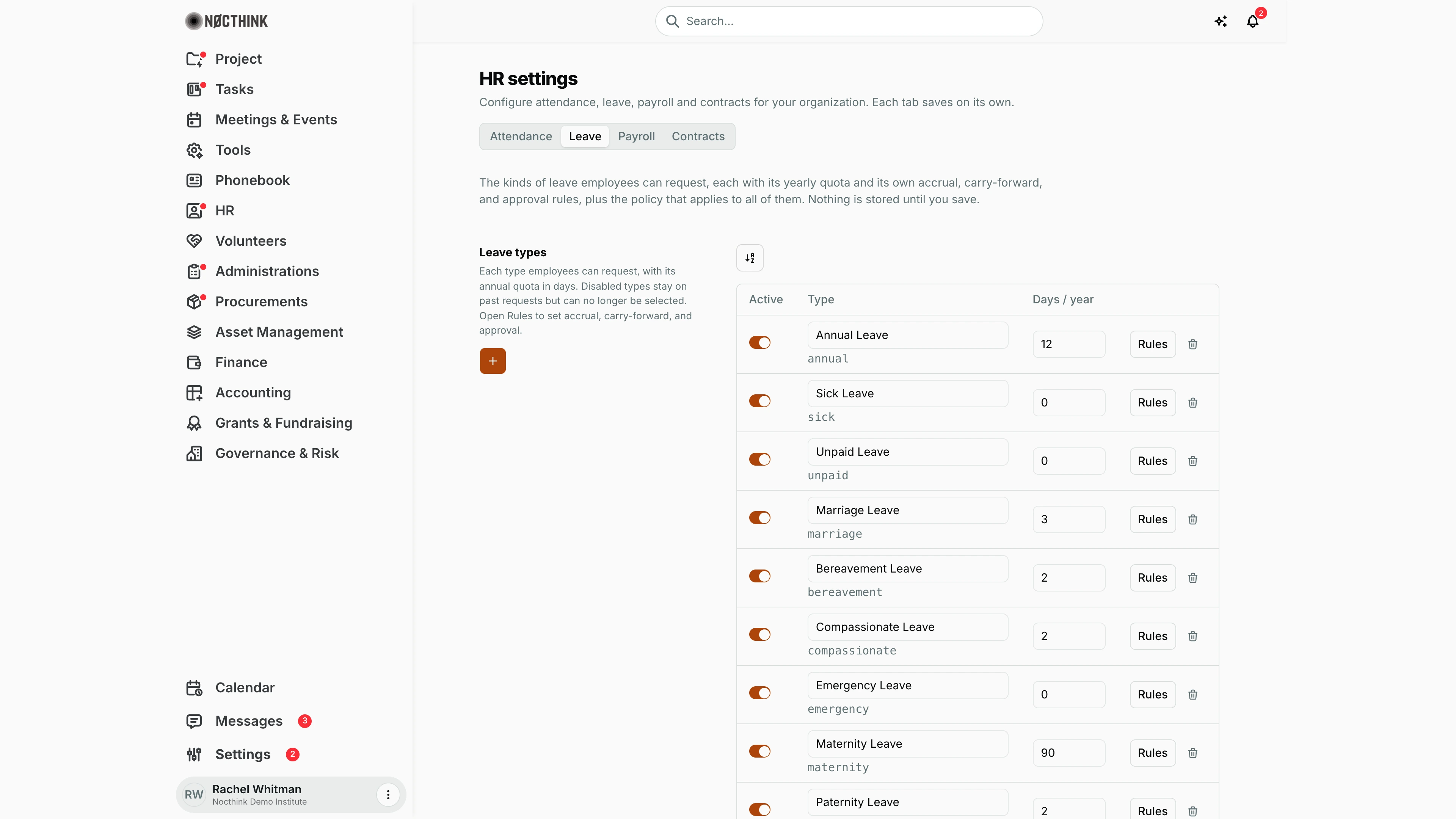
Screenshot: Rachel Whitman (Executive Director, organization owner), Nocthink Demo Institute demo data.
The Leave tab: "The kinds of leave employees can request, each with its yearly quota and its own accrual, carry-forward, and approval rules, plus the policy that applies to all of them. Nothing is stored until you save." Leave types has a row per type with an Active switch, Type, Days / year, a Rules button and a remove icon; the demo has nine types, from annual and sick leave to maternity and paternity. Disabled types stay on past requests but can no longer be chosen. General holds the policy that applies to every type, starting with Leave year. Changes, including those made in Rules, are stored only when I click Save changes at the bottom of the tab.
Leave type rules
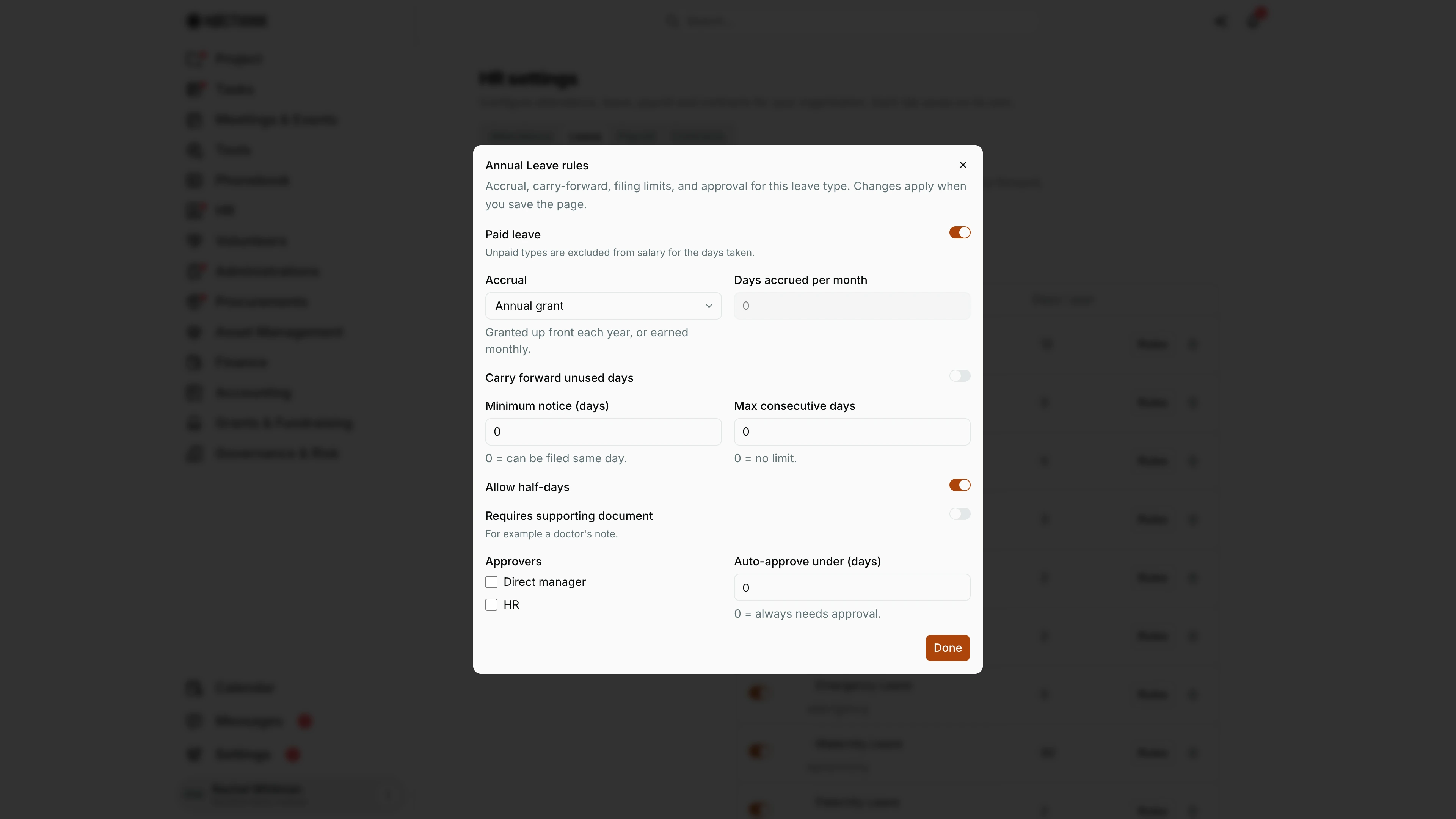
Screenshot: Rachel Whitman (Executive Director, organization owner), Nocthink Demo Institute demo data.
Rules on a leave type opens <Type> rules (here Annual Leave rules): "Accrual, carry-forward, filing limits, and approval for this leave type. Changes apply when you save the page." Paid leave is on for paid types ("Unpaid types are excluded from salary for the days taken."). Accrual is Annual grant or Monthly accrual, with Days accrued per month for the latter. Then come Carry forward unused days, Minimum notice (days) (0 = same day), Max consecutive days (0 = no limit), Allow half-days, Requires supporting document (e.g. a doctor's note), Approvers (Direct manager, HR) and Auto-approve under (days) (0 = always needs approval). Done closes the dialog; I still click Save changes on the tab.
Payroll settings
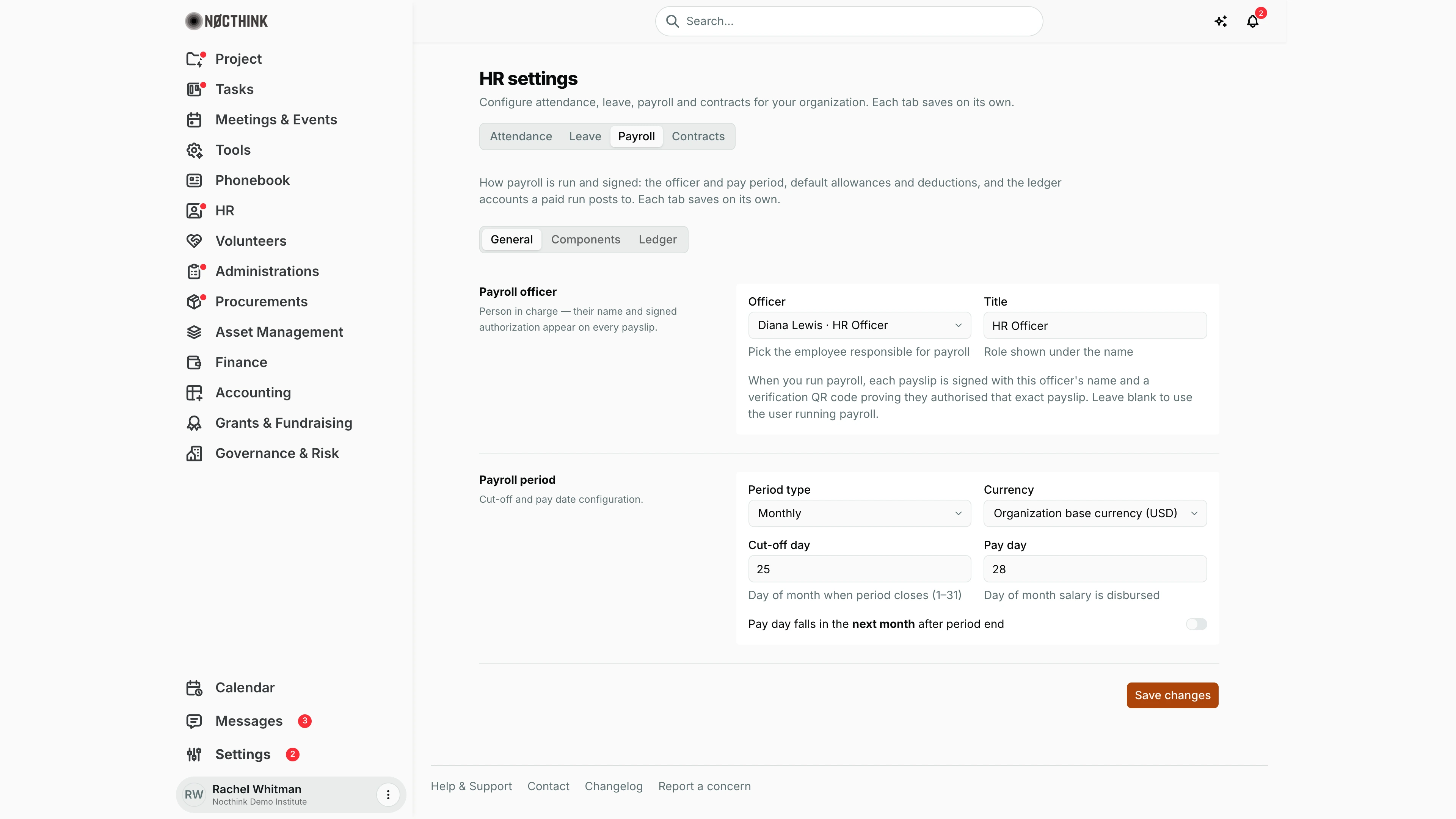
Screenshot: Rachel Whitman (Executive Director, organization owner), Nocthink Demo Institute demo data.
The Payroll tab: "How payroll is run and signed: the officer and pay period, default allowances and deductions, and the ledger accounts a paid run posts to. Each tab saves on its own." It has sub-tabs General, Components and Ledger; an Indonesian (IDR) organization also gets Tax, BPJS and THR, which our U.S. demo does not. General holds Payroll officer (the employee whose name and signed authorization appear on every payslip, chosen from "— Select employee —", plus their title) and Payroll period (Period type, Currency, Cut-off day, Pay day, and whether pay day falls in the next month). Components has the default Allowances and Deductions. Ledger has the Ledger posting accounts and the optional Fund and budget line that a paid run posts to.
Contract settings
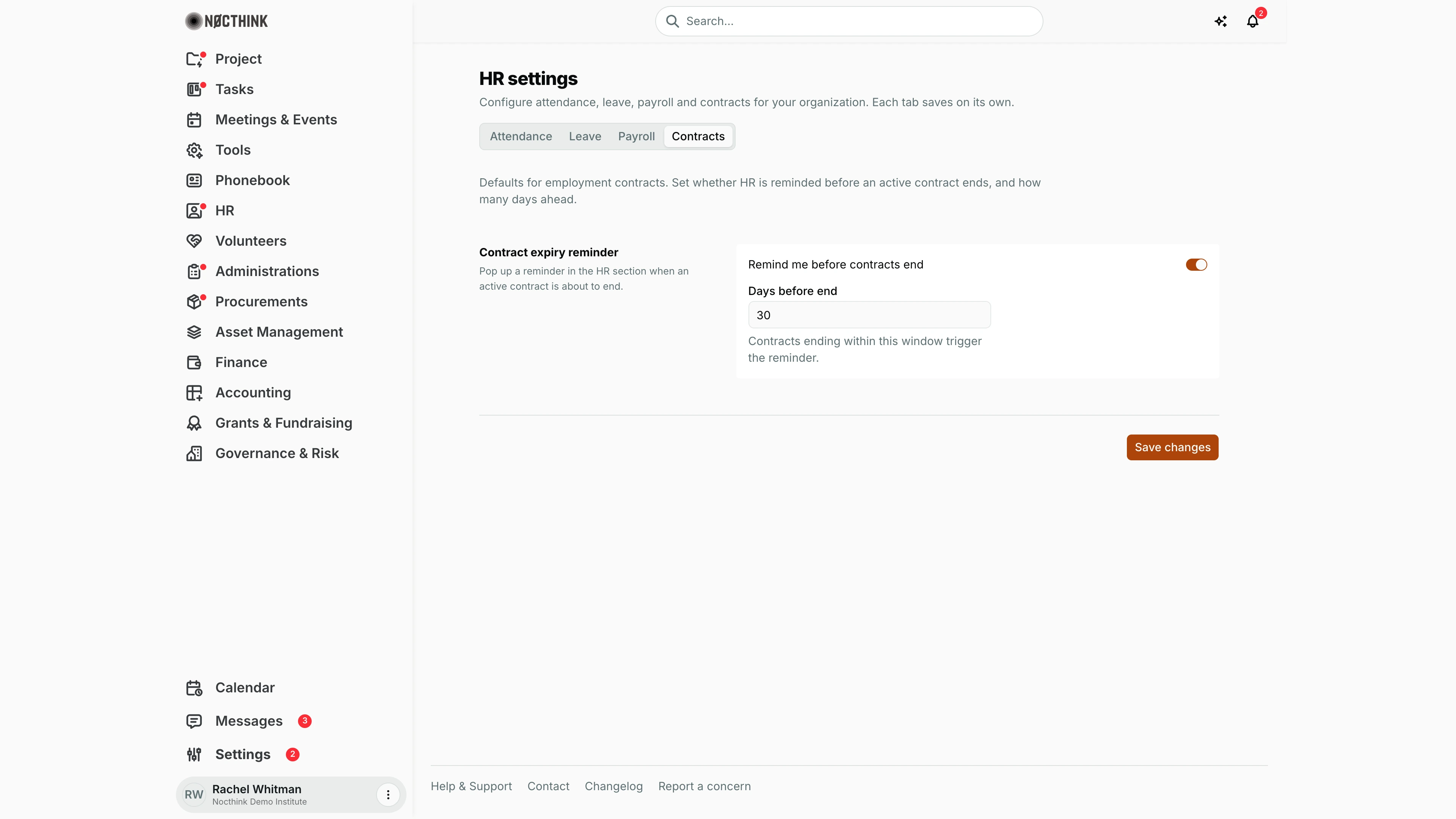
Screenshot: Rachel Whitman (Executive Director, organization owner), Nocthink Demo Institute demo data.
The Contracts tab has one block, Contract expiry reminder. Remind me before contracts end switches the reminder on, and Days before end sets the window: "Contracts ending within this window trigger the reminder." Save changes stores it, with a Saved tick, or shows "Could not save: …" beside the button if the server refuses it. The field takes 1 to 365 days. I set the window long enough to cover our notice period and the time it takes to approve a renewal, typically 30 to 60 days. The reminder then flags every contract that ends inside the window, so HR has time to renew or close it.
Access & permissions
- The route requires
hr.approve— HR Manager and Owner/Director. HR Staff (write access to HR records) cannot open these settings (docs/role.md §4.5). - The server reads settings with HR view and saves with HR update, both behind HR authority (Director or HR department).
- Ledger posting accounts and Fund and budget line are stored in Accounting's payroll settings and need Accounting permission to save.
Caveats
- Shift edits (name, times, days, flex, members, delete) save immediately; everything else on Attendance waits for Save changes.
- Deleting a shift has no confirmation.
- The Tax, BPJS and THR tabs are Indonesian statutory settings. They appear only when the payroll Currency (or, when unset, the organization base currency) is IDR, or when PPh 21 withholding is already switched on.
- Leave types need a non-blank name; disabling is safer than removing, because removed types disappear from the list while past requests keep the old key.
- PPh 21 rates (TER tables, December Pasal 17 true-up) are built in; I only choose method and defaults.
- Payroll changes apply to new payroll runs; posting a paid run to the ledger is done from the payroll batch page, never automatically.
- The ledger block's save stays disabled until all four accounts are picked.
Limitations
- No change history or audit view on this page (see HR Audit Trails).
- Contract settings only cover the expiry reminder.
- Tax rates themselves cannot be edited.
- THR settings are stored, but payroll runs do not calculate a THR payment yet.
Related menus
- Attendance — clock-ins judged by these shift, tolerance and location rules.
- Payroll — runs use these payroll settings.
- Contract — expiry reminders come from the Contracts tab.
- Employee — PTKP/NPWP per employee override the defaults.
- Company — departments and directors used for leave approvers.