
Users
Open in NocthinkModule: Settings (Access) · URL: /settings/users · Responsible role: Owner (organization admin, rbac.manage) · Also used by: anyone else granted rbac.manage; platform operators (can also reset passwords). Directors do not get rbac.manage by default.
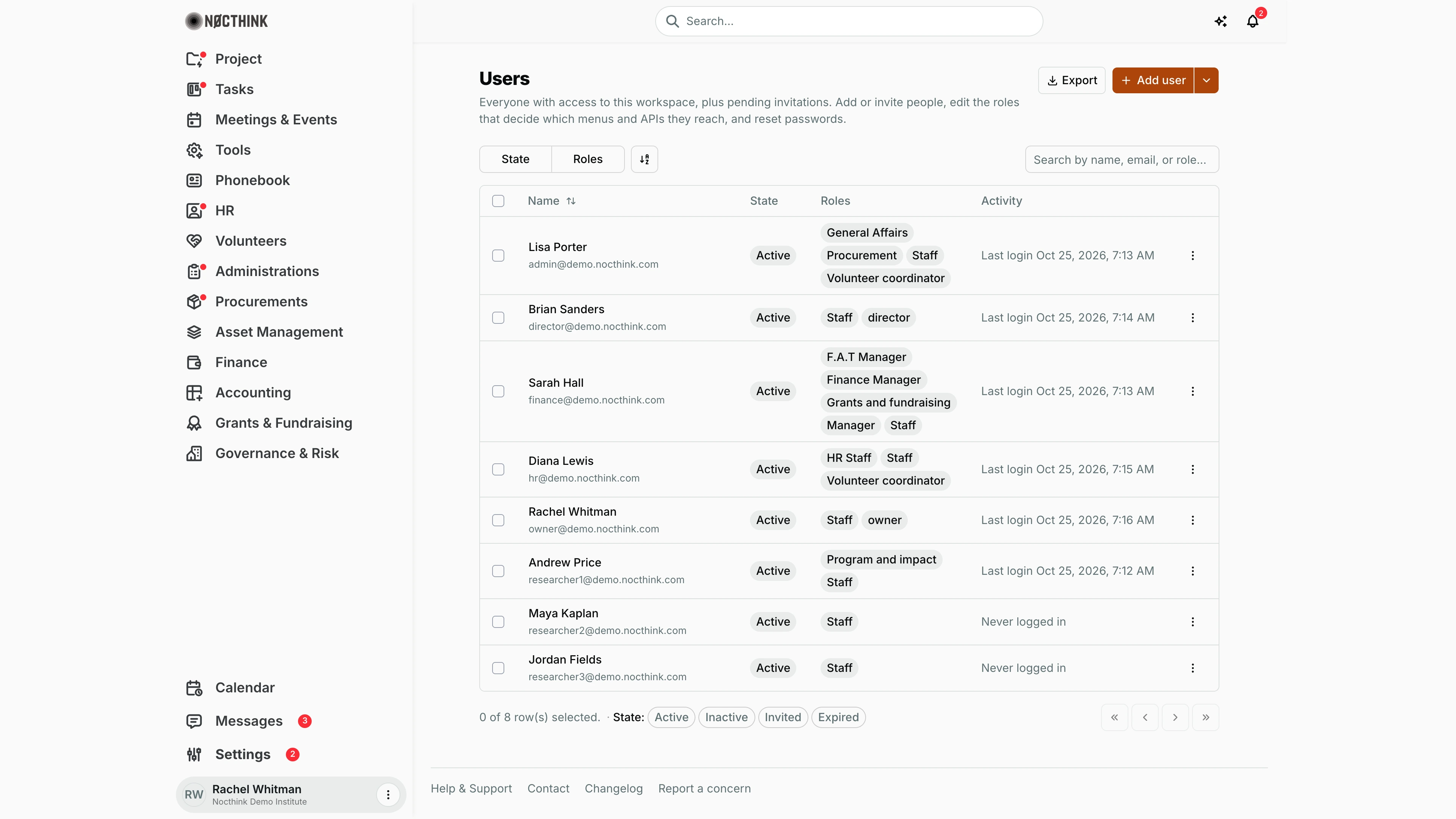
Screenshot: Rachel Whitman (Executive Director, organization owner), Nocthink Demo Institute demo data.
Why I use this page
This is the door to our workspace. Everyone who can sign in, and every pending invitation, is listed here, together with the roles that decide which menus and APIs they reach. I use it when someone joins (add or invite them and give them roles), when someone changes job (adjust roles, make them a director), and in periodic access reviews (filter by role, export the list, and check who has never logged in).
What's on the screen
- Header — Users with "Everyone with access to this workspace, plus pending invitations. Add or invite people, edit the roles that decide which menus and APIs they reach, and reset passwords." Buttons Export (CSV, Excel, JSON, PDF) and the split button + Add user with a ▾ menu holding Invite by email.
- Toolbar — filters State and Roles, a sort control, and Search by name, email, or role....
- Table columns — checkbox, Name (with email underneath; sortable), State (Active, Inactive, Invited, Accepted, Revoked, Expired), Roles (one badge per role, or None), Activity ("Last login …" for users, "Never logged in", or "Expires …" for invitations), and a ⋮ row menu.
- In the screenshot, all eight members are Active: Lisa Porter (General Affairs, Procurement, Staff, Volunteer coordinator), Brian Sanders (Staff, director), Sarah Hall (F.A.T Manager, Finance Manager, Grants and fundraising, Manager, Staff), Diana Lewis (HR Staff, Staff, Volunteer coordinator), Rachel Whitman (Staff, owner), Andrew Price (Program and impact, Staff), and Maya Kaplan and Jordan Fields (Staff, never logged in). Director and owner status appear as lower-case director / owner badges next to the roles.
- Footer — "0 of 8 row(s) selected.", the quick State: chips (Active, Inactive, Invited, Expired — the default view hides accepted and revoked invitations), and paging.
- Row menu — Edit roles; Make director / Remove director and Make owner / Remove owner (owner only); Resend and copy link and Revoke invite for pending invitations; Reset password (platform operators only); Remove from organization (not on my own row; owners only for another owner's row). The menu also shows "Invited by …" for invitations.
How I …
Invite a new colleague by email
- Click ▾ next to Add user → Invite by email (see Invite user below).
- Enter Email and optionally pick a Role (optional) (or No role).
- Send. The dialog confirms "Invite sent to …" and shows the invitation link, which I can also pass on directly.
- The person appears with state Invited and "Expires …" in Activity until they accept.
- If they lose the email, use ⋮ → Resend and copy link; to cancel, ⋮ → Revoke invite.
Create an account directly (no email round-trip)
- Click + Add user (see Add user below).
- Enter Email, First name, Last name, a Temporary password (at least 8 characters) and optionally a Role (optional).
- Click Create user and give them the temporary password securely; they should change it in Profile → Security.
Change someone's roles
- Click ⋮ → Edit roles on their row (see Edit a user's roles below).
- In Assign roles: <name>, tick or untick roles. New members get the baseline Staff role automatically — keep it ticked, or they lose the standard menus; add the specific ones (e.g. Procurement, Finance Manager, HR Staff).
- Save. Their sidebar and permissions change on their next page load.
Make someone a director or co-owner
- ⋮ → Make director gives full functional access to all modules (no billing or access management). Remove director reverses it.
- ⋮ → Make owner asks "Make … an owner? Owners have full access, including billing, settings and deleting the organization." Confirm only for trusted people. Remove owner keeps their membership and roles.
Remove someone from the organization
- ⋮ → Remove from organization on their row, and confirm.
- They lose access straight away: their membership and their roles here are removed, and their next page load no longer opens this organization. Their account and any other organizations they belong to are kept, and they can be invited again later.
- I cannot remove myself or the last owner, and only an owner can remove another owner.
- Their employee record in HR is not touched; offboard them there separately.
Review access
- Use Roles to filter, e.g., everyone with Finance Manager.
- Use the State chips to find Inactive users or Expired invitations.
- Click Export and choose a format for the audit file (columns Name, Email, State, Roles, …).
Detail page, forms & dialogs
Add user
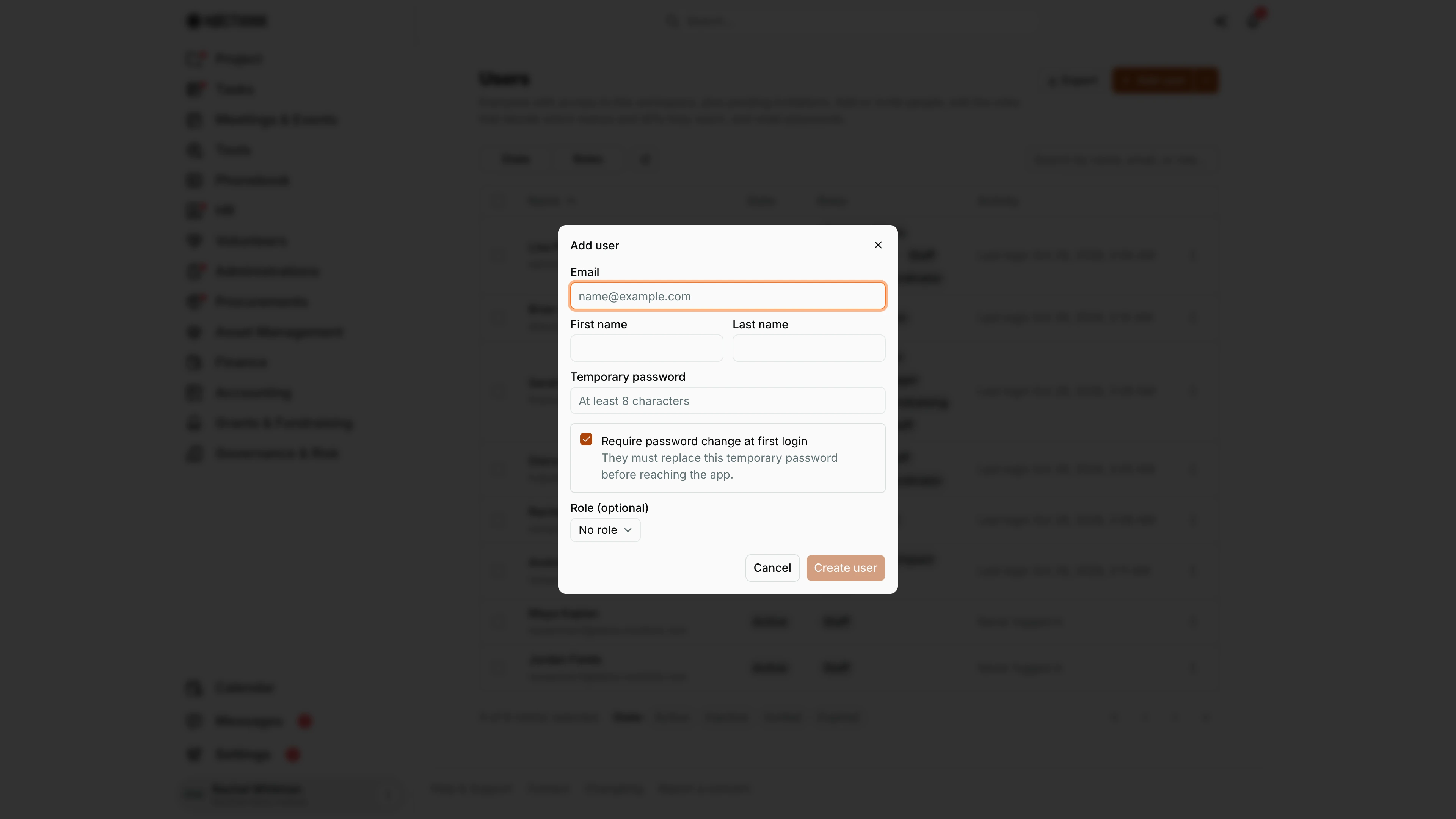
Screenshot: Rachel Whitman (Executive Director, organization owner), Nocthink Demo Institute demo data.
+ Add user creates an account straight away, without an email round-trip. I fill Email, First name, Last name and a Temporary password (at least 8 characters). Require password change at first login is ticked by default: "They must replace this temporary password before reaching the app." I leave it ticked unless there is a good reason not to. Role (optional) offers No role or any one capability role (Accounting Staff through Volunteer coordinator); I add further roles afterwards with Edit roles. Create user saves the account and the person appears as Active. I pass the temporary password on through a secure channel, never in the same email as the address.
Invite user
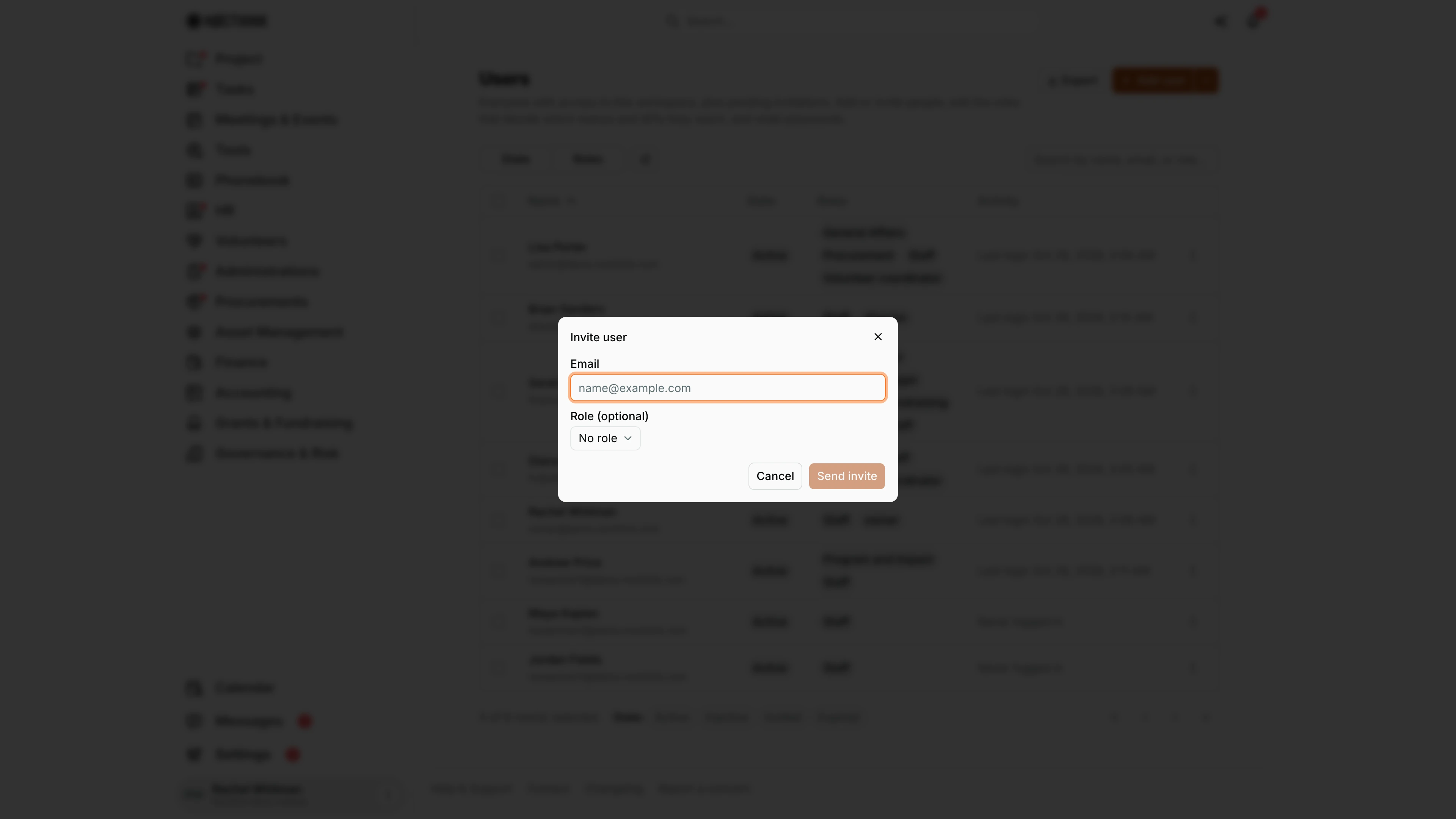
Screenshot: Rachel Whitman (Executive Director, organization owner), Nocthink Demo Institute demo data.
The ▾ next to Add user → Invite by email opens Invite user. I enter the Email (placeholder "name@example.com") and optionally a Role (optional), then click Send invite, which stays disabled until there is an email. On success the dialog changes to "Invite sent to … They can also use this link directly:" with the invitation link in a read-only box, a Copy button (it reads Copied for a moment) and Done. I use the link when the email may be filtered. The person then appears with state Invited until they accept. If the server refuses the invitation, its reason shows at the top of the form.
Edit a user's roles
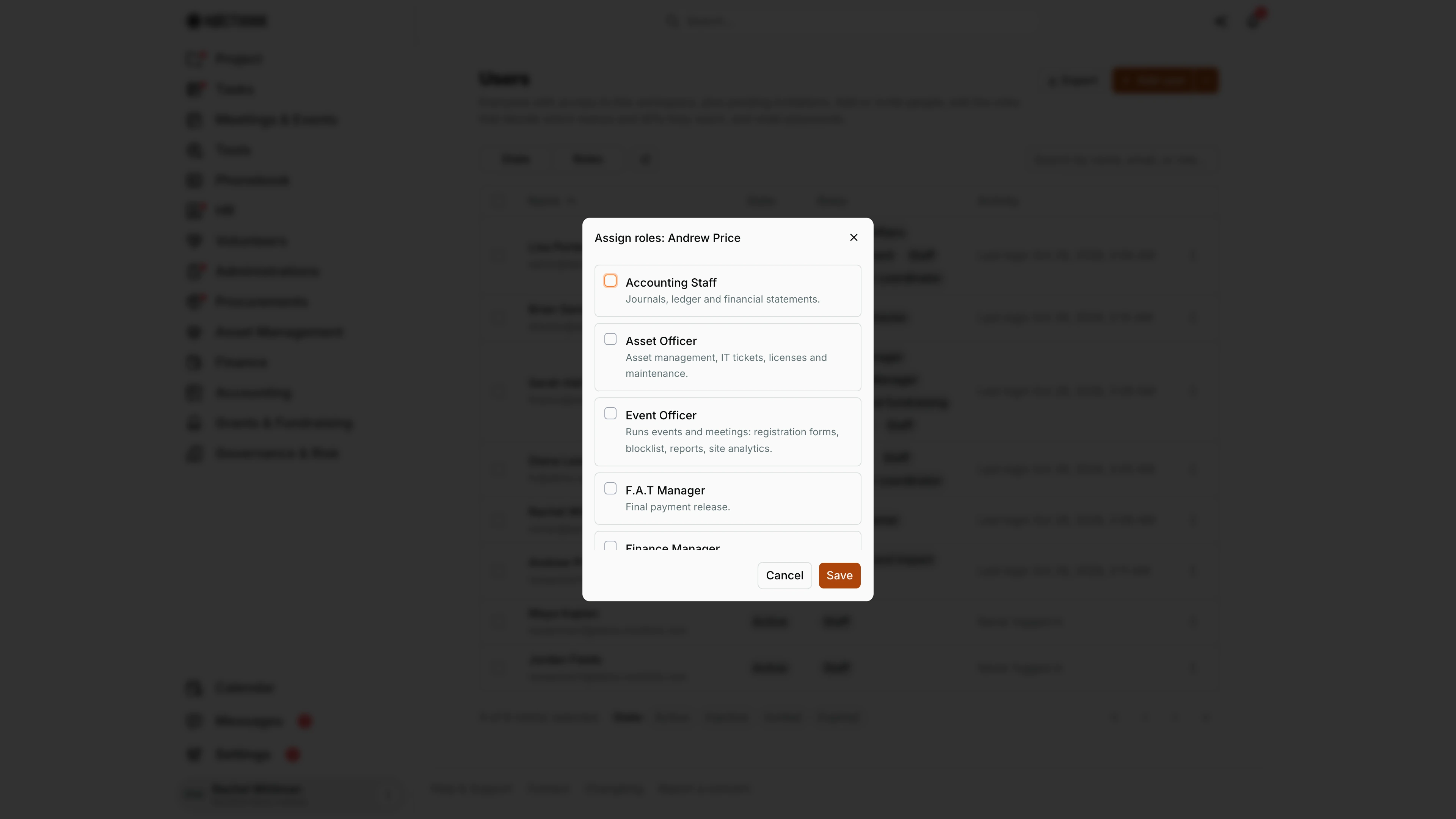
Screenshot: Rachel Whitman (Executive Director, organization owner), Nocthink Demo Institute demo data.
⋮ → Edit roles opens Assign roles: <name>: every capability role as a checkbox card with its description (for example Accounting Staff "Journals, ledger and financial statements.", F.A.T Manager "Final payment release.", General Affairs "Letter numbers, announcements, helpdesk, SOPs, car booking and light asset work."). The person's current roles are ticked. I tick or untick, then Save; the dialog closes on success, or shows the server's error in red at the top. The new roles apply on the person's next page load. I keep Staff ticked for everyone who needs the standard menus. What each role grants is set in Roles.
Access & permissions
- The Access group (Users, Roles, Logs, Email Logs) needs
rbac.manage; by default only the Owner holds it. The route is blocked for others even by direct URL. - Owner and director toggles require organization-admin status; Reset password is visible only to platform operators, and never on my own row.
- Seats in Billing follow the number of members listed here.
Caveats
- Make owner hands over billing, settings and the power to delete the organization; there is no second approval.
- A temporary password must be at least 8 characters, and Create user stays disabled until email and password are valid.
- Invitation links are not stored in the list; Resend and copy link creates a fresh link and copies it.
- Role changes take effect immediately and may hide menus from the person mid-task.
- Times in Activity are shown in your browser's time zone.
Limitations
- There is no temporary deactivation: Remove from organization is the only way to cut someone's access, and Inactive users cannot be toggled from this page.
- Row checkboxes have no bulk action (e.g. bulk role assignment).
- Email address and name cannot be edited from this page.
- Department membership is not shown or edited here (see Company and HR).
Related menus
- Roles — what each role grants and who holds it.
- Logs — the organization's audit trail (approvals, postings, grants and similar actions; role assignments made here are not currently recorded there).
- Email Logs — check whether an invitation email was delivered.
- Billing — seats used by these members.
- Profile — where each user changes their own password and 2FA.