
Logs
Open in NocthinkModule: Settings (Access) · URL: /settings/logs · Responsible role: Owner (organization admin) · Also used by: platform operators; anyone else who holds rbac.manage
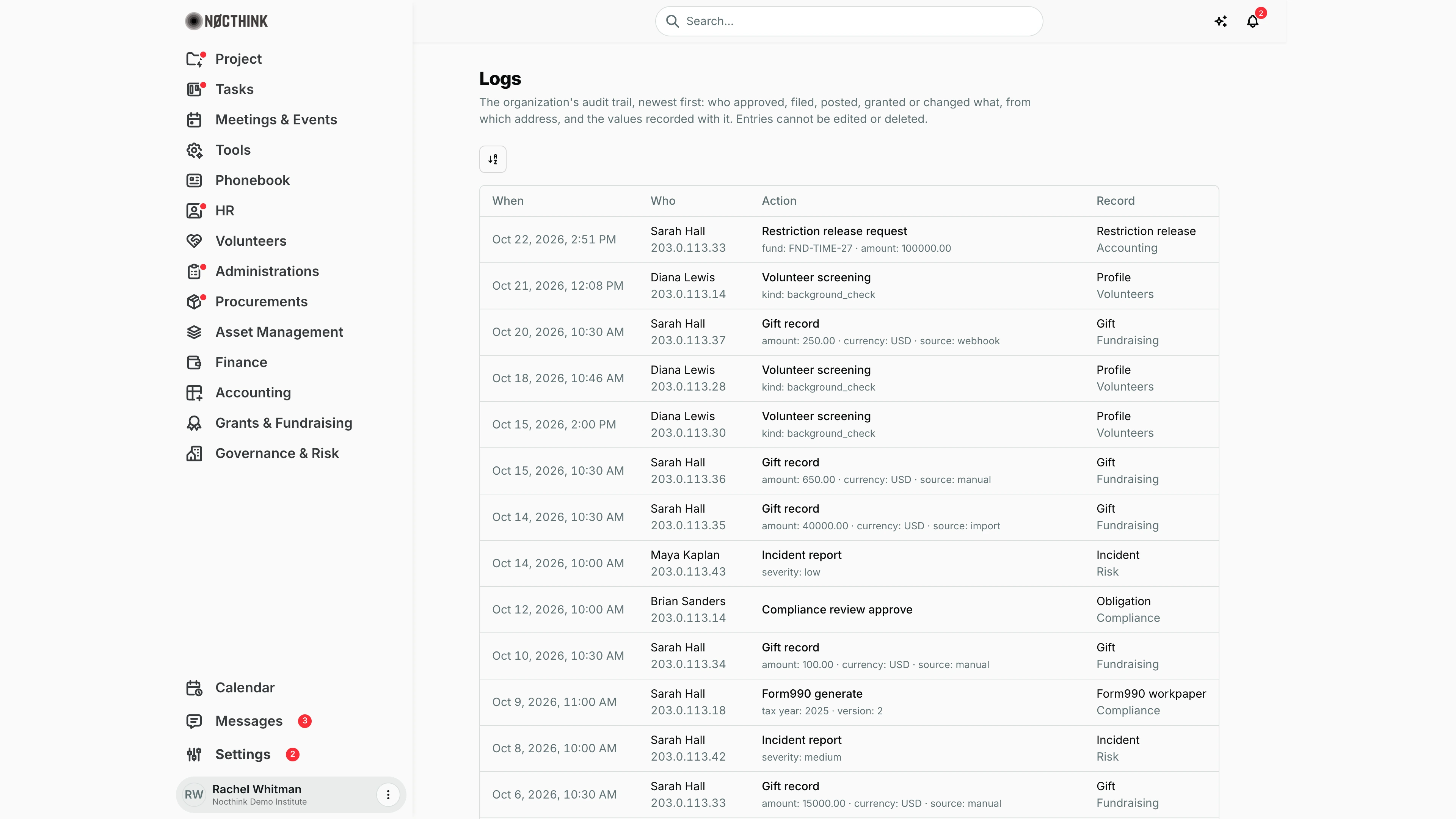
Screenshot: Rachel Whitman (Executive Director, organization owner), Nocthink Demo Institute demo data. The entries shown run from Oct 22 back to Oct 6, 2026; further down the page are Labor allocation post (HR) and other seeded actions.
Why I use this page
This is our organization's audit trail: who approved, filed, posted, granted or changed what, from which IP address, and the values recorded with it. I open it when an auditor or the board asks who approved something, when a figure changed unexpectedly, or during my periodic control review of high-stakes actions (journal postings, grant terms, compliance filings, access grants, HR legal holds). Entries are append-only, so this is the reference I trust.
What's on the screen
- Header — Logs with "The organization's audit trail, newest first: who approved, filed, posted, granted or changed what, from which address, and the values recorded with it. Entries cannot be edited or deleted."
- Toolbar — a sort control above the table.
- Empty state (a workspace with no audited actions yet) — "Nothing recorded yet."
- Table, newest first, 50 per page, the When column frozen while scrolling sideways:
- When — date and time (e.g. "Oct 22, 2026, 2:51 PM").
- Who — the person's name (or System for automated jobs) with their IP address underneath.
- Action — the action in plain words (e.g. "Volunteer screening", "Journal post", "Labor allocation post", "Legal hold open", "Compliance filed", "Board member add") with the recorded values underneath as
field: value · field: value(e.g. "journal no: JV-2026-0026"; a posting's journal is shown by its number, such as "journal: JV-LAB-…"; a status change readsstatus: ["pending","approved"]; hover to read the full line). - Record — the record type (e.g. "Journal entry") with its module underneath (e.g. "Accounting", "HR", "Compliance", "F.A.T."; in the screenshot, e.g. "Restriction release" under "Accounting", "Gift" under "Fundraising" or "Profile" under "Volunteers"); hover shows the record ID.
- Paging controls at the bottom.
How I …
Find who approved or posted something
- Open Settings → Logs.
- Page through by date until I reach the period (entries are newest first).
- Look for the Action (e.g. "Approve") on the right Record type and area.
- Read Who and the IP address, and the values under the action to confirm it is the right record; hover Record to see its ID and match it with the document.
Prepare evidence for an audit
- Open the log for the period under review.
- For each sampled transaction, find its entry and note When, Who and the recorded values.
- Take screenshots or copy the lines into the audit file (there is no export; see Limitations).
Check automated activity
- Look for rows where Who is System — these come from scheduled or automated jobs rather than a person.
- Compare their Action and values with the expected job (e.g. daily metrics, compliance generation).
Access & permissions
- The menu and route require
rbac.manage(Access group). - The server returns entries to the organization admin and to any holder of
rbac.manage, the same people who see the menu. - HR → Audit trails reads the same log for
hr.deleteholders, but shows them only HR records. - Entries are scoped to my organization.
Caveats
- Entries cannot be edited or deleted by anyone in the app.
- Only actions that the system explicitly audits appear: approvals and postings in Accounting and F.A.T., Grants, Fundraising, Subawards, Governance, Risk, Compliance/Nonprofit settings, HR (legal holds, access grants, engagements), Projects, Tasks, Volunteers and setup. Routine edits elsewhere — for example role assignments, company profile changes, procurement documents, leave approvals and payroll runs — are not recorded here by the app.
- Times are shown in my browser's locale and time zone.
- The recorded values are what the action stored at the time, not a full before/after diff of the record.
Limitations
- No search or filters on the page (the server supports filtering by user, action and record type, but the UI does not expose them).
- No export to CSV/PDF.
- No link from an entry to the record it refers to.
Related menus
- Users and Roles — who can do what; their changes are not audited here today.
- Email Logs — notification emails sent as a result of these actions.
- Audit Trails — HR's own audit view inside the HR module.
- Journal Entries — postings that appear here as audited actions.