
Project
Open in NocthinkModule: Settings › Apps · URL: /settings/project · Responsible role: Project Manager (project-manager) · Also used by: Owner/Director (full); nobody else can open it
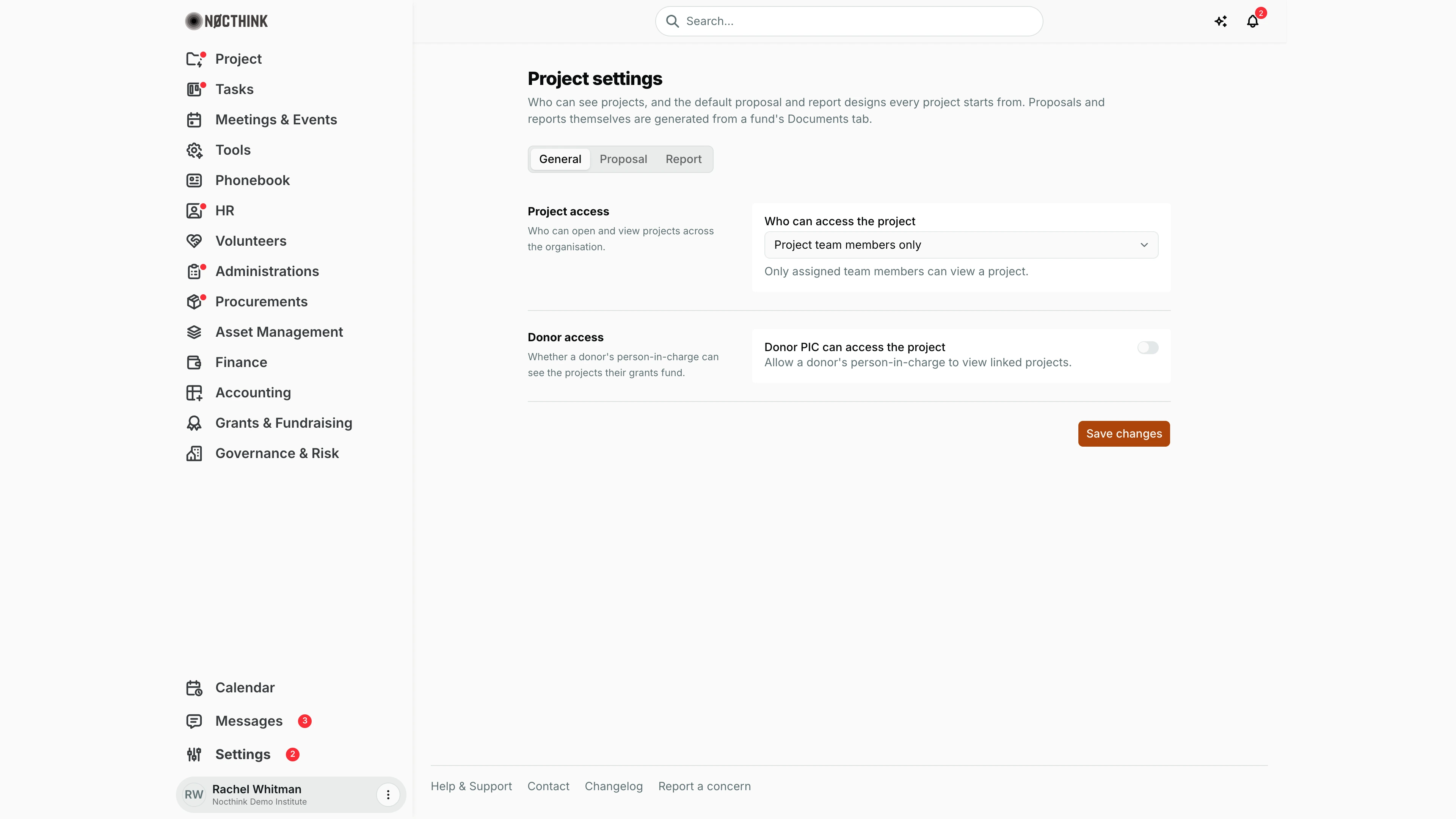
Screenshot: Rachel Whitman (Executive Director, org owner), Nocthink Demo Institute demo data. As Project Manager I see the same page.
Why I use this page
I use this page to set who can see our projects and which proposal and report design every new fund document starts from. I open it when we onboard a new donor that needs a specific proposal format (for example the GCF template), when leadership changes project visibility policy, or before a reporting season so every progress report starts from the same skeleton. Real proposals and reports are generated from a fund's Documents tab, not here.
What's on the screen
- Header — Project settings and a short description.
- Tabs — General, Proposal, Report.
- General tab:
- Project access — drop-down Who can access the project with Everyone in the organization, Project team members only, Administrators only; a hint under it explains the choice.
- Donor access — switch Donor PIC can access the project ("Allow a donor's person-in-charge to view linked projects.").
- Save changes button, with a Saved tick on success or the error text on failure.
- Proposal tab (Proposal designs) — template cards on the left: GCF Funding Proposal, Classic, Concept Note, Research; the current one carries a Default badge. On the right, Example output with buttons for PDF download, Edit / Preview and Set as default.
- Report tab (Report designs) — same layout with Standard, Donor Update, Impact.
How I …
Change who can see projects
- Open Settings › Apps › Project and stay on General.
- In Who can access the project, choose:
- Everyone in the organization — any signed-in member can view projects;
- Project team members only — only assigned team members;
- Administrators only — restricted to admins.
- Click Save changes.
Let donor contacts see the projects they fund
- On General, turn on Donor PIC can access the project.
- Click Save changes.
Set the default proposal design
- Open the Proposal tab (see Proposal below).
- Click a template card; its content appears under Example output.
- Optionally click Edit to change headings and placeholder text in the rich-text editor, then Preview to check it.
- Use the PDF button to see how it prints with our organization name.
- Click Set as default. The card now shows Default and new proposals start from it.
Set the default report design
- Open the Report tab (see Report below) and repeat the steps above with Standard, Donor Update or Impact.
- Click Set as default.
Detail page, forms & dialogs
Proposal
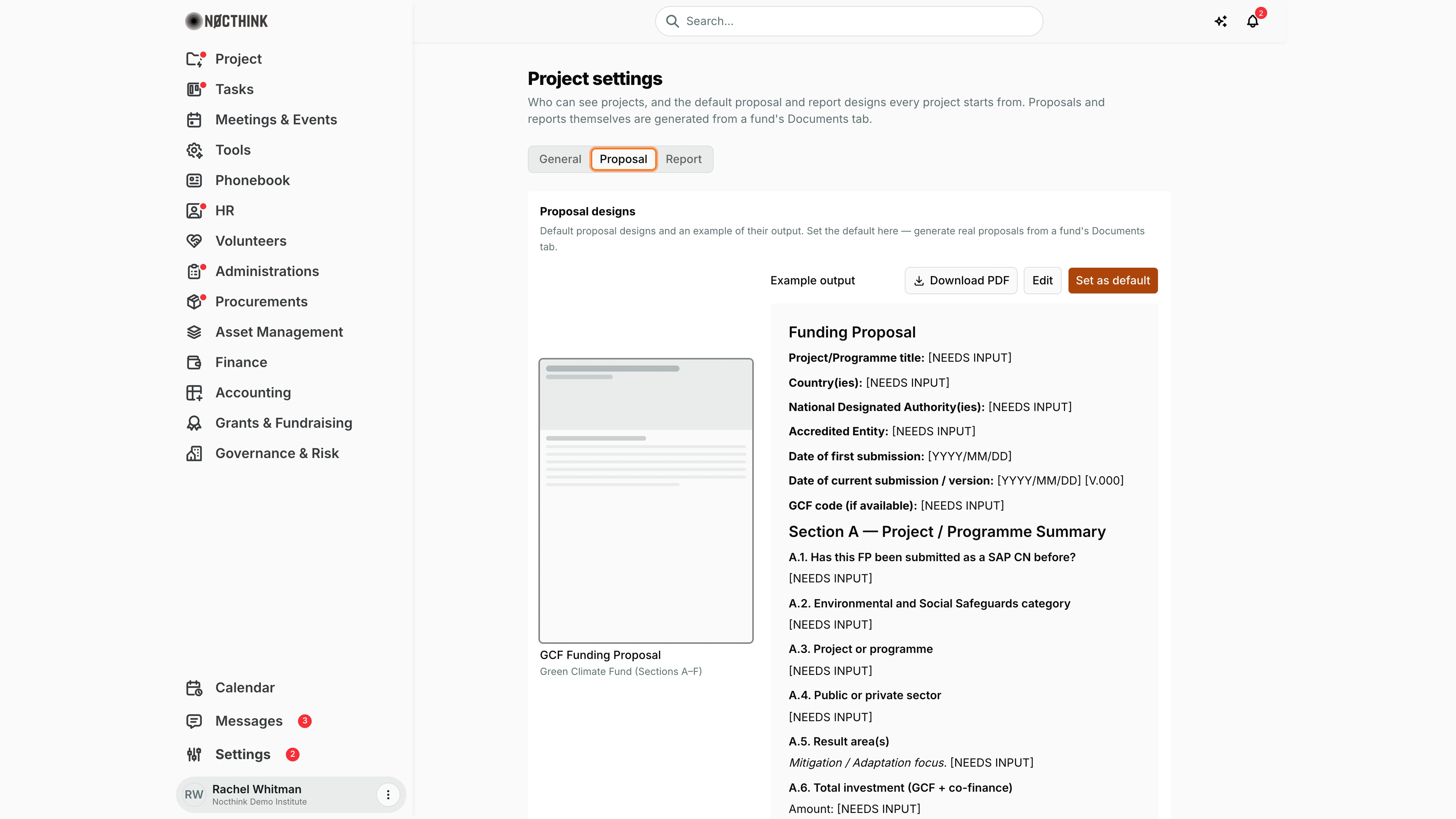
Screenshot: Rachel Whitman (Executive Director, organization owner), Nocthink Demo Institute demo data.
Proposal designs: "Default proposal designs and an example of their output. Set the default here — generate real proposals from a fund's Documents tab." The left column has four design cards, each with a thumbnail, name and one-line description: GCF Funding Proposal ("Green Climate Fund (Sections A–F)"), Classic ("Formal grant proposal"), Concept Note ("Short 1-page pitch") and Research ("Academic study proposal"). The current default carries a Default badge. Clicking a card shows it under Example output, with [NEEDS INPUT] and date placeholders where a real proposal's fund data will go. Download PDF prints the example with our organization name, Edit switches to a rich-text editor (and becomes Preview), and Set as default saves the design, with a Saved note when it succeeds. No proposal is generated here.
Report
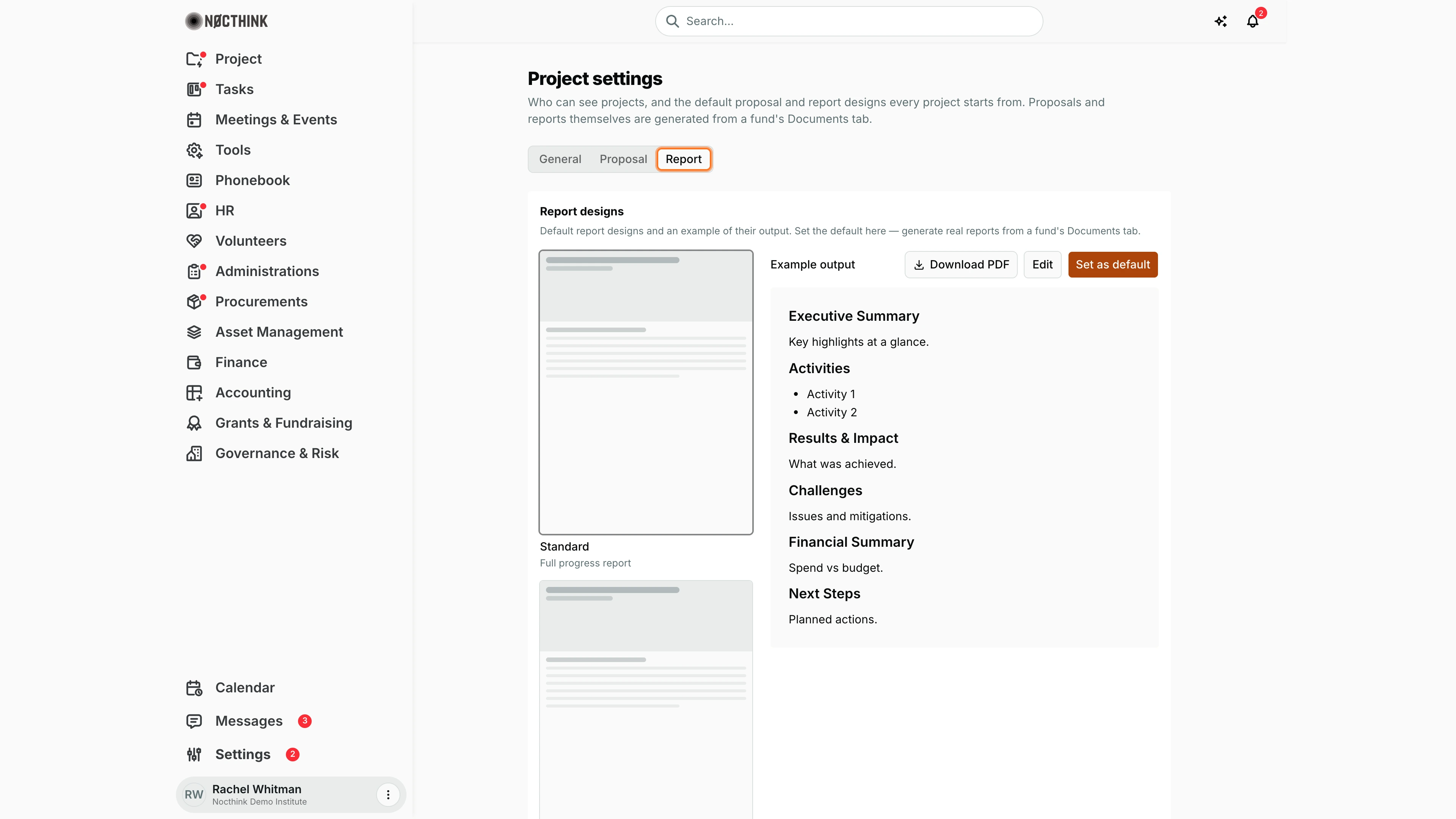
Screenshot: Rachel Whitman (Executive Director, organization owner), Nocthink Demo Institute demo data.
Report works exactly like Proposal, but for progress reports: "Default report designs and an example of their output. Set the default here — generate real reports from a fund's Documents tab." The three cards are Standard ("Full progress report"), Donor Update ("Short funder briefing") and Impact ("Outcomes-focused"). I click a card to see its example output, use Download PDF to check how it prints, Edit / Preview to adjust the headings and placeholder text, and Set as default to make it the starting point for every project's reports. If saving fails, the reason appears in red above the example.
Access & permissions
- The route requires
project.update(Project Manager, Owner/Director). - Reading the settings needs
project.view. Saving any change (the access level, donor switch or a default design) needsproject.update, the same permission as the page, so the Project Manager can save as well as the Owner/Director. - docs/role.md §4.5: Settings › Apps › Project is F for Owner and Project Manager only.
Caveats
- Changing Project access immediately changes what every non-team member sees in All Projects; choosing Administrators only hides projects from staff who are not admins.
- Set as default replaces the stored default; the previous custom version is not kept. If I edited a preset and saved it, the preset card no longer matches and the edited version becomes the default.
- Switching templates in the list overwrites what is in the editor without asking; set my edits as default before clicking another card.
- The Saved note only refers to the last action on that tab; the General tab's Save changes does not save template edits and vice versa.
Limitations
- Only one default proposal and one default report design per organization; no per-donor or per-project defaults.
- I cannot add, rename or delete template presets; I can only edit the content that becomes the default.
- No version history or undo for the default designs.
Related menus
- Funds & Grants — a fund's Documents tab generates proposals and reports from these defaults.
- All Projects — governed by Project access.
- Documents — where generated project documents end up.
- Donors — donor PICs affected by Donor access.