
Roles
Open in NocthinkModule: Settings (Access) · URL: /settings/roles · Responsible role: Owner (organization admin, rbac.manage) · Also used by: anyone else granted rbac.manage; platform operators. Directors do not get rbac.manage by default.
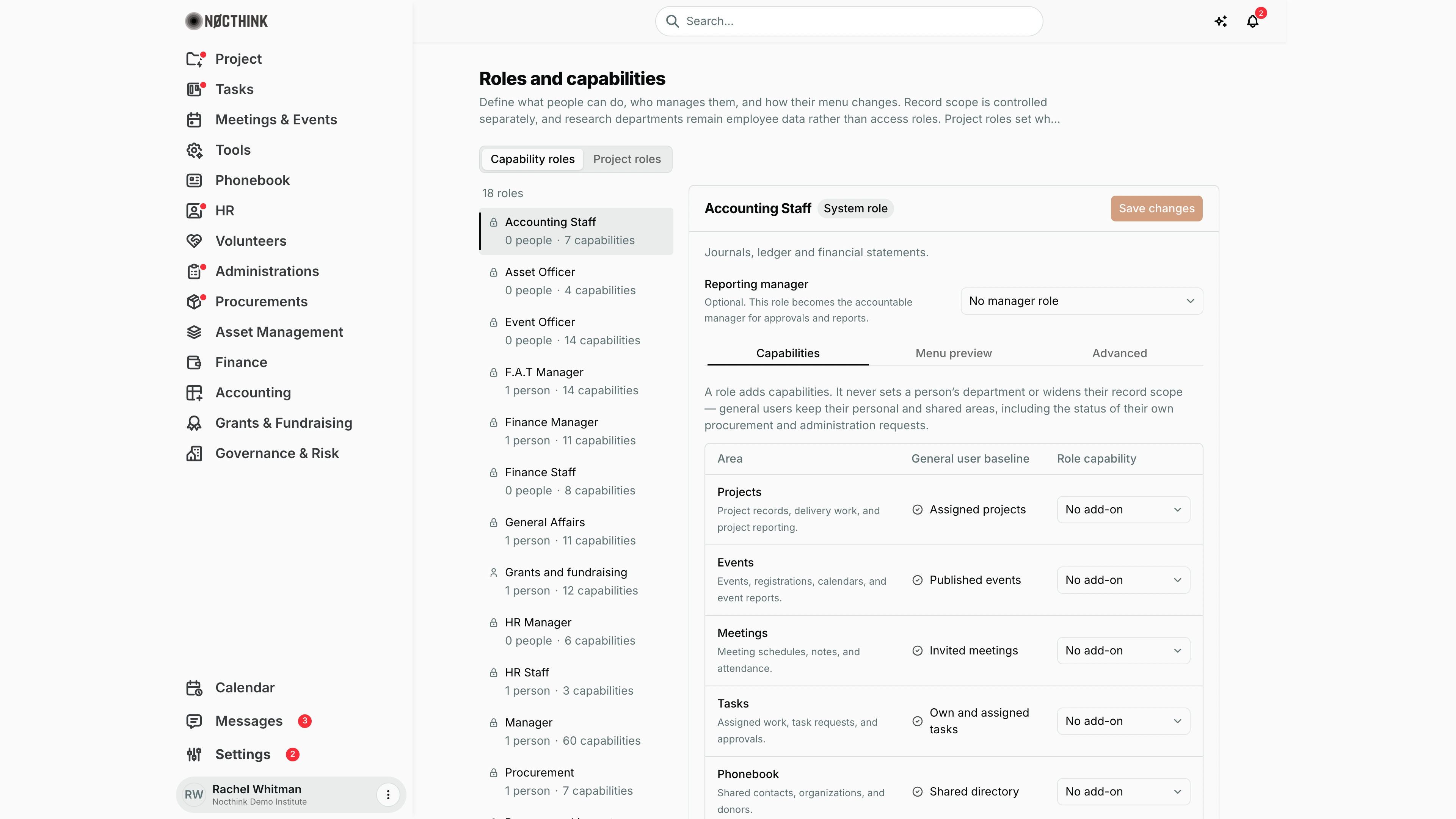
Screenshot: Rachel Whitman (Executive Director, organization owner), Nocthink Demo Institute demo data.
Why I use this page
Roles decide what people can do and which menus they see. I come here when a job needs access that the standard roles don't give, to check exactly what a role grants before assigning it, to preview how someone's sidebar will look, and to set which role is the accountable manager for another (who approves for whom). On the Project roles tab I define the team roles project leads hand out inside a single project. I review roles a few times a year and whenever a new function (e.g. a grants officer) is created.
What's on the screen
- Header — Roles and capabilities, explaining that roles set what people can do, record scope is controlled separately, and project roles apply inside one project.
- Tabs — Capability roles and Project roles.
- Capability roles (shown):
- Role list (left) — "18 roles", each with name, a lock icon for system roles, and "N people · N capabilities" (e.g. Accounting Staff, Asset Officer, Event Officer, F.A.T Manager, Finance Manager, Finance Staff, General Affairs, Grants and fundraising, HR Manager, HR Staff, Manager, Procurement, …).
- In the screenshot the list reads, for example, Accounting Staff "0 people · 7 capabilities", F.A.T Manager "1 person · 14 capabilities", Manager "1 person · 60 capabilities", Staff "8 people · 6 capabilities" and Volunteer coordinator "2 people · 4 capabilities". Grants and fundraising shows a person icon instead of the lock because it is not a system role.
- Role editor (right) — role name, System role badge, Save changes, the role description, Reporting manager ("Optional. This role becomes the accountable manager for approvals and reports."; default No manager role), and three sub-tabs:
- Capabilities — table with Area (Projects, Events, Meetings, Tasks, Phonebook, Human resources, Procurements, Finance, Accounting, Asset management, Administrations, Analytics, Donors, Access control, …), General user baseline (what every staff member already gets, e.g. "Assigned projects", "Published events", "Invited meetings", "Own and assigned tasks", "Shared directory", or "Not in general menu"), and Role capability (a level: No add-on, View, Contribute, Manage, Approve, or Custom).
- Menu preview — the Main menu as someone with this role would see it, marking each area Visible/Hidden and showing personal items such as My requisitions ("Always visible").
- Advanced — a per-action grid (view / create / update / delete / approve, …) for exceptional add-ons.
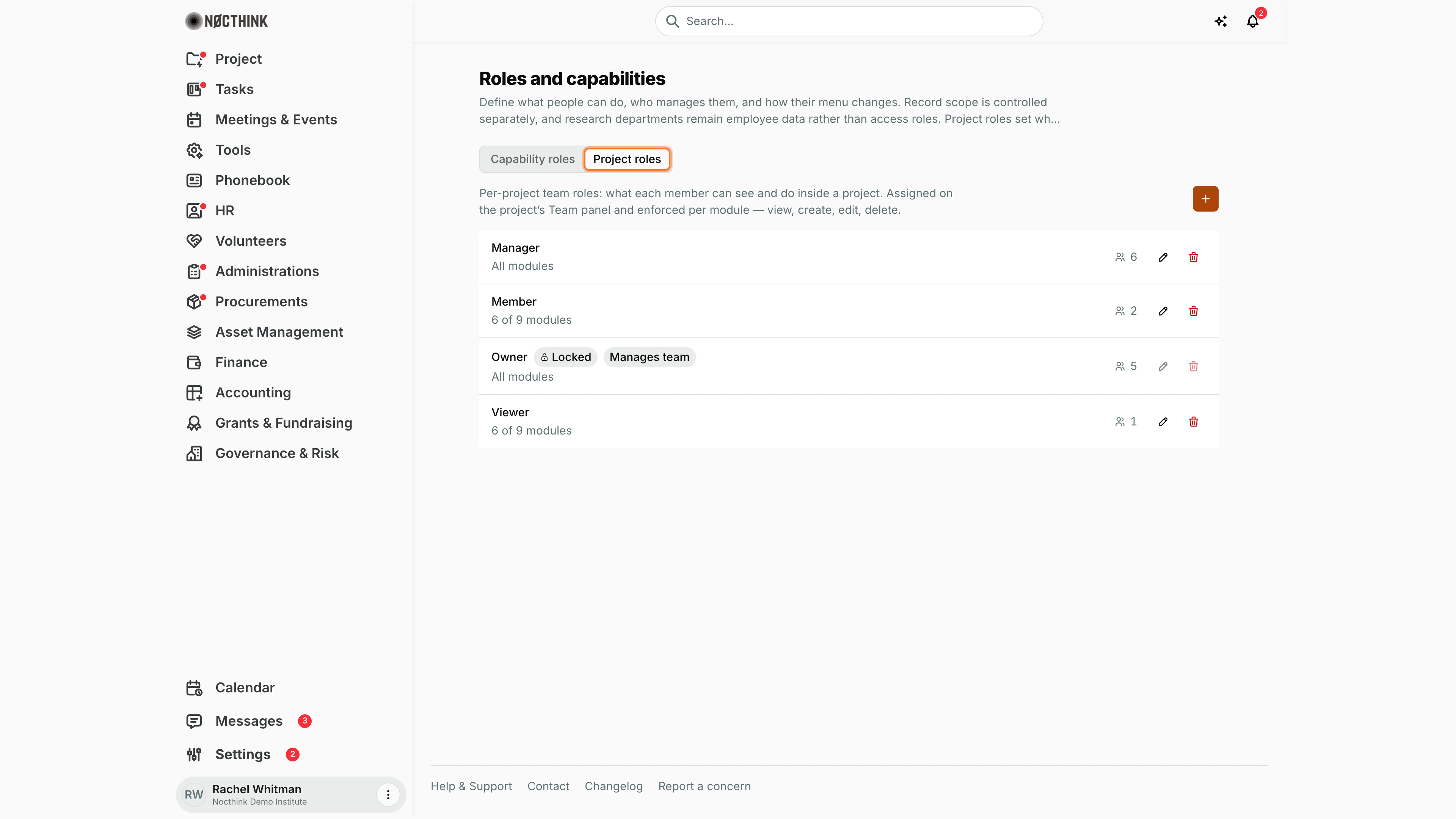
- Project roles — "Per-project team roles…", a + (New project role) button, and the list of project roles with edit / delete (system project roles cannot be changed).
How I …
Check what a role grants
- Click the role in the list (see Role editor: Capabilities below).
- Read Capabilities: compare General user baseline with Role capability for each Area.
- Open Menu preview (see Role editor: Menu preview below) to see the sidebar that a holder of this role would get.
Give a role more (or less) access
- Select the role.
- In Capabilities, change the Role capability level for the area, e.g. Finance from No add-on to View.
- For a one-off action that no level covers, open Advanced (see Role editor: Advanced below) and tick the single action.
- Click Save changes. "Changes saved" confirms it; everyone holding the role is affected immediately.
Set who manages a role
- Select the role (e.g. Finance Staff).
- Under Reporting manager, pick the manager role (e.g. Finance Manager), or No manager role.
- Click Save changes.
Create a project role
- Open Project roles and click + (see New project role below).
- Enter Name (e.g. "Event Staff") and tick Can manage the project team if this role may add or remove members.
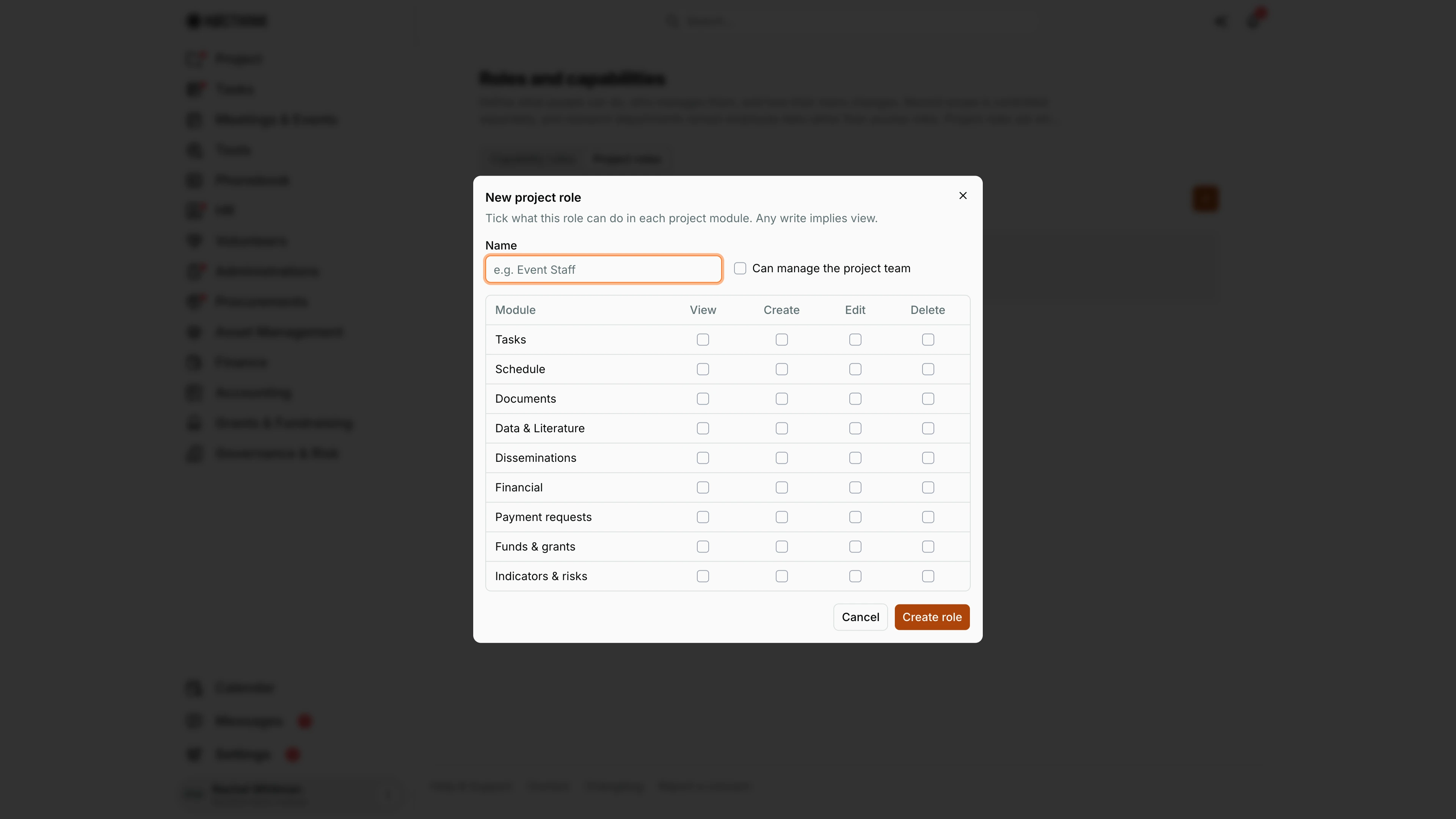
- In the Module grid, tick view / create / edit / delete for each project module (Tasks, Schedule, Documents, Data & Literature, Disseminations, Financial, Payment requests, Funds & grants, Indicators & risks).
- Save. Project leads can now assign it on a project's Team panel.
Detail page, forms & dialogs
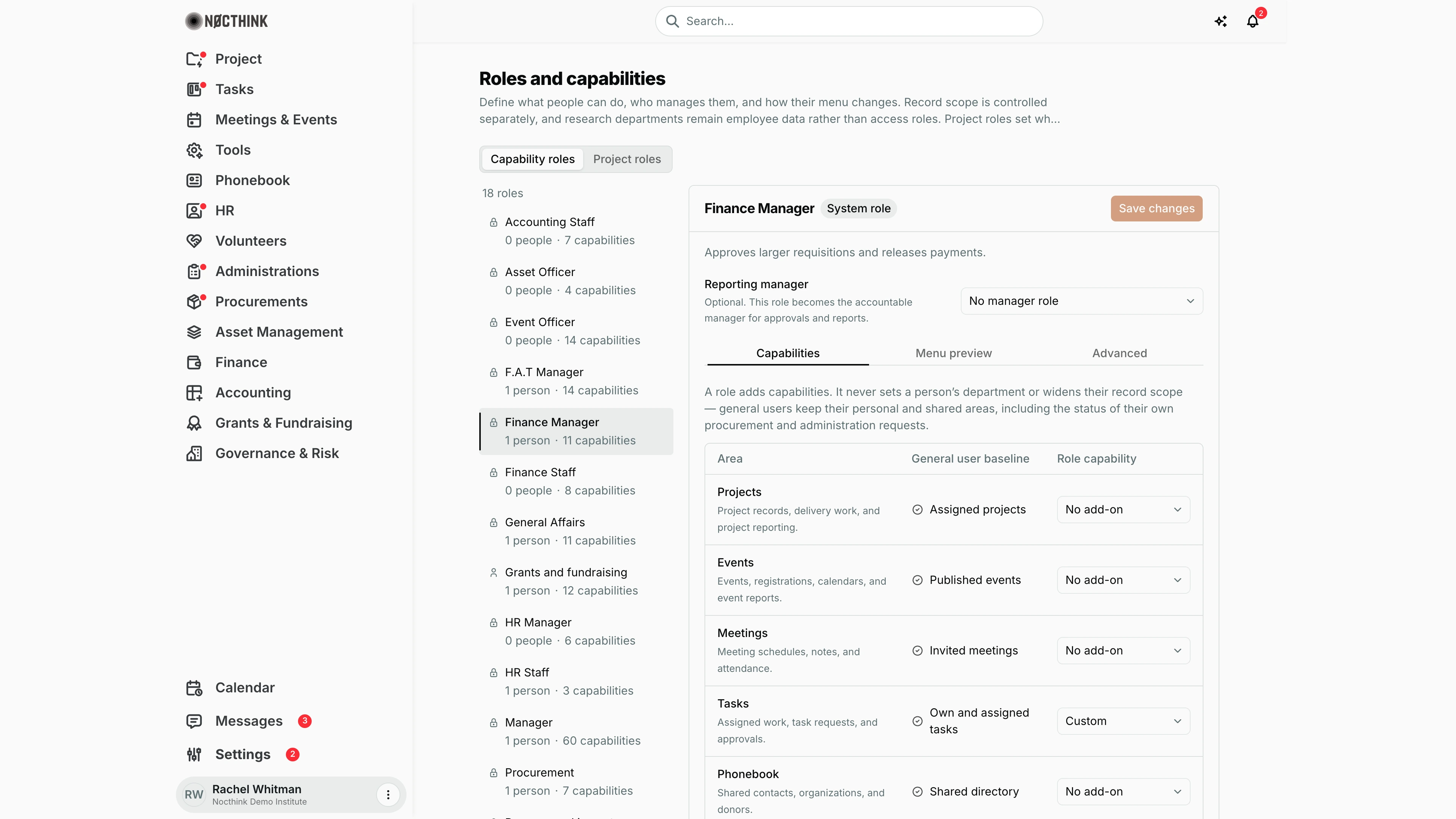
Role editor: Capabilities
Screenshot: Rachel Whitman (Executive Director, organization owner), Nocthink Demo Institute demo data.
Clicking a role in the list opens it in the editor on the right. The header shows the role name, a System role badge where it applies, and Save changes, which stays disabled until I change something. Below are the description ("Approves larger requisitions and releases payments." for Finance Manager) and Reporting manager. The Capabilities sub-tab explains that "A role adds capabilities. It never sets a person's department or widens their record scope", and then lists each Area with what every staff member already gets under General user baseline (for example "Assigned projects", "Own and assigned tasks", "Shared directory") and this role's level under Role capability (No add-on, View, Contribute, Manage, Approve or Custom). Custom appears when the role's actions don't match one of the levels, usually because of Advanced ticks.
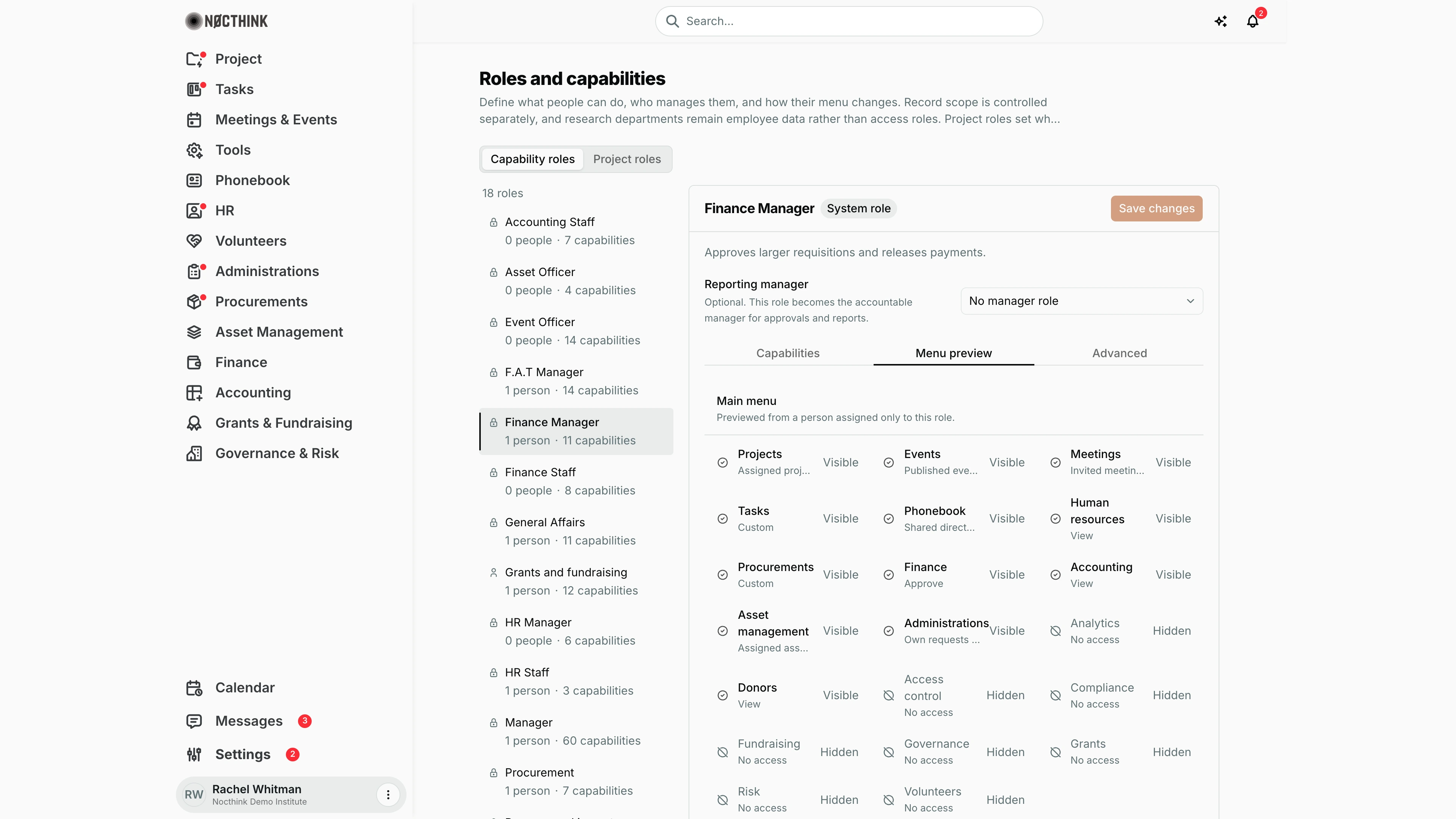
Role editor: Menu preview
Screenshot: Rachel Whitman (Executive Director, organization owner), Nocthink Demo Institute demo data.
Menu preview shows the Main menu "Previewed from a person assigned only to this role." Each menu area appears with its access level underneath (for example Projects "Assigned proj…", Finance "Approve", Accounting "View", Grants "No access") and a Visible or Hidden marker. For Finance Manager, Projects, Tasks, Phonebook, Procurements, Finance and Accounting are visible, while Analytics, Compliance, Access control, Fundraising, Governance, Grants, Risk and Volunteers are hidden. I check this before giving a role to someone, so I know exactly which menus they will see. Real people often hold several roles, so their own menu is the combination.
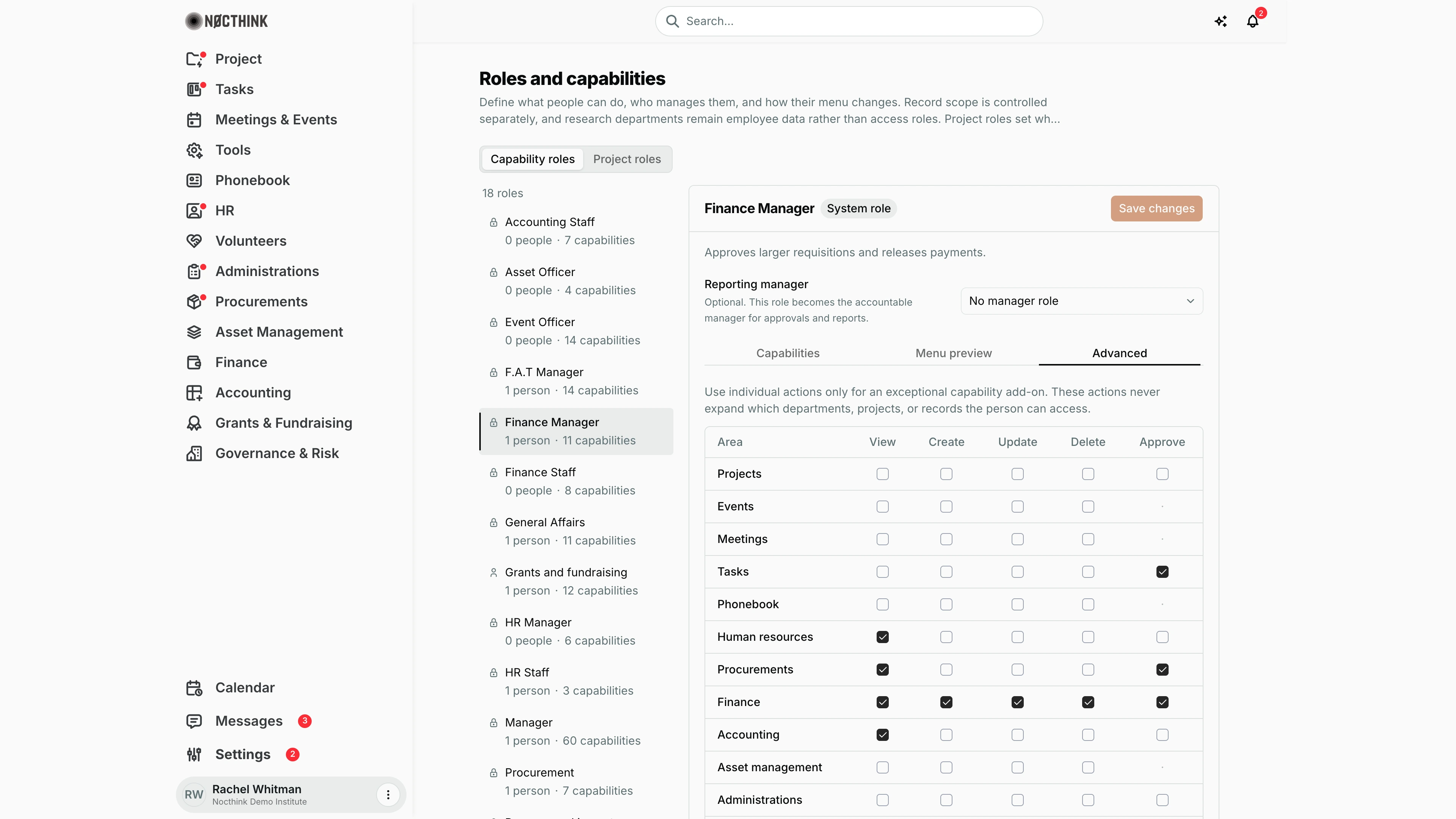
Role editor: Advanced
Screenshot: Rachel Whitman (Executive Director, organization owner), Nocthink Demo Institute demo data.
Advanced is for exceptions: "Use individual actions only for an exceptional capability add-on. These actions never expand which departments, projects, or records the person can access." Each Area row has View, Create, Update, Delete and Approve checkboxes; a dot means the action does not exist for that area. For Finance Manager, Finance is fully ticked, Accounting and Human resources have View, and Tasks and Procurements have Approve. Changes take effect for every holder of the role once I click Save changes.
Project roles
Screenshot: Rachel Whitman (Executive Director, organization owner), Nocthink Demo Institute demo data.
Project roles holds the per-project team roles: "what each member can see and do inside a project. Assigned on the project's Team panel and enforced per module — view, create, edit, delete." Each row shows the role name, how many of the nine project modules it covers ("All modules", "6 of 9 modules"), badges such as Locked and Manages team, the number of members holding it, and pencil and bin icons. In the demo: Manager (all modules, 6 members), Member (6 of 9, 2), Owner (Locked, Manages team, all modules, 5) and Viewer (6 of 9, 1). Owner is locked, so its icons are greyed out. The orange + opens New project role.
New project role
Screenshot: Rachel Whitman (Executive Director, organization owner), Nocthink Demo Institute demo data.
New project role: "Tick what this role can do in each project module. Any write implies view." I type the Name (placeholder "e.g. Event Staff") and tick Can manage the project team if holders may add and remove team members. The grid has a row per project module (Tasks, Schedule, Documents, Data & Literature, Disseminations, Financial, Payment requests, Funds & grants, Indicators & risks) with View, Create, Edit and Delete columns. Create role saves it, and project leads can then pick it on a project's Team panel. The pencil on an existing role opens the same form for editing.
Access & permissions
- The page needs
rbac.manage(or platform operator). Anyone else who opens the URL is redirected to their Profile. - Assigning roles to people happens in Users (Edit roles), not here.
- Owner and Director status are not roles; they bypass these settings.
Caveats
- A change to a role applies to everyone holding it at once; check the people count in the list first.
- Capabilities never widen record scope: giving Projects Manage does not show someone projects outside their departments or teams; scope is controlled separately.
- Custom appears when the Advanced grid doesn't match a standard level; picking a level again overwrites those individual actions.
- Save changes is disabled until something changes; leaving the role without saving discards edits.
- Deleting a project role asks for confirmation ("Delete project role …?") and cannot be undone; system project roles cannot be edited or deleted.
Limitations
- No button to create, rename or delete a capability role on this page; the list is the seeded set.
- No per-person exceptions here — access is only through roles.
- No change history: role edits are not shown on this page, and the role/permission endpoints do not currently write to Logs.
Related menus
- Users — assign these roles to people.
- Logs — the organization's audit trail of approvals, postings and similar actions.
- Nonprofit — enabling Grants, Fundraising and Compliance, which still need role permissions.
- All Projects — where project roles are assigned on a project's team.