
Events
Open in NocthinkModule: Settings › Apps · URL: /settings/events · Responsible role: Event Officer (event-officer) · Also used by: Owner/Director (full); anyone else holding events.update
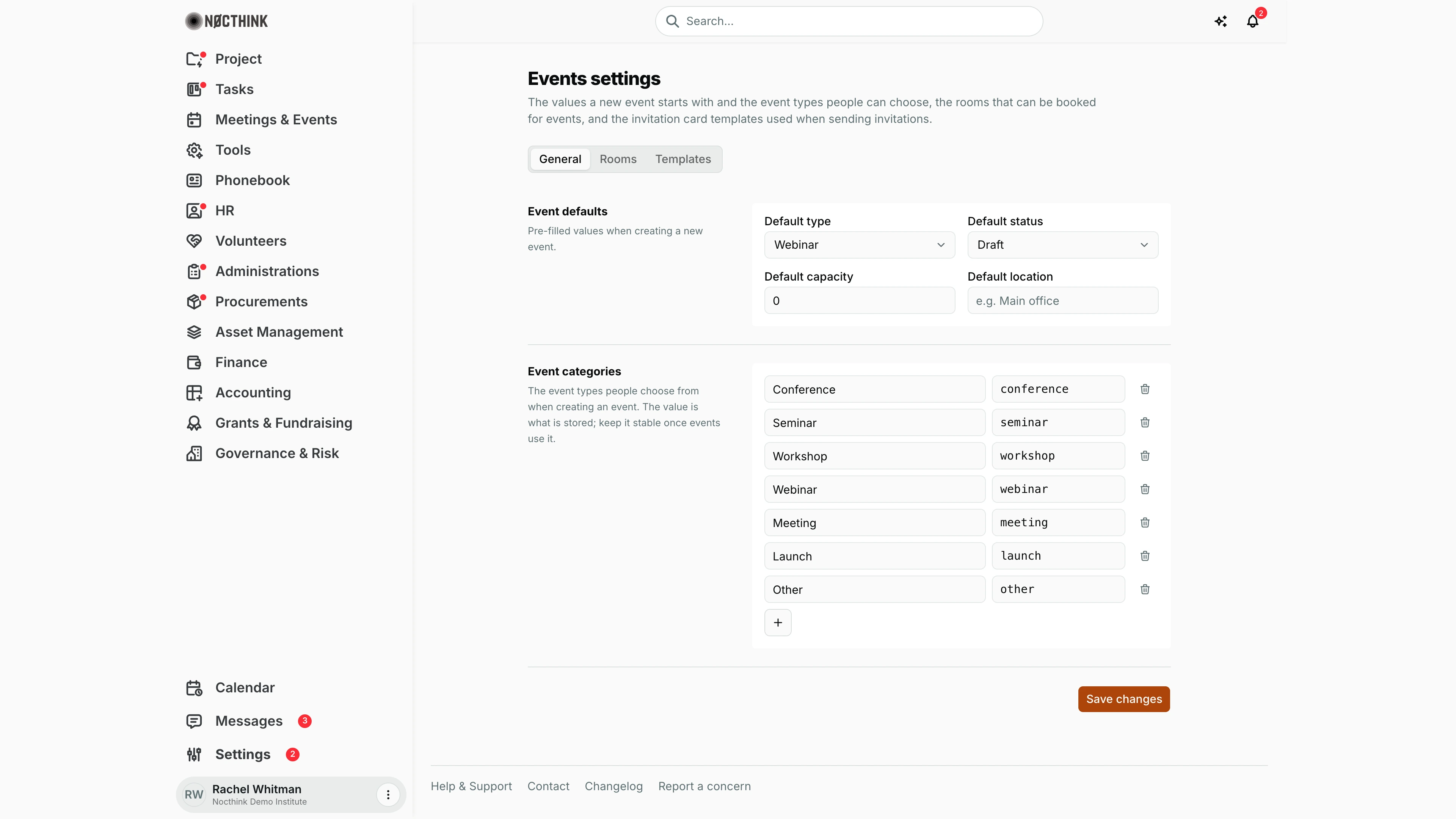
Screenshot: Rachel Whitman (Executive Director, org owner), Nocthink Demo Institute demo data. As Event Officer I see the same page.
Why I use this page
I use this page to set what a new event starts with, which event types people can pick, and which invitation card designs are available when we send invitations. I set it up once per year (or when we start a new event series such as a roundtable programme) and come back when a colleague asks for a new event type or a new invitation design. Rooms are shown here for reference only; I manage them in Asset Management.
What's on the screen
- Header — Events settings with a description.
- Tabs — General, Rooms, Templates.
- General tab:
- Event defaults — Default type (from the categories below), Default status (Draft, Published, Completed, Cancelled), Default capacity, Default location (placeholder "e.g. Main office").
- Event categories — one row per type with a Label (what people see, e.g. "Conference") and a value (what is stored, e.g.
conference), a trash icon to remove it, and a + button (Add category). Demo categories: Conference, Seminar, Workshop, Webinar, Meeting, Launch, Other. - Save changes button with Saved tick.
- Rooms tab — Bookable rooms: a read-only table (Name, Location, Capacity, Facilities) and a Manage rooms button that opens Asset Management › Rooms.
- Templates tab — Invitation templates: a + (New template) button, category switcher (All, Formal, Casual, Reminder, Confirmation), Search templates…, and a grid of template cards with a preview, name, description and a ⋯ menu (Open, Edit, Delete).
How I …
Set the defaults for new events
- Open Settings › Apps › Events, tab General.
- Under Event defaults, pick Default type and Default status (usually Draft, so nothing is published by accident).
- Enter Default capacity (0 or more) and optionally Default location.
- Click Save changes.
Add, rename or remove an event type
- On General, scroll to Event categories.
- To add: click +, type the Label (e.g. "Roundtable") and a short lowercase value (e.g.
roundtable). - To rename: change only the Label; keep the value as it is.
- To remove: click the trash icon on the row.
- Click Save changes. Errors appear under the list if a label or value is empty or two values are the same.
Create an invitation template
- Open Templates (see Templates below) and click +.
- Enter Name (required, e.g. "Annual Gala Formal") and choose Category: Formal Corporate, Casual / Friendly, Reminder, Confirmation / RSVP or Other.
- Add a Description of when to use it.
- Tick Mark as default for this category if it should be preselected when sending invitations.
- Click Create template.
Edit, review or delete a template
- On a card, open ⋯ → Edit to change name, category, description or the default flag, then Save.
- ⋯ → Open shows the template page: About this template (Category, Layout, Default, Created, Updated, Created by), Sample placeholders and a Print button.
- ⋯ → Delete asks "Delete template?" — "This cannot be undone." Confirm with Delete.
Detail page, forms & dialogs
Rooms
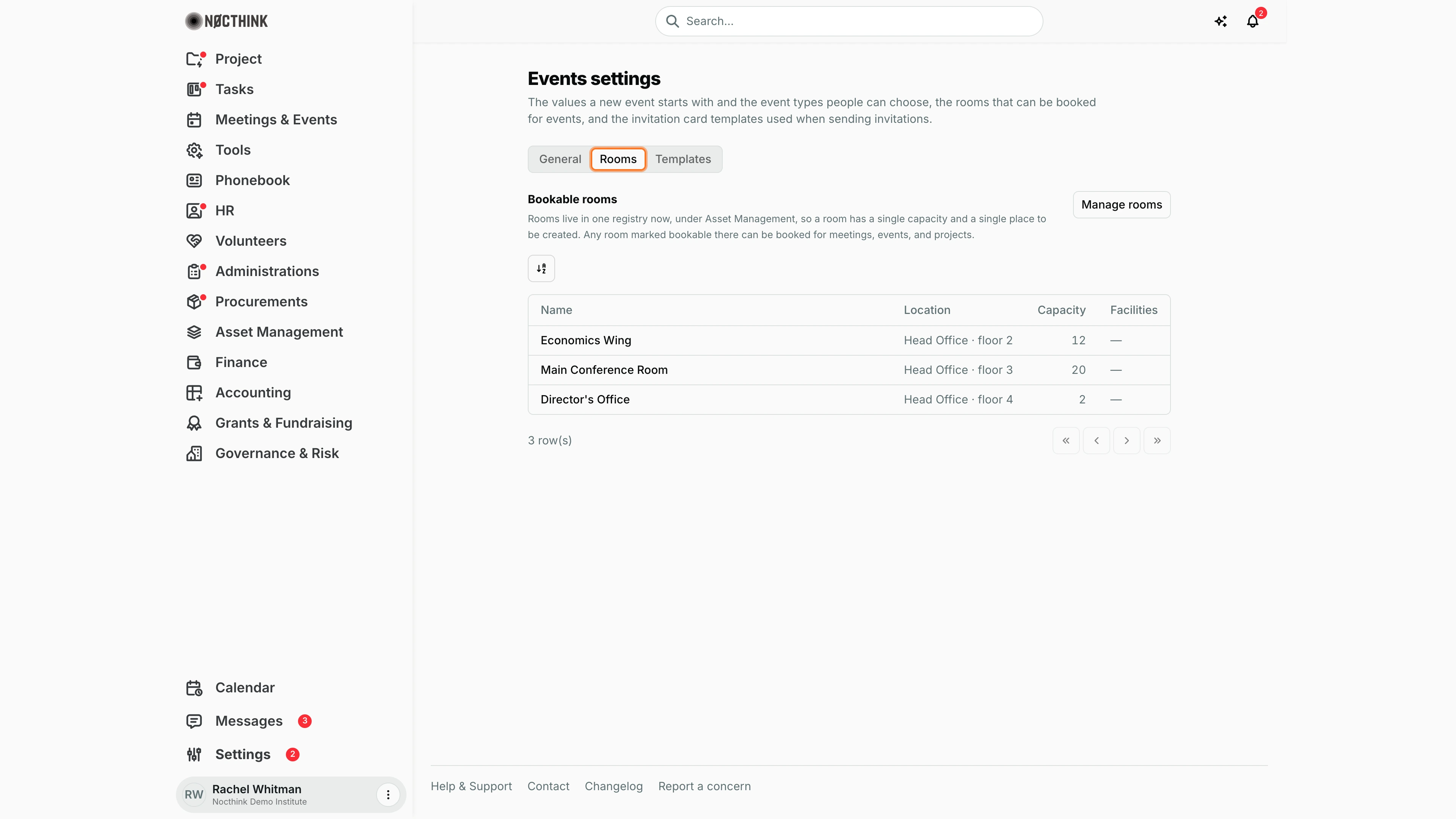
Screenshot: Rachel Whitman (Executive Director, organization owner), Nocthink Demo Institute demo data.
Bookable rooms explains that "Rooms live in one registry now, under Asset Management, so a room has a single capacity and a single place to be created. Any room marked bookable there can be booked for meetings, events, and projects." The table is read-only: Name, Location, Capacity and Facilities. In the demo it lists Economics Wing (Head Office · floor 2, 12 seats), Main Conference Room (Head Office · floor 3, 20) and Director's Office (Head Office · floor 4, 2), none with facilities recorded. To add a room or change its capacity I click Manage rooms, which opens Asset Management › Rooms; this tab only reflects what is set there.
Templates
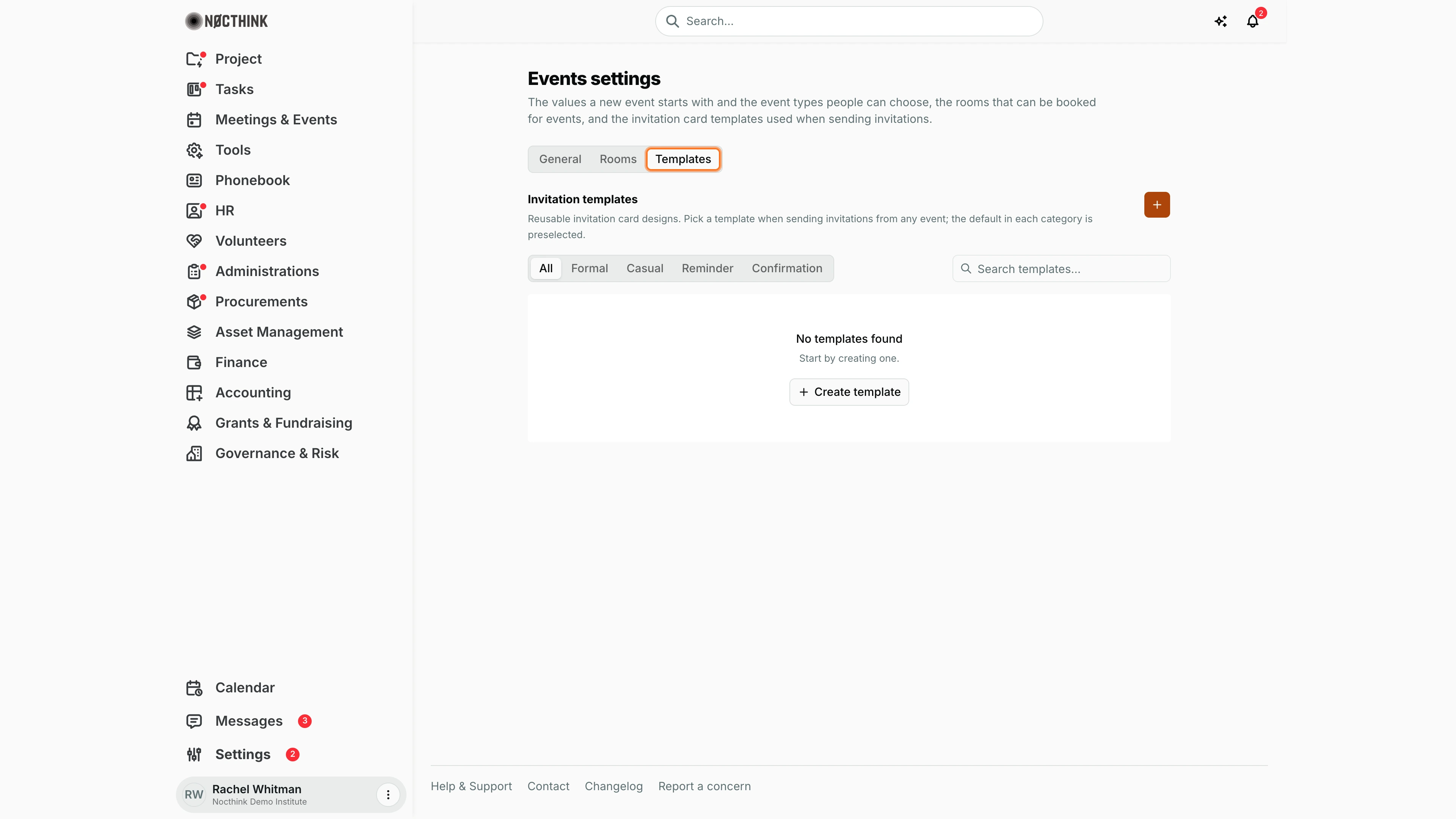
Screenshot: Rachel Whitman (Executive Director, organization owner), Nocthink Demo Institute demo data.
Invitation templates: "Reusable invitation card designs. Pick a template when sending invitations from any event; the default in each category is preselected." The switcher filters by All, Formal, Casual, Reminder and Confirmation, and the + (New template) button and Search templates… sit beside it. Each template appears as a card with a preview, name and description; its ⋯ menu has Open, Edit and Delete. The demo organization has no invitation templates yet, so the grid is empty ("No templates found" once loaded). Open leads to the template page described in Edit, review or delete a template above.
Access & permissions
- The route requires
events.update(Event Officer, Owner/Director). docs/role.md §4.5 lists Settings › Apps › Events as Owner + Event Officer. - The server checks
events.viewto read the settings andevents.updateto save them. - Rooms are edited under Asset Management, which has its own permissions.
Caveats
- A category's value is what is stored on events. Changing or deleting a value that events already use leaves those events with a type that no longer appears in the list — change only the label.
- Saving the General tab replaces the whole settings record; two people editing at the same time overwrite each other.
- Default capacity cannot be negative; 0 means no default capacity.
- Template deletion is permanent.
Limitations
- New templates are created with an empty design: only the built-in layouts (formal letter, casual card, reminder banner, confirmation ticket) show a preview, and there is no editor for the card design itself.
- The Export button on a template page is disabled.
- Rooms cannot be added or edited from this page; use Manage rooms.
- No reordering of categories other than editing the list.
Related menus
- All Events — new events start with these defaults and categories; invitations use these templates.
- Rooms — where bookable rooms are managed.
- Registration Forms — event sign-up, managed by the same role.
- Meetings — books the same rooms.