
Journal Control
Open in NocthinkModule: Accounting · URL: /accounting/journal-control · Responsible role: F.A.T Manager · Also used by: Owner/Director (full); docs/role.md gives Accounting Staff read access, but the route needs accounting.approve, so Accounting Staff can't open it today
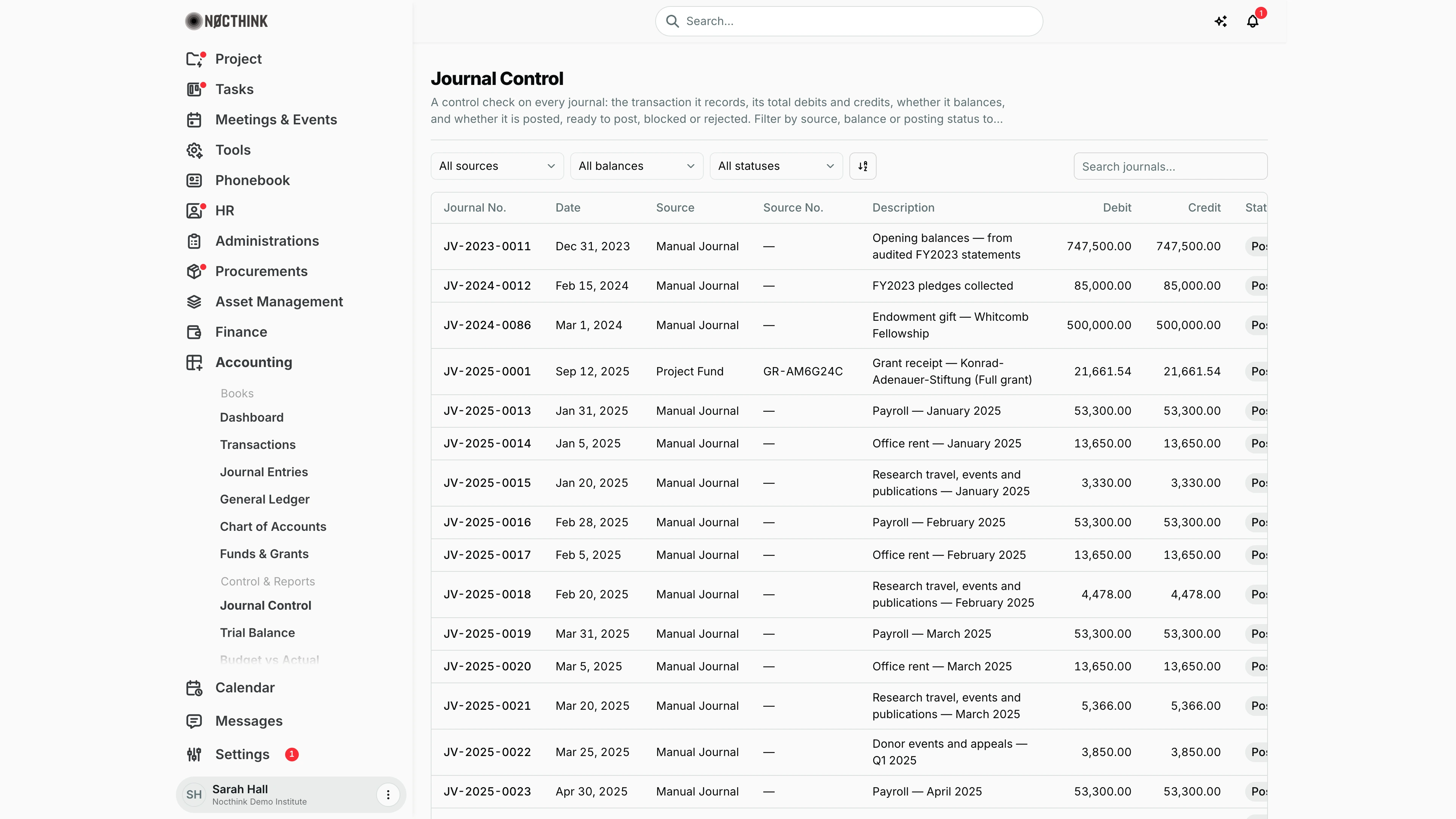
Screenshot: Sarah Hall (Finance Manager, also holds the F.A.T Manager role), Nocthink Demo Institute demo data. Status is cut off at the right edge and Balance is off-screen; scroll the table sideways to see them (every journal shown is Posted and Balanced).
Why I use this page
Journal Control is my check before posting and before closing a period. It lists each journal as a single row: where it came from, its totals, whether it balances, and whether it is posted, ready to post or blocked. From it I build the list of drafts to post or send back before I move the closing date in Period Close.
What's on the screen
- Header — the title Journal Control and a description. There are no actions; the page is read-only.
- Toolbar:
- A Sources dropdown (reads All sources when nothing is picked): Manual Journal, Donor Invoice, Purchase Invoice, Vendor Payment, Sale, Project Fund, Payroll, or a transaction type (Grant Receipt, Expense, Advance, Advance Settlement, Allocation).
- A Balances dropdown (All balances, Balanced, Unbalanced) and a Statuses dropdown (All statuses, Posted, Ready to Post, Blocked, Rejected).
- A sort/view control and Search journals…, which searches the journal number.
- The dropdowns and the search run on the server, so they cover every journal, not just the page on screen.
- Table:
- Journal No. stays in place when I scroll sideways. Date follows (
Dec 31, 2023). - Source and Source No. show where the journal came from, for example
Project Fundwith the grant numberGR-AM6G24C. - Description wraps at word boundaries and is clamped to two lines; hover over it to read the full text.
- Debit and Credit are plain numbers in the base currency's format, without a currency symbol (
21,661.54,747,500.00). - Status is the posting status. Balance is red when the journal is Unbalanced.
- Journal No. stays in place when I scroll sideways. Date follows (
- Footer — the row count and pager. The server sends 100 journals a page, ordered by journal number; the pager moves through every page.
How I …
Build my posting list
- Open Accounting → Journal Control.
- In Statuses, pick Ready to Post. These are balanced journals that haven't been posted yet.
- Note the journal numbers, then post each one from Journal Entries with Post (in the row) or Post balanced journal (on the detail page).
- If a post is refused because of a grant rule (outside the grant period, or the funder's prior approval needed), enter the reason the prompt asks for (at least 10 characters). A frozen grant or an unallowable cost can't be overridden; send those journals back to Accounting Staff.
Find journals that can't be posted
- In Statuses, pick Blocked (or in Balances, pick Unbalanced). These rows have a non-zero difference between debit and credit.
- Compare Debit and Credit to see the gap.
- Ask the preparer to fix the lines. Draft journals can be edited only through the API today.
Review postings by source before closing a period
- In Sources, pick one source, for example Payroll or Purchase Invoice.
- Check that every journal for the month shows Posted.
- When nothing is left unposted for the period, set the closing date in Period Close.
Access & permissions
- The route needs
accounting.approve(lib/domain-routes.ts), which in the seeded roles means the F.A.T Manager. Owners and Directors also pass. - The API itself needs only accounting view authority, so Accounting Staff could read the data through the API. In the UI the menu is hidden from them, even though docs/role.md marks Accounting Staff as R.
- Nothing can be changed on this page. Posting happens in Journal Entries.
Caveats
- An unposted journal is Ready to Post when it balances and Blocked when it doesn't. Rejected journals (from source flows) have their own status; they can't be posted.
- A balanced journal dated on or before the closing date still shows Ready to Post, but posting it fails with "The books are closed through …".
Limitations
- Rows don't link to their journals, and there is no post button here.
- No date-range or period filter, and no export.
Related menus
- Journal Entries — where I open and post the journals listed here.
- Period Close — set the closing date once everything for the period is posted.
- Trial Balance — confirm the posted ledger balances after the posting run.
- Exceptions — F.A.T. AI exceptions that may be holding up journals.
- Transactions — transactions that show up here as a source type.